[Skip to main content](#vessel-content)
☰ Documentation
# FAQ
Details Written by: Super User Category: [Installation / Configuration](/support/documentation/hikashop/installation-configuration) Published: 10 April 2013 Hits: 221682
- [HikaShop editions](#edition)
- [Installation and update](#install)
- [Styling and layout](#styling)
- [Products listings and product page](#listings)
- [Translations and texts](#translation)
- [Payment methods](#payment)
- [Shipping methods](#shipping)
- [Taxes](#taxes)
- [Cart and checkout](#cart)
- [Cron task](#cron)
### HikaShop editions
#### Which HikaShop edition do I need?
It depends on what you want to do: the Starter edition is free, and the Essential and Business editions add features. The [HikaShop page](/hikashop) compares them.
#### How do I hide the HikaShop footer text?
In **System > Configuration**, on the **Display** tab, set **Show footer** to **No**.
### Installation and update
#### Will I lose my settings and my data if I update, or upgrade to a commercial edition?
No. An update or an upgrade is installed like a fresh installation, from the Joomla extensions installer, and keeps everything you have. Your customized views are kept as well. The [upgrade page](/support/documentation/204-upgrade-my-version) explains it step by step, and you do not need to uninstall HikaShop first.
#### I have errors when I install HikaShop
Errors about the copy of files come from file permissions: the web server must be able to write in the folders of Joomla where HikaShop installs its files (the components, modules, plugins, language and media folders, and the `tmp` folder). The Joomla documentation explains [why an extension cannot be installed](https://docs.joomla.org/Why_can%27t_you_install_any_extensions%3F).
If the upload of the package is the problem (a size limit or a timeout on your server), upload the extracted package to the `tmp` folder of your website by FTP and use the **Install from Folder** tab of the Joomla installer.
#### I see a blank page
A blank page does not tell what is wrong. Turn on **Error Reporting** to **Maximum** in the Joomla **Global Configuration** (Server tab), reload the page and the error is displayed. If you still see nothing, look at the error log of your server, or ask your host for it.
#### Things stopped working after an update
When products do not save, do not go in the cart, or orders are not created after an update (or after you added a custom field), it is nearly always because the tables of the database could not be updated. Either the MySQL user of your website lacks the `ALTER` privilege, which your host can grant, or the server stopped the queries because of a resource limit.
Turn on the debug mode of Joomla, and turn off **Use AJAX when possible for add to cart buttons** in the **Checkout** tab of the HikaShop configuration, then reproduce the problem: a MySQL error with the query that failed is displayed. Run that query in phpMyAdmin. The [problem solving](/support/documentation/61-hikashop-compatibility-issues) page has more on it.
#### The popups do not open, or they are displayed at the bottom of the page
It comes from a conflict with your template or with another extension that loads a faulty script. Open the console of your browser (F12) to see the JavaScript error, and unpublish your extensions one by one to find the one responsible. You can also try another value for **Popup mode** in the **Display** tab of the HikaShop configuration.
#### After an installation or an update, saving the configuration says the checkout workflow is empty
The messages are *Your checkout workflow is empty*, or about invalid weight or dimension units, and the modification is ignored. It comes from your browser, which sends an old version of the page: clear its cache and cookies, or use another browser, and save again.
### Styling and layout
#### Where do I edit the CSS?
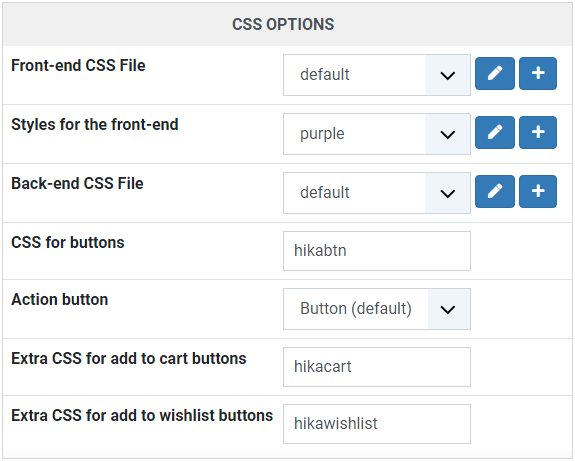
In the **CSS Options** panel of the **Display** tab of the configuration, create your own file with the **+** button next to **Styles for the front-end**. Do not edit the default front-end file, an update would not bring you its new CSS. The [CSS styling](/support/documentation/84-css-styling) page explains it and gives examples to copy.
[](/images/doc/hk/interface/config/display_css-options.png)
#### My changes in the Display tab of the configuration do not change my listings
The settings of that tab are the default values for the **new** menus and modules. The existing ones keep their own options, which you find in the HikaShop options of the menu or of the module (**Display > Content menus** and **Display > Content modules**). The option **Inherit** takes the value of the configuration instead.
A categories listing menu only handles the display of the categories. The products it shows are handled by its **Associated modules**: click on that link in the options of the menu to reach them.
#### How do I change the background color of the boxes of a listing?
In the HikaShop options of the menu or of the module that displays them. If you want to do it in CSS, you need `!important`, as the color of the options is written on the element:
```
.hikashop_subcontainer {
background-color: red !important;
}
```
#### How do I change a view of HikaShop?
In **Display > Views**, filter by template, then click on the name of the file to edit: HikaShop saves your version as an override in your template, so it is kept by the updates. You will find HTML with some PHP to display the data. The [customize the display](/support/documentation/153-customize-the-display#layout) page explains how to do it, with the safe ways to change a layout.
#### How do I add a tab to the tabular view of the product page?
It is done in the `show_tabular` view, with an optional custom field to fill the tab for each product. It is explained in [Manage tabs in show\_tabular view](/support/documentation/297-manage-tabs-in-show-tabular-view).
#### The links of my HikaShop module give a 404 error when the SEF URLs are on
Go to **Menus > HikaShop hidden menus** and click on the **Rebuild** button. If it does not fix it, check that the **Menu** option of your module is a HikaShop categories listing menu and that this menu is accessible to the public.
### Products listings and product page
#### The pagination does not appear on my products listing
The **Random** option of the menu (or of its associated module) is on: the products change at each display, so there are no pages. Turn it off to get the pagination.
#### How do I display the quantity field next to the add to cart buttons on listings?
Set the **Quantity field** option of the HikaShop options of the menu or module. For all the new ones, the default value is in the **Display** tab of the configuration, in **Add to cart on listings**. No code is needed.
#### The add to cart button is not there
One of these is the cause:
- the **Catalogue mode** option is on (**Display** tab, **General display options**),
- the product has no stock set (an empty quantity means unlimited, 0 means out of stock),
- the product has no price and **Display 'add to cart' button for free products** is off,
- the **Display 'Add to cart' button** option is off: it is in the default parameters for products in the **Display** tab, and in the HikaShop options of your menus and modules for the existing ones.
#### How do I change the size of the thumbnails?
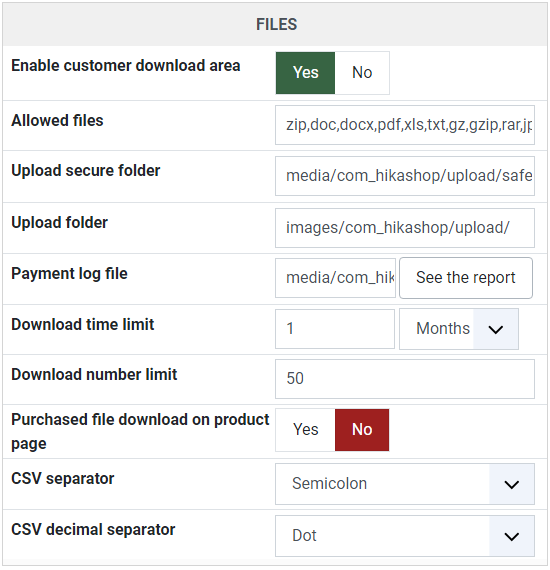
In the HikaShop options of a menu or a module, the image width and height are the sizes of the thumbnails of that listing. When they are empty, the values of the **Files** tab of the configuration are used. The default image of the products and of the categories is set in the same tab.
[](/images/doc/hk/interface/config/main_files.png)
#### The currency symbol is not displayed in the prices
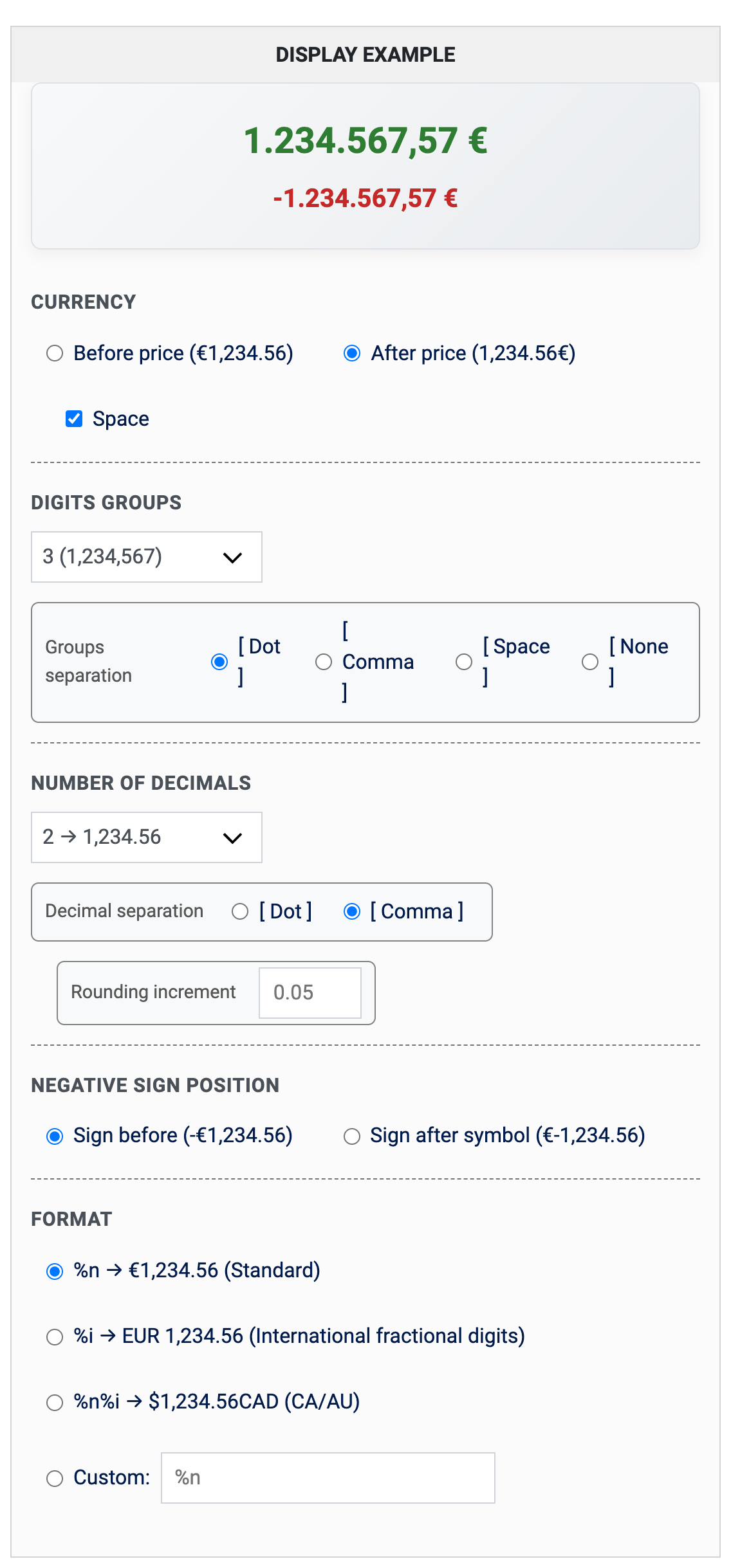
An extension installed recently may hide it: unpublish it to check. Otherwise, in **System > Currencies**, edit your currency. In the **Currency** section of the display options, choose **Before price** or **After price** and the **Space** option, or add a space after the symbol in the **Symbol** field. The same screen sets the separator of the digits groups, the number of decimals and the decimal separator.
[](/images/doc/hk/interface/faq/faq_currency.png)
#### The custom fields of my products do not appear on the front end
Check that:
- the field is in the right table: **Item** for the fields shown on products (the variants and the cart), **Product** for the fields filled in the product form,
- the **Front-end** option of the field is on,
- on listings, **Display custom item fields** is on in the default parameters for products of the **Display** tab, and in the HikaShop options of your menus and modules.
#### The votes and the comments are not displayed
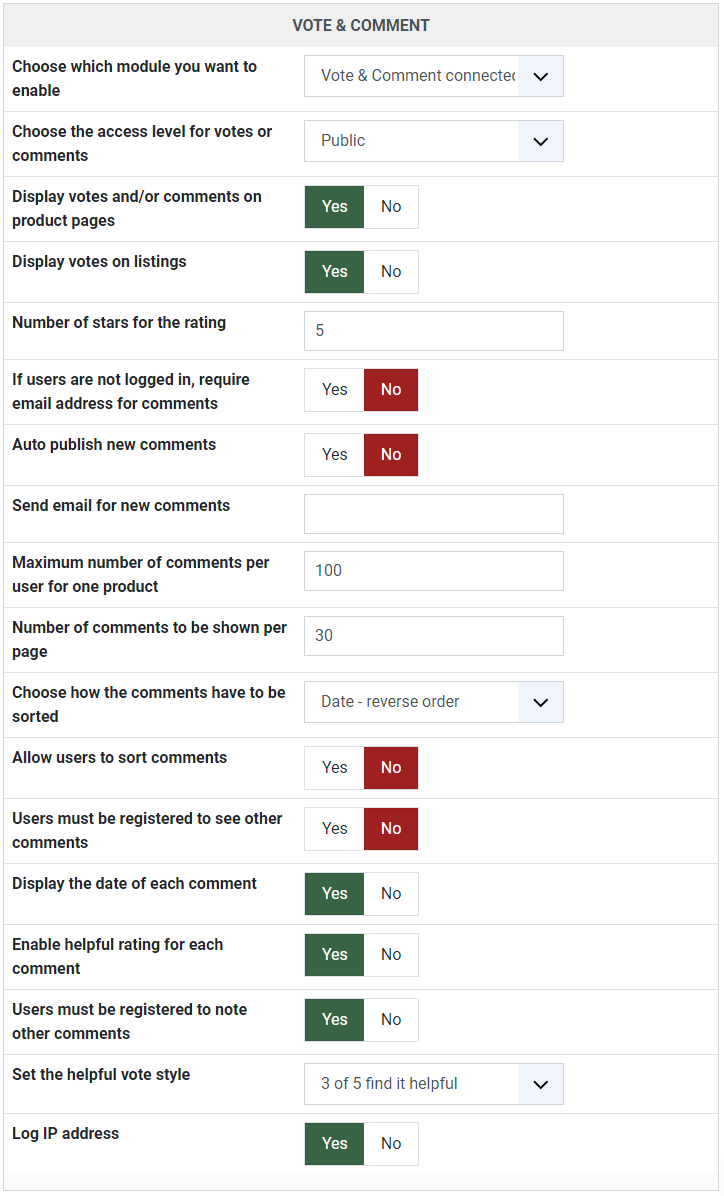
Turn on **Display votes and/or comments on product pages** and **Display votes on listings** in the **Display** tab, and in the vote and comment options of the **Features** tab, choose which module you enable (*Vote & Comment* for example). If the stars are missing, clear the cache of your browser. They also disappear when your own CSS file was copied from an old version of HikaShop: take the rules of the stars from the current front-end file.
[](/images/doc/hk/interface/config/features_vote-comment.png)
#### The product code is displayed twice, or I want to hide it
It is shown only when **Display product code** is on in the **Display** tab. Turn it off, or hide it in CSS with `.hikashop_product_code_main { display: none; }`. If it is displayed in spite of the setting, your template may be changing the HTML of the page.
#### I sell packs, how do I change the "each" text of the price?
Since HikaShop 6.6.0, enter your text in the **Price unit label** setting of the product form. It replaces the "each" text of that product on the listings and on its page, and its variants use the label of their main product when they do not have one. In a multilingual website, enter the name of a translation key (`PER_PACK` for example) and create it in **System > Languages**, in the override area of each language.
### Translations and texts
#### How do I translate HikaShop into my language?
HikaShop installs in English and gets the other languages from its translation server: see the [Languages](/support/documentation/10-languages) page to install yours, and to share your own translation with the other users.
#### How do I change a text of HikaShop, like "Add to cart"?
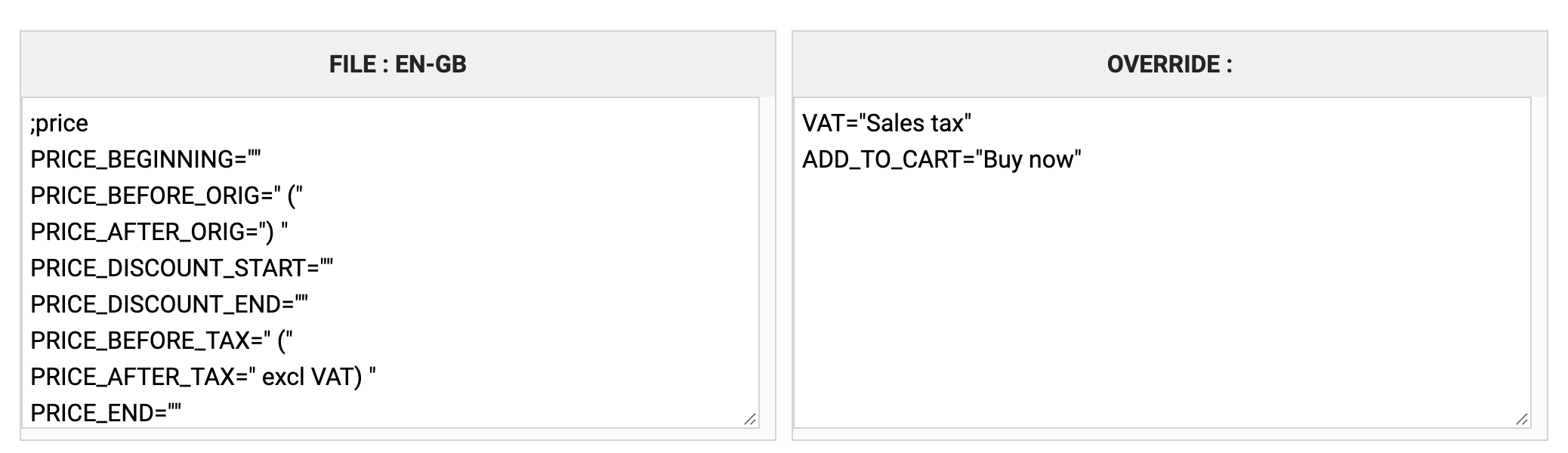
Do not edit the language file itself: an update would erase your changes. In **System > Languages**, click on the **Edit** button of your language, find the text in the file on the left, copy its line into the **override** area on the right, change the text there and save. For example, copy `VAT="VAT"` and write `VAT="Sales tax"`.
[](/images/doc/hk/interface/faq/faq_language_override.png)
#### How do I translate the content of my shop (products, categories) with FaLang?
Install FaLang first, then HikaShop (or install HikaShop again over the existing installation) so that the content elements of HikaShop are copied in the FaLang folder. If they are not, copy the XML files of `administrator/components/com_hikashop/falang` into `administrator/components/com_falang/contentelements`.
#### How do I change the name "Product category"?
In **Products > Categories**, click on **Root** in the explorer, click on the edit button of **Product category**, change the name and save.
#### How do I change the text of an e-mail?
In **System > Emails** (Business edition), click on the e-mail, and change its text. You can also unpublish an e-mail there. The [e-mail edition](/support/documentation/25-hikashop-email-form) page explains the editor.
#### How do I change the text of the last button of the checkout?
Override the text `HIKA_NEXT` in the override area of your language file as explained above, or edit the view of the checkout step for a button that depends on the step.
### Payment methods
#### I do not see any payment method on the checkout, or not all of them
Check each of these:
1. The payment plugins are installed and published.
2. They are configured: edit each one and save its configuration.
3. Your template can display the messages of Joomla: see the [problem solving](/support/documentation/61-hikashop-compatibility-issues) page.
4. The **Payment** view is in the checkout workflow of the configuration.
5. If you restricted a method to zones, the address you use is inside them.
6. If you restricted a method to shipping methods, the shipping method you chose is in its list.
7. The currency you use is supported by the payment gateway: some accept only a few. Do not change the code of a currency, the plugins would not recognize it: use the **Format** and **Symbol** fields to change how it is displayed.
8. If you selected a currency or a shipping method in the options of the payment method, it is displayed only when that one is selected during the checkout. Usually nothing should be selected: hold the **Ctrl** key and click on a selected value to unselect it.
9. The access of the plugin may be missing in the database: edit the plugin in the Joomla plugins manager and save it.
10. With HikaSerial subscriptions, check the **Make recurring optional** setting of HikaSerial: when it is off, only the recurring payment methods are displayed if a product with a plan is in the cart.
### Shipping methods
#### I do not see any shipping method on the checkout
Check each of these:
1. The manual shipping plugin is installed and published.
2. You created shipping methods in **System > Shipping methods**.
3. Their restrictions cover every case: with only a method for orders up to 20 kg, an order of 25 kg gets none.
4. Your template can display the messages of Joomla (see the payment methods above).
5. Your products have a weight. Without one, they are considered virtual goods and no shipping is needed.
6. The **Shipping** view is in the checkout workflow of the configuration, and it is not set to **read only**, which preselects the first method and hides the others.
7. The address is inside the zones of the shipping method, if you restricted it.
8. The units of the configuration are valid ones, and the units of your products are the first one of the list: HikaShop converts all the dimensions into the first unit and keeps only a few decimals, so millimeters become 0 when the first unit is the meter. Put `mm,m,dm,cm` in the unit option if you use millimeters.
9. With a shipping plugin that asks the carrier for its rates (UPS, USPS, FedEx...), each product has its width, height, length and weight, and you test with a customer who already has a shipping address.
10. If you set a warehouse on a method or a product, the same warehouse is on both, or the method has none.
### Taxes
#### How do I set up the taxes?
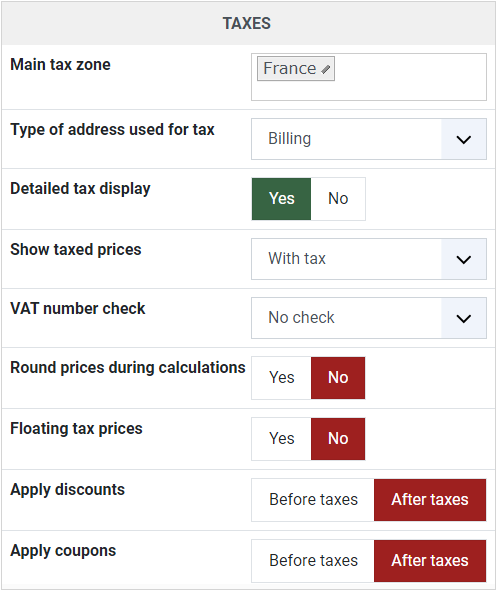
In **System > Taxes**, create a tax category (a default one exists), then a rate for each tax (a name and a percentage), and finally the tax rules that tie a category, a rate and a zone, and set the tax category of your products. The [taxation rules](/support/documentation/37-hikashop-taxation-listing) page explains it, and [Europe VAT rules](/support/documentation/287-europe-vat-rules) covers the European rules.
[](/images/doc/hk/interface/config/main_taxes.png)
#### My taxes are not displayed
The causes are:
1. The states or the countries of your tax rules are unpublished.
2. You created new zones without adding countries or states in them: nothing links the rules to the addresses.
3. The **Main tax zone** of the configuration is a zone you have no rule for: the taxes then appear only once the customer gives an address.
4. The country and state fields are unpublished, or their type is not *zone*.
5. The address used on the checkout is outside the zones of your rules.
6. The products have no tax category.
#### How do I show, or hide, the taxes before the checkout?
Everything depends on the **Main tax zone** of the **Main** tab of the configuration. Set it inside your taxed zone to show the taxes all the time, and outside to display them only when the customer gives an address during the checkout.
### Cart and checkout
#### The products I add to the cart disappear, or I see the cart of someone else
A cache stores the pages with the cart in it. Turn off, one by one:
- the cache of the Joomla **Global Configuration** (System tab),
- the Joomla **System - Page Cache** plugin,
- the cache option of your template, if it has one,
- the cache of your host: a proxy like Varnish, or a CDN, can cache the pages. Your host can tell you.
#### How do I display the cart module everywhere but on the checkout?
Set **Force a menu on the checkout** in the **Checkout** tab of the configuration to a menu of your choice, and in the options of the cart module (Joomla module manager), unselect that menu in **Menu Assignment**.
#### How do I set an unlimited stock for a product?
Leave the **Quantity** field of the product empty.
#### How do I set up a guest checkout?
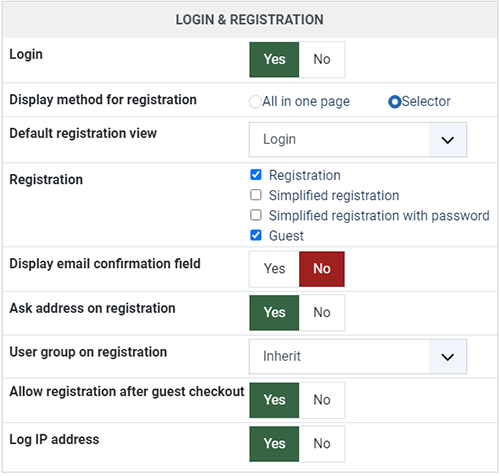
In **System > Configuration**, on the **Checkout** tab:
- keep the **Login** and **Address** views in the checkout workflow,
- set **Registration** to **Guest**: the form becomes a guest form and no Joomla account is created (Essential and Business editions),
- turn off **Login** if you do not want the login form next to it,
- to offer both a guest checkout and a registration, set **Display method for registration** to **Selector**, so that **Registration** accepts several modes.
[](/images/doc/hk/interface/config/checkout_login-registration.png)
#### How do I change the steps of the checkout?
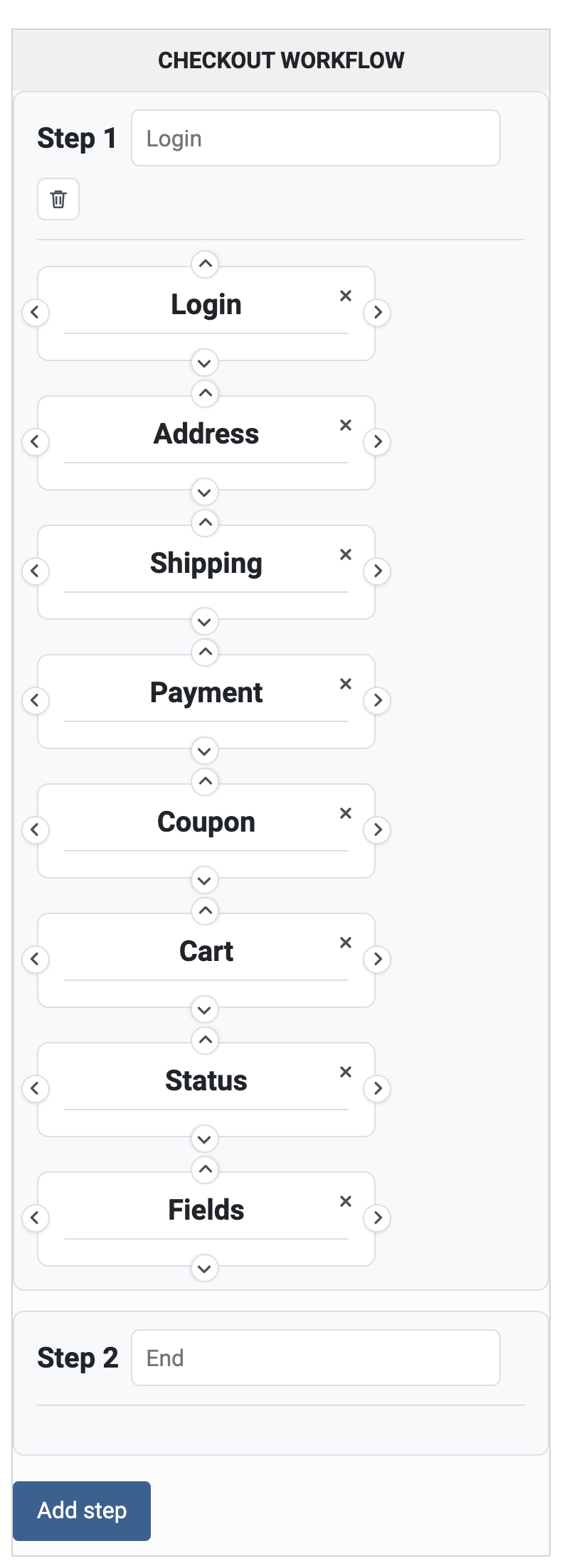
In the **Checkout** tab of the configuration, in the checkout workflow, drag and drop the elements between the steps and use **Add step** for more pages. The [tutorial](/support/documentation/277-configure-your-checkout-workflow) goes through it.
[](/images/doc/hk/interface/config/checkout_workflow.png)
#### The customer cannot finalize an order
Almost always, no shipping method or no payment method is displayed: see the two lists above.
#### How do I sell products by width and length?
Install and publish the **HikaShop Custom Quantity** plugin, and create two custom fields of the **Item** table named `width` and `length` in **Display > Custom fields**, published for the front end.
### Cron task
#### Is my cron task working?
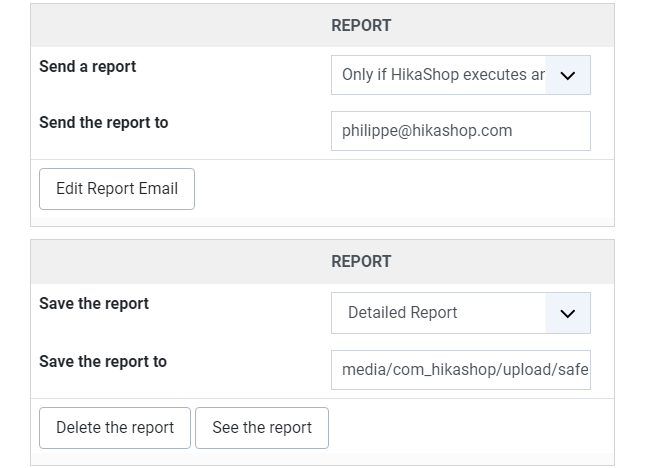
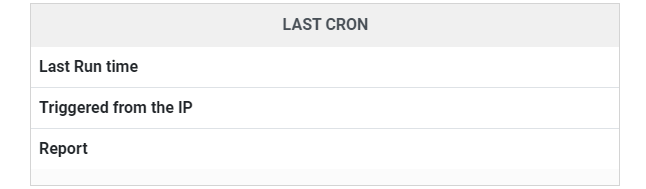
The **Cron** tab of the configuration tells you. Its **Report** area can e-mail you a report at each run (turn it on for your tests only), and **Last cron** shows when it ran last, who triggered it, and its latest report.
[](/images/doc/hk/interface/config/cron_report.png)
[](/images/doc/hk/interface/config/cron_last-cron.png)
#### My cron task does not work
The [cron task](/support/documentation/55-hikashop-cron-task) page explains how to set it up. If it still does not run, check that:
- your cron URL opens in your browser: click on it in the configuration,
- nothing redirects it: an SEF component such as sh404sef may send it to a SEF URL, which breaks it. Allow the URL in the component, or write the SEF URL in the cron field,
- nothing blocks an anonymous visitor: an `.htaccess` password, a firewall or security extension (RSFirewall, for example, with its DoS protection), or a CDN like Cloudflare,
- the servers that trigger your website are not limited by a number of connections per IP,
- if the cron runs on your own server, look at its own report. Calling a small PHP file of your website, which opens the cron URL, is a workaround that sometimes helps.
[](#top)