[Skip to main content](#vessel-content)
☰ Documentation
# PostFinance user space configuration
Details Written by: Majri Category: [Payment plugins](/support/documentation/hikashop/payment-plugins) Published: 08 February 2016 Hits: 5928
| - [Description](#description) - [Global transaction parameters](#transaction) - [Global security parameters](#security) - [Payment page](#payment) - [Data and origin verification](#origin) - [Transaction feedback](#feedback) |  |
|---|---|
### Description
This screen will help you to understand how to configure your PostFinance user configuration space via "PostFinance->Configuration->Technical information", so that it will work properly with your shop.
### Global transaction parameters

- **Processing for individual transactions**: You should always set it to **Always online(Immediate)**.
### Global security parameters
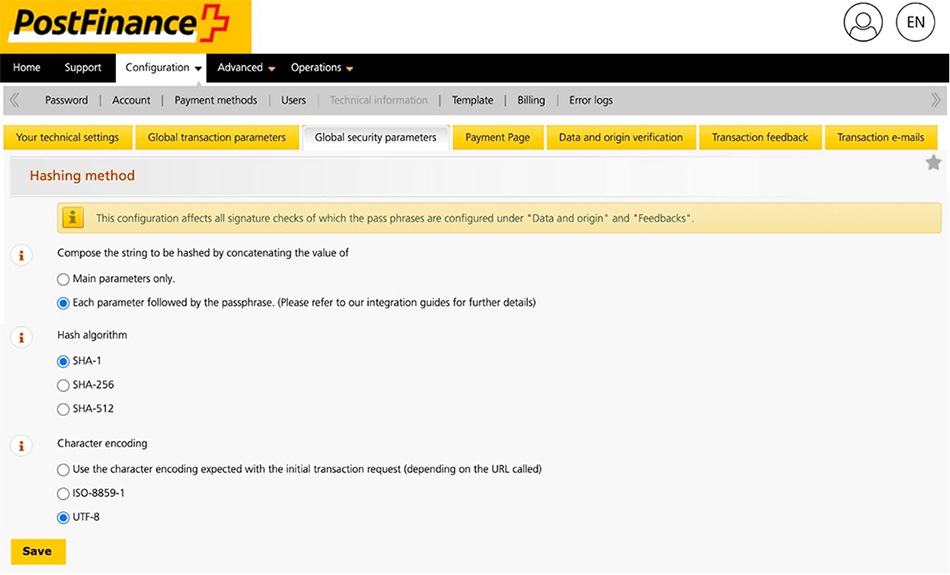
- You should make sure that the **Hash algorithm** option is set to SHA-1.
### Payment page
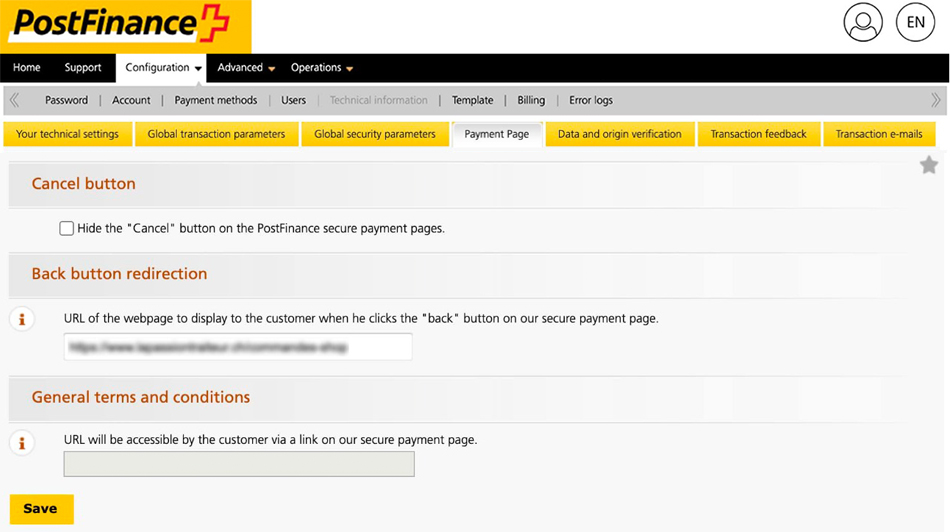
In that page you'll be able to choose :
- If you want to display a "Cancel" button through your payment page.
- On which page of your shop you want your customer to be redirected if he press the "Back" button.
### Data and origin verification
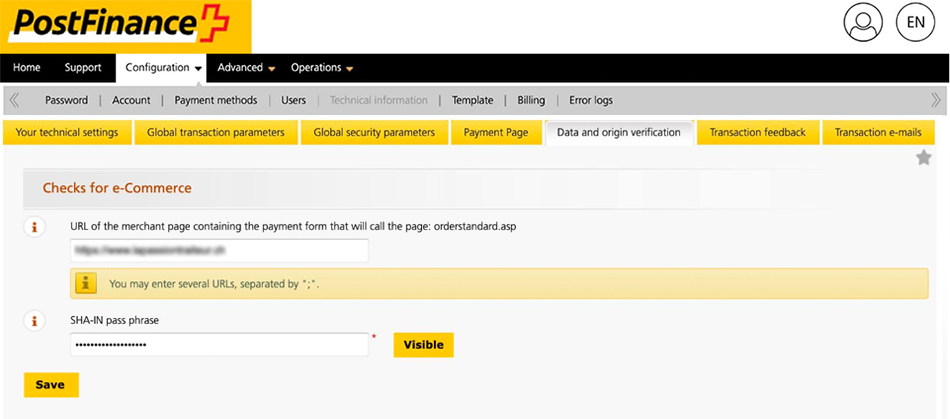
- **URL of the merchant page**: You should set that option to the URL of your shop, else customers that are redirected from your shop to the PostFinance payment platform won't be accepted.
- **SHA-IN pass phrase**: You'll have to enter a SHA-IN pass phrase in that field, and also set the "SHA-IN" option of your Hikashop PostFinance payment method to that SHA-IN.
### Transaction feedback
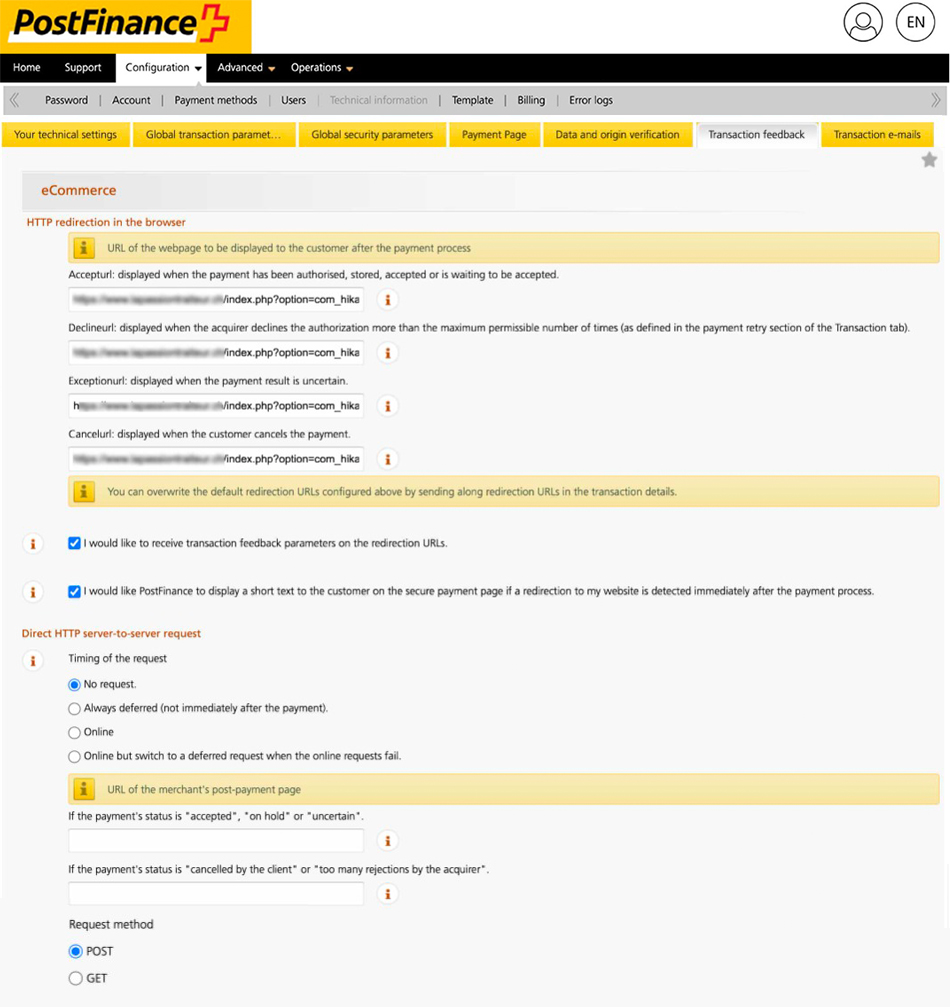
- **AcceptURL**: You'll have to set it to the notify URL that can be found through the "Return url" option of your Hikashop PostFinance payment method.
- **DeclineURL**: You'll have to set it to the notify URL that can be found through the "Return url" option of your Hikashop PostFinance payment method.
- **ExceptionURL**: You'll have to set it to the notify URL that can be found through the "Return url" option of your Hikashop PostFinance payment method.
- **CancelURL**: You'll have to set it to the notify URL that can be found through the "Return url" option of your Hikashop PostFinance payment method.
- **Direct HTTP server-to-server request**: We won't need any server-to-server request so you should set it to "No request".
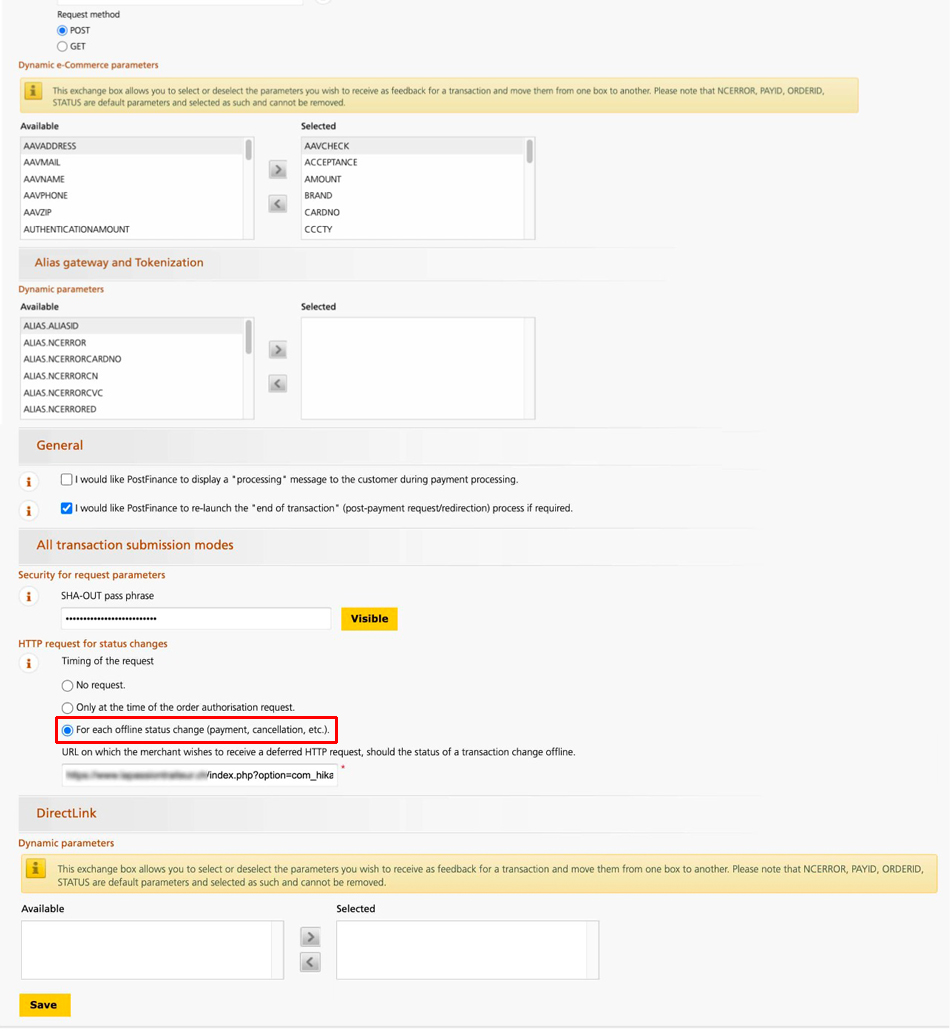
- **SHA-OUT pass phrase**: You'll have to enter a SHA-OUT pass phrase in that field, and also set the "SHA-OUT" option of your Hikashop PostFinance payment method to that SHA-OUT.
- **Timing of the request**: We only need it for offline status change, so you should set it to **for each offline status change**.