[Skip to main content](#vessel-content)

#  Set up a Joomla shop with the Vessel template

Details    Written by: Administrator    Category: [Templates](/support/documentation/templates)     Published: 02 November 2026     Hits: 221

This guide takes a Joomla website from nothing to a complete shop with HikaShop and the [Vessel template](https://www.hikashop.com/marketplace/product/306-vessel-template.html): installing both, setting up the template, building the home page with modules, creating the menu and adjusting the HikaShop settings that matter for the look of the shop. Every screenshot was taken on a real site while following these steps. You can see the result on the [Vessel demo](https://vessel.hikashop.com/).

[![The top of the home page built in this guide](/images/doc/templates/vessel/00-home-top.jpg)](/images/doc/templates/vessel/00-home-top.jpg)

- [Before you start](#before)
- [1. Install HikaShop](#hikashop)
- [2. Install Vessel and make it the default template](#vessel)
- [3. Set up the template](#settings)
- [4. Create the menu](#menu)
- [5. Understand the module positions](#positions)
- [6. Header and footer modules](#header)
- [7. Build the home page](#home)
- [The hero banner](#home_hero)
- [The category tiles](#home_categories)
- [The product grid](#home_featured)
- [The editorial split](#home_editorial)
- [The materials strip](#home_materials)
- [The journal row](#home_journal)
- [8. HikaShop settings for the look of the shop](#hikashop_settings)
- [9. Before you sell](#sell)
- [10. Your own CSS](#css)
- [Questions](#faq)

### <a name="before"></a>Before you start

- **Joomla 6** and **PHP 8.1** or later. Vessel is a Joomla 6 template.
- **HikaShop 6.4.0** or later. Vessel works with the Starter, Essential and Business editions: it styles what HikaShop displays and adds nothing that needs a given edition. A few modules mentioned below (the filters) only exist in HikaShop Business; this is said where they come.
- The two packages, from your downloads on our website: **com\_hikashop\_\*.zip** (HikaShop) and **tpl\_vessel.zip** (the Joomla package of Vessel; vessel.zip is the WordPress theme).
- If you are changing the template of a site that is already online, make a backup first, and do the work on a copy of the site if you can.

In this guide the shop is called Atelier Lumen. The screenshots of the home page sections show the products of our demo shop: yours will show your own categories and products.

### <a name="hikashop"></a>1. Install HikaShop

1. In the Joomla administrator, open **System &gt; Install &gt; Extensions**, and drop the HikaShop zip in the **Upload Package File** tab.
2. When it is installed, HikaShop opens its installation assistant. Choose:
- **Shop access**: keep **Menu item for products** and **Menu item for categories** (they add the Shop menu items you will use in step 4). Leave **List of categories in a module** unselected: with Vessel you place your modules yourself.
- **Products layout**: **Grid**, the layout Vessel styles for listings.
- **Location**: your country and the address of your shop.
- **Main parameters**: your currency, and **Install European taxes** if you sell in the European Union.
- **Sample data**: Yes if you want a few categories and products to look at while you set up the template (they have no pictures; you can delete them later), No if you add your own products straight away.
3. Click **Save &amp; go create your first product**.

[![The HikaShop installation assistant](/images/doc/templates/vessel/01-hikashop-wizard.jpg)](/images/doc/templates/vessel/01-hikashop-wizard.jpg)

More about the installation: [Install / Update HikaShop](https://www.hikashop.com/support/documentation/59-hikashop-how-to-install.html). To add your products: [Create your first product](https://www.hikashop.com/support/documentation/256-create-your-first-product.html). Give your products and your categories a picture: the home page and the listings of Vessel are built around pictures.

### <a name="vessel"></a>2. Install Vessel and make it the default template

1. In **System &gt; Install &gt; Extensions**, drop **tpl\_vessel.zip** in the **Upload Package File** tab. The message "Installation of the template was successful" appears.
2. Open **System &gt; Site Template Styles** and click the star in the **Default** column of the line whose **Template** column says **Vessel**. You can rename this style when you edit it.

[![Vessel is installed](/images/doc/templates/vessel/02-vessel-installed.jpg)](/images/doc/templates/vessel/02-vessel-installed.jpg)

[![The Vessel style is the default one](/images/doc/templates/vessel/03-template-styles.jpg)](/images/doc/templates/vessel/03-template-styles.jpg)

**If your site now looks empty:** it is expected. Each template has its own module positions, and the modules of your site (the main menu, the login form...) are still in the positions of your previous template, which Vessel does not have. Steps 4 to 7 put them in Vessel's positions.

### <a name="settings"></a>3. Set up the template

Click the Vessel style in **System &gt; Site Template Styles**. Its settings are in three tabs: **Style**, **Layout** and **Home page effects**.

#### Style: colours and fonts

- **Style preset**: 15 ready-made looks (colours and fonts together). The preview on the right shows the one you pick. You can try them all on the [Vessel demo](https://vessel.hikashop.com/) with its "Use your own style" button.
- **Custom**, the last choice of the list, shows the fonts and colours fields so that you set your own: a **Headline font** and an **Interface font** (Google Fonts), and the five colours, **Ink** for the text, the footer and the buttons, **Paper** for the page background, **Bone** for the alternate sections, **Accent** for the stars and highlights, and **Line** for the borders. A dark background works too: the HikaShop and Joomla boxes follow it.
- **Fonts served by this site**: Yes downloads the two fonts once to your site (images/vessel-fonts/), so your visitors' browsers never contact Google. Keep it on Yes.

[![Style preset and its preview](/images/doc/templates/vessel/04-style-preset.jpg)](/images/doc/templates/vessel/04-style-preset.jpg)

[![The Custom preset: fonts and colours](/images/doc/templates/vessel/05-style-custom.jpg)](/images/doc/templates/vessel/05-style-custom.jpg)

#### Layout: logo, header and footer

- **Product gallery: thumbnail position** and **thumbnail size**: where the small pictures of a product sit around its main picture on the product page (below, above, left, right, stacked or in a grid).
- **Announcement bar text**: a line shown above the header on every page, for example your delivery conditions. For links or richer content, leave it empty and publish a module in the **announcement** position instead.
- **Show brand / logo**, **Logo**, **Brand text**: your logo picture, or your shop's name written in the headline font when there is no logo file. Without either, the template shows its own "Maison Vessel" mark: set one of them.
- **Tagline**: shown under the logo in the footer.
- **Favicon**: the icon of the browser tab (SVG, PNG or ICO, square).
- **Header layout**: the menu on the left and the logo in the middle, or the logo on the left and the menu in the middle. **Logo size**: its height in the header.
- **Footer text**: the line at the very bottom of every page.
- **Header stays at the top when scrolling**: the header stays at the top of the screen when the visitor scrolls. **Back to the top button**: a button to go back up on long pages.

[![The Layout tab](/images/doc/templates/vessel/06-layout.jpg)](/images/doc/templates/vessel/06-layout.jpg)

[![The announcement bar, the menu and the brand text in the header](/images/doc/templates/vessel/07-header-result.jpg)](/images/doc/templates/vessel/07-header-result.jpg)

#### Home page effects

Each section of the home page can appear with a short animation when the visitor scrolls to it: choose the effect (or **No effect**) and a delay for each section. **Reveal duration** is how long the animation lasts, **Reveal threshold** how much of a section must be visible before it starts. A number written as `<span class="vessel-count">42</span>` in a module counts up from zero when it comes into view.

[![The Home page effects tab](/images/doc/templates/vessel/08-effects.jpg)](/images/doc/templates/vessel/08-effects.jpg)

Click **Save &amp; Close**.

### <a name="menu"></a>4. Create the menu

The menu items decide the pages of your shop and their addresses. Open **Menus &gt; Main Menu**. The HikaShop assistant already added a categories listing and a products listing there. Add the pages a shop needs with **New**, **Menu Item Type: Select**, then **HikaShop**:

- **Categories listing**: your shop's entrance, the tiles of your categories. Title it "Shop" and give it the alias "shop" (the alias is its address).
- **Products listing**: all your products, or the products of one category (set in its **Products Options** tab). Title it "All products", alias "products".
- **Checkout**: the cart and the checkout.
- **User control panel**: the customer's account (orders, addresses, downloads). Title it "My account".

[![The HikaShop menu item types](/images/doc/templates/vessel/09-menu-item-type.jpg)](/images/doc/templates/vessel/09-menu-item-type.jpg)

[![The main menu of the shop](/images/doc/templates/vessel/10-menu-items.jpg)](/images/doc/templates/vessel/10-menu-items.jpg)

The **Home** item stays the one with the house in the **Home** column: Vessel shows the home page sections (step 7) on that page only. Open it, and in its **Page Display** tab set **Show Page Heading** to **Hide**: otherwise a big "Home" title appears under your home page sections. Keep its type, Featured Articles: with no featured article it shows nothing, and your modules make the page.

[![Hide the page heading of the home page](/images/doc/templates/vessel/11-home-page-heading.jpg)](/images/doc/templates/vessel/11-home-page-heading.jpg)

The listing menu items have many display options (columns, number of products, ordering, what each product box shows): see [Content menu Edit](https://www.hikashop.com/support/documentation/47-hikashop-menus-form.html).

### <a name="positions"></a>5. Understand the module positions

A module appears where its **Position** says. Vessel has these positions:

| Position | Where | What to put there |
|---|---|---|
| announcement | The bar above the header | A Custom module, if the Announcement bar text setting is not enough |
| topbar | A thin bar above the header | The language switcher, the HikaShop currency switcher |
| menu | The header | The Main Menu module |
| logo | The header, instead of the logo | Rarely needed: the Layout tab sets the logo |
| header-icons | The right of the header | The HikaShop cart module |
| search | The right of the header | The Smart Search module |
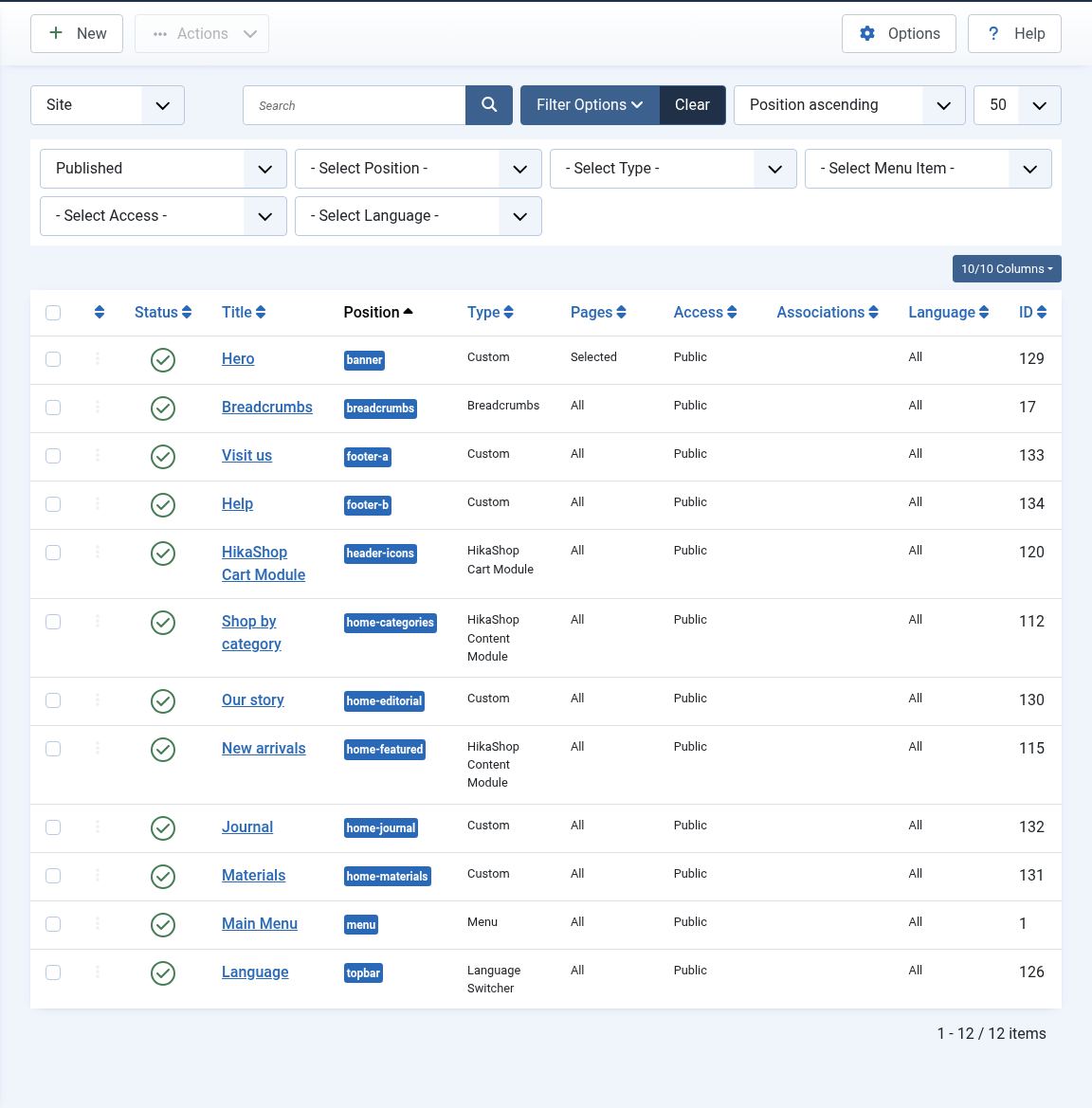
| banner | Under the header, full width, **on every page it is assigned to** | The hero banner of the home page |
| home-categories, home-featured, home-editorial, home-materials, home-journal | The sections of the home page, in this order, **on the home page only** | See step 7 |
| breadcrumbs | Above the content, on the other pages | The Breadcrumbs module |
| sidebar-left, sidebar-right | Columns beside the content, on the other pages | For example the HikaShop filters (Business) on the listings |
| main-top, main-bottom | Above and under the content | Anything specific to a page |
| bottom-a, bottom-b | Full width bands above the footer | A newsletter form, reassurance blocks |
| footer-brand | The first column of the footer | Empty by default: it shows your logo and tagline |
| footer-a, footer-b, footer-c, footer-d | The four other columns of the footer | Menus, contact details |
| footer-bottom | The last line of the footer | Empty by default: it shows the Footer text setting |

Two things to know about Vessel's positions:

- In the **Position** list of a module, type the name of the position between brackets, for example **\[menu\]**, and pick the line that ends with **(Vessel)**. Other templates installed on your site show their own positions in the same list.
- Vessel displays the modules without the frame Joomla usually puts around them, so their **title is not shown**. When you want the title of a module displayed (the "New arrivals" title of a product grid, the "Help" title of a footer column), open its **Advanced** tab and set **Module Style** to **html5**. Vessel styles these titles.

[![Pick the position of Vessel in the list](/images/doc/templates/vessel/13-module-position.jpg)](/images/doc/templates/vessel/13-module-position.jpg)

[![Module Style html5 shows the title of the module](/images/doc/templates/vessel/18-module-style-html5.jpg)](/images/doc/templates/vessel/18-module-style-html5.jpg)

### <a name="header"></a>6. Header and footer modules

Open **Content &gt; Site Modules**.

1. **Main Menu**: set its position to **menu**. Vessel turns it into the header menu, and into a menu button on phones.
2. **HikaShop Cart Module**: set its position to **header-icons** and publish it. It shows the cart icon in the header, with the number of items in the cart as a badge beside it.
3. **Breadcrumbs**: position **breadcrumbs** (the position has the same name as in Joomla's default template, so it may already be right).
4. The modules you do not want any more (the Login Form of Joomla's sample content, the HikaShop modules installed but not used), unpublish them or leave them in no position: in **sidebar-left** or **sidebar-right** they show beside the content of every page.
5. For the footer columns, add **Menu** modules (a menu with your information pages: delivery, returns, terms and conditions, contact) or **Custom** modules (your address, your opening hours) in the **footer-a** to **footer-d** positions, with the Module Style **html5** so their title shows.

[![The Main Menu module in the menu position](/images/doc/templates/vessel/12-module-main-menu.jpg)](/images/doc/templates/vessel/12-module-main-menu.jpg)

[![Two Custom modules in the footer-a and footer-b positions](/images/doc/templates/vessel/25-footer-dark.jpg)](/images/doc/templates/vessel/25-footer-dark.jpg)

Here are the two footer modules of the screenshot. Paste each in a Custom module, with the editor in code mode (see [the hero banner](#home_hero)):

```
<p>12 rue des Artisans<br>69002 Lyon, France</p>
<p>Tuesday to Saturday, 10am to 7pm</p>
```

```
<ul>
  <li><a href="index.php/checkout">Your cart</a></li>
  <li><a href="index.php/my-account">Your orders</a></li>
  <li><a href="index.php/products">All products</a></li>
</ul>
```

### <a name="home"></a>7. Build the home page

The home page of Vessel is a stack of sections, each one a module position: **banner**, **home-categories**, **home-featured**, **home-editorial**, **home-materials** and **home-journal**. A section without a module is not shown, so you can use only some of them. Two are HikaShop modules that show your categories and products and update by themselves; the four others are Custom modules with your own text and pictures, written in HTML with Vessel's classes. Their code is given below: replace the texts, the pictures and the links with yours.

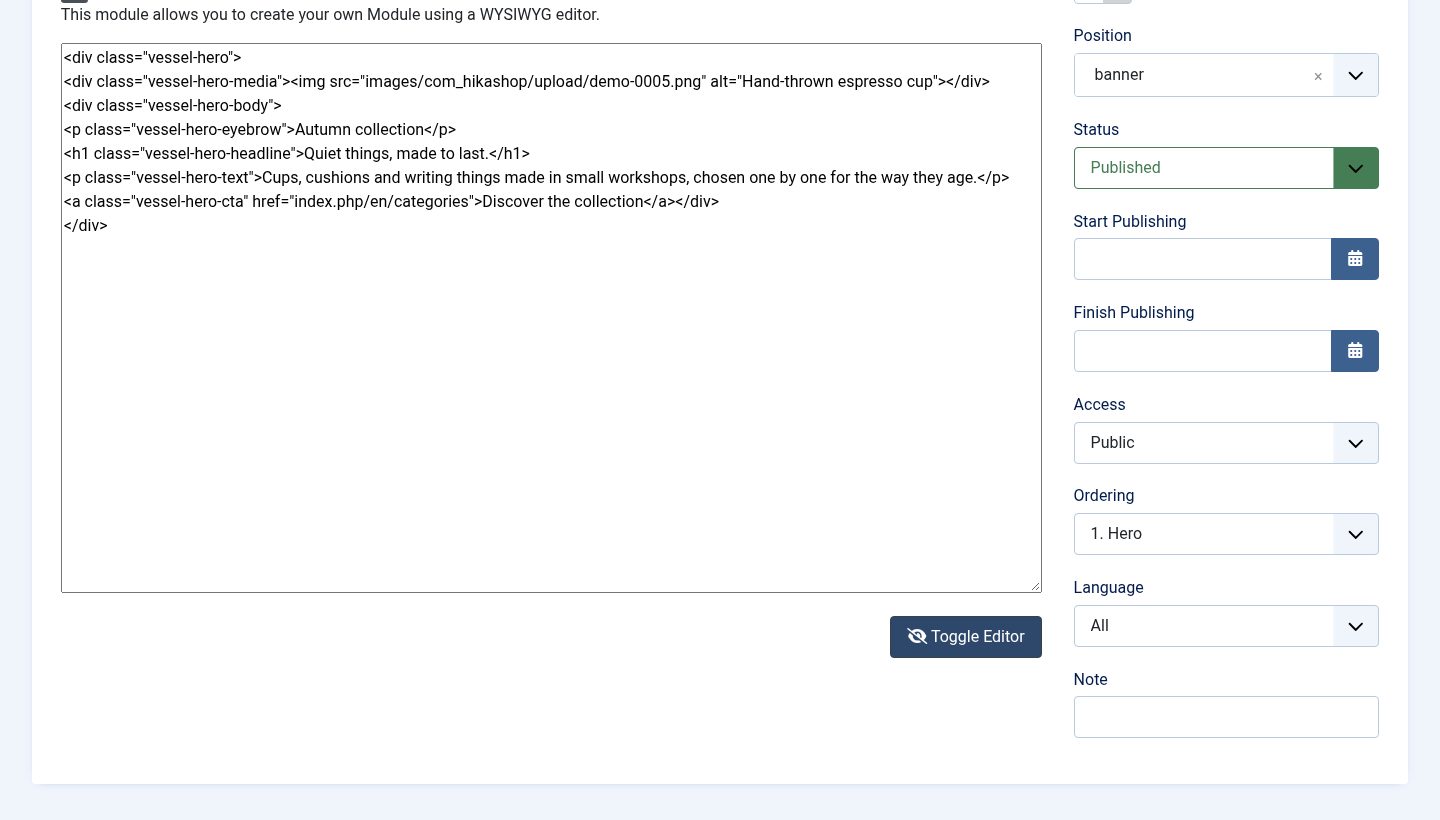
**How to paste HTML in a Custom module:** **Content &gt; Site Modules &gt; New &gt; Custom**. Under the editor, click **Toggle Editor** to see the code, paste the code, then set the position. Upload your pictures with **Content &gt; Media** (for example in a folder images/shop) and use their path in the `src` of the pictures. For the links, open the page on your site and copy its address. The editor keeps the classes when you are a Super User; if a class disappears, check the filtering options of your user group in **System &gt; Global Configuration &gt; Text Filters**.

[![The code of the hero banner in a Custom module, editor toggled](/images/doc/templates/vessel/19-custom-module-code.jpg)](/images/doc/templates/vessel/19-custom-module-code.jpg)

[![All the modules of the shop and their positions](/images/doc/templates/vessel/26-module-list.jpg)](/images/doc/templates/vessel/26-module-list.jpg)
#### <a name="home_hero"></a>The hero banner (position banner)

A large picture beside a title, a sentence and a button. Create a Custom module with the code below, position **banner**. In its **Menu Assignment** tab, choose **Only on the pages selected** and tick **Home** only: unlike the other home page positions, the banner position is shown on every page the module is assigned to.

```
<div class="vessel-hero">
  <div class="vessel-hero-media">
    <img src="images/shop/hero.jpg" alt="Hand-thrown espresso cup">
  </div>
  <div class="vessel-hero-body">
    <p class="vessel-hero-eyebrow">Autumn collection</p>
    <h1 class="vessel-hero-headline">Quiet things, made to last.</h1>
    <p class="vessel-hero-text">Cups, cushions and writing things made in small workshops, chosen one by one for the way they age.</p>
    <a class="vessel-hero-cta" href="index.php/shop">Discover the collection</a>
  </div>
</div>
```

[![The hero banner on the home page only](/images/doc/templates/vessel/20-hero-menu-assignment.jpg)](/images/doc/templates/vessel/20-hero-menu-assignment.jpg)

[![The hero banner](/images/doc/templates/vessel/21-home-hero.jpg)](/images/doc/templates/vessel/21-home-hero.jpg)

#### <a name="home_categories"></a>The category tiles (position home-categories)

A **HikaShop Content Module**: **Content &gt; Site Modules &gt; New &gt; HikaShop Content Module** (HikaShop may already have created one called "Categories on 1 level", unpublished: you can use it). Position **home-categories**, title "Shop by category" with the Module Style **html5** to show it. In its **Hikashop Options** tab:

- **Div / Grid** at the top, **3** columns and **2** rows (6 categories).
- **Layout type**: Image and title. **Image width** 400 and **Image height** 300.
- **Margin** 0, **Border** No, **Rounded corners** No: Vessel draws the tiles.
- **Type of content**: Category. **Main category**: the category whose sub-categories you show (the root, "product category", for your main categories). **Show children**: No child.
- **Menu**: the Shop menu item, so that the pages of the categories open with its settings.

[![The settings of the category tiles](/images/doc/templates/vessel/14-module-categories.jpg)](/images/doc/templates/vessel/14-module-categories.jpg)

[![The category tiles](/images/doc/templates/vessel/15-home-categories.jpg)](/images/doc/templates/vessel/15-home-categories.jpg)

#### <a name="home_featured"></a>The product grid (position home-featured)

Another HikaShop Content Module, position **home-featured**, title "New arrivals" (Module Style **html5**). In **Hikashop Options**:

- **Div / Grid**, **4** columns and **2** rows.
- **Image width** and **Image height**: 400. Left empty, the module uses the thumbnail size of the HikaShop configuration, 100 x 100 pixels by default, and the pictures are small (see [step 8](#hikashop_settings)).
- **Type of content**: Product. **Ordering field** product\_created and **Ordering direction** Descending for the latest products; another ordering field for best sellers (product\_sales), or **Random items**, or a **Main category** "Featured" in which you put the products you want to show.
- **Sub elements filter**: All sub elements, to take the products of every category under the main category.

[![The settings of the product grid](/images/doc/templates/vessel/16-module-products.jpg)](/images/doc/templates/vessel/16-module-products.jpg)

[![The product grid](/images/doc/templates/vessel/17-home-featured.jpg)](/images/doc/templates/vessel/17-home-featured.jpg)

#### <a name="home_editorial"></a>The editorial split (position home-editorial)

A picture and a text side by side, to tell the story of your shop. A Custom module, position **home-editorial**. The number in `vessel-count` counts up when the section appears.

```
<div class="vessel-editorial">
  <div class="vessel-editorial-media">
    <img src="images/shop/workshop.jpg" alt="In the workshop">
  </div>
  <div class="vessel-editorial-body">
    <p class="vessel-editorial-eyebrow">The house</p>
    <h2 class="vessel-editorial-headline">A shop that stays small on purpose.</h2>
    <p>We work with <span class="vessel-count">12</span> workshops we have known for years. Nothing is rushed, and nothing is made to be replaced.</p>
    <a class="vessel-editorial-cta" href="index.php/products">See every piece</a>
  </div>
</div>
```

[![The editorial split](/images/doc/templates/vessel/22-home-editorial.jpg)](/images/doc/templates/vessel/22-home-editorial.jpg)

#### <a name="home_materials"></a>The materials strip (position home-materials)

Four pictures with a caption: your materials, your values, your services. A Custom module, position **home-materials**. On phones the strip shows two pictures per row.

```
<p class="vessel-materials-eyebrow">What we work with</p>
<div class="vessel-materials-grid">
  <figure><img src="images/shop/stoneware.jpg" alt="Glazed stoneware"><figcaption>Stoneware</figcaption></figure>
  <figure><img src="images/shop/wool.jpg" alt="Merino wool"><figcaption>Merino wool</figcaption></figure>
  <figure><img src="images/shop/resin.jpg" alt="Poured resin"><figcaption>Resin</figcaption></figure>
  <figure><img src="images/shop/silver.jpg" alt="Sterling silver"><figcaption>Silver</figcaption></figure>
</div>
```

[![The materials strip](/images/doc/templates/vessel/23-home-materials.jpg)](/images/doc/templates/vessel/23-home-materials.jpg)

#### <a name="home_journal"></a>The journal row (position home-journal)

Three teasers of your articles (Joomla articles), with a link to all of them. A Custom module, position **home-journal**: link each teaser to its article.

```
<div class="vessel-journal-head">
  <div>
    <p class="vessel-journal-eyebrow">Journal</p>
    <h2 class="vessel-journal-headline">Notes from the workshops</h2>
  </div>
  <a class="vessel-journal-link" href="index.php/journal">Read the journal</a>
</div>
<div class="vessel-journal-grid">
  <article>
    <a href="index.php/journal/your-article">
      <div class="vessel-journal-image"><img src="images/shop/journal-1.jpg" alt="Coffee beans"></div>
      <p class="vessel-journal-meta">October 2026</p>
      <h3>How we choose our coffee</h3>
    </a>
  </article>
  <article>
    <a href="index.php/journal/your-article">
      <div class="vessel-journal-image"><img src="images/shop/journal-2.jpg" alt="Perfume bottle"></div>
      <p class="vessel-journal-meta">September 2026</p>
      <h3>A perfume pressed cold</h3>
    </a>
  </article>
  <article>
    <a href="index.php/journal/your-article">
      <div class="vessel-journal-image"><img src="images/shop/journal-3.jpg" alt="Fountain pen"></div>
      <p class="vessel-journal-meta">August 2026</p>
      <h3>Writing by hand again</h3>
    </a>
  </article>
</div>
```

[![The journal row](/images/doc/templates/vessel/24-home-journal.jpg)](/images/doc/templates/vessel/24-home-journal.jpg)

The whole home page, and its top on a phone:

[![The whole home page](/images/doc/templates/vessel/00-home-page.jpg)](/images/doc/templates/vessel/00-home-page.jpg)

[![The home page on a phone](/images/doc/templates/vessel/31-home-mobile.jpg)](/images/doc/templates/vessel/31-home-mobile.jpg)

### <a name="hikashop_settings"></a>8. HikaShop settings for the look of the shop

Open **Components &gt; HikaShop &gt; Configuration**.

- **Main &gt; Images**: **Thumbnail (width x height)** is the size of the pictures of the listings and modules, 100 x 100 pixels by default. Vessel shows larger tiles, so set it to **400 x 400**, or the pictures look blurred. **Product page image**, 300 x 300 by default: set **800 x 800** for a sharp picture on the product page. HikaShop makes the new sizes from your original pictures by itself. See [Configuration: Images](https://www.hikashop.com/support/documentation/54-hikashop-config.html#main_images).
- **Display &gt; Product options &gt; Layout on product page**: Vessel styles all the layouts of HikaShop (Default, Sticky, Modern, Showcase, Gallery, Full width, Reversed, Tabular): try them on one of your products and keep the one you like. A product can also have its own layout, in its edit page. See [Configuration: Product options](https://www.hikashop.com/support/documentation/54-hikashop-config.html#display_product).
- **Display &gt; Default parameters for products** and **for categories**: what the listings show by default (add to cart button, quantity field, wishlist, price display...), used by every menu item and module left on "Inherit". See [Configuration: Default parameters](https://www.hikashop.com/support/documentation/54-hikashop-config.html#display_products).

[![The image sizes of HikaShop](/images/doc/templates/vessel/27-hikashop-images.jpg)](/images/doc/templates/vessel/27-hikashop-images.jpg)

[![The layout of the product page](/images/doc/templates/vessel/28-hikashop-product-options.jpg)](/images/doc/templates/vessel/28-hikashop-product-options.jpg)

[![The Shop page: the categories listing](/images/doc/templates/vessel/29-category-listing.jpg)](/images/doc/templates/vessel/29-category-listing.jpg)

[![A product page](/images/doc/templates/vessel/30-product-page.jpg)](/images/doc/templates/vessel/30-product-page.jpg)

### <a name="sell"></a>9. Before you sell

- Your payment methods, in **System &gt; Payment methods** of HikaShop: for example [Bank transfer](https://www.hikashop.com/support/documentation/34-hikashop-payment-banktransfer-form.html), PayPal, Stripe. Every payment plugin of HikaShop is already installed.
- Your shipping methods, in **System &gt; Shipping methods**.
- Your taxes: [Taxation rules](https://www.hikashop.com/support/documentation/38-hikashop-taxation-form.html), and [Europe VAT rules](https://www.hikashop.com/support/documentation/287-europe-vat-rules.html) if you sell in the European Union.
- The steps of your checkout: [Configure your Checkout Workflow](https://www.hikashop.com/support/documentation/277-configure-your-checkout-workflow.html).
- Then place an order yourself: [Your first test sale](https://www.hikashop.com/support/documentation/68-hikashop-first-test-sale.html).

### <a name="css"></a>10. Your own CSS

Most of the look is set by the template settings. For more, add your CSS rules to **media/templates/site/vessel/css/user.css** (also editable in **System &gt; Site Templates &gt; Vessel Details and Files**). This file is loaded after the template's own CSS, so your rules win, and an update of Vessel keeps it. Do not edit template.css: an update replaces it.

### <a name="faq"></a>Questions

**My menu disappeared when I switched to Vessel.**
The Main Menu module is still in the position of your previous template. Set its position to **menu** (step 6).

**The title of my module does not show.**
Set the **Module Style** of the module to **html5**, in its Advanced tab.

**The hero banner shows on every page.**
Assign it to the Home menu item only, in its Menu Assignment tab.

**My home page sections do not show.**
The home-\* positions only show on the menu item set as Home (the house in Menus &gt; Main Menu). Check also that the module is published, assigned to that page, and in the position with (Vessel).

**A big "Home" title shows at the bottom of my home page.**
Hide the page heading of the Home menu item (step 4).

**The pictures of my products and categories are blurred.**
Raise the thumbnail size of HikaShop to 400 x 400 (step 8), or set the image size in the module.

**Is there a copy of the demo to install?**
No, there is no package of the demo to download. This guide builds the same home page on your site, with your own products, and the code of each section is above.

**And on WordPress?**
Vessel also exists as a WordPress block theme, vessel.zip. Install it in **Appearance &gt; Themes &gt; Add New Theme &gt; Upload Theme** and activate it. The presets are in **Appearance &gt; Editor &gt; Styles**. For the home page, create a page, insert the **Home** block pattern of Vessel (it has every section described in step 7, made of blocks), and set the page as your homepage in **Settings &gt; Reading**. The header and the footer are template parts, edited in the Site Editor. For your own CSS, use **Appearance &gt; Editor &gt; Styles &gt; Additional CSS** or a child theme.