[Skip to main content](#vessel-content)
☰ Documentation
# Migrate from EC-CUBE to HikaShop
Details Written by: Administrator Category: [Tutorials](/support/documentation/hikashop/tutorials) Published: 04 November 2026 Hits: 4
**EC-CUBE** is a widely used Japanese open source shopping cart. HikaShop imports its catalog, customers and orders so a shop can move from EC-CUBE to Joomla or WordPress.
It is one of the shops HikaShop can import: see [all the import options](/support/documentation/73-hikashop-import).
- [Before you start](#before)
- [What is imported](#imported)
- [Steps](#steps)
- [The settings](#settings)
- [After the import](#after)
- [Questions](#faq)
### Before you start
**Supported versions:** EC-CUBE 4 (tested on 4.3).
The EC-CUBE database must be on the same MySQL server as the site which receives HikaShop.
Make a backup of your database and your files. The import adds to what is already in HikaShop and never deletes anything, but a backup costs nothing.
### What is imported
- Tax rules
- Categories
- Products, with their classes (as variants), prices and images
- Customers and their addresses
- Orders and their lines
**Not imported:**
- The payment and the shipping methods
- The shipping fee lines of the orders
### Steps
1. In the HikaShop back office, open **Products > Import** and choose **Import from another shop**.
2. Pick **EC-CUBE** in the list of shops.
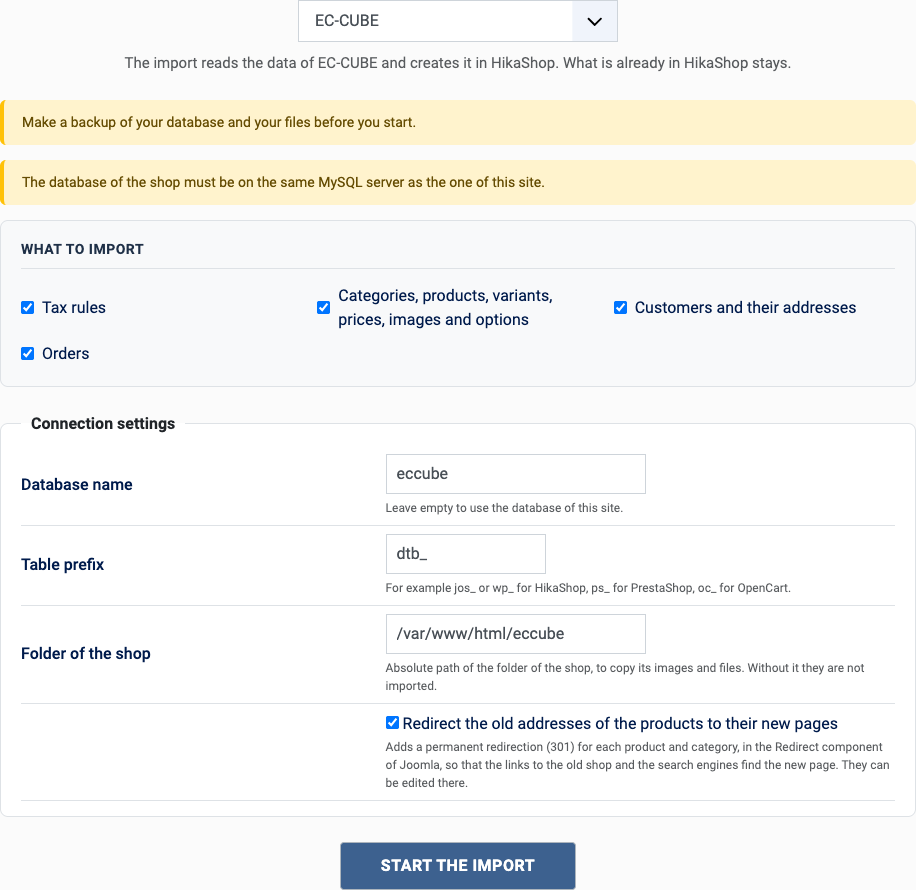
3. Choose what to import with the boxes of "What to import": orders also need the customers and the catalog, they are imported with them.
4. Fill in the settings (see below) and click **Start the import**.
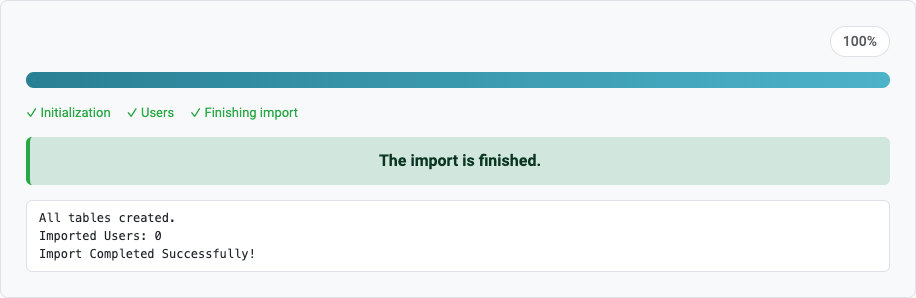
5. Keep the page open until the message "The import is finished" appears. A step which fails stops the import and can be tried again or skipped.
[](/images/doc/hk/interface/import/shop_eccube_settings.png)
[](/images/doc/hk/interface/import/shop_progress_done.png)
### The settings
- **Database name**: the database of EC-CUBE.
- **EC-CUBE table prefix**: dtb\_ by default. The master tables always use mtb\_.
- **EC-CUBE installation path**: the absolute path of EC-CUBE, to copy the images of the products.
- **Redirect the old addresses** (Joomla only): tick it to send the visitors of the old addresses to the new pages, see the questions below.
### After the import
1. Customers keep their password when the folder of EC-CUBE was given: they log in with the same one, which is then stored as a regular Joomla password.
2. Set up your payment and shipping methods.
3. Check the prices and the taxes of a few products.
### Questions
#### Which version of EC-CUBE?
EC-CUBE 4. The tables of EC-CUBE 2 and 3 are different.
#### The images are missing
Enter the installation path of EC-CUBE: the images are copied from it.
#### Can I import only the catalog?
Yes, untick the customers and the orders in "What to import".
#### Can I run the import again?
Yes. What was already imported is left alone and only what is new is added: the products, customers and orders created on the old shop since the last import. You can import once to test and again when you go live. A change made on the old shop to something already imported is not copied.
#### The old addresses of the products
With "Redirect the old addresses" ticked (Joomla only), each product and category gets a redirection from its address in EC-CUBE (products/detail/ and products/list?category\_id=) to its new page. It only works when the new site answers on the same domain as the old shop. The redirections are in **Components > Redirects** of Joomla, where they can be edited or removed; the import turns on the plugin "System - Redirect" which uses them.
Back to [the import page](/support/documentation/73-hikashop-import), which also covers the CSV import and the import of orders. Something else went wrong? See [solving problems](/support/documentation/61-hikashop-compatibility-issues).