[Skip to main content](#vessel-content)
☰ Documentation
# Migrate from Shopify to HikaShop
Details Written by: Administrator Category: [Tutorials](/support/documentation/hikashop/tutorials) Published: 04 November 2026 Hits: 5
**Shopify** is a hosted shopping cart: you cannot read its database, but its admin exports your products, customers and orders as CSV files. HikaShop imports these files, so you can leave Shopify for your own Joomla or WordPress site without retyping anything.
It is one of the shops HikaShop can import: see [all the import options](/support/documentation/73-hikashop-import).
- [Before you start](#before)
- [What is imported](#imported)
- [Steps](#steps)
- [The settings](#settings)
- [After the import](#after)
- [Questions](#faq)
### Before you start
**Supported versions:** The CSV exports of the Shopify admin (the 2024 and later formats, with or without the "Default Address" columns of the customers).
Nothing to install on the Shopify side. You export three files and send them from the import screen; they are removed from the server when the import ends.
Make a backup of your database and your files. The import adds to what is already in HikaShop and never deletes anything, but a backup costs nothing.
### What is imported
- Products, with their description, vendor (as brand), type (as category), tags, SEO texts and status
- Variants, with up to 3 options (as characteristics), their SKU, price, weight and stock
- Images, downloaded from the address given in the export
- Customers with their address
- Orders, with their lines, billing and shipping addresses, shipping method, discount code and status
**Not imported:**
- The passwords: Shopify does not give them, so the customers get an account and ask for a new password
- The gift cards, the discount codes (the export of the orders only holds the code used), the collections and the pages
### Steps
1. In the HikaShop back office, open **Products > Import** and choose **Import from another shop**.
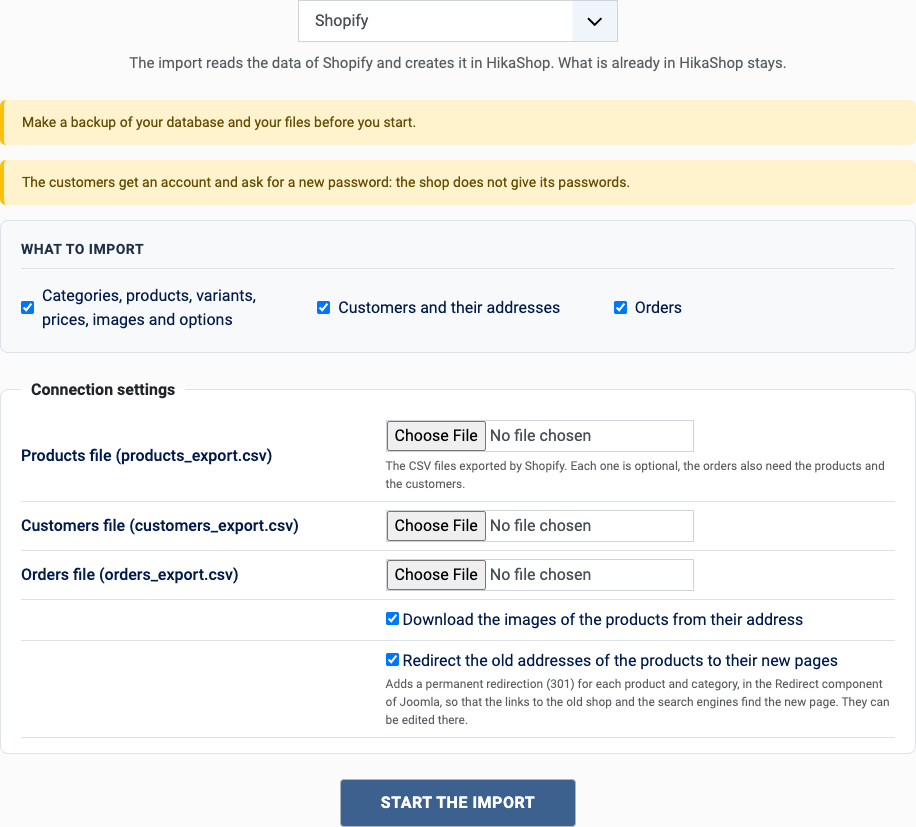
2. Pick **Shopify** in the list of shops.
3. Choose what to import with the boxes of "What to import": orders also need the customers and the catalog, they are imported with them.
4. Fill in the settings (see below) and click **Start the import**.
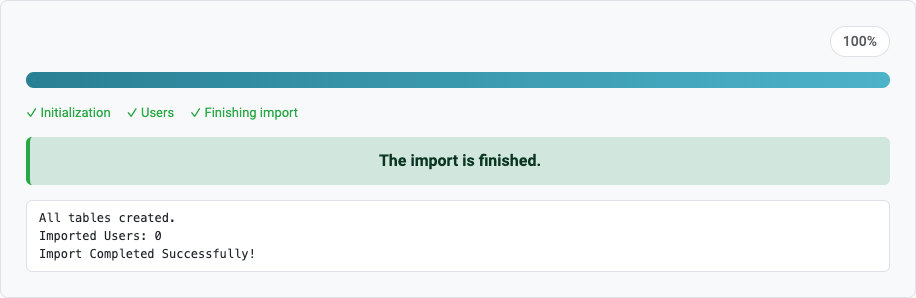
5. Keep the page open until the message "The import is finished" appears. A step which fails stops the import and can be tried again or skipped.
[](/images/doc/hk/interface/import/shop_shopify_settings.png)
[](/images/doc/hk/interface/import/shop_progress_done.png)
### The settings
- **Products file**: products\_export.csv, from Products > Export in the Shopify admin.
- **Customers file**: customers\_export.csv, from Customers > Export.
- **Orders file**: orders\_export.csv, from Orders > Export.
- **Download the images**: tick it to download the images of the products from the addresses of the export.
- **Redirect the old addresses** (Joomla only): tick it to send the visitors of the old addresses to the new pages, see the questions below.
### After the import
1. Tell your customers to use "Forgot your password" on the new shop.
2. Set up your payment and shipping methods, and your taxes.
3. Check a product with options: each combination is a variant.
### Questions
#### How do I export from Shopify?
In the Shopify admin, open Products, Customers or Orders, click Export, choose "All" and "CSV for Excel, Numbers, or other spreadsheet programs".
#### Are the three files needed?
No, each one is optional. The orders are linked to the products by SKU and to the customers by e-mail address, so import all three for a complete history.
#### The images were not downloaded
The server needs to reach cdn.shopify.com; tick "Download the images" and check that your host allows outgoing connections.
#### Can I run the import again?
Yes. What was already imported is left alone and only what is new is added: the products, customers and orders created on the old shop since the last import. You can import once to test and again when you go live. A change made on the old shop to something already imported is not copied.
#### The old addresses of the products
With "Redirect the old addresses" ticked (Joomla only), each product gets a redirection from its address on Shopify (/products/ followed by its handle) to its new page. It only works when the new site answers on the same domain as the old shop. The redirections are in **Components > Redirects** of Joomla, where they can be edited or removed; the import turns on the plugin "System - Redirect" which uses them.
Back to [the import page](/support/documentation/73-hikashop-import), which also covers the CSV import and the import of orders. Something else went wrong? See [solving problems](/support/documentation/61-hikashop-compatibility-issues).