[Skip to main content](#vessel-content)
# Set up a Joomla marketplace with the Halle template
Details Written by: Administrator Category: [Templates](/support/documentation/templates) Published: 09 November 2026 Hits: 3
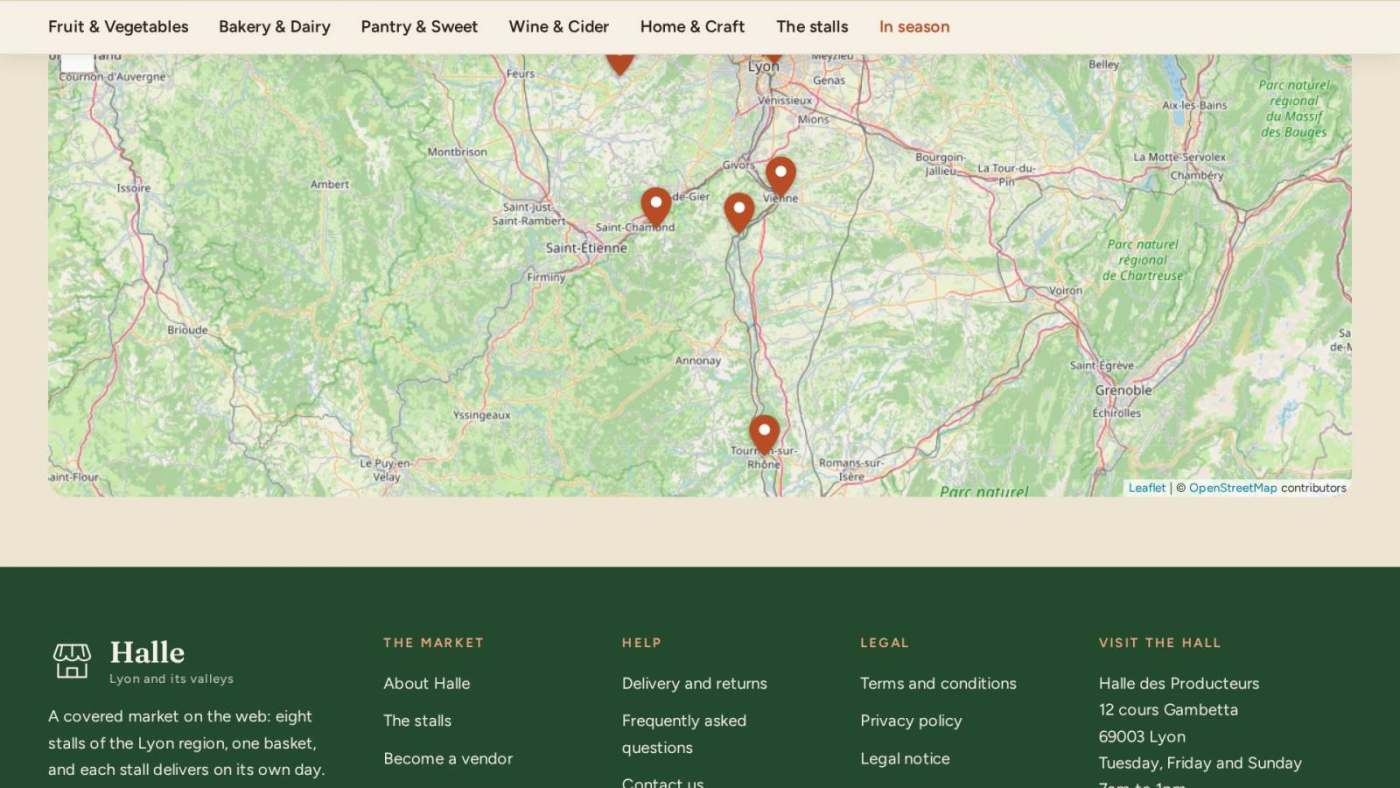
This guide takes a Joomla website from nothing to a marketplace of regional and local products: HikaShop for the shop, HikaMarket Multivendor for the stalls, and the Halle template for the look. It installs the three, sets up the template, builds the home page from modules, creates the menus, and sets up the marketplace itself: the vendors and their stalls, the vendor registration, the delivery of each stall and the free delivery. Every screenshot was taken on a real site while following these steps. You can see the result on the [Halle demo](https://halle.demo.hikashop.com/).
[](/images/doc/templates/halle/29-home-top.jpg)
- [Before you start](#before)
- [1. Install HikaShop](#hikashop)
- [2. Install HikaMarket Multivendor](#hikamarket)
- [3. Install Halle and make it the default template](#halle)
- [4. Set up the template](#settings)
- [5. Create the menus](#menu)
- [6. Understand the module positions](#positions)
- [7. Header and footer modules](#header)
- [8. Build the home page](#home)
- [The hero](#home_hero)
- [The departments](#home_categories)
- [The promises](#home_promises)
- [The stalls](#home_stalls)
- [The picks of the week](#home_picks)
- [The map of the stalls](#home_map)
- [The newsletter](#home_newsletter)
- [9. Set up the marketplace with HikaMarket](#market)
- [The market options](#market_options)
- [The fields of a stall](#market_fields)
- [The vendors and their stalls](#market_vendors)
- [Vendor registration and the vendor area](#market_register)
- [Products, categories and the front of a stall](#market_products)
- [Fees and payments](#market_fees)
- [Delivery, and free delivery per stall](#market_shipping)
- [10. HikaShop settings for the look of the shop](#hikashop_settings)
- [11. Before you sell](#sell)
- [12. Your own CSS](#css)
- [Questions](#faq)
### Before you start
- **Joomla 6** and **PHP 8.1** or later. Halle is a Joomla 6 template.
- **HikaShop** in its latest version, and **HikaMarket Multivendor**. Halle works with the Starter, Essential and Business editions of HikaShop and styles what they display; the stalls, the vendor lines on the products, the vendor pages, the map and the cart grouped by stall need HikaMarket Multivendor. A few modules mentioned below (the filters) only exist in HikaShop Business; this is said where they come.
- The packages, from your downloads on our website: **com\_hikashop\_\*.zip** (HikaShop), **com\_hikamarket\_multivendor.zip** (HikaMarket) and **tpl\_halle.zip** (the Joomla package of Halle; halle.zip is the WordPress theme).
- If you are changing the template of a site that is already online, make a backup first, and do the work on a copy of the site if you can.
In this guide the market is called Halle and its eight stalls are those of our demo (a farm, a goat dairy, a bakery, a cellar, a spice shop, a pottery, a beekeeper, a chocolate maker). The screenshots show the demo's products: yours will show your own stalls, categories and products.
### 1. Install HikaShop
1. In the Joomla administrator, open **System > Install > Extensions**, and drop the HikaShop zip in the **Upload Package File** tab.
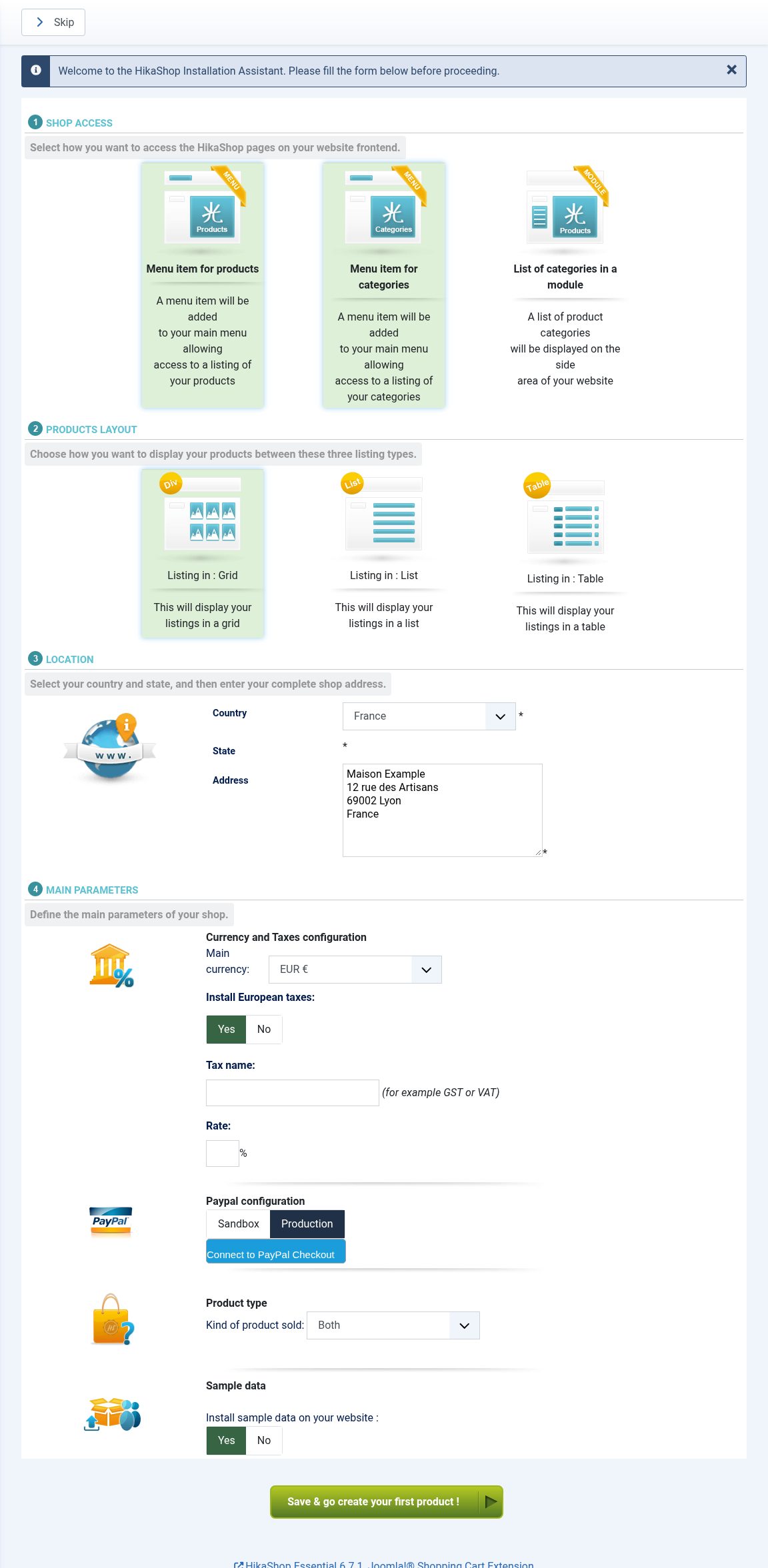
2. When it is installed, HikaShop opens its installation assistant. Choose:
- **Shop access**: keep **Menu item for products** and **Menu item for categories**. Leave **List of categories in a module** unselected: with Halle you place your modules yourself.
- **Products layout**: **Grid**, the layout Halle styles for listings.
- **Location**: your country and the address of your market.
- **Main parameters**: your currency, and **Install European taxes** if you sell in the European Union.
- **Sample data**: Yes if you want a few categories and products to look at while you set up the template (they have no pictures; delete them later), No if you add your own goods straight away.
3. Click **Save & go create your first product**.
[](/images/doc/templates/halle/01-hikashop-wizard.jpg)
More about the installation: [Install / Update HikaShop](https://www.hikashop.com/support/documentation/59-hikashop-how-to-install.html).
### 2. Install HikaMarket Multivendor
1. In **System > Install > Extensions**, drop **com\_hikamarket\_multivendor.zip** in the **Upload Package File** tab. The package installs the component with the plugins and modules it needs.
2. Open **Components > HikaMarket > Update / About** once, so that HikaMarket finishes its installation and enables its plugins.
3. In **System > Manage > Extensions**, check that the **HikaMarket** plugins and modules are enabled (filter on "market"). Halle uses the module **HikaMarket** (the stalls as cards), the module **HikaMarket Vendor Map** (the map of the stalls) and the HikaShop plugin **HikaMarket**, which adds the vendor to the products and the cart.
More about HikaMarket: [the Multivendor tutorial](https://www.hikashop.com/support/documentation/164-hikamarket-multi-tutorial.html) and [the configuration page](https://www.hikashop.com/support/documentation/143-hikamarket-config.html).
### 3. Install Halle and make it the default template
1. In **System > Install > Extensions**, drop **tpl\_halle.zip** in the **Upload Package File** tab. The message "Installation of the template was successful" appears.
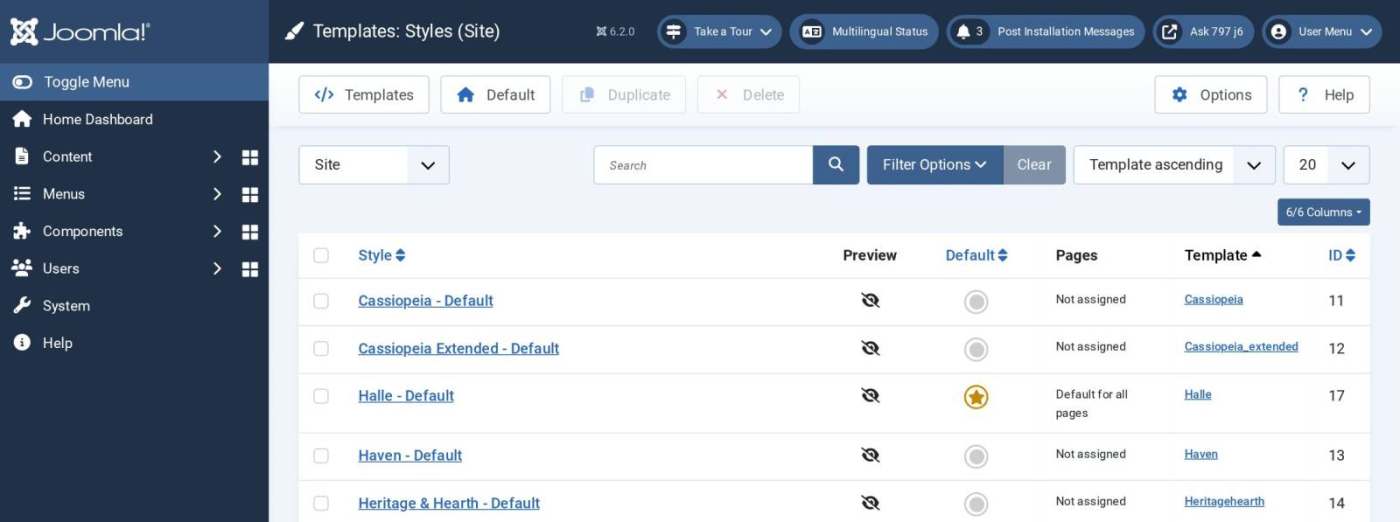
2. Open **System > Site Template Styles** and click the star in the **Default** column of the line whose **Template** column says **Halle**. You can rename this style when you edit it.
[](/images/doc/templates/halle/02-template-styles.jpg)
**If your site now looks empty:** it is expected. Each template has its own module positions, and the modules of your site (the main menu, the login form...) are still in the positions of your previous template, which Halle does not have. Steps 5 to 8 put them in Halle's positions.
### 4. Set up the template
Click the Halle style in **System > Site Template Styles**. Its settings are in five tabs: **Style**, **Layout**, **Market**, **Home page** and **Effects**.
#### Style: colours and fonts
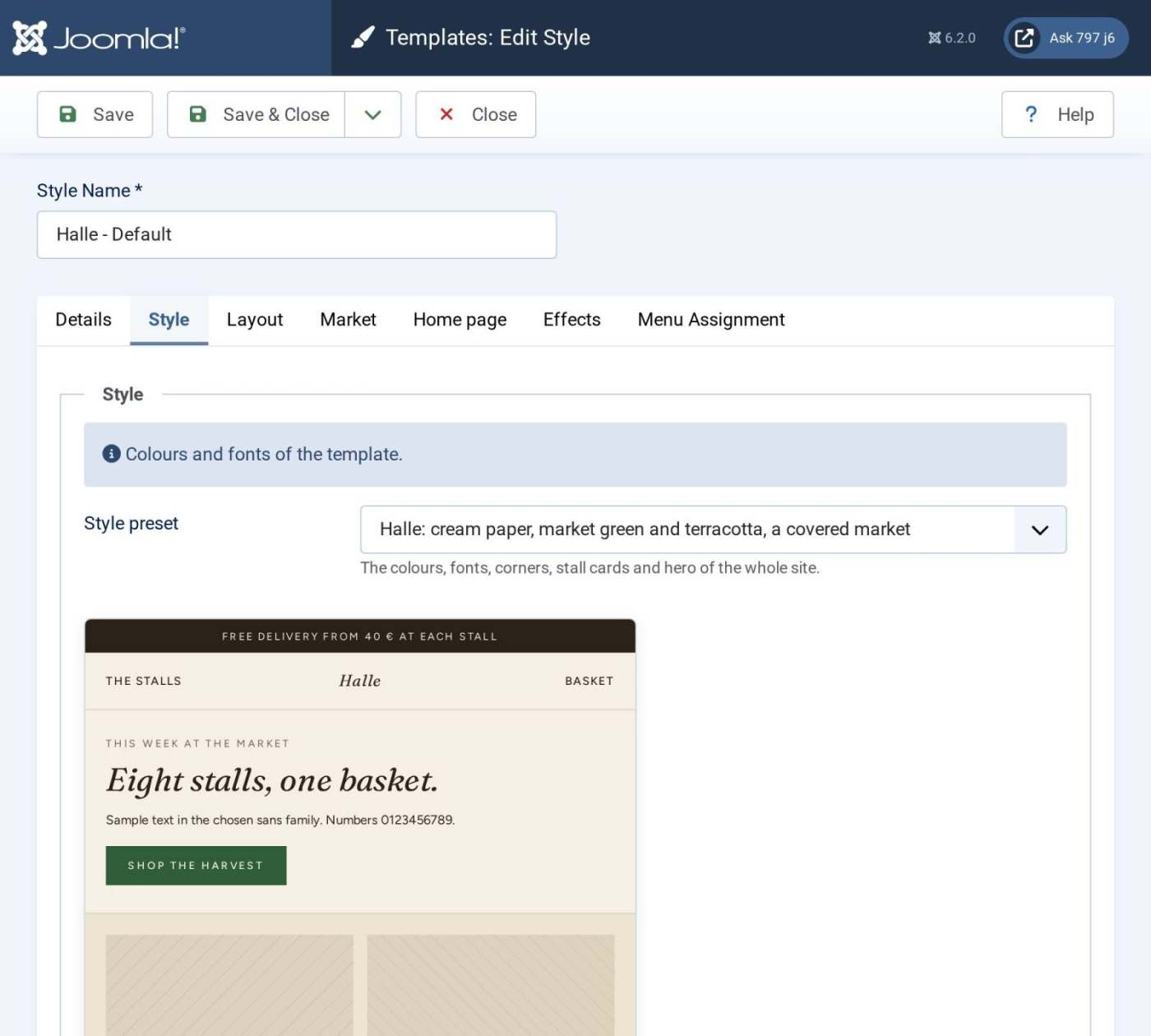
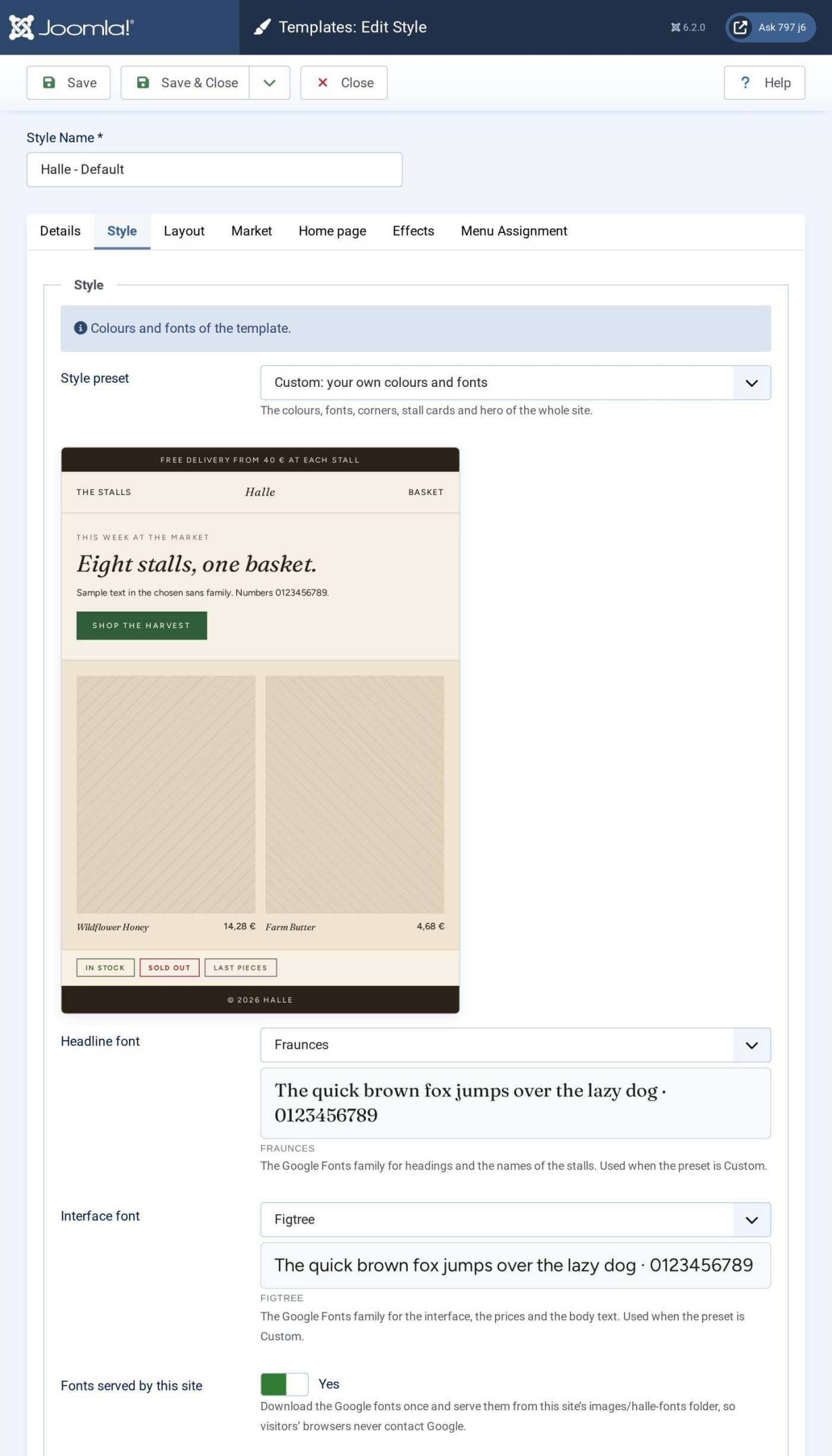
- **Style preset**: 13 ready-made looks (colours, fonts, corners, stall cards and hero together), two of them with a dark page: Halle (cream paper, market green and terracotta), Étal, Farmers market, Art market, Makers and craft, Christmas market, Spanish market, Japan market, Italian mercato, Flower market, Flea market, Night market and Seafood market. The preview under the list shows the one you pick. You can try them all on the [Halle demo](https://halle.demo.hikashop.com/) with its "Use your own style" button.
- **Custom**, the last choice of the list, shows the fonts and colours fields so that you set your own: a **Headline font** and an **Interface font** (Google Fonts) and eleven colours: **Ink** for the text, **Paper** for the page, **Surface** for the cards and the bands, **Brand** for the buttons and the bars, **Brand, deep** for the buttons pressed and the footer, **Accent** for offers, labels and the season's entry, **Accent on dark** for the accent on the footer, **Sun** for the stripes of a stall's awning and the badges, **Line** for the borders, **Muted text** and **Alert** for the last pieces and the sold out labels. A dark page works too: the HikaShop and Joomla boxes follow your colours.
- **Fonts served by this site** (yes by default): the fonts are downloaded once from Google Fonts and served from your own site (folder images/halle-fonts), so your visitors' browsers never contact Google.
[](/images/doc/templates/halle/03-style-preset.jpg)
[](/images/doc/templates/halle/04-style-custom.jpg)
#### Layout: logo, header, footer and the product gallery
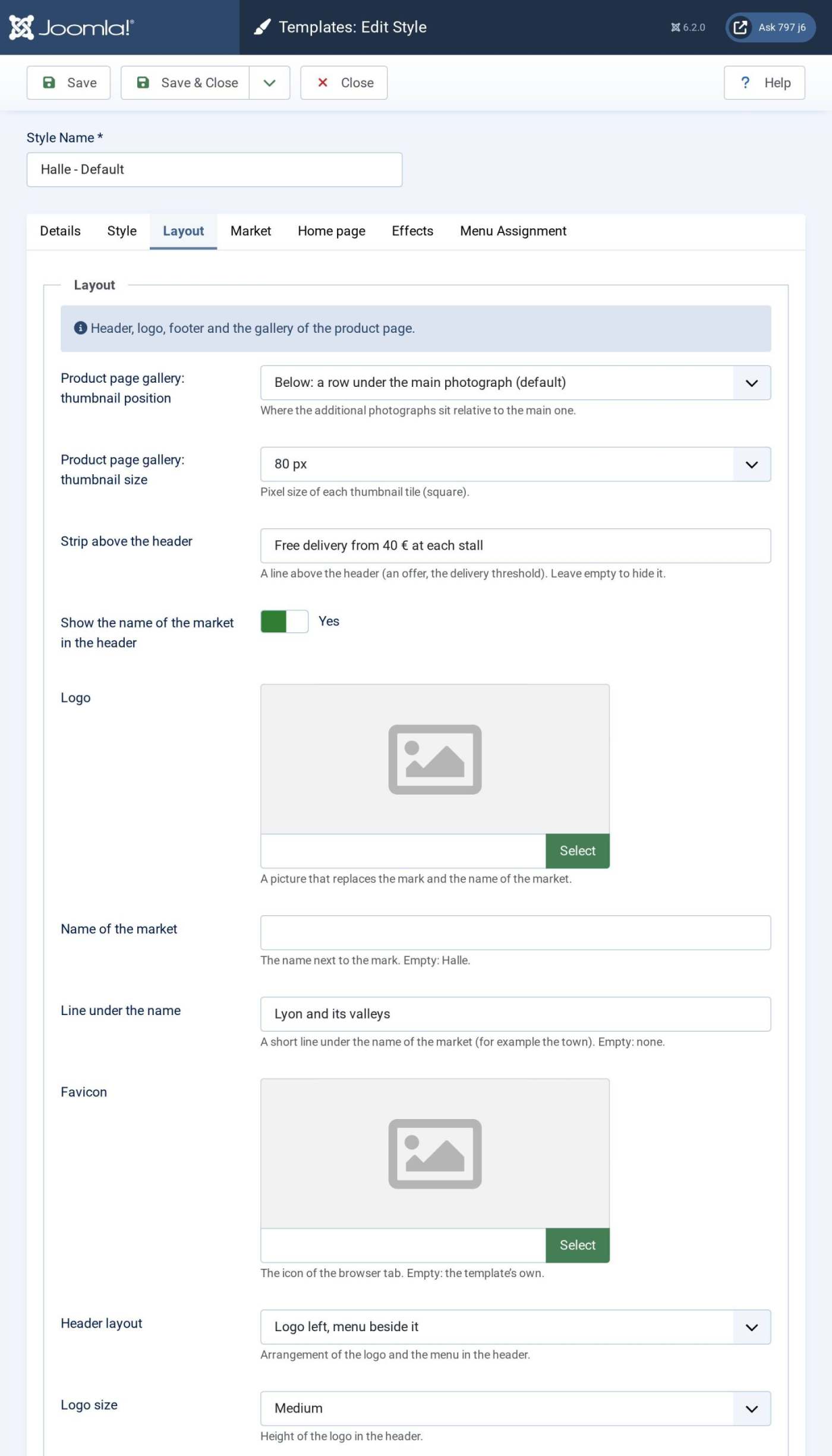
- **Product page gallery**: where the additional photographs sit (below, above, left or right of the main photograph) and the size of their thumbnails.
- **Strip above the header**: a line in the strip above the header, at the left (an offer, the delivery threshold). Leave it empty to hide it. Write it by hand: it is a text, not a calculation. When you change the free delivery threshold of step 9, change it here too.
- **Show the name of the market in the header**, **Name of the market**, **Line under the name** (for example the town), **Logo** and **Logo size**: without a logo, Halle draws its mark (a market stall) and the name; with a logo, your picture replaces both.
- **Favicon**, **Header layout** (logo left with the menu beside it, or logo centred with the menu below), **Footer text** (the last line of the page), **Header stays at the top when scrolling** and **Back to the top button**.
[](/images/doc/templates/halle/05-layout.jpg)
#### Market: stalls, vendor lines and delivery
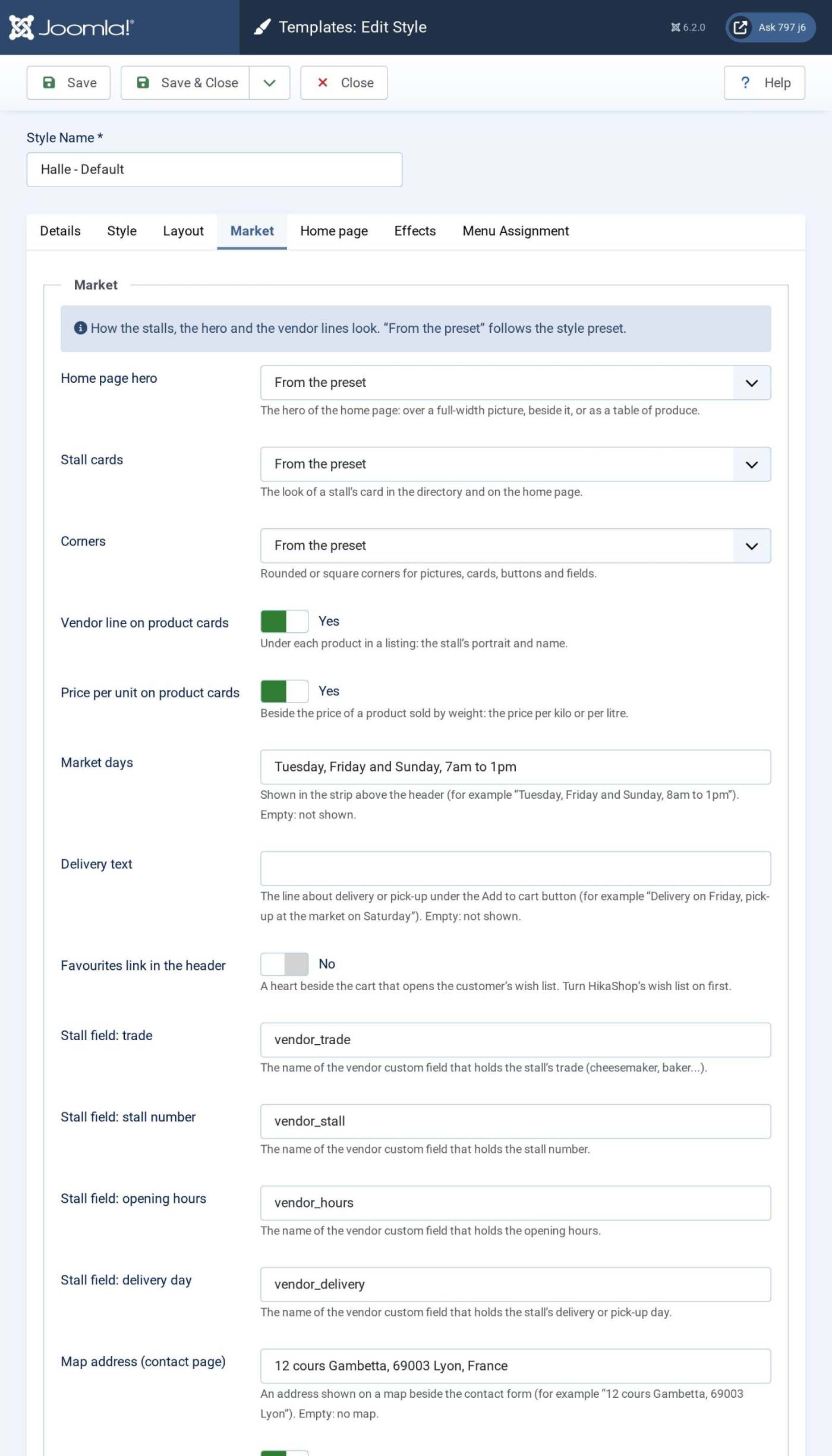
- **Home page hero**, **Stall cards** and **Corners**: *From the preset* follows the style preset; or choose. The hero is over a full-width picture, beside the picture, or as a table of produce; a stall's card is plain (portrait, name and trade), an awning (a striped awning in the stall's colour) or a photo (the stall's picture fills the card); the corners are rounded or square.
- **Vendor line on product cards**: under each product of a listing, the stall's portrait and name. **Price per unit on product cards**: beside the price of a product sold by weight, the price per kilo or per litre.
- **Market days**: shown in the strip above the header, after the strip text (for example "Tuesday, Friday and Sunday, 8am to 1pm"). **Delivery text**: the line about delivery under the Add to cart button of a product page when the stall has no delivery day of its own (for example "Delivery on Friday, pick-up at the market on Saturday"). A stall that has one shows it ("Delivery: Saturday"), with its opening hours.
- **Favourites link in the header**: a heart beside the cart that opens the wish list (turn HikaShop's wish list on first). **Add-to-cart bar on phones**: a bar fixed at the bottom of a product page on a phone, with the price and the button.
- **Stall field: trade, stall number, opening hours, delivery day**: the names of the HikaMarket vendor custom fields where a stall's trade, stall number, opening hours and delivery day are written (step 9). The defaults, `vendor_trade`, `vendor_stall`, `vendor_hours` and `vendor_delivery`, are those of the fields you create there.
- **Map address (contact page)**: an address shown on a map beside the contact form of Joomla's contact page. Empty: no map.
[](/images/doc/templates/halle/06-market.jpg)
#### Home page: the hero
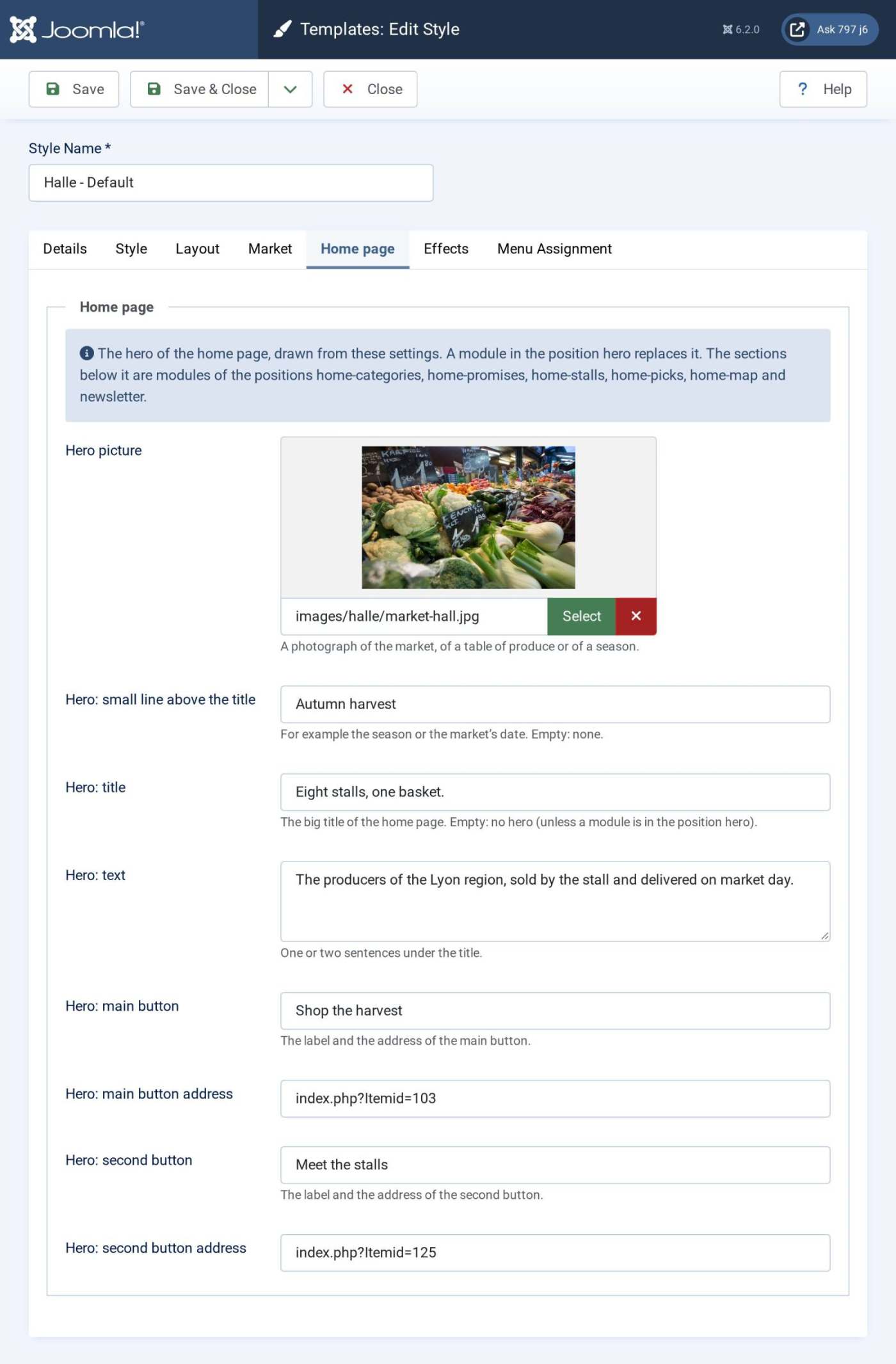
The hero of the home page is drawn from these settings: the **Hero picture** (a photograph of the market, of a table of produce or of the season), a small line above the title, the title, a text and two buttons with their addresses. Without a title and without a module in the position `hero`, there is no hero. The addresses of the buttons are those of Joomla pages: `index.php?Itemid=105` (the number of a menu item, shown in **Menus > All Menu Items**) or a complete address.
[](/images/doc/templates/halle/07-home-tab.jpg)
#### Home page effects
Each section of the home page can appear with a short animation when the visitor scrolls to it: choose the effect (or **No effect**) and a delay for each section. **Reveal duration** is how long the animation lasts, **Reveal threshold** how much of a section must be visible before it starts.
[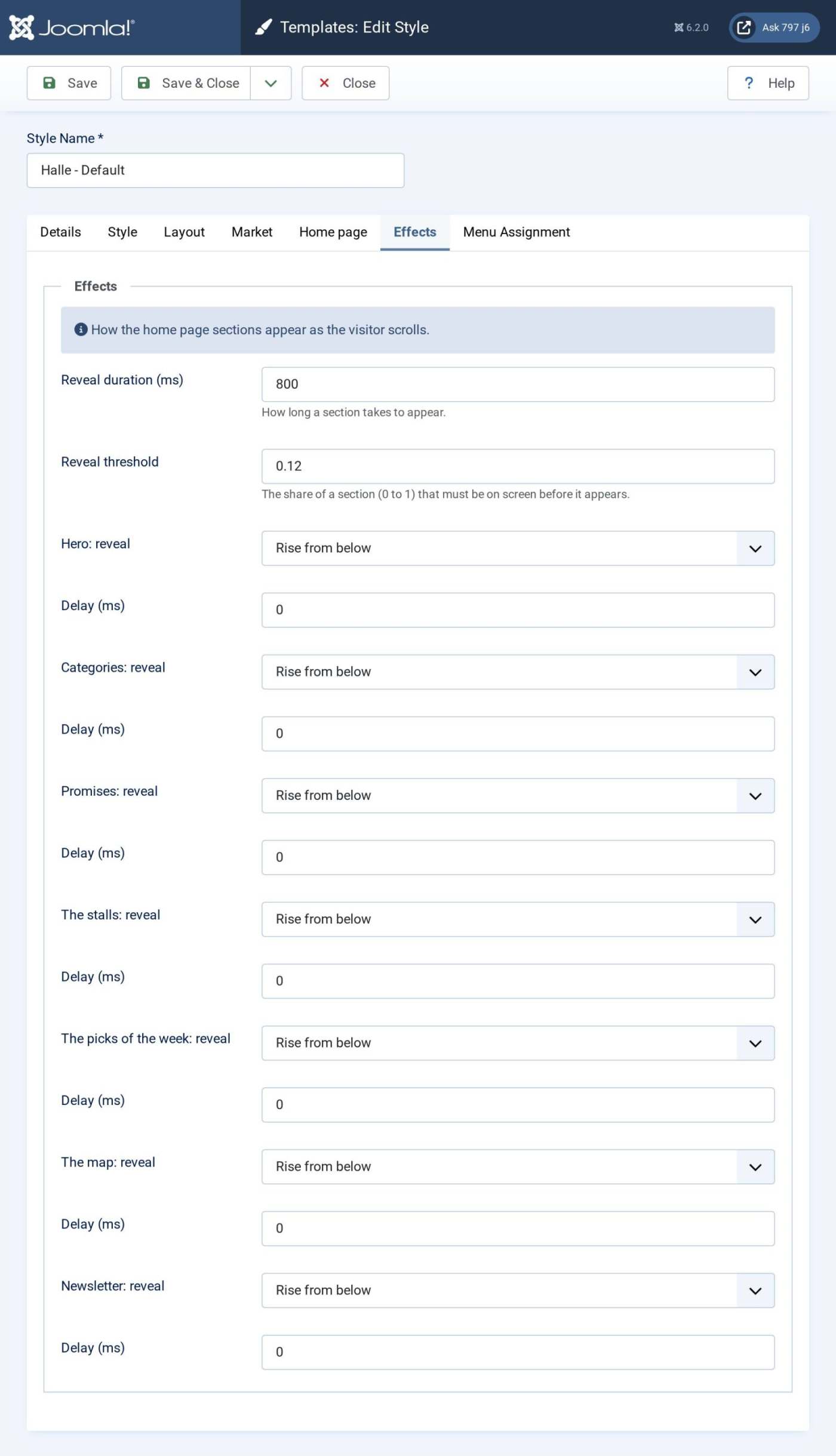](/images/doc/templates/halle/08-effects.jpg)
Click **Save & Close**.
### 5. Create the menus
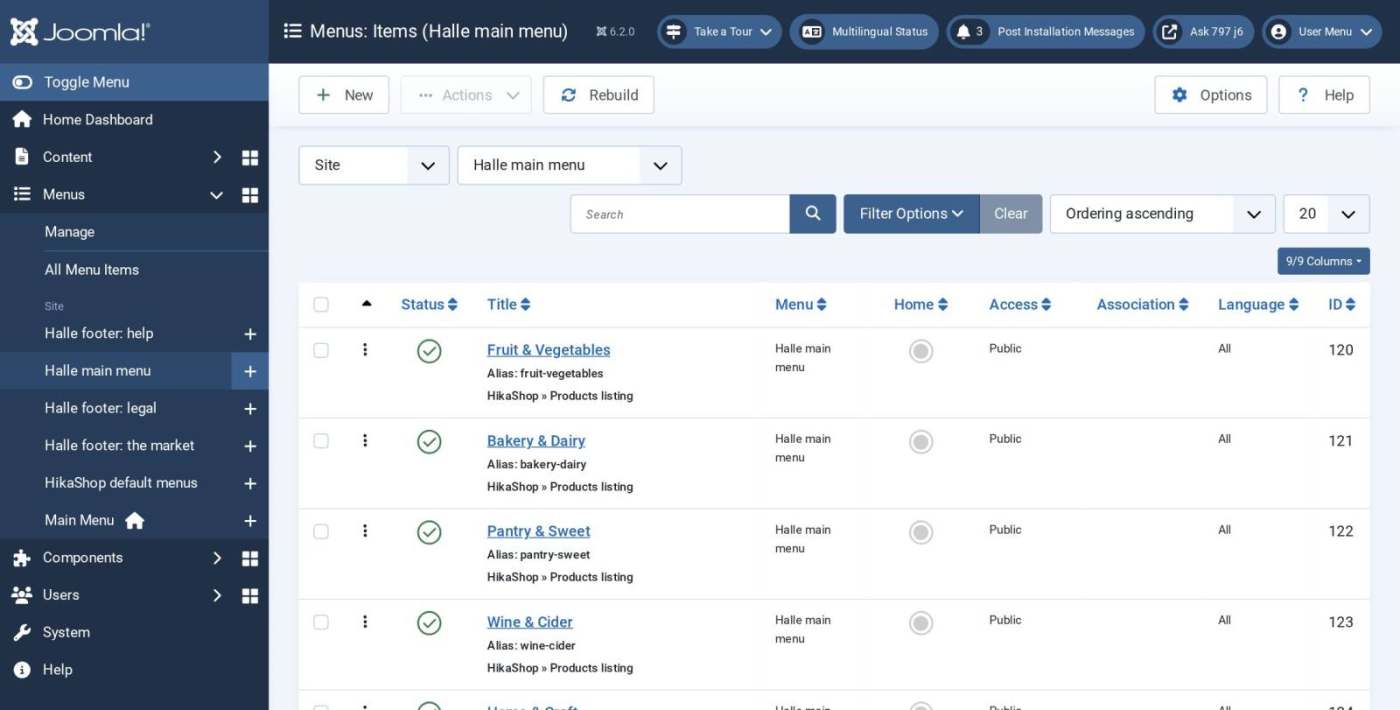
The menu items decide the pages of your market and their addresses. Halle uses a main menu in the header and three small menus in the footer. Open **Menus > Manage** and create them with **New**:
- **Halle main menu**, shown in the header: one **Products listing** item per department (Fruit & Vegetables, Bakery & Dairy, Pantry & Sweet, Wine & Cider, Home & Craft), then **The stalls** (a **Vendor listing** item) and a last item for the season ("In season").
- **The market**, **Help** and **Legal**, the three footer menus: About, The stalls, Become a vendor; Delivery and returns, FAQ, Contact, My account; Terms, Privacy, Legal notice.
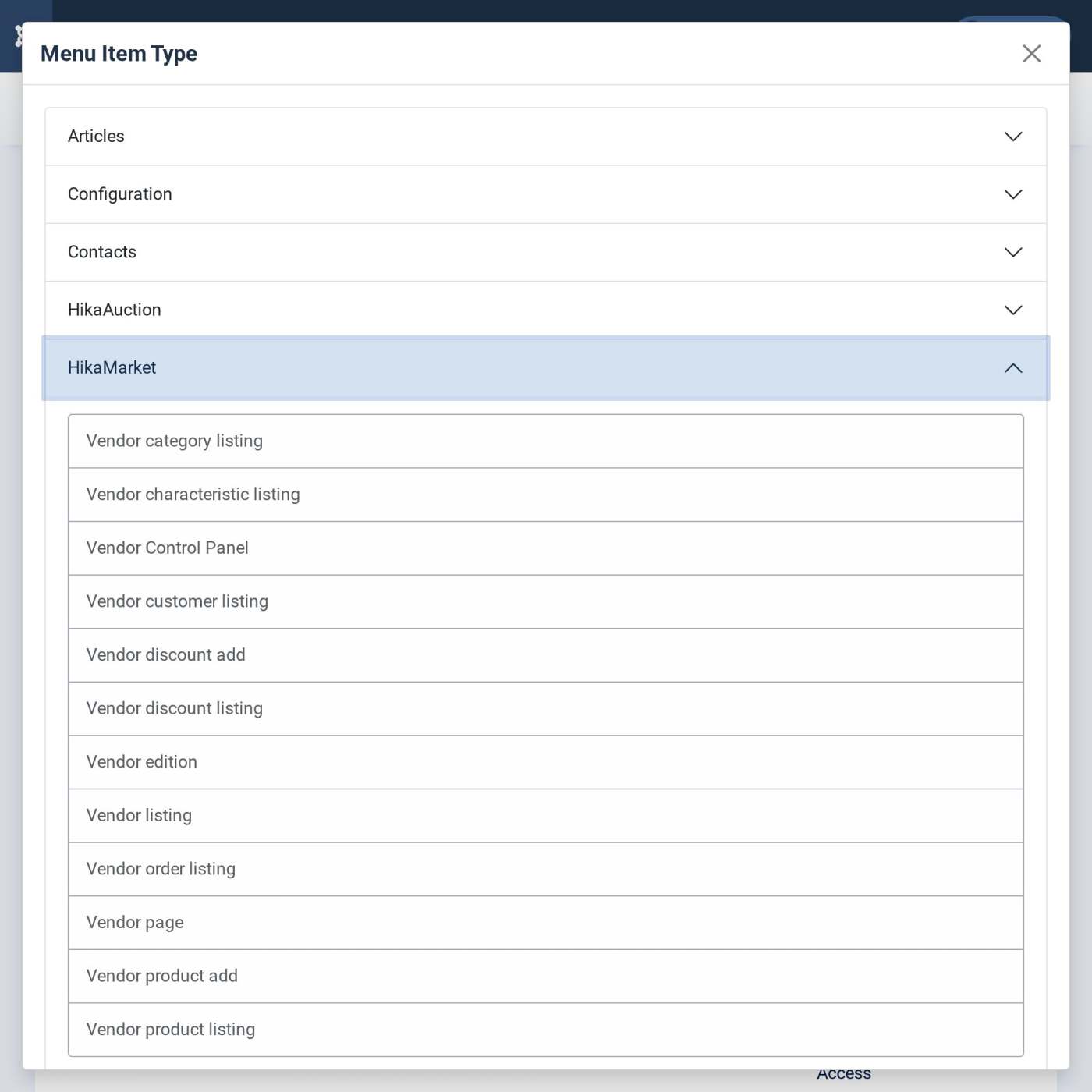
Add an item with **New**, **Menu Item Type: Select**, then:
- **HikaShop > Products listing**: all your products, or the products of one category (set it in the **Products Options** tab, **Select a category**). Create one per department. The menu items of a HikaShop listing have many display options (columns, number of products, ordering, what each product box shows): see [Content menu Edit](https://www.hikashop.com/support/documentation/47-hikashop-menus-form.html).
- **HikaShop > Checkout** (the cart and the checkout) and **HikaShop > User control panel** (the customer's account: orders, addresses, downloads).
- **HikaMarket > Vendor listing**: the directory of the stalls. **Vendor page**: the front of one given stall. **Vendor Control Panel**: the vendor area, where a vendor manages their products and orders; it redirects to the login when the visitor is not logged in, so give it the access level **Registered**. **Vendor edition**: the vendor's own stall form; it shows the registration form to a visitor who is not a vendor yet, so it is the type of your "Become a vendor" item.
[](/images/doc/templates/halle/09-menu-item-type.jpg)
[](/images/doc/templates/halle/10-menu-items.jpg)
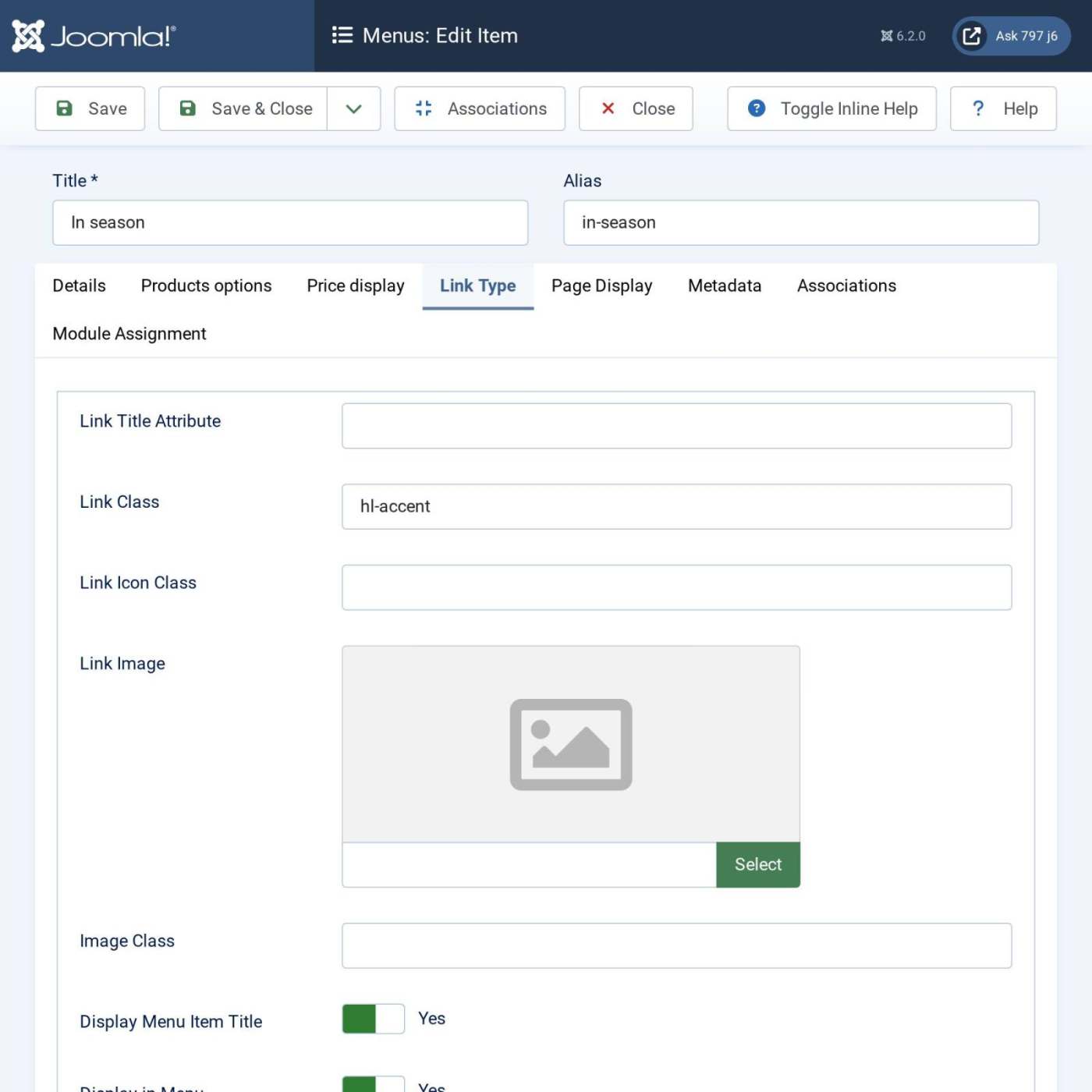
Put the season's item in the accent colour: open it, and in its **Link Type** tab write `hl-accent` in **Link Class**. Any item can take this class.
[](/images/doc/templates/halle/11-menu-accent.jpg)
The **Home** item stays the one with the house in the **Home** column, and its type must stay **Featured Articles**: Halle shows the home page sections (step 8) on that page only. Open it, and in its **Page Display** tab set **Show Page Heading** to **Hide**: the hero is the title of the home page.
Then put the menus in the right modules: the **Main Menu** module of the position `menu` shows **Halle main menu** (step 7), and one **Menu** module per footer menu goes in the positions `footer-a`, `footer-b` and `footer-c`.
### 6. Understand the module positions
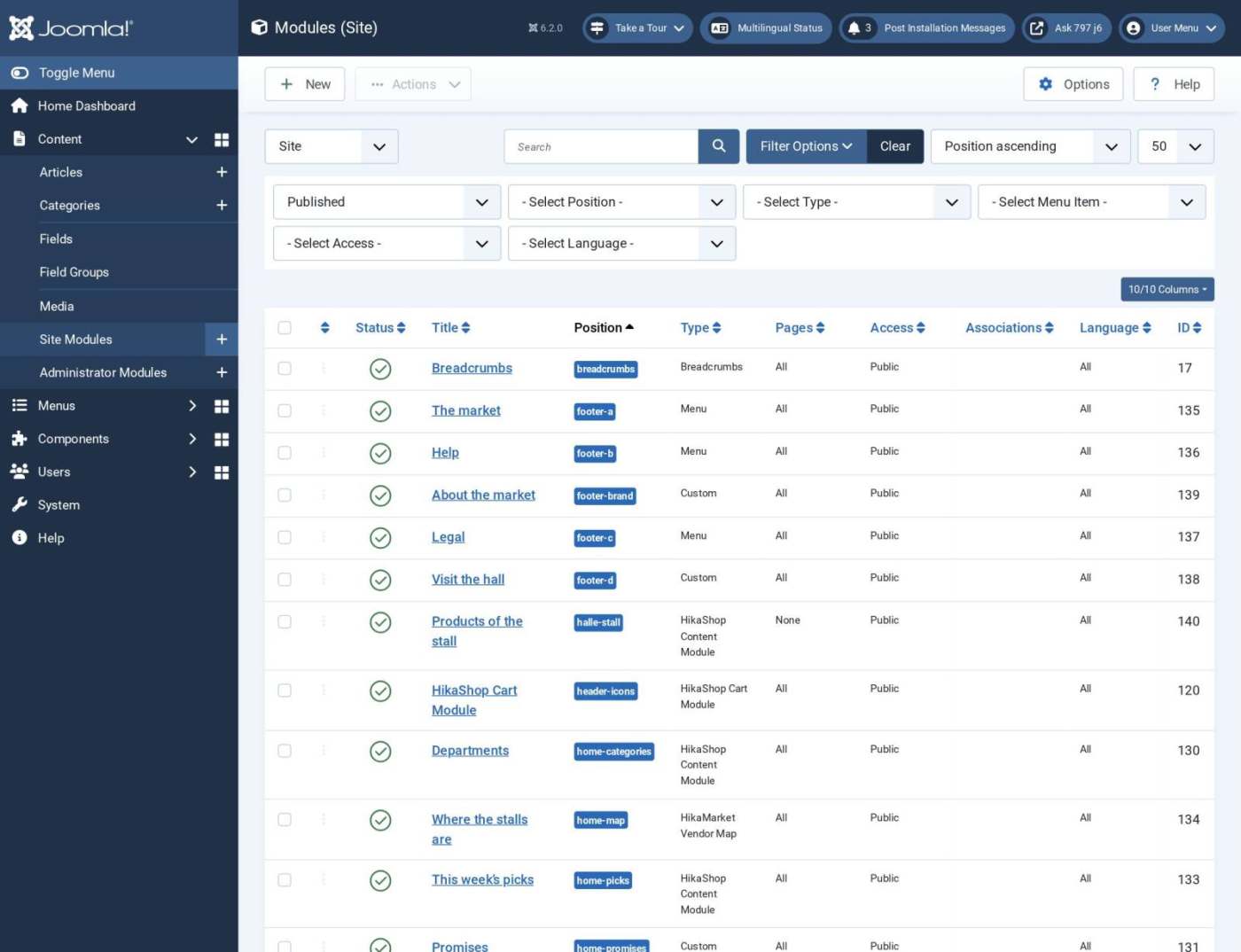
A module appears where its **Position** says. Halle has these positions:
| Position | Where | What to put there |
|---|---|---|
| announcement | The strip above the header, at the left | A Custom module, if the Strip above the header setting is not enough: it then replaces the strip text and the market days |
| topbar | The strip above the header, at the right | The language switcher, the HikaShop currency switcher |
| logo | In the header, next to the logo | Rarely used |
| search | In the header, the wide search box | A Smart Search module (step 7) |
| menu | Under the header | The Menu module of Halle main menu |
| header-icons | In the header, right of the account link | The HikaShop Cart module (the bag icon and the cart drawer) |
| hero | Home page, full width under the header | A module that replaces the hero of the Home page tab |
| home-categories | Home page: the departments | A HikaShop module showing categories |
| home-promises | Home page: the promises of the market | A Custom module |
| home-stalls | Home page: the stalls | The HikaMarket module |
| home-picks | Home page: the picks of the week | A HikaShop module showing products |
| home-map | Home page: the map of the stalls | The HikaMarket Vendor Map module |
| newsletter | Home page and every page, before the footer | A newsletter form |
| breadcrumbs | Under the header on every page but the home page | The Breadcrumbs module |
| sidebar-left | Left of the product listings | The HikaShop Filter module (HikaShop Business) |
| sidebar-right | Right of the other pages | Anything: it is empty in the demo |
| main-top, main-bottom | Above and under the content of a page | Anything |
| bottom-a, bottom-b | Two rows under the content | Anything |
| footer-brand | Footer, the first column | A Custom module: the name and a few words of the market |
| footer-a, footer-b, footer-c | Footer, the three columns of links | A Menu module each |
| footer-d | Footer, the last column | A Custom module: the address and the opening hours |
| footer-bottom | Footer, the last line | Anything (the Footer text setting is already there) |
| halle-stall | None (a module of no page) | The products of a stall, for its front page (step 9) |
Each module has a **Menu Assignment** tab: the home sections are assigned to all pages, and only the home page shows them.
[](/images/doc/templates/halle/12-module-list.jpg)
### 7. Header and footer modules
- **Main menu**: edit the module **Main Menu** (type **Menu**), position `menu`, and choose **Halle main menu** as its menu. Its start level is 1 and it shows all the items.
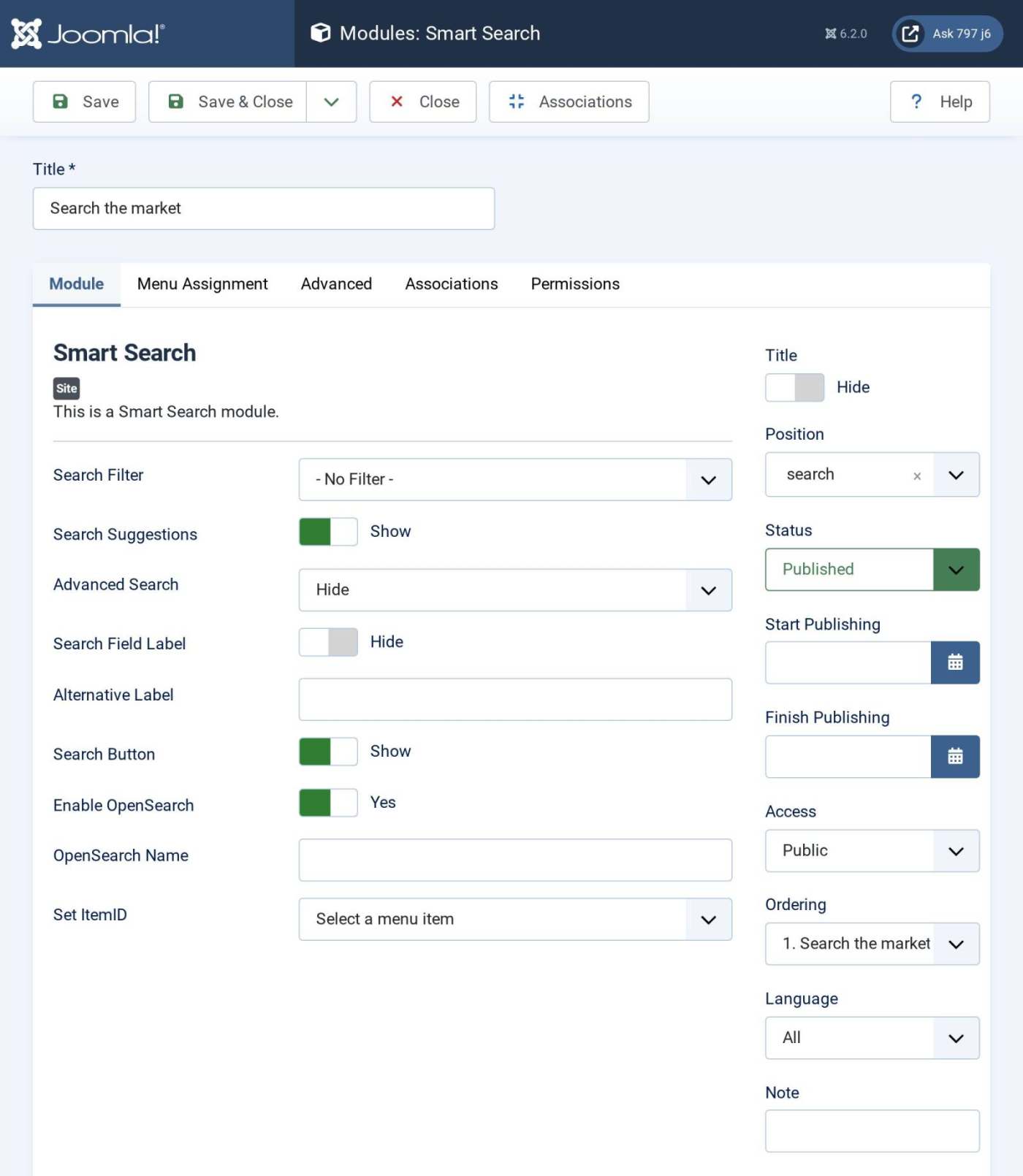
- **Search**: create a **Smart Search** module (**Content > Site Modules > New**, type **Smart Search**) in the position `search`, with the title hidden, **Search Button** and **Auto Suggest** on and the label hidden. Halle draws it as a wide box with a round button. Joomla's Smart Search must have indexed your products: **Components > Smart Search > Index**. The HikaMarket Smart Search plugin (**Smart Search - HikaMarket Vendors**) indexes the stalls too, so a visitor finds a stall by its name.
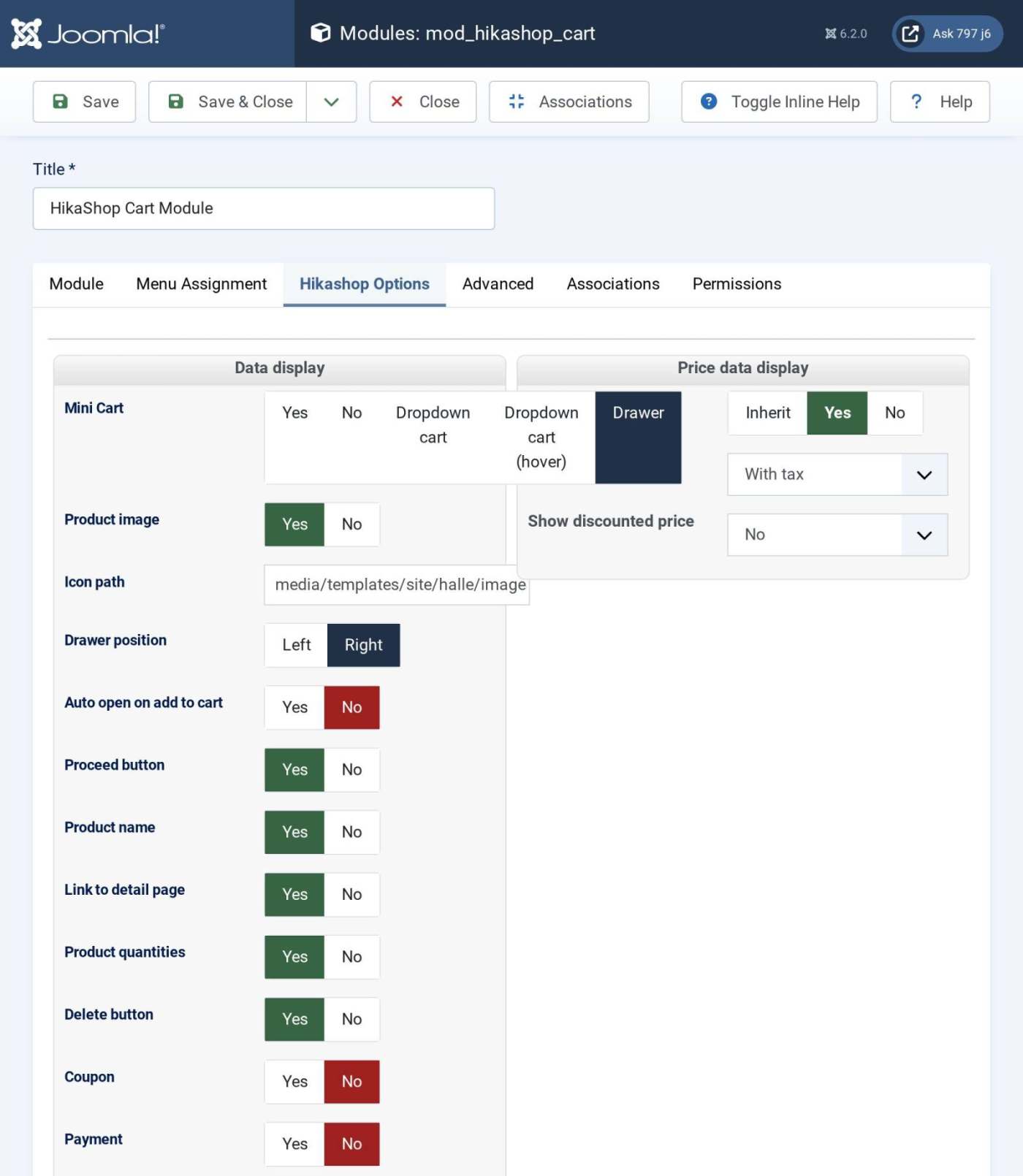
- **Cart**: the **HikaShop Cart Module** in the position `header-icons`. In its **Hikashop Options** tab choose **Mini Cart** = **Drawer** with the **Drawer position** on the right, and as its **Icon path** the bag of the template: `media/templates/site/halle/images/bag.svg`. The drawer groups the products by stall, with the delivery day of each. See [Cart module](https://www.hikashop.com/support/documentation/267-cart-module.html).
- **Language switcher**: a **Language Switcher** module in the position `topbar`, if your site has several languages.
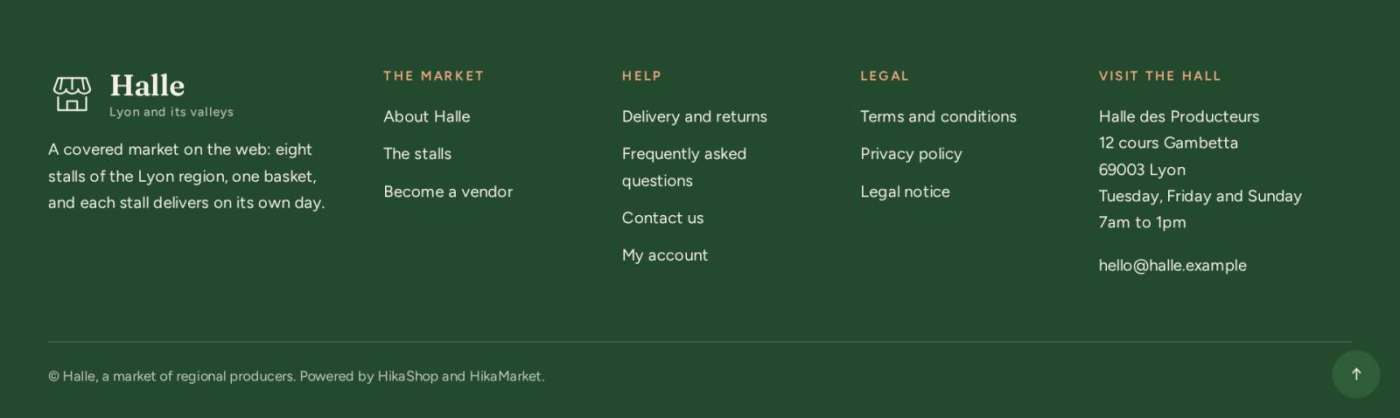
- **Footer**: one **Menu** module per footer menu in `footer-a`, `footer-b` and `footer-c` (title shown: "The market", "Help", "Legal"), and two **Custom** modules, `footer-brand` and `footer-d`, with the code below.
[](/images/doc/templates/halle/19-module-search.jpg)
[](/images/doc/templates/halle/20-module-cart.jpg)
`footer-brand` (title hidden):
```
A covered market on the web: eight stalls of the Lyon region, one basket, and each stall delivers on its own day.
```
`footer-d` (title shown: "Visit the hall"):
```
Halle des Producteurs
12 cours Gambetta
69003 Lyon
Tuesday, Friday and Sunday
7am to 1pm
This email address is being protected from spambots. You need JavaScript enabled to view it.">This email address is being protected from spambots. You need JavaScript enabled to view it.
```
[](/images/doc/templates/halle/36-footer.jpg)
Also put the **Breadcrumbs** module in the position `breadcrumbs`.
### 8. Build the home page
The home page is the Home menu item's page: the hero (Home page tab of the template), then the modules of the positions `home-categories`, `home-promises`, `home-stalls`, `home-picks`, `home-map` and `newsletter`, each as a band of the page. A position without a module is left out. Create each module in **Content > Site Modules > New**; the settings below are those of the demo.
#### The hero
Set in the **Home page** tab of the template (step 4): the picture, the small line, the title, the text and the two buttons. The main button goes to your products, the second one to the directory of the stalls.
[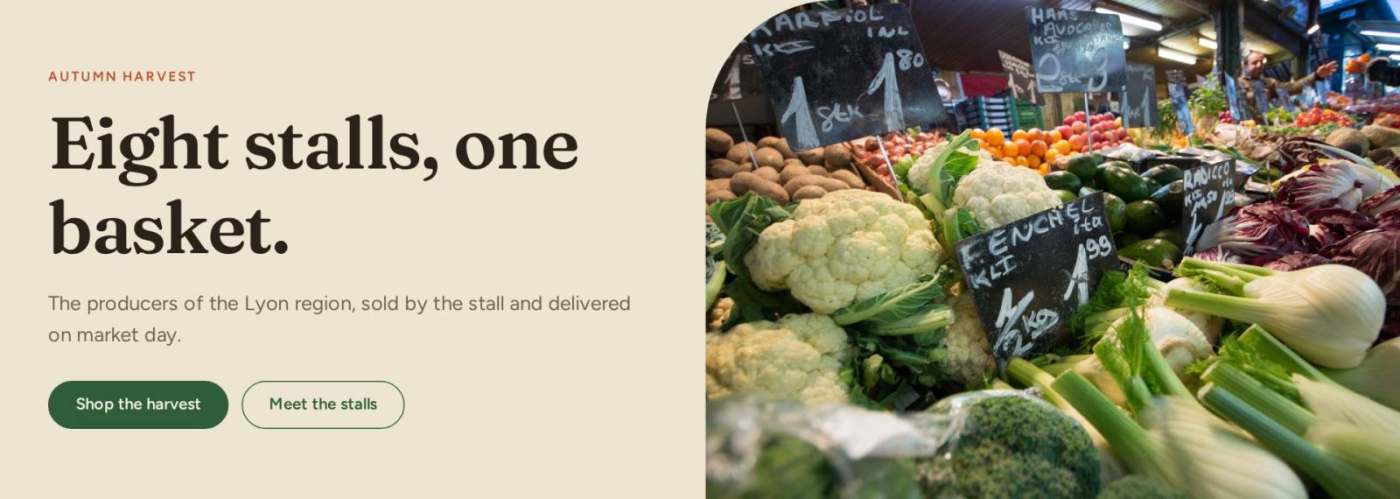](/images/doc/templates/halle/30-home-hero.jpg)
#### The departments (position home-categories)
A **HikaShop Content** module (type **Hikashop Module**), title hidden. In its **Hikashop Options** tab: the layout **Div / Grid**, a grid of **5 columns x 1 row**, **Layout type** = **Image and title**, **Image width** 420 and **Image height** 520 (a tall picture: Halle draws it as an arch), **Text centered** = Yes; further down, the content: **Type of content** = **Category**, the sub-categories of **Product category** (your departments), and **Link on main categories** = Yes, with a menu item of your products listing for the links. Give each category a picture in **HikaShop > Categories**.
[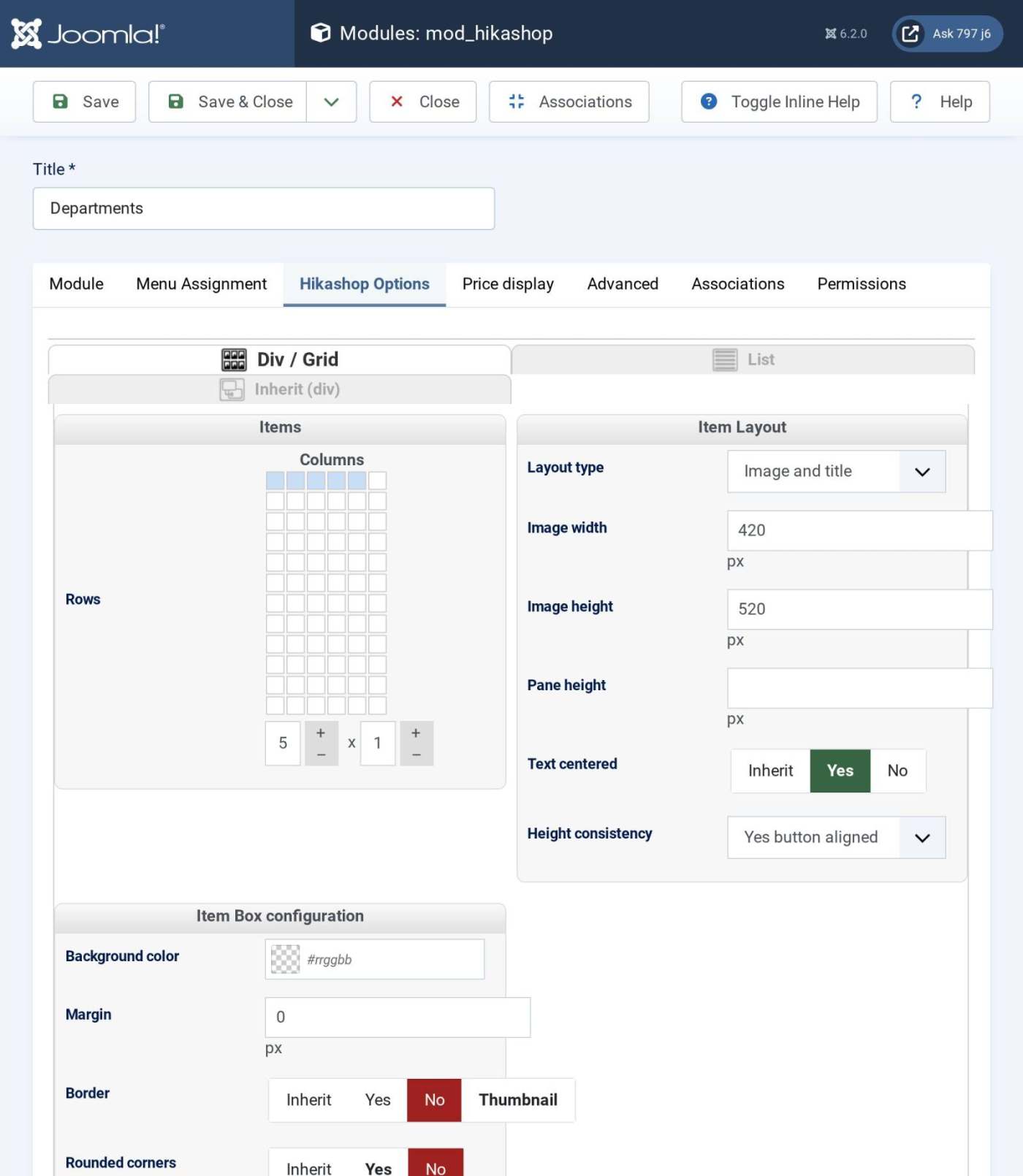](/images/doc/templates/halle/14-module-departments.jpg)
[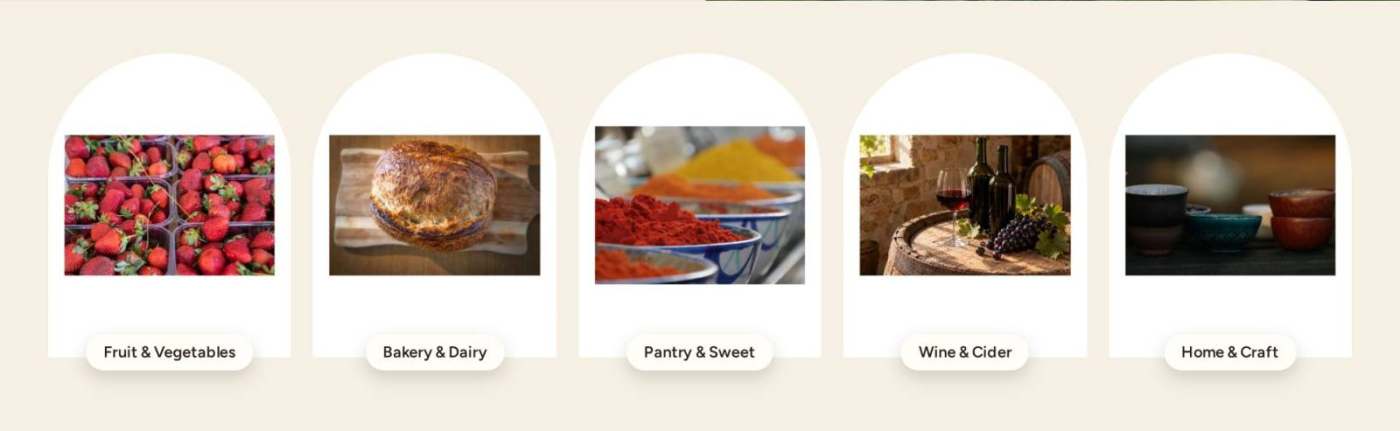](/images/doc/templates/halle/31-home-categories.jpg)
#### The promises (position home-promises)
A **Custom** module, title hidden. In the editor, click **Toggle Editor** to write the HTML and paste this code (three promises: their title, then a line):
```
- Direct from the stallEvery product is sold by the person who made it.
- Seasonal, within 80 kmWhat is picked this week, nothing flown in.
- Delivered on market dayEach stall delivers on its own day, or keep it for pick-up at the hall.
```
[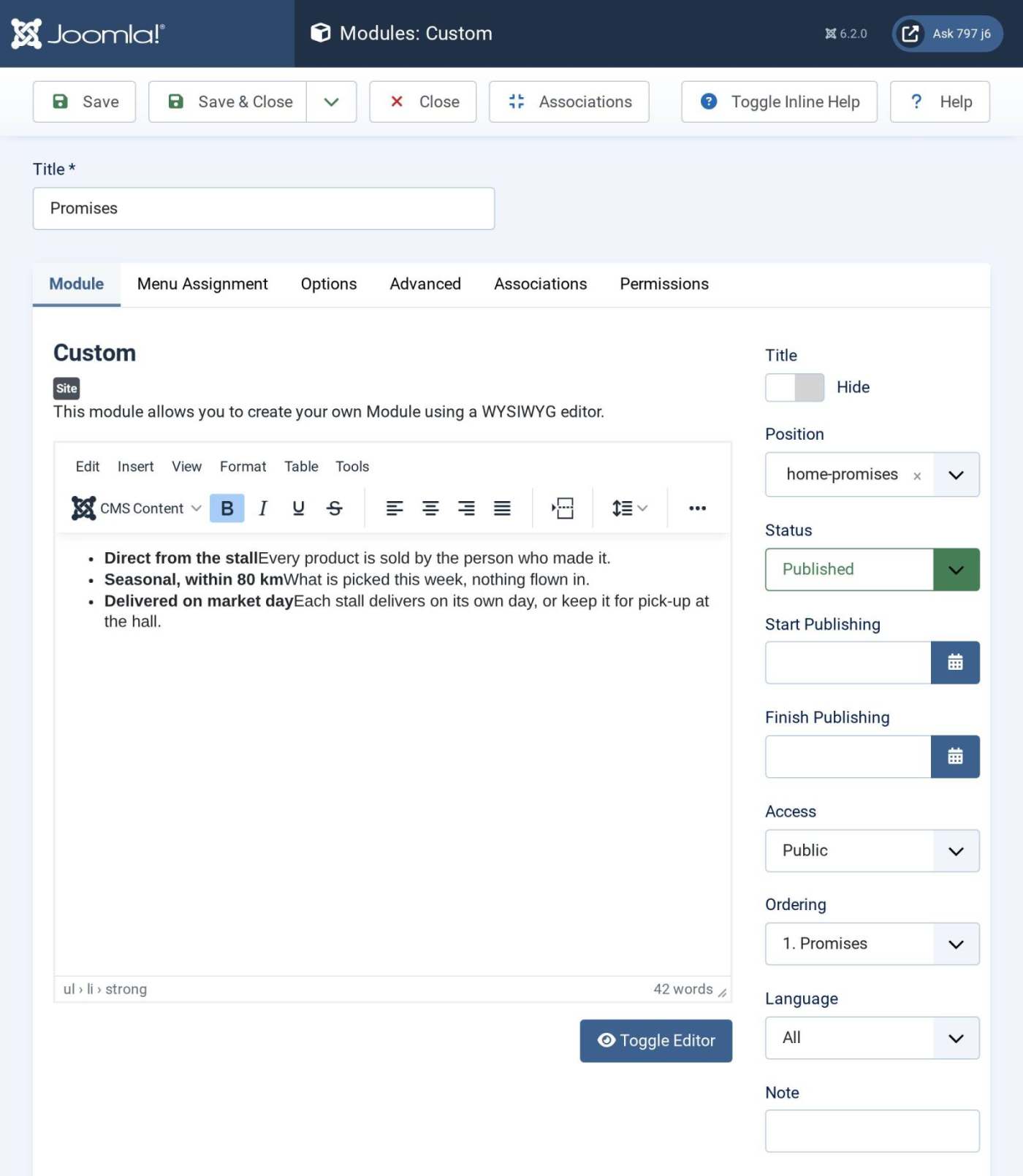](/images/doc/templates/halle/15-module-promises.jpg)
[](/images/doc/templates/halle/32-home-promises.jpg)
#### The stalls (position home-stalls)
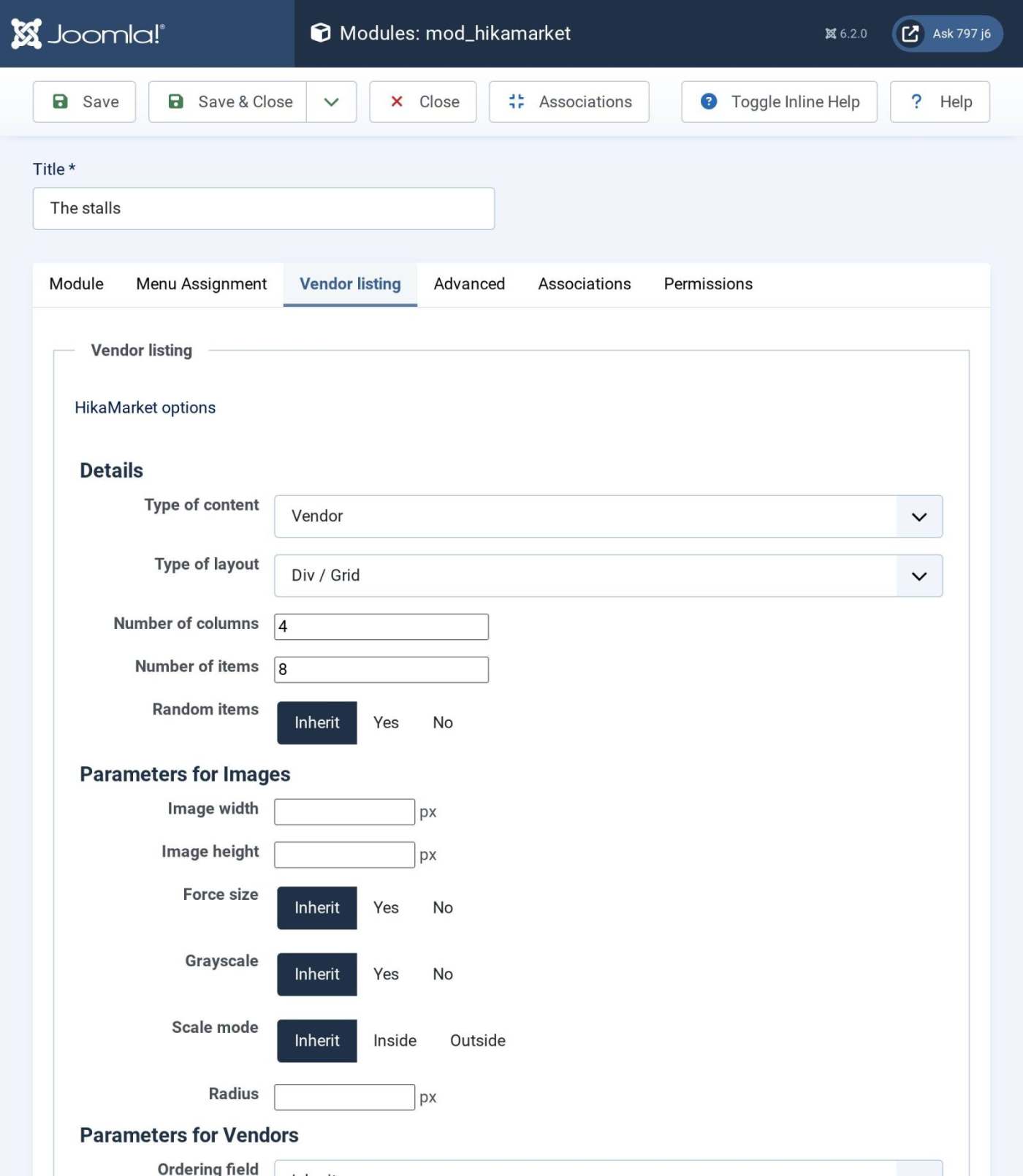
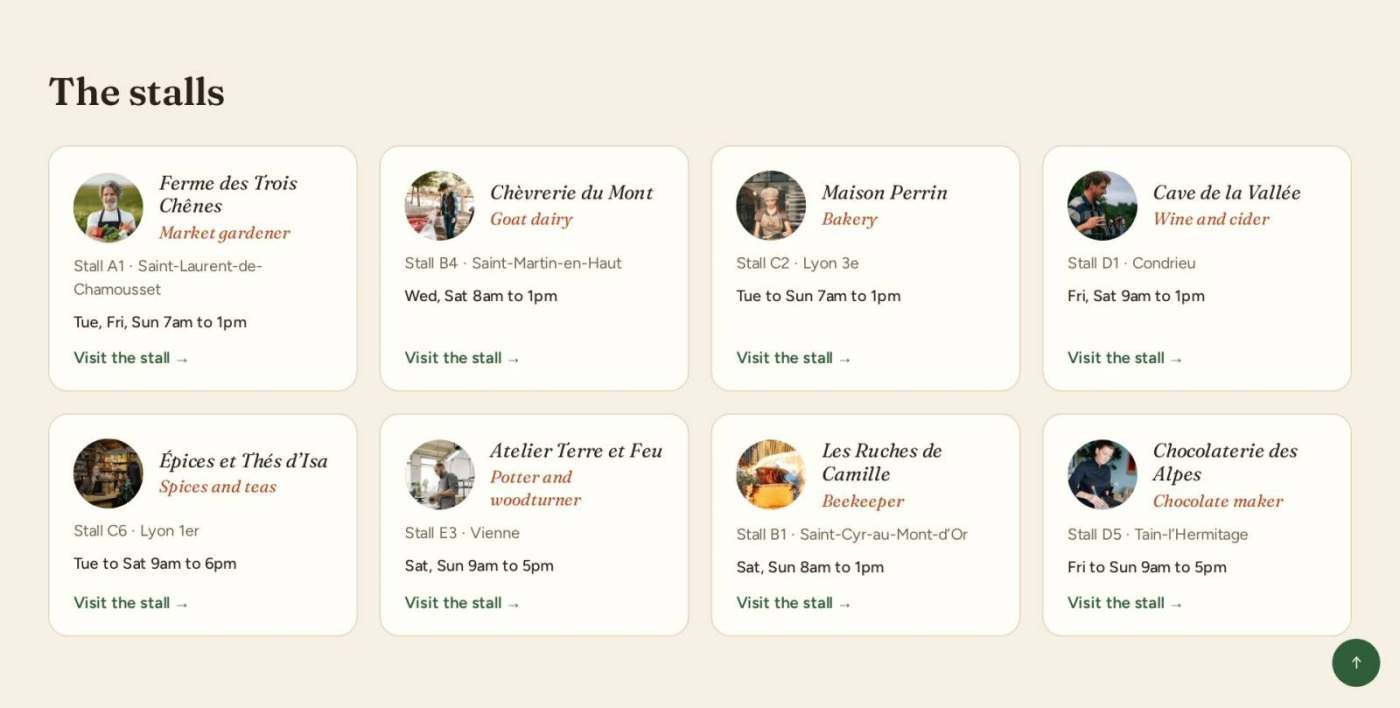
A **HikaMarket** module (type **HikaMarket**), title shown ("The stalls"). In its **Vendor listing** tab: **Type of content** = **Vendor**, **Type of layout** = **Div / Grid**, **Number of columns** = 4, **Number of items** = 8, **Type of item layout** = **Image and title**, **Link to vendor page** = Yes. Halle draws each vendor as a stall card with its portrait, its name, its trade, its stall number and place, its opening hours and a link to its front page.
[](/images/doc/templates/halle/16-module-stalls.jpg)
[](/images/doc/templates/halle/33-home-stalls.jpg)
#### The picks of the week (position home-picks)
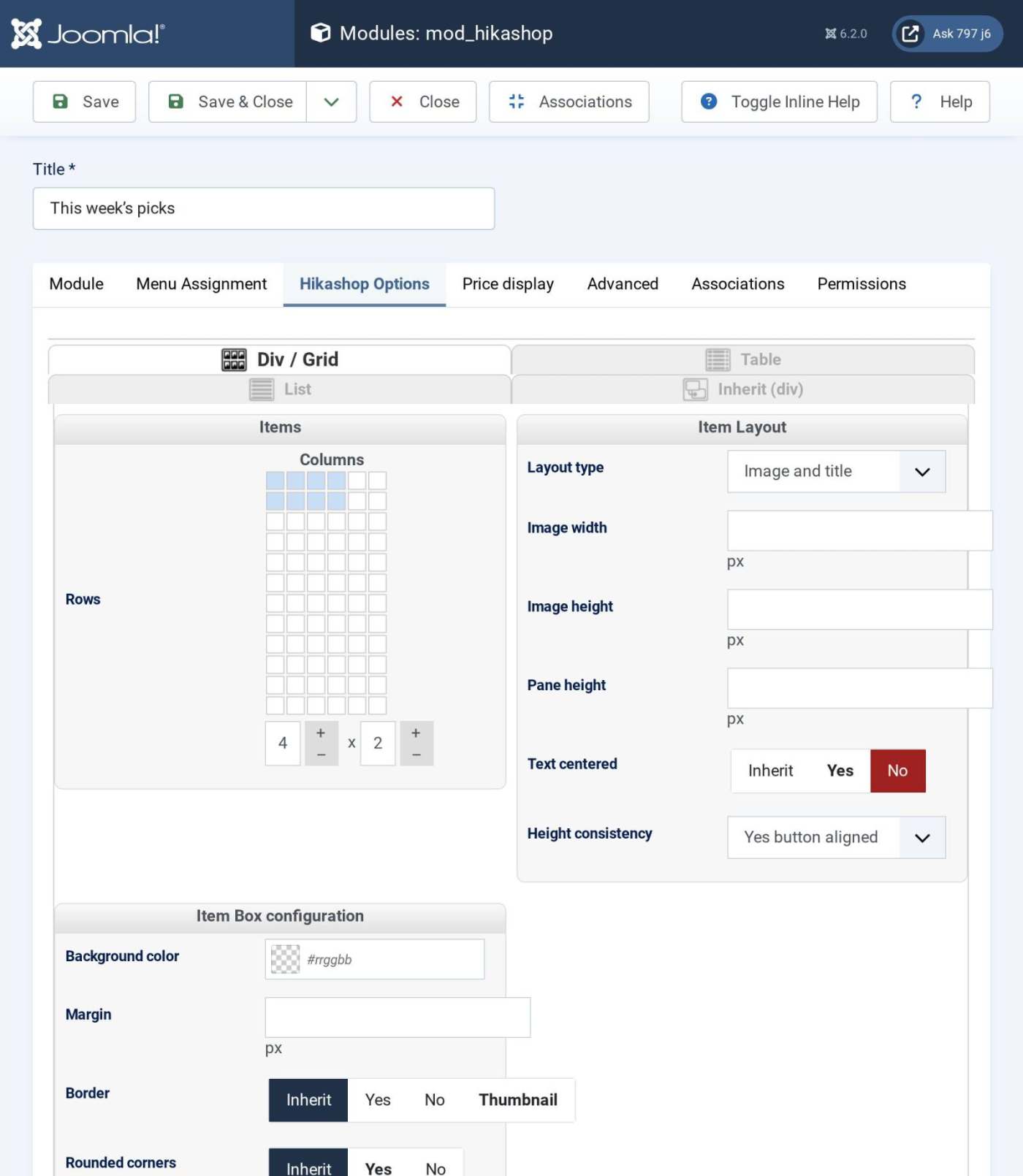
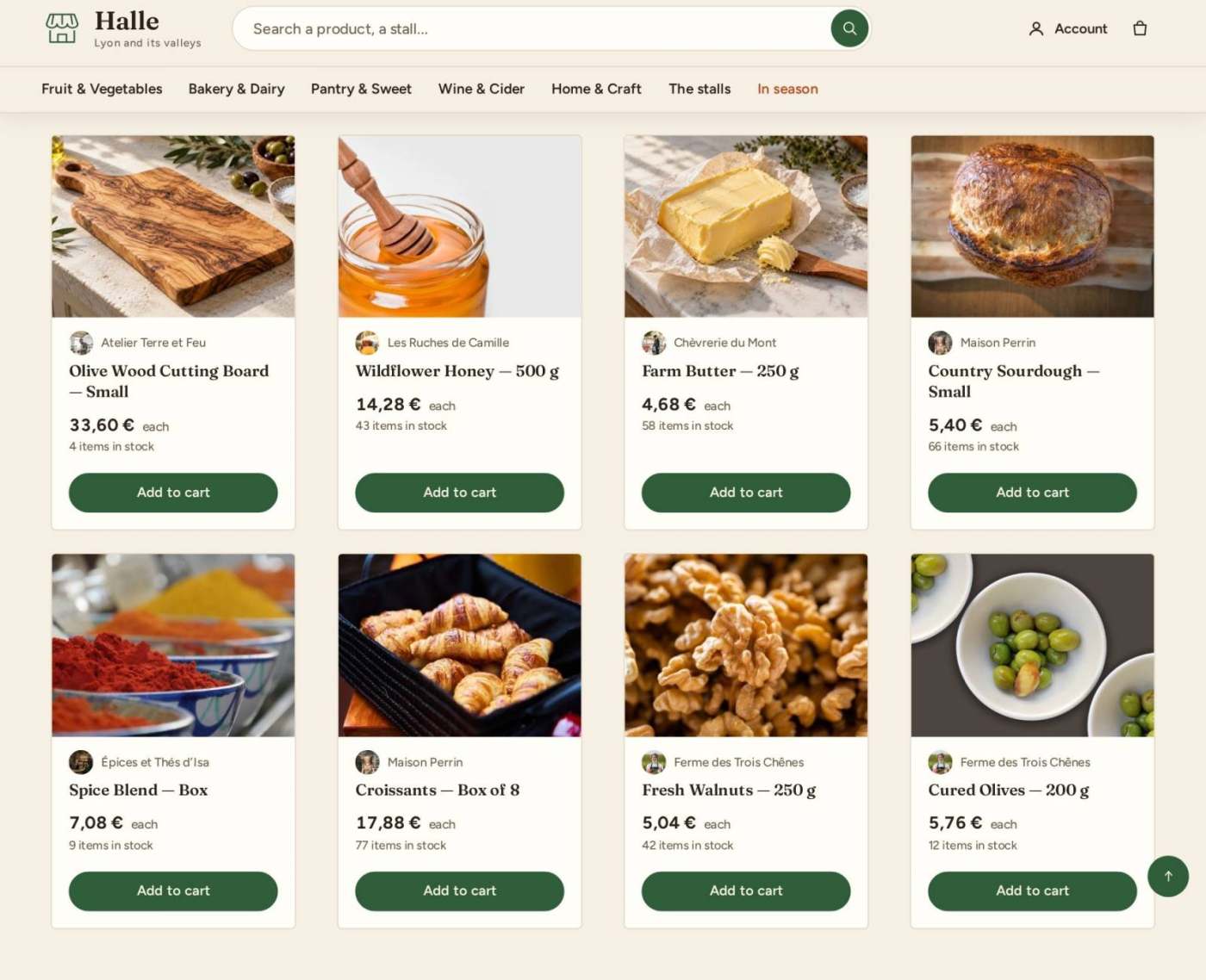
A **HikaShop Content** module, title shown ("This week's picks"), layout **Div / Grid**, **4 columns x 2 rows**, **Layout type** = **Image and title**, and as content **Type of content** = **Product**, 8 items, the latest first (ordered by creation date, descending), from every sub-category of **Product category** (**All sub elements**). Each card carries the vendor line (the stall's portrait and name), the price (with the price per unit for a product sold by weight), the stock and the Add to cart button.
[](/images/doc/templates/halle/17-module-picks.jpg)
[](/images/doc/templates/halle/34-home-picks.jpg)
#### The map of the stalls (position home-map)
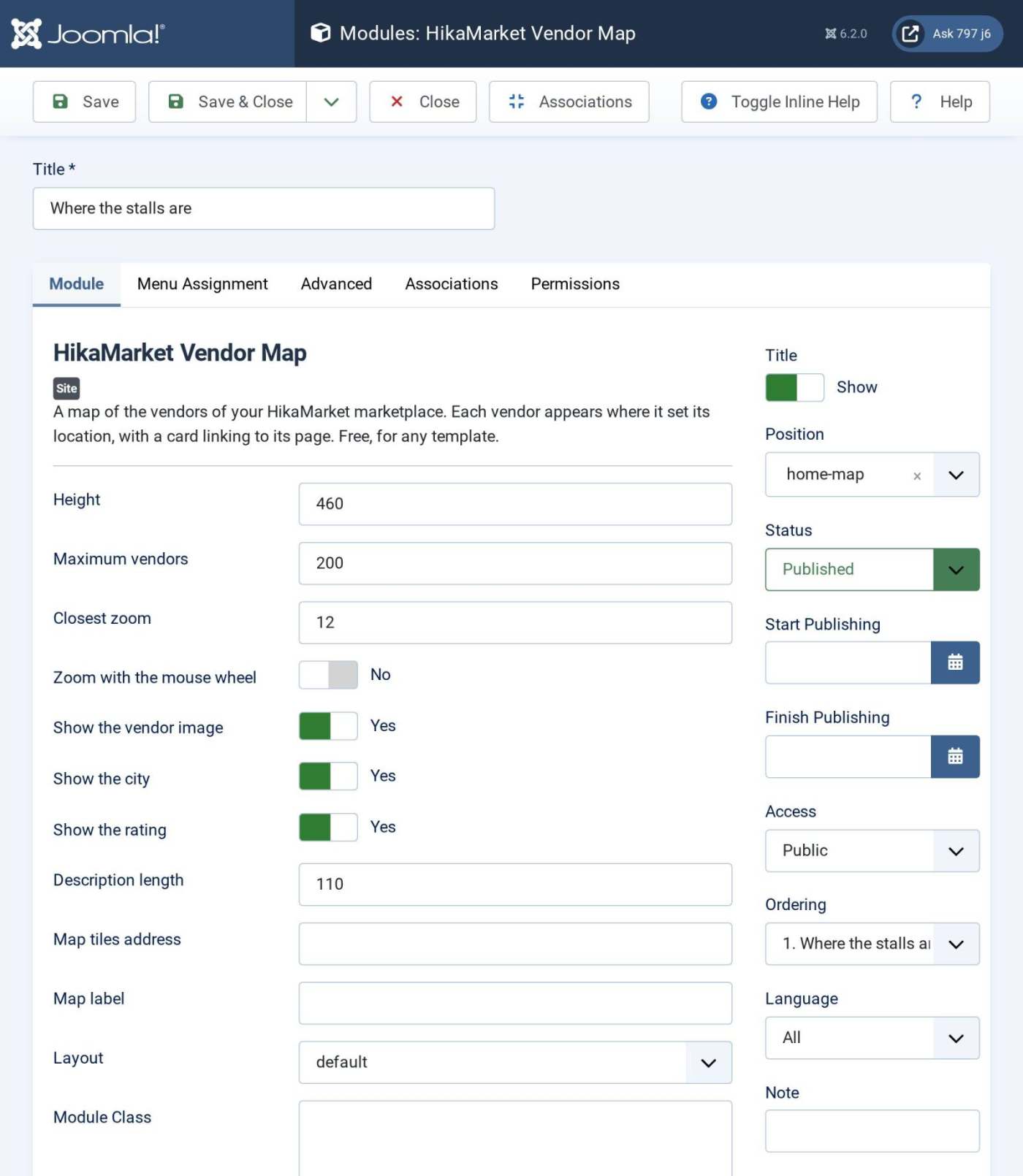
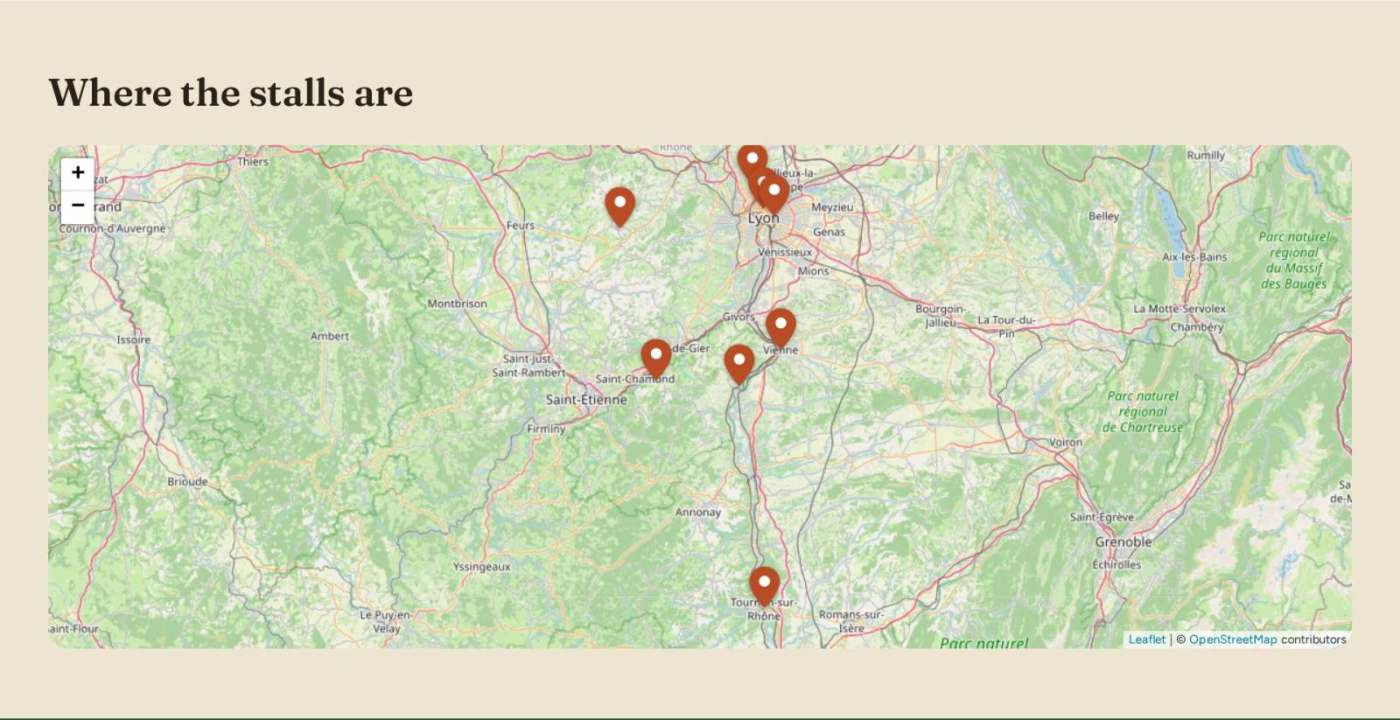
A **HikaMarket Vendor Map** module (type **HikaMarket Vendor Map**, free), title shown ("Where the stalls are"). It draws a map with one pin per stall, from the **Vendor location** of each vendor (latitude and longitude, see step 9), with the stall's picture, name, place and rating in the pin's bubble. Its settings are the **Height** (460), the **Maximum vendors** (200), the **Closest zoom** (12), **Zoom with the mouse wheel** (No, so that the page still scrolls over the map), what a pin's card shows (**Show the vendor image**, **Show the city**, **Show the rating**, **Description length**) and the address of the map tiles (empty: OpenStreetMap). The pins take the colour of the template.
[](/images/doc/templates/halle/18-module-map.jpg)
[](/images/doc/templates/halle/35-home-map.jpg)
#### The newsletter (position newsletter)
A band before the footer, on every page. Put the module of your newsletter service there (a **Custom** module with its form, or the module of the extension you use). The demo leaves it empty.
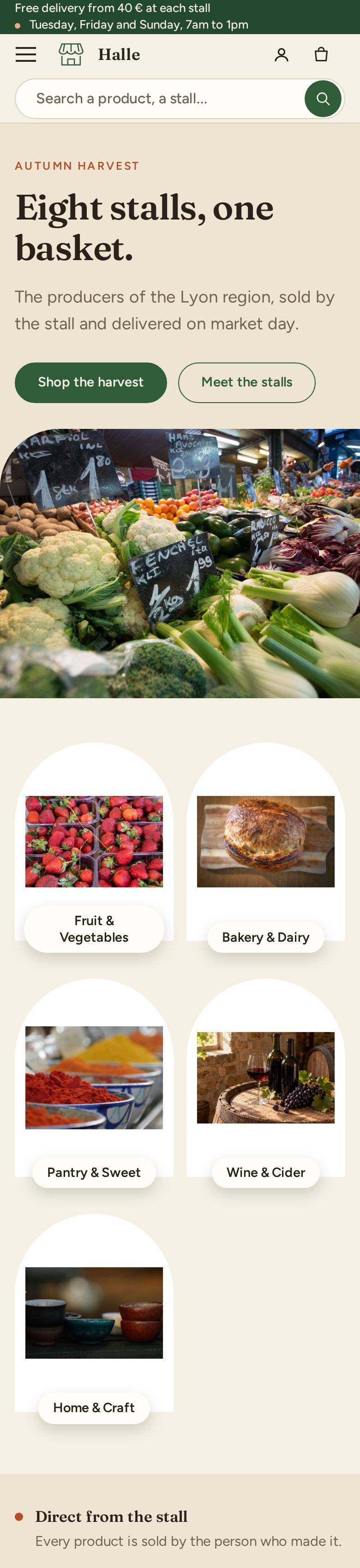
Here is the home page on a phone:
[](/images/doc/templates/halle/40-home-mobile.jpg)
### 9. Set up the marketplace with HikaMarket
HikaMarket turns the shop into a market: each product belongs to a vendor, the cart and the checkout are split by vendor, each vendor has a front page, and each vendor ships its own goods. The tutorial [HikaMarket Multivendor Tutorial](https://www.hikashop.com/support/documentation/164-hikamarket-multi-tutorial.html) explains every mode of a marketplace. These are the settings of a market of independent stalls that deliver on their own, as in Halle.
#### The market options
Open **Components > HikaMarket > Configuration**, tab **Market options**. The sections are listed on the left. The ones a market of stalls needs:
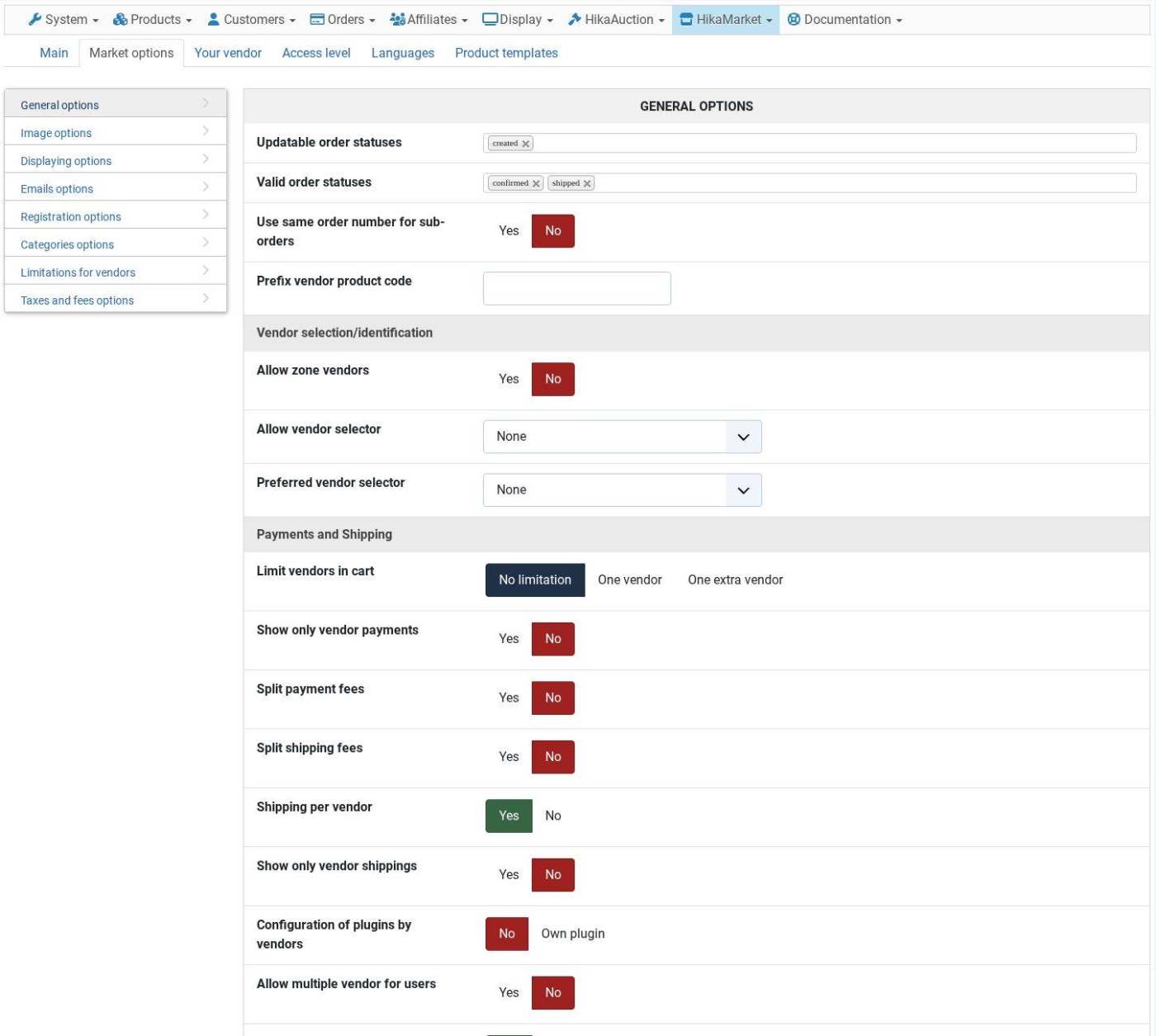
- **Payments and Shipping** (in **General options**): **Shipping per vendor** = **Yes** (the default): each stall offers its own shipping methods and its own price, and the customer chooses one per stall. **Limit vendors in cart** = **No limitation** to let one basket hold goods of several stalls. **Show only vendor payments** = No while the market takes the payment for the stalls.
- **Registration options**: **Allow vendor registration** (**Manual validation** lets you visit a farm or a workshop before a stall opens), and what the registration form asks for (a password, the description, the terms, the PayPal email, the currency).
- **Categories options**: **Create categories for vendors** (a category of its own per stall) and **Change vendor root category** (the category where the products of a stall are put).
- **Taxes and fees options**: the commission of the market (see "Fees and payments" below).
- **Displaying options**: **Modules under the vendor page**: the module shown at the bottom of a stall's front, see "Products, categories and the front of a stall".
[](/images/doc/templates/halle/22-market-shipping.jpg)
#### The fields of a stall
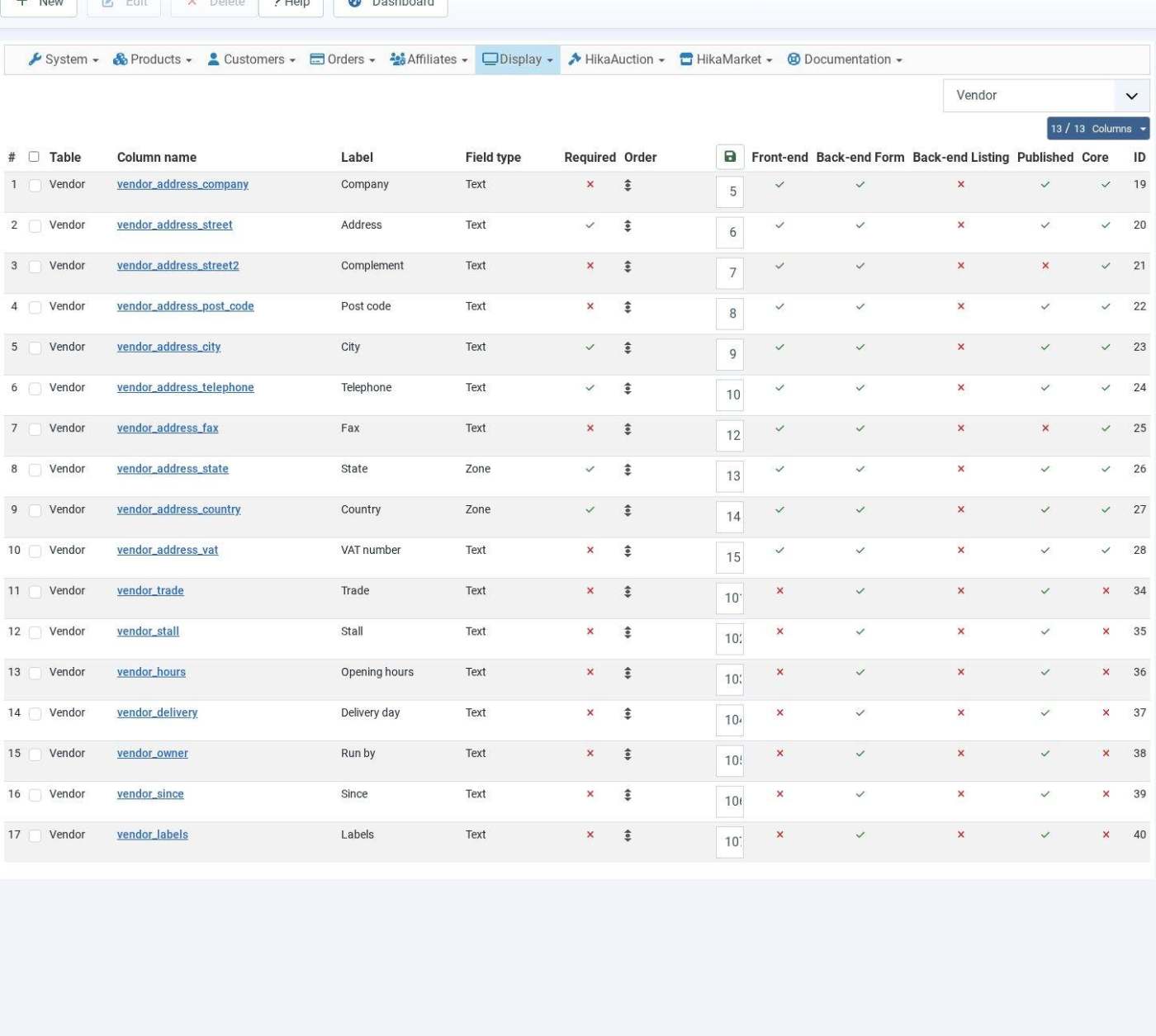
The stall cards, the vendor line, the stall's front page and the product page use four vendor fields: the trade, the stall number, the opening hours and the delivery day. Create them in **HikaShop > Display > Custom fields** with **New**: **Table** = **Vendor**, **Field type** = **Text**, and these column names (the names written in the Market tab of the template): `vendor_trade` (label "Trade", for example "Goat dairy"), `vendor_stall` ("Stall", for example "B4"), `vendor_hours` ("Opening hours", for example "Wed, Sat 8am to 1pm") and `vendor_delivery` ("Delivery day", for example "Saturday"). The demo has three more, shown on a stall's front: `vendor_owner` ("Run by"), `vendor_since` ("Since") and `vendor_labels` ("Labels"). A vendor field is on the vendor registration form as soon as its **Display in** options say so; see [HikaMarket Vendor edition](https://www.hikashop.com/support/documentation/149-hikamarket-vendor-form.html).
[](/images/doc/templates/halle/24-vendor-fields.jpg)
#### The vendors and their stalls
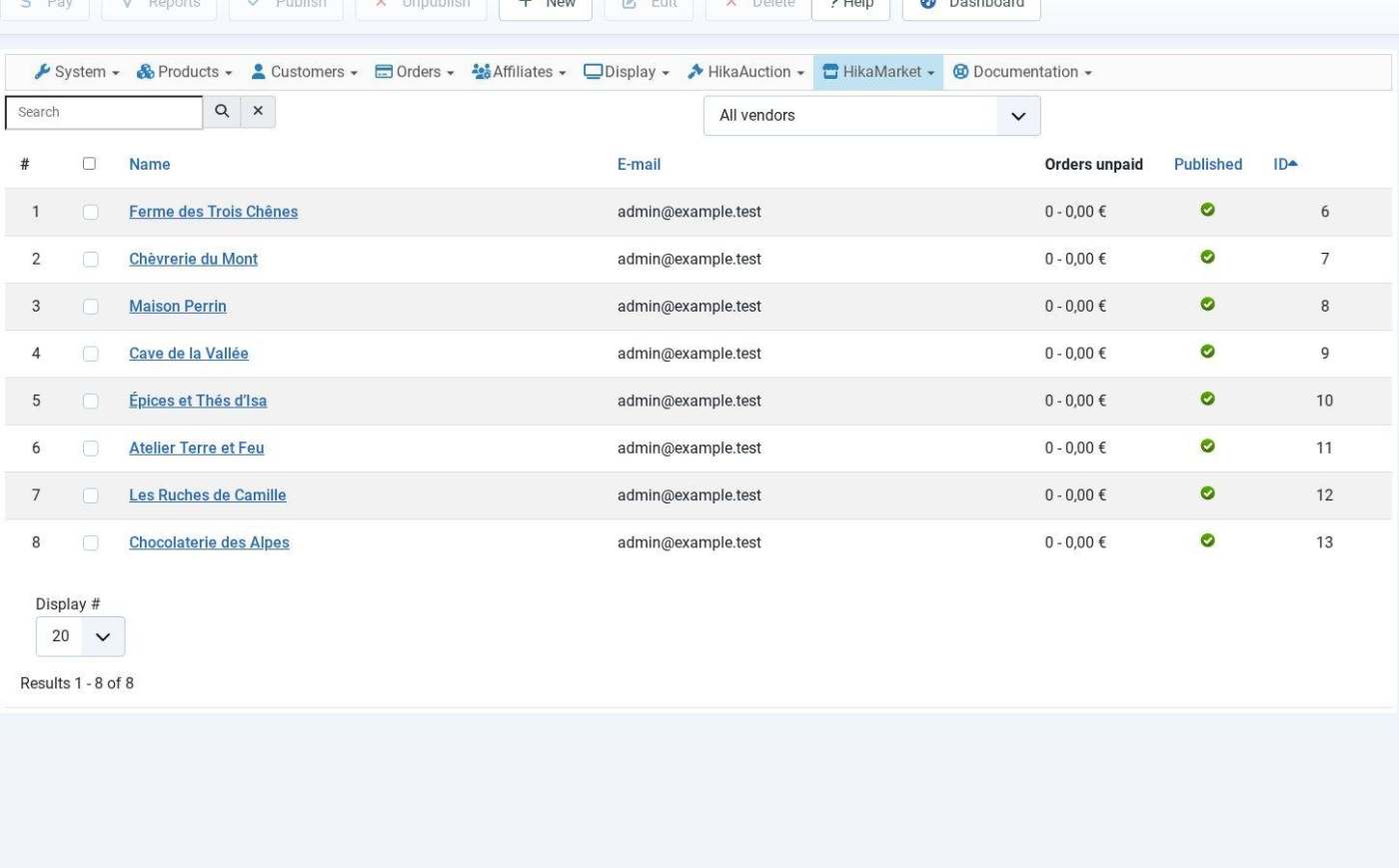
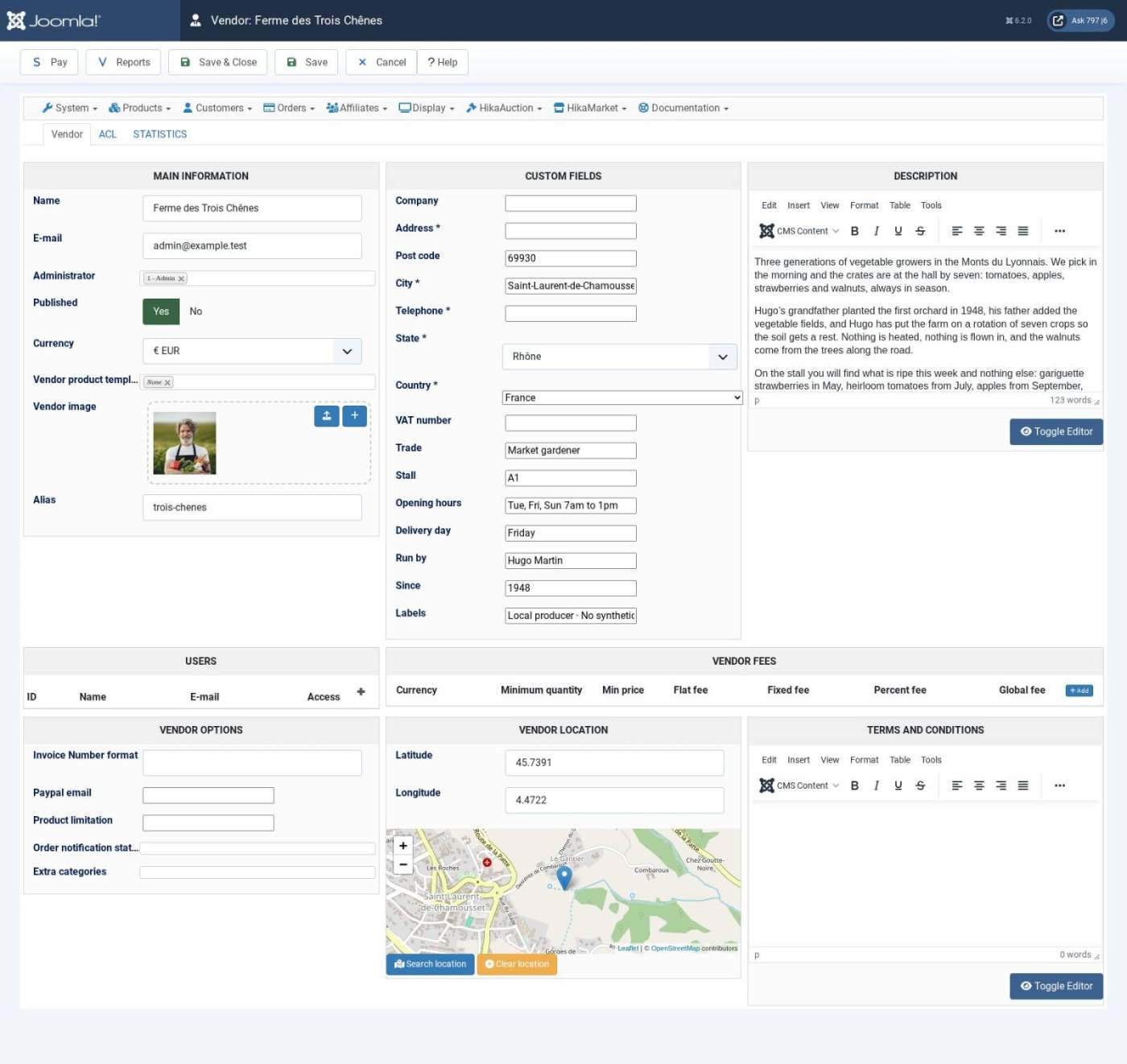
Open **Components > HikaMarket > Vendors** and click **New**, or let the vendors register (next part) and validate them here. A vendor's form holds:
- **Name**, **Alias** (the end of the address of its front page) and **Administrator** (the Joomla user who manages the stall).
- **Vendor image**: the portrait shown on the stall card, on the product cards and in the cart. A square picture of the person or of the stall fits best.
- The **custom fields**: address, post code, city and the four fields of Halle (trade, stall, opening hours, delivery day), and the extra ones.
- **Description**: the story of the stall, shown on its front page. The first paragraph is shown larger.
- **Vendor location**: a latitude and a longitude, or click **Search location** and move the pin. The map of the home page and the small map on the stall's front use it.
- **Vendor fees**: the commission of the market for this vendor (see below).
[](/images/doc/templates/halle/25-vendors-list.jpg)
[](/images/doc/templates/halle/25b-vendor-edit.jpg)
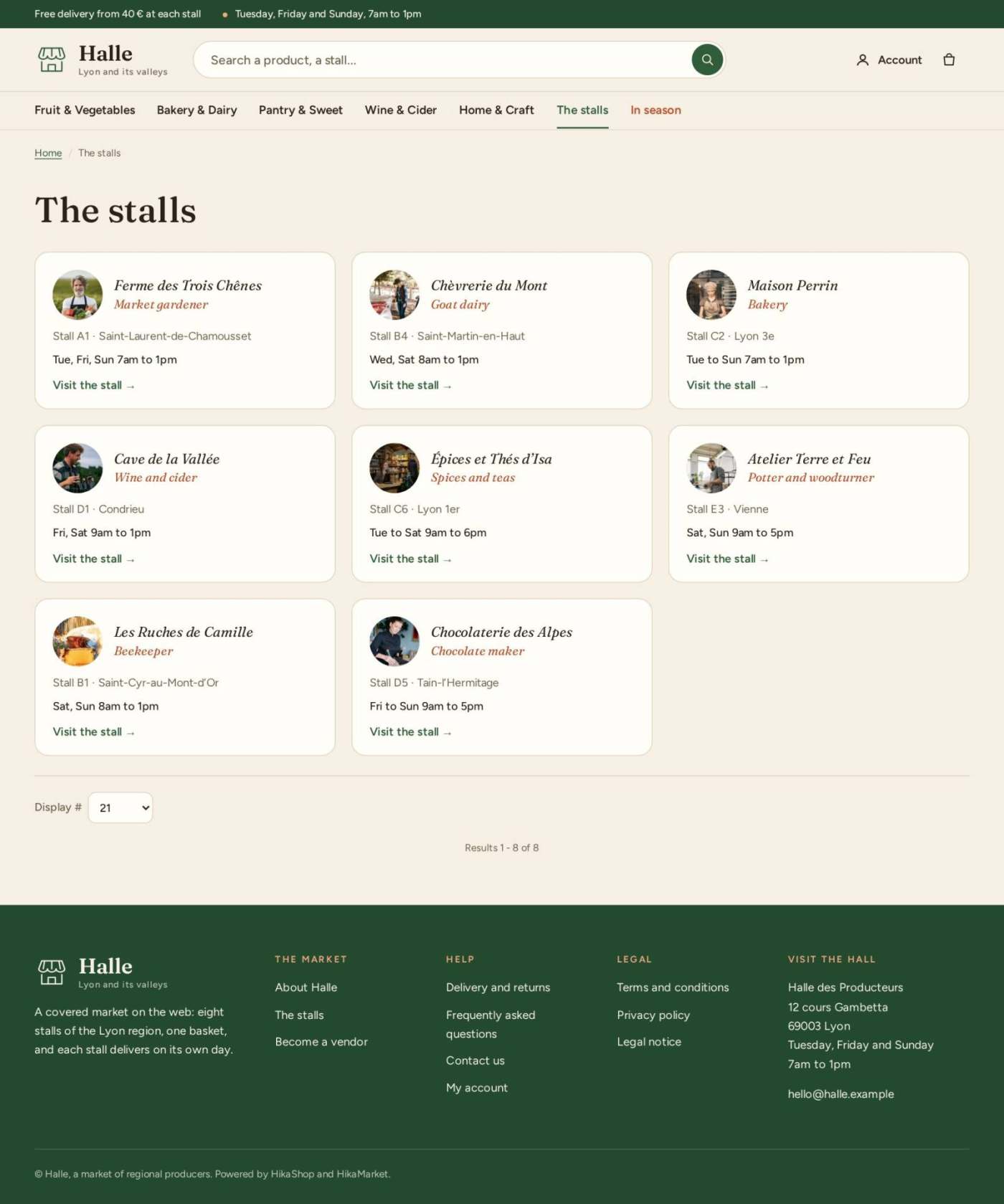
The directory of the stalls is the page of the **Vendor listing** menu item:
[](/images/doc/templates/halle/37-stalls-listing.jpg)
#### Vendor registration and the vendor area
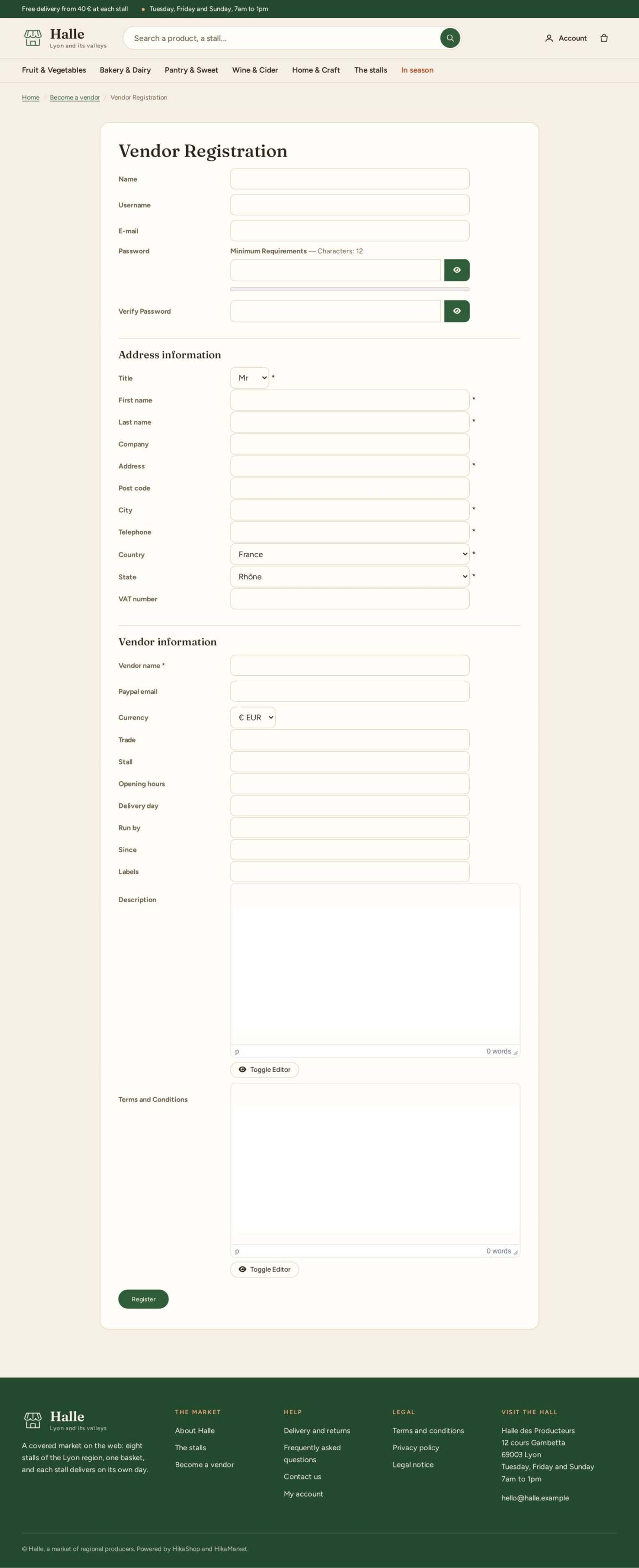
A producer who wants a stall registers on the page of your "Become a vendor" menu item (a **Vendor edition** item): their account, their address and the fields of the stall (trade, stall, opening hours...), their description and the terms. With **Allow vendor registration** on manual validation, the new vendor waits for your approval in **Components > HikaMarket > Vendors**. Once the stall is open, its vendor reaches the **vendor area** (the **Vendor Control Panel** menu item): its statistics, its products, its orders and its customers, its categories and its discounts, in the look of the template. What a vendor may do there is set by the access levels, see the Access level tab of the configuration.
[](/images/doc/templates/halle/39-vendor-registration.jpg)
#### Products, categories and the front of a stall
- A vendor creates its products in its vendor area (**Products > New**); you can also edit a product in **HikaShop > Products** and choose its **Vendor** in the **Main information** box. Each product shows "Sold by" with its stall's portrait, in the listings, on its page, and in the cart.
- The products of the stalls are in the department categories of your shop (a product can be in several), so the listings of the main menu show the goods of every stall. Use **Change vendor root category** to decide where the products created by a vendor are put.
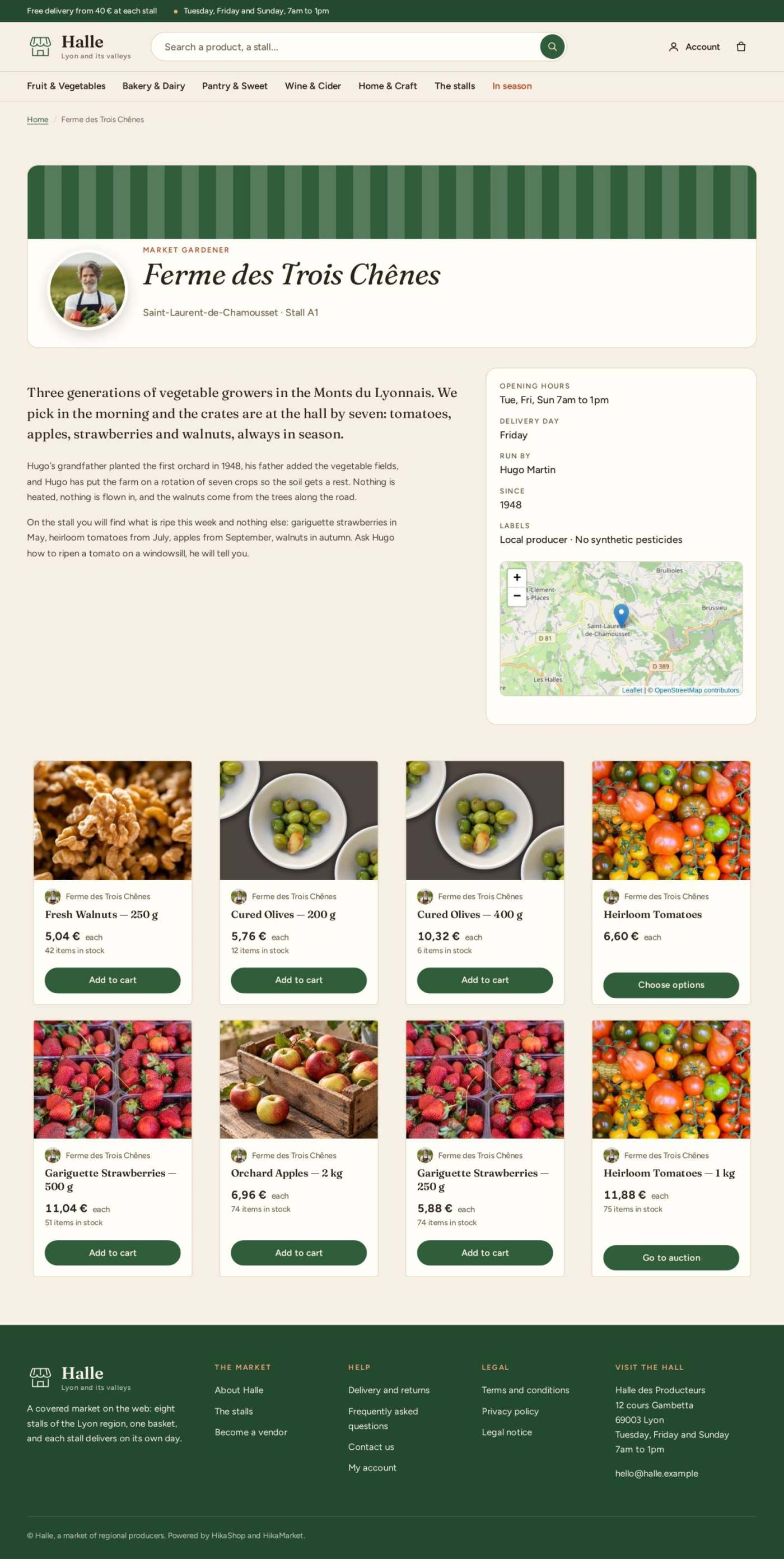
- **The front of a stall** (a **Vendor page** or the card's link) shows the stall's portrait, its trade, its words, its facts (opening hours, delivery day, run by, since, labels), a map, then its products. The products are a HikaShop module: create a **HikaShop Content** module in the position `halle-stall` (4 columns, 3 rows, 12 items, **Type of content** = Product, **Filter same vendor** = Yes in its **Hikashop Options**; assigned to no page), then choose it in **Components > HikaMarket > Configuration > Market options > Displaying options > Modules under the vendor page**. The demo has this module, named "Products of the stall".
[](/images/doc/templates/halle/38-stall-page.jpg)
#### Fees and payments
The market lives on a commission. **Taxes and fees options** of the Market options (and **Vendor fees** of each vendor, and of each product) hold the rules: a percentage, a fixed fee, a minimum price. Read [HikaMarket fees](https://www.hikashop.com/support/documentation/259-hikamarket-fees.html) before you set them. Who is paid, and when, depends on the market mode: the market takes the payment and pays its vendors later (the mode of Halle's demo), or the vendors are paid directly (HikaMarket has payment plugins for that); see the Multivendor tutorial.
#### Delivery, and free delivery per stall
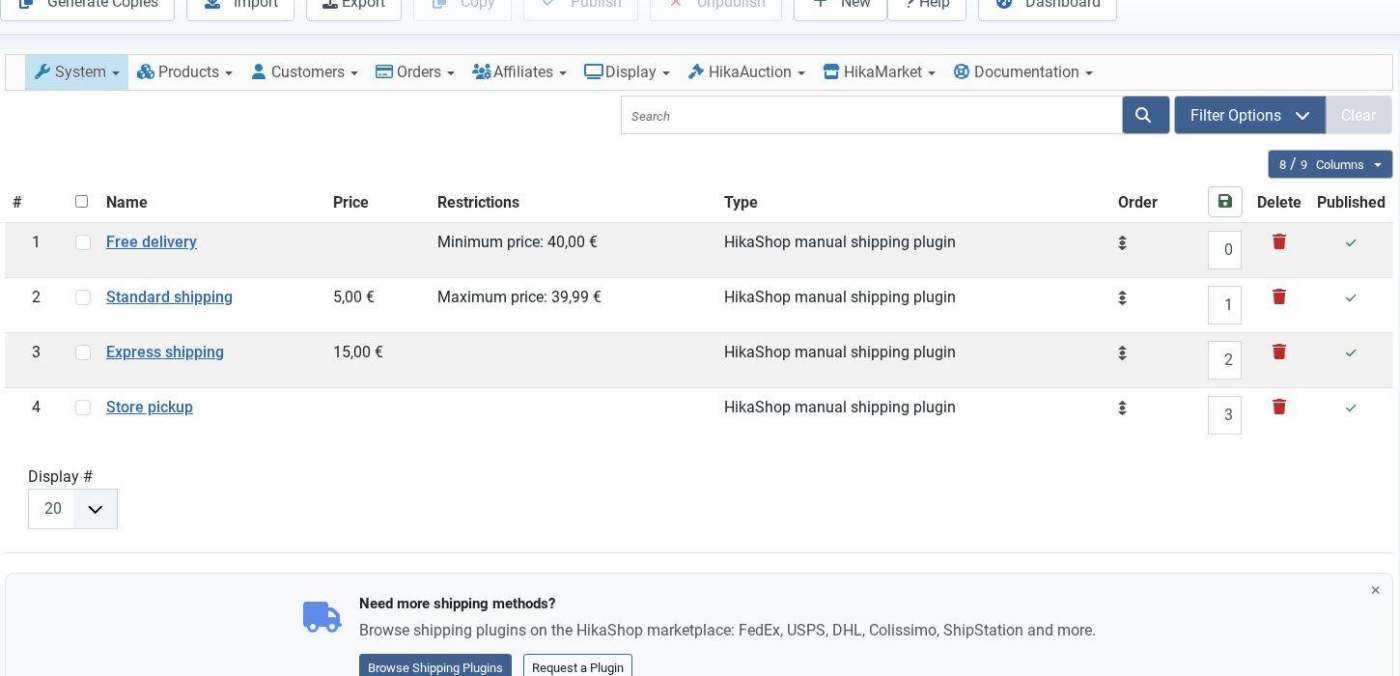
With **Shipping per vendor**, the checkout asks one shipping method **per stall**: each stall has its block, with the methods it offers and their price, and a delivery note (the delivery day of the stall). The shipping methods are those of **HikaShop > System > Shipping methods**; each is a normal HikaShop method, whose restrictions are checked against the goods of one stall at a time. See [Shipping method Add/Edit](https://www.hikashop.com/support/documentation/31-hikashop-shipping-manual-form.html).
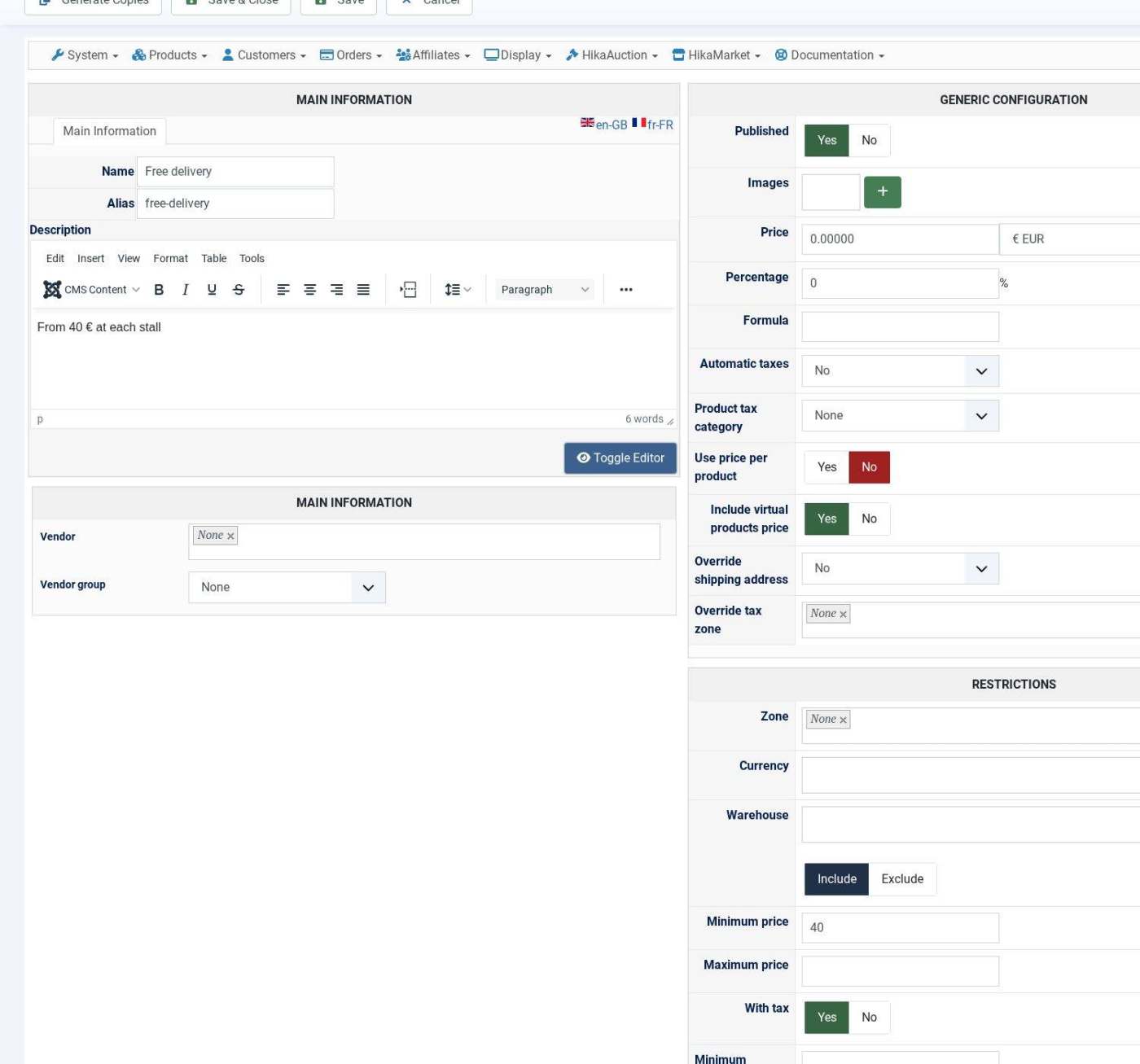
**Free delivery is a shipping method at 0 € with a minimum price, per stall.** It is not a setting of the template, and the template has no free delivery bar. To offer it:
1. Create a **manual** shipping method called "Free delivery": **Price** 0, **Minimum price** 40 (the threshold, per stall), **With tax** = Yes when your prices are shown with tax (the threshold is then compared with the subtotal of the stall with its taxes).
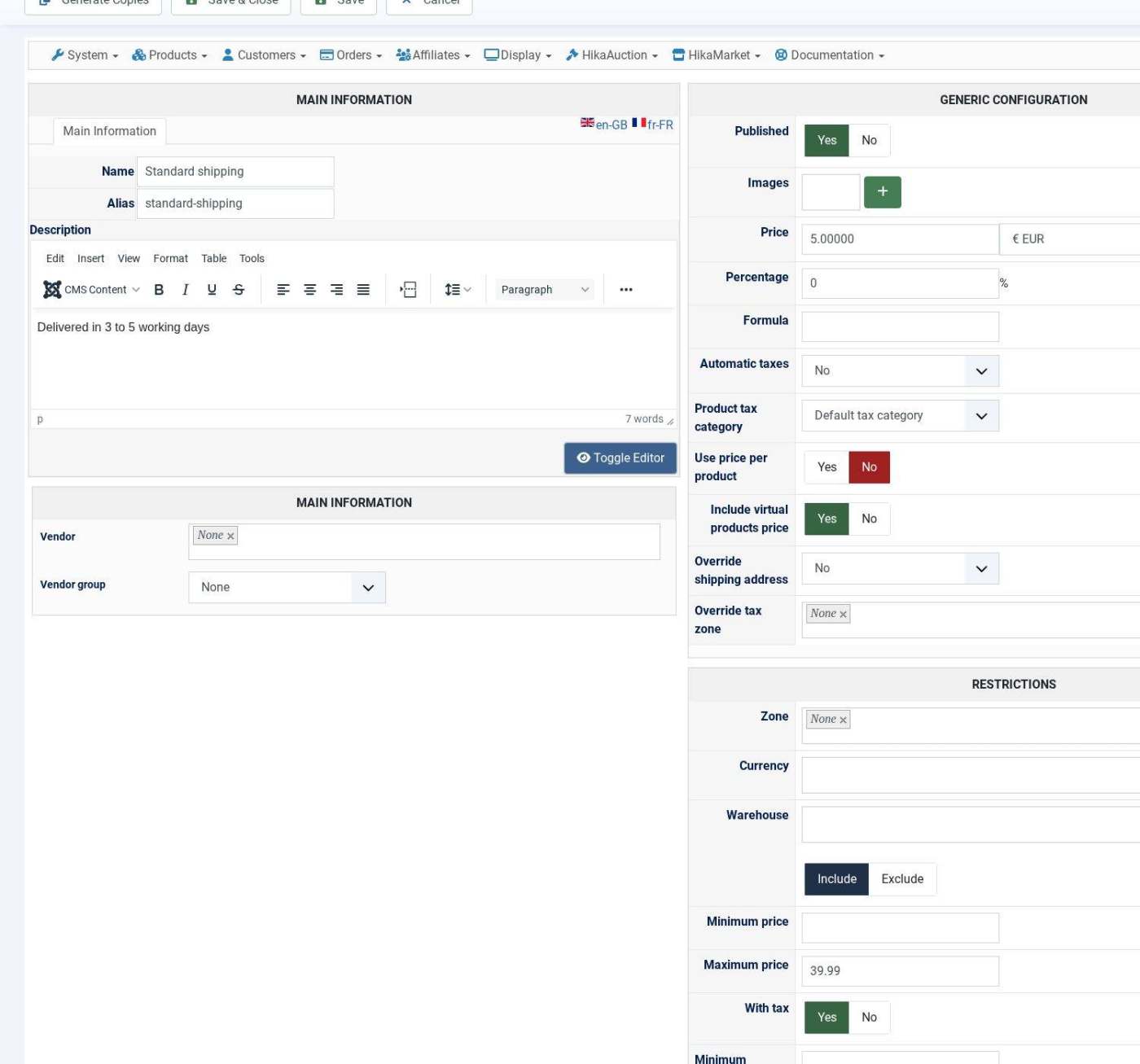
2. Give your **paying** method (here "Standard shipping", 5 € before tax) a **Maximum price** of 39.99, so that a stall whose goods reach 40 € no longer offers it and a stall under 40 € does. Express shipping and pick-up have no limit.
3. Write the threshold in the **Strip above the header** setting of the template (step 4) and in your delivery page, so that they say the same as the shipping methods.
[](/images/doc/templates/halle/26-shipping-list.jpg)
[](/images/doc/templates/halle/27-free-delivery.jpg)
[](/images/doc/templates/halle/28-standard-shipping.jpg)
In a basket with goods from two stalls, the stall that reaches 40 € offers **Free delivery**, **Express shipping** and **Store pickup**, and the one under 40 € offers **Standard shipping**, **Express shipping** and **Store pickup**. The shipping total adds the choice of each stall.
### 10. HikaShop settings for the look of the shop
Open **HikaShop > System > Configuration**, tab **Main**:
- **Thumbnail (width x height)** and **Product page image (width x height)**: the demo uses 560 x 420 for the cards and 720 x 720 for the product page. Halle draws the pictures larger than that on a wide screen, so do not go smaller.
- **Force images size** = Yes and **Image scale mode** = **Crop (outside)**: every card has the same shape.
- **Show taxed prices**: the demo shows its prices with tax from the listing to the checkout, as a consumer market does. For a taxed price to be right, give each product a tax category and have a tax rule for the customer's country.
- **Vendors**: HikaMarket shows the vendor on the product and in the cart from its HikaShop plugin; check that **HikaShop > System > Plugins** lists it as enabled.
### 11. Before you sell
- Place a test order with each payment method, and watch the emails: the vendors get theirs.
- Check the shop on a phone: the menu folds behind a button, the product page has its add-to-cart bar, the cart drawer groups the goods by stall.
- Replace the sample pages (terms, privacy, legal notice) with your own.
- Check the taxes, the shipping methods and the free delivery threshold, and that the strip says the same.
### 12. Your own CSS
Add your own rules in the **user.css** file of the template (`media/templates/site/halle/css/user.css`): it is loaded last and an update of Halle never overwrites it. The same goes for `media/templates/site/halle/js/user.js`.
### Questions
**The home page shows no section.** The sections show on the page of the menu item flagged Home; check that it is the default item and that its type is Featured Articles, and that your modules are assigned to it (**Menu Assignment**).
**A stall card has no portrait.** Add the Vendor image in its form. The names, trade and places come from the vendor fields: check their column names against the Market tab of the template.
**The map is empty.** The pins come from the Latitude and Longitude of the vendors (**Vendor location**); a vendor without them has no pin.
**A stall offers no shipping method.** Each stall is checked against the restrictions of the method (zone, minimum and maximum price, weight). With **Shipping per vendor**, the maximum price of Standard shipping hides it from a stall whose goods reach it: another method must be available at that price (the free delivery).
**The fonts are not the ones of the preset.** The fonts are served from `images/halle-fonts` once downloaded; clear the Joomla cache and your browser's.