[Skip to main content](#vessel-content)
☰ Documentation
# reCAPTCHA plugin
Details Written by: Administrator Category: [Integrations](/support/documentation/hikashop/integrations) Published: 10 November 2026 Hits: 13
- [Description](#description)
- [Requirements](#requirements)
- [Installing the plugin](#install)
- [Settings](#settings)
- [What your visitors see](#result)
- [Troubleshooting](#troubleshooting)
### Description
The "System - HikaShop ReCaptcha v2" plugin adds a Google reCAPTCHA anti-spam check to the registration forms of your website, so that robots cannot create accounts. It is shown to visitors who are not logged in only.
It works on the registration of HikaShop (including the one of the checkout), the registration of Joomla and the registration forms of AlphaRegistration, ccUsers and VirtueMart. It can also protect the contact forms (Joomla, QContacts and Contact Enhanced, and the contact form of the HikaShop product page), the comment forms of HikaShop and the withdrawal form of HikaShop.
The language of the check is chosen from the language of the page.
### Requirements
- A site key and a secret key for reCAPTCHA v2, created for your domain name on the reCAPTCHA website of Google. They are free.
- The plugin works with all the editions of HikaShop. The captcha on the withdrawal form needs HikaShop 6.7.0 or later.
### Installing the plugin
1-Get the plugin on our marketplace: [Get the plugin on our marketplace](/marketplace/product/223-integration-with-recaptcha "reCAPTCHA plugin")
2-In your Joomla administration, go to the extensions installer (System > Install > Extensions) and upload the plugin you downloaded.
3-Create your keys on the reCAPTCHA administration of Google (). Choose reCAPTCHA v2 and list your domain name. The keys are tied to the domain name of your website. For the invisible modes of the plugin, ask for the invisible type of key if Google offers a choice.
4-Go to the Joomla plugins manager (System > Plugins), search for "ReCaptcha" and open the plugin "System - HikaShop ReCaptcha v2".
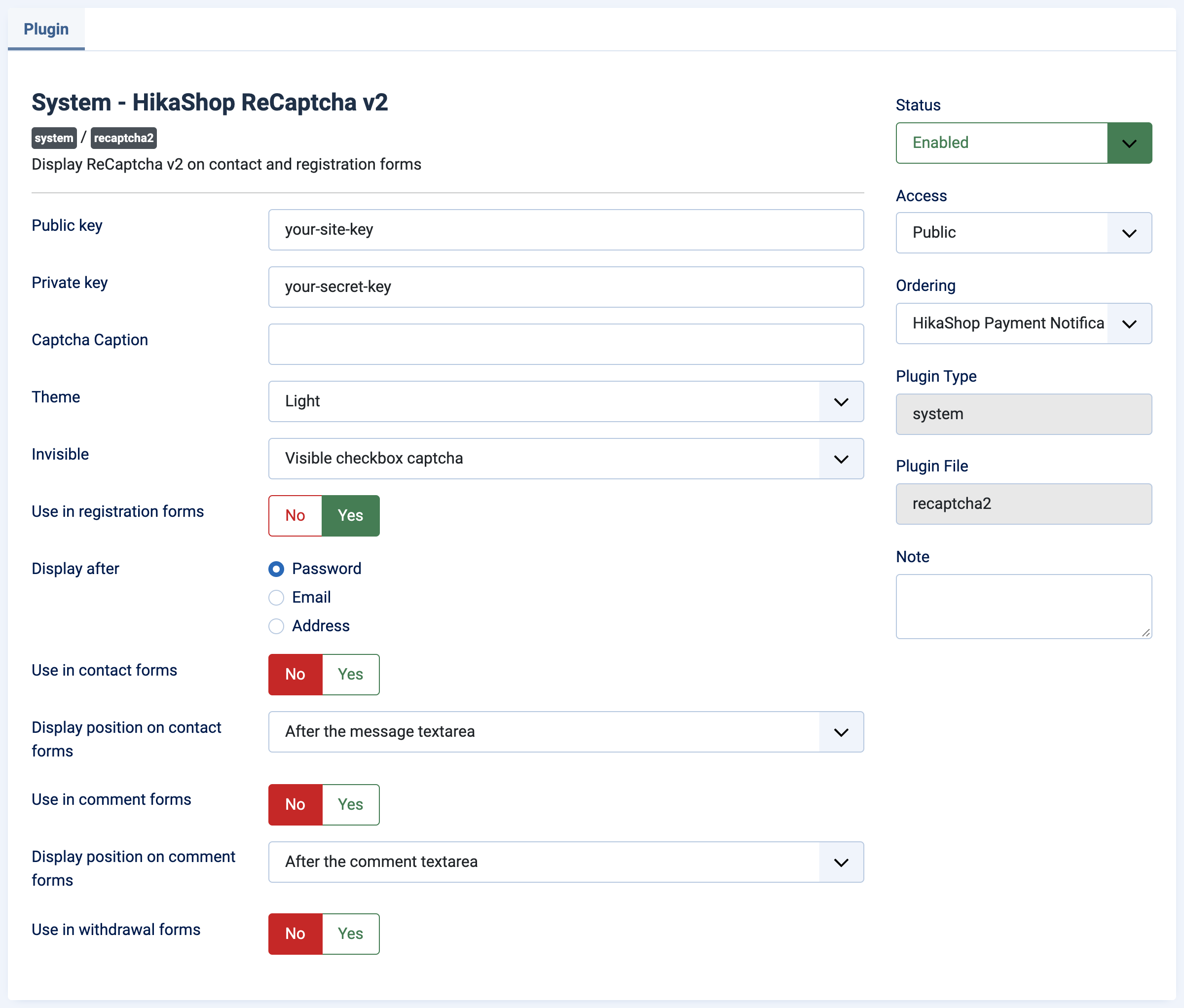
5-Paste the site key in "Public key" and the secret key in "Private key", set the Status to Enabled and save.
### Settings
The settings are listed in the order of the form.
**Public key**: the site key you get after registering on the reCAPTCHA website.
**Private key**: the secret key you get after registering on the reCAPTCHA website.
**Captcha Caption**: the text displayed next to the captcha. Leave it empty to use the default text "Captcha".
**Theme**: Light or Dark, the look of the check.
**Invisible**: "Visible checkbox captcha" shows the "I am not a robot" box. The invisible modes (inline, bottom left, bottom right) do not show the box when reCAPTCHA is already sure that the visitor is legitimate, and the position says where the reCAPTCHA badge is displayed.
**Use in registration forms**: Yes to protect the registration forms. This is the default.
**Display after**: the field of the registration form after which the captcha is displayed: Password, Email or Address. If you use the simplified registration of HikaShop, which has no password, choose Email, otherwise the captcha is not displayed and your visitors cannot register while checking out.
**Use in contact forms**: Yes to protect the contact forms.
**Display position on contact forms**: after the message text area, after the e-mail address input or after the "receive a copy" option.
**Use in comment forms**: Yes to protect the comment forms of HikaShop (product reviews).
**Display position on comment forms**: after the comment text area, after the username input or after the e-mail address input.
**Use in withdrawal forms**: Yes to display the captcha on the withdrawal form, to the customers who are not logged in. It needs HikaShop 6.7.0 or later.
### What your visitors see
A visitor who is not logged in sees the captcha on the forms you chose, and has to pass it to register or to send the form. Logged in customers never see it, and neither do the customers who check out as a guest, since there is no registration to protect.
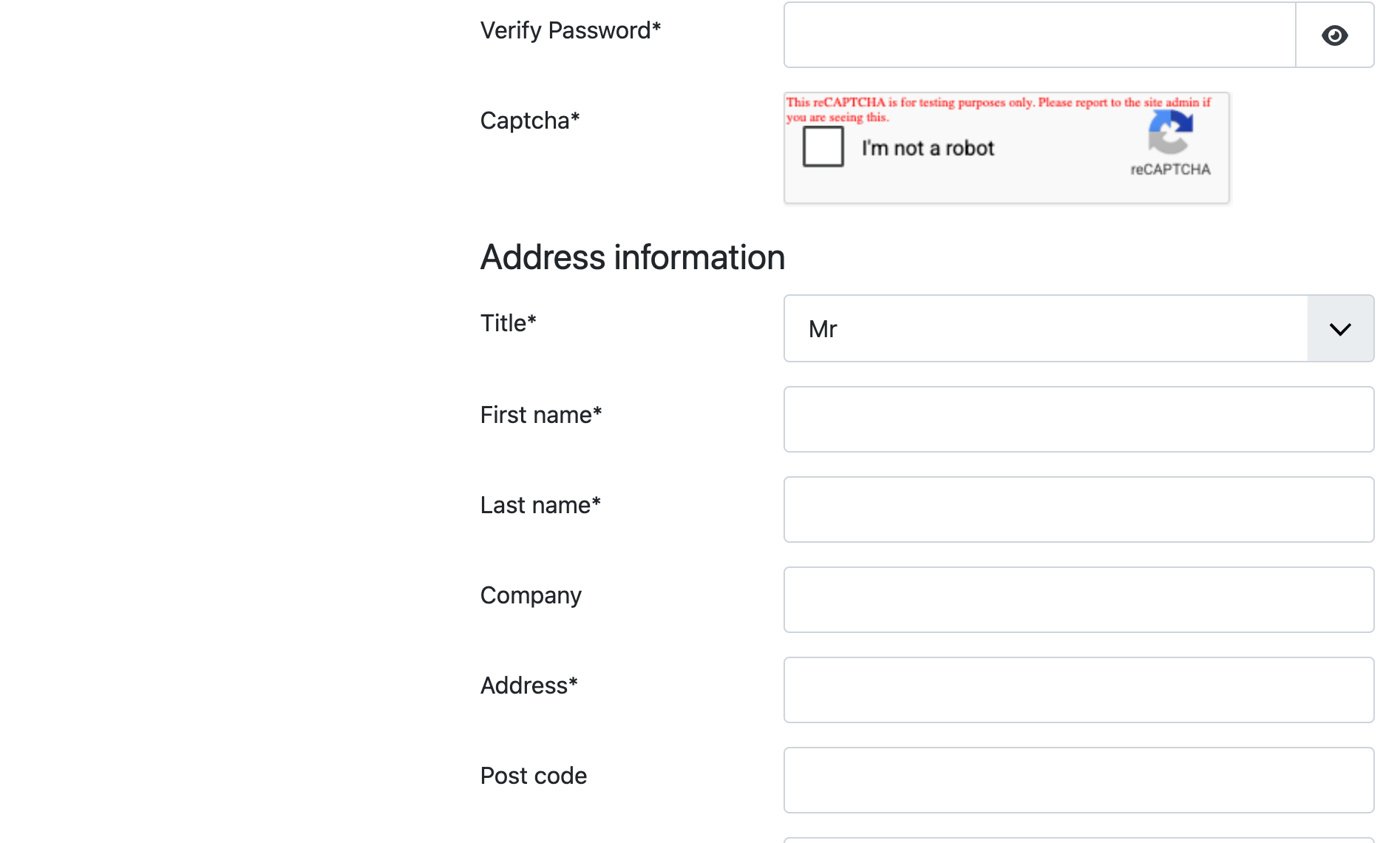
The picture was taken with the test keys published by Google, which is why the box carries a test warning. With your own keys the box is displayed without it.
### Troubleshooting
When the check fails, the form shows one of these messages:
- **ReCaptcha couldn't verify the public key**: the public key is wrong. Copy it again from the reCAPTCHA website.
- **ReCaptcha couldn't verify the private key**: the private key is wrong. Copy it again from the reCAPTCHA website.
- **The CAPTCHA solution was incorrect**: the visitor did not pass the check. They can try again.
- **Invalid referer, reCAPTCHA API keys are tied to a specific domain name for security reasons**: the keys were created for another domain name. Create keys for the domain of your website, or add your domain to the existing keys on the reCAPTCHA website.
- **We couldn't contact the reCAPTCHA server to verify your answer. Please try again.**: your server could not reach Google. Check that it is allowed to make outgoing connections to Google, then try again.
- **The parameters were incorrect, make sure you are passing all the required parameters**: the form was sent without the answer of the captcha, for example because the check did not load in the page.
- **Anti-bot Validation - Unknown error**: an error that is not in the list above, with its code. Check the keys first.
- **The captcha is not displayed**: check that the plugin is enabled, that the public key is filled and that "Use in registration forms" is Yes. In the simplified registration of HikaShop, set "Display after" to Email.
- **The box does not appear on a form of another extension**: the plugin only knows the forms listed in the description above.