[Skip to main content](#vessel-content)
# Tutorials
## [ Bidder approval ](/support/documentation/552-hikaauction-bidder-approval)
Details Written by: Majri Category: [Tutorials](/support/documentation/hikaauction/tutorials) Published: 12 October 2026 Hits: 59
An auction house often asks its bidders to register for a sale before they bid: the house checks who they are, and sometimes a bank reference for the expensive lots. HikaAuction does it with **bidder approval**: a customer sends a request from the product page, you approve or decline it from the backend, and only approved customers can bid on the auctions of that sale.
### Turn it on
In *Components > HikaAuction > Configuration*, in the behaviour options:
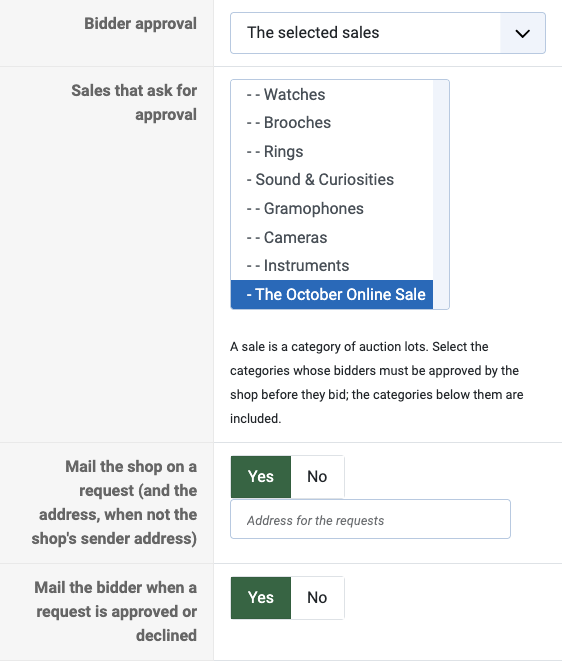
- **Bidder approval**: *Every auction* asks for an approval before any bid, *The selected sales* only for the auctions of the categories you select below it.
- **Sales that ask for approval**: a sale is a category of auction lots, for example "The October Online Sale". An approval for a category also covers the categories below it.
- **Mail the shop on a request** and **Mail the bidder when a request is approved or declined**: the emails of the process, both on by default. The requests go to the address typed next to the first option, or to the shop's sender address.
### The request of the bidder
A logged in customer who is not approved yet sees, on the product page of an auction of that sale, a request form instead of the bid buttons. A customer who is not logged in sees the usual invitation to log in or create an account first.
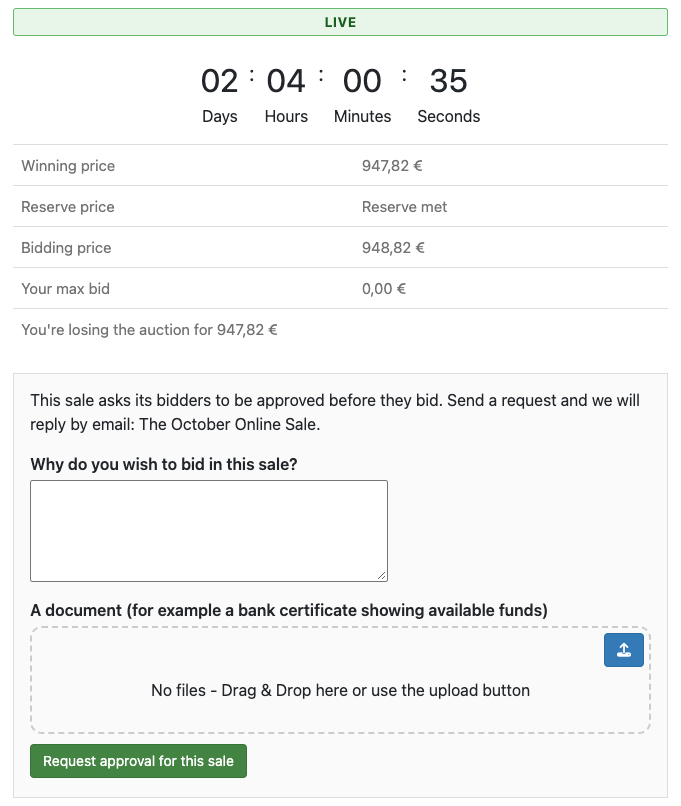
The form is made of HikaShop custom fields, of the table *Auction approval request* (*Components > HikaShop > Display > Custom fields*). HikaAuction creates two of them: a text area "Why do you wish to bid in this sale?" and a file field for a document, a bank certificate showing available funds for example. Change their labels, make them required, remove them or add your own like any other custom field.
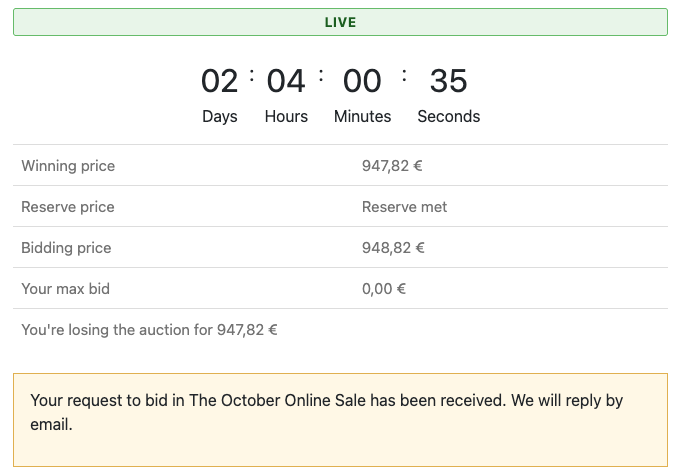
Once the request is sent, the product page says that it is waiting for an answer, and the customer can follow it in the **My registrations** page of his customer account.
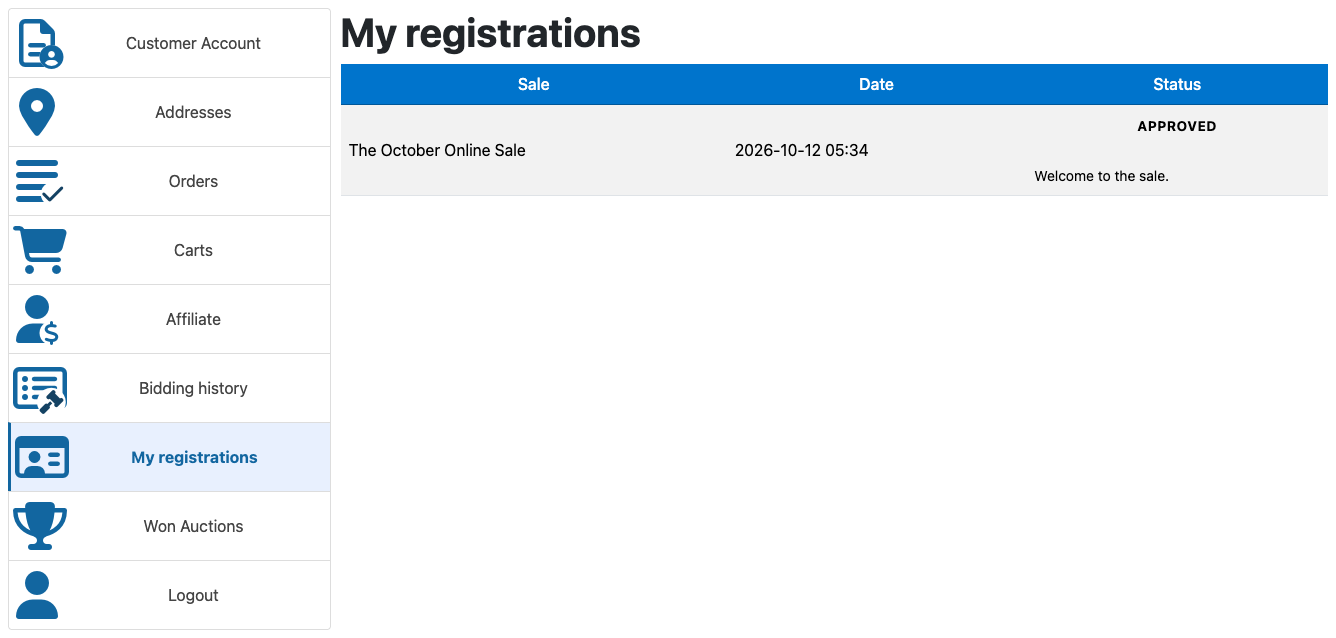
The category page of a sale also shows a box with the state of the customer for that sale.
### Approve or decline
The requests are listed in *Components > HikaAuction > Approvals*, the newest first, with the bidder, the sale, what he wrote in the form and the state of the request. Search a bidder, or filter the list by state.
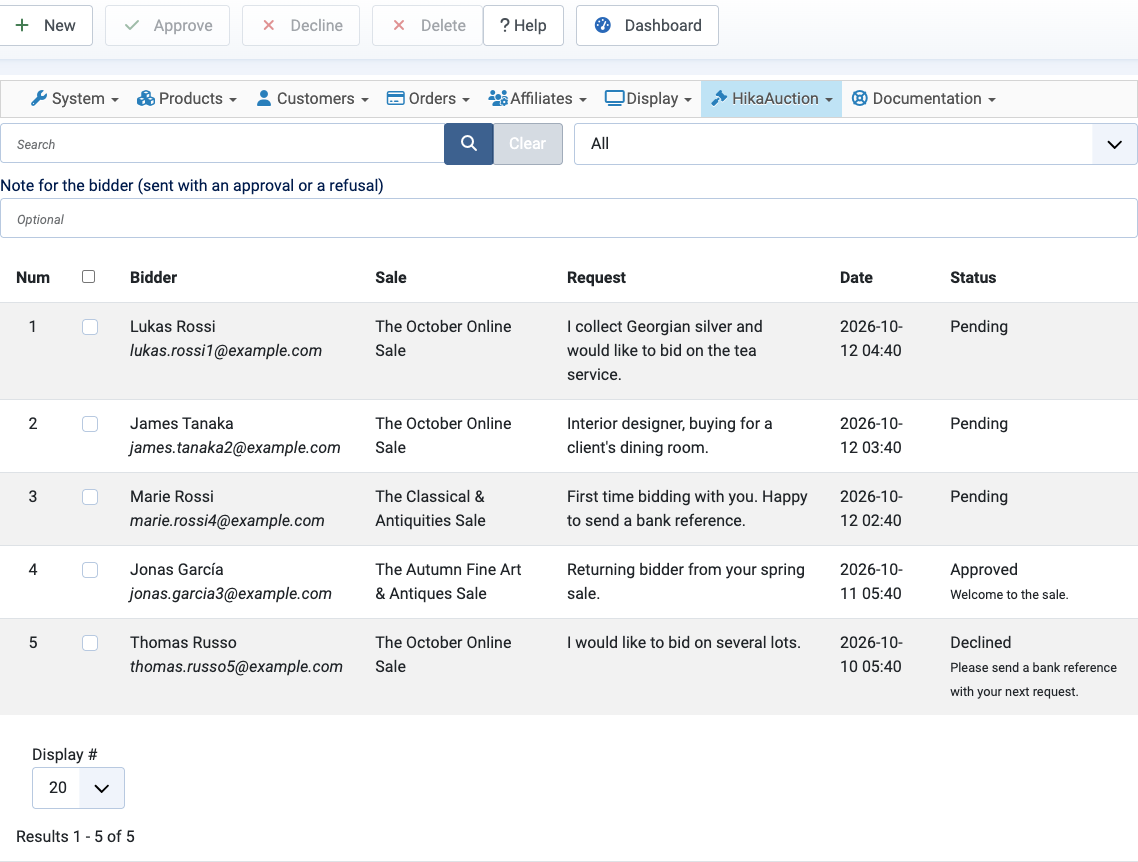
Tick one or several requests, type a note for the bidder if you want one, and click **Approve** or **Decline**. The bidder gets an email with your decision and the note. An approved bidder can bid at once, on every auction of the sale. **Delete** removes a request: the customer can then send a new one.
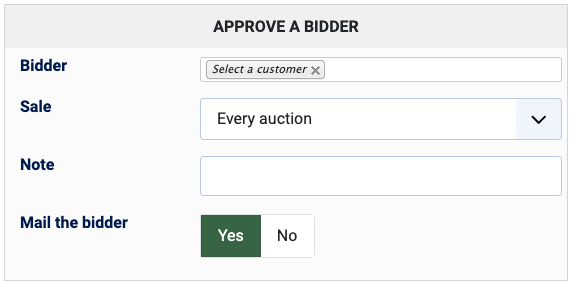
To approve a customer who did not send a request, a client you already know for example, click **New**, select the customer and the sale (or *Every auction*), add a note if you want, and choose whether he gets an email.
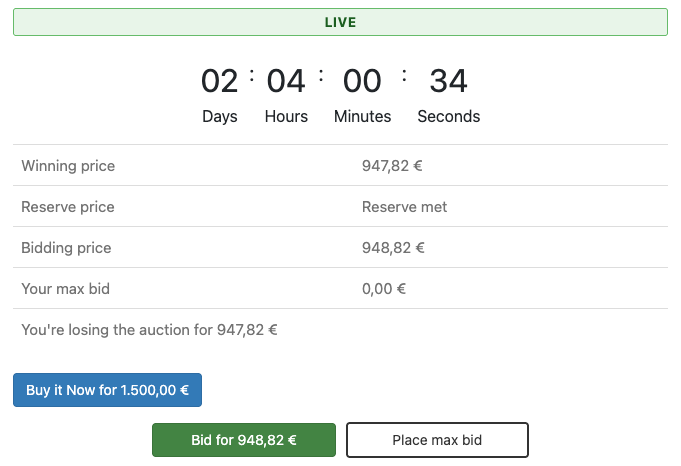
Once approved, the customer sees the bid buttons on the auctions of that sale.
### The emails
- To the shop, on each request: who asks, for which sale, with a button to the list of requests.
- To the bidder, when you approve or decline his request: your decision and your note.
They use the mail layout of your site, so they look like the other emails of your shop. Their texts are language keys of HikaAuction (HKA\_APPROVAL\_MAIL\_...), which you can change with Joomla's language overrides.
## [ Your first auction ](/support/documentation/307-hikaauction-first-auction)
Details Written by: Majri Category: [Tutorials](/support/documentation/hikaauction/tutorials) Published: 01 September 2015 Hits: 14556
| - [Description](#description) - [Create an auction](#auction) - [Auction workflow](#workflow) - [Auctions in product listings](#product_listings) - [Auction emails](#email) |  |
|---|---|
### Description
This tutorial will explain you how to make your first auction on your own store and have a feel of the HikaAuction basic functionalities.
First, we will add a product to the store. Then, we will enable the "Auction" mode on that product. We will see what to avoid regarding your auction front-end accessibility and finally we'll talk about auction emails.
### Create an auction
To create an auction, you'll just have to go to the edition page of one of your existing product (or just create a new product), and make sure that :
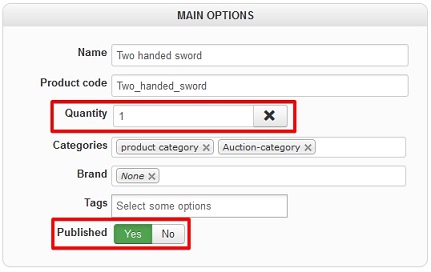
- The **Quantity** option is set to **1**
- A **Price** is set through the "**prices and taxes**" tab, that price will become your auction **starting price**\*
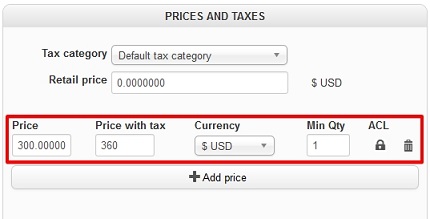
*\*The auction starting price is the minimum price that your customers will be able to bid to win the auction.*
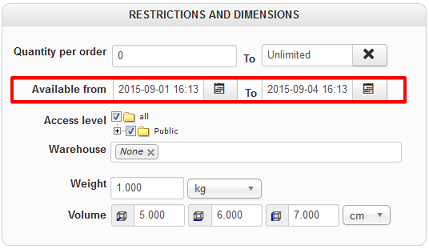
- **Available dates** are set through the "**Available from/To**" options
- The **Auction** option is set to **YES**
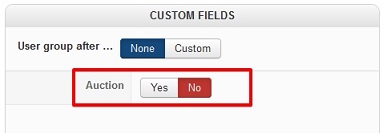
After that, you'll have to :
- [Configure](/support/documentation/integrated-documentation/38-hikaauction/installation-configuration/305-hikaauction-config.html#behaviour) your auction system behaviour for the first time, especially the "**bidding mode**/**increment**" options.
- Enable the Hikashop "**Payment of orders not paid immediately**"\* option via "*Hikashop->System->Configuration->Main*", so that the winner of the auction will be able to pay his product through his order listing.
*\* That option is only available through commercial versions of Hikashop.*
### Buy it Now
An auction can also have a **Buy it Now price**, set in the auction options of the product, next to the reserve price. Leave it at 0 for an auction without one. It cannot be lower than the reserve price.
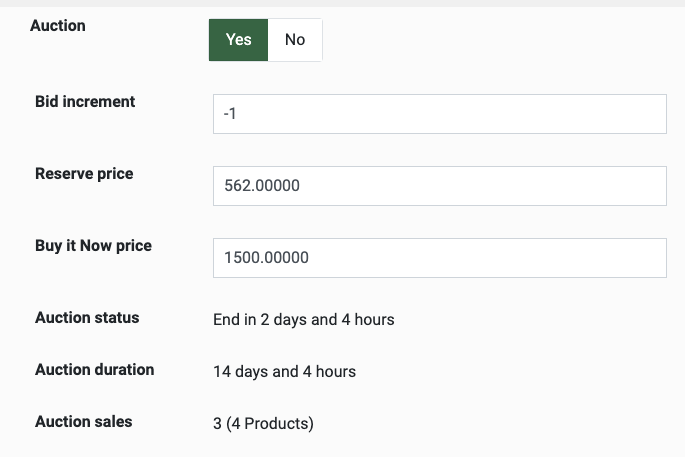
While the current price of the auction is under that price, the product page shows a "Buy it Now for X" button above the bid buttons. A customer who clicks it confirms, and the auction ends at once: he wins it at that price, even when other bidders have higher maximum bids, and pays it through the usual won auction checkout. The button goes away as soon as the bids bring the current price to the Buy it Now price. Buy it Now is not available with Dutch auctions.

### Auction workflow
When your auction will be correctly created, configured, and accessible by your customers through your website, here are the different steps that your customers will potentially go though.
#### The bidding step
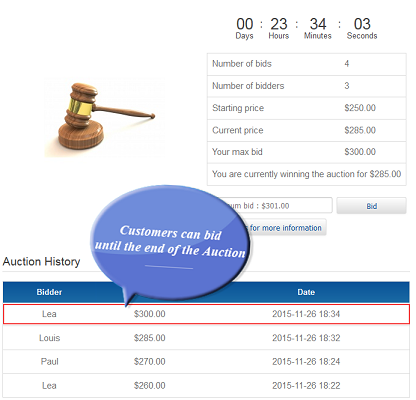
During that step :
- Every customers interested in your auction will bid for it until the end of the auction. Note that emails (Auction outbid notification) will be sent during that step to notify your customers of the evolution of the auction.
- After the auction countdown timer reaches zero, the winner of the auction will be the one with the highest bid and the auction will be closed.
- Emails will be sent to customers who lost the auction (Auction finished notification), and to the winner of the auction (Auction winner notification) so that he can use the link in that email to go to the "confirmation step".
#### The confirmation step
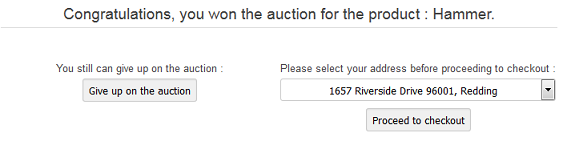
During that step your customer will have two choices :
- Giving up on that auction and an email to the customer with the second highest bid will be sent (Auction winner notification) notifying him that he finally won the auction.
- Selecting his billing/shipping address and proceeding to checkout.
Howerver, he will be able to pay for his auction through HikaAuction's custom checkout (Hikashop customer order listing), or directly through Hikashop's checkout depending on how you configured the option "Use hikashop checkout" through your HikaAuction configuration page ("HikaAuction->Configuration").
#### The payment step
Your customer will finally be able to pay his product through that step. Note that if you have :
- A starter edition of Hikashop, your customer will directly be redirected through the payment platform of your first payment method.
- A commercial edition of Hikashop, your customer will directly be redirected to the payment platform if you only have one available payment method. Else, he will be redirected to his order listing to correctly select his payment method and proceed to checkout.
### Auctions in product listings
If you want to list your Auctions through your product listing, the first thing you'll have to do is to go to your Hikashop product listing content menu/module configuration page, and use these options :
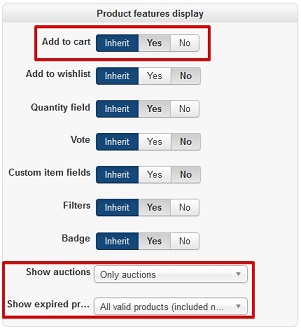
- **Show auctions** : That option can be used to filter products on your listing, and will enable you to show a product listing
- Only composed of auctions
- Only composed of products
- Composed of both auctions and products
- **Show expired products** : That option can be used to filter auctions on your listing, and will enable you to show only valid auctions or both valid and expired auctions
### Auction emails
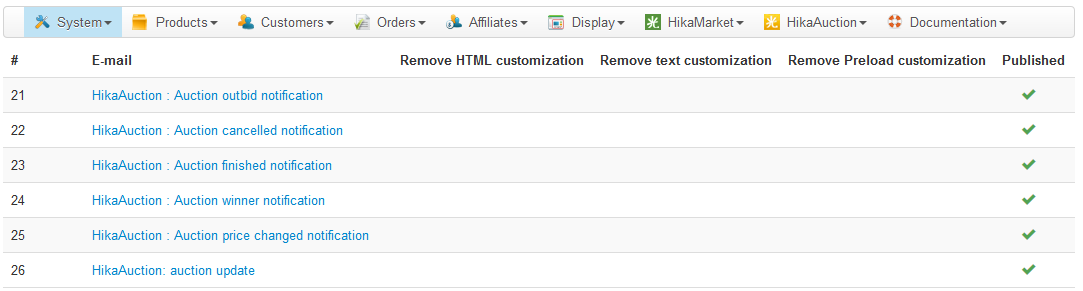
HikaAuction will instantly notify your customers for every news regarding your Auctions, these notifications can be easily managed through the Hikashop email listing via "Hikashop->System->Emails"