[Skip to main content](#vessel-content)
# Installation / Configuration
## [ Icons on Joomla dashboard 2 ](/support/documentation/302-icons-on-joomla-dashboard-2)
Details Written by: Lavocat Category: [Installation / Configuration](/support/documentation/hikashop/installation-configuration) Published: 01 June 2015 Hits: 9027
- [Description](#description)
- [Install the module for Joomla! 2.5](#install)
- [Result for Joomla! 2.5 control panel](#result)
- [Install the module for Joomla! 3.X](#install3)
- [Result for Joomla! 3.X control panel](#result3)
- [Hikashop Quick Icons legend](#annexe)
### Description
This module, once published will display shortcut icons to HikaShop functions on the backend dashboard of your website.
### Install the module for Joomla! 2.5
[Download HikaShop's icons module](/component/updateme/download/plugin-icons "Download HikaShop's icons module")
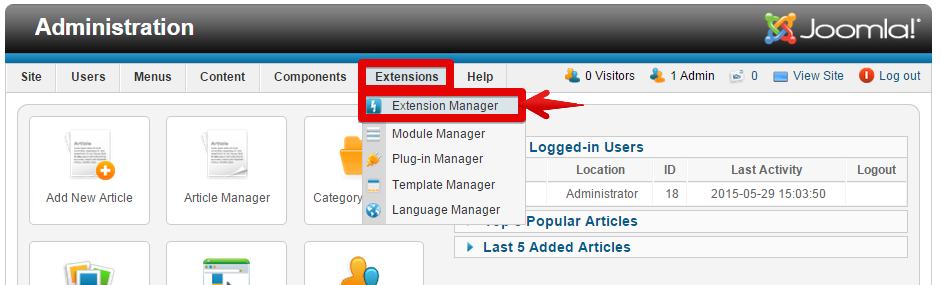
Log in to your backend and click on the menu "**Extensions => Extension Manager**".
For upload the file, choose it in the pop up window.
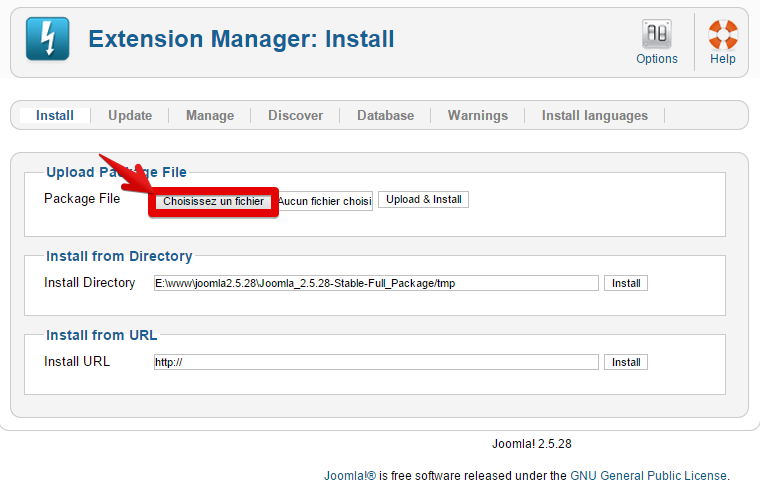
And click on "Upload & Install"

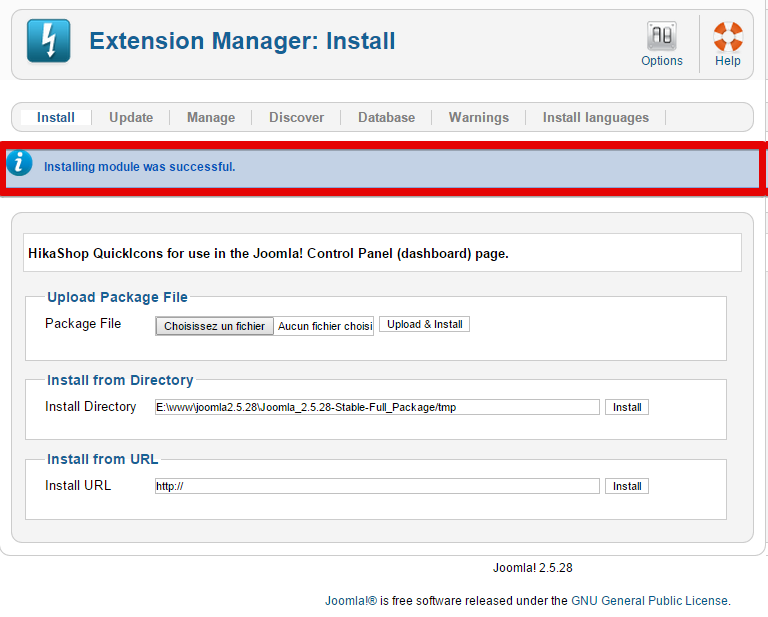
If everything gone well, you'll see this :
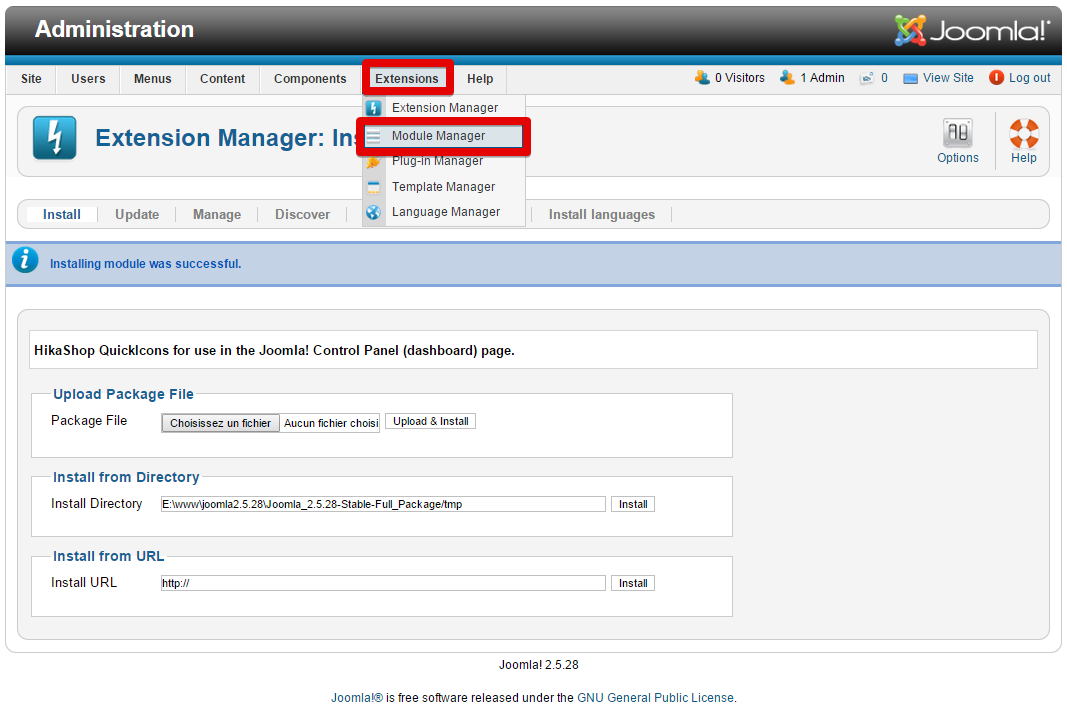
Time to activate it now, so go on the menu "**Extensions => Module Manager**".
Before looking for, change the filter "site" for "administrator"
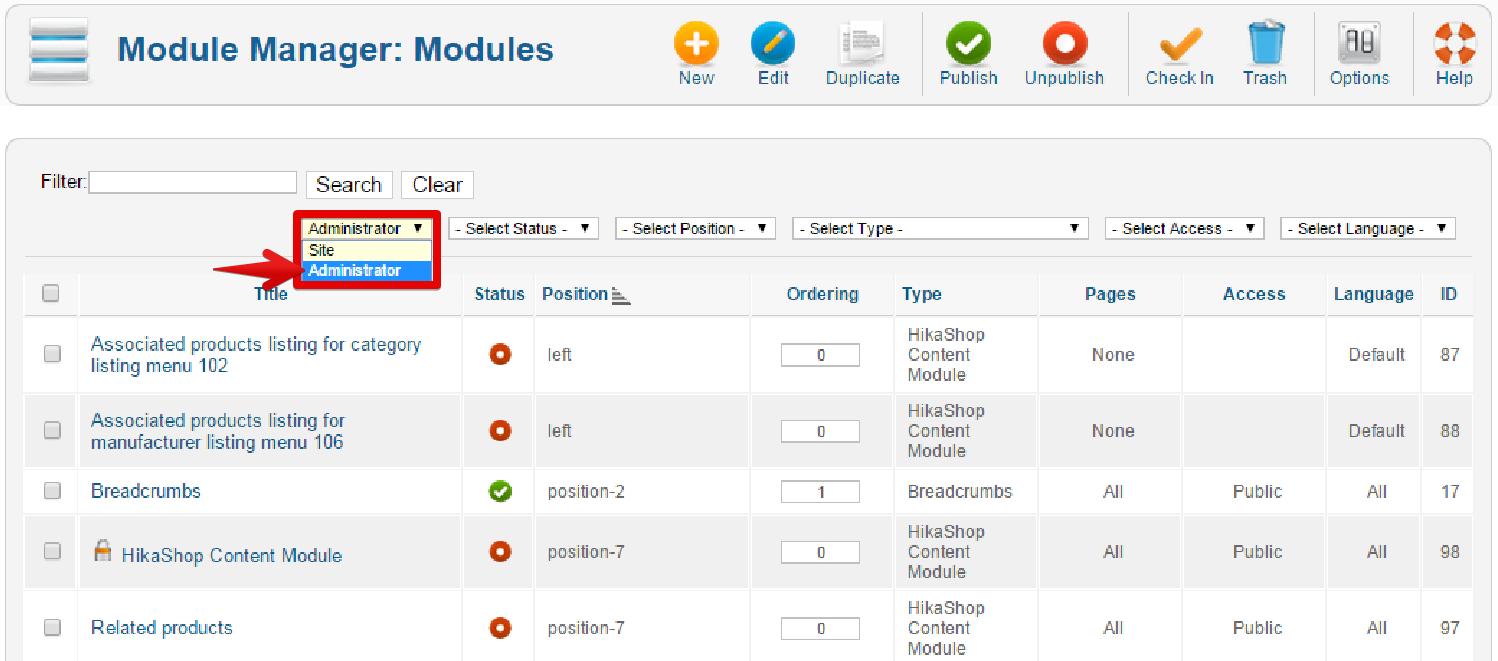
Then, type the word key "icons".
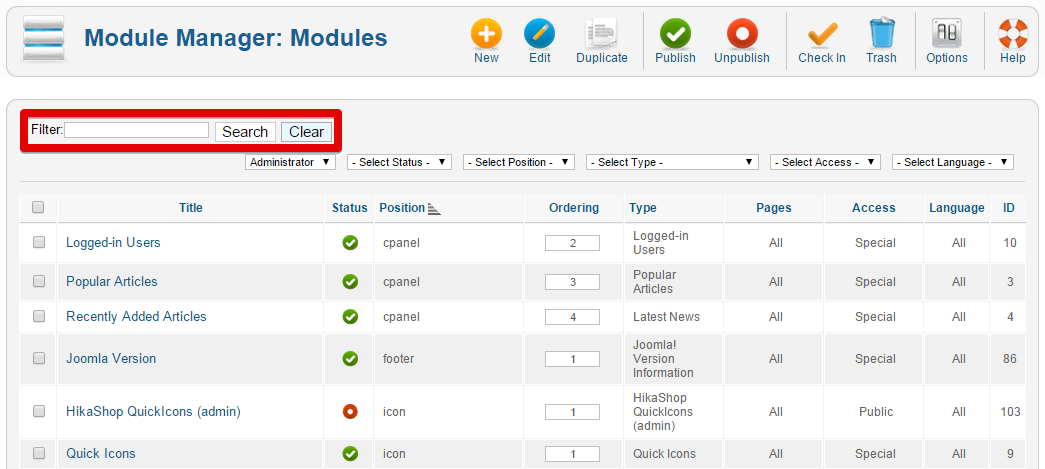
and click on "Search" button, Hikashop QuickIcons will appear, click on it.

First, set the position by clicking on "Select position" button
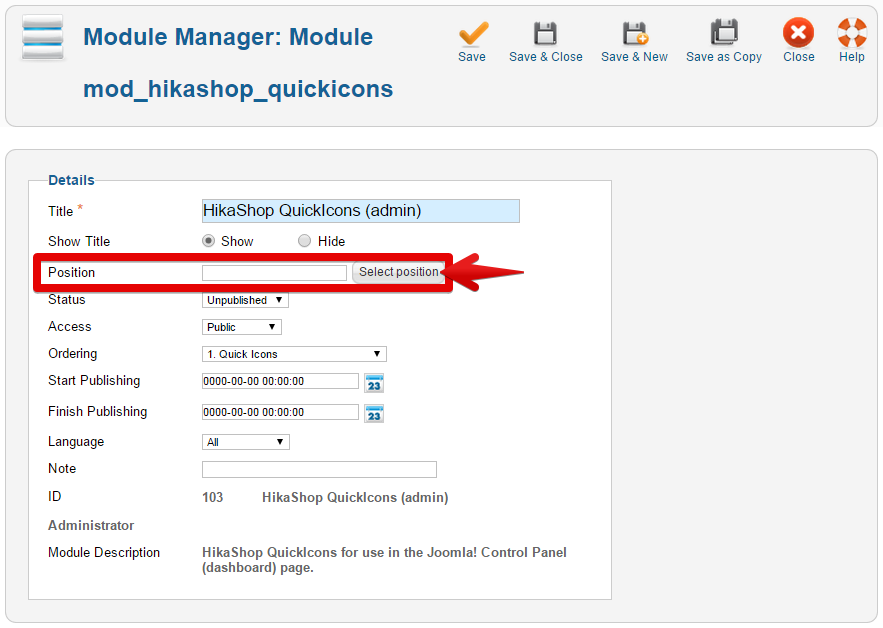
A pop up window will apppear, select icon position by clicking there :
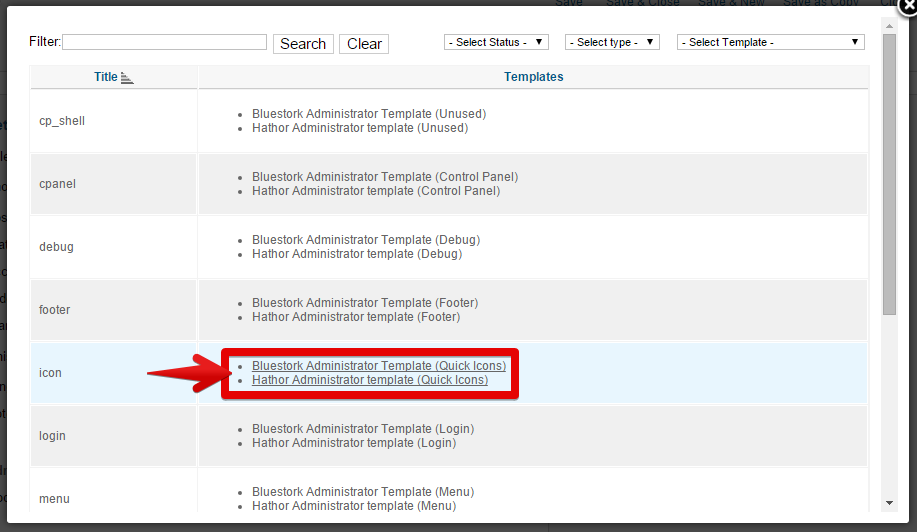
Don't forget to change the status for "Published".
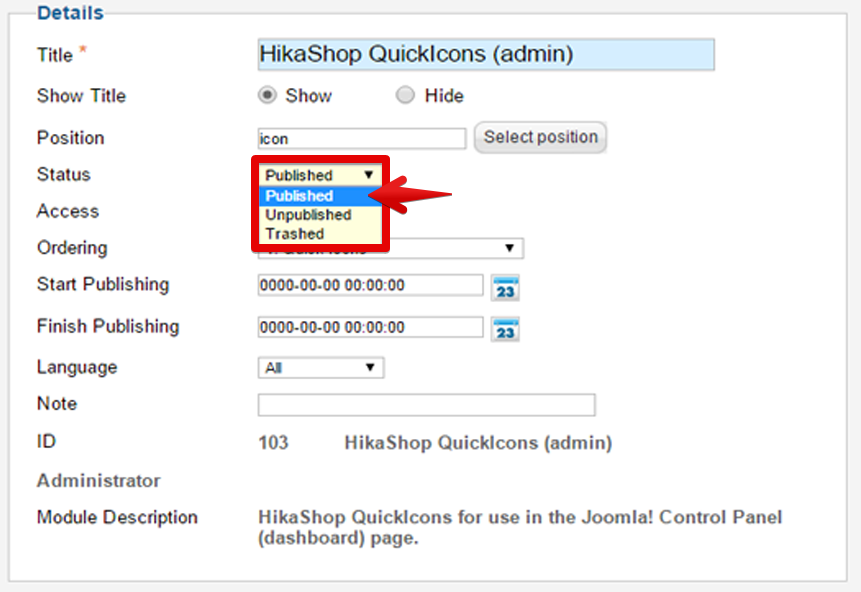
And save!
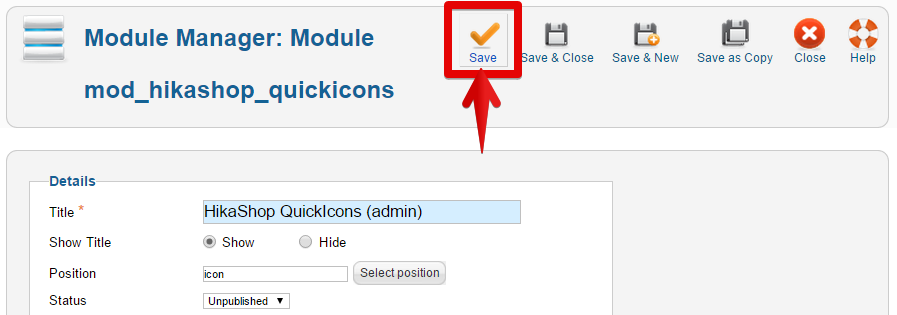
### Result for Joomla! 2.5 control panel
Let's go see, if everything work well, so go "site" menu and select "Control Panel"
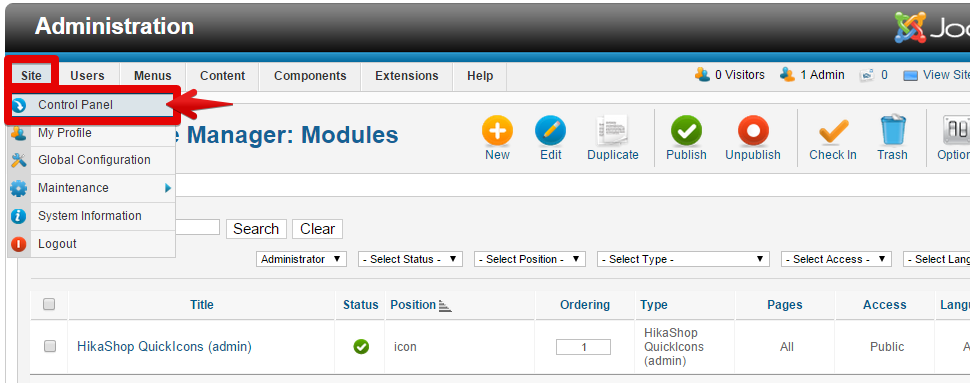
On the below, Hikashop QuickIcons (admin) is now present, click on it.
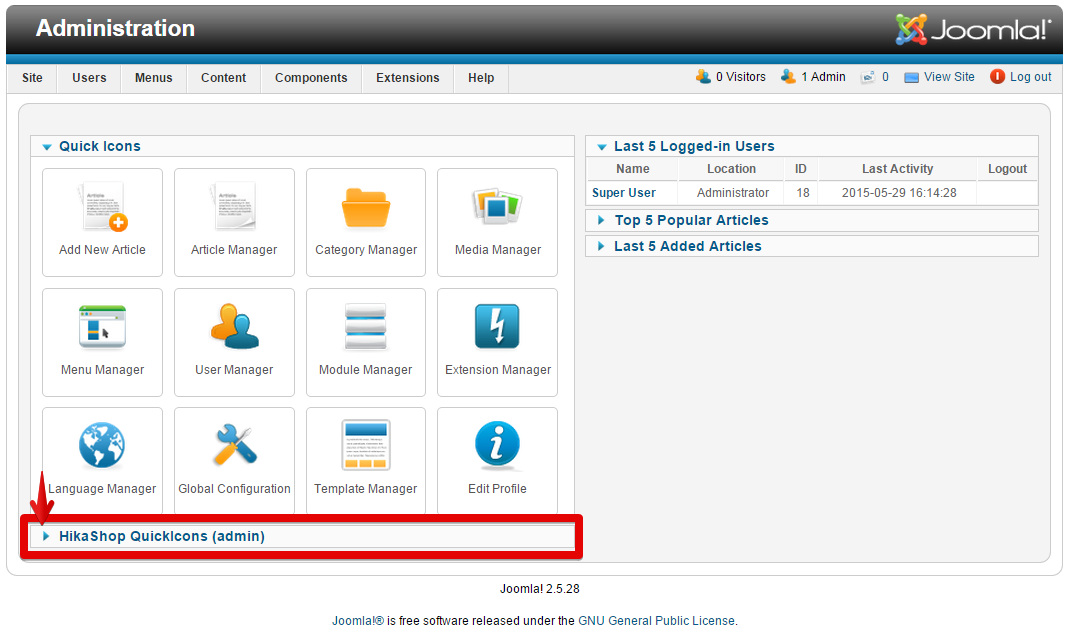
And so you have now display Hikashop icons on the Joomla! Control Panel.
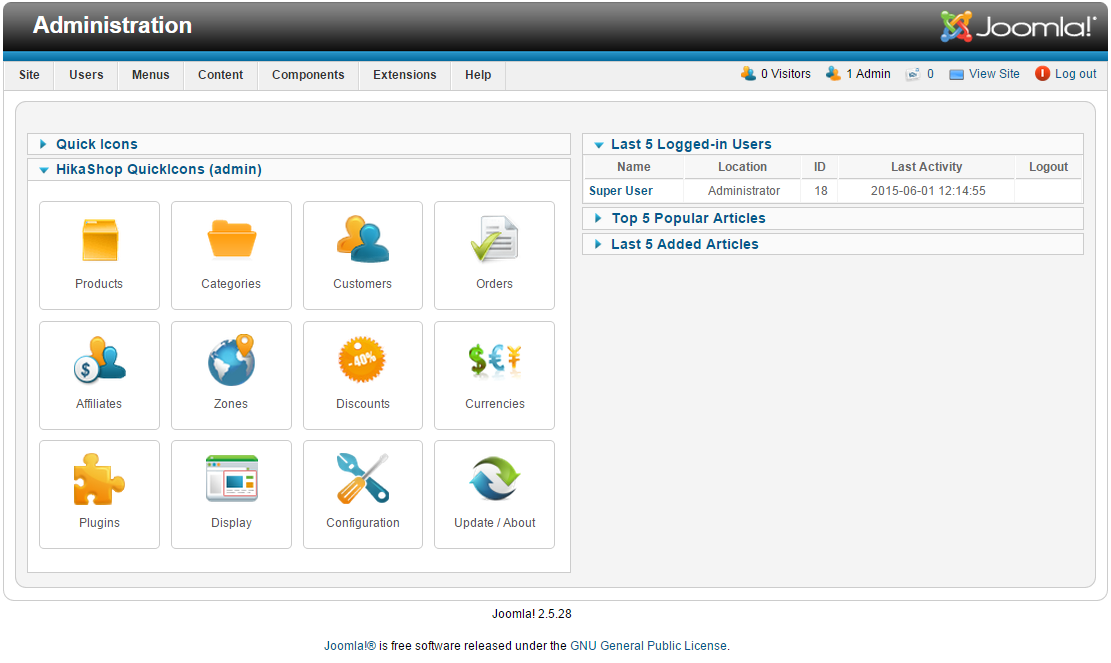
You are now able to manage quickly your Hikashop store thanks to this quick icons! For learn more about these Quick Icons go to [Hikashop Quick Icons legend](#annexe).
### Install the module for Joomla! 3.X
First of all, you can download [Download HikaShop's icons module for Joomla! 3.X](/component/updateme/download/plugin-quickicon "Download HikaShop's icons module")
Go to **Extensions => Extension Manager**
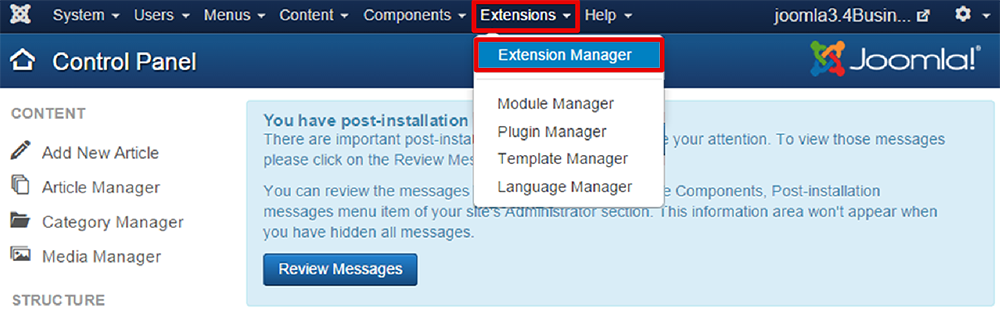
Pick your file on your computer, by clicking on "choose file" button, and show it in the pop up window
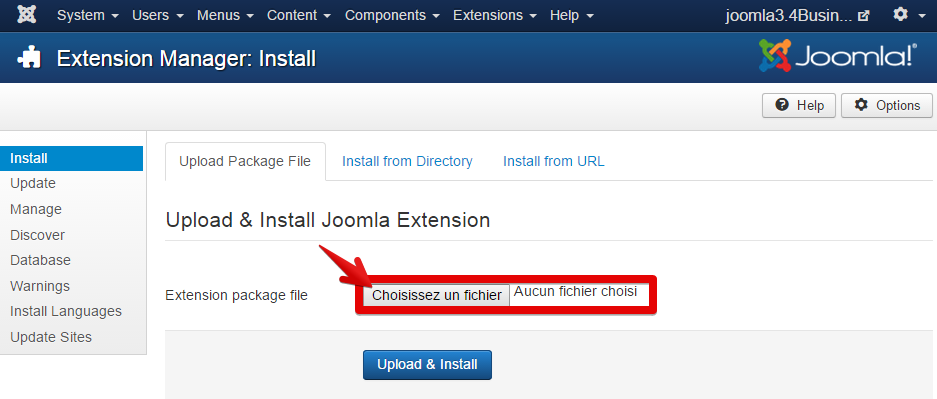
And install it with the "Upload & Install" button.
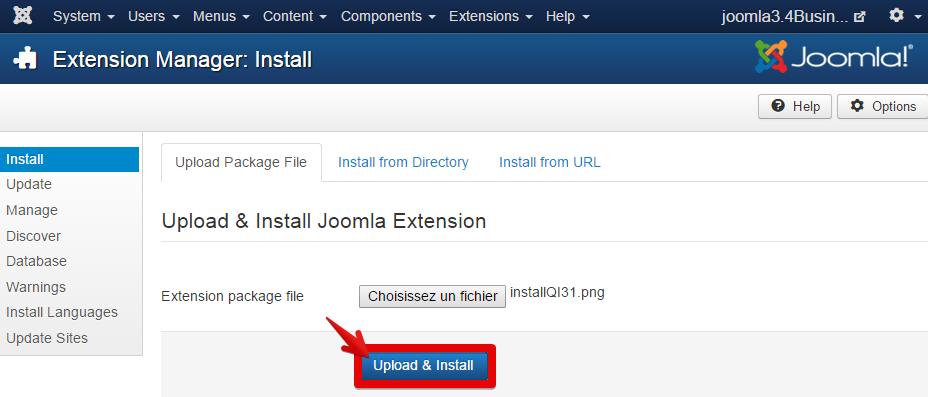
If everything worked well, you'll see this.
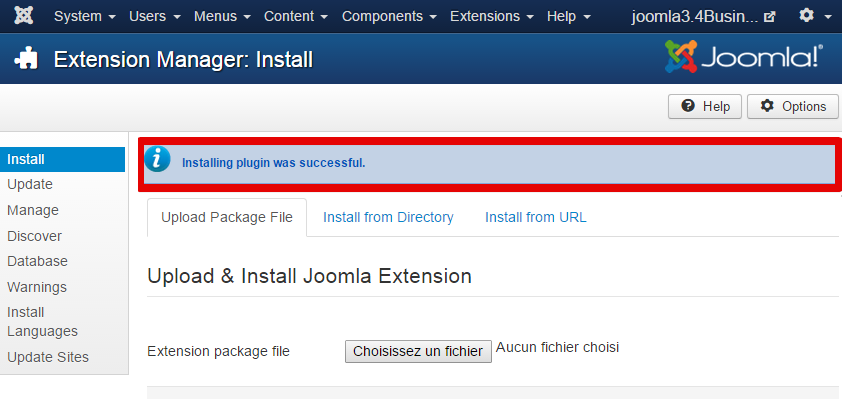
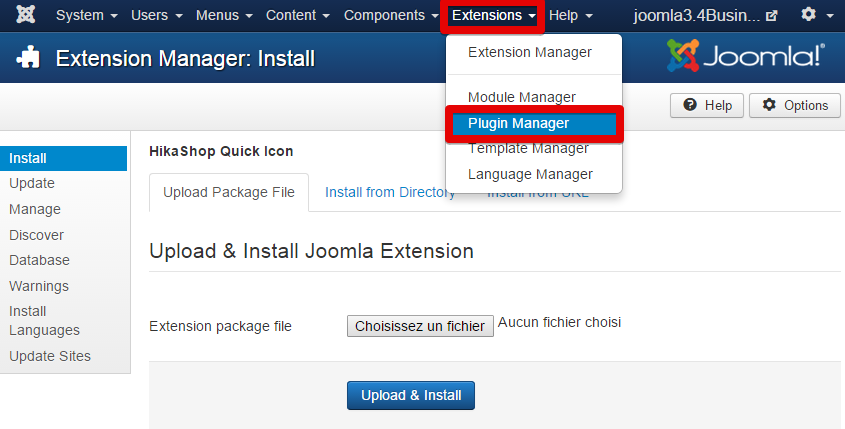
Now, go to **Extensions => Plugin Manager**.
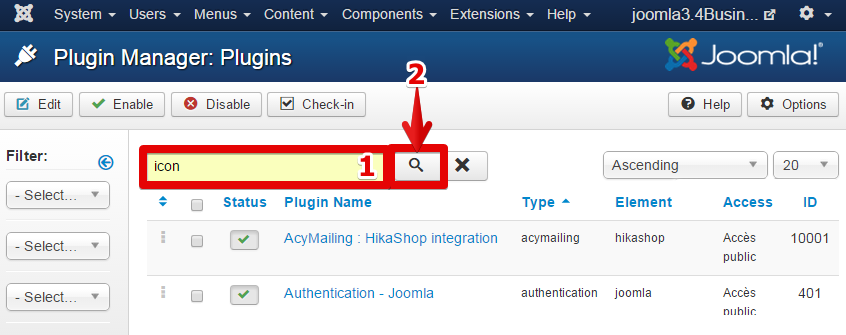
You have to look for your plugin, so type "icon" in the input search, and click on search button.
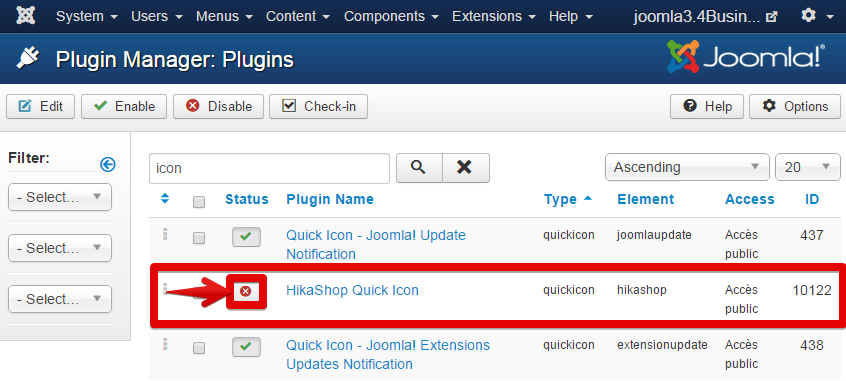
Hikashop Quick Icon will appear, for publish it click on the red cross icon.
### Result for 3.X control panel
To see the result go to **System => Control Panel**.
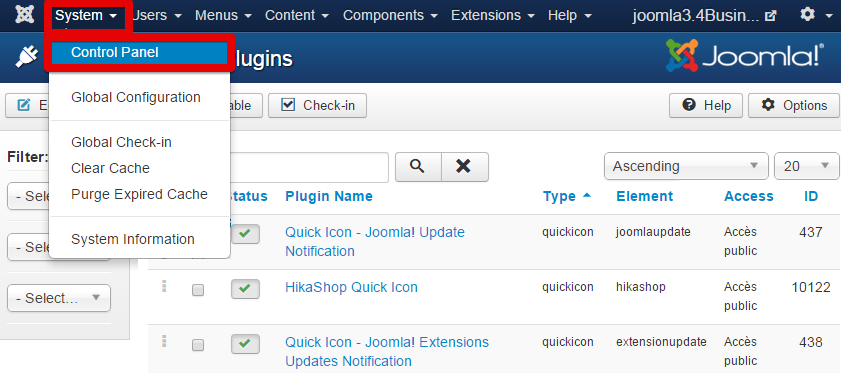
There, you will notice an new Hikashop icon, click on it.
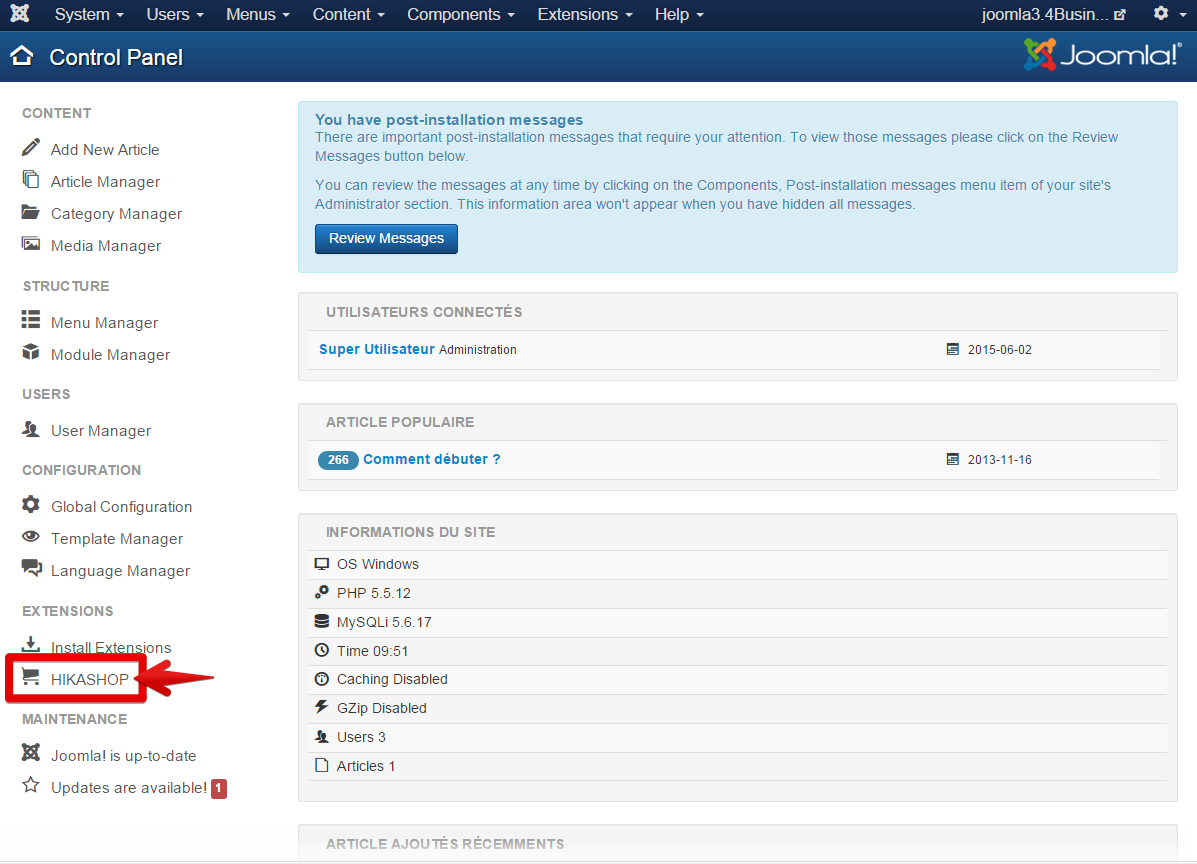
You are now able to manage quickly your Hikashop store thanks to this quick icons! For learn more about these Quick Icons go to [Hikashop Quick Icons legend](#annexe).
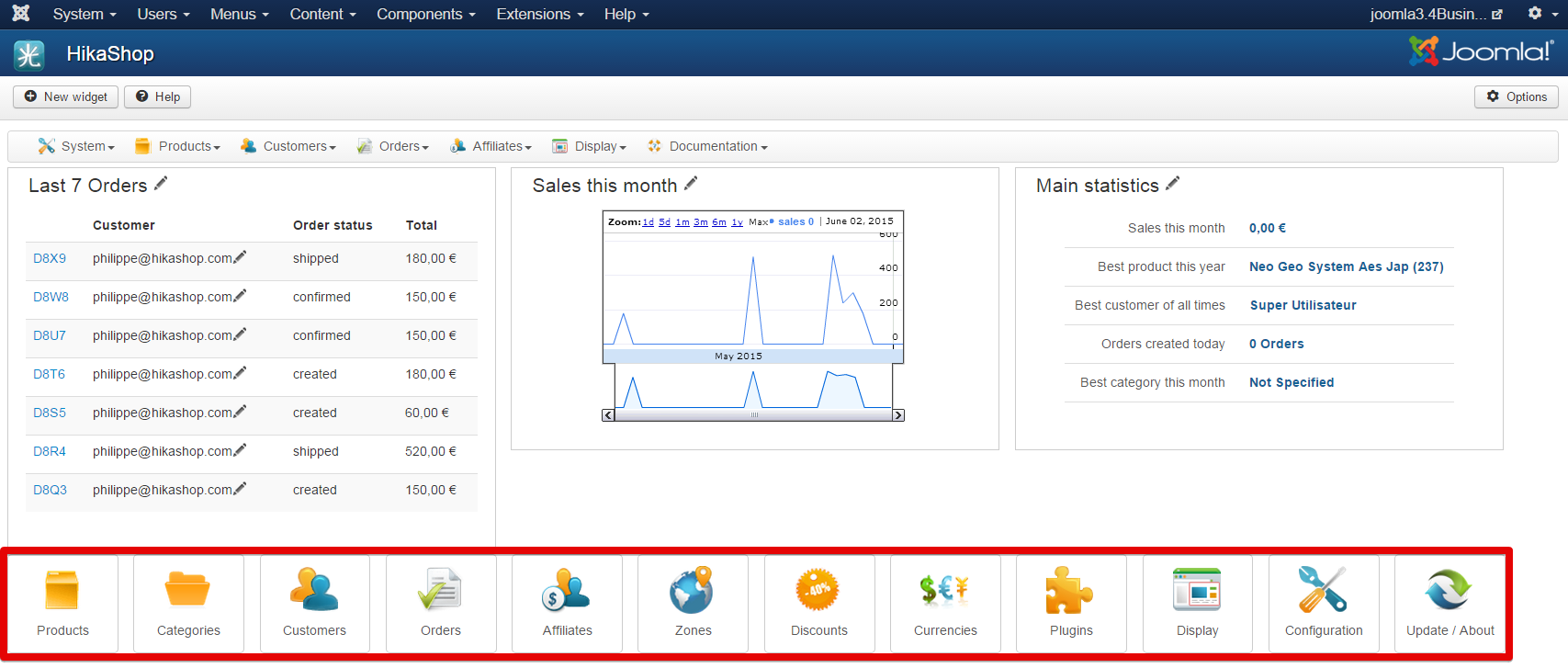
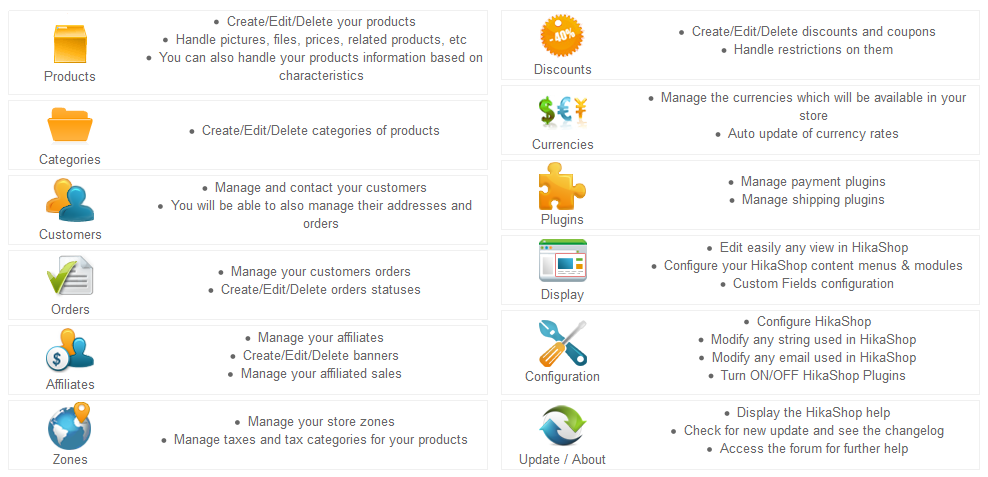
### Hikashop Quick Icons legend
Here, you will find a description for each icon, and what it links to with your Hikashop store managing.
## [ FAQ ](/support/documentation/106-faq)
Details Written by: Super User Category: [Installation / Configuration](/support/documentation/hikashop/installation-configuration) Published: 10 April 2013 Hits: 221885
- [HikaShop editions](#edition)
- [Installation and update](#install)
- [Styling and layout](#styling)
- [Products listings and product page](#listings)
- [Translations and texts](#translation)
- [Payment methods](#payment)
- [Shipping methods](#shipping)
- [Taxes](#taxes)
- [Cart and checkout](#cart)
- [Cron task](#cron)
### HikaShop editions
#### Which HikaShop edition do I need?
It depends on what you want to do: the Starter edition is free, and the Essential and Business editions add features. The [HikaShop page](/hikashop) compares them.
#### How do I hide the HikaShop footer text?
In **System > Configuration**, on the **Display** tab, set **Show footer** to **No**.
### Installation and update
#### Will I lose my settings and my data if I update, or upgrade to a commercial edition?
No. An update or an upgrade is installed like a fresh installation, from the Joomla extensions installer, and keeps everything you have. Your customized views are kept as well. The [upgrade page](/support/documentation/204-upgrade-my-version) explains it step by step, and you do not need to uninstall HikaShop first.
#### I have errors when I install HikaShop
Errors about the copy of files come from file permissions: the web server must be able to write in the folders of Joomla where HikaShop installs its files (the components, modules, plugins, language and media folders, and the `tmp` folder). The Joomla documentation explains [why an extension cannot be installed](https://docs.joomla.org/Why_can%27t_you_install_any_extensions%3F).
If the upload of the package is the problem (a size limit or a timeout on your server), upload the extracted package to the `tmp` folder of your website by FTP and use the **Install from Folder** tab of the Joomla installer.
#### I see a blank page
A blank page does not tell what is wrong. Turn on **Error Reporting** to **Maximum** in the Joomla **Global Configuration** (Server tab), reload the page and the error is displayed. If you still see nothing, look at the error log of your server, or ask your host for it.
#### Things stopped working after an update
When products do not save, do not go in the cart, or orders are not created after an update (or after you added a custom field), it is nearly always because the tables of the database could not be updated. Either the MySQL user of your website lacks the `ALTER` privilege, which your host can grant, or the server stopped the queries because of a resource limit.
Turn on the debug mode of Joomla, and turn off **Use AJAX when possible for add to cart buttons** in the **Checkout** tab of the HikaShop configuration, then reproduce the problem: a MySQL error with the query that failed is displayed. Run that query in phpMyAdmin. The [problem solving](/support/documentation/61-hikashop-compatibility-issues) page has more on it.
#### The popups do not open, or they are displayed at the bottom of the page
It comes from a conflict with your template or with another extension that loads a faulty script. Open the console of your browser (F12) to see the JavaScript error, and unpublish your extensions one by one to find the one responsible. You can also try another value for **Popup mode** in the **Display** tab of the HikaShop configuration.
#### After an installation or an update, saving the configuration says the checkout workflow is empty
The messages are *Your checkout workflow is empty*, or about invalid weight or dimension units, and the modification is ignored. It comes from your browser, which sends an old version of the page: clear its cache and cookies, or use another browser, and save again.
### Styling and layout
#### Where do I edit the CSS?
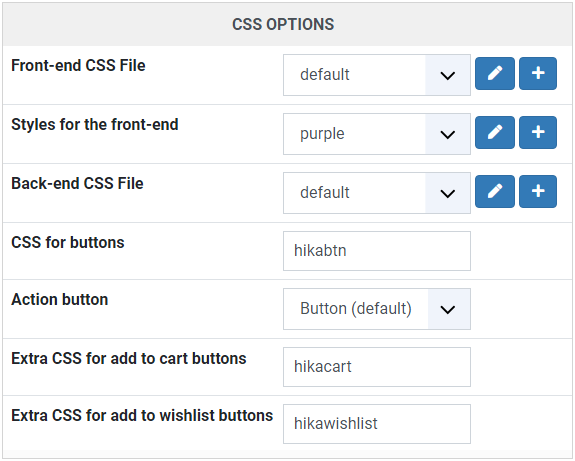
In the **CSS Options** panel of the **Display** tab of the configuration, create your own file with the **+** button next to **Styles for the front-end**. Do not edit the default front-end file, an update would not bring you its new CSS. The [CSS styling](/support/documentation/84-css-styling) page explains it and gives examples to copy.
[](/images/doc/hk/interface/config/display_css-options.png)
#### My changes in the Display tab of the configuration do not change my listings
The settings of that tab are the default values for the **new** menus and modules. The existing ones keep their own options, which you find in the HikaShop options of the menu or of the module (**Display > Content menus** and **Display > Content modules**). The option **Inherit** takes the value of the configuration instead.
A categories listing menu only handles the display of the categories. The products it shows are handled by its **Associated modules**: click on that link in the options of the menu to reach them.
#### How do I change the background color of the boxes of a listing?
In the HikaShop options of the menu or of the module that displays them. If you want to do it in CSS, you need `!important`, as the color of the options is written on the element:
```
.hikashop_subcontainer {
background-color: red !important;
}
```
#### How do I change a view of HikaShop?
In **Display > Views**, filter by template, then click on the name of the file to edit: HikaShop saves your version as an override in your template, so it is kept by the updates. You will find HTML with some PHP to display the data. The [customize the display](/support/documentation/153-customize-the-display#layout) page explains how to do it, with the safe ways to change a layout.
#### How do I add a tab to the tabular view of the product page?
It is done in the `show_tabular` view, with an optional custom field to fill the tab for each product. It is explained in [Manage tabs in show\_tabular view](/support/documentation/297-manage-tabs-in-show-tabular-view).
#### The links of my HikaShop module give a 404 error when the SEF URLs are on
Go to **Menus > HikaShop hidden menus** and click on the **Rebuild** button. If it does not fix it, check that the **Menu** option of your module is a HikaShop categories listing menu and that this menu is accessible to the public.
### Products listings and product page
#### The pagination does not appear on my products listing
The **Random** option of the menu (or of its associated module) is on: the products change at each display, so there are no pages. Turn it off to get the pagination.
#### How do I display the quantity field next to the add to cart buttons on listings?
Set the **Quantity field** option of the HikaShop options of the menu or module. For all the new ones, the default value is in the **Display** tab of the configuration, in **Add to cart on listings**. No code is needed.
#### The add to cart button is not there
One of these is the cause:
- the **Catalogue mode** option is on (**Display** tab, **General display options**),
- the product has no stock set (an empty quantity means unlimited, 0 means out of stock),
- the product has no price and **Display 'add to cart' button for free products** is off,
- the **Display 'Add to cart' button** option is off: it is in the default parameters for products in the **Display** tab, and in the HikaShop options of your menus and modules for the existing ones.
#### How do I change the size of the thumbnails?
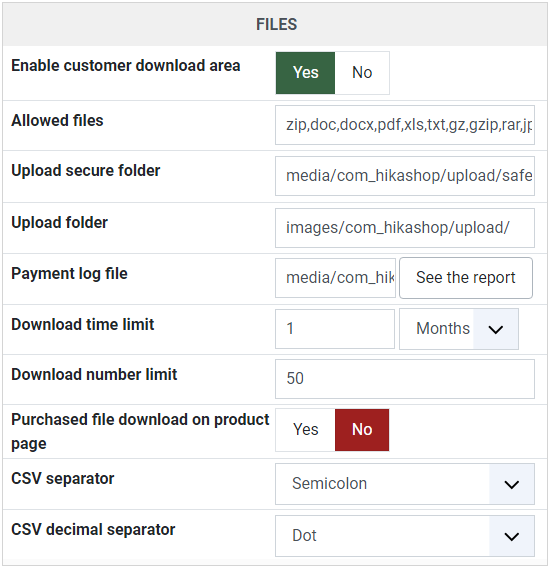
In the HikaShop options of a menu or a module, the image width and height are the sizes of the thumbnails of that listing. When they are empty, the values of the **Files** tab of the configuration are used. The default image of the products and of the categories is set in the same tab.
[](/images/doc/hk/interface/config/main_files.png)
#### The currency symbol is not displayed in the prices
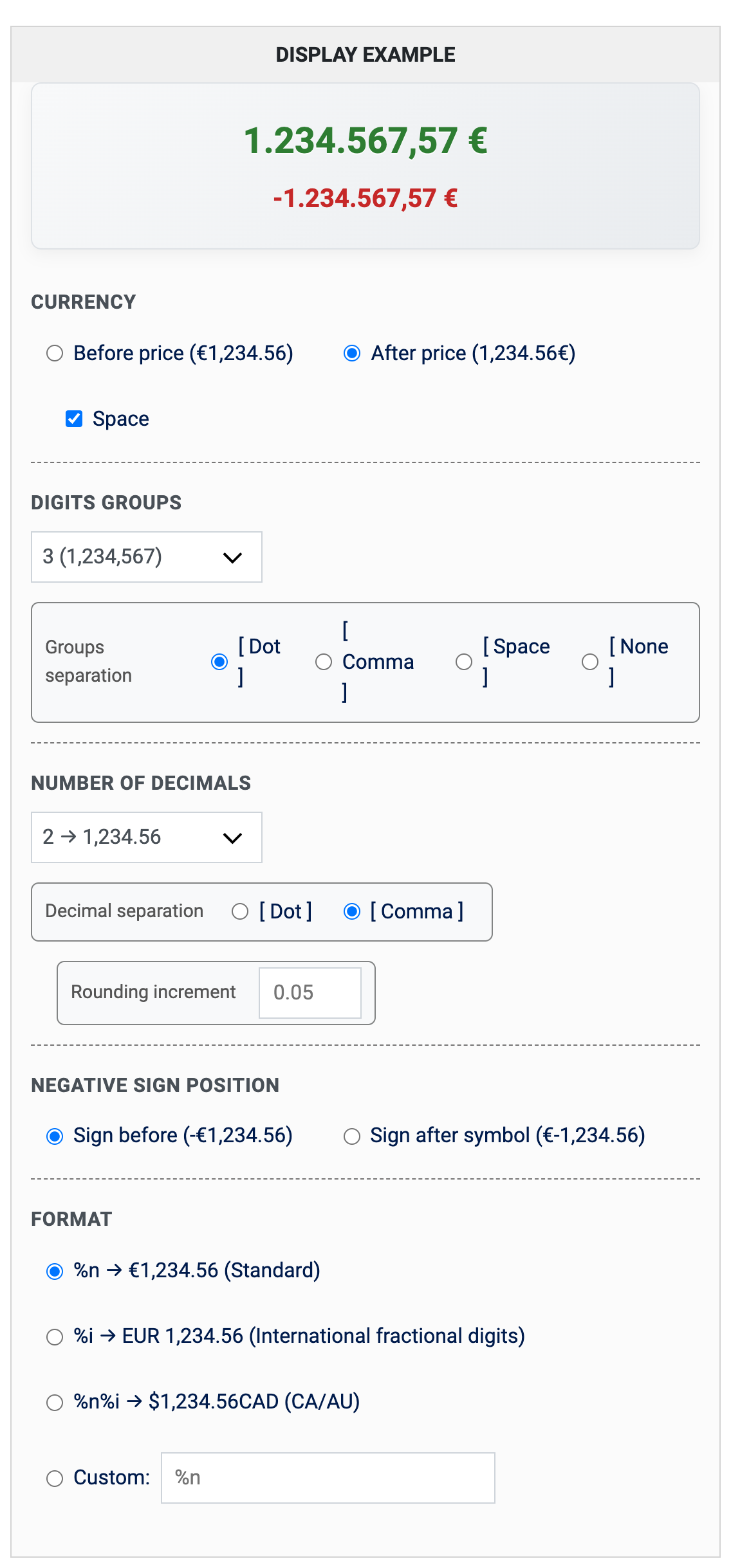
An extension installed recently may hide it: unpublish it to check. Otherwise, in **System > Currencies**, edit your currency. In the **Currency** section of the display options, choose **Before price** or **After price** and the **Space** option, or add a space after the symbol in the **Symbol** field. The same screen sets the separator of the digits groups, the number of decimals and the decimal separator.
[](/images/doc/hk/interface/faq/faq_currency.png)
#### The custom fields of my products do not appear on the front end
Check that:
- the field is in the right table: **Item** for the fields shown on products (the variants and the cart), **Product** for the fields filled in the product form,
- the **Front-end** option of the field is on,
- on listings, **Display custom item fields** is on in the default parameters for products of the **Display** tab, and in the HikaShop options of your menus and modules.
#### The votes and the comments are not displayed
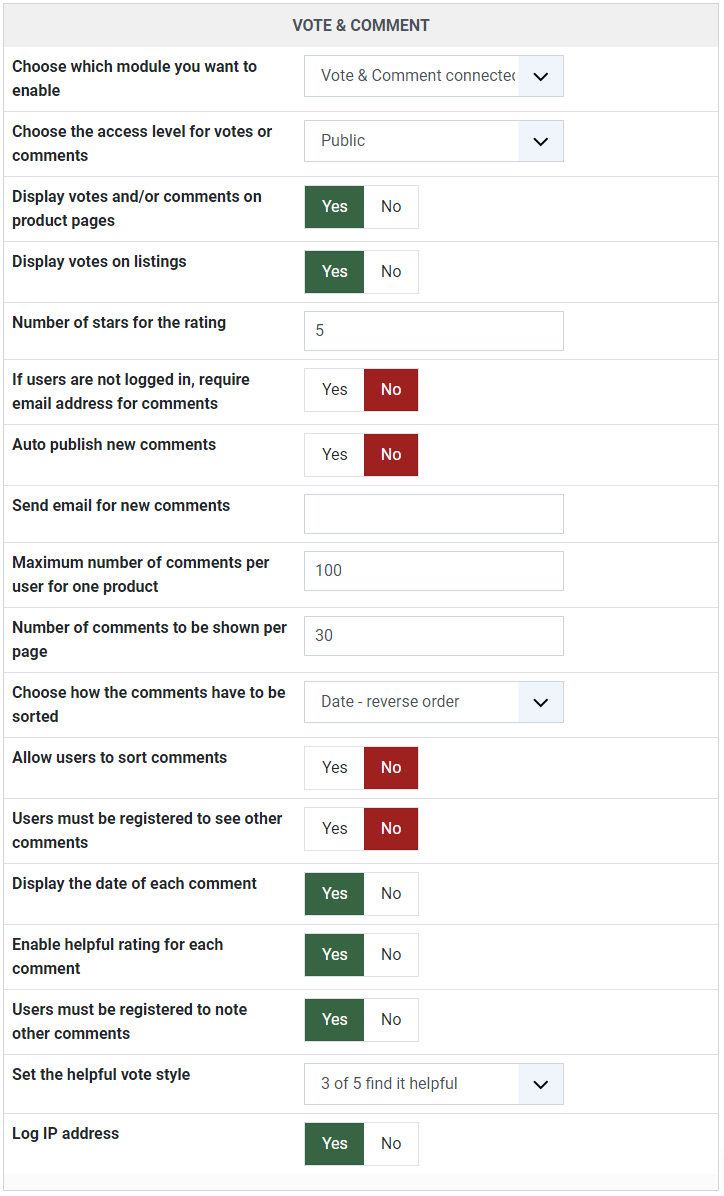
Turn on **Display votes and/or comments on product pages** and **Display votes on listings** in the **Display** tab, and in the vote and comment options of the **Features** tab, choose which module you enable (*Vote & Comment* for example). If the stars are missing, clear the cache of your browser. They also disappear when your own CSS file was copied from an old version of HikaShop: take the rules of the stars from the current front-end file.
[](/images/doc/hk/interface/config/features_vote-comment.png)
#### The product code is displayed twice, or I want to hide it
It is shown only when **Display product code** is on in the **Display** tab. Turn it off, or hide it in CSS with `.hikashop_product_code_main { display: none; }`. If it is displayed in spite of the setting, your template may be changing the HTML of the page.
#### I sell packs, how do I change the "each" text of the price?
Since HikaShop 6.6.0, enter your text in the **Price unit label** setting of the product form. It replaces the "each" text of that product on the listings and on its page, and its variants use the label of their main product when they do not have one. In a multilingual website, enter the name of a translation key (`PER_PACK` for example) and create it in **System > Languages**, in the override area of each language.
### Translations and texts
#### How do I translate HikaShop into my language?
HikaShop installs in English and gets the other languages from its translation server: see the [Languages](/support/documentation/10-languages) page to install yours, and to share your own translation with the other users.
#### How do I change a text of HikaShop, like "Add to cart"?
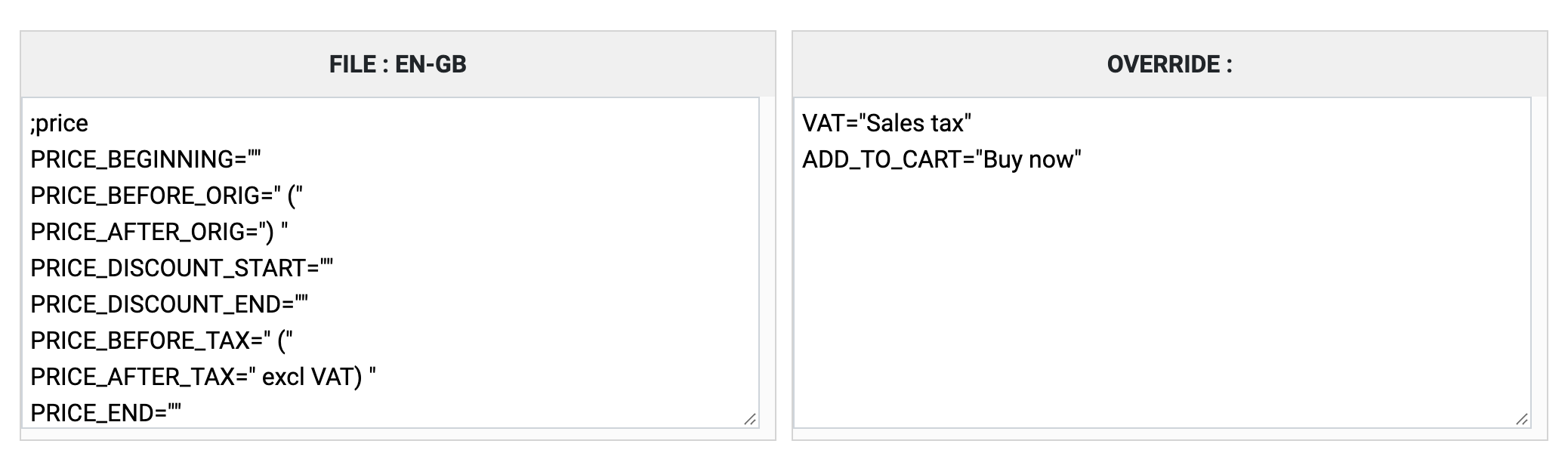
Do not edit the language file itself: an update would erase your changes. In **System > Languages**, click on the **Edit** button of your language, find the text in the file on the left, copy its line into the **override** area on the right, change the text there and save. For example, copy `VAT="VAT"` and write `VAT="Sales tax"`.
[](/images/doc/hk/interface/faq/faq_language_override.png)
#### How do I translate the content of my shop (products, categories) with FaLang?
Install FaLang first, then HikaShop (or install HikaShop again over the existing installation) so that the content elements of HikaShop are copied in the FaLang folder. If they are not, copy the XML files of `administrator/components/com_hikashop/falang` into `administrator/components/com_falang/contentelements`.
#### How do I change the name "Product category"?
In **Products > Categories**, click on **Root** in the explorer, click on the edit button of **Product category**, change the name and save.
#### How do I change the text of an e-mail?
In **System > Emails** (Business edition), click on the e-mail, and change its text. You can also unpublish an e-mail there. The [e-mail edition](/support/documentation/25-hikashop-email-form) page explains the editor.
#### How do I change the text of the last button of the checkout?
Override the text `HIKA_NEXT` in the override area of your language file as explained above, or edit the view of the checkout step for a button that depends on the step.
### Payment methods
#### I do not see any payment method on the checkout, or not all of them
Check each of these:
1. The payment plugins are installed and published.
2. They are configured: edit each one and save its configuration.
3. Your template can display the messages of Joomla: see the [problem solving](/support/documentation/61-hikashop-compatibility-issues) page.
4. The **Payment** view is in the checkout workflow of the configuration.
5. If you restricted a method to zones, the address you use is inside them.
6. If you restricted a method to shipping methods, the shipping method you chose is in its list.
7. The currency you use is supported by the payment gateway: some accept only a few. Do not change the code of a currency, the plugins would not recognize it: use the **Format** and **Symbol** fields to change how it is displayed.
8. If you selected a currency or a shipping method in the options of the payment method, it is displayed only when that one is selected during the checkout. Usually nothing should be selected: hold the **Ctrl** key and click on a selected value to unselect it.
9. The access of the plugin may be missing in the database: edit the plugin in the Joomla plugins manager and save it.
10. With HikaSerial subscriptions, check the **Make recurring optional** setting of HikaSerial: when it is off, only the recurring payment methods are displayed if a product with a plan is in the cart.
### Shipping methods
#### I do not see any shipping method on the checkout
Check each of these:
1. The manual shipping plugin is installed and published.
2. You created shipping methods in **System > Shipping methods**.
3. Their restrictions cover every case: with only a method for orders up to 20 kg, an order of 25 kg gets none.
4. Your template can display the messages of Joomla (see the payment methods above).
5. Your products have a weight. Without one, they are considered virtual goods and no shipping is needed.
6. The **Shipping** view is in the checkout workflow of the configuration, and it is not set to **read only**, which preselects the first method and hides the others.
7. The address is inside the zones of the shipping method, if you restricted it.
8. The units of the configuration are valid ones, and the units of your products are the first one of the list: HikaShop converts all the dimensions into the first unit and keeps only a few decimals, so millimeters become 0 when the first unit is the meter. Put `mm,m,dm,cm` in the unit option if you use millimeters.
9. With a shipping plugin that asks the carrier for its rates (UPS, USPS, FedEx...), each product has its width, height, length and weight, and you test with a customer who already has a shipping address.
10. If you set a warehouse on a method or a product, the same warehouse is on both, or the method has none.
### Taxes
#### How do I set up the taxes?
In **System > Taxes**, create a tax category (a default one exists), then a rate for each tax (a name and a percentage), and finally the tax rules that tie a category, a rate and a zone, and set the tax category of your products. The [taxation rules](/support/documentation/37-hikashop-taxation-listing) page explains it, and [Europe VAT rules](/support/documentation/287-europe-vat-rules) covers the European rules.
[](/images/doc/hk/interface/config/main_taxes.png)
#### My taxes are not displayed
The causes are:
1. The states or the countries of your tax rules are unpublished.
2. You created new zones without adding countries or states in them: nothing links the rules to the addresses.
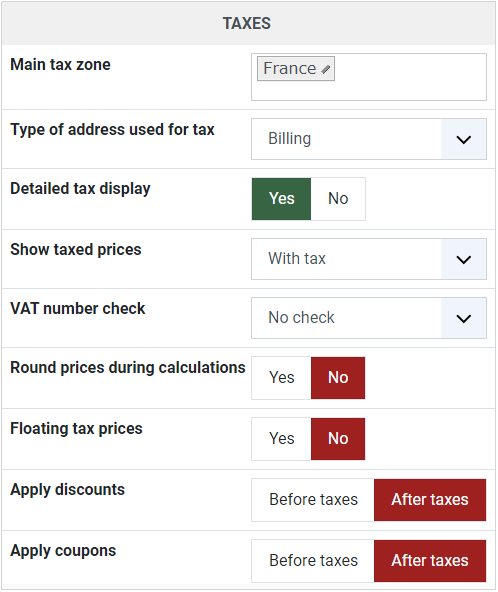
3. The **Main tax zone** of the configuration is a zone you have no rule for: the taxes then appear only once the customer gives an address.
4. The country and state fields are unpublished, or their type is not *zone*.
5. The address used on the checkout is outside the zones of your rules.
6. The products have no tax category.
#### How do I show, or hide, the taxes before the checkout?
Everything depends on the **Main tax zone** of the **Main** tab of the configuration. Set it inside your taxed zone to show the taxes all the time, and outside to display them only when the customer gives an address during the checkout.
### Cart and checkout
#### The products I add to the cart disappear, or I see the cart of someone else
A cache stores the pages with the cart in it. Turn off, one by one:
- the cache of the Joomla **Global Configuration** (System tab),
- the Joomla **System - Page Cache** plugin,
- the cache option of your template, if it has one,
- the cache of your host: a proxy like Varnish, or a CDN, can cache the pages. Your host can tell you.
#### How do I display the cart module everywhere but on the checkout?
Set **Force a menu on the checkout** in the **Checkout** tab of the configuration to a menu of your choice, and in the options of the cart module (Joomla module manager), unselect that menu in **Menu Assignment**.
#### How do I set an unlimited stock for a product?
Leave the **Quantity** field of the product empty.
#### How do I set up a guest checkout?
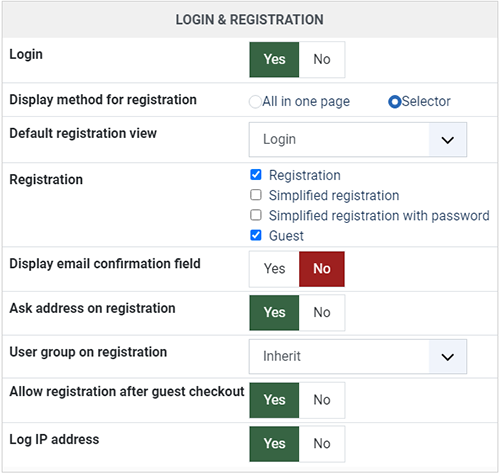
In **System > Configuration**, on the **Checkout** tab:
- keep the **Login** and **Address** views in the checkout workflow,
- set **Registration** to **Guest**: the form becomes a guest form and no Joomla account is created (Essential and Business editions),
- turn off **Login** if you do not want the login form next to it,
- to offer both a guest checkout and a registration, set **Display method for registration** to **Selector**, so that **Registration** accepts several modes.
[](/images/doc/hk/interface/config/checkout_login-registration.png)
#### How do I change the steps of the checkout?
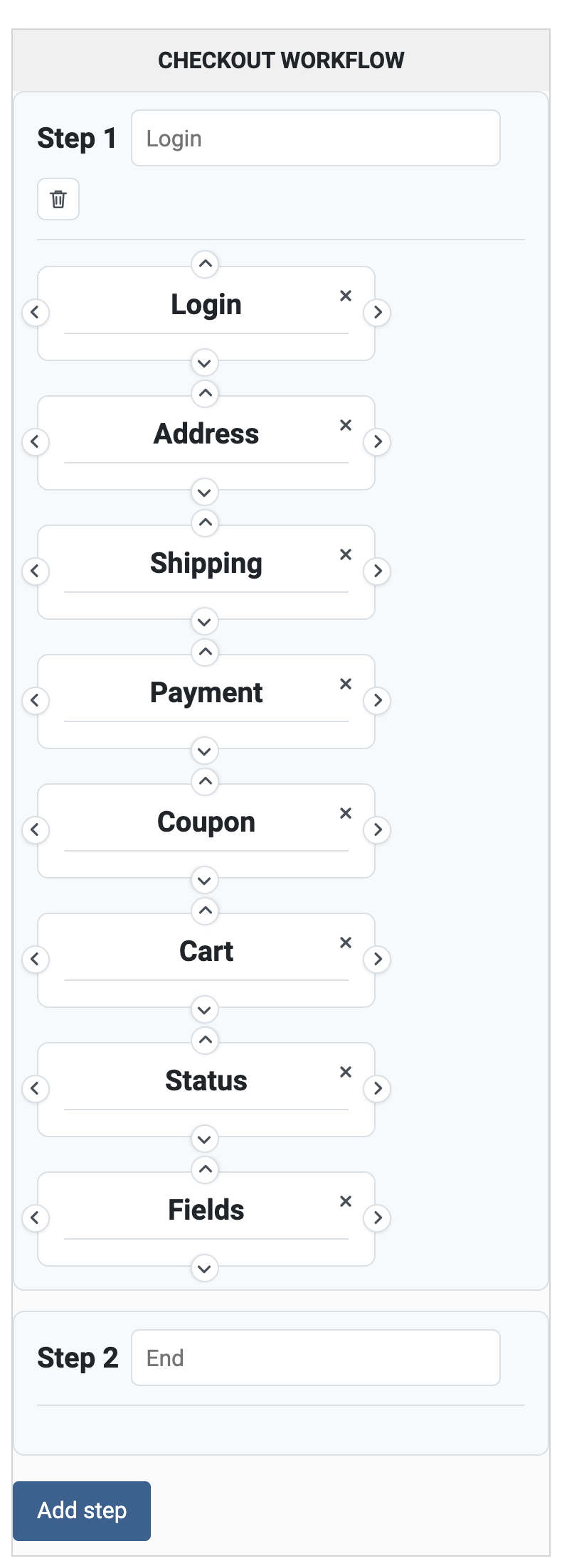
In the **Checkout** tab of the configuration, in the checkout workflow, drag and drop the elements between the steps and use **Add step** for more pages. The [tutorial](/support/documentation/277-configure-your-checkout-workflow) goes through it.
[](/images/doc/hk/interface/config/checkout_workflow.png)
#### The customer cannot finalize an order
Almost always, no shipping method or no payment method is displayed: see the two lists above.
#### How do I sell products by width and length?
Install and publish the **HikaShop Custom Quantity** plugin, and create two custom fields of the **Item** table named `width` and `length` in **Display > Custom fields**, published for the front end.
### Cron task
#### Is my cron task working?
The **Cron** tab of the configuration tells you. Its **Report** area can e-mail you a report at each run (turn it on for your tests only), and **Last cron** shows when it ran last, who triggered it, and its latest report.
[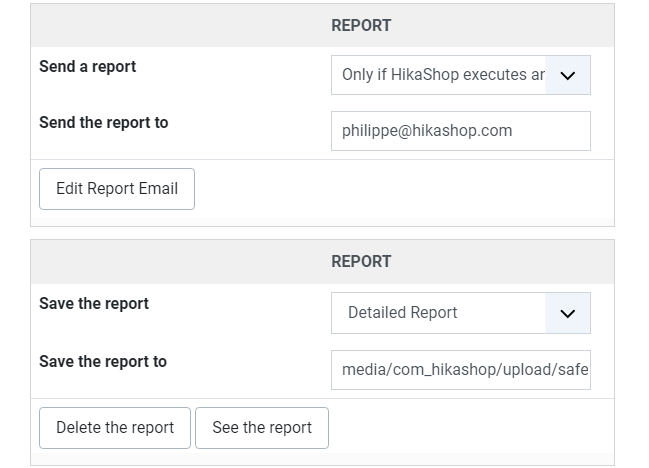](/images/doc/hk/interface/config/cron_report.png)
[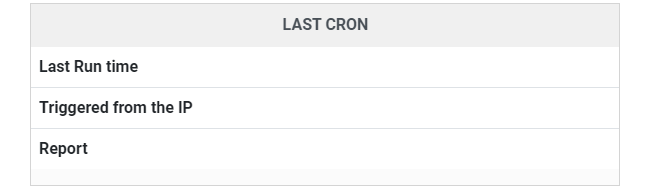](/images/doc/hk/interface/config/cron_last-cron.png)
#### My cron task does not work
The [cron task](/support/documentation/55-hikashop-cron-task) page explains how to set it up. If it still does not run, check that:
- your cron URL opens in your browser: click on it in the configuration,
- nothing redirects it: an SEF component such as sh404sef may send it to a SEF URL, which breaks it. Allow the URL in the component, or write the SEF URL in the cron field,
- nothing blocks an anonymous visitor: an `.htaccess` password, a firewall or security extension (RSFirewall, for example, with its DoS protection), or a CDN like Cloudflare,
- the servers that trigger your website are not limited by a number of connections per IP,
- if the cron runs on your own server, look at its own report. Calling a small PHP file of your website, which opens the cron URL, is a workaround that sometimes helps.
## [ Languages ](/support/documentation/10-languages)
Details Written by: Super User Category: [Installation / Configuration](/support/documentation/hikashop/installation-configuration) Published: 20 February 2013 Hits: 329592
- [Available HikaShop languages](#hika_languages)
- [Available HikaMarket languages](#market_languages)
- [Available HikaSerial languages](#serial_languages)
- [How to translate HikaShop ?](#translate)
- [How to translate your content (products/categories/etc) ?](#content)
- [Several languages on WordPress (Polylang, WPML)](#wordpress)
- [How to modify translations (Overrides) ?](#modify)
### Available languages
HikaShop is currently fully translated in 41 languages and partially in 16 languages.
By default, only the English language is included in the installation package to reduce its size. If you use other languages that weren't installed during the wizard setup phase of the HikaShop installation, simply go to the HikaShop Configuration page ("*HikaShop → System → Configuration*"), click on the **Languages** tab, and click the **Add/Edit** icon for your language. HikaShop will propose to load the latest version of this language directly from our website. Finally, simply save the language to activate it on your website. If you don't see your language there, you may need to install the corresponding Joomla language pack first.
On **WordPress**, there is no language pack to install: HikaShop downloads the translation of its interface from our website by itself, for the language WordPress is running in, and keeps the files it already has up to date. They are listed in that same Languages tab.
For any reason, if your language file could not be automatically installed, you can manually download it below and upload it in the folder language/TAG (you need to replace TAG by the tag of your language) of your website via FTP:
| Language | Tag | Flag | Coverage | Download |
|---|---|---|---|---|
| Afrikaans (South Africa) | af-ZA |  | 10% | [Download](/component/updateme/download/download/language-af-ZA "Download af-ZA") |
| Albanian (Albania) | sq-AL |  | 7% | [Download](/component/updateme/download/download/language-sq-AL "Download sq-AL") |
| Arabic (all) | ar-AR |  | 100% | [Download](/component/updateme/download/download/language-ar-AR "Download ar-AR") |
| Arabic (Standard) | ar-AA |  | 100% | [Download](/component/updateme/download/download/language-ar-AA "Download ar-AA") |
| Basque (Spain & France) | eu-ES |  | 37% | [Download](/component/updateme/download/download/language-eu-ES "Download eu-ES") |
| Bulgarian (Bulgaria) | bg-BG |  | 56% | [Download](/component/updateme/download/download/language-bg-BG "Download bg-BG") |
| Catalan (Spain) | ca-ES |  | 37% | [Download](/component/updateme/download/download/language-ca-ES "Download ca-ES") |
| Chinese (China) | zh-CN |  | 100% | [Download](/component/updateme/download/download/language-zh-CN "Download zh-CN") |
| Chinese (Taiwan) | zh-TW |  | 100% | [Download](/component/updateme/download/download/language-zh-TW "Download zh-TW") |
| Croatian (Bosnia and Herzegovina) | bs-BA |  | 44% | [Download](/component/updateme/download/download/language-bs-BA "Download bs-BA") |
| Croatian (Croatia) | hr-HR |  | 100% | [Download](/component/updateme/download/download/language-hr-HR "Download hr-HR") |
| Czech (Czech Republic) | cs-CZ |  | 100% | [Download](/component/updateme/download/download/language-cs-CZ "Download cs-CZ") |
| Danish (Denmark) | da-DK |  | 100% | [Download](/component/updateme/download/download/language-da-DK "Download da-DK") |
| Dutch (Belgium) | nl-BE |  | 100% | [Download](/component/updateme/download/download/language-nl-BE "Download nl-BE") |
| Dutch (Netherlands) | nl-NL |  | 100% | [Download](/component/updateme/download/download/language-nl-NL "Download nl-NL") |
| English (Australia) | en-AU |  | 100% | [Download](/component/updateme/download/download/language-en-AU "Download en-AU") |
| English (United Kingdom) | en-GB |  | 100% | [Download](/component/updateme/download/download/language-en-GB "Download en-GB") |
| English (USA) | en-US |  | 100% | [Download](/component/updateme/download/download/language-en-US "Download en-US") |
| Finnish (Finland) | fi-FI |  | 100% | [Download](/component/updateme/download/download/language-fi-FI "Download fi-FI") |
| French (Canada) | fr-CA |  | 100% | [Download](/component/updateme/download/download/language-fr-CA "Download fr-CA") |
| French (France) | fr-FR |  | 100% | [Download](/component/updateme/download/download/language-fr-FR "Download fr-FR") |
| Galician (Spain) | gl-ES |  | 45% | [Download](/component/updateme/download/download/language-gl-ES "Download gl-ES") |
| German (Austria) | de-AT |  | 100% | [Download](/component/updateme/download/download/language-de-AT "Download de-AT") |
| German (Germany) | de-DE |  | 100% | [Download](/component/updateme/download/download/language-de-DE "Download de-DE") |
| German (Switzerland) | de-CH |  | 100% | [Download](/component/updateme/download/download/language-de-CH "Download de-CH") |
| Greek (Greece) | el-GR |  | 100% | [Download](/component/updateme/download/download/language-el-GR "Download el-GR") |
| Hebrew (Israel) | he-IL |  | 100% | [Download](/component/updateme/download/download/language-he-IL "Download he-IL") |
| Hindi (India) | hi-IN |  | 100% | [Download](/component/updateme/download/download/language-hi-IN "Download hi-IN") |
| Hungarian (Hungary) | hu-HU |  | 100% | [Download](/component/updateme/download/download/language-hu-HU "Download hu-HU") |
| Indonesian (Indonesia) | id-ID |  | 100% | [Download](/component/updateme/download/download/language-id-ID "Download id-ID") |
| Italian (Italy) | it-IT |  | 100% | [Download](/component/updateme/download/download/language-it-IT "Download it-IT") |
| Japanese (Japan) | ja-JP |  | 100% | [Download](/component/updateme/download/download/language-ja-JP "Download ja-JP") |
| Korean (South Korea) | ko-KR |  | 12% | [Download](/component/updateme/download/download/language-ko-KR "Download ko-KR") |
| Latvian (Latvia) | lv-LV |  | 100% | [Download](/component/updateme/download/download/language-lv-LV "Download lv-LV") |
| Lithuanian (Lithuania) | lt-LT |  | 52% | [Download](/component/updateme/download/download/language-lt-LT "Download lt-LT") |
| Macedonian (North Macedonia) | mk-MK |  | 54% | [Download](/component/updateme/download/download/language-mk-MK "Download mk-MK") |
| Malay (Malaysia) | ms-MY |  | 100% | [Download](/component/updateme/download/download/language-ms-MY "Download ms-MY") |
| Montenegrin (latin) | srp-ME |  | 43% | [Download](/component/updateme/download/download/language-srp-ME "Download srp-ME") |
| Norwegian Bokmål (Norway) | nb-NO |  | 100% | [Download](/component/updateme/download/download/language-nb-NO "Download nb-NO") |
| Persian (Iran) | fa-IR |  | 100% | [Download](/component/updateme/download/download/language-fa-IR "Download fa-IR") |
| Polish (Poland) | pl-PL |  | 100% | [Download](/component/updateme/download/download/language-pl-PL "Download pl-PL") |
| Portuguese (Brazil) | pt-BR |  | 100% | [Download](/component/updateme/download/download/language-pt-BR "Download pt-BR") |
| Portuguese (Portugal) | pt-PT |  | 100% | [Download](/component/updateme/download/download/language-pt-PT "Download pt-PT") |
| Romanian (Romania) | ro-RO |  | 100% | [Download](/component/updateme/download/download/language-ro-RO "Download ro-RO") |
| Russian (Russia) | ru-RU |  | 100% | [Download](/component/updateme/download/download/language-ru-RU "Download ru-RU") |
| Serbian Cyrillic (Serbia) | sr-RS |  | 41% | [Download](/component/updateme/download/download/language-sr-RS "Download sr-RS") |
| Serbian Latin (Serbia) | sr-YU |  | 43% | [Download](/component/updateme/download/download/language-sr-YU "Download sr-YU") |
| Slovak (Slovakia) | sk-SK |  | 100% | [Download](/component/updateme/download/download/language-sk-SK "Download sk-SK") |
| Slovenian (Slovenia) | sl-SI |  | 100% | [Download](/component/updateme/download/download/language-sl-SI "Download sl-SI") |
| Spanish (Chile) | es-CL |  | 100% | [Download](/component/updateme/download/download/language-es-CL "Download es-CL") |
| Spanish (Spain) | es-ES |  | 100% | [Download](/component/updateme/download/download/language-es-ES "Download es-ES") |
| Swedish (Sweden) | sv-SE |  | 100% | [Download](/component/updateme/download/download/language-sv-SE "Download sv-SE") |
| Thai (Thailand) | th-TH |  | 100% | [Download](/component/updateme/download/download/language-th-TH "Download th-TH") |
| Turkish (Turkey) | tr-TR |  | 100% | [Download](/component/updateme/download/download/language-tr-TR "Download tr-TR") |
| Ukrainian (Ukraine) | uk-UA |  | 57% | [Download](/component/updateme/download/download/language-uk-UA "Download uk-UA") |
| Vietnamese (Viet Nam) | vi-VN |  | 100% | [Download](/component/updateme/download/download/language-vi-VN "Download vi-VN") |
### HikaMarket Languages
| Danish (Denmark) | da-DK |  | [Download](/component/updateme/download/component-hikamarket/language-da-DK "Download da-DK") |
|---|---|---|---|
| German (Germany) | de-DE |  | [Download](/component/updateme/download/component-hikamarket/language-de-DE "Download de-DE") |
| English (United Kingdom) | en-GB |  | [Download](/component/updateme/download/component-hikamarket/language-en-GB "Download en-GB") |
| Spanish (Spain) | es-ES |  | [Download](/component/updateme/download/component-hikamarket/language-es-ES "Download es-ES") |
| Persian (Iran) | fa-IR |  | [Download](/component/updateme/download/component-hikamarket/language-fa-IR "Download fa-IR") |
| French (France) | fr-FR |  | [Download](/component/updateme/download/component-hikamarket/language-fr-FR "Download fr-FR") |
| Italian (Italy) | it-IT |  | [Download](/component/updateme/download/component-hikamarket/language-it-IT "Download it-IT") |
| Japanese (Japan) | ja-JP |  | [Download](/component/updateme/download/component-hikamarket/language-ja-JP "Download ja-JP") |
| Dutch (Belgium) | nl-BE |  | [Download](/component/updateme/download/component-hikamarket/language-nl-BE "Download nl-BE") |
| Dutch (Netherlands) | nl-NL |  | [Download](/component/updateme/download/component-hikamarket/language-nl-NL "Download nl-NL") |
| Russian (Russia) | ru-RU |  | [Download](/component/updateme/download/component-hikamarket/language-ru-RU "Download ru-RU") |
| Slovak (Slovakia) | sk-SK |  | [Download](/component/updateme/download/component-hikamarket/language-sk-SK "Download sk-SK") |
| Swedish (Sweden) | sv-SE |  | [Download](/component/updateme/download/component-hikamarket/language-sv-SE "Download sv-SE") |
| Ukrainian (Ukraine) | uk-UA |  | [Download](/component/updateme/download/component-hikamarket/language-uk-UA "Download uk-UA") |
### HikaSerial Languages
| Bulgarian (Bulgaria) | bg-BG |  | [Download](/component/updateme/download/component-hikaserial/language-bg-BG "Download bg-BG") |
|---|---|---|---|
| German (Germany) | de-DE |  | [Download](/component/updateme/download/component-hikaserial/language-de-DE "Download de-DE") |
| English (United Kingdom) | en-GB |  | [Download](/component/updateme/download/component-hikaserial/language-en-GB "Download en-GB") |
| French (France) | fr-FR |  | [Download](/component/updateme/download/component-hikaserial/language-fr-FR "Download fr-FR") |
| Italian (Italy) | it-IT |  | [Download](/component/updateme/download/component-hikaserial/language-it-IT "Download it-IT") |
| Japanese (Japan) | ja-JP |  | [Download](/component/updateme/download/component-hikaserial/language-ja-JP "Download ja-JP") |
| Dutch (Belgium) | nl-BE |  | [Download](/component/updateme/download/component-hikaserial/language-nl-BE "Download nl-BE") |
| Dutch (Netherlands) | nl-NL |  | [Download](/component/updateme/download/component-hikaserial/language-nl-NL "Download nl-NL") |
| Russian (Russia) | ru-RU |  | [Download](/component/updateme/download/component-hikaserial/language-ru-RU "Download ru-RU") |
| Swedish (Sweden) | sv-SE |  | [Download](/component/updateme/download/component-hikaserial/language-sv-SE "Download sv-SE") |
| Turkish (Turkey) | tr-TR |  | [Download](/component/updateme/download/component-hikaserial/language-tr-TR "Download tr-TR") |
### How to translate HikaShop?
If HikaShop is not yet available in your language, or if you wish to contribute to an existing translation, you can do so directly from within the HikaShop interface.
#### Steps to modify or add a translation:
1. Log in to your **Joomla Administrator** backend.
2. Navigate to **Components → HikaShop**.
3. In the HikaShop menu, go to **System → Configuration**.
4. On the HikaShop configuration page, go to the **Languages** tab.
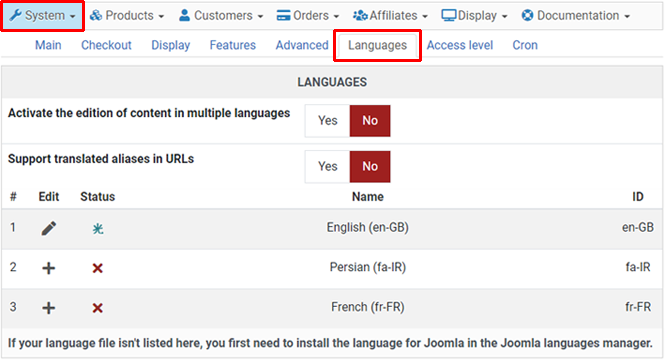
In this view, you will see all languages currently installed in your Joomla instance.
- **Add/Edit:** Click the **Edit icon** (or **Add icon** if the file doesn't exist yet) next to your language.
- **Interface:** You will be taken to a dedicated editor. If the translation file is new, HikaShop will preload the English keys for you to translate.
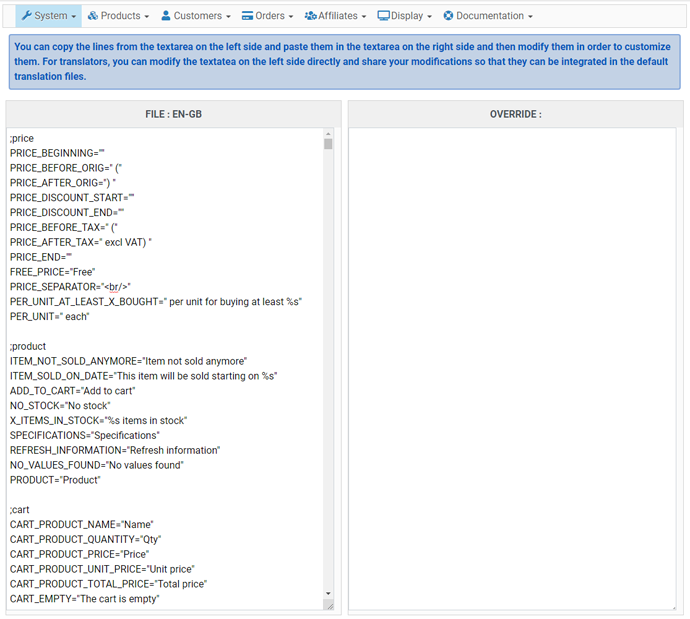
#### ?️ Critical Rules for Translation
- **Do not touch the Key:** Never modify the text *before* the equal sign (e.g., in `PRODUCT_NAME="Name"`, only change "Name").
- **Double Quotes:** Your translation **must** be enclosed in double quotes (`"`). Do not add extra double quotes inside the string. If you need to include a double quote within the string, use a backslash (`\"`) to escape it or try using single quotes (`'`) instead.
- **Placeholders (`%s`, `%d`):** These represent dynamic data (like prices or dates).
- **Never remove them.**
- **Do not change their order.** If a string has two `%s`, they must appear in the same order as in English.
- **No Line Breaks:** Do not press "Enter" inside a translation string; it will break the file structure. Since translations are mostly used in HTML, you can use the `
` tag to create line breaks in your translation without breaking the file structure.
- **Comments:** Lines starting with `#` or `;` are comments and should not be translated.
Once finished, click **Save**. We highly encourage using the **Share** button to contribute your work back to the community. This ensures your translations are included in future HikaShop updates, so you don't have to re-apply them later!
### How to translate your content (Products, Categories, etc.)?
Translating the interface is one thing, but your catalog content (product names, descriptions) needs a different approach. Here are the three main strategies:
| Method | Description | Best For... |
|---|---|---|
| **1. Multi-Tree Structure** | Create separate category trees (one for each language) and duplicate products. Then, create menu items for each language, pointing to the appropriate category tree. | Small shops with few products and no stock management needs. |
| **2. Third-Party Extension (Falang)** | Uses the [Falang](https://www.faboba.com/en/composants/falang/presentation.html) extension to manage translations without duplicating data. This is a paid extension, but it provides a dedicated translation manager interface with AI assistance for translations. | Users who prefer a dedicated translation manager interface with AI assistance. |
| **3. HikaShop Native Multilingual content** | Enable the [Activate the edition of content in multiple languages](https://www.hikashop.com/support/documentation/54-hikashop-config.html#languages) in the HikaShop configuration. Then, when you edit a product, category, etc., you will see language flags you can click on to translate the content. | **Recommended.** Seamless, high-performance, controlled and built-in to Joomla's native multilingual system. |
To set up the native system (Option 3), ensure you have first [configured Joomla's multilingual features](https://guide.joomla.org/user-manual/languages/multilingual-content). Then, enable the setting in **HikaShop → System → Configuration → Languages**.
### Several languages on WordPress (Polylang, WPML)
WordPress has no second content language of its own, so a shop which wants one installs a multilingual plugin. HikaShop works with **Polylang** and with **WPML**, and detects by itself the one your site uses. This is available since HikaShop 6.6.0.
#### Setting it up:
1. Install [Polylang](https://wordpress.org/plugins/polylang/) (free) or [WPML](https://wpml.org/) (paid) on your WordPress website.
2. Add your languages in that plugin, as you would for the rest of your site. In Polylang, that is in *Languages → Languages*. In WPML, that is in *WPML → Languages*.
3. Edit a product or a category in HikaShop: a flag is now displayed for each of your languages. Click on a flag and translate the name, the description and your custom fields, exactly as on Joomla.
There is nothing to turn on in HikaShop for this: as soon as the multilingual plugin gives HikaShop more than one language, the flags appear. Translating your content requires the Essential or the Business edition, and the option *Activate the edition of content in multiple languages* of **HikaShop → Configuration → Languages**, which is enabled by default.
#### You do not translate your products with Polylang or WPML
Your products and your categories are not WordPress posts, they are HikaShop data, so they do not appear in the translation screens of these plugins and you do not need to duplicate them there. HikaShop asks the multilingual plugin two things only: the list of the languages of the site, and which language the visitor is reading. The translations themselves are typed in HikaShop and stored by HikaShop.
Because HikaShop stores them itself, your translations are kept in `wp-content/uploads/hikashop/language/overrides`, outside the plugin folder. An update of HikaShop cannot delete them, and changing your multilingual plugin, or removing it, does not lose them.
The HikaShop interface (buttons, messages) follows the language of WordPress, and on the front end the language the visitor is reading, since both Polylang and WPML tell WordPress which one that is. You can review the interface files, edit them and add your own overrides in **HikaShop → Configuration → Languages** of your WordPress administration menu.
If the file of one of your languages is missing there, either open the HikaShop back end once with WordPress set to that language, which makes HikaShop download it, or download your language from the list at the top of this page and upload the `TAG.com_hikashop.ini` file it gives you (`fr-FR.com_hikashop.ini` for French) in the `language` folder of the HikaShop plugin, at `wp-content/plugins/hikashop/language/`.
The Falang method described above is a Joomla extension and does not apply to WordPress. On WordPress, the native HikaShop translation system is the one to use.
### Customizing specific translations (Overrides)
If you only want to change a texts of the HikaShop interface (e.g., changing "VAT" to "Sales Tax"), you should use **Overrides**. This prevents your changes from being overwritten when you update HikaShop.
#### How to create an override:
1. Navigate to **HikaShop → System → Configuration → Languages**.
2. Click the **Edit icon** for your language.
3. In the editor, find the line you want to change in the main file on the left side of the page, and **copy it**.
4. **Paste it** into the **Overrides** textarea on the right side of the page.
5. Modify the text inside the quotes in that override section and click **Save**.
**Pro-Tip:** HikaShop's override system is fully compatible with the native **Joomla Language Overrides** manager. You can use either interface to manage your custom text changes.
For more technical details on translation strings and formatted fields, we recommend checking the [Joomla Manual](https://manual.joomla.org/docs/general-concepts/multilingual/language-files/). You can also find more information on [creating overrides](https://guide.joomla.org/user-manual/languages/languages-language-overrides) and [debugging translations](https://guide.joomla.org/user-manual/languages/languages-debugging-a-translation) in the Joomla Documentation.
## [ CSS styling ](/support/documentation/84-css-styling)
Details Written by: Administrator Category: [Installation / Configuration](/support/documentation/hikashop/installation-configuration) Published: 18 April 2011 Hits: 95263
- [Where to add your CSS](#add_css)
- [Find the selector to change](#inspect)
- [Ready to use examples](#recipes)
- [Change the color and the size of the prices](#prices)
- [Change the color of the add to cart button](#cart_button)
- [Change the border around the products and categories](#border)
- [Make the products lift when the mouse is over them](#hover)
- [Display the product code on the product page](#product_code)
- [Change the size of the small images of the product page](#thumbnails)
- [Hide the characteristic values in the product name](#characteristic)
- [Display the characteristics radio buttons vertically](#characteristic_vertical)
- [Hide some parts of the pagination](#pagination)
- [Move the registration box below the login box](#registration_box)
- [The text of a button does not fit](#buttons)
- [Replace an icon with your own picture](#color_icon)
### Where to add your CSS
The CSS of the examples below can go in two places. Whichever you choose, **never edit the Front-end CSS file of HikaShop itself**: it holds all the positioning CSS of the default layout, and it is the file that receives new rules in every update.
**1. Your Joomla template (recommended).** Most templates have a place for custom CSS, and keeping all the styling of your website in one place makes it easier to maintain. The list of the main templates and where they keep it is in the [customize the display](/support/documentation/153-customize-the-display#where_to_css) page.
**2. The Styles of HikaShop.** In **System > Configuration**, on the **Display** tab, the **CSS Options** panel has two selectors for the front-end: the **Front-end CSS File** and the **Styles for the front-end**. Click on the **+** button next to the Styles selector, give a name of your own to your file (not *default*, which is the file shipped with HikaShop), paste your CSS and save. Then select it in the list and save the configuration.
[](/images/doc/hk/interface/config/display_css-options.png)
A Styles file you created is never touched by an update, and its rules apply on top of the default ones. The pencil button opens the file in an editor, with the syntax highlighted:
[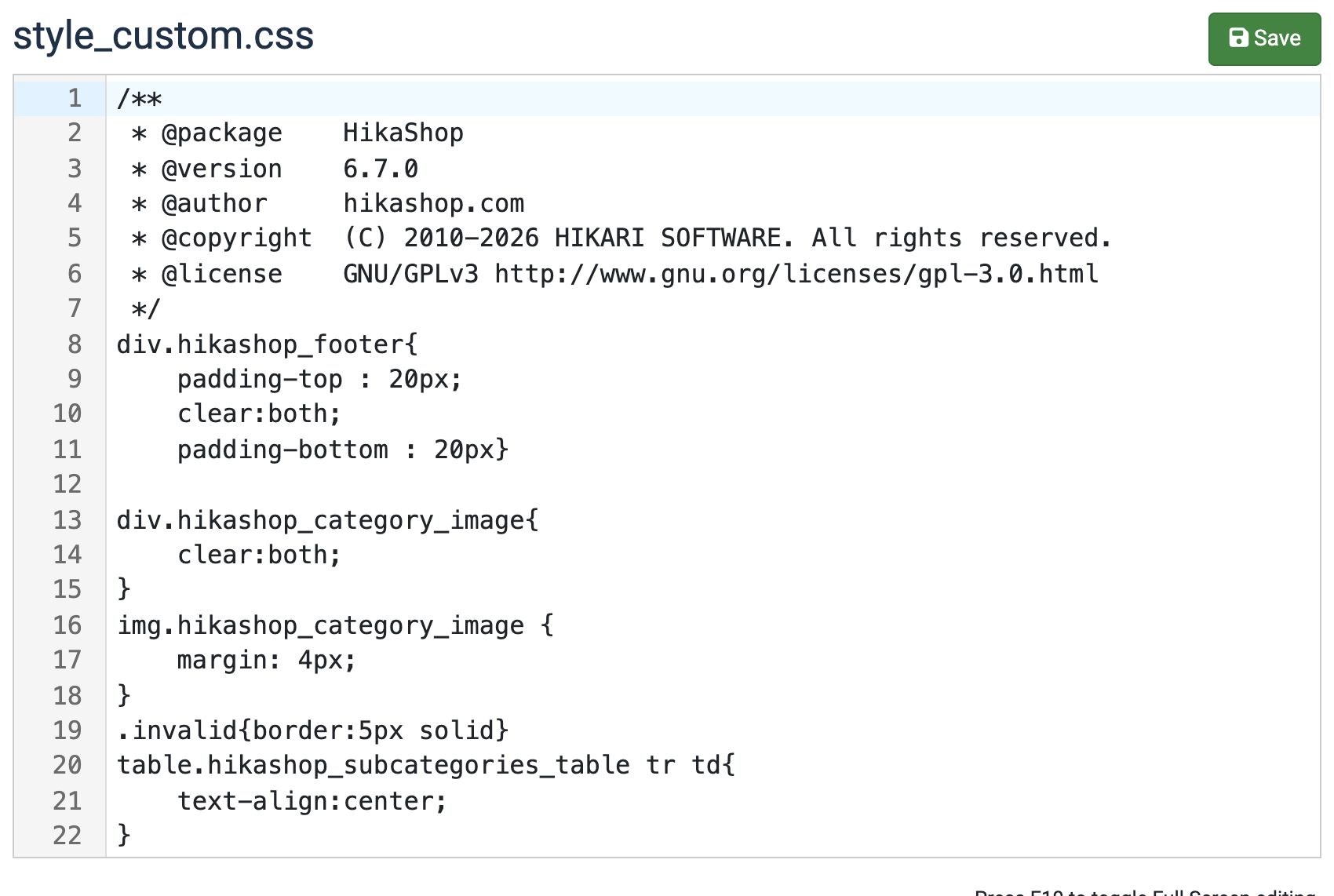](/images/doc/hk/interface/css/css_editor.png)
Put a comment above each block of CSS you add, so that you know later what it was for:
```
/* Prices: dark red and bold */
span.hikashop_product_price {
color: #900;
font-weight: bold;
}
```
### Find the selector to change
You do not need to guess the name of a class. Open your page in your browser, right click on the element you want to change and choose **Inspect**: the developer tools show its HTML and, next to it, the CSS rules which apply to it. Copy the class you need in your own rule, and the browser shows you right away what it does before you write anything in HikaShop.
If your rule does not seem to do anything, it is usually because another rule is more specific. Make yours more specific by adding a parent class in front of it, or as a last resort add `!important` after the value.
To learn CSS itself, the [MDN CSS guide](https://developer.mozilla.org/docs/Learn/CSS) is a good start.
### Ready to use examples
#### Change the color and the size of the prices
Add this CSS:
```
span.hikashop_product_price {
color: #900;
font-weight: bold;
font-size: 1.2em;
}
```
#### Change the color of the add to cart button
The add to cart buttons carry the class `hikacart`, which you can change in the **Extra CSS for add to cart buttons** setting of the panel above. Add this CSS:
```
.hikacart {
background-color: #1a7f37;
border-color: #1a7f37;
color: #fff;
}
```
#### Change the border around the products and categories
The box of each product or category of a listing is the `hikashop_subcontainer` element:
```
div.hikashop_products div.hikashop_subcontainer {
border: 1px solid #ddd;
border-radius: 8px;
}
```
The background color of the boxes is already a setting of the HikaShop options of your menu or module. If you prefer to do it in CSS and it seems to be ignored, add `!important`, as the setting of the menu is written on the element itself.
#### Make the products lift when the mouse is over them
```
div.hikashop_products div.hikashop_subcontainer {
transition: box-shadow 0.2s, transform 0.2s;
}
div.hikashop_products div.hikashop_subcontainer:hover {
box-shadow: 0 6px 16px rgba(0, 0, 0, 0.15);
transform: translateY(-3px);
}
```
#### Display the product code on the product page
No CSS is needed: in **System > Configuration**, on the **Display** tab, set **Display product code** to **Yes**. If the code is displayed and you want to hide it, set it to **No**, or keep the setting and hide it in CSS:
```
.hikashop_product_code_main {
display: none;
}
```
#### Change the size of the small images of the product page
They are displayed under the main image when a product has several images:
```
img.hikashop_child_image {
margin: 2px;
height: 50px;
}
```
#### Hide the characteristic values in the product name
On the page of a variant, the values of its characteristics are added after the name of the product:
```
.hikashop_product_page .hikashop_product_variant_subname {
display: none;
}
```
#### Display the characteristics radio buttons vertically
```
.hikashop_product_characteristics_table {
width: 100%;
}
.hikashop_product_characteristics_table input {
float: left;
clear: both;
}
.hikashop_product_characteristics_table label {
display: block;
}
```
#### Hide some parts of the pagination
To remove the selector of the number of items per page:
```
.hikashop_products_pagination div.limit,
.hikashop_subcategories_pagination div.limit {
display: none;
}
```
To remove the text which counts the results:
```
span.hikashop_results_counter {
display: none;
}
```
#### Move the registration box below the login box
On the checkout, the login and the registration are side by side. To stack them, give the column of the login the full width:
```
.hikashop_checkout_login .hkc-lg-4 {
width: 100%;
}
```
#### The text of a button does not fit
HikaShop uses the buttons of your template. When the text of one is cut or overflows, the template gives its buttons a fixed width. You can:
- change the buttons of your template so that they follow the length of their text (your template provider can help),
- or, in the **CSS Options** panel above, add your own class in the **CSS for buttons** setting (it is `hikabtn` by default) and write the style of that class in your Styles file.
#### Replace an icon with your own picture
The icons of HikaShop are Font Awesome icons. This replaces the refresh icon of the cart of the checkout with a picture of your own, which you upload in the media folder of your website first:
```
.hikashop_checkout_cart i.fa.fa-sync {
background-image: url(/media/com_hikashop/images/refresh.png);
background-size: contain;
width: 14px;
height: 14px;
}
.hikashop_checkout_cart i.fa.fa-sync:before {
content: '' !important;
}
```
To change the look of the products by color, see also the [display by color](/support/documentation/272-hikashop-display-by-color#custom) tutorial.
## [ Install / Update HikaShop ](/support/documentation/59-hikashop-how-to-install)
Details Written by: Administrator Category: [Installation / Configuration](/support/documentation/hikashop/installation-configuration) Published: 10 September 2010 Hits: 157024
- [Download HikaShop](#download)
- [Install HikaShop](#install)
- [Update / Upgrade HikaShop](#update)
- [Installation errors](#errors)
- [Blank page](#blank)
- [Install via FTP](#ftp)
### Download HikaShop
If you want to use the free version of HikaShop, you can go to [Download HikaShop Starter](/download.html) and click on the button "**Download**".
A popup will open asking you your Name and your E-mail and then, you will be able to download HikaShop.
hikashop.com only asks you your e-mail in order to keep you informed about important updates and security issues and we won't sell your personal data, nor spam you.
If you purchased HikaShop, you should have received a confirmation e-mail with a direct download link.
This download link will always be linked to the latest version of HikaShop so you can download new versions that way as well.
### Install HikaShop
HikaShop is a Joomla Component and like any other Joomla Component, it can be installed within two clicks!
You don't have to extract the package first, HikaShop will automatically install some plugins and modules.
Log on to the Joomla Administrator Section and click on the menu "Extensions" -> "Install/Uninstall"
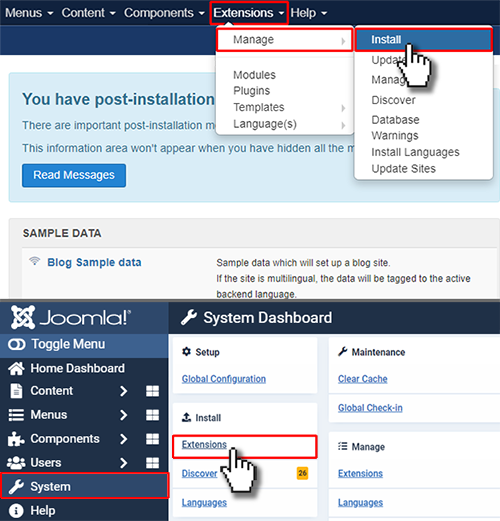
Browse for your HikaShop package and then click "Upload File & Install".
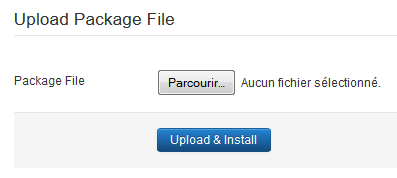
Joomla will upload the package on your server and install the HikaShop component.
This part can take more than 1 minute.
Then, HikaShop will display a screen with the message "Please wait..." as HikaShop will now redirect you to an other screen in order to finalize the installation of the extension.
HikaShop will now automatically install its modules and plugins.
HikaShop will also install some default categories so that you can directly add your products to your store.
HikaShop finished the install process and you should now see a result of all installed extensions (Modules and Plugins).
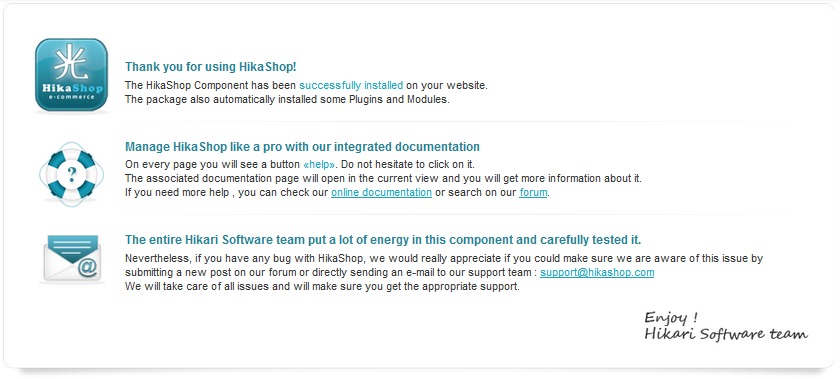
If you purchased the commercial version of HikaShop, HikaShop will connect to hikashop.com in order to validate your license.
You are now ready to use HikaShop !
### Update/Upgrade HikaShop
If you want to install the latest version of HikaShop or upgrade to any commercial version, the upgrade process is as easy as the install one!
**You don't have to uninstall HikaShop.** Simply proceed as explained above and install the new package via the Joomla "Install/Uninstall" screen and HikaShop will be upgraded without loosing any of your data.
You can check the latest version and download it directly on your HikaShop Component...
Log on to the Joomla Administrator Section and click on the menu "**Components**" -> "**HikaShop**" -> "**Configuration**" to access the Main HikaShop Configuration page.
Click on the HikaShop menu help -> Update / About.
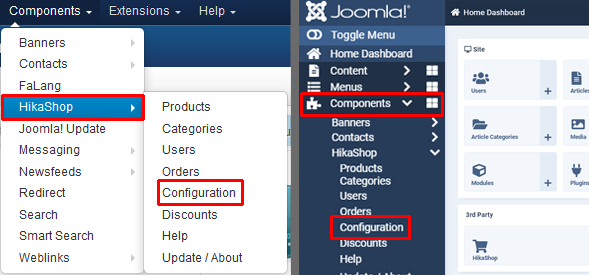
Click on the "**Documentation**" -> "**Update / About**".
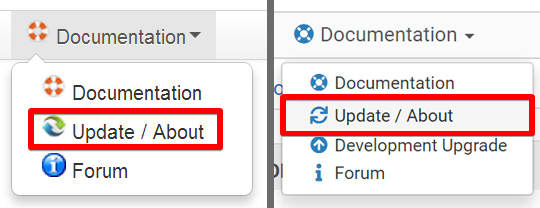
If your component is not up to date, a message will be displayed enabling you to download the latest version.
Then download the package on your computer and install it via the Joomla installer, you don't have to uninstall the previous version!
HikaShop will be updated and you won't loose any of your data.
### Installation Errors
HikaShop installs files in the following folders. Please first make sure those folders are writable before trying to install HikaShop :
- Joomla / Administrator / Components
- Joomla / Components
- Joomla / Modules
- Joomla / Plugins
- Joomla / Plugins / Hikashop
- Joomla / Plugins / Hikashoppayment
- Joomla / Plugins / Hikashopshipping
- Joomla / Plugins / Acymailing
- Joomla / Plugins / Search
- Joomla / Plugins / User
- Joomla / Plugins / System
- Joomla / Language / en-GB
- Joomla / tmp
- Joomla / media
In Joomla 3, you can check the folder permissions in the Joomla backend, under: System > System Information > Folder permissions
If you have errors regarding the copy of files, it's likely to be because of access right issues. You should look at these documentation pages of Joomla:
- [Why can't you install any extensions? (docs.joomla.org)](http://docs.joomla.org/Why_can't_you_install_any_extensions%3F)
- [Installing an extension (docs.joomla.org)](http://docs.joomla.org/Installing_an_extension)
- [How to solve Installation errors Extension Manager (docs.joomla.org)](http://docs.joomla.org/How_to_solve_Installation_errors_Extension_Manager)
#### Blank page
A blank page does not help us to determine what could be the problem so if you get a blank page (an entire white screen without anything written on it).
Please make sure that your PHP configuration enables you to see errors and if not, edit your php.ini file and search for the string parameter **display\_errors**.
This parameter should be turned On: **display\_errors = On**.
If it's not the case, please edit your php.ini file, modify this line, save your file and then restart your server and try again to install HikaShop. You should not see a blank screen anymore and the error message will help us a lot to fix the problem.
In the Joomla global configuration (System > Global configuration), you can also change temporally the setting **Error reporting** (under tab "Server") to **development**
If you can not see any error, please try to install HikaShop via FTP, it solves more than half of the installlation issues.
#### Install via FTP
If you have difficulties to install HikaShop, you may want to try to install it via FTP.
This way, Joomla won't have to upload the HikaShop package on your website so the installation will be much faster.
- Extract your HikaShop package in a folder called "hikashop" on your own computer.
- Open your FTP software (FileZilla for example), connect to your website and upload the folder "hikashop" in the temporary folder of your website : /tmp/
- Go to your Joomla Installer manager on your website backend and specify the path of your folder in the input "**Install from Directory**" : "\\home\\...\\tmp\\hikashop".
- Click on the button "Install"... the install process should be much faster and will enable you to successfully install HikaShop.
### -1 - an error has occurred ( It was not possible to copy the selected file. )
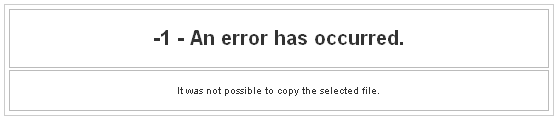
This error message is displayed when Joomla can not copy a folder from the temp folder to the destination folder.
It's usually because of access rights and you should make sure the HikaShop folders are writeable (see above).
If it does not solve the issue, please edit the file libraries/joomla/filesystem/folder.php
Around line 93 AND 122, please replace:
return JError::raiseError(-1, JText::\_('Copy failed'));
by
return JError::raiseError(-1, JText::\_('Copy failed').' '.$sfid.' => '.$dfid);
It won't solve the problem but at least if you try to install again HikaShop, you will see a much better error message telling you what folder is not writeable.
That way you can move forward by fixing the permission issue on that folder and install again HikaShop.
This kind of error can be automatically solved by enabling the FTP layer on the Joomla configuration page (or turning it OFF if it was enabled).
- Component Install: DB function reports no errors
- JFTP: :delete: Bad response
- JFTP: :delete: Bad response
- Error installing component
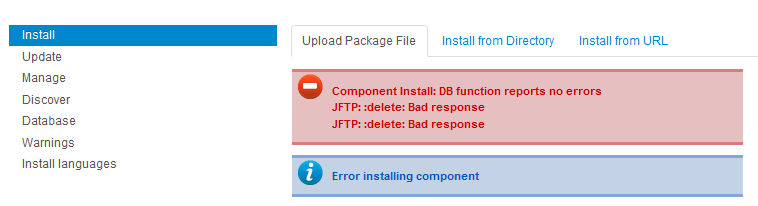
This error is apparently due to the fact HikaShop could not be installed properly and there are probably still some instances of HikaShop on your Extensions Manager.
Please go on your Extensions Manager (click on the menu "Manage"), select HikaShop (the component) and uninstall it.
If it can't be uninstalled from there, please access your phpMyAdmin and execute this query:
- DELETE FROM `jos\_menu` WHERE link LIKE '%com\_hikashop%';
- DELETE FROM jos\_extensions WHERE element = 'com\_hikashop';
- DELETE FROM jos\_assets WHERE name='com\_hikashop';
Then install HikaShop again... it should work.
- JFolder: :files: Path is not a folder. Path: xxxxxxxxxxxxxx/tmp/install\_xxxxxxxx
- JFolder: :folder: Path is not a folder. Path: xxxxxxxxxxxxxx/tmp/install\_xxxxxxxx
- JFolder: :files: Path is not a folder. Path: xxxxxxxxxxxxxx/tmp/install\_xxxxxxxx
- JInstaller: :Install: Cannot find Joomla XML setup file
These errors can happen even though your access rights are correctly configured. It comes apparently from a problem between the ZIP extraction library and your server settings. You should try to convert the installation package of HikaShop to a tar.gz file with 7zip (tool for windows to generate packages) or an equivalent tool and then use that tar.gz package instead in order to install HikaShop.
1. [ Cron task](/support/documentation/55-hikashop-cron-task)
2. [ Configuration](/support/documentation/54-hikashop-config)
3. [ Taxation rules listing](/support/documentation/37-hikashop-taxation-listing)
Page 1 of 2