[Skip to main content](#vessel-content)
# Shipping plugins
## [ UPS shipping method ](/support/documentation/95-hikashop-shipping-ups-form)
Details Written by: Administrator Category: [Shipping plugins](/support/documentation/hikashop/shipping-plugins) Published: 18 July 2011 Hits: 34549 **Note :** This plugin is now obsolete. [Please use instead the new UPS OAUTH shipping plugin.](/support/documentation/504-hikashop-shipping-ups2-form)
| - [Description](#description) - [Toolbar](#toolbar) - [Main Information](#infos) - [Additional Information](#additional) - [Restrictions](#restrictions) |  |
|---|---|
### Description
This screen enables you to edit the UPS shipping method options. Shipping methods will be filtered on checkout based on the zone you set for them, if any. Then, they will be displayed to the user for him to choose which shipping method he prefers for his order.
This method include a warehouse management in order to allow you to shipping from different locations. You can also choose among the UPS services you want to use.
### Toolbar

- **Save & Close** : Save the shipping method options and return to the shipping methods Management screen.
- **Save** : Apply the modifications to the shipping method and stay on the same screen.
- **Cancel** : Return to the previous screen without saving the modifications.
- **Help** : Open the documentation of this shipping method.
### Main Information
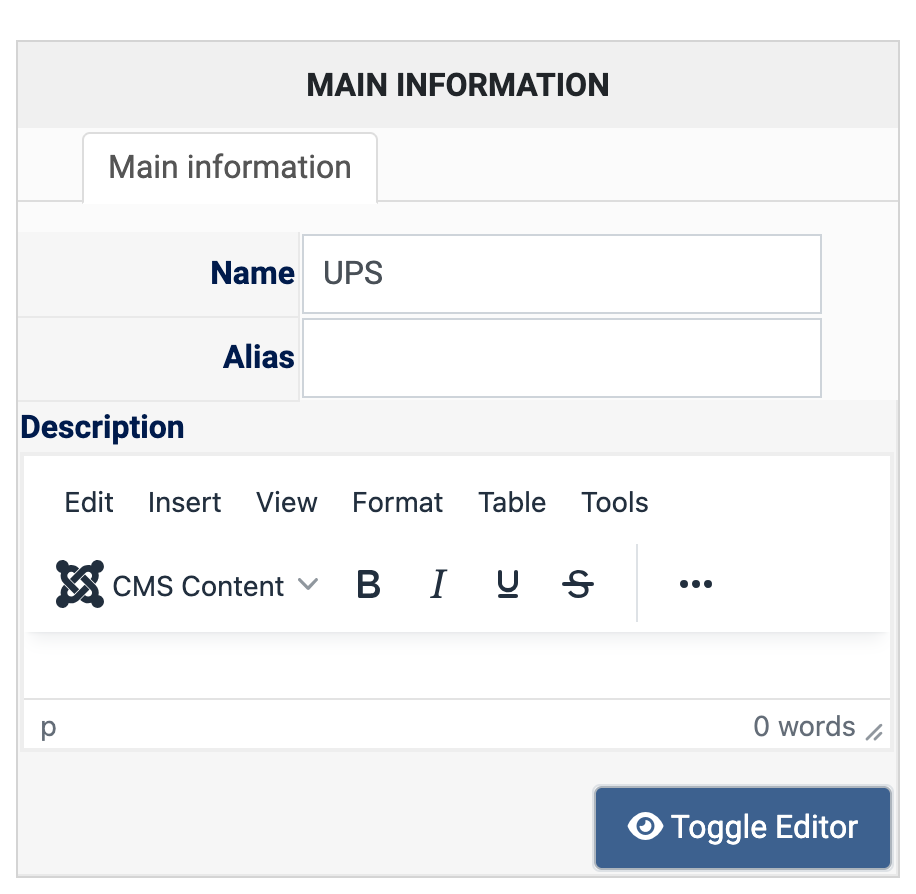
If you use one of our commercial versions, you will be able to enter the name and description in different languages. This feature can be activated in the configuration page. If you don't enter something for a translation, it will just use the default information in the **Main information** tab instead. After you click on save or apply an additional publish icon will appear next to the fields where you entered something in the languages tabs so that you can easily enable or disable them.
### Additional Information
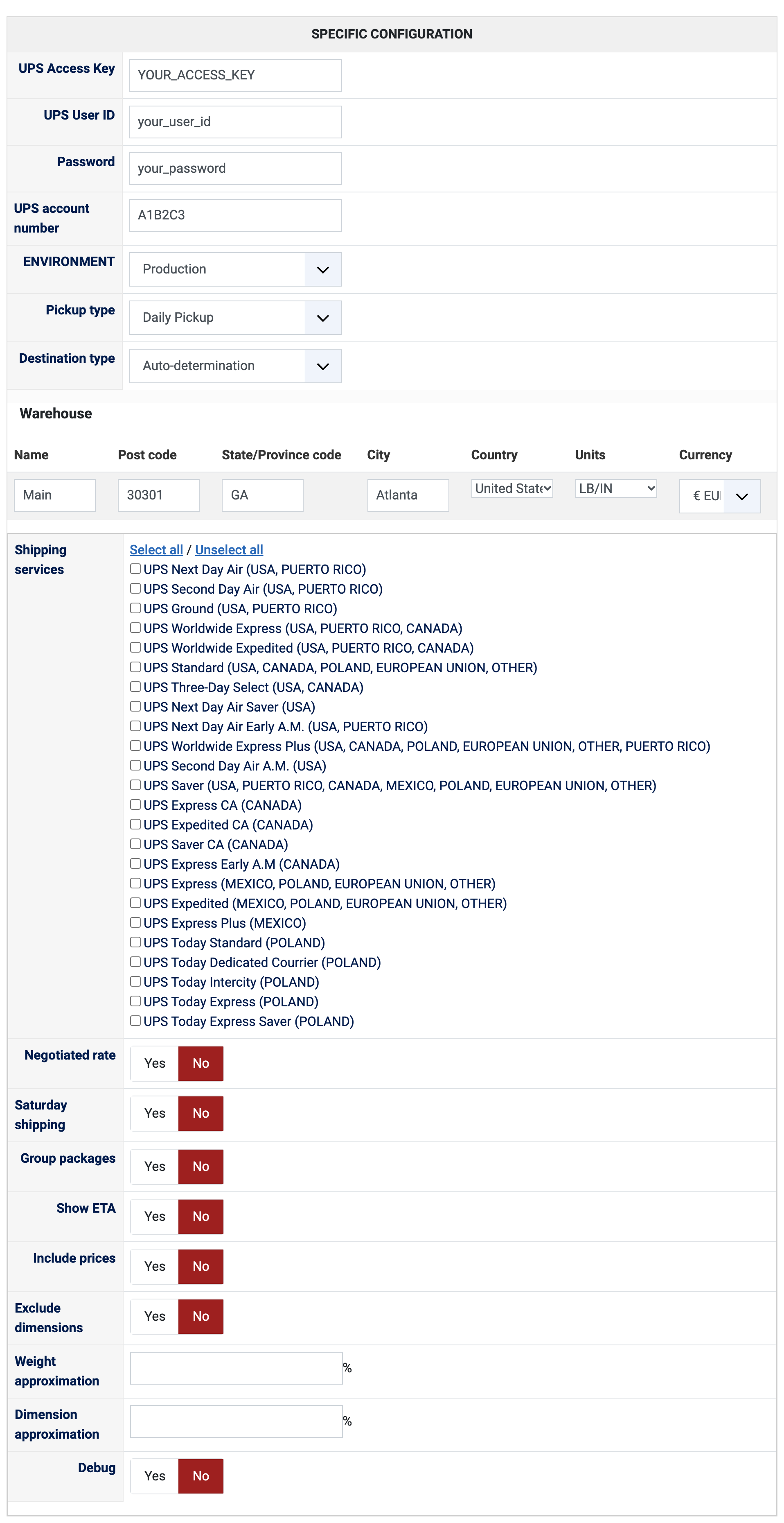
- **ENVIRONMENT**: Select "Production" to get the real rates, or the test environment of UPS to run tests.
- **UPS Access Key**: Your UPS Access Key. You can get this key [on this page](https://www.ups.com/upsdeveloperkit?loc=en_US&WT.svl=SubNav) if you already have an UPS account.
- **UPS User ID** : Your UPS user ID on the UPS website (This is the ID you are logged with).
- **Password** : The password of your UPS account.
- **UPS account number** : Your UPS account number (You can see your account number on the UPS website: *My UPS > Profile > Maintain Your UPS Account* )
- **Pickup type**: Choose here your pickup type in the list. (Prices will vary based on the pickup type)
- **Destination type**: You can select here the destination type of your clients. If you choose auto-determination, the destination type will be based on the address\_company custom field of the address (if this field is filled by the user, the destination type will be commercial, otherwise, it will be residential). You will want to publish the address\_company field via the menu Display->Custom fields if you use the "Auto-determination" option (Prices will vary based on this parameter)
---
- You have here the possibility to manage your **warehouses**. Once they are configured, if two warehouses can send to the same place, the best price will be automatically chosen and display in the checkout.
- **Name** : The name of your warehouse (for your reference).
- **Post Code** : The post code of your warehouse (prices will vary based on the post code entered).
- **Country** : The country of your warehouse (prices will vary based on the post code entered).
- **Zone** : You can choose here the zone where package can be send from this warehouse. If you don't set a zone, it means that the warehouse can send anywhere in the world. You can create new shipping zones with the countries of the zone attached as sub-zones in the System->Zones menu.
- **Units** : The UPS shipping method sends the weight and dimension information of your products in order to get the most precise price. So you have to select the unit of the zone where package will be sent.
- **State/Province code** and **City** : The state or province code and the city of your warehouse.
- **Currency** : Choose here the currency of the covered zone.
- **Delete** : You can delete here the warehouse.
**You need to setup at least one warehouse here so that UPS will know from where you're shipping your goods.**
---
- **Shipping Services** : Select here the UPS services you want to use. Note that not all the UPS services are available to you. It depends on where your warehouses (the place from where you ship your goods) are located.
- **Negotiated rate :** If you have negotiated rates with UPS, you can share or not theses rates with your customer.
- **Saturday shipping** : Ask UPS for Saturday delivery.
- **Group packages** : If this option is activated, products will be grouped together. Otherwise, every product will have its own package (more expensive).
- **Show ETA** : Display the estimated time of arrival of the package to your customers.
- **Include prices** : If this option is activated the price of goods is given to UPS so that it can add the shipping insurance in the prices (more expensive).
- **Exclude dimensions** : If this option is activated your packages will be sent without any dimension but with a weight.
- **Weight approximation** : You can add here a percentage to the weight of your products.
- **Dimension approximation** : You can add here a percentage to the dimensions of your products.
- **Debug** : If you have troubles with the shipping method, activate this option, reproduce the issue, and then check the "Payment log file" setting of the HikaShop configuration.
### Restrictions
You can set restrictions on shipping methods. Based on the products in the cart of the user, the system will calculate which shipping methods the customer can choose from.
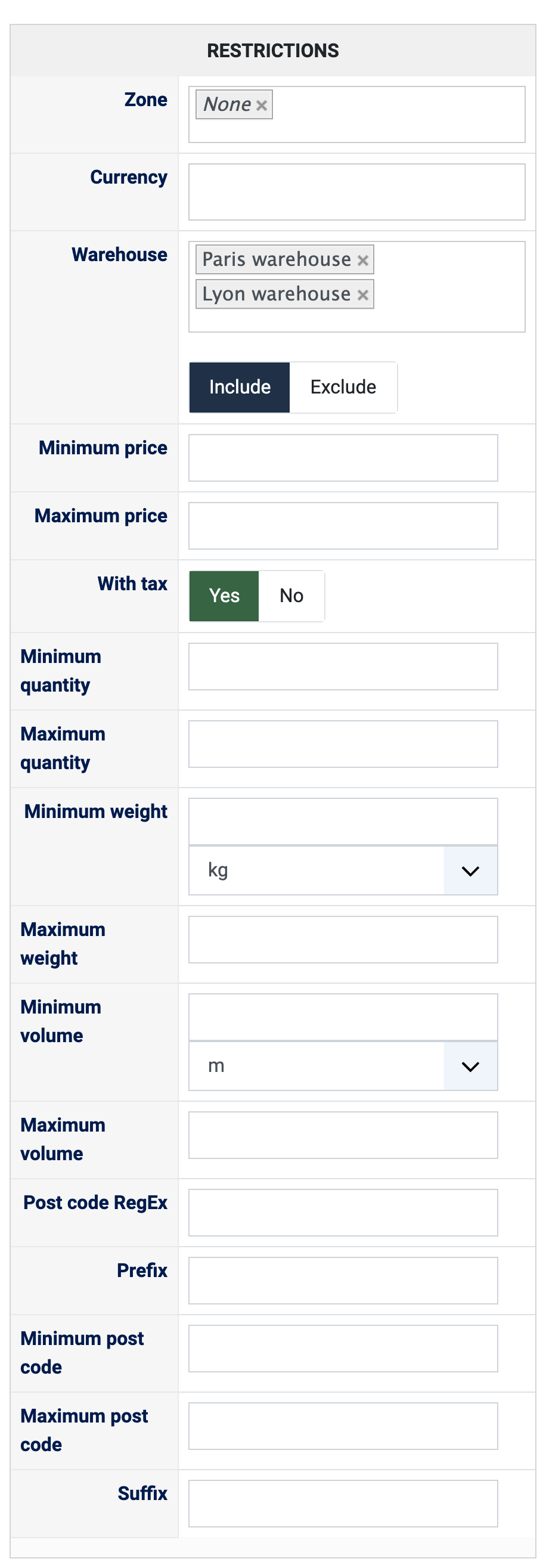
- **Zone**: You can restrict a shipping method to a zone. By clicking on the edit icon, a popup will open enabling you to select a zone. Only customers with a shipping address in the selected zone (or its sub-zones) will see this shipping method. You can remove this limitation by clicking on the delete icon.
- **Currency**: You can restrict the shipping method to one or more currencies: it will only be available when the customer pays in one of the selected currencies.
- **Warehouse**: You can restrict the shipping method to one or more warehouses. You can also choose whether the filter is inclusive ("Only these warehouses") or exclusive ("All except these warehouses") using the radio buttons next to the selector.
- **Minimum price**: The shipping method will only be available for orders with a product total above this minimum price.
- **Maximum price**: The shipping method will only be available for orders with a product total below this maximum price.
- **With tax**: When enabled, the minimum and maximum price restrictions use the product prices including taxes. When disabled, they use the prices excluding taxes. Enabled by default.
- **Minimum quantity**: The minimum number of items in the cart for this shipping method to be available. The quantity is calculated as the sum of the quantity of each product in the cart.
- **Maximum quantity**: The maximum number of items in the cart for this shipping method to be available.
- **Minimum weight**: The minimum total weight of the cart for this shipping method to be available. The weight is calculated as the sum of each product's weight multiplied by its quantity. You can select the weight unit next to this field.
- **Maximum weight**: The maximum total weight of the cart for this shipping method to be available.
- **Minimum volume**: The minimum total volume of the cart for this shipping method to be available. The volume is calculated from the width, height and length of each product multiplied by its quantity. You can select the volume unit next to this field.
- **Maximum volume**: The maximum total volume of the cart for this shipping method to be available.
- **Post code RegEx**: A regular expression to match against the customer's postal code. Only customers whose postal code matches the expression will see this shipping method. For example, *^(75\|92\|93\|94)* to match postal codes starting with 75, 92, 93, or 94.
- **Prefix**: You can restrict the shipping method to only postal codes starting with this prefix.
- **Minimum post code**: You can restrict the shipping method to only postal codes within a numeric range, whereby this is the minimum value.
- **Maximum post code**: The maximum value of the postal code numeric range.
- **Suffix**: You can restrict the shipping method to only postal codes ending with this suffix.
### Access Level
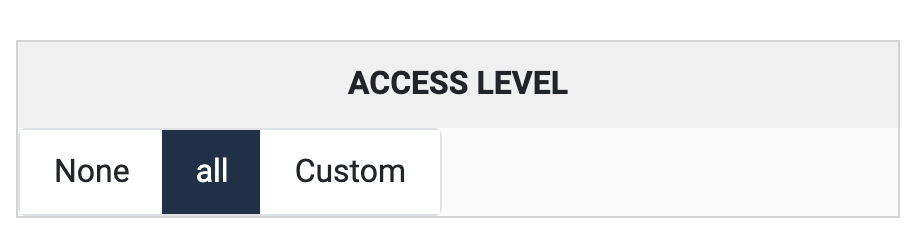
You can restrict which Joomla user groups can see and use this shipping method. By default, the shipping method is available to all user groups. Select specific groups to limit access. This is useful if you want to offer specific shipping options only to certain customer groups (e.g. wholesale customers, VIP members).
## [ Canada Post shipping method ](/support/documentation/135-hikashop-shipping-canadapost-form)
Details Written by: Majri Category: [Shipping plugins](/support/documentation/hikashop/shipping-plugins) Published: 18 July 2011 Hits: 23644
| - [Description](#description) - [Toolbar](#toolbar) - [Main Information](#infos) - [Additional Information](#additional) - [Restrictions](#restrictions) |  |
|---|---|
**Please note that tha Canada Post API used by this plugin has been discontinued by Canada Post.
Thus, you should now use instead [this Canada Post Advanced plugin](/marketplace/product/206-shipping-canadapost-adv).**
### Description
This screen enables you to edit the Canada Post shipping method options. Shipping methods will be filtered on checkout based on the zone you set for them, if any. Then, they will be displayed to the user for him to choose which shipping method he prefers for his order.
This method includes a warehouse management in order to allow you to shipping from different locations. You can also choose among the Canada Post services you want to use.
### Toolbar

- **Save & Close** : Save the shipping method options and return to the shipping methods Management screen.
- **Save** : Apply the modifications to the shipping method and stay on the same screen.
- **Cancel** : Return to the previous screen without saving the modifications.
- **Help** : Open the documentation of this shipping method.
### Main Information
If you use one of our commercial versions, you will be able to enter the name and description in different languages. This feature can be activated in the configuration page. If you don't enter something for a translation, it will just use the default information in the **Main information** tab instead. After you click on save or apply an additional publish icon will appear next to the fields where you entered something in the languages tabs so that you can easily enable or disable them.

### Additional Information
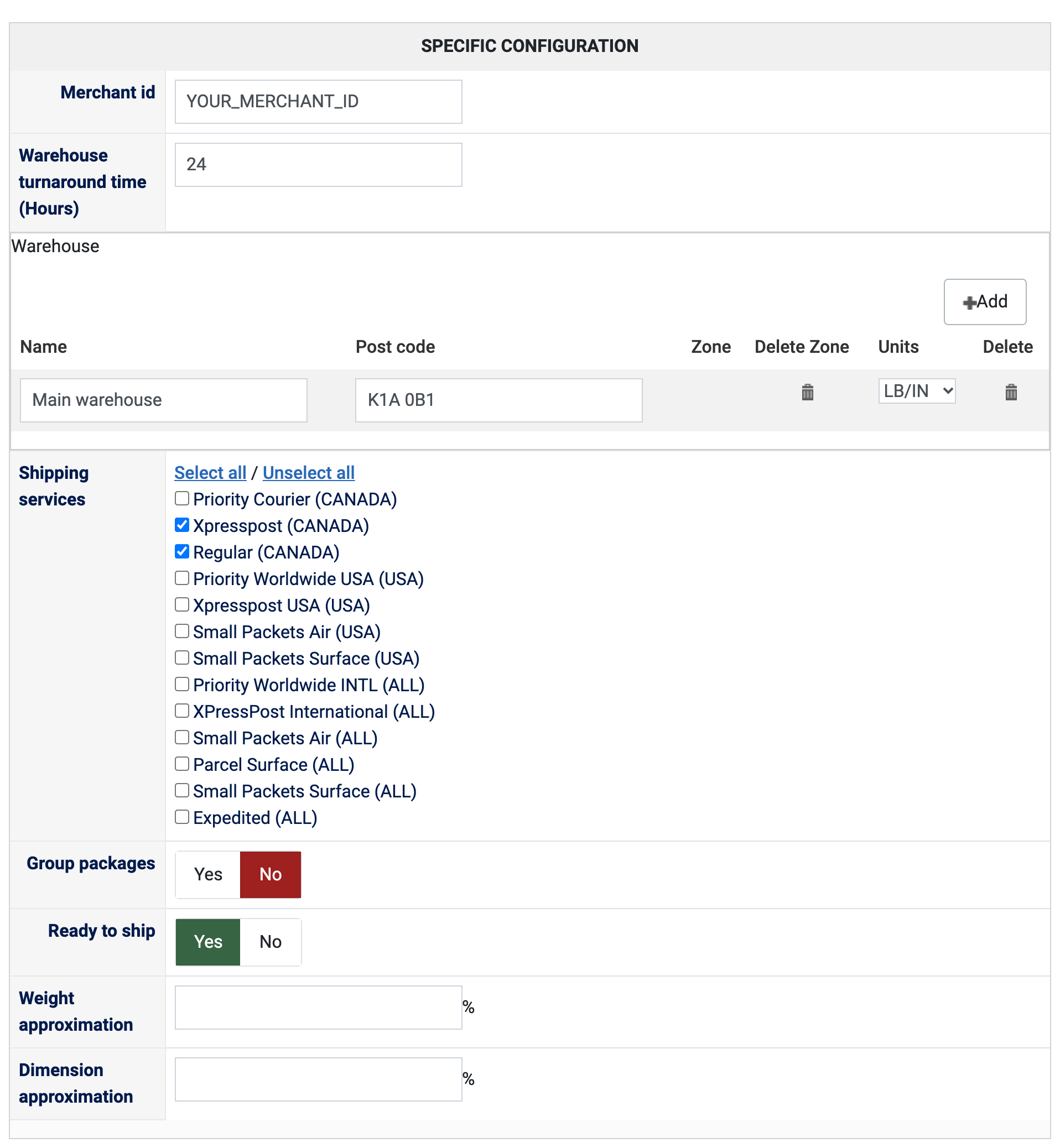
- **Merchant id**: Your Canada Post Access Key. You can get this key [by](https://www.ups.com/upsdeveloperkit?loc=en_US&WT.svl=SubNav) asking it to Canada Post if you already have a Canada Post account.
- **Warehouse turnaround time (Hours)**: The time that you'll need to ship your packages from your warehouse
---
You have here the possibility to manage your **warehouses**. Once they are configured, if two warehouses can send to the same place, the best price will be automatically chosen and display in the checkout.
- **Name** : The name of your warehouse (for your reference).
- **Post Code** : The post code of your warehouse (prices will vary based on the post code entered).
- **Zone** : You can choose here the zone where package can be send from this warehouse. If you don't set a zone, it means that the warehouse can send anywhere in the world. You can create new shipping zones with the countries of the zone attached as sub-zones in the System->Zones menu.
- **Units** : The Canada Post shipping method sends the weight and dimension information of your products in order to get the most precise price. So you have to select the unit of the zone where package will be sent.
- **Delete** : You can delete here the warehouse.
**You need to setup at least one warehouse here so that Canada Post will know from where you're shipping your goods.**
---
- **Shipping Services** : Select here the Canada Post services you want to use.
- **Group packages** : If this option is activated, products will be grouped together in a same grouped package. Otherwise, every product will have its own package (more expensive).
- **Ready to ship** : If the Ready to ship option is activated, your packages are ready to ship and don’t need to be packed anymore by Canada Post.
- **Weight approximation** : You can add here a percentage to the weight of your products.
- **Dimension approximation** : You can add here a percentage to the dimensions of your products.
### Restrictions
You can set restrictions on shipping methods. Based on the products in the cart of the user, the system will calculate which shipping methods the customer can choose from.

- **Zone**: You can restrict a shipping method to a zone. By clicking on the edit icon, a popup will open enabling you to select a zone. Only customers with a shipping address in the selected zone (or its sub-zones) will see this shipping method. You can remove this limitation by clicking on the delete icon.
- **Currency**: You can restrict the shipping method to one or more currencies: it will only be available when the customer pays in one of the selected currencies.
- **Warehouse**: You can restrict the shipping method to one or more warehouses. You can also choose whether the filter is inclusive ("Only these warehouses") or exclusive ("All except these warehouses") using the radio buttons next to the selector.
- **Minimum price**: The shipping method will only be available for orders with a product total above this minimum price.
- **Maximum price**: The shipping method will only be available for orders with a product total below this maximum price.
- **With tax**: When enabled, the minimum and maximum price restrictions use the product prices including taxes. When disabled, they use the prices excluding taxes. Enabled by default.
- **Minimum quantity**: The minimum number of items in the cart for this shipping method to be available. The quantity is calculated as the sum of the quantity of each product in the cart.
- **Maximum quantity**: The maximum number of items in the cart for this shipping method to be available.
- **Minimum weight**: The minimum total weight of the cart for this shipping method to be available. The weight is calculated as the sum of each product's weight multiplied by its quantity. You can select the weight unit next to this field.
- **Maximum weight**: The maximum total weight of the cart for this shipping method to be available.
- **Minimum volume**: The minimum total volume of the cart for this shipping method to be available. The volume is calculated from the width, height and length of each product multiplied by its quantity. You can select the volume unit next to this field.
- **Maximum volume**: The maximum total volume of the cart for this shipping method to be available.
- **Post code RegEx**: A regular expression to match against the customer's postal code. Only customers whose postal code matches the expression will see this shipping method. For example, *^(75\|92\|93\|94)* to match postal codes starting with 75, 92, 93, or 94.
- **Prefix**: You can restrict the shipping method to only postal codes starting with this prefix.
- **Minimum post code**: You can restrict the shipping method to only postal codes within a numeric range, whereby this is the minimum value.
- **Maximum post code**: The maximum value of the postal code numeric range.
- **Suffix**: You can restrict the shipping method to only postal codes ending with this suffix.
### Access Level

You can restrict which Joomla user groups can see and use this shipping method. By default, the shipping method is available to all user groups. Select specific groups to limit access. This is useful if you want to offer specific shipping options only to certain customer groups (e.g. wholesale customers, VIP members).
## [ Australia Post shipping method Edit ](/support/documentation/69-hikashop-shipping-aupost-form)
Details Written by: Administrator Category: [Shipping plugins](/support/documentation/hikashop/shipping-plugins) Published: 03 August 2010 Hits: 24724
| - [Description](#description) - [Toolbar](#toolbar) - [Main Information](#infos) - [Additional Information](#additional) - [Restrictions](#restrictions) |  |
|---|---|
### Description
This screen enables you to edit the Australia Post shipping method options. Shipping methods will be filtered on checkout based on the zone you set for them, if any. Then, they will be displayed to the user for him to choose which shipping method he prefers for his order.
The Australia Post supports several shipping methods: Air and Sea for international orders and Standard and Express for shipping inside Australia. Based on the shipping address of the customer, methods which don't apply will be filtered out.
Also, since the Australia Post has a weight limit of 20 kg and a volume limit of 0.18 m3, the system will calculate automatically the number of parcels needed for the shipping and display prices accordingly.
### Toolbar

- **Save & Close** : Save the shipping method options and return to the shipping methods Management screen.
- **Save** : Apply the modifications to the shipping method and stay on the same screen.
- **Cancel** : Return to the previous screen without saving the modifications.
- **Help** : Open the documentation of this shipping method.
### Main Information
If you use one of our commercial versions, you will be able to enter the name and description in different languages. This feature can be activated in the configuration page. If you don't enter something for a translation, it will just use the default information in the **Main information** tab instead. After you click on save or apply an additional publish icon will appear next to the fields where you entered something in the languages tabs so that you can easily enable or disable them.

Note that since the Australia Post shipping plugin handle several methods, the description can be entered in the HikaShop translation file in for the keys AIR\_DESCRIPTION, SEA\_DESCRIPTION, etc.
### Additional Information
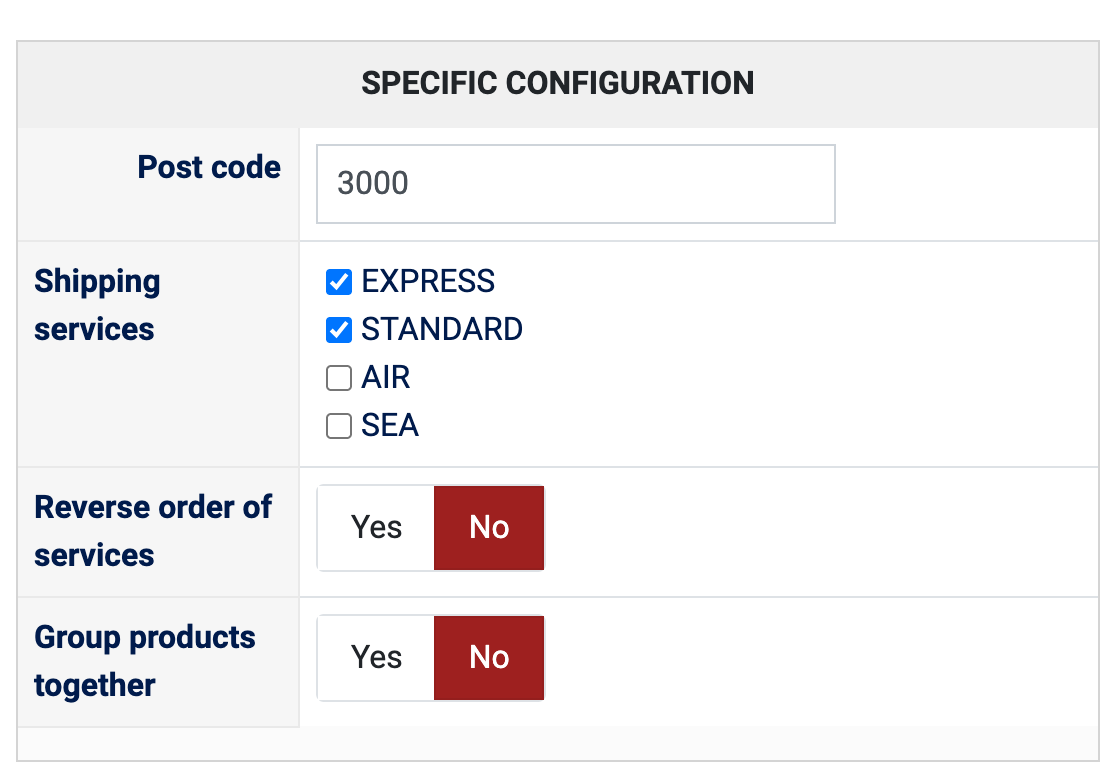
- **Post code** : Enter here the post code of your city in Australia.
- **Shipping services** : Check here the shipping services you want to activate: EXPRESS, STANDARD, AIR and SEA.
- **Reverse order of services** : Allow you to reverse the order of the displaying of your Australia Post services.
- **Group products together** : If this option is activated, products will be grouped together in a same grouped package. Otherwise, every product will have its own package (more expensive).
### Restrictions
You can set restrictions on shipping methods. Based on the products in the cart of the user, the system will calculate which shipping methods the customer can choose from.

- **Zone**: You can restrict a shipping method to a zone. By clicking on the edit icon, a popup will open enabling you to select a zone. Only customers with a shipping address in the selected zone (or its sub-zones) will see this shipping method. You can remove this limitation by clicking on the delete icon.
- **Currency**: You can restrict the shipping method to one or more currencies: it will only be available when the customer pays in one of the selected currencies.
- **Warehouse**: You can restrict the shipping method to one or more warehouses. You can also choose whether the filter is inclusive ("Only these warehouses") or exclusive ("All except these warehouses") using the radio buttons next to the selector.
- **Minimum price**: The shipping method will only be available for orders with a product total above this minimum price.
- **Maximum price**: The shipping method will only be available for orders with a product total below this maximum price.
- **With tax**: When enabled, the minimum and maximum price restrictions use the product prices including taxes. When disabled, they use the prices excluding taxes. Enabled by default.
- **Minimum quantity**: The minimum number of items in the cart for this shipping method to be available. The quantity is calculated as the sum of the quantity of each product in the cart.
- **Maximum quantity**: The maximum number of items in the cart for this shipping method to be available.
- **Minimum weight**: The minimum total weight of the cart for this shipping method to be available. The weight is calculated as the sum of each product's weight multiplied by its quantity. You can select the weight unit next to this field.
- **Maximum weight**: The maximum total weight of the cart for this shipping method to be available.
- **Minimum volume**: The minimum total volume of the cart for this shipping method to be available. The volume is calculated from the width, height and length of each product multiplied by its quantity. You can select the volume unit next to this field.
- **Maximum volume**: The maximum total volume of the cart for this shipping method to be available.
- **Post code RegEx**: A regular expression to match against the customer's postal code. Only customers whose postal code matches the expression will see this shipping method. For example, *^(75\|92\|93\|94)* to match postal codes starting with 75, 92, 93, or 94.
- **Prefix**: You can restrict the shipping method to only postal codes starting with this prefix.
- **Minimum post code**: You can restrict the shipping method to only postal codes within a numeric range, whereby this is the minimum value.
- **Maximum post code**: The maximum value of the postal code numeric range.
- **Suffix**: You can restrict the shipping method to only postal codes ending with this suffix.
### Access Level

You can restrict which Joomla user groups can see and use this shipping method. By default, the shipping method is available to all user groups. Select specific groups to limit access. This is useful if you want to offer specific shipping options only to certain customer groups (e.g. wholesale customers, VIP members).
## [ Shipping methods listing ](/support/documentation/30-hikashop-shipping-manual-listing)
Details Written by: Administrator Category: [Shipping plugins](/support/documentation/hikashop/shipping-plugins) Published: 03 August 2010 Hits: 34788
| - [Description](#description) - [Toolbar](#toolbar) - [Column Headers](#columns) - [FAQ](#faq) | 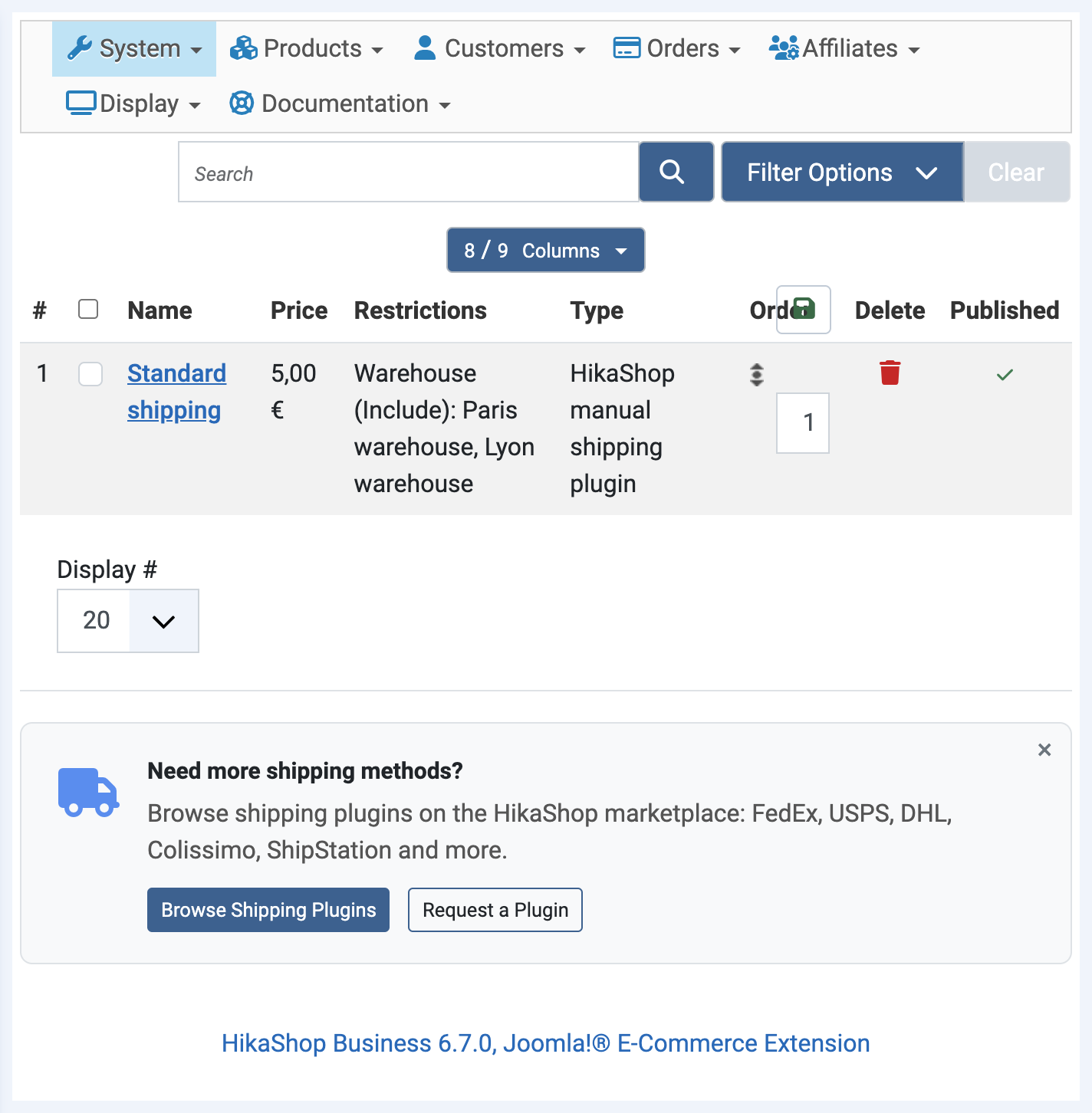 |
|---|---|
### Description
This screen enables you to manage all your manual shipping methods handled by the manual shipping plugin. Shipping methods will be filtered on checkout based on the limitations you set for each shipping method. Then, they will be displayed to the user for him to choose which shipping method he prefers for his order.
### Toolbar

- **Generate Copies** : Opens a window to generate several copies of the shipping methods you selected in the listing.
- **Import** : Import shipping methods from a file.
- **Export** : Export the shipping methods you selected to a file.
- **Copy :** Thanks to that button, you can duplicate the shipping methods that you selected on the listing.
- **Publish** / **Unpublish** : Publish or unpublish the selected shipping methods.
- **New** : Enables you to create a new shipping method.
- **Help** : This button enables you to turn ON/OFF the help section, this screen will appear or disappear.
- **Dashboard** : Return to the HikaShop dashboard.
### Column Headers

- **\#** : An indexing number automatically assigned for ease of reference.
- **Select** : The checkbox to select the shipping methods the toolbar buttons apply to.
- **Name** : Name of the shipping method. You can click on it to edit the shipping method.
- **Price** : The price of the shipping method, when it has a fixed one.
- **Restrictions** : A summary of the restrictions set on the method (warehouses, zones, weight, etc.).
- **Type** : Display the type of the shipping method, for example manual, UPS, etc.
- **Order** : You can reorder the shipping methods.
- **Delete** : You can delete a shipping method.
- **Published** : If a shipping method is published it means that it can be used by your customers during the checkout.
### FAQ
- I don't see any shipping methods during the checkout, what is the problem ?
There are several things which you could have missed.
- 1/ Check that the manual shipping plugin is installed and published
- 2/ Check that you have some shipping methods defined in the Manual shipping methods listing in System->Shipping methods
- 3/ If those shipping methods have restrictions make sure that your methods cover all the possible cases (if you have one for weight 20 kg, if the order weights 15kg, the system won't find any suitable shipping methods)
- 4/ Check that your template is able to display error messages: http://www.hikashop.com/en/support/documentation/61.html
- 5/ Check that your products have a weight, otherwise, the system won't display any shipping methods as it will consider the products as virtual goods.
- 6/ Check that you have the shipping view in the checkout workflow option of the configuration
- 7/ If you restricted your shipping methods to zones, check that the address you're using is inside those zones ! Otherwise the shipping methods will be filtered out.
- 8/ Be sure to have valid units in the configuration as only a set of units are valid as stated in the documentation of the configuration page : [http://www.hikashop.com/support/documentation/54.html#main](/support/documentation/54.html#main)
- 9/ Please try to use the same weight and dimension units as the first unit configured in the unit option of the configuration. For example, if you have the units m,dm,cm,mm configured and you use mm for your products dimensions, HikaShop will convert all your dimensions into the first unit (m in that case) to run the comparisons. However, the comparisons are limited to a certain number of decimals and your dimensions might end up as being considered as 0. So, in that case, you would have to change the unit option of the configuration to mm,m,dm,cm
Page 4 of 4