[Skip to main content](#vessel-content)
# Shipping plugins
## [ Shipping plugins on the marketplace ](/support/documentation/661-shipping-plugins-marketplace)
Details Written by: Administrator Category: [Shipping plugins](/support/documentation/hikashop/shipping-plugins) Published: 10 November 2026 Hits: 102
HikaShop comes with the shipping methods listed in this section: manual shipping methods and the main carrier integrations. For the other carriers and shipping services, there are more shipping plugins on the marketplace.
## Find a shipping plugin
Browse the [shipping plugins of the marketplace](/marketplace/shipping). Each plugin has its own page with the carrier or service it connects to, what it does and its price.
## Install and configure it
Every marketplace shipping plugin has a documentation page in this section with its installation, each of its settings and the messages you may meet. The product page of the plugin links to it with the "Read the documentation" button, and the documentation page links back to the plugin with the "View on the marketplace" button.
Once a plugin is installed, it is added like any other shipping method, from System > Shipping methods > New, and the restrictions, price and access level of the method are the same as for the methods shipped with HikaShop.
## [ DHL Paket shipping plugin ](/support/documentation/615-dhlpaket-plugin)
Details Written by: Administrator Category: [Shipping plugins](/support/documentation/hikashop/shipping-plugins) Published: 09 November 2026 Hits: 147
## Installation
- 1) You need a DHL business customer contract (Geschäftskundenvertrag) with DHL Paket, and its customer number (EKP) and billing numbers, one per product.
- 2) In DHL's business customer portal (Geschäftskundenportal), create a system user for the shop and note its user name and password.
- 3) On developer.dhl.com, create a free account and an app with the APIs Parcel DE Shipping, Parcel DE Returns, Location Finder - Unified and Shipment Tracking - Unified; note its API key and secret. Ask DHL for its production access from the app's page.
- 4) Install the plugin with Extensions > Install on Joomla, or with HikaShop > Plugins > Install Plugin on WordPress.
- 5) In HikaShop, go to System > Shipping methods, press New and choose DHL Paket. Make one method per product you offer (and one more in Packstation / Postfiliale mode if you want it), with its price and its zone.
- 6) Fill in the credentials, the billing number of the method's product and your shipper's address, save, and check that the Connection line says DHL accepts the credentials. Start with the Sandbox environment if you want to try first: it needs no contract.
## Configuration

- **DHL product**: the DHL product of this method. Paket and Kleinpaket go within Germany, Europaket to business customers in the EU, Paket International and Warenpost International abroad.
- **Billing number**: the 14 digit billing number of this product in your contract. Empty in sandbox, DHL's test number is used.
- **Environment**: Sandbox to try, Production for real labels. Custom addresses is for a proxy between the shop and DHL, with the addresses below.
- **API key** and **API secret**: those of your app on developer.dhl.com.
- **Business customer portal user** and **Business customer portal password**: the system user of step 2. Empty in sandbox, DHL's published test user is used.
- **Authentication**, **Token address**, **Shipping API address**, **Returns API address**, **Location Finder address**, **Tracking address**: shown and used only with the environment Custom addresses.
- **Shipper reference**: a shipper address saved in DHL's portal. When it is set, the address fields below are not used.
- **Name**, **Name 2**, **Street**, **House number**, **Postcode**, **City**, **Country (2 letter code)**, **Email**, **Phone**: the shipper's address printed on the labels.
- **Print format**: A4 for an office printer, or your label printer's format (910-300-700 for 103 x 199 mm labels...).
- **Refuse addresses DHL cannot route**: when on, DHL refuses a label whose address it cannot check; when off, it accepts it with a warning.
- **Packaging weight (kg)**: added to the weight of the order's products.
- **Premium**: faster transport abroad, for Paket International and Warenpost International.
- **When the parcel cannot be delivered**: returned to you, or abandoned, for Paket International.
- **Customs: type of export**: what the parcels leaving the EU contain (commercial goods, present...).
- **Customs: HS code product field** and **Customs: default HS code**: the column name of a product custom field holding each product's HS code (6, 8 or 10 digits, the tariff number of the receiving country), and the code of the products whose field is empty.
- **Customs: country of origin product field** and **Customs: default country of origin**: the same for the country of origin.
- **Delivery to**: the customer's address, or a Packstation and/or Postfiliale chosen at checkout (in Germany).
- **Number of locations shown**: how many Packstations and Postfilialen the checkout lists.
- **Cash on delivery payment methods** and **Cash on delivery bank reference**: the orders paid with these methods are sent cash on delivery for their total, paid to the bank details of that reference in DHL's portal.
- **Ident-Check**, **Visual age check**, **Named person only**, **Signed for by recipient**, **No delivery to neighbours**, **GoGreen Plus**: DHL's services added to every label of the method, as your contract allows them.
- **Return receiver**: the receiver id of your returns in DHL's portal (deu by default); the ones DHL knows for your account are listed under the field.
- **Return label**: PDF to print, QR code to show at a Postfiliale, or both.
- **Send the return label to the customer**: emails the return label to the customer when it is created.
- **Customers get their return label**: a button on the customer's order page creates their return label and sends it to them.
- **Return label with each national label** and **Return billing number**: prints a DHL Retoure label with every label in Germany, on the billing number of DHL Retoure in your contract.
- **End of day**: the button that closes the day's shipments of the billing number.
- **Create the label at the status**: the order status that creates the label by itself; Never to create them by hand only.
- **Debug**: writes every call to DHL to the HikaShop log file, passwords and secrets masked.
- **Connection**: whether DHL answers and accepts the credentials, once the method is saved.
## Troubleshooting
- When DHL refuses a label, its message is shown with the field it is about, for instance "consignee.postalCode: The postcode is invalid". Correct the order's address or the setting, and press "Check with DHL" before creating the label again.
- "DHL refuses the credentials": check the API key and secret of your app, and the portal user and password; in production your app needs DHL's approval.
- "User rights to set this attribute are not sufficient": your contract does not include that service (cash on delivery, for instance); ask DHL to add it, or turn it off in the method.
- "The selected billing number is invalid": the billing number does not match the product, or your contract does not allow the services you turned on with it.
- "The tariff number must be numeric and 6, 8 or 10 digits long": fill the HS code of the products leaving the EU.
- The Packstation list is empty or "The DHL locations cannot be loaded right now": Location Finder allows a number of calls a day per app; the answers are kept a day per postcode, and DHL raises the limit on request from your app's page.
- A label can be cancelled until the day's shipments are closed.
## [ Packlink PRO shipping plugin ](/support/documentation/614-packlink-plugin)
Details Written by: Administrator Category: [Shipping plugins](/support/documentation/hikashop/shipping-plugins) Published: 09 November 2026 Hits: 161
## Installation
- 1) Open a free Packlink PRO account at packlink.com, and get its API key in Packlink PRO: Settings, Integrations, API key.
- 2) In Packlink PRO, add the address your parcels leave from (Settings, Sender addresses).
- 3) Install this plugin, then create a shipping method with it in HikaShop: System > Shipping methods > New, Packlink PRO.
- 4) Paste the API key in its settings and save: the connection line turns green and the services of your account fill the list. Choose the service, set the price and publish the method.
- 5) Set up the HikaShop cron (System > Configuration > Cron): it brings the tracking of your shipments back every hour.
- 6) For the parcels that leave the customs union, add product custom fields for the HS code and the country of origin, and name them in the method's customs settings.
## Configuration
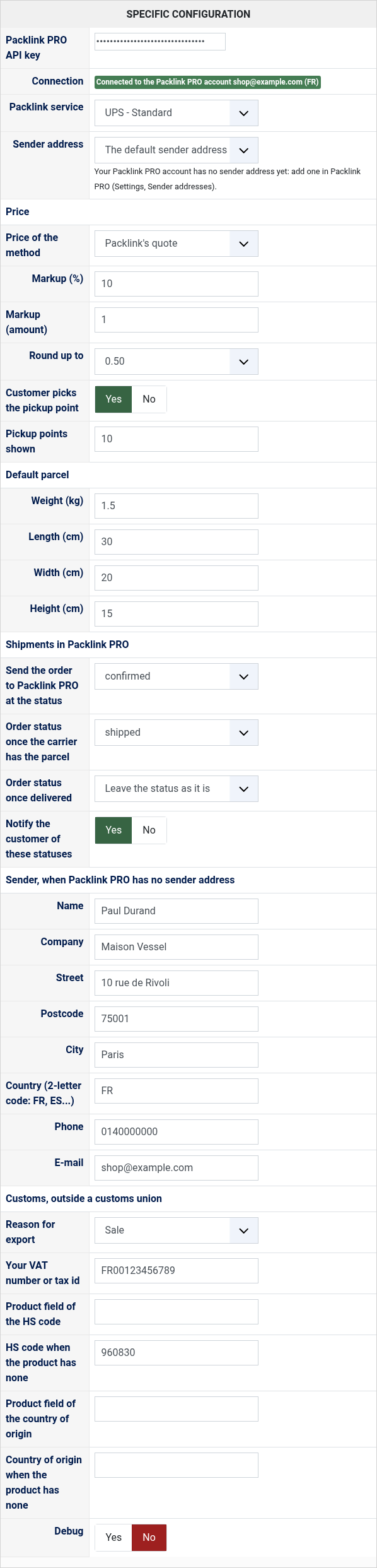
- **Packlink PRO API key**: the key of your Packlink PRO account (step 1).
- **Connection**: after saving, says whether Packlink accepts the key, with the account's e-mail address and country, and whether Packlink sends the shop the updates of its shipments. Saving the method registers the shop with Packlink for these updates, once per API key.
- **Packlink service**: the carrier and service of this method, among those Packlink offers from your sender country, at home or to a pickup point, national or international. Create one method per service you want to offer.
- **Sender address**: the address your parcels leave from, among the sender addresses of your Packlink PRO account. Left on the default, Packlink PRO's default sender address is used.
- **Price of the method**: "Packlink's quote" asks Packlink the price for each cart (without VAT: set the method's tax category for HikaShop to add it), "HikaShop's prices" uses the price settings of the method instead.
- **Markup (%)** and **Markup (amount)**: shown with Packlink's quote, added to it, the percentage first. A negative amount gives a discount. Empty: Packlink's price as it is.
- **Round up to**: shown with Packlink's quote, rounds the price up to the next 0.10, 0.50 or 1.00.
- **Customer picks the pickup point**: for a service to a pickup point, shows the points near the customer's address at checkout. No: you choose the point in Packlink PRO when you complete the shipment.
- **Pickup points shown**: how many points the list and the map show, 10 by default.
- **Default parcel: Weight (kg), Length, Width, Height (cm)**: the parcel used when the products of the cart have no weight or no dimensions. Empty: the default parcel of Packlink PRO (Settings, Parcels), else 1 kg in 30 x 20 x 15 cm. Give your products their weight and dimensions for the best quotes.
- **Send the order to Packlink PRO at the status**: the status at which an order of this method goes to Packlink PRO, "confirmed" by default. "Never" leaves it to the "Send to Packlink PRO" button of the order page.
- **Order status once the carrier has the parcel**: given to the order when Packlink reports it in transit, "shipped" by default. "Leave the status as it is" to keep moving your orders yourself.
- **Order status once delivered**: given when Packlink reports the parcel delivered; left as it is by default.
- **Notify the customer of these statuses**: sends HikaShop's status e-mail, with the tracking number, when the plugin moves the order.
- **Sender, when Packlink PRO has no sender address**: used for the shipments only when your Packlink PRO account has no sender address (better: add your address in Packlink PRO).
- **Name**: the name of the sender.
- **Company**: the company of the sender. Empty: your shop's name.
- **Street**: the street of the sender.
- **Postcode**: the postcode of the sender.
- **City**: the city of the sender.
- **Country (2-letter code: FR, ES...)**: the country of the sender.
- **Phone**: the phone number of the sender.
- **E-mail**: the e-mail address of the sender.
- **Reason for export**: what the customs invoice says the parcel is, a sale by default.
- **Your VAT number or tax id**: printed on the customs invoice.
- **Product field of the HS code** and **Product field of the country of origin**: the column names of the product custom fields that hold them (a variant takes its main product's). **HS code when the product has none** and **Country of origin when the product has none**: the values for the products whose field is empty; without an origin, your sender country.
- **Debug**: writes the plugin's calls to Packlink to the HikaShop log file.
## Troubleshooting
- "Packlink refused the connection": check the API key, copied whole from Packlink PRO.
- "The order could not be sent to Packlink PRO": the reason follows, and stays on the order page with a button to send it again. "No sender address": add one in Packlink PRO or fill the sender of the method. "Packlink has no service of this method for...": the service does not deliver to that address any more; pick the shipment's service in Packlink PRO.
- "Packlink did not register the shop for its updates": Packlink's reason follows. The HikaShop cron and the order's button still bring the shipments back. Packlink's updates need a site it can reach from the internet.
- In Packlink PRO, the shop appears among your integrations as a WooCommerce shop: Packlink only registers the shops of the platforms it lists, HikaShop not yet among them.
- The tracking does not come back: check that the HikaShop cron runs, or use the "Read again from Packlink PRO" button of the order. A shipment deleted in Packlink PRO shows as such.
- "No pickup point was found near your address for this method": Packlink knows no point of that carrier there, and the method is not offered for that address.
- "Packlink refused the customs invoice": Packlink's reason follows; check the HS codes, the origin and your VAT number.
- "Packlink gave no service for your sender address": the services come for your account's country; check the key and your sender address in Packlink PRO.
- The method does not show at checkout: check that it is published and its restrictions (zone, weight, price). With Packlink's quote, it only shows once the customer has a shipping address, and only when its service delivers there. Turn Debug on to see Packlink's answers in the HikaShop log.
## [ Shippo shipping plugin ](/support/documentation/612-shippo-plugin)
Details Written by: Administrator Category: [Shipping plugins](/support/documentation/hikashop/shipping-plugins) Published: 09 November 2026 Hits: 179
### Installation
- 1) Open a Shippo account at goshippo.com (the API plan is free for the first labels of the month, then Shippo charges a small fee per label), add a payment method for the labels in Shippo, and get your API keys in Shippo: Settings, Advanced, API. The shippo\_test\_ key buys sample labels only, to try the plugin; the shippo\_live\_ key ships for real.
- 2) In Shippo, Settings, Carriers, activate the carriers you want (Shippo's own USPS, UPS, DHL Express accounts need "Activate Account" once), or connect your own carrier accounts.
- 3) Install this plugin, then create a shipping method with it in HikaShop: System > Shipping methods > New, Shippo.
- 4) Paste the API key, fill the sender address and save: the connection line turns green and the services of your account fill the list. Choose the services, the price and publish the method.
- 5) Copy the notification address shown in the method's settings into Shippo: Settings, Webhooks, Add webhook, event track\_updated (once in test mode, once in live mode). Shippo then tells the shop when a parcel moves.
- 6) Set up the HikaShop cron (System > Configuration > Cron): it reads the tracking every hour when Shippo's notifications cannot reach the shop.
- 7) For international parcels, give your products their weight, add product custom fields for the HS code, the country of origin and the manufacturer code if you need them, and name them in the method's customs settings.
### Configuration
These are the settings of the Shippo shipping method (System > Shipping methods).
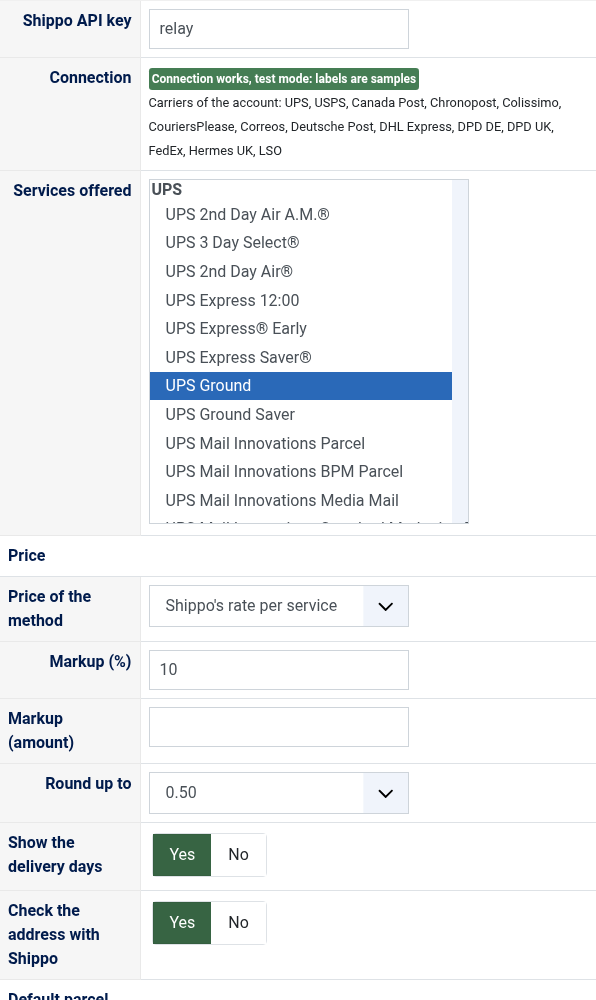
- **Shippo API key**: the test key (shippo\_test\_...) to try, the live key (shippo\_live\_...) to ship (step 1).
- **Connection**: after saving, says whether Shippo accepts the key, in test mode (sample labels) or live mode, with the carriers of your account.
- **Services offered**: the carrier services shown at checkout, chosen in the list of your account (hold Ctrl, or Cmd on a Mac, to choose several). None chosen: every service Shippo answers for the address.
- **Price of the method**: "Shippo's rate per service" shows each service at Shippo's price for the cart (without tax: set the method's tax category for HikaShop to add it); "HikaShop price" shows the method once, at the price settings of the method, and the label takes the cheapest service you offer.
- **Markup (%)** and **Markup (amount)**: shown with "Shippo's rate per service" only. Added to Shippo's rate, the percentage first, the amount in the cart's currency. A negative amount gives a discount. Empty: Shippo's price as it is.
- **Round up to**: rounds the price up to the next 0.10, 0.50 or 1.00.
- **Show the delivery days**: shown with "Shippo's rate per service" only. Adds Shippo's estimated delivery days to each service's name.
- **Check the address with Shippo**: at checkout, Shippo checks the shipping address (United States addresses) and a note under the rates asks the customer to check it when Shippo cannot find it, or shows Shippo's correction. The order is never blocked. Off by default.
- **Weight unit sent to Shippo** and **Size unit sent to Shippo**: pounds and inches, or kilograms and centimetres; the products' units are converted.
- **Default parcel: Weight, Length, Width, Height**: in the units above, the parcel used when the products of the cart have no weight or no dimensions. Empty: 2.2 lb in 12 x 8 x 6 in (1 kg in 30 x 20 x 15 cm). Give your products their weight and dimensions for the best rates.
- **Sender address**: name, company, street, city, state (two letters in the United States and Canada), postcode, country (two letters: US, CA, GB...), phone and e-mail of the place your parcels leave from, printed on the labels. Carriers check it: give a real address. Empty company: your shop's name.
- **Buy the label when the order is**: the status at which the plugin buys the label, "confirmed" by default. "Never" leaves it to the "Buy the label" button of the order page.
- **Label format**: 4 x 6 in for a label printer, letter or A4 for an office printer, A6, PNG or ZPL II.
- **Notification address**: the address to copy into Shippo's webhooks (step 5). It carries a secret of your shop; the plugin reads every notification back from Shippo before changing an order.
- **Order status when shipped**: given to the order when Shippo reports the parcel in transit, "shipped" by default. "Unchanged" to keep moving your orders yourself.
- **Order status when delivered**: given when Shippo reports the parcel delivered; unchanged by default.
- **Tell the customer when the status changes**: sends HikaShop's status e-mail, with the tracking link, when the plugin moves the order.
- **Contents**: what the customs declaration says the parcel is, merchandise (a sale) by default, or a gift, a sample, documents.
- **Duties and taxes paid by**: the customer (DDU, by default) or your shop (DDP, billed to you by the carrier, when it offers it).
- **If the parcel cannot be delivered**: returned to you, or abandoned.
- **Signed by**: the name certifying the customs declaration. Empty: the sender's name.
- **Export code (from the US)**: the EEL or PFC code of exports from the United States, NOEEI\_30\_37\_a (no export declaration, under 2,500 USD per tariff number) when empty.
- **Product field of the HS code**, **Product field of the country of origin** and **Product field of the manufacturer code**: the column names of the product custom fields that hold them (a variant takes its main product's). **Default HS code** and **Default country of origin** give the value for the products that have none; without an origin, your sender country. The product code of each product is sent as its SKU.
- **Debug**: off by default; writes the plugin's calls to Shippo to the HikaShop log file.
[](/images/doc/plugins/shippo/shippo_settings.png)
### Troubleshooting
- "Shippo refused the key": check the API key, copied whole from Shippo, Settings, Advanced, API.
- The method does not show at checkout: check that it is published and its restrictions (zone, weight, price). With Shippo's rates it only shows once the customer has a shipping address, and only the services Shippo answers for it. Turn Debug on to see Shippo's answers, and its reasons ("doesn't support one or more shipment options", "out of service area"), in the HikaShop log.
- "Shippo did not give the label": Shippo's and the carrier's reason follows, and stays on the order page with the button to try again. "Recipient address invalid": correct the order's shipping address. "The account is not yet registered, Activate Account": activate that carrier in Shippo, Settings, Carriers.
- "Shippo has no rate for the service ... for this parcel": that service does not serve the address or the parcel any more; change the order's shipping method or offer another service.
- "... has no product code or no manufacturer code": EU customs require both for merchandise sent from outside the EU to a consumer in the EU; fill the products' code and the manufacturer code field.
- "Shippo did not void the label": a label already scanned by the carrier or too old cannot be refunded.
- Test mode: Shippo only tracks its own test numbers, so the tracking of a sample label is not read ("not a valid test tracking carrier").
- The tracking does not come back: check the notification address in Shippo's webhooks and that the HikaShop cron runs, or use the "Refresh" button of the order.
- Shippo answers "too many requests": Shippo limits the calls per minute, much lower in test mode; the rates are kept an hour so that it rarely happens at checkout.
## [ DHL shipping method ](/support/documentation/520-hikashop-shipping-dhl-form)
Details Written by: jobsigen Category: [Shipping plugins](/support/documentation/hikashop/shipping-plugins) Published: 06 November 2024 Hits: 2583
| - [Description](#description) - [Toolbar](#toolbar) - [Main Information](#infos) - [Generic configuration](#generic) - [Specific configuration](#specific) - [Restrictions](#restrictions) |  |
|---|---|
### Description
This screen enables you to edit the DHL shipping method options.
Shipping methods will be filtered on checkout based on the zone you set for them, if any.
Then, they will be displayed to the user for him to choose which shipping method he prefers for his order.
### Toolbar

- **Save & Close** : Save the shipping method options and return to the shipping methods Management screen.
- **Save** : Apply the modifications to the shipping method and stay on the same screen.
- **Cancel** : Return to the previous screen without saving the modifications.
### Main Information
If you use one of our commercial versions, you will be able to enter the name and description in different languages.
This feature can be activated in the configuration page, in the display tab.
If you don't enter something for a translation, it will just use the default information in the **Main information** tab instead.
After you click on save or apply an additional publish icon will appear next to the fields where you entered something in the languages tabs so that you can easily enable or disable them.
### Generic configuration
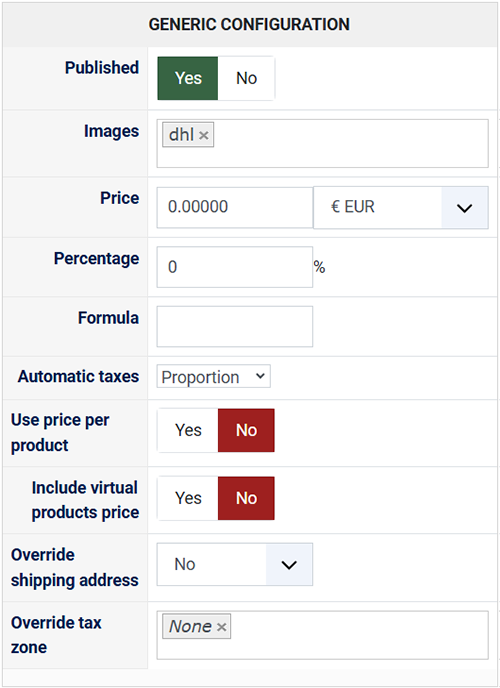
- **Published**: Indicate if the method is published or not.
- **Images**: You can click on the edit icon to select one or several images to display next to the name of the shipping method during the checkout process.
Those images are stored in the folder **media/com\_hikashop/images/shipping** so you can easily add more of them by uploading your images to this folder via FTP.
- **Price**: Specify a base shipping price which will be added to the DHL shipping estimation.
- **Percentage**: Specific a percentage which will be based on the subtotal amount of the cart and added to the DHL shipping estimation.
- **Tax category**: Indicate the tax category for the shipping method
- **Use price per product**: Indicate if you want to add shipping fees for specific products.
- **Include virtual product price**: Indicate if virtual products should be included for the processing (it will affect percentage price and restrictions).
- **Override shipping address**: You can override the shipping address. That option is not recommanded for dynamic shipping methods like that one.
- **Override tax zone**: You can override the tax zone if the customer select that shipping method.
### Specific configuration
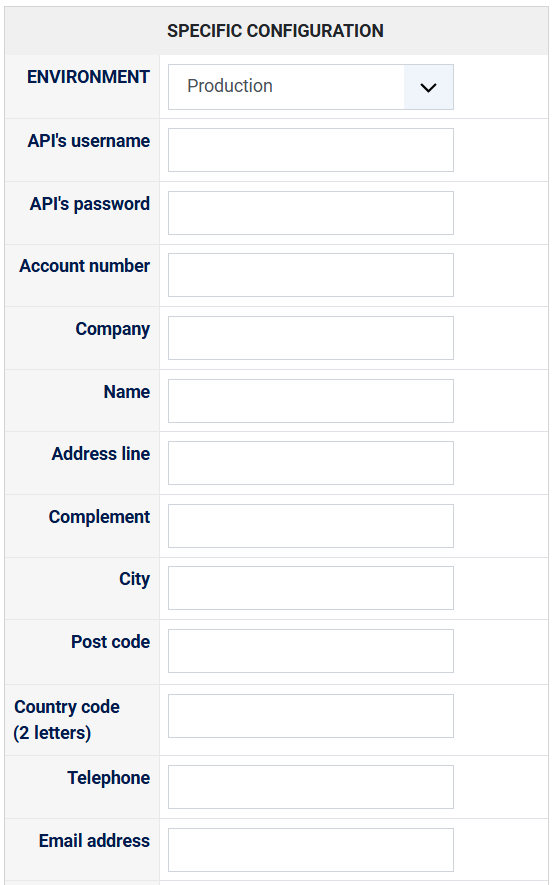
- **Environment**: Define your DHL shipping environment among **Production** or **Test**. You might want to first use the test environment to make sure everything's working before switching to the production environment. Note that in the environment, the tracking link won't point to the corresponding package.
- **API's Username**: Your DHL API Username.
- **API's Password**: Your DHL API password.
- **Account Number**: Your account number reference.
- ##### Address elements :
Here, you can define your address elements as seller which will correspond to the starting point to calculate the distances and therefore the prices of DHL services.
- **Company**
- **Name**
- **Address line**
- **Complement**
- **City**
- **Post code**
- **Country code (2 letters)**
- **Telephone**
- **Email address**
Please make sure you fill in everything. Only the complement field is optional.
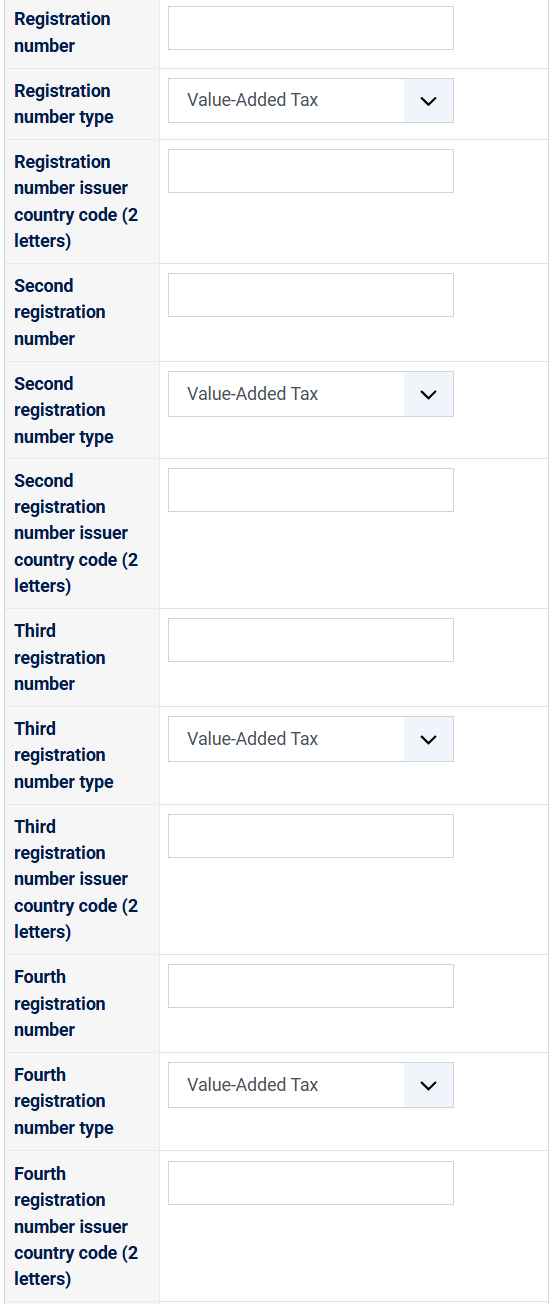
- The **Registration Number** fields identify the sender for customs and regulatory compliance. This includes various registration numbers (such as VAT number or customs IDs), which differ by country and product type. These numbers ensure adherence to local laws and facilitate customs clearance. Using multiple fields provides flexibility to collect necessary details for international transactions.
- **Registration number**
- **Registration number type**
- **Registration number issuer country code (2 letters)**
- **Second registration number**
- **Second registration number type**
- **Second registration number issuer country code (2 letters)**
- **Third registration number**
- **Third registration number type**
- **Third registration number issuer country code (2 letters)**
- **Fourth registration number**
- **Fourth registration number type**
- **Fourth registration number issuer country code (2 letters)**
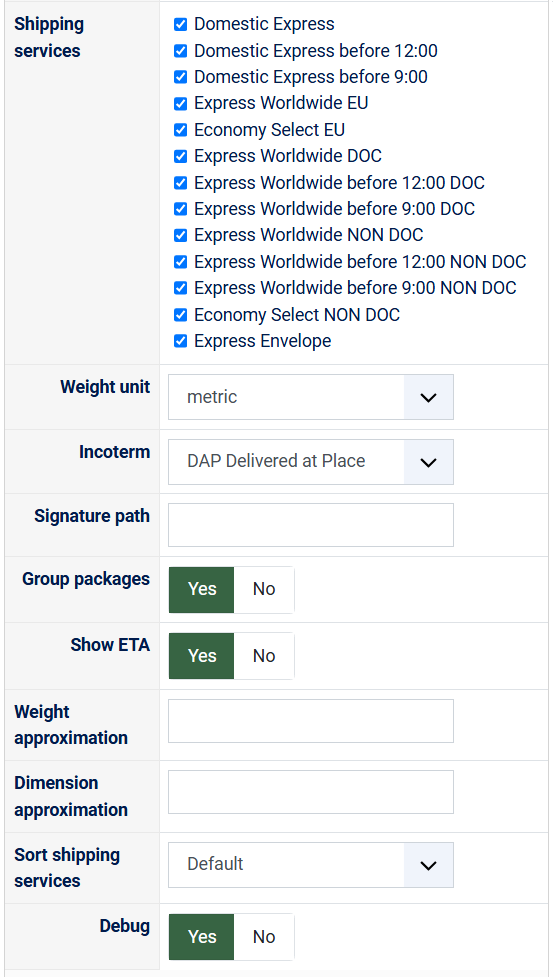
- **Shipping services** : Select from all the services offered by DHL:
- Domestic Express
- Domestic Express before 12:00
- Domestic Express before 9:00
- Express Worldwide EU
- Economy Select EU
- Express Worldwide DOC
- Express Worldwide before 12:00 DOC
- Express Worldwide before 9:00 DOC
- Express Worldwide NON DOC
- Express Worldwide before 12:00 NON DOC
- Express Worldwide before 9:00 NON DOC
- Economy Select NON DOC
- Express Envelope
We recommend that you first leave everything checked when first testing as most of these are only available in some cases.
- **Special agreement**: Activate this setting if you don't want to filter out the services which needs DHL Express special customer agreement.
- **weight unit**: Define the weight unit for all your packages. In the USA, you normally have to select "imperial", and in Europe and the rest of the world "metric".
- **Parcel max weight**: You can enter here a custom maximum weight for parcels. Above this threshold, the plugin will pack the products in a separate parcel. If left empty, the plugin will use the default maximum weight: 70kg / 154lb
- **Parcel max length**: You can enter here a custom maximum length for parcels. Above this threshold, the plugin will pack the products in a separate parcel. If left empty, the plugin will use the default maximum length: 120cm / 47.2in
- **Parcel max width**: You can enter here a custom maximum width for parcels. Above this threshold, the plugin will pack the products in a separate parcel. If left empty, the plugin will use the default maximum width: 80cm / 31.5in
- **Parcel max height**: You can enter here a custom maximum height for parcels. Above this threshold, the plugin will pack the products in a separate parcel. If left empty, the plugin will use the default maximum height: 80cm / 31.5in
- **Use max dimensions as parcel dimensions**: If this setting is deactivated (default), each parcel of a shipment will have dimensions based on the dimensions of the products in it. If this setting is activated, each parcel of a shipment will have dimensions based on the maximum dimensions filled in above, or the default maximum dimensions.
- **Incoterm**: Define responsibilities between buyer and seller for costs, risks, and tasks related to shipping. Learn more about available options here:
**Note :** Learn more about **[Incoterms 2020 Guide](https://incodocs.com/blog/incoterms-2020-explained-the-complete-guide/)**.
By default, this setting is set to "DAP" and that's usually what you want to select here.
- **Signature path**: Path to your signature file (image in jpg, jpeg, png). This image will be provided to DHL for the invoice generation for international shipments. The path should be relative to the root folder of your website.
- **Group packages**: Select if you want group or not the products in the order in different packages.
- **Show ETA**: Choose if you want display the ETA (Estimated Time of Arrival) or not.
- **Weight approximation**: You can add here a percentage to the weight of your products.
- **Dimension approximation**: You can add here a percentage to the dimensions of your products.
- **Sort shipping services**: Define how to sort your DHL rates.
- **Debug**: Switch on ("yes") or off ("no") to allow your Hikashop DHL plugin to fill the log file, especially if there is any trouble. The log file is here to be able to see debug data. You can access it via the "payment log file" setting of the HikaShop configuration page.
This will help in finding where the trouble is with the setup of the plugin if something doesn't work with it.
### Restrictions
You can set restrictions on shipping methods. Based on the products in the cart of the user, the system will calculate which shipping methods the customer can choose from.
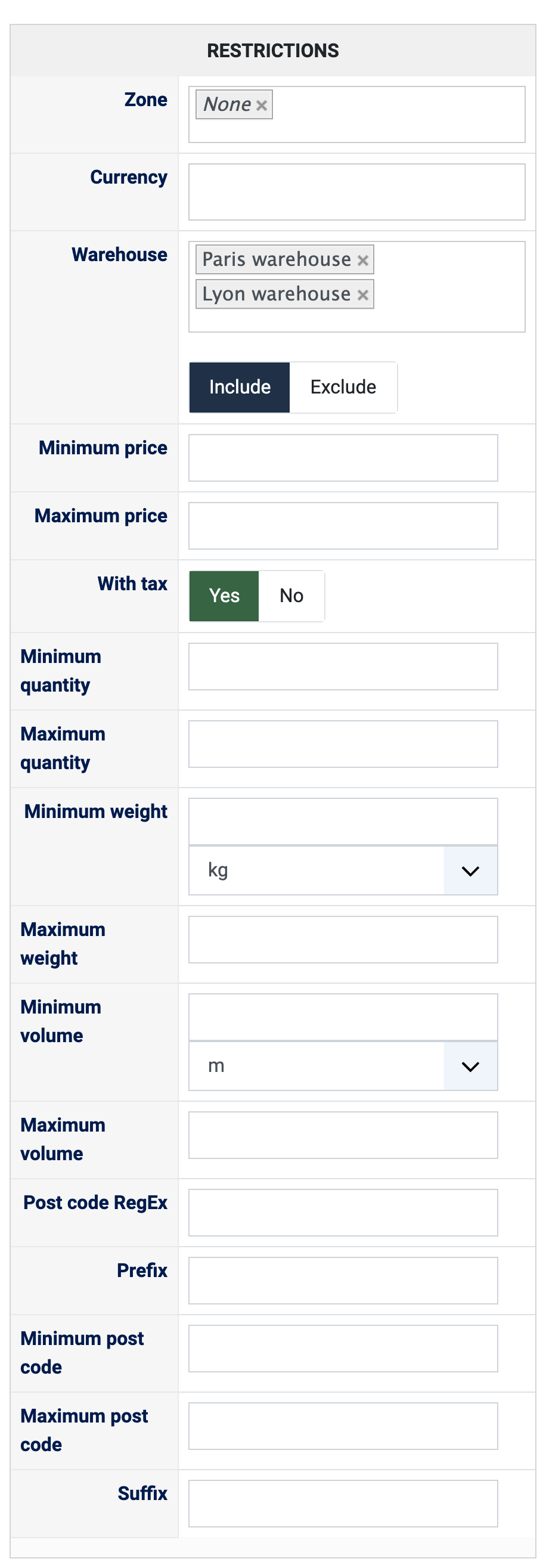
- **Zone**: You can restrict a shipping method to a zone. By clicking on the edit icon, a popup will open enabling you to select a zone. Only customers with a shipping address in the selected zone (or its sub-zones) will see this shipping method. You can remove this limitation by clicking on the delete icon.
- **Currency**: You can restrict the shipping method to one or more currencies: it will only be available when the customer pays in one of the selected currencies.
- **Warehouse**: You can restrict the shipping method to one or more warehouses. You can also choose whether the filter is inclusive ("Only these warehouses") or exclusive ("All except these warehouses") using the radio buttons next to the selector.
- **Minimum price**: The shipping method will only be available for orders with a product total above this minimum price.
- **Maximum price**: The shipping method will only be available for orders with a product total below this maximum price.
- **With tax**: When enabled, the minimum and maximum price restrictions use the product prices including taxes. When disabled, they use the prices excluding taxes. Enabled by default.
- **Minimum quantity**: The minimum number of items in the cart for this shipping method to be available. The quantity is calculated as the sum of the quantity of each product in the cart.
- **Maximum quantity**: The maximum number of items in the cart for this shipping method to be available.
- **Minimum weight**: The minimum total weight of the cart for this shipping method to be available. The weight is calculated as the sum of each product's weight multiplied by its quantity. You can select the weight unit next to this field.
- **Maximum weight**: The maximum total weight of the cart for this shipping method to be available.
- **Minimum volume**: The minimum total volume of the cart for this shipping method to be available. The volume is calculated from the width, height and length of each product multiplied by its quantity. You can select the volume unit next to this field.
- **Maximum volume**: The maximum total volume of the cart for this shipping method to be available.
- **Post code RegEx**: A regular expression to match against the customer's postal code. Only customers whose postal code matches the expression will see this shipping method. For example, *^(75\|92\|93\|94)* to match postal codes starting with 75, 92, 93, or 94.
- **Prefix**: You can restrict the shipping method to only postal codes starting with this prefix.
- **Minimum post code**: You can restrict the shipping method to only postal codes within a numeric range, whereby this is the minimum value.
- **Maximum post code**: The maximum value of the postal code numeric range.
- **Suffix**: You can restrict the shipping method to only postal codes ending with this suffix.
### Access Level
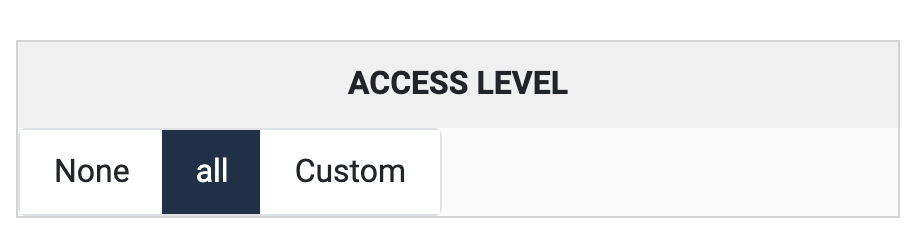
You can restrict which Joomla user groups can see and use this shipping method. By default, the shipping method is available to all user groups. Select specific groups to limit access. This is useful if you want to offer specific shipping options only to certain customer groups (e.g. wholesale customers, VIP members).
1. [ Shipping plugins footer 2](/support/documentation/515-shipping-plugins-footer2)
2. [ UPS shipping Oauth method](/support/documentation/504-hikashop-shipping-ups2-form)
3. [ Canada Post advanced shipping method](/support/documentation/369-hikashop-shipping-canadapost-adv-form)
4. [ Shipping plugins footer](/support/documentation/334-shipping-plugins-footer)
Page 2 of 4