[Skip to main content](#vessel-content)
# Tutorials
## [ Migrate from Sylius to HikaShop ](/support/documentation/608-migrate-from-sylius-to-hikashop)
Details Written by: Administrator Category: [Tutorials](/support/documentation/hikashop/tutorials) Published: 04 November 2026 Hits: 83
**Sylius** is a headless, Symfony based shopping cart. HikaShop reads its database and moves the products, customers and orders to Joomla or WordPress, which gives a shop with a back office and a storefront in one. This page explains the steps.
It is one of the shops HikaShop can import: see [all the import options](/support/documentation/73-hikashop-import).
- [Before you start](#before)
- [What is imported](#imported)
- [Steps](#steps)
- [The settings](#settings)
- [After the import](#after)
- [Questions](#faq)
### Before you start
**Supported versions:** Sylius 1.12 and later, including 2 (tested on 2.x).
The Sylius database must be on the same MySQL server as the site which receives HikaShop.
Make a backup of your database and your files. The import adds to what is already in HikaShop and never deletes anything, but a backup costs nothing.
### What is imported
- Tax categories and tax rates, by country
- Taxons (as categories), with their hierarchy
- Products with their variants: a product with one variant is a simple product, a product with several variants is a product with variants whose options are the characteristics
- Prices of the channel you choose, stock and images
- Customers with their addresses, and their password
- Coupons, with their dates and limits
- Orders, with their lines, addresses, shipping and discount amounts
**Not imported:**
- The amount of a coupon: the promotions of Sylius are made of rules and actions, set the amount by hand
- The payment and the shipping methods
### Steps
1. In the HikaShop back office, open **Products > Import** and choose **Import from another shop**.
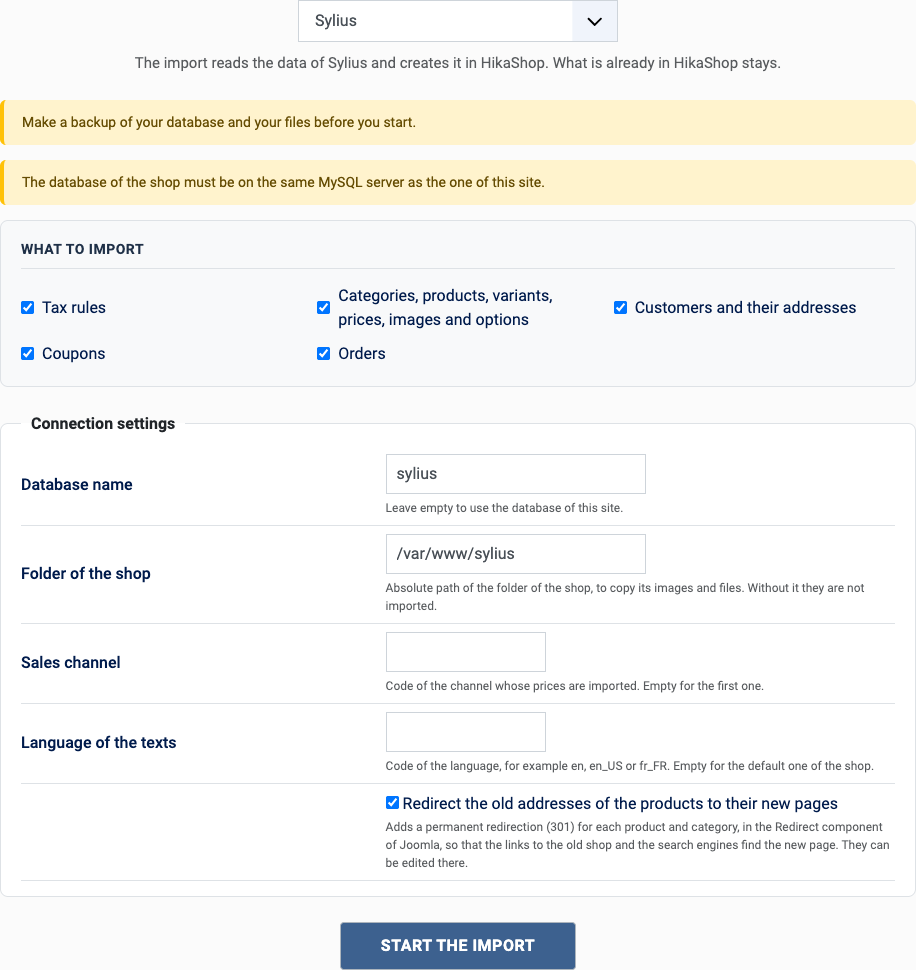
2. Pick **Sylius** in the list of shops.
3. Choose what to import with the boxes of "What to import": orders also need the customers and the catalog, they are imported with them.
4. Fill in the settings (see below) and click **Start the import**.
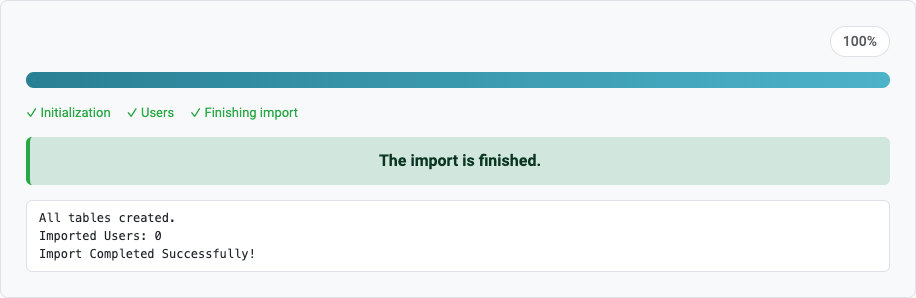
5. Keep the page open until the message "The import is finished" appears. A step which fails stops the import and can be tried again or skipped.
[](/images/doc/hk/interface/import/shop_sylius_settings.png)
[](/images/doc/hk/interface/import/shop_progress_done.png)
### The settings
- **Database name**: the database of Sylius.
- **Sylius project folder**: the absolute path of the project, to copy the images of the products from public/media/image.
- **Sales channel**: the code of the channel whose prices are imported (empty for the first one).
- **Locale of the texts**: for example en\_US or fr\_FR (empty for the default locale of the channel).
- **Redirect the old addresses** (Joomla only): tick it to send the visitors of the old addresses to the new pages, see the questions below.
### After the import
1. Customers keep their password: Sylius hashes them with bcrypt or argon2, which Joomla verifies.
2. Set the amount of the coupons.
3. Check the prices: the amounts of Sylius are in cents, they are converted to the currency of the channel.
### Questions
#### Which prices are imported?
The ones of one sales channel. Choose its code in the settings, the first channel is used otherwise.
#### Do customers keep their password?
Yes, the hash is moved as it is.
#### Where do the images come from?
From public/media/image in the folder of the Sylius project you enter.
#### Can I run the import again?
Yes. What was already imported is left alone and only what is new is added: the products, customers and orders created on the old shop since the last import. You can import once to test and again when you go live. A change made on the old shop to something already imported is not copied.
#### The old addresses of the products
With "Redirect the old addresses" ticked (Joomla only), each product and category gets a redirection from its address in Sylius (with the locale in front of it or without) to its new page. It only works when the new site answers on the same domain as the old shop. The redirections are in **Components > Redirects** of Joomla, where they can be edited or removed; the import turns on the plugin "System - Redirect" which uses them.
Back to [the import page](/support/documentation/73-hikashop-import), which also covers the CSV import and the import of orders. Something else went wrong? See [solving problems](/support/documentation/61-hikashop-compatibility-issues).
## [ Migrate from VirtueMart to HikaShop ](/support/documentation/609-migrate-from-virtuemart-to-hikashop)
Details Written by: Administrator Category: [Tutorials](/support/documentation/hikashop/tutorials) Published: 04 November 2026 Hits: 109
**VirtueMart** is the best known shopping cart for Joomla, and HikaShop reads its tables directly: you can move your whole shop from VirtueMart to HikaShop without exporting anything. This page explains how, what comes with it and what to check afterwards.
It is one of the shops HikaShop can import: see [all the import options](/support/documentation/73-hikashop-import).
- [Before you start](#before)
- [What is imported](#imported)
- [Steps](#steps)
- [The settings](#settings)
- [After the import](#after)
- [Questions](#faq)
### Before you start
**Supported versions:** VirtueMart 2, 3 and 4 (tested on 4.8.2 and 3.2.12), on Joomla 4, 5 and 6.
The VirtueMart tables must be in the database of your Joomla site, which is the case when VirtueMart is installed on the same site as HikaShop. Install HikaShop on the site of VirtueMart, you do not need to uninstall VirtueMart first.
Make a backup of your database and your files. The import adds to what is already in HikaShop and never deletes anything, but a backup costs nothing.
### What is imported
- Tax rules
- Manufacturers (as brands)
- Categories, with their images
- Products, with their prices, images and files
- Product categories and the characteristics of the products with variants
- Customers and their addresses
- Discount codes and coupons
- Orders, with their lines and addresses
- Downloadable files
- Reviews and ratings
**Not imported:**
- The payment and the shipping methods: set them up again in HikaShop, the names of the ones used by the old orders are kept in these orders
- The custom fields which are not product ones, and the plugins of VirtueMart
### Steps
1. In the HikaShop back office, open **Products > Import** and choose **Import from another shop**.
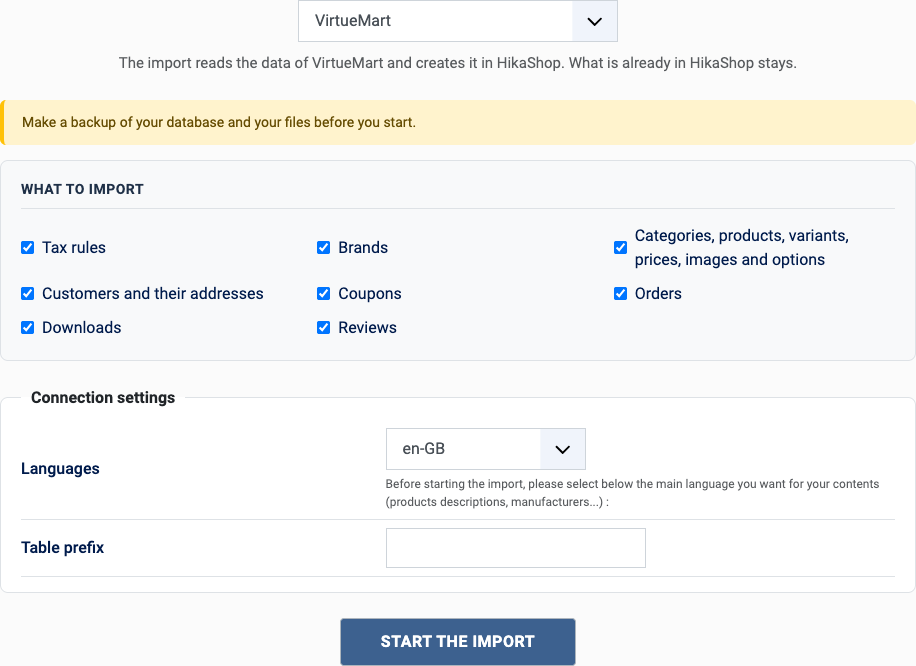
2. Pick **VirtueMart** in the list of shops.
3. Choose what to import with the boxes of "What to import": orders also need the customers and the catalog, they are imported with them.
4. Fill in the settings (see below) and click **Start the import**.
5. Keep the page open until the message "The import is finished" appears. A step which fails stops the import and can be tried again or skipped.
[](/images/doc/hk/interface/import/shop_virtuemart_settings.png)
[](/images/doc/hk/interface/import/shop_progress_done.png)
### The settings
- **Languages**: the language of the texts to import (the names and descriptions of the products, the brands, the categories). VirtueMart keeps one table per language, the language you choose is the one which is read.
- **Table prefix**: the prefix of the VirtueMart tables when it is not the one of the Joomla site. Leave it empty if it is the same.
- **Redirect the old addresses** (Joomla only): tick it to send the visitors of the old VirtueMart addresses to the new pages, see the questions below.
### After the import
1. Set up your payment and shipping methods (Payment methods and Shipping methods in the System menu).
2. Remove the VirtueMart component once the shop is checked: the old addresses of its products and categories then lead to the HikaShop pages (see the questions below).
3. Open a few products, a category and an order to check the prices, the images and the taxes.
### Questions
#### The import stops with an error while copying the images
Check that the folders of the images of VirtueMart exist and that the upload folder of HikaShop (System > Configuration > Files) is writable. Then use "Try this step again".
#### I do not see VirtueMart in the list
The list only offers the shops whose tables it finds in the database of the site. Check the prefix of the tables of VirtueMart.
#### Can I import VirtueMart 1?
No, the import of VirtueMart 1 (Joomla 1.5) was removed. Move to VirtueMart 2 or later first, or use the CSV import.
#### Can I run the import again?
Yes. What was already imported is left alone and only what is new is added: the products, customers and orders created on the old shop since the last import. You can import once to test and again when you go live. A change made on the old shop to something already imported is not copied.
#### The old addresses of the products
With "Redirect the old addresses" ticked, each product and each category gets a permanent redirection in the Redirect component of Joomla, from its VirtueMart address (the one with its identifier, and the default one of the router of VirtueMart under the first menu item of the shop) to its new page. The redirections only apply to an address which no longer leads anywhere, so they work once the VirtueMart component is removed. They can be edited or removed in **Components > Redirects**; the import turns on the plugin "System - Redirect" which uses them. Sites which used the plugin "VirtueMart Fallback Redirect" can import again to get these redirections: nothing is imported twice.
Back to [the import page](/support/documentation/73-hikashop-import), which also covers the CSV import and the import of orders. Something else went wrong? See [solving problems](/support/documentation/61-hikashop-compatibility-issues).
## [ Migrate from Wix to HikaShop ](/support/documentation/610-migrate-from-wix-to-hikashop)
Details Written by: Administrator Category: [Tutorials](/support/documentation/hikashop/tutorials) Published: 04 November 2026 Hits: 97
**Wix Stores** is a hosted shopping cart: you cannot read its database, but its dashboard exports your products as a CSV file. HikaShop imports this file, so you can leave Wix for your own Joomla or WordPress site without retyping your catalog.
It is one of the shops HikaShop can import: see [all the import options](/support/documentation/73-hikashop-import).
- [Before you start](#before)
- [What is imported](#imported)
- [Steps](#steps)
- [The settings](#settings)
- [After the import](#after)
- [Questions](#faq)
### Before you start
**Supported versions:** The product file exported by Wix Stores (catalog\_products.csv), with the columns Wix documents: handleId, fieldType, name, description, productImageUrl, collection, sku, price, surcharge, visible, discountMode, discountValue, inventory, weight, brand, the numbered option columns and the additional information columns.
Nothing to install on the Wix side. You export the product file and send it from the import screen; it is removed from the server when the import ends.
Make a backup of your database and your files. The import adds to what is already in HikaShop and never deletes anything, but a backup costs nothing.
### What is imported
- Products, with their description, brand, collections (as categories), visibility and the additional information sections (added to the description)
- Variants, with up to 6 options (as characteristics), their SKU, price (the surcharge is added to the price of the product), weight and stock
- The discount of a product: the price after the discount is the price imported
- Images, downloaded from the addresses of the export
**Not imported:**
- The customers and the orders: Wix does not export them in a file this import can read
- The ribbons, the cost of the goods, the custom text fields of the products
- The redirections from the old addresses: the file does not hold the address of the pages of the products
### Steps
1. In the HikaShop back office, open **Products > Import** and choose **Import from another shop**.
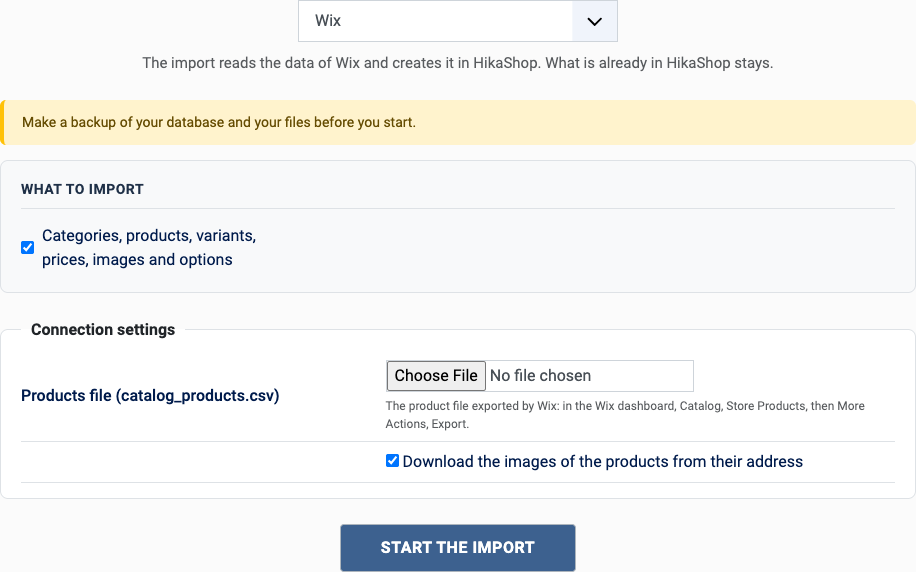
2. Pick **Wix** in the list of shops.
3. Send the product file and fill in the settings (see below), then click **Start the import**.
4. Keep the page open until the message "The import is finished" appears. A step which fails stops the import and can be tried again or skipped.
[](/images/doc/hk/interface/import/shop_wix_settings.png)
[](/images/doc/hk/interface/import/shop_progress_done.png)
### The settings
- **Products file**: the CSV file exported by Wix.
- **Download the images**: tick it to download the images of the products from the addresses of the export.
### After the import
1. Check the products with options: each combination is a variant.
2. Add your customers to the new shop (they register again, or you import them with a CSV file).
3. Set up your payment and shipping methods, and your taxes.
### Questions
#### How do I export from Wix?
In the Wix dashboard, open Catalog, Store Products, then More Actions and Export. The file is a CSV.
#### The images were not downloaded
The server needs to reach the Wix servers which host the images; tick "Download the images" and check that your host allows outgoing connections. Wix removes the images of a store which is deleted, so import before closing your Wix store.
#### Can I run the import again?
Yes: products which were already imported are left alone, only the new ones are added.
Back to [the import page](/support/documentation/73-hikashop-import), which also covers the CSV import and the import of orders. Something else went wrong? See [solving problems](/support/documentation/61-hikashop-compatibility-issues).
## [ Migrate from WooCommerce to HikaShop ](/support/documentation/611-migrate-from-woocommerce-to-hikashop)
Details Written by: Administrator Category: [Tutorials](/support/documentation/hikashop/tutorials) Published: 04 November 2026 Hits: 93
**WooCommerce** is the shopping cart of WordPress. HikaShop imports the products, customers and orders of a WooCommerce shop, either into a Joomla site or into the same WordPress site: this page explains the steps, what is imported and what to check afterwards.
It is one of the shops HikaShop can import: see [all the import options](/support/documentation/73-hikashop-import).
- [Before you start](#before)
- [What is imported](#imported)
- [Steps](#steps)
- [The settings](#settings)
- [After the import](#after)
- [Questions](#faq)
### Before you start
**Supported versions:** WooCommerce 11 (tested on 11.2), with the classic order tables and with High Performance Order Storage.
The database of WordPress must be on the same MySQL server as the one of the site which receives HikaShop. On WordPress, leave the database name empty to read the WooCommerce of the same site.
Make a backup of your database and your files. The import adds to what is already in HikaShop and never deletes anything, but a backup costs nothing.
### What is imported
- Tax rates
- Categories, with their hierarchy
- Products, simple and variable, with their prices, stock, images and meta data (as custom fields)
- Product variations with their attributes
- Customers (WordPress users) and their addresses
- Coupons
- Orders and their lines
- Downloadable products and their files
**Not imported:**
- The payment and the shipping methods: set them up again in HikaShop, the names used by the old orders are kept in these orders
- The product reviews
### Steps
1. In the HikaShop back office, open **Products > Import** and choose **Import from another shop**.
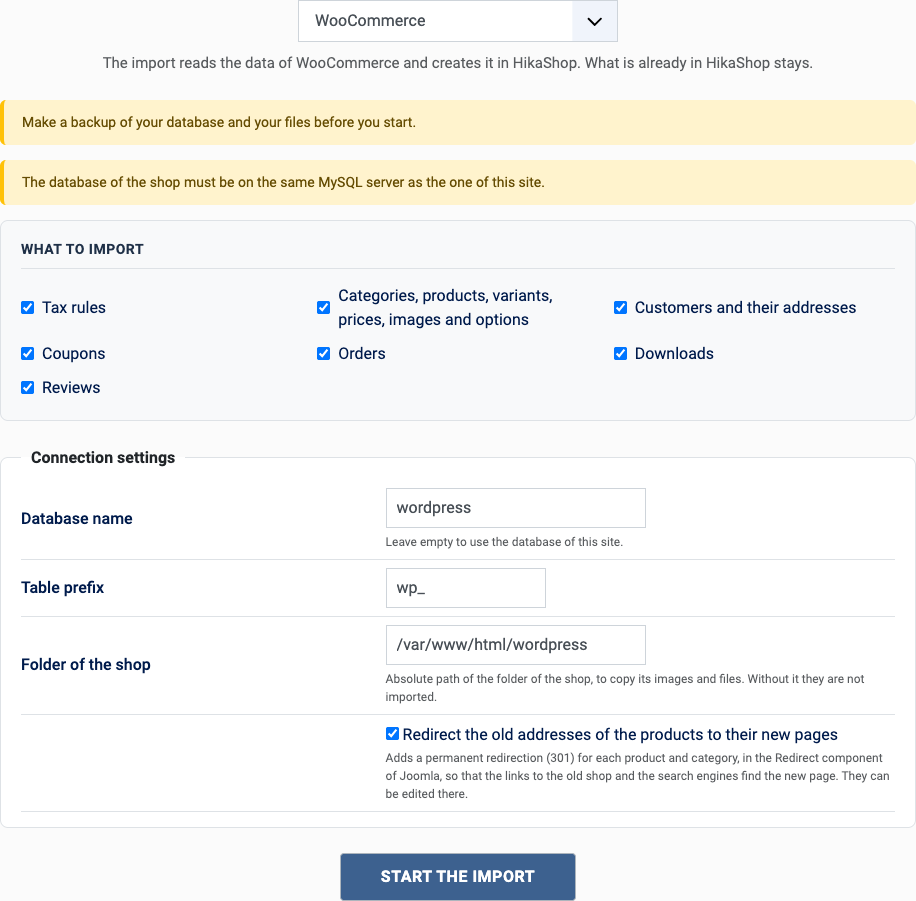
2. Pick **WooCommerce** in the list of shops.
3. Choose what to import with the boxes of "What to import": orders also need the customers and the catalog, they are imported with them.
4. Fill in the settings (see below) and click **Start the import**.
5. Keep the page open until the message "The import is finished" appears. A step which fails stops the import and can be tried again or skipped.
[](/images/doc/hk/interface/import/shop_woocommerce_settings.png)
[](/images/doc/hk/interface/import/shop_progress_done.png)
### The settings
- **Database name**: the database of the WordPress which holds WooCommerce (empty on WordPress to use the current one).
- **WooCommerce table prefix**: the prefix of the tables, wp\_ by default.
- **WordPress installation path**: the absolute path of the folder of WordPress, used to copy the images and the files.
- **Redirect the old addresses** (Joomla only): tick it to send the visitors of the old addresses to the new pages, see the questions below.
### After the import
1. Customers keep their password: their WordPress password hash is moved and HikaShop checks it on Joomla, they log in with the same password.
2. Set up your payment and shipping methods.
3. Check a variable product: the variations become the variants of the product, with their own price and stock.
### Questions
#### Do my customers need a new password?
No. The WordPress password hashes are moved as they are, and a compatibility layer of HikaShop verifies them on Joomla.
#### Are the images copied?
Yes, from the folder of WordPress you enter. Without the path, the products come without their images.
#### Can I import several times?
Yes. What was already imported is recognised and left as it is, only the new products, customers and orders are added.
#### Can I run the import again?
Yes. What was already imported is left alone and only what is new is added: the products, customers and orders created on the old shop since the last import. You can import once to test and again when you go live. A change made on the old shop to something already imported is not copied.
#### The old addresses of the products
With "Redirect the old addresses" ticked (Joomla only), each product and each category gets a redirection from its address on WordPress (the one of your permalinks, with the product and category bases read from the settings of WooCommerce; the addresses of the plain permalinks, like ?p=12, cannot be redirected) to its new page. It only works when the new site answers on the same domain as the old shop. The redirections are in **Components > Redirects** of Joomla, where they can be edited or removed; the import turns on the plugin "System - Redirect" which uses them.
Back to [the import page](/support/documentation/73-hikashop-import), which also covers the CSV import and the import of orders. Something else went wrong? See [solving problems](/support/documentation/61-hikashop-compatibility-issues).
## [ Selling to AI shopping agents ](/support/documentation/554-ai-shopping-agents)
Details Written by: Administrator Category: [Tutorials](/support/documentation/hikashop/tutorials) Published: 22 October 2026 Hits: 484
- [What AI shopping agents are](#what)
- [The checklist](#checklist)
- [1. Let customers buy as a guest](#guest)
- [2. Accept cards typed in the checkout](#card)
- [3. Do not block automated browsers on the cart and checkout](#bots)
- [4. Set up your products cleanly](#products)
- [5. Be findable](#findable)
- [6. Give agents a clean version of your pages](#markdown)
- [7. Write an llms.txt](#llmstxt)
- [8. Say who you are](#business)
- [9. Close what you do not use](#api)
- [Test it yourself](#test)
- [Online agent-readiness scanners](#scanners)
- [Tools for agents in the browser (WebMCP)](#webmcp)
- [Agents that do not use your pages](#protocols)
- [FAQ](#faq)
### What AI shopping agents are
More and more people ask an AI assistant to buy something for them: "order a navy throw blanket under 250 euros", "reorder the coffee filters from last month". Assistants such as Claude Duet, ChatGPT's agent or the agent built into Chrome do this with a web browser of their own: they open your shop, find the product, add it to the cart and go through your checkout, the way a customer would.
To pay, they do not use the customer's real card. The customer approves the purchase in their wallet (for example Link from Stripe, or Shop Pay from Shopify) and the agent receives a single-use virtual card for that amount, which it types in your checkout like any card. For you, it is an ordinary card payment: you do not need a Link or Shop Pay account.
So there is nothing to install for these agents. What matters is that your shop lets a customer you do not know buy quickly with a card, which is also what your human customers want. The checklist below lists the settings that make the difference.
### The checklist
#### 1. Let customers buy as a guest
An agent buys for its user; it will not create an account with a password on your shop. If your checkout only offers to log in or to register, the agent stops there.
In **System > Configuration**, on the **Checkout** tab:
- **Registration**: tick **Guest**. You can keep **Registration** ticked as well for the customers who want an account.
- **Display method for registration**: with several registration modes, choose **Selector**, so that the customer (or the agent) picks Login, Registration or Guest.
- **Default registration view**: **Guest** opens the guest form directly, which saves a step to everybody who does not have an account yet.
In the Starter edition one registration mode is offered at a time: choose **Guest** there.
A guest only gives an email address and the addresses. This also works when that email already belongs to an account of your shop.
#### 2. Accept cards typed in the checkout
The single-use card the agent receives is an ordinary Visa or Mastercard number. Any payment method where a card number is typed works: the card fields of **PayPal Checkout**, Stripe, or the payment page of your bank.
A wallet button alone (the PayPal button, Apple Pay, Google Pay) asks the customer to log in to their wallet, which the agent does not do for them. Keep such buttons, but offer card payment next to them.
Bank transfer, check or cash on delivery orders can be placed by an agent too; the customer then pays them the usual way.
#### 3. Do not block automated browsers on the cart and checkout
HikaShop's checkout has no captcha of its own. Check what you added on top of it:
- a captcha extension on the checkout, the registration or the cart;
- the bot protection of your host or of a service such as Cloudflare ("Bot Fight Mode" and similar), which can refuse a browser it considers automated;
- a security extension or a firewall (CrowdSec, fail2ban, a "bad bots" list) that blocks visitors after a few quick pages or a few missing pages;
- rules in your robots.txt that keep out the agents and AI search engines (ChatGPT-User, OAI-SearchBot, Claude-User, PerplexityBot and the like). A rule for the crawlers that collect training data (GPTBot, ClaudeBot) is your choice and does not stop the agents that shop.
Firewalls are the most common trap. An agent, or a scanner checking your site for agents, starts by asking for the files that describe a site to AI (llms.txt, the files under /.well-known/, openapi.json...). Most of them do not exist on a shop, so the firewall sees a burst of missing pages and bans the address for hours, and every page after that fails. We saw it happen on our own site: CrowdSec's "http-probing" rule banned an agent-readiness scanner one second into its scan. If you run such a firewall, let these file names through, and look at its list of bans after a scan.
Keep the protections your shop needs against fraud and spam, but test the checkout after changing them (see [Test it yourself](#test)).
#### 4. Set up your products cleanly
An agent reads your pages and compares them with what its user asked for. Clear product names, a description, the price and the stock help it choose the right product.
For products with characteristics (colour, size...), create a variant for each combination you sell and make sure the default value of each characteristic has a variant: otherwise the product page shows a warning and the choice displayed first cannot be bought. The variants are listed in the edit page of the product.
#### 5. Be findable
Before buying, the agent has to find your shop. Agents use web search and the shopping catalogs of Google and OpenAI:
- the [Google Products plugin](/support/documentation/86-integration-with-google-products.html) generates the Google Shopping feed and the OpenAI (ChatGPT Shopping) feed of your products, and adds the structured data (price, stock, return policy) to your product pages;
- search engine friendly URLs and a published sitemap help as for any visitor.
#### 6. Give agents a clean version of your pages
A web page is mostly menus, scripts and layout; an agent only wants the text. More and more agents ask for a Markdown version of a page (plain text with a few marks for titles, lists and links), and Cloudflare's checks count it among the basics. A Markdown product page is a few kilobytes with the name, the price, the stock, the options and the description, instead of a hundred kilobytes of HTML.
On Joomla, our free [**LLM** plugin](/marketplace/integration/product/345-llm) does it for every page of your site, products, categories, articles and the home page, while your visitors keep getting the normal pages. It also takes care of points 7 and 8 below: it links your llms.txt from every page and completes the description of your business in your structured data. If your site is behind Cloudflare, its "Markdown for Agents" option converts your pages for the agents that ask for it, whatever your CMS.
#### 7. Write an llms.txt
llms.txt is a short text file at the root of your site (yoursite.com/llms.txt) that tells AI assistants what your shop is and where the important pages are. It is the first file agents and scanners ask for. It is yours to write, since only you know what matters in your shop; keep it short:
```
# Maison Verde
> Plants, pots and care products for indoor gardens, shipped across Europe from Lyon, France.
## When to use this shop
- Someone looks for indoor plants that are easy to keep, pet safe or suited to low light.
- Someone wants pots and care products matched to a plant.
## Shop
- [Indoor plants](https://www.example.com/plants): the full range, with filters by light and size
- [Pots](https://www.example.com/pots)
- [Delivery and returns](https://www.example.com/delivery): countries, prices, delays, returns
## About
- [About us](https://www.example.com/about)
- [Contact](https://www.example.com/contact)
```
Upload it next to your robots.txt. On Joomla, extensions can also write it for you, and the LLM plugin links it from every page once it is there; on WordPress, several llms.txt plugins are available on WordPress.org.
#### 8. Say who you are
Before sending its user's money to a shop it does not know, an agent looks for signs that it is a real business:
- an **About** page, a **Contact** page and a **Privacy** page, linked from every page (usually the footer) under those names;
- the description of your business in the structured data of your home page (the "Organization" of schema.org): a description, a contact page or email, your address (the city and the country are enough if you prefer) and your pages on other sites. Many templates only write your name and logo there; the LLM plugin adds the rest from its settings.
#### 9. Close what you do not use
Joomla answers at yoursite.com/api/ (its Web Services API), even when no application of yours uses it. Scanners then take your shop for a software service and expect API documentation from it, and it is a door attackers try: on our own site, every request to /api/ came from scanners and exploit attempts. If nothing of yours uses it, block /api/ in your web server (a rule in .htaccess on Apache, a location on nginx) or ask your host to.
### Test it yourself
In a private window of your browser, where you are not logged in:
1. open a product page from a search result or from your listing, choose its options and add it to the cart;
2. go to the checkout and continue as a guest with an email address of your own;
3. choose the shipping and the card payment, and pay with the test card of your payment provider in its test mode (or with a real card, then refund the order);
4. check that you reach the thank you page and receive the order email.
If you never had to create an account or solve a captcha on the way, an agent will get through too.
To check the Markdown version of a page (point 6), add ?tmpl=markdown to its address.
### Online agent-readiness scanners
Free online services check your site the way agents see it, and say what to improve:
- [isitagentready.com](https://isitagentready.com/), by Cloudflare: robots.txt, sitemap, Markdown, bot rules, and the agent commerce protocols for information;
- [is-agentic.com](https://is-agentic.com/), by Vercel and Ora: a score out of 100 and an agent trying to understand your site, with what it read;
- [agentgrade.com](https://agentgrade.com/): llms.txt, structured data, Markdown and content negotiation, with a grade.
Read their scores with care. Most of their checks are written for software services, not shops: an API with its documentation (OpenAPI), OAuth, an MCP server, payments made by a program for each request (x402, MPP). A shop does not need them, and you can leave those red. What matters for a shop is what this page lists: that agents can reach your pages, read them, find your products and buy as a guest with a card. The LLM plugin tells is-agentic.com that your site is a store, so its report puts the right checks first.
These scanners fetch dozens of pages in a few seconds: if the scan fails or stops halfway, look at your firewall first (point 3).
### Tools for agents in the browser (WebMCP)
Since HikaShop 6.8.0, every page of your shop also offers tools to the AI agents working in your visitor's browser, through WebMCP, a browser standard in preparation. Instead of reading your listings page after page, such an agent asks the shop directly:
- **search\_products**: the products matching words, a category and your filters (price ranges, brands, colors, custom fields...), with their price, stock, picture and address;
- **list\_categories** and **list\_filters**: your categories with their number of products, and the filters of a listing with the values they accept;
- **get\_product**: a product with its variants, each with its own price and stock, its options and the quantities allowed;
- **show\_products**: opens the listing with the chosen filters, so the visitor sees the result;
- **add\_to\_cart**, **get\_cart** and **update\_cart\_item**: the visitor's own cart, the one your cart module shows, which refreshes as after a click on an add to cart button.
There is nothing to set up. The tools answer what the visitor would see on your pages: published products only, for the visitor's access level, with the visitor's prices, taxes and currency. Stock, quantity limits and the catalogue mode apply as on your pages. Registration, login and the checkout stay with the visitor: the cart tools give the agent the address of your checkout, where the visitor finishes the order. The filters are those of the Business edition; with Essential and Starter, the search uses words and categories.
Browsers are only starting to offer WebMCP. To try it, open Chrome with chrome://flags/#enable-webmcp-testing turned on, or install the MCP-B extension, and ask its agent to find a product on your shop. As with every agent, a firewall or a bot protection must let it reach your pages (point 3).
### Agents that do not use your pages
Some platforms do not browse your shop: they talk to it through an API. Google's agents use the **Universal Commerce Protocol**, which the [UCP plugin of HikaShop](/support/documentation/529-universal-commerce-protocol.html) provides. ChatGPT finds products through the OpenAI feed of the Google Products plugin and, at the time of writing, sends the customer to your shop to finish the purchase.
### FAQ
**Do I need a Link or Shop Pay account?**
No. The wallet belongs to the customer; your shop receives an ordinary card payment.
**Can an agent place an order without the customer agreeing?**
The assistants that buy ask their user to approve each purchase in the wallet before they receive the card. On your side, the order is like any other: you can cancel and refund it as usual.
**How do I recognise the orders placed by an agent?**
You do not: the agent fills in the customer's name, email and address and pays by card, as the customer would.
1. [ The HikaShop application](/support/documentation/544-hikashop-app)
2. [ EU Directive 2023/2673: the withdrawal button](/support/documentation/533-eu-directive-2023-2673-withdrawal-button)
3. [ Universal Commerce Protocol (UCP)](/support/documentation/529-universal-commerce-protocol)
4. [ Limit listing](/support/documentation/444-hikashop-limit-listing)
Page 3 of 9