
- What's a cron task and why do I need one?
- Create your cron task on our server
- Create your cron task on your own server
- Check that your cron task is working
What's a cron task and why do I need one?
On all our commercial versions, HikaShop can execute automatic processes. Some features like "currencies rates auto update", "waitlist notification", "out of stock notification", "order auto cancel", "google products", "subscriptions" need it but we are planning on add features like start sale customers notifications which will also require a cron task.
For those actions to be executed, HikaShop needs to be triggered regularly, and each time HikaShop is triggered, it will check if some tasks have to be executed and then do what needs to be done.
A cron task is a system which will automatically trigger HikaShop without any human intervention.
Create your cron task on our server
As some hosting companies don't enable you to create a cron task on your own server, our server can trigger your website at the frequency you choose. This web cron is included in your subscription, and you set it up from your HikaShop configuration:
- Go on your HikaShop configuration page ("Hikashop->System->Configuration") and click on the tab Cron.
- Click on the button Show the web cron. HikaShop asks hikashop.com for the web cron of your website and shows it under the button.
- If your website is not attached to your subscription yet, a message says so, with a link that opens your account on hikashop.com in a new tab: attach your website to your subscription there, then click on Show the web cron again.
- Check Web cron enabled (unchecked, our server stops triggering your website).
- Select the frequency to meet your needs, from every 2 minutes to daily. It should be the same as (or bigger than) the parameter Minimum delay between two cron tasks of the same tab.
- Click on Save the web cron.
- That's all: our server now triggers your HikaShop at that frequency, and you can forget about it.
- Under the form, you can see when your website will be triggered next, when it was triggered last, and the last report of our server, to check that it reaches your website.
- Your website proves to hikashop.com that the request comes from it by answering on its cron URL: that URL must be reachable from the internet (see below if it is not).
Before HikaShop 6.7.0, the button Create/Edit your Cron task opened a page of hikashop.com in a popup, which browsers now refuse to display or display without your hikashop.com login: update HikaShop to get the form above.

Create your cron task on your own server
If you have the possibility and the knowledge to create a cron task on your own server, then you should do it and stop the cron task on our server to be completely independent from our server. You can contact your hosting company for directions on how to set it up on your hosting plan.
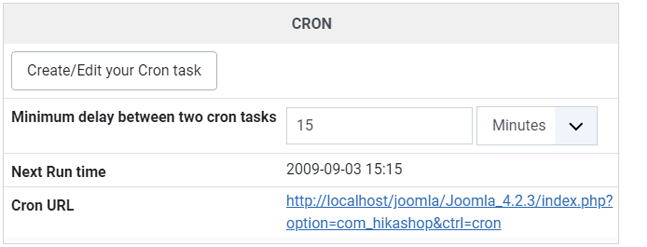
You should trigger your HikaShop cron url at a fixed frequency depending on your needs (every 15 minutes is usually a good frequency)
You can see your cron url on your HikaShop configuration page ("Hikashop->System->Configuration"), tab cron.
Linux System
You can use one of the following command depending on your server:
- lynx -source "http://www.yourwebsite.com/index.php?option=com_hikashop&ctrl=cron" > /dev/null
- wget -O /dev/null "http://www.yourwebsite.com/index.php?option=com_hikashop&ctrl=cron" > /dev/null
Check that your cron task is working
- We implemented an easy way for you to check that your cron task is working.
- Go on your HikaShop configuration page ("Hikashop->System->Configuration") and click on the tab Cron
- On the Report area, you can see an option to have HikaShop sending you a report each time it is triggered.
So you can turn ON this option and once your done with your tests, you can then turn it Off. - Also, on the Last Cron area, you can see the last time your cron has been triggered, who triggered it and the latest report.
If your cron task is not working, you should:
- Make sure your website can be triggered via your browser:
Click on your cron url. That will trigger it manually via your browser so you will see if this url can be reached or not.- If you use a third-party SEF component, your website may redirect the current page to the SEF one which will break our own cron service.
So you can either configure your SEF component to not transform non-SEF into SEF urls or directly write your sef cron url on our cron interface. That can happen with sh404sef.- Make sure your website can be triggered by the outside:
If you have an .htaccess with password protection, your website will obviously not accept to be triggered by an anonymous user.- If you use a security component on your Joomla website, this component might block our cron task. RSFirewall: You should disable the DoS protection from the Components > RSFirewall > Configuration > Active scanner configuration options.
- If you use Cloudfare please configure it to allow the cron task to go through.
- If you configured your cron task on your own server, check the report of your own cron task and you may also want to apply this workaround:
Create a php file at the root of your joomla website with the code below in it where you will replace yourwebsite.com by your website.
<?php
header("Location: http://www.yourwebsite.com/index.php?option=com_hikashop&ctrl=cron");
exit();
Then, instead of calling the hikashop cron page, you will call your php file you just created. Like that, for example:
wget -O /dev/null "http://www.yourwebsite.com/myfile.php" > /dev/null- If you use our own server to trigger your website, please make sure you enabled our server IP to trigger your website every X minutes! (you might block it if you have some security checks on the number of connections per IP)