

Description
The HikaShop import system allows you to:
- Import products and categories from CSV files or by pasting data directly into a text area.
- Import orders from the backend orders listing.
- Import shipping and payment methods from CSV files.
- Migrate from other e-commerce systems (VirtueMart, WooCommerce, J2Store, EC-CUBE, OpenCart, RedShop, MijoShop, or another HikaShop installation). These migration tools also transfer users, addresses, and orders.
- Generate products automatically from a folder of images or files (Business edition).
- Automatically import/update products via a cron-triggered CSV import (Essential and Business editions).
You can access the import screen from the HikaShop backend via Products > Import.
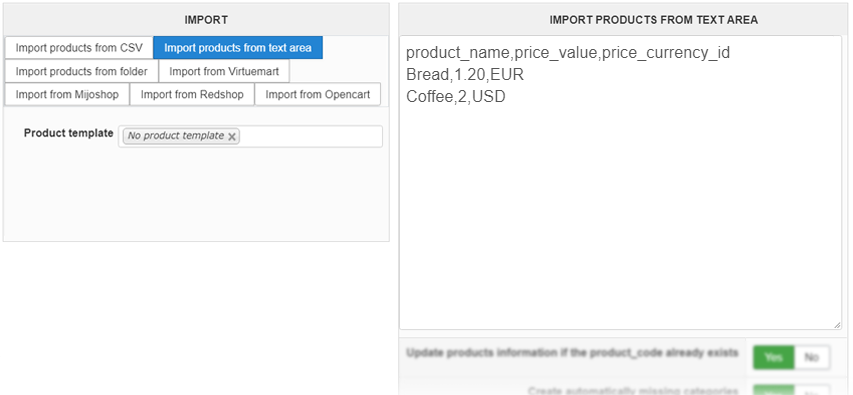
Import from a CSV or from the text area
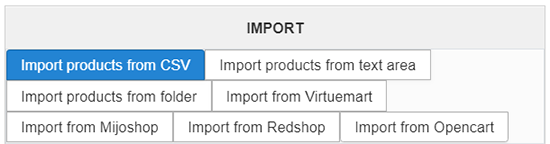
You can import data in two ways:
- Import from CSV file: upload a CSV or text file containing your data.
- Import from text area: copy and paste your data directly into the input box.
General information about the CSV format
The first line of your CSV file must contain the column names. These correspond to the database column names of the #__hikashop_product and #__hikashop_price tables (always in English). For example:
product_name,product_code,price_value
My Product,PROD001,29.99
Key points:
- HikaShop auto-detects the CSV separator (comma, semicolon, tab, pipe). No specific format is imposed.
- Multi-line field values (e.g. product descriptions) are supported when enclosed in double quotes.
- You only need one line per product. Do not split a product across multiple lines.
- For
price_currency_id, you can use the currency code (e.g. "EUR") instead of the numeric ID. If omitted, the store's main currency is used. - If
product_codeis not specified, it will be generated fromproduct_name. - Specify your file's character encoding so HikaShop can convert it to UTF-8. If unsure, leave it as "Unknown".
Updating existing products: set the option "Update products information if the product_code already exists" to "Yes". HikaShop will match products by their product_code and update the fields present in your CSV.
Tip: if you are unsure about column names, upload a file with only the header line or enter random text in the text area and click Import. HikaShop will display the list of valid column names.
Column Mapping
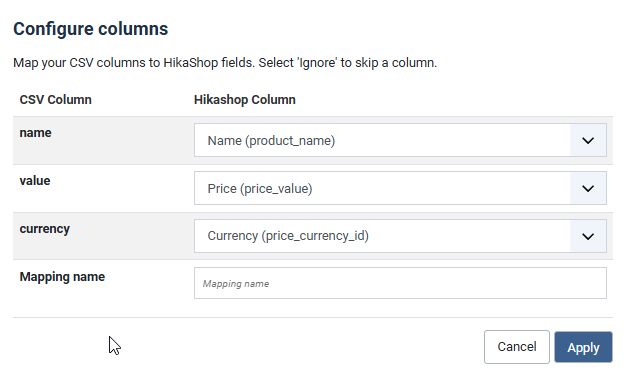
If the columns in your CSV file do not match HikaShop's column names, a mapping interface will appear. This allows you to visually map your CSV headers to HikaShop fields, eliminating the need to rename columns in your file manually.
Importing images and files
To import images or files along with your products, first place them in the upload folder configured in System > Configuration > Files. Then add an images or files column to your CSV with the filenames separated by a secondary separator (different from your main CSV separator).
Examples:
product_name,images
My product,"image_front.jpg,image_back.jpg"
or:
product_name,images
My product,image_front.jpg;image_back.jpg
Related products
Add a related column with the product_code values of related products (they must already exist or appear earlier in the same CSV file):
product_code,product_name,related
my_product_1,My first product,""
my_product_2,My second product,""
my_product_3,My third product,"my_product_1,my_product_2"
Product categories
Use a categories column with category IDs or category namekeys:
product_code,product_name,categories
my_product_1,My first product,"2,13"
You can find category IDs in the category listing under the ID column.
To create a category tree automatically, enable "Create automatically missing categories" and use a parent_category column:
parent_category,categories
product category,main category 1;main category 2;main category 3
main category 1,sub category 1;sub category 2
You can also mix products and categories in the same CSV:
product_code,parent_category,categories
,main category 1,sub category 2
my_product_1,main category 1,sub category 2
Products with variants
To import variants, use the product_parent_id column with the product_code of the main product (which must appear before the variants in the file). The main product line must include the default characteristic value. Characteristics and their values must be created beforehand via Products > Characteristics.
Example with a "size" characteristic:
product_code,product_parent_id,size,price_value
main_product,,big,
first_variant,main_product,big,15
second_variant,main_product,small,10
The default price will be 15 (for "big"). When the customer selects "small", the price changes to 10.
Products with translations
To import translations, append the language code after a pipe (|) to the column name. You must first have the corresponding languages set up in Joomla.
Example with English (main), French and Japanese translations:
product_code,product_name,product_name|fr-FR,product_name|ja-JP
my_product_1,My first product,Mon premier produit,私の初めての商品
This works for all translatable fields: product_name, product_description, and custom fields.
Other import options
If you have an Excel file, add a header row with the column names and save the file as CSV (Save As > CSV). You can open the file with a text editor to verify the format before importing.
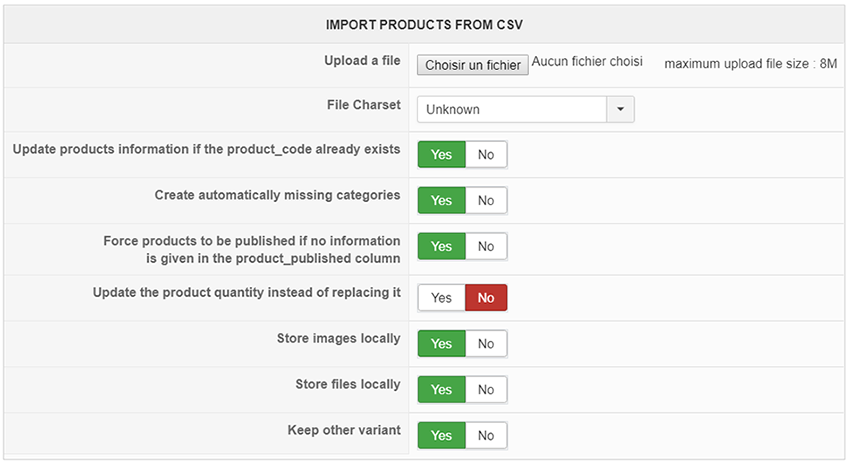
File Charset: we recommend importing UTF-8 files. If your file uses a different encoding, select it so HikaShop can convert it properly.
Store images locally: if set to "No", only the URL of the image is stored. If set to "Yes", the image is downloaded and stored on your server.
Store files locally: same as above, but for downloadable files.
Keep other variants: when updating a product that already has variants:
- "Yes": existing variants not in the CSV are kept (new variants are added).
- "No": existing variants not in the CSV are removed (only the variants in the CSV remain).
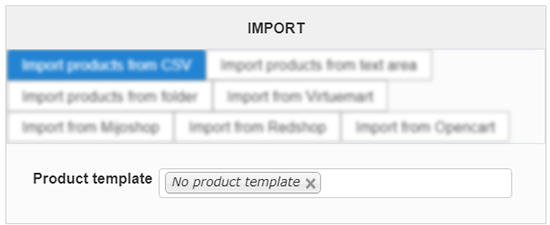
Template product (Business edition): select a product to use as a template. All fields not specified in the CSV will be automatically filled from the template product. This is useful when importing many products with the same price, tax category, or images.
You can also use the text area option to import CSV-compatible data directly without uploading a file.
Import orders
HikaShop supports importing orders from the backend. You can find the Import button on the Orders listing page in the toolbar.
The order import accepts a CSV file with columns corresponding to the #__hikashop_order and #__hikashop_order_product tables. Common columns include:
order_number: the order reference number.order_user_idoruser_email: identifies the customer. Ifuser_emailis used, HikaShop will look up or create the user.order_status: the order status (e.g. "confirmed", "shipped").order_created: the order date (Unix timestamp or date string).product_code: the product code for each order line.order_product_quantity: quantity for each order line.order_product_price: unit price for each order line.order_full_price: total order amount.order_currency_id: currency code (e.g. "EUR").
This is particularly useful when migrating from another system where you want to preserve order history, or when bulk-loading historical orders.
Import automatically from a CSV file
HikaShop Essential and Business editions include a plugin called "HikaShop Products Cron Update Plugin" that you can configure via the Joomla plugins manager. It allows you to import or update products automatically from a CSV file on a schedule.
To use it:
- Configure your HikaShop cron task.
- Go to the Joomla plugins manager, find and enable "HikaShop Products Cron Update".
- Configure the plugin settings:
- File: enter a local file path or a URL to the CSV. If a URL is provided, the plugin downloads the file each time before importing.
- Column names: map your CSV column names to HikaShop column names. For example, if your CSV uses "name" and "code" instead of "product_name" and "product_code", enter:
name:product_name;code:product_code - Charset: select the character encoding of your file.
- Frequency: the import interval in seconds (e.g. 3600 for once per hour). Note that the actual frequency depends on your cron trigger interval.
- Delete products not in CSV: removes products not present in the CSV. Use this option with extreme caution and only after the import works correctly without it.
Import shipping and payment methods
You can import shipping and payment methods from CSV files. On the System > Shipping methods or System > Payment methods listing page, click the Import button in the toolbar.
This opens an import dialog where you can upload a CSV file or paste CSV data. The import uses a column mapping interface (similar to the product import) that lets you map your CSV columns to HikaShop's shipping or payment method fields.
Common columns for shipping methods include: shipping_name, shipping_type, shipping_price, shipping_published, shipping_currency_id, and zone/weight restrictions. The shipping_type value corresponds to the plugin's folder name under plugins/hikashopshipping/ (e.g. manual for the manual shipping plugin).
Common columns for payment methods include: payment_name, payment_type, payment_price, payment_published, payment_currency_id, and zone/amount restrictions. The payment_type value corresponds to the plugin's folder name under plugins/hikashoppayment/ (e.g. banktransfer for the bank transfer plugin, paypalcheckout for PayPal Checkout).
This is useful when setting up a new store with many shipping zones or payment options, or when migrating method configurations from one site to another via CSV export/import.
Migrate from VirtueMart
You can migrate from VirtueMart to HikaShop via the import screen. Select the "Import from VirtueMart" option and click "Import". The migration tool will import categories, taxes, products, images, files, customers, and orders from VirtueMart in several steps.
The tool supports VirtueMart 1.x, 2.x, and 3.x. It automatically detects your VirtueMart version and uses the appropriate import rules.
If you encounter errors during file or image copying, make sure the destination folders have sufficient write permissions.
At the end of the import, you can publish the VirtueMart redirect plugin. This plugin redirects VirtueMart product and category URLs to their HikaShop equivalents, preserving your search engine rankings.
Migrate from WooCommerce
HikaShop includes a dedicated migration tool for WooCommerce. Select "Import from WooCommerce" in the import screen to start the migration.
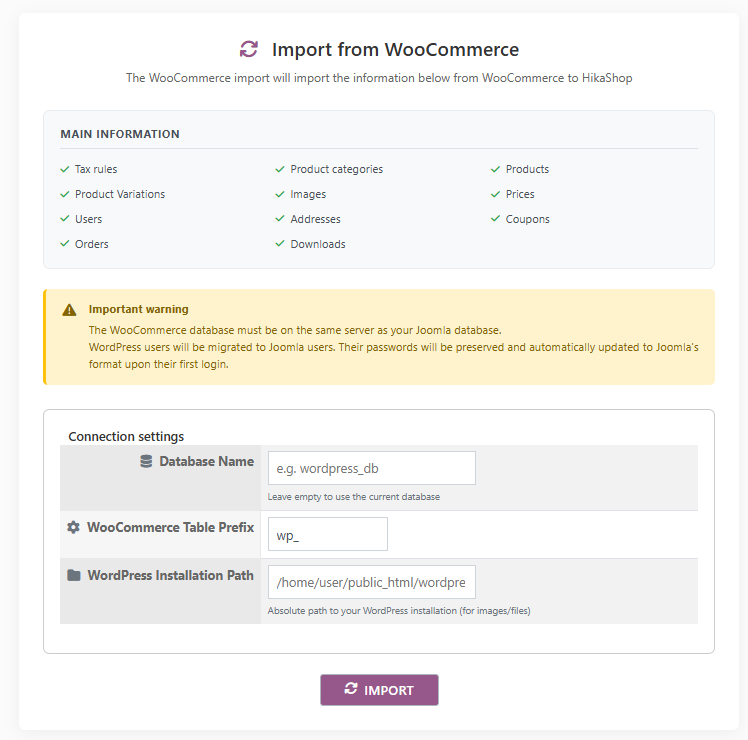
The tool imports the following data in several steps:
- Tax rates
- Categories (with hierarchy)
- Products (simple products and their data)
- Product variations (variable products with their attributes)
- Product prices
- Product images
- Users (customer accounts)
- Addresses
- Coupons
- Orders and order items
- Downloadable file assignments
- Custom fields (product meta data)
Note: payment and shipping method configurations are not migrated. You will need to set them up manually in HikaShop. However, the original payment and shipping method names are preserved in the imported orders for reference.
User accounts and passwords: Customer accounts are migrated with their original WordPress password hashes. Your customers can log in on the Joomla site with the same username and password they used on WooCommerce, without needing to reset their password. HikaShop includes a compatibility layer that can verify WordPress password formats on Joomla.
Migrate from J2Store / J2Commerce
If you are migrating from J2Store or J2Commerce, HikaShop provides a built-in migration tool. Select "Import from J2Store" in the import options to start the migration.
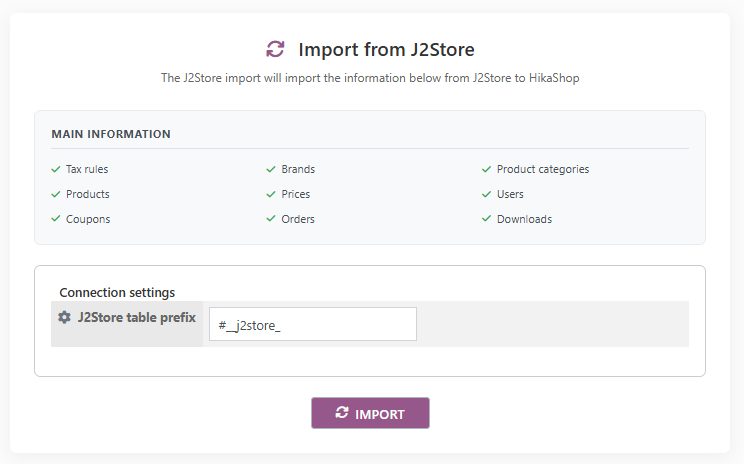
The tool imports the following data:
- Tax rates
- Manufacturers / brands
- Categories (with hierarchy)
- Products and product prices
- Product-category assignments
- Users (customer accounts)
- Coupons
- Orders and order items
- Downloadable file assignments
Note: payment and shipping method configurations are not migrated. You will need to set them up manually in HikaShop.
Migrate from another HikaShop
HikaShop includes a HikaShop-to-HikaShop migration tool, available since version 6.4.0. This allows you to migrate your shop from one installation to another, whether you are moving between Joomla sites, between WordPress sites, from Joomla to WordPress, or from WordPress to Joomla.
Select "Import from HikaShop" in the import options and enter the database connection details of the source installation. The tool imports:
- Configuration settings
- Tax rates and zones
- Categories (with hierarchy)
- Products, variants, prices, and images
- Custom fields
- Users and addresses
- Coupons
- Orders, order addresses, and order products
- Order statuses
- Warehouses
- Shipping methods and payment methods (configurations included)
This is the most comprehensive migration tool, as it transfers the full shop configuration including shipping and payment setups.
User accounts and passwords: When migrating between Joomla and WordPress (in either direction), user accounts are transferred with their original password hashes. This means your customers can log in on the new site with the same username and password they used before, without needing to reset their password. HikaShop includes a compatibility layer that can verify both Joomla and WordPress password formats, regardless of which platform the password was originally created on.
Migrate from EC-CUBE
HikaShop includes a migration tool for EC-CUBE v4.1, a popular Japanese e-commerce platform. Select "Import from EC-CUBE" in the import screen to start the migration.
The tool imports taxes, categories, products (with variants and prices), product images, customers, addresses, orders, and order items from an EC-CUBE database. It connects directly to the EC-CUBE database using the connection details you provide (host, database name, username, password, and table prefix).
Migrate from OpenCart, RedShop and MijoShop
Data from OpenCart, RedShop, and MijoShop can also be imported into HikaShop. Each migration option appears in the import screen only if the corresponding shopping cart's database tables are detected. Click the process button and follow the steps until completion.
If you encounter errors during file or image copying, make sure the destination folders have sufficient write permissions.
At the end of the import for RedShop and MijoShop, you can publish a redirect plugin that forwards old URLs to their HikaShop equivalents. For OpenCart, since it is not a Joomla extension, you will need to create your own redirect rules (via .htaccess or a SEF extension).
Third party migration services
In addition to the built-in migration tools, several third-party services support HikaShop:
- LitExtension: migration services supporting many shopping carts. They also offer a CSV import tool for HikaShop.
- Cart2Cart: automated migration from various shopping carts.
- RO CSVI: a Joomla extension specialized in CSV import and export with HikaShop integration.
Generate products from a folder
This feature is available in the Business edition of HikaShop.
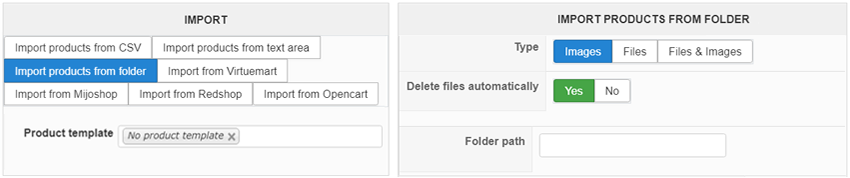
You can generate one product per file or image in a folder using the "Import products from folder" option. This is useful for shops selling images, music, or downloadable files.
Enter the path to the folder (relative to your site root or absolute). Each file in the folder will become a product, with the filename used as product_code and product_name. A copy of each file is placed in the appropriate upload folder.
You can optionally select a template product to fill in default values (price, tax category, description, etc.) for all generated products.
You can choose whether to delete the original files from the source folder after generation.