|
|

Description
The HikaShop plugin for OSMap, mapX and Xmap 2.x (not available anymore) enables you to show your products and your categories into the OSMap, mapX, or Xmap site map.
Install the plugin
- First, you need to install and configure OSMap. You can download it here.
- Then, download the plugin: Get the plugin on our marketplace
- Log in to your backend and click on the menu "Extensions -> Install/Update".
- Browse for the HikaShop plugin you just downloaded and then click on the button "Upload File & Install".
- You should now see the HikaShop Plugin in the Joomla plugins manager. Now, you have to publish the HikaShop plugin and your products and categories should be visible in your site map.
- Here is a complete tutorial on setting up OSMap with this plugin.
Result
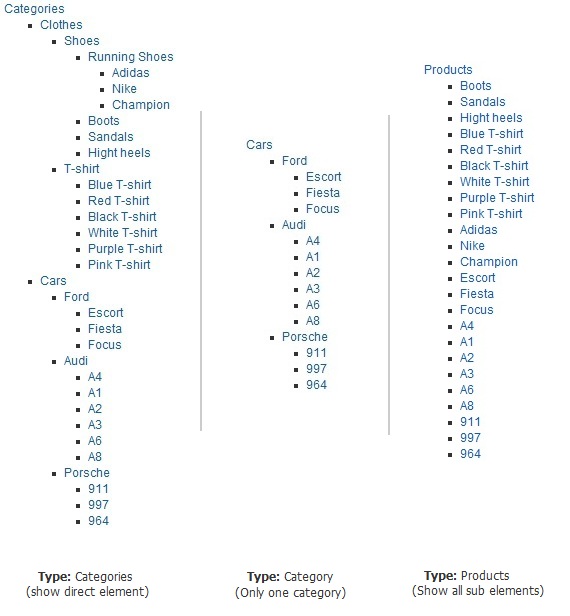
- For each HikaShop menu you have in your website, OSMap will display a list of products and categories. Here is an example of what you could see:
Settings
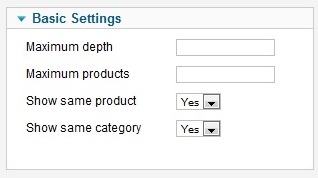
- You can set some parameters into the HikaShop plugin to display your site map:
- Maximum depth: Define the number of child categories you want to display from the main category
- Maximum products: Maximum number of products you want to display in your site map.
- Show same category: You can choose here if categories have to be displayed each time or only once.
- Show same product: You can choose here if products have to be displayed each time or only once.
- Priority: The priority enables the crawlers to know which pages of your site are the most important.
- Change Frequency:This parameter defines the frequency at which your products page is changing (for example, if your products are changing often, you can set it to weekly. If your products never change, set it to monthly or yearly).