
|
|

Description
The HikaShop plugin for Social Networks displays share buttons (X / Twitter, Pinterest, Facebook, LinkedIn, Mastodon, Bluesky, WhatsApp, Line and Telegram) on your product pages, and sets the Open Graph meta tags that the social networks use to show your product when it is shared. You can access its options via the Joomla plugins manager (System -> Plugins, plugin "Hikashop Social Networks plugin"). It also has a "Follow us" tab which gives the pages of your shop on the social networks, for the emails.
Result
- Here is an example of what you could see on a product page:

Settings
- You can set some parameters in order to tweak the display of the buttons of the plugin :

- Use legacy display: The plugin uses the current display standards: share links with the display modes below. Select "Yes" to keep the old display with the official buttons of each network, whose options are described in the "Legacy display" section below.
- Redirection mode: Define whether a popup or a new tab is used when a visitor clicks a button.
- Select Display mode: The look of the buttons: Inline, Floating, Black, Icons, Small, Grid or List.
- Display Facebook button: Display or not the Facebook button. "Open Graph meta tag only" does not display the button but still adds the Open Graph tags to the page.
- Display Twitter, Pinterest, Linkedin, Mastodon, Bluesky, Whatsapp, Line and Telegram button: Display or not the button of each network.
- Button position: You can choose here the position of the buttons on your product page (left or right).
- Product type: Type of the linked content, sent to Facebook in the Open Graph data.
- Facebook admin: The ID of your Facebook account or your Product page, you can find this ID in the URL bar of your profile. This parameter is very important in order to display the product information. If this field is empty, the meta-data will not be transmitted (and the like box will link to your home page). If you want to use a Facebook application account, you have to follow this procedure:
https://webkul.com/blog/how-to-generate-facebook-app-id/
- OpenGraph image width, OpenGraph image height: The size of the image given to the social networks. If you leave either of them empty, the original image is used.
- Twitter hashtag: A hashtag added to the post when the Twitter button is used (for example #hikashop #bestProduct).
Follow us
The "Follow us" tab lists the pages of your shop on Facebook, Instagram, X, Pinterest, LinkedIn, YouTube, TikTok, Mastodon and Bluesky. They are displayed by the emails which contain the {BLOCK:social} tag. Leave a network empty to hide it.

Legacy display
With "Use legacy display" set to Yes, these options are available:

- Width: Specify here the width of your div (in px). You can use it to position your buttons as you wish (for example in the middle). When the width is 0, the width will be equal to 100%.
- Tag type: Allow you to define wich code type will be used to add the Facebook button on your website.
- Facebook display style: Choose the style of the Facebook button. Here are the different possibilities:
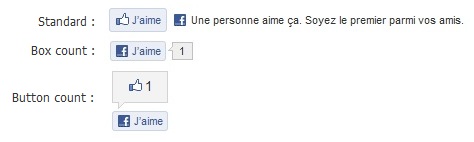
- Show Facebook faces : Show or not the face of the people who used your Facebook button.
- Show Send Button : Choose to display or not the send button next to the Facebook Like button.
Note : Take care to use the the Iframe code, or the Send button won't work.
- Verb to display: Choose the verb to display on your button: Like, Recommend or Facebook.
- Display mode: The default Like button, or the Share button only.
- Color theme: You can choose here the color of the Facebook button (light or dark).
- Facebook button font: The font of the Facebook button.
- Twitter count display: Choose the style of the Twitter count display. Here are the different possibilities:
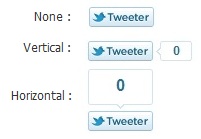
- Tweet text: If you want to display a special text into the tweet. If this field is empty, the name of the page will be used.
- Mention to: Name of the account which will be mentioned in the tweet.
- Pinterest count display: Horizontal, vertical or no count.
Integration with Facebook Connect for registration
If you want to smooth out your registration process for your customers, you can allow them to use their facebook account to register during the Checkout. That will make it easier for them.
First, you need to setup the Joomla FaceBook Connect extension on your website: http://extensions.joomla.org/extensions/social-web/facebook-integration/7215
Then, you can add a new view of the type "text" in the Checkout workflow editor under the Checkout tab of the HikaShop configuration. In the text field of that new view, you can then add the tag {JFBCLogin} and then move the view where you want it on your checkout.