


|
|

Description
This screen enables you to edit the Envoimoinscher shipping method options. Shipping methods will be filtered on checkout based on the zone you set for them, if any. Then, they will be displayed to the user for him to choose which shipping method he prefers for his order.
Note that if you plan to use shipping methods with Pickup point selection like Mondial Relay, you need to add the "pickup point" block in the "Checkout workflow" setting of the HikaShop configuration, after enabling the EnvoiMoinsCher plugin.
Toolbar
- Save : Save the shipping method options and return to the shipping methods Management screen.
- Apply : Apply the modifications to the shipping method and stay on the same screen.
- Cancel : Return to the previous screen without saving the modifications.
- Help : This button enables you to turn ON/OFF the help section, this screen will appear or disappear.
Main Information
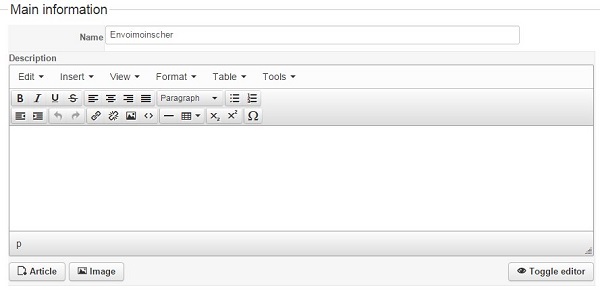
If you use one of our commercial versions, you will be able to enter the name and description in different languages. This feature requires to have falang/joomfish installed and can be activated in the configuration page, in the display tab. The languages available will be the ones in falang/joomfish. If you don't enter something for a translation, it will just use the default information in the Main information tab instead. After you click on save or apply an additional publish icon will appear next to the fields where you entered something in the languages tabs so that you can easily enable or disable them. The default publish status can also be changed in the configuration page of HikaShop.
Additional Information
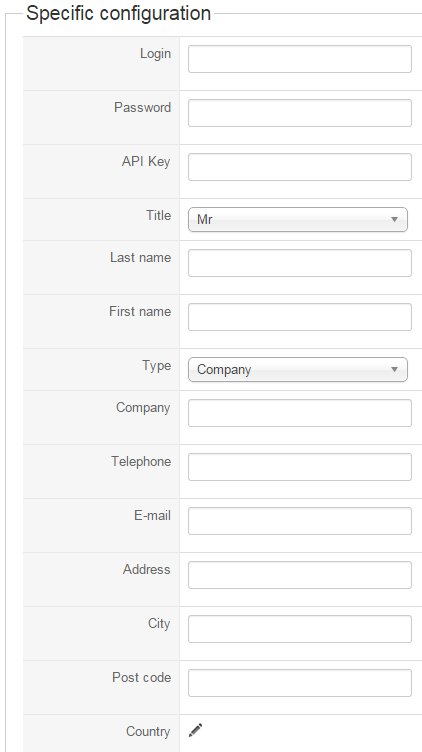
- Login : Your Envoimoinscher user ID on the Envoimoinscher website.
- Password: Your Envoimoinscher account password.
- API Key : Your Envoimoinscher API key. You have two keys with your account, for test and for production. With the API test key, requests will be sent to test.envoimoinscher.com where you can find all your test shipments.
- Title : Sender title.
- Last name : Sender last name.
- First name: : Sender first name.
- Type: Type of sender (Company or individual).
- Company : Sender company name (if you are an individual, do not fill this field).
- Telephone : Sender telephone number.
- E_mail : Sender email address.
- Address : Sender Address.
- City : Sender city.
- Post code : Sender post code.
- Country : Sender country.
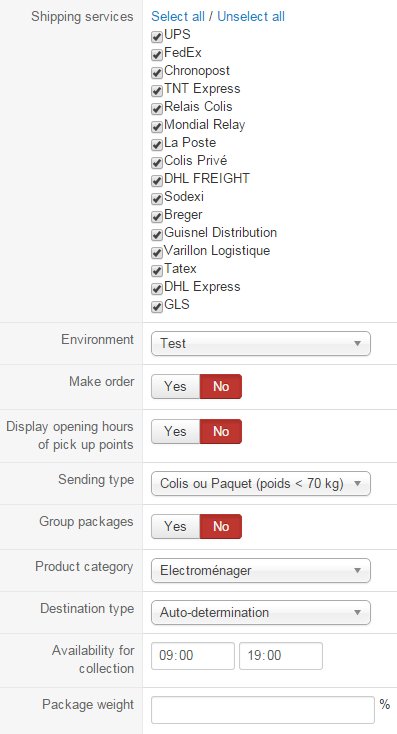
- Shipping services : You will find here the list of all carriers that envoimoinscher supports. You'll have 4 types of collection for these offers :
- POST-OFFICE : you have to bring your package to a post office.
- DROP OFF POINT : you have to bring your package to a relay point.
- COMPANY : a carrier comes to retrieve your package at your company.
- HOME : a carrier comes to retrieve your package at home.
You will have a drop down of some relay points next to the name of each carrier that you have activated. You have to select one for each. This way, when your client will choose a carrier where the collection is made at a drop off point, you will bring your package to the relay point you have selected. You have to provide your complete address and your envoimoinscher account IDs for this. - Environment : Your work environment (test or production). If you have provided your API test key, your environment must be "test" and if you have provided your API key for production, you must select "production"
- Make order : This option is very important. If it's activated and your environment option is set to "production", it will automatically make you pay your shipping order via the envoimoinscher.com platform when the order status will be set to "confirmed", after your customers have finished their payment of the order. Moreover, if you use this option, you have to set your payment method in your envoimoinscher account to "paiement différé".
- Display opening hours of pick up points : If your customers select an offer which will be delivered to a pick up point, they will see the opening hours of each pick up point.
- Sending type : The three sending types are :
- "packet" : limitation of the weight is 70 kg with this type.
- "post" : the limitation is 3 kg for the weight and 2 cm for the height.
- "cumbersome" : product whose weight generally exceeds 70 kg or 3 kg with large dimensions. - Group packages : If this option is activated, products will be grouped together. Otherwise, every product will have its own package (more expensive).
- Product category : The category of the products shipped by your envoimoinscher method. You will see the "Product category" option after providing your envoimoinscher account IDs and save once. You can set only one envoimoinscher shipping method for each type and category of product sold. For example you'll have only one method where the type option will be "packet" and category will be "electroménager" like in the picture. To do that, you'll have to link your products and your methods with the same warehouse.
- Destination type : You can select here the destination type of your clients. If you choose auto-determination, the destination type will be based on the address_company custom field of the address (if this field is filled by the user, the destination type will be commercial, otherwise, it will be residential). You will have to publish the address_company field via the menu Display->Custom fields if you use the "Auto-determination" option (Prices will vary based on this parameter).
- Availability for collection : When you select a shipping method and the collection is done at home or in your company, you'll have to inform your availability for the carrier.
- Package weight : You can add here a package weight percentage which will be calculated regarding your order products total weight. If this field is empty, the default value will be 1% for each package
Restrictions
You can set restrictions on shipping methods. Based on the products in the cart of the user, the system will calculate which shipping methods the customer can choose from.
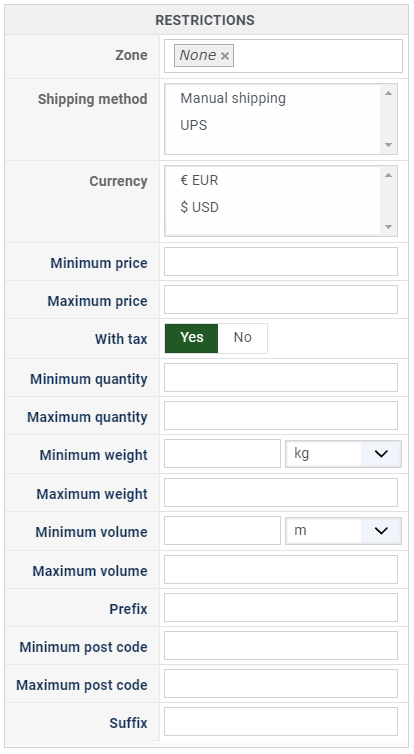
- Zone: You can restrict a shipping method to a zone. By clicking on the edit icon, a popup will open enabling you to select a zone. Only customers with a shipping address in the selected zone (or its sub-zones) will see this shipping method. You can remove this limitation by clicking on the delete icon.
- Warehouse: You can restrict the shipping method to one or more warehouses. You can also choose whether the filter is inclusive ("Only these warehouses") or exclusive ("All except these warehouses") using the radio buttons next to the selector.
- Minimum price: The shipping method will only be available for orders with a product total above this minimum price.
- Maximum price: The shipping method will only be available for orders with a product total below this maximum price.
- Include virtual products price: If you activate this option, the price of virtual goods (products without weight) is taken into account for the maximum and minimum price restrictions above as well as the percentage price calculation. Otherwise, only physical goods (with a weight) are taken into account.
- With tax: When enabled, the minimum and maximum price restrictions use the product prices including taxes. When disabled, they use the prices excluding taxes. Enabled by default.
- Minimum quantity: The minimum number of items in the cart for this shipping method to be available. The quantity is calculated as the sum of the quantity of each product in the cart.
- Maximum quantity: The maximum number of items in the cart for this shipping method to be available.
- Minimum weight: The minimum total weight of the cart for this shipping method to be available. The weight is calculated as the sum of each product's weight multiplied by its quantity. You can select the weight unit next to this field.
- Maximum weight: The maximum total weight of the cart for this shipping method to be available.
- Minimum volume: The minimum total volume of the cart for this shipping method to be available. The volume is calculated from the width, height and length of each product multiplied by its quantity. You can select the volume unit next to this field.
- Maximum volume: The maximum total volume of the cart for this shipping method to be available.
- Post code RegEx: A regular expression to match against the customer's postal code. Only customers whose postal code matches the expression will see this shipping method. For example, ^(75|92|93|94) to match postal codes starting with 75, 92, 93, or 94.
- Prefix: You can restrict the shipping method to only postal codes starting with this prefix.
- Min. postal code: You can restrict the shipping method to only postal codes within a numeric range, whereby this is the minimum value.
- Max. postal code: The maximum value of the postal code numeric range.
- Suffix: You can restrict the shipping method to only postal codes ending with this suffix.
Access Level
You can restrict which Joomla user groups can see and use this shipping method. By default, the shipping method is available to all user groups. Select specific groups to limit access. This is useful if you want to offer specific shipping options only to certain customer groups (e.g. wholesale customers, VIP members).

