



|
|
Description
Why products insertion/translation plugins?
HikaShop product insertion/translation plugins are functionalities which will allow you to display your HikaShop products through your Joomla articles. By this way, you'll be able to create Joomla articles about your "favorite/most popular/.." products and easily display them.
HikaShop product insertion: This plugin will be used through your Article creation page ("Content -> Articles -> 'Your article'") with the "Product" button. This "Product" button enables you to add "Product(s) TAG" to your article.
HikaShop product translation: This plugin will be automatically used through your front-end and will translate your "product(s) TAG".
This tutorial will explain how to add a HikaShop product TAG to Joomla articles and the different ways to display them.
First, we will see how to create and add them through the HikaShop product insertion plugin and how they can be translated by the HikaShop product translation plugin.
Enable / disable HikaShop product insert insertion and translation plugins
By default, these plugins are disabled.
If you want to enable them, you'll have to do it through "System -> Manage -> Plugins" (or "Extensions -> Plugins" on older Joomla versions).
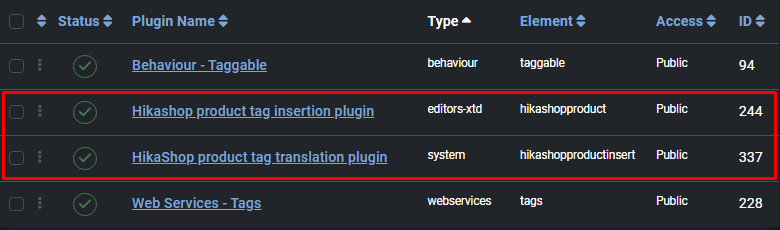
Inserting a product TAG
Through your Joomla article's configuration screen, you'll be able to add products through the Product button:
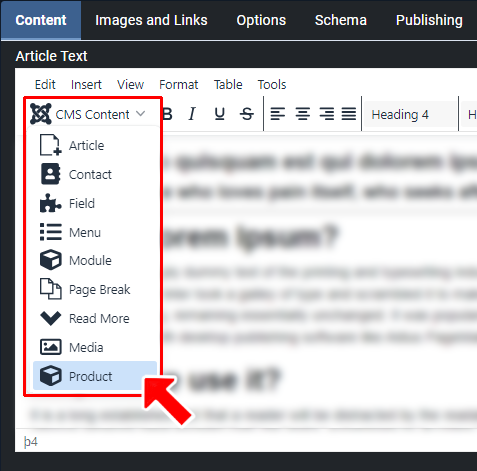
Product insert button
Then, you'll find this configuration screen showing your products and some options:
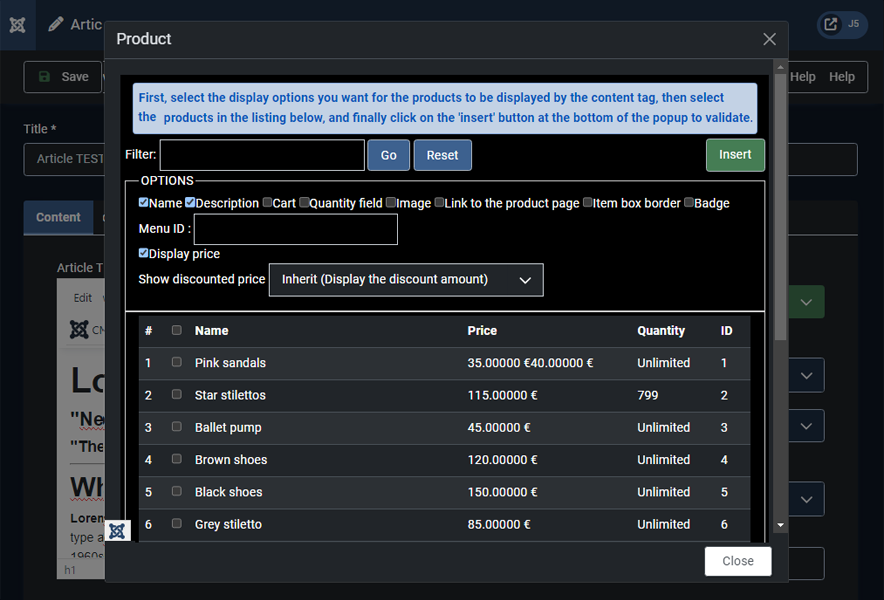
Name: Allows you to display the product's name (uses the name tag option)
Description: Allows you to display the product's description (uses the description tag option)
Cart: Allows you to display an add to cart button (uses the cart tag option)
Quantity field: Allows you to display a quantity field next to the add to cart button (uses the quantityfield tag option). Note: The quantity field won't be displayed if your products have variants.
Image: Allows you to display the product's image (uses the picture tag option)
Link to the product page: Allows you to add a link to the product page (uses the link tag option)
Item box border: Allows you to display a border around the products (uses the border tag option)
Badge: Allows you to display product badges on the product image (uses the badge tag option; requires the picture option to be enabled)
Menu ID: If you enter the id of a HikaShop menu item, the system will use the alias of that menu item instead of "component/hikashop" in the URL link (uses the menuid:X tag option where X is the menu item ID).
Display price: Allows you to display the product's price. Use pricetax1 to show prices with tax only, pricetax2 to show prices without tax only, or just price to use the HikaShop default setting.
Show discounted price: If HikaShop needs to apply discounts to the prices displayed, it can also show the price before the discount was applied as an incentive for your customers to buy the products or the discount amount
Insert: Will add the product TAG to your Joomla article editor
Quick Reference: Tag Options
| Option | Tag Syntax | Description |
|---|---|---|
| Name | name | Display product name |
| Description | description | Display product description |
| Cart button | cart | Display add to cart button |
| Quantity field | quantityfield | Display quantity input field |
| Image | picture | Display product image |
| Link | link | Link product elements to product page |
| Border | border | Display border around product |
| Badge | badge | Display product badges |
| Menu ID | menuid:X | Use menu item X for URLs |
| Price with tax | pricetax1 | Show price with tax only |
| Price without tax | pricetax2 | Show price without tax only |
| Price (default) | price | Use HikaShop default tax setting |
| Show discount | pricedis1 | Show original price |
| Show discount amount | pricedis2 | Show discount amount |
| Show both | pricedis3 | Use HikaShop default setting |
Tip: You can display multiple products in a single tag by separating product IDs with the pipe character: {product 1|2|3|name|price}
Here is the product TAG that will be displayed:
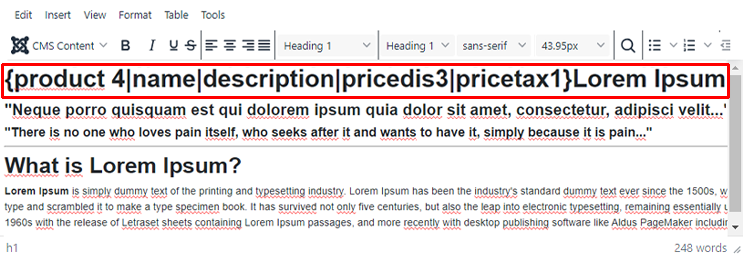
Different ways of setting up a product TAG
Here are different examples of product TAG configurations:
- Product tag example 1:
{product}1|name|pricedis3|pricetax1{/product}

- Product tag example 2:
{product}1|name|cart|quantityfield|pricedis3|pricetax1{/product}
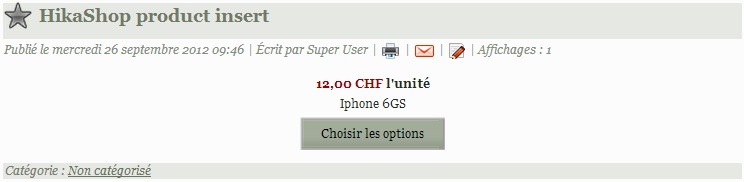
The quantity field won't be displayed if your products have variants.
- Product tag example 3:
{product}1|name|cart|quantityfield|link|pricedis3|pricetax1{/product}
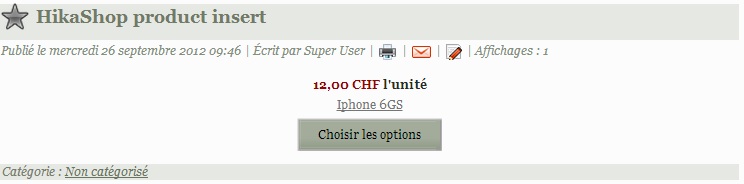
- Product tag example 4:
{product}1|name|cart|quantityfield|description|picture|link|pricedis3|pricetax1{/product}
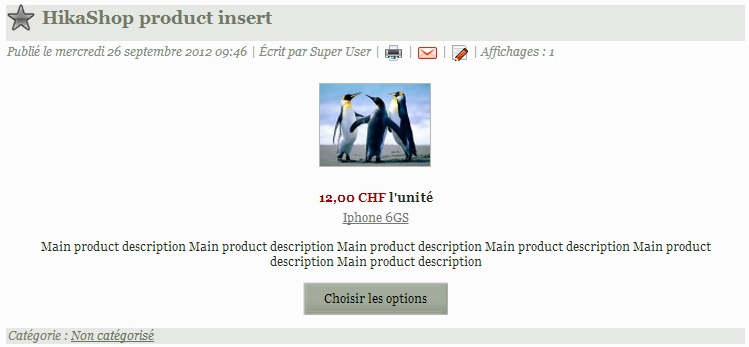
Conditional content tags
In addition to the product insertion tags, the plugin also provides conditional content tags that allow you to show or hide content based on the customer's purchase history or current cart contents.
Show/Hide based on purchase history:
{hkshow bought}Content here{/hkshow}- Shows content only if the user has bought any product{hkshow bought="product_code"}Content{/hkshow}- Shows content only if the user has bought a specific product (by code, name, or ID){hkshow notbought}Content{/hkshow}- Shows content only if the user has never bought anything{hkshow notbought="product_code"}Content{/hkshow}- Shows content only if the user has not bought a specific product{hkhide bought}Content{/hkhide}- Hides content if the user has bought any product{hkhide notbought="product_code"}Content{/hkhide}- Hides content if the user has not bought a specific product
Show/Hide based on cart total:
{hkshow mincart="50"}Content{/hkshow}- Shows content only if the cart total (with shipping) is at least 50{hkshow maxcart="100"}Content{/hkshow}- Shows content only if the cart total (with shipping) is at most 100{hkshow minproducts="30"}Content{/hkshow}- Shows content only if the products total (without shipping) is at least 30{hkshow maxproducts="200"}Content{/hkshow}- Shows content only if the products total (without shipping) is at most 200
Displaying the difference:
You can use {min} or {max} placeholders inside the conditional content to display the formatted difference between the threshold and the current cart total:
{hkshow mincart="100"}Add {min} more to qualify for free shipping!{/hkshow}{hkshow maxcart="500"}You can add up to {max} more before reaching the limit.{/hkshow}
Combining conditions:
Multiple conditions can be combined in a single tag (they work as AND conditions):
{hkshow bought mincart="50"}Thank you for being a returning customer with a substantial order!{/hkshow}
Plugin settings
The HikaShop Product TAG translation plugin has configuration options available in the Joomla plugin manager (System -> Manage -> Plugins -> System - HikaShop Product TAG translation):
Menu: A global default menu item ID to use for product links. This can be overridden per-tag using the menuid:X option.
Load HikaShop on all frontend pages: When enabled, HikaShop's JavaScript and plugins will be loaded on all frontend pages. This is useful if you want cart notification popups and other HikaShop features to work on pages where products are inserted.
Order statuses for bought tag: A comma-separated list of order statuses that count as "bought" for the conditional {hkshow bought} and {hkhide bought} tags. Default is "confirmed,shipped".
Customizing the display further
If you want to go further in the customization of the inserted products display, you should copy the file plugins/system/hikashopproductinsert/hikashopproductinsert_view.php to the folder templates/YOUR_TEMPLATE/system/ via FTP and then edit the copied file. That way, your modifications won't be removed when you update HikaShop.
Alternative TAG syntax
Both of these syntaxes are supported and produce the same result:
{product}1|name|price{/product}- Opening and closing tags{product 1|name|price}- Self-closing style (shorter)

