
Gift wrapping is a small extra that customers like and that costs you very little to add: during the checkout, the customer chooses whether the order should be wrapped as a gift, and a fee appears in the cart when the answer is yes. HikaShop does this without any extra code. A custom field asks the question, and the Cart fee plugin turns the answer into a fee. This article walks through the setup from start to finish.
What you need
HikaShop with the Cart fee plugin installed and enabled. The plugin is available on the marketplace. The rest, the custom field and the checkout, is part of HikaShop itself.
Step 1: ask the question with a custom field
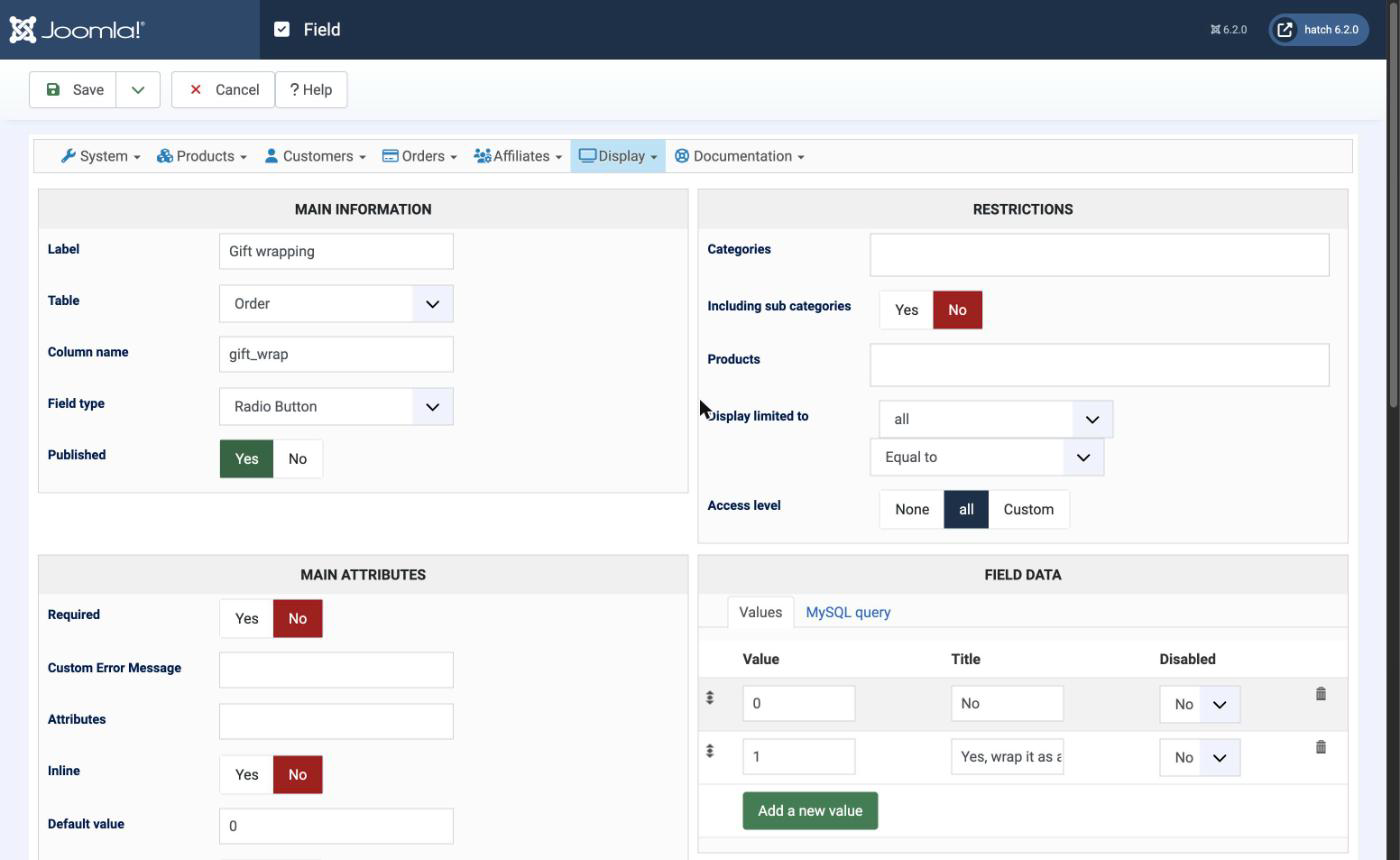
Go to Display, Custom fields, and create a new field with these settings:
- Label: Gift wrapping. This is what your customers read.
- Table: Order. The answer belongs to the whole order, not to a product.
- Column name: gift_wrap. You will use it in the fee condition below.
- Field type: Radio Button.
- Values: a value of 0 with the title No, and a value of 1 with the title "Yes, wrap it as a gift". The titles are free, the values must be 0 and 1.
- Default value: 0, so that wrapping is never added without the customer asking for it.
Further down the form, in the display settings, set the field to show on the Front-end and the Checkout, so that the customer can answer it. Turn on Back-end Order details page as well: the answer then appears on the order in your backend, which is where your team will look when they pack the parcel. You can also show it on the invoice and in the e-mails if you want it there.
Use a Radio Button here, not a Checkbox. A checkbox field holds a list of values, and the Cart fee plugin cannot compare a list with 1.
Step 2: add the fee
Open the plugin from System, Plugins, and look for Hikashop - Fees. The plugin calculates fees from formulas, one row for each fee. Add a row with:
- Label of the fee: Gift wrapping. This is the line your customers see in the cart.
- Condition: {order.gift_wrap}==1. The fee applies only when the customer answered Yes.
- Formula: the price of the wrapping, for example 4.5.
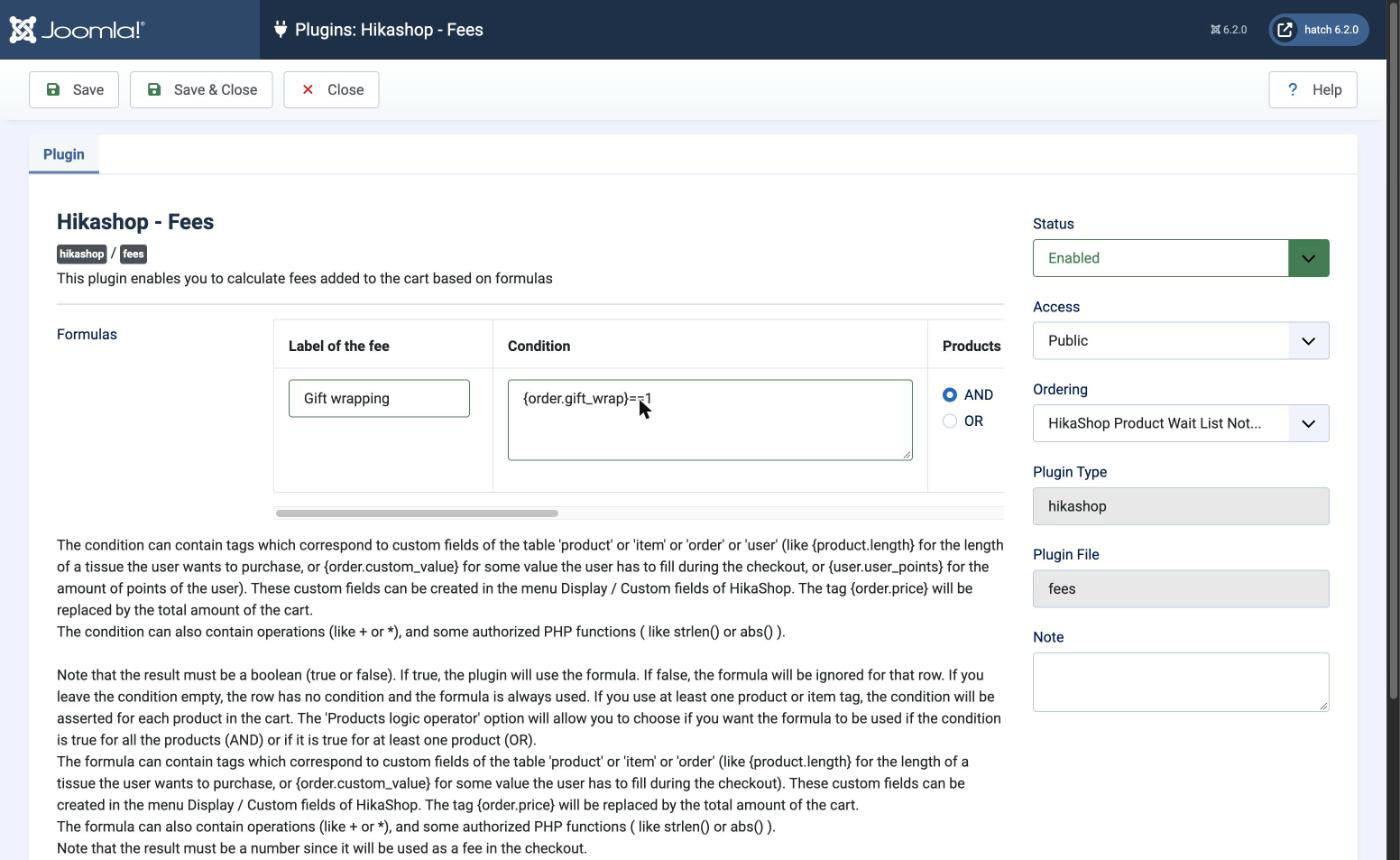
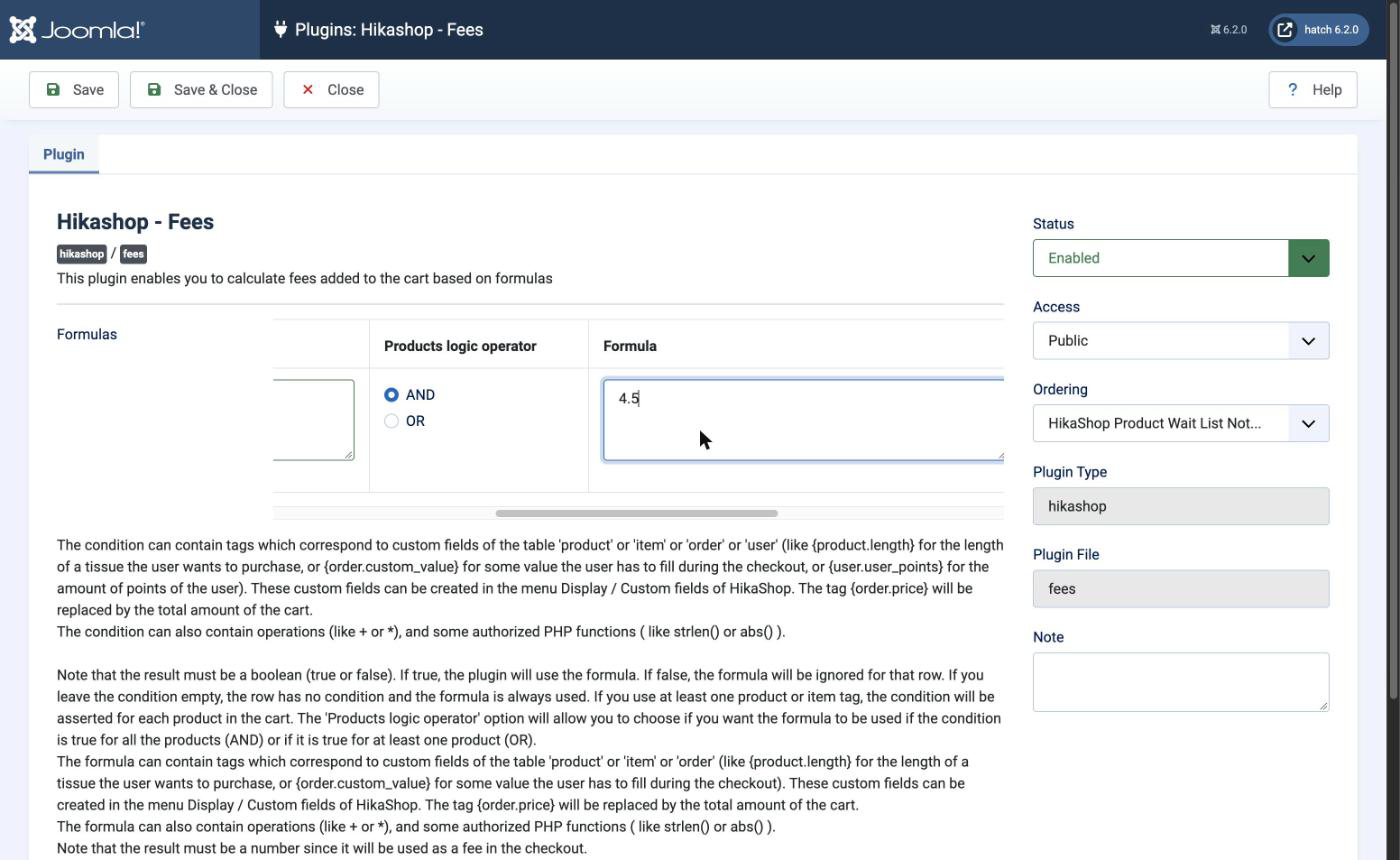
Save the plugin. The condition uses the column name of the field, written between braces and prefixed with order, because the field belongs to the Order table.
What your customers see
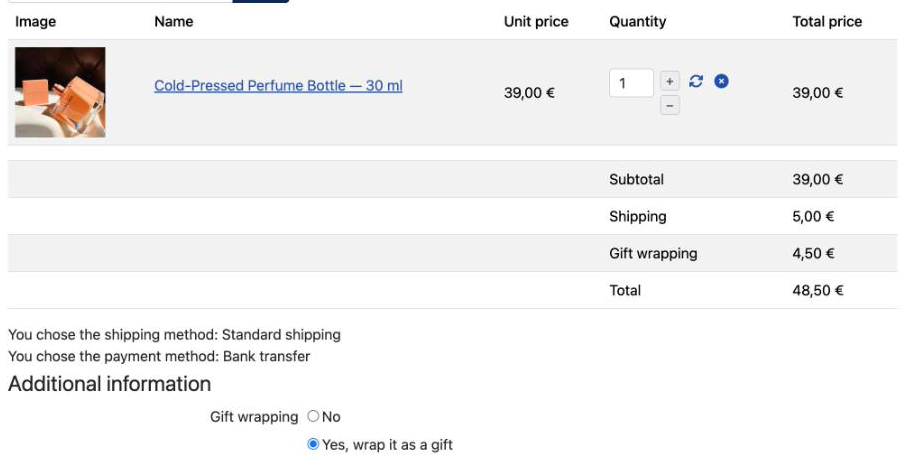
On the checkout, the customer finds the question under Additional information. When the answer is Yes and the checkout page refreshes, the cart shows a line of its own named Gift wrapping, and the total includes it. With the answer No, nothing is added.
What you see in the backend
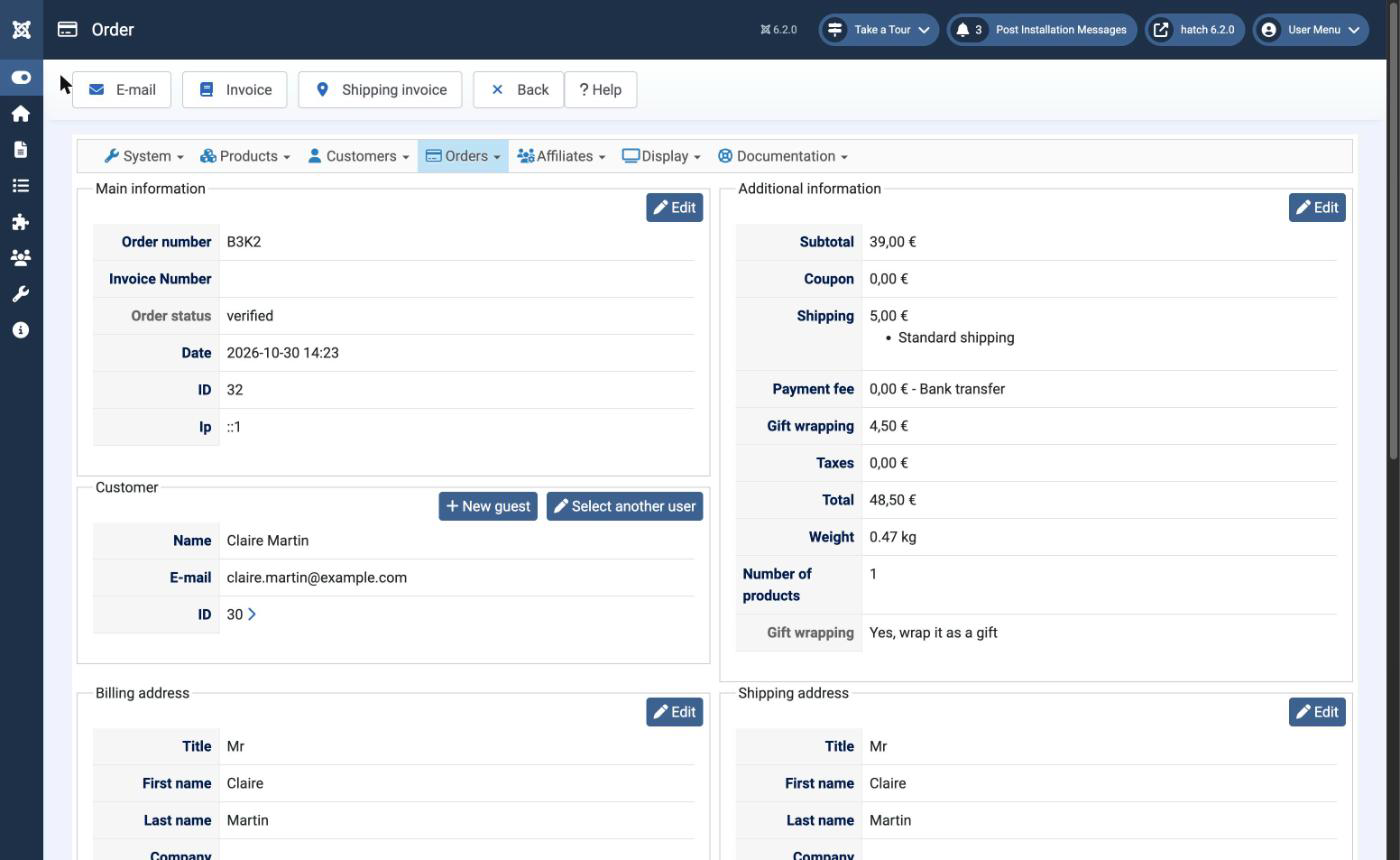
The order keeps both the fee and the answer. On the order page, the Additional information box shows the Gift wrapping fee among the totals, and the answer of the customer is listed at the bottom of the same box.
Variations
- A price by product. If the wrapping must depend on the product, create the field on the Item table instead, and use its tag, {item.gift_wrap}, in the condition and the formula of the fee.
- Taxes. Each fee has a setting to be calculated before taxes. Look at it if your wrapping must be taxed like the products.
If you have questions about your own setup, ask them on the forum.