
- Posts: 32
- Thank you received: 0
Shopping Cart Module Button Styling
- waveforcemedia
-
 Topic Author
- Offline
Less
More
15 years 3 months ago #20172
by waveforcemedia
Shopping Cart Module Button Styling was created by waveforcemedia
Hi,
Does anyone know how to change the CSS styling of the "Proceed to Checkout" button on the Hikashop Cart MODULE?
It if pulling off the:
a.hikashop_cart_button "class" (frontend_default.css file)
I don't want it to have the same styling as my "add to cart".
Would it make more sense to create another separate div id or class and adjust the php file in the module folder? If so, what code would I need to adjust/input in that php file?
Does anyone know how to change the CSS styling of the "Proceed to Checkout" button on the Hikashop Cart MODULE?
It if pulling off the:
a.hikashop_cart_button "class" (frontend_default.css file)
I don't want it to have the same styling as my "add to cart".
Would it make more sense to create another separate div id or class and adjust the php file in the module folder? If so, what code would I need to adjust/input in that php file?
Please Log in or Create an account to join the conversation.

15 years 3 months ago #20175
by nicolas
Replied by nicolas on topic Re: Shopping Cart Module Button Styling
Hi,
You can already have different button styles just with CSS. You don't have to edit any php.
We did it in the CSS of the template of our demo website:
demo.hikashop.com
For example, that's the code we used for the add to cart button which has a different style from the other hikashop buttons on the website:
.hikashop_product_quantity_main .hikashop_product_stock .button {
color: #167E93;
font-weight: bold;
background-image: url(../images/add_cart.png);
background-repeat: no-repeat;
background-position: right;
height: 32px;
padding-right: 40px;
background-color: transparent;
cursor: pointer;
}
You can already have different button styles just with CSS. You don't have to edit any php.
We did it in the CSS of the template of our demo website:
demo.hikashop.com
For example, that's the code we used for the add to cart button which has a different style from the other hikashop buttons on the website:
.hikashop_product_quantity_main .hikashop_product_stock .button {
color: #167E93;
font-weight: bold;
background-image: url(../images/add_cart.png);
background-repeat: no-repeat;
background-position: right;
height: 32px;
padding-right: 40px;
background-color: transparent;
cursor: pointer;
}
Please Log in or Create an account to join the conversation.
- waveforcemedia
-
Topic Author
- Offline
Less
More
- Posts: 32
- Thank you received: 0
15 years 3 months ago - 15 years 3 months ago #20284
by waveforcemedia
Replied by waveforcemedia on topic Re: Shopping Cart Module Button Styling
Thanks for your reply,
I guess my issue is trying to get that module to use that different css styling. Which css file do I edit? Do I add a css class suffix in the backend module field?
I think I'm confused as to knowing how do I let that specific "proceed to cart" link go to the css styling you guys did on the demo.hikashop.com? Because right now, if I just copy that code, it won't do anything, won't I need to assign that "proceed to checkout" to the newly created class? How do I do that?
It seems like if I edit that file, the "add to cart" will also be affected.
Here is the demo site:
dd.smiwebsites.com - older version of site but button styling is still the same.
Using JAt3 template.
I guess my issue is trying to get that module to use that different css styling. Which css file do I edit? Do I add a css class suffix in the backend module field?
I think I'm confused as to knowing how do I let that specific "proceed to cart" link go to the css styling you guys did on the demo.hikashop.com? Because right now, if I just copy that code, it won't do anything, won't I need to assign that "proceed to checkout" to the newly created class? How do I do that?
It seems like if I edit that file, the "add to cart" will also be affected.
Here is the demo site:
dd.smiwebsites.com - older version of site but button styling is still the same.
Using JAt3 template.
Last edit: 15 years 3 months ago by waveforcemedia.
Please Log in or Create an account to join the conversation.
15 years 3 months ago #20299
by nicolas
Replied by nicolas on topic Re: Shopping Cart Module Button Styling
For the proceed to checkout button, we use the CSS:
.hikashop_cart .hikashop_cart_input_button {
background: url(../images/cart_ok.png) no-repeat;
background-color: transparent;
width: 172px;
height: 23px;
color: white;
font-weight: bold;
cursor: pointer;
font-size: 12px;
}
You need to add that in the CSS file of either your template or HikaShop. On our demo website we did it in the CSS of the template. If you want to do it in HikaShop, you need to go in the tab Display of the configuration and edit the front end CSS file and add it there. Don't forget to save the configuration as well after your modification.
.hikashop_cart .hikashop_cart_input_button {
background: url(../images/cart_ok.png) no-repeat;
background-color: transparent;
width: 172px;
height: 23px;
color: white;
font-weight: bold;
cursor: pointer;
font-size: 12px;
}
You need to add that in the CSS file of either your template or HikaShop. On our demo website we did it in the CSS of the template. If you want to do it in HikaShop, you need to go in the tab Display of the configuration and edit the front end CSS file and add it there. Don't forget to save the configuration as well after your modification.
Please Log in or Create an account to join the conversation.
- waveforcemedia
-
Topic Author
- Offline
Less
More
- Posts: 32
- Thank you received: 0
15 years 3 months ago #20306
by waveforcemedia
Replied by waveforcemedia on topic Re: Shopping Cart Module Button Styling
Hey Nicolas,
I don't think I'm retarded but am just not getting your solution. I tried inputting the same exact css code into the frontend in the config, and even tried it with the frontend-default.css in the media folder.
When I firebug the "proceed to checkout", that specific module is pulling from the same style of "add to cart". I can see if the proceed to checkout was asking for another divid or style, then it would be easy to edit via css by either the template or frontend file.
AM I missing something here?
Thanks for your help
I don't think I'm retarded but am just not getting your solution. I tried inputting the same exact css code into the frontend in the config, and even tried it with the frontend-default.css in the media folder.
When I firebug the "proceed to checkout", that specific module is pulling from the same style of "add to cart". I can see if the proceed to checkout was asking for another divid or style, then it would be easy to edit via css by either the template or frontend file.
AM I missing something here?
Thanks for your help
Please Log in or Create an account to join the conversation.
15 years 3 months ago #20314
by nicolas
Replied by nicolas on topic Re: Shopping Cart Module Button Styling
Yes, you're missing something.
You don't need to have directly a unique id on the element to style it independently from the others. As long as at least one parent element of your element has a unique id you can style it independently.
Look at the code I posted, it contains the line:
.hikashop_cart .hikashop_cart_input_button
which means that the CSS will only apply to the elements with the class hikashop_cart_input_button and only for those which are in an element of the class hikashop_cart. And the only element with that propriety is the proceed to checkout button of the cart module.
If it doesn't work, it means that you're not doing it properly, at the good place or that your template is somehow overriding the styles. I can assure you that this method works. We even use it on our demo website...
If you can't make it work please post a link to your page so that we can see what you did.
You don't need to have directly a unique id on the element to style it independently from the others. As long as at least one parent element of your element has a unique id you can style it independently.
Look at the code I posted, it contains the line:
.hikashop_cart .hikashop_cart_input_button
which means that the CSS will only apply to the elements with the class hikashop_cart_input_button and only for those which are in an element of the class hikashop_cart. And the only element with that propriety is the proceed to checkout button of the cart module.
If it doesn't work, it means that you're not doing it properly, at the good place or that your template is somehow overriding the styles. I can assure you that this method works. We even use it on our demo website...
If you can't make it work please post a link to your page so that we can see what you did.
Please Log in or Create an account to join the conversation.
- waveforcemedia
-
Topic Author
- Offline
Less
More
- Posts: 32
- Thank you received: 0
15 years 3 months ago #20338
by waveforcemedia
Replied by waveforcemedia on topic Re: Shopping Cart Module Button Styling
Hey I appreciate you trying to help me with this.
Link:
www.dd2.smiwebsites.com
If you could tell me what's wrong, that would be great.
Link:
www.dd2.smiwebsites.com
If you could tell me what's wrong, that would be great.
Please Log in or Create an account to join the conversation.
15 years 3 months ago #20349
by nicolas
Replied by nicolas on topic Re: Shopping Cart Module Button Styling
So here is an example in your case:
.hikashop_cart .hikashop_cart_button{
color: #000 !important;
}
.hikashop_cart .hikashop_cart_button{
color: #000 !important;
}
Please Log in or Create an account to join the conversation.
11 years 10 months ago #181726
by byron
Replied by byron on topic Re: Shopping Cart Module Button Styling
por favooorrrr tengo mi web y no me aparce el carro de compras ya le modificamos la linea y nada esta es
www.drpcecuador.com
gracias por la molestia de constestarme

Please Log in or Create an account to join the conversation.

11 years 10 months ago #181807
by Xavier
Replied by Xavier on topic Re: Shopping Cart Module Button Styling
Hi,
Sorry but I don't understand your issue. Do you want to customize the cart module in order to display an icon ?
Sorry but I don't understand your issue. Do you want to customize the cart module in order to display an icon ?
Please Log in or Create an account to join the conversation.
11 years 10 months ago #181853
by byron
Replied by byron on topic Re: Shopping Cart Module Button Styling
Si amigo, ya cambie el codigo que vi en otro foro que pusieron pero no me funciona no me aparece el icono del tipico carro de compras, por lo demas el hickashop me parece genial, dame una mano porfavor, como viste en mi web solo me aparecen texto en el carro de compra si compro algo me sale un objeto o el carro de compra esta vacio que recien lo desactive, esto hice para corregirlo y no me funciono, como todo en Joomla! , se puede mostrar, pero esta no es una opción de Hika que traiga por defecto en su módulo "cart" . Deberás, bien trabajar con una plantilla para Hika, o realizar un desarrollo vía CSS, etc. Un ejemplo sencillo es ir al fichero de traducción System > Configuration > Languages >, editar el idioma, por ejemplo Spanish, buscamos la traducción de ADD_TO_CART y la sustituimos por
ADD_TO_CART="<i class="icon-cart" > </i>AÑADIR AL CARRITO"
La clase icon-cart mostrará a partir de ahora un icono de carrito en el botón añadir al carrito.
Joomla! 3 viene con Bootstrap (hoy 2.3) , que facilita la construcción de contenido predefinido, como los iconos.
Te dejo el enlace donde tienes muchas otras combinaciones de iconos
getbootstrap.com/2.3.2/base-css.html#icons
Icons by Glyphicons Icon glyphs 140 icons in sprite form, available in dark gray (default) and... -
getbootstrap.com
ADD_TO_CART="<i class="icon-cart" > </i>AÑADIR AL CARRITO"
La clase icon-cart mostrará a partir de ahora un icono de carrito en el botón añadir al carrito.
Joomla! 3 viene con Bootstrap (hoy 2.3) , que facilita la construcción de contenido predefinido, como los iconos.
Te dejo el enlace donde tienes muchas otras combinaciones de iconos
getbootstrap.com/2.3.2/base-css.html#icons
Icons by Glyphicons Icon glyphs 140 icons in sprite form, available in dark gray (default) and... -
getbootstrap.com
Please Log in or Create an account to join the conversation.

Less
More
- Posts: 12953
- Thank you received: 1778
11 years 10 months ago #181863
by Mohamed Thelji
Replied by Mohamed Thelji on topic Re: Shopping Cart Module Button Styling
Hello,
Can you show me where do you exactly want to add your icon through some screenshot for example ?
Thanks.
Can you show me where do you exactly want to add your icon through some screenshot for example ?
Thanks.
Please Log in or Create an account to join the conversation.
11 years 10 months ago #181932
by byron
Replied by byron on topic Re: Shopping Cart Module Button Styling
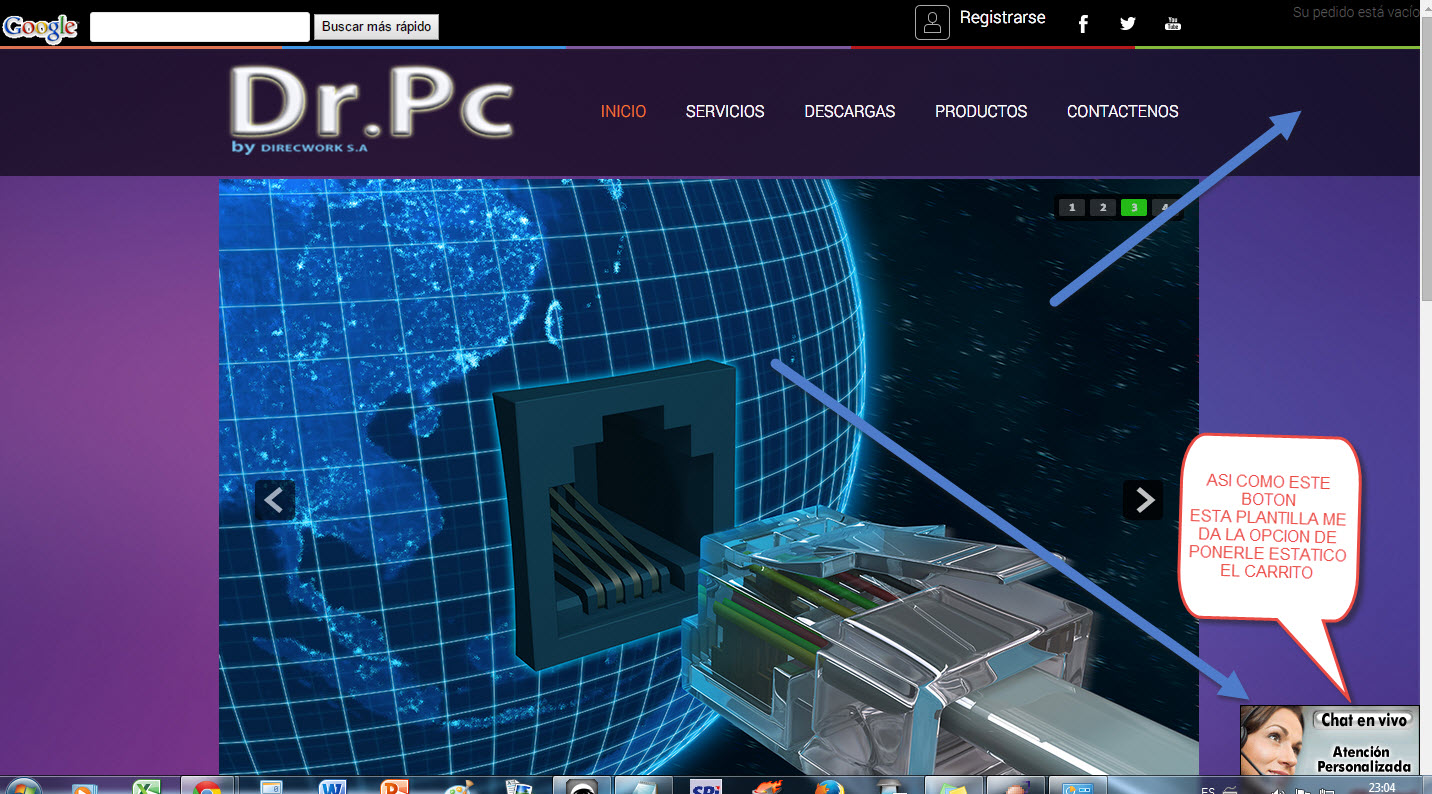
Gracias por responder, quiero ponerle el carrito en la posición rigt fija asi como esta el boton del chat, pero en la parte de arriba,gracias nuevamente.
Please Log in or Create an account to join the conversation.
11 years 10 months ago - 11 years 10 months ago #181933
by byron
Replied by byron on topic Re: Shopping Cart Module Button Styling
Gracias por responder, quiero ponerle el carrito en la posición rigt fija asi como esta el boton del chat, pero en la parte de arriba,gracias nuevamente.
Last edit: 11 years 10 months ago by byron.
Please Log in or Create an account to join the conversation.
Less
More
- Posts: 12953
- Thank you received: 1778
11 years 10 months ago #181962
by Mohamed Thelji
Replied by Mohamed Thelji on topic Re: Shopping Cart Module Button Styling
The solution will just be to use some CSS code like :
Code:
#hikashop_cart .icon-cart {
background-image: url('YourCartIconURL');
}
Please Log in or Create an account to join the conversation.
11 years 8 months ago #185946
by okynnor
Replied by okynnor on topic Re: Shopping Cart Module Button Styling
Hi,
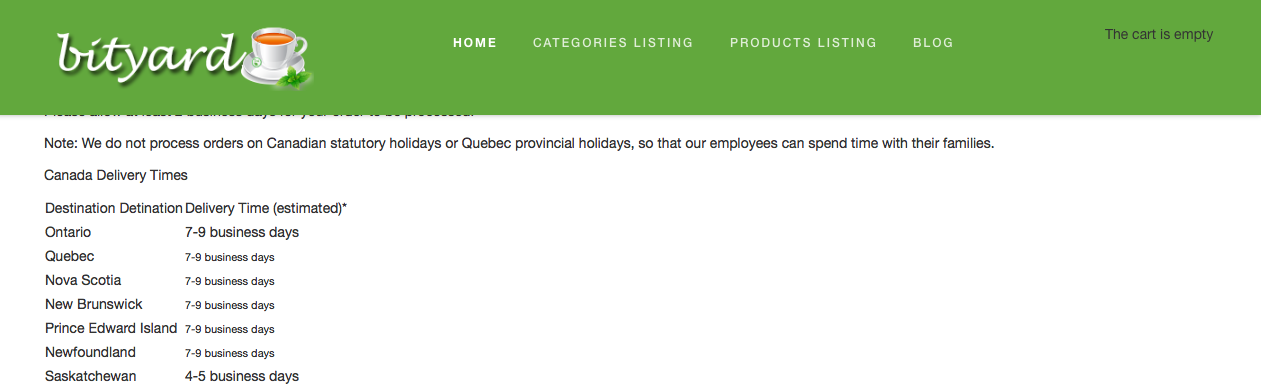
I tried to use this solution by copy and pasting the suggested CSS into the front css and changed the url to the location of the shopping cart in my site but it didn't work.
It still says "shopping cart empty" rather than a shopping cart icon.
I tried to use this solution by copy and pasting the suggested CSS into the front css and changed the url to the location of the shopping cart in my site but it didn't work.
It still says "shopping cart empty" rather than a shopping cart icon.
Please Log in or Create an account to join the conversation.

11 years 8 months ago #185949
by Jerome
Jerome - Obsidev.com
HikaMarket & HikaSerial developer / HikaShop core dev team.
Replied by Jerome on topic Re: Shopping Cart Module Button Styling
Hi,
Changing the background of an element and replacing the "the cart is empty" by an image is two things quite different.
Did you read our documentation on the customization of the display ?
www.hikashop.com/support/support/documen...ize-the-display.html
Regards,
Changing the background of an element and replacing the "the cart is empty" by an image is two things quite different.
Did you read our documentation on the customization of the display ?
www.hikashop.com/support/support/documen...ize-the-display.html
Regards,
Jerome - Obsidev.com
HikaMarket & HikaSerial developer / HikaShop core dev team.
Please Log in or Create an account to join the conversation.
11 years 8 months ago #186024
by okynnor
Replied by okynnor on topic Re: Shopping Cart Module Button Styling
I get a page 404. Is the forum program trimming the URL?
Please Log in or Create an account to join the conversation.
11 years 8 months ago #186031
by nicolas
Replied by nicolas on topic Re: Shopping Cart Module Button Styling
Hi,
Yes. Click on the URL instead of copy/pasting the text and it will work.
Yes. Click on the URL instead of copy/pasting the text and it will work.
Please Log in or Create an account to join the conversation.
11 years 8 months ago #186199
by okynnor
Replied by okynnor on topic Re: Shopping Cart Module Button Styling
I read the documentation. But I am still not clear as to go about replacing the words "Your shopping cart is empty" words with just an icon of a shopping cart.
I tried using the CSS code I found in a related posting but it seem to not work.
I"m posting the CSS here.
#hikashop_cart .icon-cart {
background-image: url('/images/shoppingcart.png');
}
I also would prefer to change the font type, size and colour attributes of the cart when displaying "Total: $xx.xx". What attribute do I change?
Thank you in advance!
I tried using the CSS code I found in a related posting but it seem to not work.
I"m posting the CSS here.
#hikashop_cart .icon-cart {
background-image: url('/images/shoppingcart.png');
}
I also would prefer to change the font type, size and colour attributes of the cart when displaying "Total: $xx.xx". What attribute do I change?
Thank you in advance!
Please Log in or Create an account to join the conversation.
Time to create page: 0.356 seconds