
- Posts: 76
- Thank you received: 0
how to display the rating/price on the right
- zoeatdemetra
-
 Topic Author
- Offline
Less
More
14 years 4 months ago #52700
by zoeatdemetra
how to display the rating/price on the right was created by zoeatdemetra
I want the review ratings, prices, description all display on the right to the thumnail, exactly like the below example, how should I do with the code:
rating
price
characteristic
stock situation
qty/ add to cart
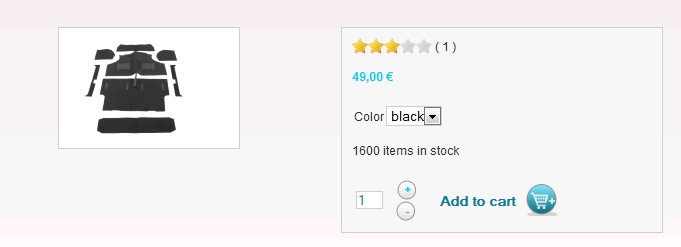
Also,currently I don't see the cart logo (see attached) appear right next to the text"add to cart",how should I do to have that? Is there any other logo option?

rating
price
characteristic
stock situation
qty/ add to cart
Also,currently I don't see the cart logo (see attached) appear right next to the text"add to cart",how should I do to have that? Is there any other logo option?
Please Log in or Create an account to join the conversation.

14 years 4 months ago #52778
by Xavier
Replied by Xavier on topic Re: how to display the rating/price on the right
Hi zoeatdemetra,
You can edit the product view, in HikaShop > Display > Views, product / show_default.php
In this view, you can place the different parts where you want.
You can too customize the css, in HikaShop > System > Configuration > Display, edit the Front-End CSS File.
To know which classes you have to edit, you can use Firebug.
I invite you to see the doc for more explanations: www.hikashop.com/en/support/documentation/faq.html#css
For the logo in the cart, it's simply a picture added. There is no options.
You can add it by editing the view: product / show_default.php, and adding a picture after the 'Add to cart' button.
You can edit the product view, in HikaShop > Display > Views, product / show_default.php
In this view, you can place the different parts where you want.
You can too customize the css, in HikaShop > System > Configuration > Display, edit the Front-End CSS File.
To know which classes you have to edit, you can use Firebug.
I invite you to see the doc for more explanations: www.hikashop.com/en/support/documentation/faq.html#css
For the logo in the cart, it's simply a picture added. There is no options.
You can add it by editing the view: product / show_default.php, and adding a picture after the 'Add to cart' button.
Please Log in or Create an account to join the conversation.
Time to create page: 0.156 seconds