
- Posts: 121
- Thank you received: 2
How to select multiple selection options for a product
- andrewwinkler
-
 Topic Author
- Offline
Less
More
5 years 9 months ago - 5 years 9 months ago #328015
by andrewwinkler
-- HikaShop version -- : 4.4.0
-- Joomla version -- : 3.9.23
-- PHP version -- : 7.3.25
-- Browser(s) name and version -- : Firefox
-- Error-message(debug-mod must be tuned on) -- : N/A
I need customers to be able to select multiple ingredient options for a product. Some of those options are price sensitive, others are price neutral. For example, a client wants to select carrots, celery, kale, apples, oranges, ginger and turmeric. Only kale, ginger and turmeric result in a price increase; the other ingredients are price neutral. How do I configure HikaShop to achieve this?
-- Joomla version -- : 3.9.23
-- PHP version -- : 7.3.25
-- Browser(s) name and version -- : Firefox
-- Error-message(debug-mod must be tuned on) -- : N/A
I need customers to be able to select multiple ingredient options for a product. Some of those options are price sensitive, others are price neutral. For example, a client wants to select carrots, celery, kale, apples, oranges, ginger and turmeric. Only kale, ginger and turmeric result in a price increase; the other ingredients are price neutral. How do I configure HikaShop to achieve this?
Last edit: 5 years 9 months ago by andrewwinkler.
Please Log in or Create an account to join the conversation.

5 years 9 months ago #328019
by nicolas
Replied by nicolas on topic How to select multiple selection options for a product
Hi,
I can see that you've already created a characteristic and added the variants to the product.
So all that's left is to edit the product, and go in the "variants" tab and edit the variants with a different price from the price you set in the main product. There, add a new price with the value you want for that variant and save the variant.
You'll then see the price automatically change on the product page when the variant is selected, like on this page of our demo website:
demo.hikashop.com/index.php/en/hikashop/...with-characteristics
I can see that you've already created a characteristic and added the variants to the product.
So all that's left is to edit the product, and go in the "variants" tab and edit the variants with a different price from the price you set in the main product. There, add a new price with the value you want for that variant and save the variant.
You'll then see the price automatically change on the product page when the variant is selected, like on this page of our demo website:
demo.hikashop.com/index.php/en/hikashop/...with-characteristics
The following user(s) said Thank You: andrewwinkler
Please Log in or Create an account to join the conversation.
- andrewwinkler
-
Topic Author
- Offline
Less
More
- Posts: 121
- Thank you received: 2
5 years 9 months ago - 5 years 9 months ago #328076
by andrewwinkler
Replied by andrewwinkler on topic How to select multiple selection options for a product
That only allows customers to choose between apple, carrot, celery or lemon grass juice with their different pricing. However, what I need is clients to be able to choose multiple ingredients for each juice they order. Depending on the selected ingredients, for example mango, turmeric or ginger, the price needs to increase, while ingredients like oranges, celery and carrot don't change the price.
Last edit: 5 years 9 months ago by andrewwinkler.
Please Log in or Create an account to join the conversation.
5 years 9 months ago #328079
by nicolas
Replied by nicolas on topic How to select multiple selection options for a product
Hi,
Then, you should:
- remove the variants from that product
- remove the characteristic from that product
- create an unpublished category
- create several options one for each ingredient you want to allow (so if you want to allow the customer to select 5 ingredients among the 10 ingredient choices you offer, you should create 5 products) in that unpublished category.
- in each of these "ingredient products", add the characteristic and the variants, with the price increase you want for each variant
- in your main product, add these ingredient products in the "options" setting of the product.
That way, on the product page, you'll have several dropdowns and in each dropdown you'll have the list of ingredients that can be selected. And when you select an ingredient the price of the variant will be added to the base price of the main product.
You can see an example of the use of option products here:
demo.hikashop.com/index.php/en/hikashop/...ct-page/with-options
Then, you should:
- remove the variants from that product
- remove the characteristic from that product
- create an unpublished category
- create several options one for each ingredient you want to allow (so if you want to allow the customer to select 5 ingredients among the 10 ingredient choices you offer, you should create 5 products) in that unpublished category.
- in each of these "ingredient products", add the characteristic and the variants, with the price increase you want for each variant
- in your main product, add these ingredient products in the "options" setting of the product.
That way, on the product page, you'll have several dropdowns and in each dropdown you'll have the list of ingredients that can be selected. And when you select an ingredient the price of the variant will be added to the base price of the main product.
You can see an example of the use of option products here:
demo.hikashop.com/index.php/en/hikashop/...ct-page/with-options
The following user(s) said Thank You: andrewwinkler
Please Log in or Create an account to join the conversation.
- andrewwinkler
-
Topic Author
- Offline
Less
More
- Posts: 121
- Thank you received: 2
5 years 8 months ago - 5 years 8 months ago #328449
by andrewwinkler
Replied by andrewwinkler on topic How to select multiple selection options for a product
Thanks for your guidance. Your suggestion doesn't seem like a very elegant solution to me, though. There must be a better way than having to manage five basic juices with their optional add-ons, some price-sensitive, some price-neutral.
Can't I just have one basic fruit juice and one basic vegetable juice, costing x amount and then have two groups of multiple choice tick boxes for each of them, one group of basic ingredients that are price-neutral and another group of premium ingredients that increase the price if chosen? Or, again, one group of price-neutral basic ingredients, selectable from a group of multiple choice tick boxes, and then a list of yes/no buttons with price-sensitive premium ingredients?
I can imagine that this is not such an unusual request; any pizza shop would have that kind of requirement.
Can't I just have one basic fruit juice and one basic vegetable juice, costing x amount and then have two groups of multiple choice tick boxes for each of them, one group of basic ingredients that are price-neutral and another group of premium ingredients that increase the price if chosen? Or, again, one group of price-neutral basic ingredients, selectable from a group of multiple choice tick boxes, and then a list of yes/no buttons with price-sensitive premium ingredients?
I can imagine that this is not such an unusual request; any pizza shop would have that kind of requirement.
Last edit: 5 years 8 months ago by andrewwinkler.
Please Log in or Create an account to join the conversation.
5 years 8 months ago #328455
by nicolas
Replied by nicolas on topic How to select multiple selection options for a product
Hi,
In the HikaShop configuration, you have the "Product selection method" setting. By default it's set to "dropdown".
If you set it to "checkbox", then you'll have one checkbox for each variant of the product when used as an option of another product.
So you'll be able to select no, on or several variants of a product used as an option of another product.
That's usually what is used for selling pizza.
In the HikaShop configuration, you have the "Product selection method" setting. By default it's set to "dropdown".
If you set it to "checkbox", then you'll have one checkbox for each variant of the product when used as an option of another product.
So you'll be able to select no, on or several variants of a product used as an option of another product.
That's usually what is used for selling pizza.
The following user(s) said Thank You: andrewwinkler
Please Log in or Create an account to join the conversation.
- andrewwinkler
-
Topic Author
- Offline
Less
More
- Posts: 121
- Thank you received: 2
5 years 8 months ago - 5 years 8 months ago #328504
by andrewwinkler
Replied by andrewwinkler on topic How to select multiple selection options for a product
I've changed the product selection method to checkbox and added the various ingredients as options, some price sensitive, some price neutral. However, I still have a couple of problems. The page now has the desired functionality, but the layout still needs some work.
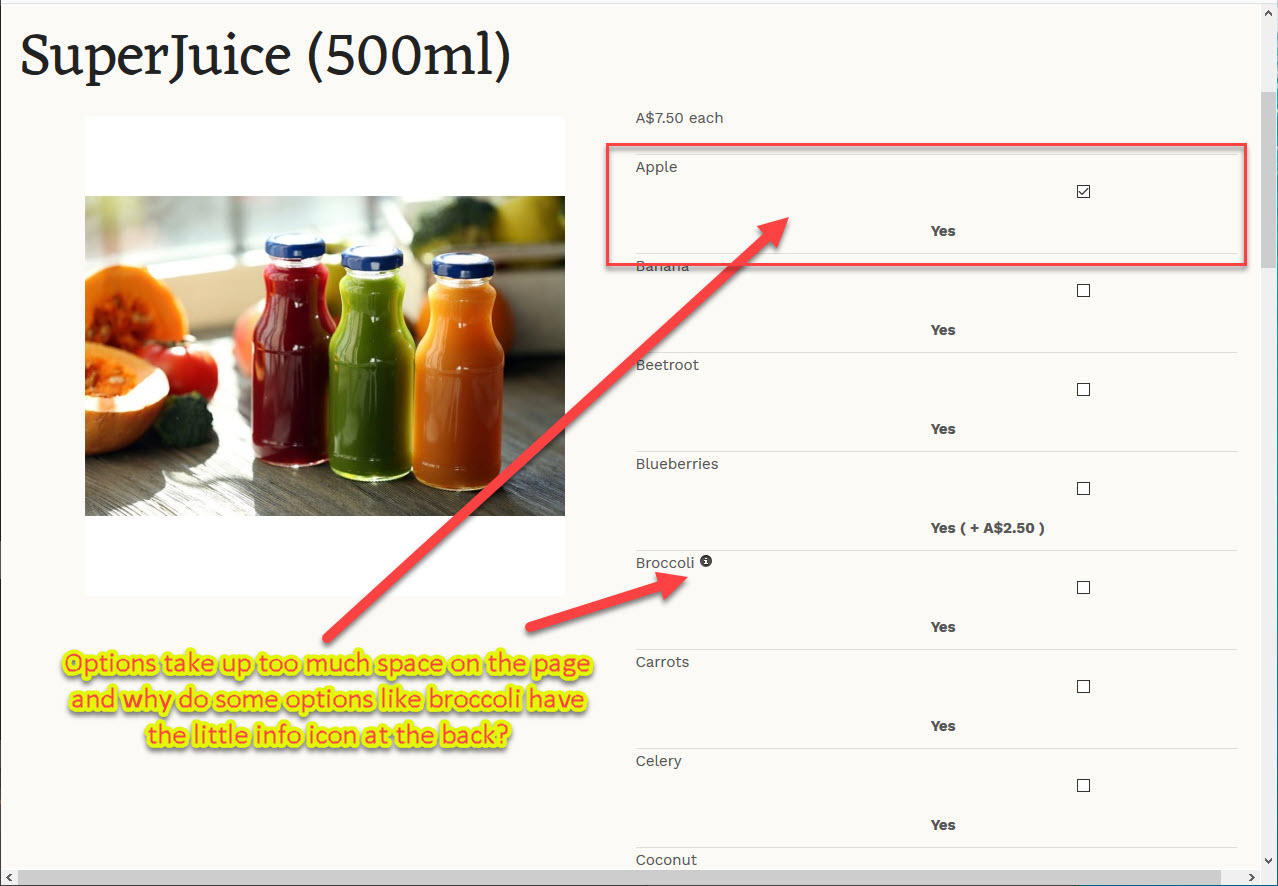
Here's the link to the page: foreignpantry.com/shop/juices/product/48-superjuice
Here's the link to the page: foreignpantry.com/shop/juices/product/48-superjuice
Last edit: 5 years 8 months ago by andrewwinkler.
Please Log in or Create an account to join the conversation.
5 years 8 months ago #328517
by nicolas
Replied by nicolas on topic How to select multiple selection options for a product
Hi,
The spacing issue on your options comes from the CSS of your template.
So it's not really a problem with HikaShop.
Here is some CSS you can add to counter the CSS from the template:
Regarding the info icon, it's added there because you've entered something in the description of the variant. Empty the description and it will remove the icon with the tooltip on hover with the text of the description in the tooltip.
The spacing issue on your options comes from the CSS of your template.
So it's not really a problem with HikaShop.
Here is some CSS you can add to counter the CSS from the template:
Code:
#hikashop_product_options input {
height: auto !important;
display: inline !important;
width: auto !important;
}
#hikashop_product_options label {
display: inline !important;
}
The following user(s) said Thank You: andrewwinkler
Please Log in or Create an account to join the conversation.
- andrewwinkler
-
Topic Author
- Offline
Less
More
- Posts: 121
- Thank you received: 2
5 years 8 months ago #328553
by andrewwinkler
Replied by andrewwinkler on topic How to select multiple selection options for a product
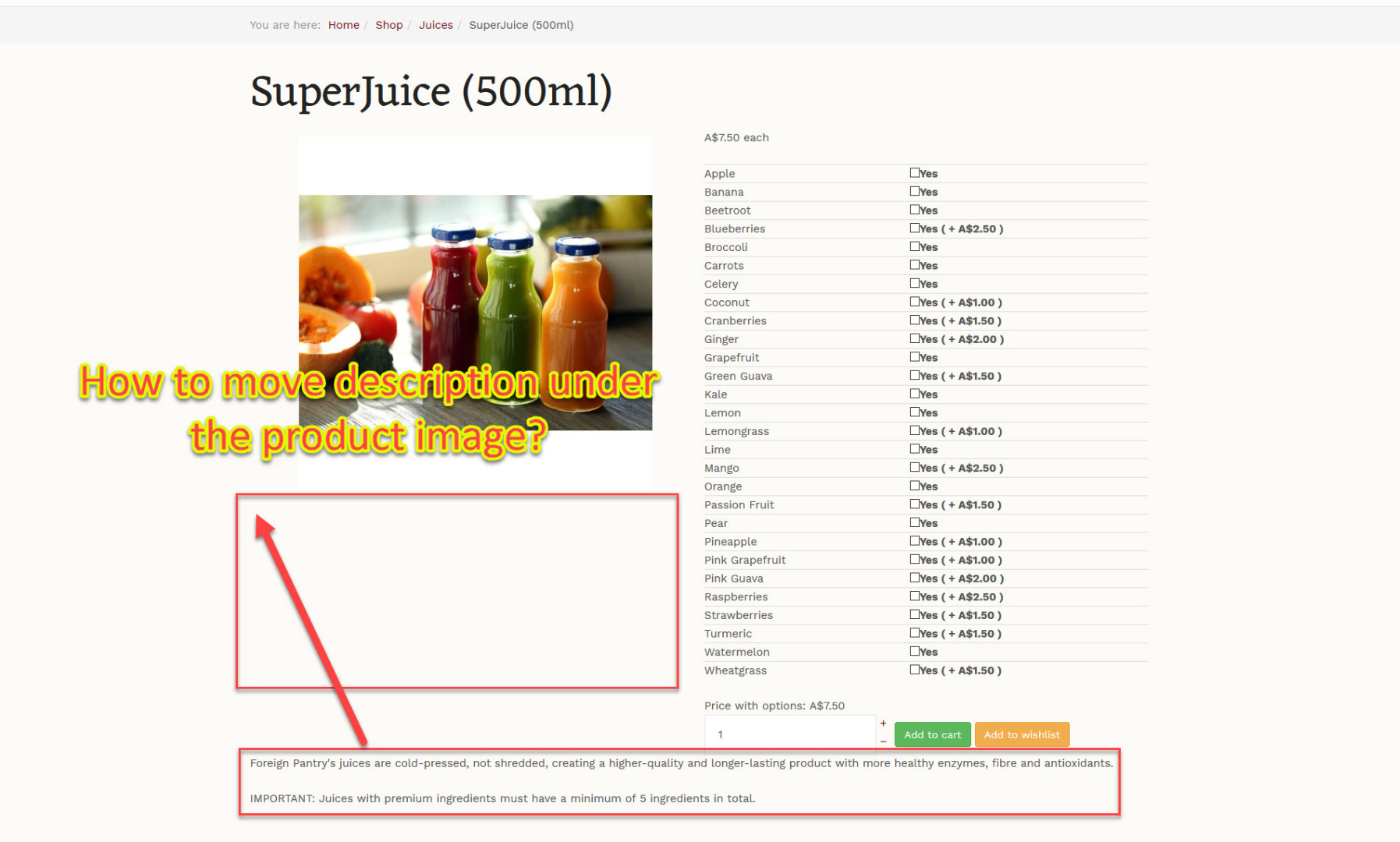
Almost perfect. The only thing I still would like to change is to move the product description below the product image, instead of below all the options.
Please Log in or Create an account to join the conversation.
5 years 8 months ago #328560
by nicolas
Replied by nicolas on topic How to select multiple selection options for a product
Hi,
You need to edit the file show_default.php via the menu Display>Views.
There, you need to move the block of code displaying the description:
after the display of the image:
You need to edit the file show_default.php via the menu Display>Views.
There, you need to move the block of code displaying the description:
Code:
<div id="hikashop_product_description_main" class="hikashop_product_description_main" itemprop="description"><?php
// DISPLAY the product description
echo JHTML::_('content.prepare',preg_replace('#<hr *id="system-readmore" */>#i','',$this->element->product_description));
?></div>
Code:
<?php
$this->row =& $this->element;
$this->setLayout('show_block_img');
echo $this->loadTemplate();
?>
Please Log in or Create an account to join the conversation.
- andrewwinkler
-
Topic Author
- Offline
Less
More
- Posts: 121
- Thank you received: 2
5 years 8 months ago - 5 years 8 months ago #328604
by andrewwinkler
Replied by andrewwinkler on topic How to select multiple selection options for a product
I've copied and pasted the code from the mentioned file into Dreamweaver and searched for the two strings mentioned by you. However, I couldn't find any references to the product image after the product description. Here is the code I found.
It would be helpful if you provided line numbers with your instructions, e.g.move line x to y to line z.
Code:
<?php
/**
* @package HikaShop for Joomla!
* @version 4.4.0
* @author hikashop.com
* @copyright (C) 2010-2020 HIKARI SOFTWARE. All rights reserved.
* @license GNU/GPLv3 http://www.gnu.org/licenses/gpl-3.0.html
*/
defined('_JEXEC') or die('Restricted access');
?><div id="hikashop_product_top_part" class="hikashop_product_top_part">
<?php if(!empty($this->element->extraData->topBegin)) { echo implode("\r\n",$this->element->extraData->topBegin); } ?>
<h1>
<span id="hikashop_product_name_main" class="hikashop_product_name_main" itemprop="name"><?php
if(hikashop_getCID('product_id') != $this->element->product_id && isset($this->element->main->product_name))
echo $this->element->main->product_name;
else
echo $this->element->product_name;
?></span>
<?php if ($this->config->get('show_code')) { ?>
<span id="hikashop_product_code_main" class="hikashop_product_code_main" itemprop="sku"><?php
echo $this->element->product_code;
?></span>
<?php } ?>
</h1>
<?php if(!empty($this->element->extraData->topEnd)) { echo implode("\r\n", $this->element->extraData->topEnd); } ?>
<?php
$this->setLayout('show_block_social');
echo $this->loadTemplate();
?>
</div>
<div class="hk-row-fluid">
<div id="hikashop_product_left_part" class="hikashop_product_left_part hkc-md-6">
<?php if(!empty($this->element->extraData->leftBegin)) { echo implode("\r\n",$this->element->extraData->leftBegin); } ?>
<?php
$this->row =& $this->element;
$this->setLayout('show_block_img');
echo $this->loadTemplate();
?>
<?php if(!empty($this->element->extraData->leftEnd)) { echo implode("\r\n",$this->element->extraData->leftEnd); } ?>
</div>
<div id="hikashop_product_right_part" class="hikashop_product_right_part hkc-md-6">
<?php if(!empty($this->element->extraData->rightBegin)) { echo implode("\r\n",$this->element->extraData->rightBegin); } ?>
<div id="hikashop_product_vote_mini" class="hikashop_product_vote_mini"><?php
if($this->params->get('show_vote_product')) {
$js = '';
$this->params->set('vote_type', 'product');
$this->params->set('vote_ref_id', isset($this->element->main) ? (int)$this->element->main->product_id : (int)$this->element->product_id );
echo hikashop_getLayout('vote', 'mini', $this->params, $js);
}
?></div>
<?php
$itemprop_offer = '';
if (!empty($this->element->prices))
$itemprop_offer = 'itemprop="offers" itemscope itemtype="https://schema.org/Offer"';
?>
<span id="hikashop_product_price_main" class="hikashop_product_price_main" <?php echo $itemprop_offer; ?>>
<?php
$main =& $this->element;
if(!empty($this->element->main))
$main =& $this->element->main;
if(!empty($main->product_condition) && !empty($this->element->prices)) {
?>
<meta itemprop="itemCondition" itemtype="https://schema.org/OfferItemCondition" content="https://schema.org/<?php echo $main->product_condition; ?>" />
<?php
}
if($this->params->get('show_price') && (empty($this->displayVariants['prices']) || $this->params->get('characteristic_display') != 'list')) {
$this->row =& $this->element;
$this->setLayout('listing_price');
echo $this->loadTemplate();
if (!empty($this->element->prices)) {
?> <meta itemprop="availability" content="https://schema.org/<?php echo ($this->row->product_quantity != 0) ? 'InStock' : 'OutOfstock' ;?>" />
<meta itemprop="priceCurrency" content="<?php echo $this->currency->currency_code; ?>" />
<?php }
}
?> </span>
<?php if(!empty($this->element->extraData->rightMiddle)) { echo implode("\r\n",$this->element->extraData->rightMiddle); } ?>
<?php
$this->setLayout('show_block_dimensions');
echo $this->loadTemplate();
?>
<br />
<?php
if($this->params->get('characteristic_display') != 'list') {
$this->setLayout('show_block_characteristic');
echo $this->loadTemplate();
?>
<br />
<?php } ?>
<?php
$form = ',0';
if(!$this->config->get('ajax_add_to_cart', 1)) {
$form = ',\'hikashop_product_form\'';
}
if(hikashop_level(1) && !empty ($this->element->options)) {
?>
<div id="hikashop_product_options" class="hikashop_product_options"><?php
$this->setLayout('option');
echo $this->loadTemplate();
?></div>
<br />
<?php
$form = ',\'hikashop_product_form\'';
if($this->config->get('redirect_url_after_add_cart', 'stay_if_cart') == 'ask_user') {
?>
<input type="hidden" name="popup" value="1"/>
<?php
}
}
if(!$this->params->get('catalogue') && ($this->config->get('display_add_to_cart_for_free_products') || ($this->config->get('display_add_to_wishlist_for_free_products', 1) && hikashop_level(1) && $this->params->get('add_to_wishlist') && $this->config->get('enable_wishlist', 1)) || !empty($this->element->prices))) {
if(!empty($this->itemFields)) {
$form = ',\'hikashop_product_form\'';
if ($this->config->get('redirect_url_after_add_cart', 'stay_if_cart') == 'ask_user') {
?>
<input type="hidden" name="popup" value="1"/>
<?php
}
$this->setLayout('show_block_custom_item');
echo $this->loadTemplate();
}
}
$this->formName = $form;
if($this->params->get('show_price')) {
?>
<span id="hikashop_product_price_with_options_main" class="hikashop_product_price_with_options_main">
</span>
<?php
}
if(empty($this->element->characteristics) || $this->params->get('characteristic_display') != 'list') {
?>
<div id="hikashop_product_quantity_main" class="hikashop_product_quantity_main"><?php
$this->row =& $this->element;
$this->ajax = 'if(hikashopCheckChangeForm(\'item\',\'hikashop_product_form\')){ return hikashopModifyQuantity(\'' . (int)$this->element->product_id . '\',field,1' . $form . ',\'cart\'); } else { return false; }';
$this->setLayout('quantity');
echo $this->loadTemplate();
?></div>
<div id="hikashop_product_quantity_alt" class="hikashop_product_quantity_main_alt" style="display:none;">
<?php echo JText::_('ADD_TO_CART_AVAILABLE_AFTER_CHARACTERISTIC_SELECTION'); ?>
</div>
<?php
}
?>
<div id="hikashop_product_contact_main" class="hikashop_product_contact_main"><?php
$contact = (int)$this->config->get('product_contact', 0);
if(hikashop_level(1) && ($contact == 2 || ($contact == 1 && !empty($this->element->product_contact)))) {
$css_button = $this->config->get('css_button', 'hikabtn');
?>
<a rel="noindex, nofollow" href="<?php echo hikashop_completeLink('product&task=contact&cid=' . (int)$this->element->product_id . $this->url_itemid); ?>" class="<?php echo $css_button; ?>"><?php
echo JText::_('CONTACT_US_FOR_INFO');
?></a>
<?php
}
?>
</div>
<?php
if(!empty($this->fields)) {
$this->setLayout('show_block_custom_main');
echo $this->loadTemplate();
}
if(HIKASHOP_J30) {
$this->setLayout('show_block_tags');
echo $this->loadTemplate();
}
?>
<span id="hikashop_product_id_main" class="hikashop_product_id_main">
<input type="hidden" name="product_id" value="<?php echo (int)$this->element->product_id; ?>" />
</span>
<?php if(!empty($this->element->extraData->rightEnd)) { echo implode("\r\n",$this->element->extraData->rightEnd); } ?>
</div>
</div>
<div id="hikashop_product_bottom_part" class="hikashop_product_bottom_part">
<?php if(!empty($this->element->extraData->bottomBegin)) { echo implode("\r\n",$this->element->extraData->bottomBegin); } ?>
<div id="hikashop_product_description_main" class="hikashop_product_description_main" itemprop="description"><?php
echo JHTML::_('content.prepare',preg_replace('#<hr *id="system-readmore" */>#i','',$this->element->product_description));
?></div>
<span id="hikashop_product_url_main" class="hikashop_product_url_main"><?php
if(!empty($this->element->product_url)) {
echo JText::sprintf('MANUFACTURER_URL', '<a href="' . $this->element->product_url . '" target="_blank">' . $this->element->product_url . '</a>');
}
?></span>
<?php
$this->setLayout('show_block_product_files');
echo $this->loadTemplate();
?>
<?php if(!empty($this->element->extraData->bottomMiddle)) { echo implode("\r\n",$this->element->extraData->bottomMiddle); } ?>
<?php if(!empty($this->element->extraData->bottomEnd)) { echo implode("\r\n",$this->element->extraData->bottomEnd); } ?>
</div>
Last edit: 5 years 8 months ago by andrewwinkler.
Please Log in or Create an account to join the conversation.
5 years 8 months ago #328608
by nicolas
Replied by nicolas on topic How to select multiple selection options for a product
Hi,
The line number will depend on your version, edition and build number of HikaShop. Also, sometimes when the website is migrated, it's possible that the line numbers are modified having an extra space for each line of the original file.
So without having a copy of the file on your end, I'm not sure what exact line number it will be. That's why I didn't provide them and usually don't. Instead, I give you the piece of code, so that you can easily find it.
I don't see why you couldn't find the piece of code in that file as I can see them in the copy you provided.
With the copy you provided, I can see that they are around line number 40 and 195 in that file on your end.
The line number will depend on your version, edition and build number of HikaShop. Also, sometimes when the website is migrated, it's possible that the line numbers are modified having an extra space for each line of the original file.
So without having a copy of the file on your end, I'm not sure what exact line number it will be. That's why I didn't provide them and usually don't. Instead, I give you the piece of code, so that you can easily find it.
I don't see why you couldn't find the piece of code in that file as I can see them in the copy you provided.
With the copy you provided, I can see that they are around line number 40 and 195 in that file on your end.
The following user(s) said Thank You: andrewwinkler
Please Log in or Create an account to join the conversation.
- andrewwinkler
-
Topic Author
- Offline
Less
More
- Posts: 121
- Thank you received: 2
5 years 8 months ago - 5 years 8 months ago #328620
by andrewwinkler
Replied by andrewwinkler on topic How to select multiple selection options for a product
I have worked it out now. Almost perfect. Thanks.
How can I make the product image be displayed at full width and height, as indicated by the red rectangle?
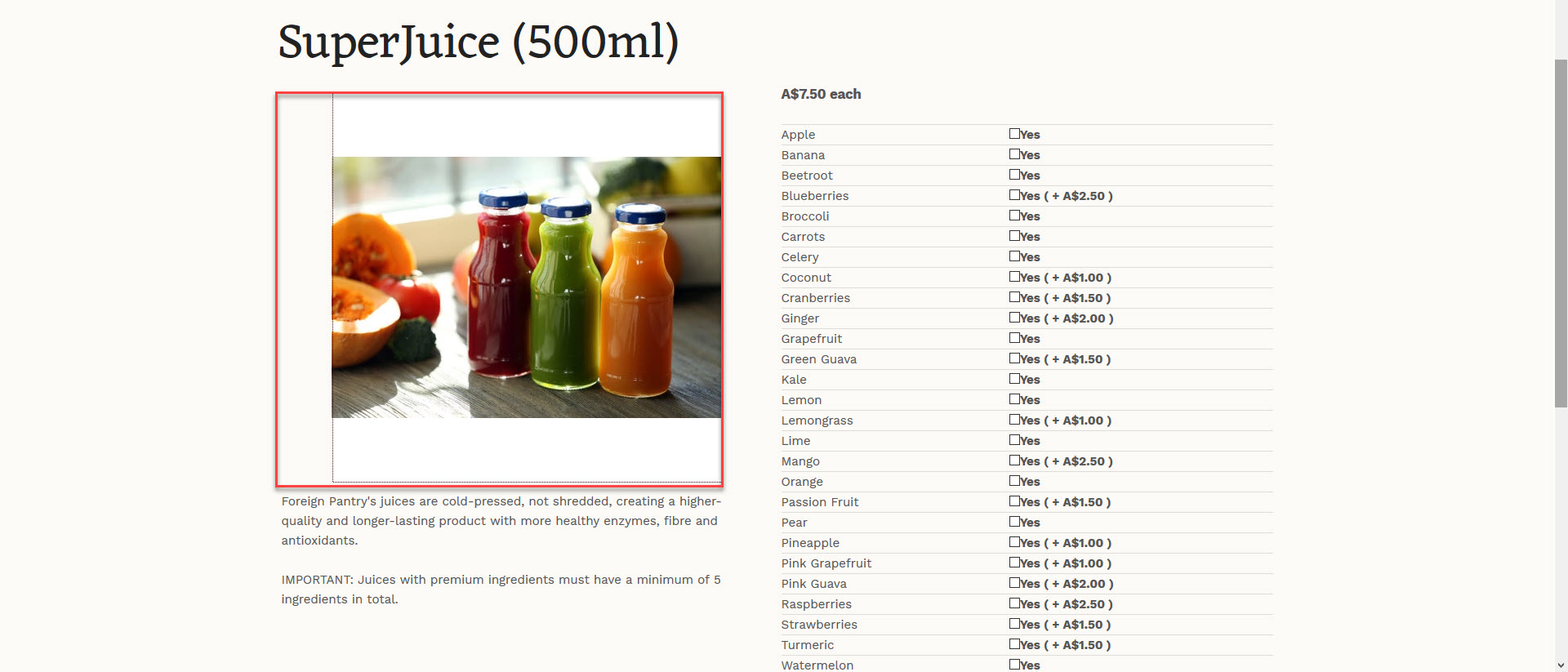
URL: foreignpantry.com/shop/juices/product/48-superjuice
How can I make the product image be displayed at full width and height, as indicated by the red rectangle?
URL: foreignpantry.com/shop/juices/product/48-superjuice
Last edit: 5 years 8 months ago by andrewwinkler.
Please Log in or Create an account to join the conversation.
5 years 8 months ago #328640
by nicolas
Replied by nicolas on topic How to select multiple selection options for a product
Hi,
You can do that by adding a bit of CSS. For example:
#hikashop_main_image { width: 100% !important; }
www.hikashop.com/support/documentation/1...ize-the-display.html
You can do that by adding a bit of CSS. For example:
#hikashop_main_image { width: 100% !important; }
www.hikashop.com/support/documentation/1...ize-the-display.html
The following user(s) said Thank You: andrewwinkler
Please Log in or Create an account to join the conversation.
- andrewwinkler
-
Topic Author
- Offline
Less
More
- Posts: 121
- Thank you received: 2
5 years 8 months ago #328735
by andrewwinkler
Replied by andrewwinkler on topic How to select multiple selection options for a product
It's perfect now. Many thanks.
Please Log in or Create an account to join the conversation.
Time to create page: 0.322 seconds