[Skip to main content](#vessel-content)

☰ Documentation

#  Adding products in Joomla's articles

Details    Written by: Majri    Category: [Tutorials](/support/documentation/hikashop/tutorials)     Published: 20 August 2012     Hits: 49283

| - [Description](#description) - [Enable / disable HikaShop product insert insertion and translation plugins](#enable) - [Inserting a product TAG](#insert) - [Different ways of setting up a product TAG](#ways) - [Conditional content tags](#conditional) - [Plugin settings](#settings) - [Customizing the display further](#custom) |  |
|---|---|

### <a name="description"></a>Description

Why products insertion/translation plugins?

HikaShop product insertion/translation plugins are functionalities which will allow you to display your HikaShop products through your Joomla articles. By this way, you'll be able to create Joomla articles about your "favorite/most popular/.." products and easily display them.

HikaShop product insertion: This plugin will be used through your Article creation page ("*Content -&gt; Articles -&gt; 'Your article'*") with the "Product" button. This "Product" button enables you to add "Product(s) TAG" to your article.

HikaShop product translation: This plugin will be automatically used through your front-end and will translate your "product(s) TAG".

This tutorial will explain how to add a HikaShop product TAG to Joomla articles and the different ways to display them.

First, we will see how to create and add them through the HikaShop product insertion plugin and how they can be translated by the HikaShop product translation plugin.

### <a name="enable"></a>Enable / disable HikaShop product insert insertion and translation plugins

By default, these plugins are disabled.

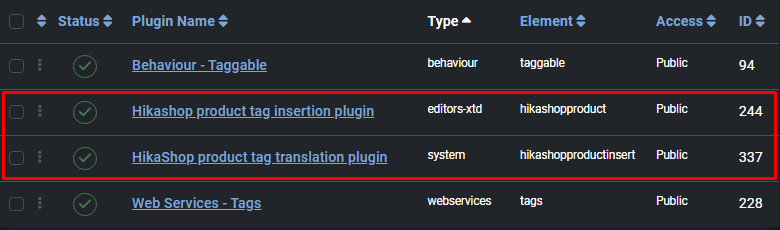
If you want to enable them, you'll have to do it through "*System -&gt; Manage -&gt; Plugins*" (or "*Extensions -&gt; Plugins*" on older Joomla versions).

![](/images/stories/pinsert-1.png)

### <a name="insert"></a>Inserting a product TAG

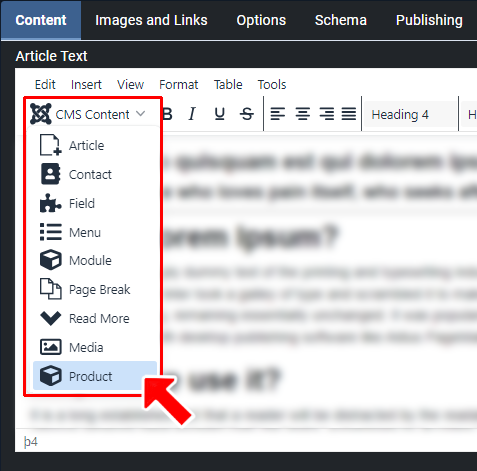
Through your Joomla article's configuration screen, you'll be able to add products through the Product button:
![](/images/stories/pinsert-2.png)

*Product insert button*

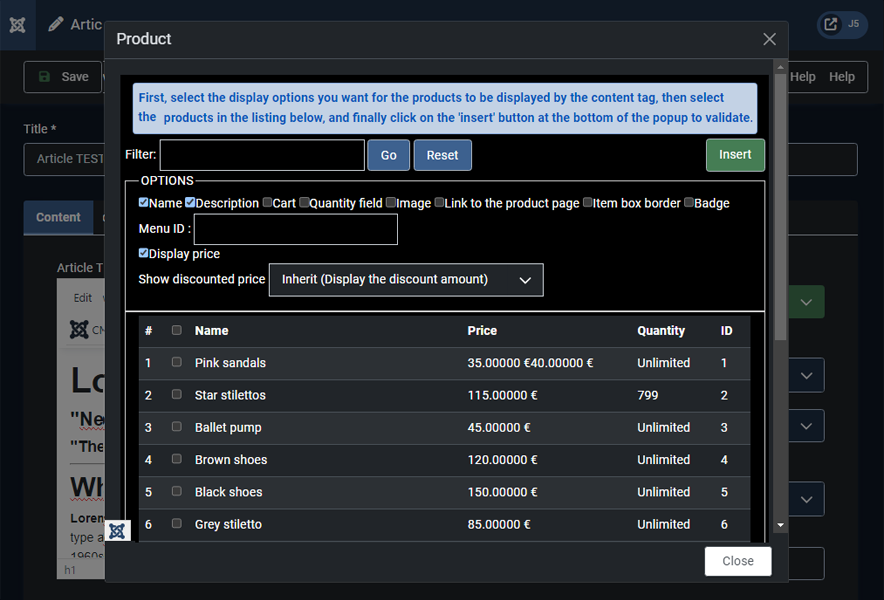
Then, you'll find this configuration screen showing your products and some options:
![](/images/stories/pinsert-3.png)

**Name:** Allows you to display the product's name (uses the `name` tag option)

**Description:** Allows you to display the product's description (uses the `description` tag option)

**Cart:** Allows you to display an add to cart button (uses the `cart` tag option)

**Quantity field:** Allows you to display a quantity field next to the add to cart button (uses the `quantityfield` tag option). Note: The quantity field won't be displayed if your products have variants.

**Image:** Allows you to display the product's image (uses the `picture` tag option)

**Link to the product page:** Allows you to add a link to the product page (uses the `link` tag option)

**Item box border:** Allows you to display a border around the products (uses the `border` tag option)

**Badge:** Allows you to display product badges on the product image (uses the `badge` tag option; requires the picture option to be enabled)

**Menu ID:** If you enter the **id** of a **HikaShop menu item**, the system will use the alias of that menu item instead of "**component/hikashop**" in the URL link (uses the `menuid:X` tag option where X is the menu item ID).

**Display price:** Allows you to display the product's price. Use `pricetax1` to show prices with tax only, `pricetax2` to show prices without tax only, or just `price` to use the HikaShop default setting.

**Show discounted price:** If HikaShop needs to apply discounts to the prices displayed, it can also show the price before the discount was applied as an incentive for your customers to buy the products or the discount amount

**Insert:** Will add the product TAG to your Joomla article editor

#### Quick Reference: Tag Options

| Option | Tag Syntax | Description |
|---|---|---|
| Name | `name` | Display product name |
| Description | `description` | Display product description |
| Cart button | `cart` | Display add to cart button |
| Quantity field | `quantityfield` | Display quantity input field |
| Image | `picture` | Display product image |
| Link | `link` | Link product elements to product page |
| Border | `border` | Display border around product |
| Badge | `badge` | Display product badges |
| Menu ID | `menuid:X` | Use menu item X for URLs |
| Price with tax | `pricetax1` | Show price with tax only |
| Price without tax | `pricetax2` | Show price without tax only |
| Price (default) | `price` | Use HikaShop default tax setting |
| Show discount | `pricedis1` | Show original price |
| Show discount amount | `pricedis2` | Show discount amount |
| Show both | `pricedis3` | Use HikaShop default setting |

**Tip:** You can display multiple products in a single tag by separating product IDs with the pipe character: `<div class="hikashop_inserted_product_1" id="hikashop_inserted_product_1" style="text-align:center;">				<span class="hikashop_product_price_full"><span class="hikashop_product_price hikashop_product_price_0">€ 60,00</span> <span class="hikashop_product_price_per_unit"></span></span>									<span class="hikashop_product_name">				HikaShop Essential			</span>			</div>`

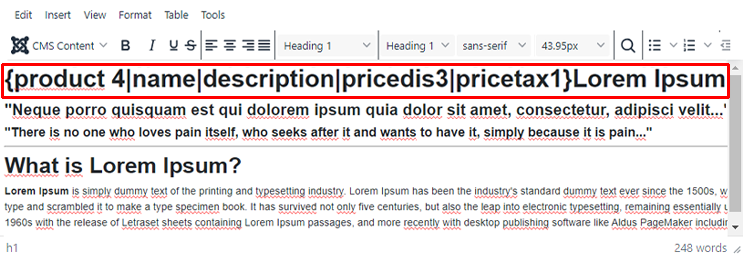
Here is the product TAG that will be displayed:
![](/images/stories/pinsert-4.png)

### <a name="ways"></a>Different ways of setting up a product TAG

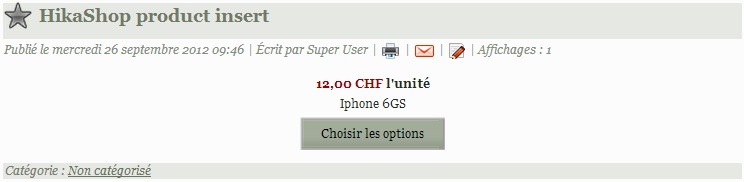
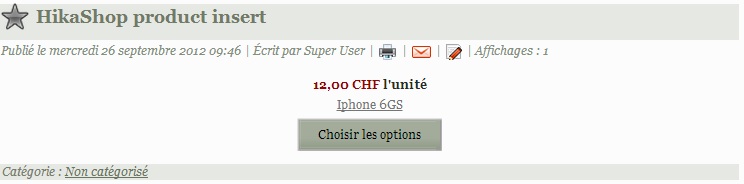
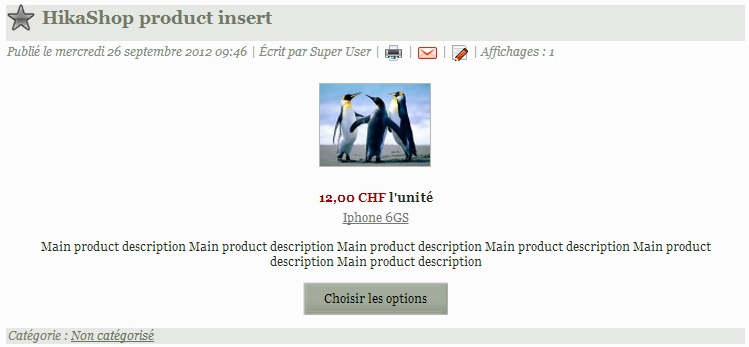
Here are different examples of product TAG configurations:

- **Product tag example 1:** `<div class="hikashop_inserted_product_1" id="hikashop_inserted_product_1" style="text-align:center;">				<span class="hikashop_product_price_full"><span class="hikashop_product_price hikashop_product_price_0">€ 60,00</span> <span class="hikashop_product_price_per_unit"></span></span>									<span class="hikashop_product_name">				HikaShop Essential			</span>			</div>`

![](/images/stories/pinsert-5.jpg)

- **Product tag example 2:** `<div class="hikashop_inserted_product_1" id="hikashop_inserted_product_1" style="text-align:center;">				<span class="hikashop_product_price_full"><span class="hikashop_product_price hikashop_product_price_0">€ 60,00</span> <span class="hikashop_product_price_per_unit"></span></span>									<span class="hikashop_product_name">				HikaShop Essential			</span>												<span class="hikashop_add_to_cart">			<span class="hikashop_product_stock_count"></span>	<form action="/component/hikashop/product/updatecart/add-1/cid-1?Itemid=253" class="" enctype="multipart/form-data" method="post" name="hikashop_product_form_1_hikashop_inserted_product_1">	<div class="hikashop_quantity_form">		<div class="hikashop_product_quantity_div hikashop_product_quantity_add_to_cart_div"></div>	</div><input name="add" type="hidden" value="1"></input>	<a class="hikabtn hikacart" data-addto-class="add_in_progress" data-addto-div="hikashop_inserted_product_1" data-addtocart="1" href="/component/hikashop/product/updatecart/add-1/cid-1?Itemid=253" id="hikashop_product_quantity_field_1_add_to_cart_button" onclick="if(window.hikashop.addToCart) { return window.hikashop.addToCart(this); }" rel="nofollow"><span>Add to cart</span></a>	</form>			</span>			</div>`

![](/images/stories/pinsert-6.jpg)

*The quantity field won't be displayed if your products have variants.*

- **Product tag example 3:** `<div class="hikashop_inserted_product_1" id="hikashop_inserted_product_1" style="text-align:center;">				<span class="hikashop_product_price_full"><span class="hikashop_product_price hikashop_product_price_0">€ 60,00</span> <span class="hikashop_product_price_per_unit"></span></span>									<span class="hikashop_product_name">									<a href="https://www.hikashop.com/hikashop-essential">				HikaShop Essential					</a>							</span>												<span class="hikashop_add_to_cart">			<span class="hikashop_product_stock_count"></span>	<form action="/component/hikashop/product/updatecart/add-1/cid-1?Itemid=253" class="" enctype="multipart/form-data" method="post" name="hikashop_product_form_1_hikashop_inserted_product_1">	<div class="hikashop_quantity_form">		<div class="hikashop_product_quantity_div hikashop_product_quantity_add_to_cart_div"></div>	</div><input name="add" type="hidden" value="1"></input>	<a class="hikabtn hikacart" data-addto-class="add_in_progress" data-addto-div="hikashop_inserted_product_1" data-addtocart="1" href="/component/hikashop/product/updatecart/add-1/cid-1?Itemid=253" id="hikashop_product_quantity_field_2_add_to_cart_button" onclick="if(window.hikashop.addToCart) { return window.hikashop.addToCart(this); }" rel="nofollow"><span>Add to cart</span></a>	</form>			</span>			</div>`

![](/images/stories/pinsert-7.jpg)

- **Product tag example 4:** `<div class="hikashop_inserted_product_1" id="hikashop_inserted_product_1" style="text-align:center;">						<div class="hikashop_product_image" style="position:relative;text-align:center;clear:both;width:200px;margin:auto;">										<a href="https://www.hikashop.com/hikashop-essential" title="HikaShop Essential">				<img alt="" class="hikashop_product_tag_image" src="/media/com_hikashop/upload/thumbnails/100x100/hikashop-essential.png" title=""></img>					</a>							</div>							<span class="hikashop_product_price_full"><span class="hikashop_product_price hikashop_product_price_0">€ 60,00</span> <span class="hikashop_product_price_per_unit"></span></span>									<span class="hikashop_product_name">									<a href="https://www.hikashop.com/hikashop-essential">				HikaShop Essential					</a>							</span>									<span class="hikashop_product_description"><p style="top: -150px;    left: 300px;">	<strong>HikaShop Essential </strong>includes all the features from <strong>HikaShop Starter</strong>.	* You can <a href="/index.php/extensions/compare-versions">compare all our versions here</a>.<br></br> 	* You can <a href="/index.php/extensions/upgrade-my-version.html">upgrade your version here</a>.</p><div class="hk-row-fluid">	<div class="hkc-md-6" style="    padding-left: 0px;"><div class="hk-compare-block">	<div class="panel panel-default">		<div class="panel-heading">			<h4>Features</h4>		</div>		<ul class="list-group">			<li class="list-group-item" style="background-color: #f8f8f8;padding: 3px;">				<img alt="products and sales" src="/images/productpage/icon_sales.png" style="padding-right: 10px;"></img>				<strong>PRODUCTS AND SALES</strong>			</li>			<li class="list-group-item">Custom fields for products and user information</li>			<li class="list-group-item">Customer invoice display</li>			<li class="list-group-item">Multilingual edition of the content</li>			<li class="list-group-item">Possibility of payment of an order later on</li>			<li class="list-group-item">Checkout without registration</li>			<li class="list-group-item">Contact us form on product pages</li>			<li class="list-group-item">Options for products</li>			<li class="list-group-item">Waiting list for products out of stock</li>			<li class="list-group-item" style="background-color: #f8f8f8;padding: 3px;">				<img alt="layout" src="/images/productpage/icon_layout.png" style="padding-right: 10px;"></img>				<strong>LAYOUT</strong>			</li>			<li class="list-group-item">Powerful dashboard customization</li>			<li class="list-group-item">More widgets on the dashboard</li>			<li class="list-group-item">Configurable products purchasing restrictions <br></br>(per period, per weight, per product categories, etc)</li>			<li class="list-group-item">Additional product listings item layouts</li>			<li class="list-group-item">Customization of order number format</li>			<li class="list-group-item" style="background-color: #f8f8f8;padding: 3px;">				<img alt="marketing tools" src="/images/productpage/icon_marketing.png" style="padding-right: 10px;"></img>				<strong>MARKETING TOOLS</strong>			</li>			<li class="list-group-item">Google Products integration</li>			<li class="list-group-item">Restrictions on coupons and discounts</li>		</ul>	</div></div>	</div>	<div class="hkc-md-6" style="    padding-right: 0px;"><div class="hk-compare-block">	<div class="panel panel-default">		<div class="panel-heading">			<h4>Usage</h4>		</div>		<ul class="list-group">			<li class="list-group-item">HikaShop is compatible with every recent versions of Joomla and WordPress. 				<div>					<span class="label" style="background-color:#eab31d;vertical-align:top">Joomla 3.x</span> 					<span class="label" style="background-color:#65ad82;vertical-align:top">Joomla 4.x</span> 					<span class="label" style="background-color:#3a87ad;vertical-align:top">Joomla 5.x</span> 					<span class="label" style="background-color:#ab3a3a;vertical-align:top">Joomla 6.x</span> 					<span class="label" style="background-color:#21759b;vertical-align:top">WordPress</span> 				</div>			</li>			<li class="list-group-item">GPL v3</li>			<li class="list-group-item">No limit of time</li>			<li class="list-group-item">1 year free updates</li>			<li class="list-group-item">1 year free HikaShop support for one website</li>			<li class="list-group-item">1 year web cron service for one website</li>			<li class="list-group-item">HikaShop only supports MySQL (no postGreSQL or Oracle or MSSQL support)</li>			<li class="list-group-item">Installation guaranteed! <small>If you have any problems installing HikaShop, we'll do it for you.</small></li>			<li class="list-group-item">30-day money-back guarantee</li>			<li class="list-group-item">Support and access to updates can be extended for 40€/year</li>		</ul>	</div>	<div class="panel panel-default" style="background-color: #fff;padding: 5px 5%;">		<div class="thumbnail">			<a href="/images/productpage/lightbox_essential/dashboard.png" rel="shadowbox[hikashop]" title="HikaShop dashboard"> 				<img alt="Powerful statistics" src="/images/productpage/lightbox_essential2/thumb_dashboard.png"></img>			</a>		</div>		<div class="thumbnail">				<a href="/images/productpage/lightbox_essential/editproduct.png" rel="shadowbox[hikashop]" title="Product configuration"> 					<img alt="Many effects" src="/images/productpage/lightbox_essential2/thumb_editproduct.png"></img>				</a>		</div>		<div class="thumbnail">			<a href="/images/productpage/lightbox_essential/checkout.png" rel="shadowbox[hikashop]" title="Checkout"> 				<img alt="Filters" src="/images/productpage/lightbox_essential2/thumb_checkout.png"></img>			</a>		</div>		<div class="thumbnail">			<a href="/images/productpage/lightbox_essential/layout.png" rel="shadowbox[hikashop]" title="Different layout">				<img alt="Affiliate system" src="/images/productpage/lightbox_essential2/thumb_layout.png"></img>			</a>		</div>		<div class="thumbnail">			<a href="/images/productpage/lightbox_essential/productpage.png" rel="shadowbox[hikashop]" title="Product listing and modules"> 				<img alt="Checkout workflow" src="/images/productpage/lightbox_essential2/thumb_productpage.png"></img>			</a>		</div>		<div class="thumbnail">			<a href="/images/productpage/lightbox_essential/multilingue.png" rel="shadowbox[hikashop]" title="Multilingue edition">				<img alt="Checkout workflow" src="/images/productpage/lightbox_essential2/thumb_multilingue.png"></img>			</a>		</div>	</div></div>	</div></div></span>												<span class="hikashop_add_to_cart">			<span class="hikashop_product_stock_count"></span>	<form action="/component/hikashop/product/updatecart/add-1/cid-1?Itemid=253" class="" enctype="multipart/form-data" method="post" name="hikashop_product_form_1_hikashop_inserted_product_1">	<div class="hikashop_quantity_form">		<div class="hikashop_product_quantity_div hikashop_product_quantity_add_to_cart_div"></div>	</div><input name="add" type="hidden" value="1"></input>	<a class="hikabtn hikacart" data-addto-class="add_in_progress" data-addto-div="hikashop_inserted_product_1" data-addtocart="1" href="/component/hikashop/product/updatecart/add-1/cid-1?Itemid=253" id="hikashop_product_quantity_field_3_add_to_cart_button" onclick="if(window.hikashop.addToCart) { return window.hikashop.addToCart(this); }" rel="nofollow"><span>Add to cart</span></a>	</form>			</span>			</div>`

![](/images/stories/pinsert-8.jpg)

### <a name="conditional"></a>Conditional content tags

In addition to the product insertion tags, the plugin also provides conditional content tags that allow you to show or hide content based on the customer's purchase history or current cart contents.

**Show/Hide based on purchase history:**

- - Shows content only if the user has bought any product
- - Shows content only if the user has bought a specific product (by code, name, or ID)
- `Content` - Shows content only if the user has never bought anything
- `Content` - Shows content only if the user has not bought a specific product
- `Content` - Hides content if the user has bought any product
- - Hides content if the user has not bought a specific product

**Show/Hide based on cart total:**

- - Shows content only if the cart total (with shipping) is at least 50
- `Content` - Shows content only if the cart total (with shipping) is at most 100
- - Shows content only if the products total (without shipping) is at least 30
- `Content` - Shows content only if the products total (without shipping) is at most 200

**Displaying the difference:**

You can use `{min}` or `{max}` placeholders inside the conditional content to display the formatted difference between the threshold and the current cart total:

-
- `You can add up to € 500,00 more before reaching the limit.`

**Combining conditions:**

Multiple conditions can be combined in a single tag (they work as AND conditions):

### <a name="settings"></a>Plugin settings

The HikaShop Product TAG translation plugin has configuration options available in the Joomla plugin manager (*System -&gt; Manage -&gt; Plugins -&gt; System - HikaShop Product TAG translation*):

**Menu:** A global default menu item ID to use for product links. This can be overridden per-tag using the `menuid:X` option.

**Load HikaShop on all frontend pages:** When enabled, HikaShop's JavaScript and plugins will be loaded on all frontend pages. This is useful if you want cart notification popups and other HikaShop features to work on pages where products are inserted.

**Order statuses for bought tag:** A comma-separated list of order statuses that count as "bought" for the conditional {hkshow bought} and {hkhide bought} tags. Default is "confirmed,shipped".

### <a name="custom"></a>Customizing the display further

If you want to go further in the customization of the inserted products display, you should copy the file plugins/system/hikashopproductinsert/hikashopproductinsert\_view.php to the folder templates/YOUR\_TEMPLATE/system/ via FTP and then edit the copied file. That way, your modifications won't be removed when you update HikaShop.

#### Alternative TAG syntax

Both of these syntaxes are supported and produce the same result:

- `<div class="hikashop_inserted_product_1" id="hikashop_inserted_product_1" style="text-align:center;">				<span class="hikashop_product_price_full"><span class="hikashop_product_price hikashop_product_price_0">€ 60,00</span> <span class="hikashop_product_price_per_unit"></span></span>									<span class="hikashop_product_name">				HikaShop Essential			</span>			</div>` - Opening and closing tags
- `<div class="hikashop_inserted_product_1" id="hikashop_inserted_product_1" style="text-align:center;">				<span class="hikashop_product_price_full"><span class="hikashop_product_price hikashop_product_price_0">€ 60,00</span> <span class="hikashop_product_price_per_unit"></span></span>									<span class="hikashop_product_name">				HikaShop Essential			</span>												<span class="hikashop_add_to_cart">			<span class="hikashop_product_stock_count"></span>	<form action="/component/hikashop/product/updatecart/add-1/cid-1?Itemid=253" class="" enctype="multipart/form-data" method="post" name="hikashop_product_form_1_hikashop_inserted_product_1">	<div class="hikashop_quantity_form">		<div class="hikashop_product_quantity_div hikashop_product_quantity_add_to_cart_div"></div>	</div><input name="add" type="hidden" value="1"></input>	<a class="hikabtn hikacart" data-addto-class="add_in_progress" data-addto-div="hikashop_inserted_product_1" data-addtocart="1" href="/component/hikashop/product/updatecart/add-1/cid-1?Itemid=253" id="hikashop_product_quantity_field_1_add_to_cart_button" onclick="if(window.hikashop.addToCart) { return window.hikashop.addToCart(this); }" rel="nofollow"><span>Add to cart</span></a>	</form>			</span>			</div>` - Self-closing style (shorter)

[](#top)