
Viva.com
This plugin lets your customers pay on Viva.com's secure payment page, Smart Checkout: cards, Apple Pay, Google Pay, PayPal and the local payment methods of their country (iDEAL, Bancontact, BLIK, Przelewy24, EPS, MB WAY, Swish, Trustly and more), from one Viva.com account. Viva.com is a European acquirer, the leading one in Greece, which opens accounts for businesses in the euro area, the Nordics, Poland, Czechia, Hungary, Romania, Bulgaria and the United Kingdom.
Features- Sends the customer to Viva.com's payment page at the end of the checkout, in the language of the order, with the methods Viva.com offers for their country. Your website never sees a card number, and 3-D Secure is handled by Viva.com.
- Confirms the order when the customer comes back from the payment page, and when Viva.com notifies your shop, whichever comes first, so an order is confirmed even when the customer closes the browser before coming back.
- Never trusts what comes in: each payment is read back from Viva.com and checked against the order (the amount, the currency, the reference sent) before the order changes.
- Confirms an order once, even when Viva.com's notification and the customer's return arrive at the same moment, and sends one confirmation email.
- Waits for the payment methods that take time (bank payments, for instance): the order stays pending until Viva.com says the money is there.
- A declined payment cancels the order and brings the customer back to the checkout with a message, to try again or choose another method.
- Refunds the payment from the backend: moving the order to the refunded status refunds it on Viva.com (on the day of the payment, Viva.com cancels it instead).
- Authorise only, if you want it: the amount is held on the customer's card and taken when you confirm the order, or released when you cancel it.
- Pays in euros and, when Viva.com allows it for your account, in pounds, Romanian lei, zloty, Czech koruna, forint, Swedish and Danish kronor.
- Notifications from orders of your other shops on the same Viva.com account, or from your shop's terminals, are ignored.
- A demo account lets you run the whole flow with Viva.com's test cards before going live.
 How it works
- 1. The customer chooses Viva.com at the checkout and confirms the order.
- 2. The plugin creates the payment on Viva.com and sends the customer to its payment page.
- 3. The customer pays, and comes back to your shop's thank you page.
- 4. Viva.com notifies your shop; the plugin reads the payment back from Viva.com and confirms the order.
- 5. Later, moving the order to the refunded status refunds the customer.
- 1) Open a Viva.com account (or a free demo account at demo.vivapayments.com to try it first).
- 2) In your Viva.com dashboard, Settings, API Access: copy the Merchant ID and the API key, generate the Smart Checkout client ID and client secret and copy both, and tick Allow refunds. Tick also Allow recurring payments and pre-auth captures via API if you will use Authorise only.
- 3) Install this plugin through the Joomla Extension Manager (or HikaShop, Plugins, Install Plugin on WordPress), then in HikaShop go to System > Payment methods, click New and choose Viva.com.
- 4) Enter the credentials of step 2, set Demo account to Yes for a demo account, and save. The settings now show a Success and failure URL and a Webhook URL.
- 5) In your Viva.com dashboard, Sales, Online payments, Websites/Apps: add a payment source for your shop, with the Success and failure URL of the plugin as both its success URL and its failure URL, and copy its 4-digit code into the Payment source code setting.
- 6) In Settings, API Access, Webhooks: create a webhook with the Webhook URL of the plugin, click Verify, and choose the event Transaction Payment Created; create two more for Transaction Failed and Transaction Reversal Created.
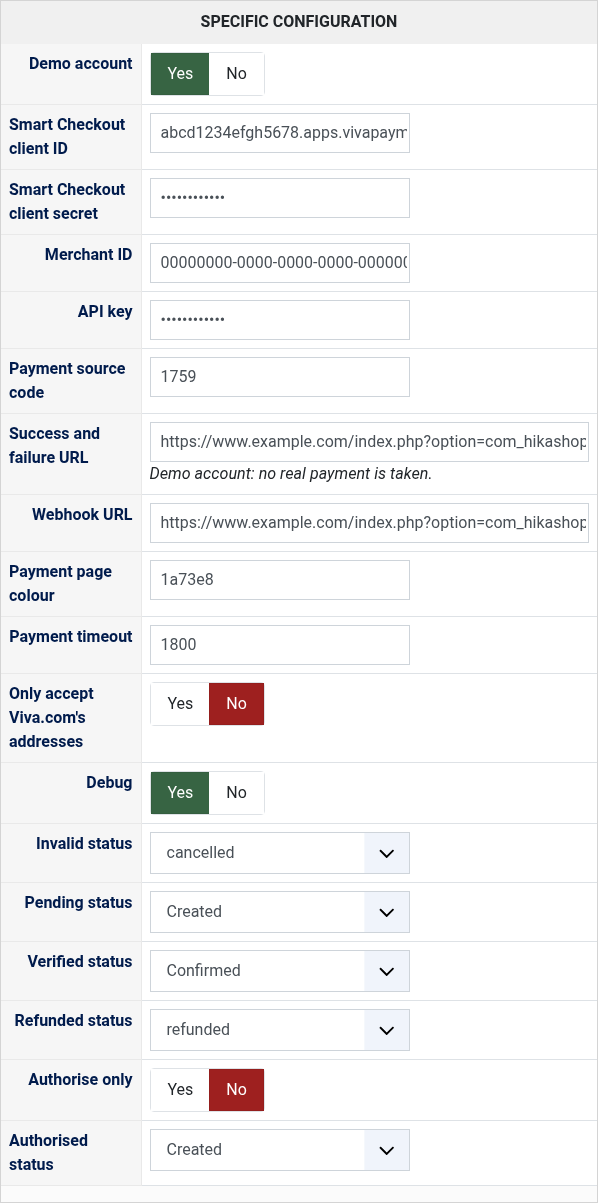
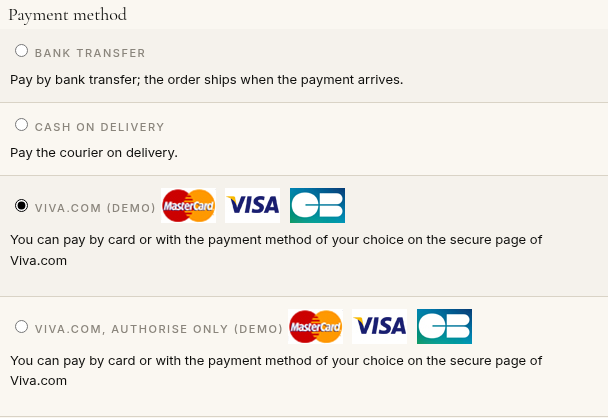
- Demo account: Yes for an account of demo.vivapayments.com, where no real payment is taken, No for your live account. The checkout then says "demo" next to the method.
- Smart Checkout client ID and Smart Checkout client secret: from Settings, API Access, Smart Checkout Credentials. Without them, no payment can be taken.
- Merchant ID and API key: from Settings, API Access. They are needed for refunds, for Authorise only and for the webhook check.
- Payment source code: the 4-digit code of your shop's payment source. Empty, Viva.com uses its Default source, whose success URL is not your shop's.
- Success and failure URL: shown by the plugin, to paste in your payment source.
- Webhook URL: shown by the plugin, to paste in your webhooks.
- Payment page colour: the main colour of the payment page, as a hex code such as 1a73e8. Empty for Viva.com's colours.
- Payment timeout: how many seconds the customer has to pay, 1800 (30 minutes) by default; 65535 never cancels the payment.
- Only accept Viva.com's addresses: refuses the notifications which do not come from the addresses Viva.com publishes. Leave it off when your site is behind a proxy or a CDN. Payments are read back from Viva.com in any case.
- Debug: writes every call to Viva.com to the HikaShop payment log.
- Invalid status: the status of an order whose payment was declined, cancelled by default.
- Pending status: the status of an order whose payment is still on its way; created by default, which leaves the order as it is.
- Verified status: the status of a paid order, confirmed by default. With Authorise only, moving an order to it takes the payment.
- Refunded status: moving an order to this status refunds its payment on Viva.com (or releases its authorisation).
- Authorise only: Yes to only hold the amount on the customer's card, and take it when you confirm the order.
- Authorised status: the status of an order whose amount is held, pending by default. A hold not taken in time falls off: after 1 to 5 days on a debit card, up to 30 days on a credit card.
- "The payment could not be started" at the checkout, with Viva.com's reason: "does not have a source with code" means the payment source code is wrong or the source is disabled; "does not support currency" means your Viva.com account does not take the order's currency; a refusal of the credentials means the client ID and secret do not match the Demo account setting.
- The customer does not come back to your shop after paying: check that your payment source has the plugin's Success and failure URL as both its success and failure URLs, and that its code is in the Payment source code setting.
- Orders paid by bank or another delayed method stay pending: create the webhooks of step 6.
- Viva.com does not verify the webhook URL: the Merchant ID and API key must be filled in, and your site must be reachable from the internet.
- "Viva.com refused the refund": on the day of the payment, Viva.com only cancels it for its whole amount; a refund of part of it is possible once the payment is in your Viva.com balance. Check also that Allow refunds is ticked.
- "Viva.com refused to capture the payment": tick Allow recurring payments and pre-auth captures via API, and capture before the hold falls off.
- Turn Debug on and look at the HikaShop payment log (System > Configuration) for Viva.com's answers.
- Compatible with all the editions of HikaShop
- Requires a Viva.com account (a free demo account to try it)
- Requires the PHP cURL extension
- Requires a website reachable from the internet, so that Viva.com can notify it of the payments
- Compatible with Joomla (payments not tested on WordPress yet)
- Klarna is not offered by the plugin yet; saved cards, instalments and recurring payments are not supported
- No limit of time
- No limit of use
1.0.0 on the 9th of October 2026
- First version.

- Type
- Payment plugin
Access to updates included for 4 years
A tax rate (between 17% and 27% based on your country) will be added if your address is in the European Union and that you don't provide a valid VAT number or if your address is in France as per the European Union law.