
PayPlug (OAuth2)
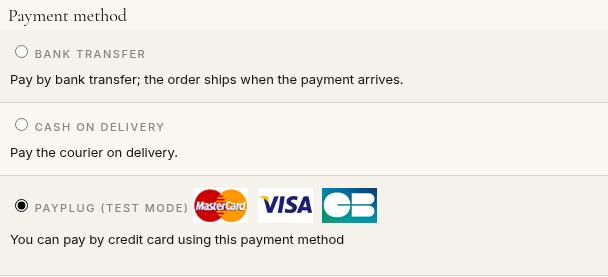
This plugin adds PayPlug payments to your HikaShop store with the OAuth2 clients the PayPlug portal now gives instead of the old secret keys. At the end of the checkout your customer is sent to the PayPlug payment page, pays by card, and comes back to your shop, where the order is confirmed.
Features- Card payments (CB, Visa, Mastercard) on the PayPlug payment page, with 3-D Secure handled by PayPlug, so your shop never sees a card number.
- American Express, Bancontact, iDEAL, MyBank, Satispay and Wero too, when they are in your PayPlug offer: make one HikaShop payment method for each, so your customers see its own name and logo at the checkout.
- Payment in 3 or 4 instalments with Oney, with or without fees, and with Scalapay. The cart is sent as Oney and Scalapay ask, and an Oney payment under review waits until Oney accepts it, then the order is confirmed.
- A Connect with PayPlug button: log in to the PayPlug portal from the settings and the clients of the test and live modes are made and filled in for you. The client ID and secret made in the portal can also be typed in, and an account which has no client yet can still use its old secret key.
- The billing and shipping addresses of the order are sent to PayPlug, as the banks ask for 3-D Secure.
- The order is confirmed both when the customer comes back and when PayPlug sends its notification, whichever comes first, and once only.
- The payment is always read back from PayPlug and checked against the order, its amount and its currency, never taken from the notification or from the browser, so a payment cannot be faked.
- Moving an order to the refunded status refunds what is left of its payment on PayPlug; a refund PayPlug refuses leaves the status of the order unchanged. Refunds made in the PayPlug portal are added to the history of the order, which moves to the refunded status once all is refunded.
- A test mode runs the whole checkout on PayPlug's test mode, with its test cards. The payment method then shows "test mode" at the checkout.
 How it works
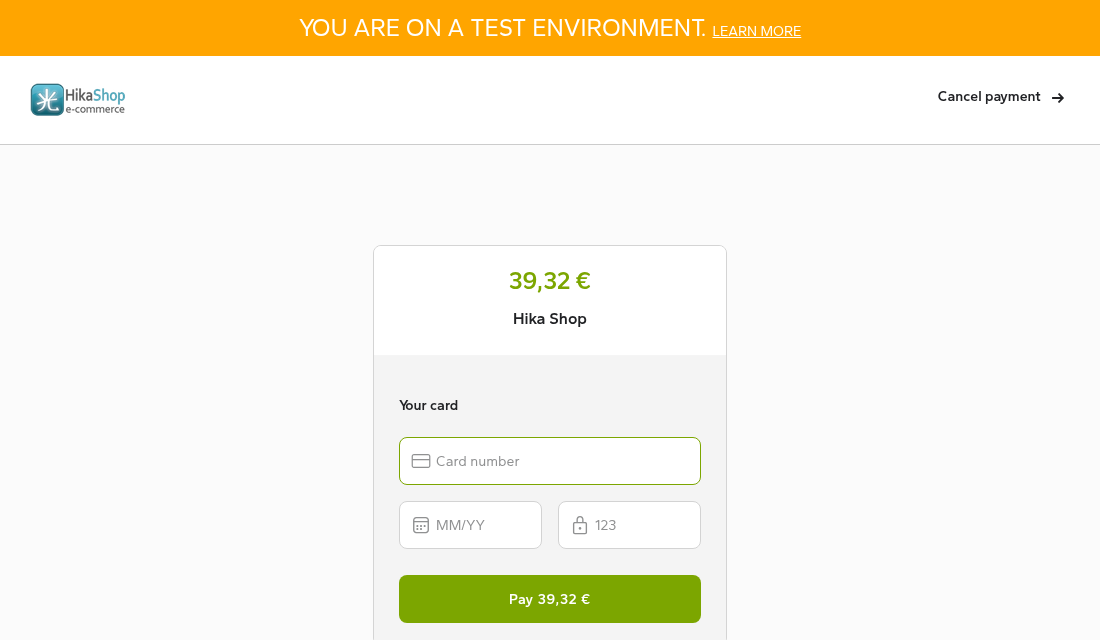
- 1. The customer confirms the order and is sent to the PayPlug payment page.
- 2. They pay by card; PayPlug handles 3-D Secure.
- 3. They come back to your shop, which asks PayPlug whether the order is paid and confirms it.
- 4. PayPlug also notifies your shop, which confirms the order if the customer did not come back.
 Installation
- 1) Open a PayPlug account at www.payplug.com.
- 2) Download the PayPlug (OAuth2) plugin from our website, install it on your website and enable it.
- 3) In HikaShop, go to System > Payment methods, create a PayPlug (OAuth2) payment method and save it once.
- 4) Click Connect with PayPlug and log in to your PayPlug account: you come back to the settings with the clients of the test and live modes filled in. Or make the two clients yourself in the PayPlug portal (portal.payplug.com), paste each client ID and secret in their fields and save: the plugin asks PayPlug for a token and says whether the client of the chosen mode is accepted.
- 5) Make a test order with a test card, then set Test mode to No to take real payments.
- Coming from the PayPlug v2 plugin bundled with HikaShop: create the new method as above and make a test order, then unpublish the old "PayPlug (legacy)" method. Both can stay installed, and the orders paid with the old one keep their history.
 Configuration
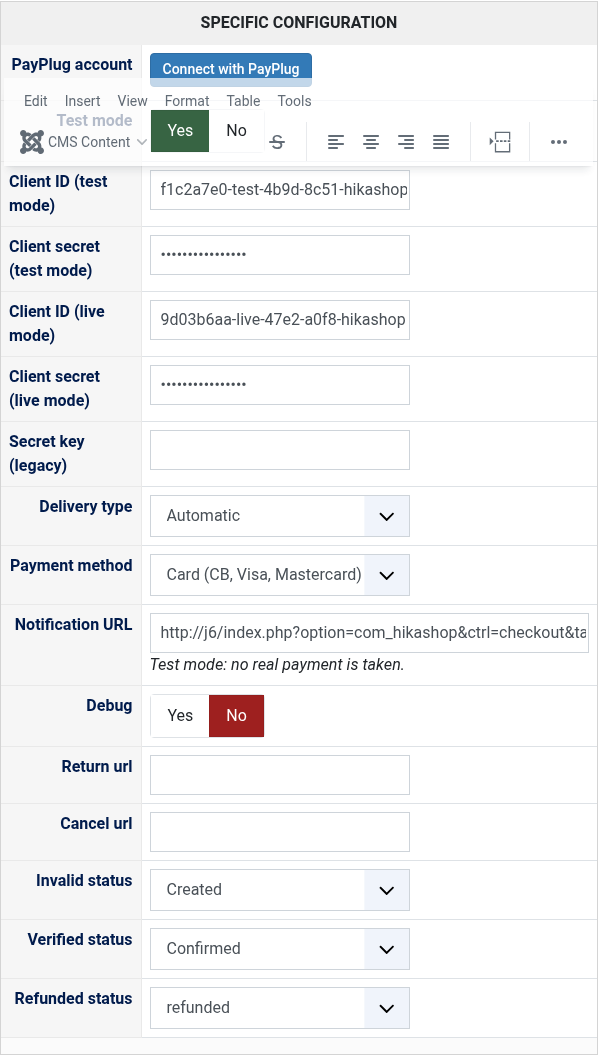
- PayPlug account: the Connect with PayPlug button, which makes the clients of both modes from your PayPlug account. Connect again after your account is activated for live payments.
- Test mode: Yes to use the test client, where no real payment is taken; No to use the live client.
- Client ID (test mode) and Client secret (test mode): the client of the test mode from the PayPlug portal.
- Client ID (live mode) and Client secret (live mode): the client of the live mode.
- Secret key (legacy): only for an account without an OAuth2 client, its old sk_test_ or sk_live_ key. Left empty when the clients are set.
- Payment method: what the customer pays with on the PayPlug page: cards, or one of the other methods of your offer. Make a HikaShop payment method for each one you offer.
- Delivery type: what PayPlug is told about the delivery for 3-D Secure. Automatic fits most shops.
- Notification URL: shown for information; the plugin gives it to PayPlug with each payment, nothing to set in the portal.
- Debug: writes every exchange with PayPlug in the payment log of HikaShop.
- Return URL and Cancel URL: pages to show instead of HikaShop's after a payment or a cancelled one. Left empty, HikaShop's own pages are used.
- Invalid status: the status of an order whose payment failed. Left empty, the order stays as it is and the customer can try again.
- Verified status: the status of a paid order.
- Refunded status: moving an order to it refunds what is left of its payment on PayPlug.
- "PayPlug did not give a token for the client of the test (or live) mode": the client ID or secret is wrong, or belongs to the other mode. Make a new client in the portal if the secret was lost. With Debug on, the payment log has PayPlug's answer.
- "The shop is connected with PayPlug in test mode. PayPlug made no live client": your PayPlug account is not activated for live payments yet. Connect again once it is.
- "The connection with PayPlug failed" with a reason: start again from the button, in the same browser, without opening the PayPlug pages in another tab. With Debug on, the payment log has PayPlug's answer.
- "Oney can pay orders from 100 to 3,000 EUR, with a mobile phone number...": Oney only takes those orders, and needs a mobile phone number (French, Belgian or Luxembourgish) in the billing and shipping addresses.
- "The payment could not be started" with PayPlug's reason: the reason says what to change, for instance an amount below 0.30 EUR, or a payment method which is not in your PayPlug offer.
- "PayPlug refused the refund" with PayPlug's reason: the order keeps its status. A refund is possible a few days after the payment at most for some methods; the PayPlug portal says what can still be refunded.
- A paid order that stays unconfirmed: the customer closed the page before coming back and PayPlug could not reach your site. Check that your site is reachable from the internet; the payment log of HikaShop says what happened.
Use
- Compatible with all the editions of HikaShop
- Requires a PayPlug account; payments in euros only
- Requires the PHP cURL and OpenSSL extensions
- Requires a website reachable from the internet so PayPlug can send it its notifications
- In English and French
- Compatible with PHP 7.4 minimum
- Compatible with Joomla and WordPress
- No limit of time
- No limit of use
Changelog
1.0.0
- First version.
Free
The add to cart button will appear once you select the values above
- Type
- Payment plugin