
Installation
- Install the plugin with the Joomla extension manager, then publish it in the plugin manager (System - ShipStation for HikaShop).
- Open the settings of the plugin. Choose a Username and a Password of your own (they are only used between ShipStation and your shop, they are not the ones of a Joomla account) and save.
- In your ShipStation account, connect your shop as a custom store, using the address shown in "For Shipstation setting page" (with your own domain), and the same username and password. The steps inside ShipStation are explained by ShipStation.
ShipStation then reads the orders of your shop to prepare the shipments, and sends back the carrier, the service and the tracking number, which are saved in the order.
Configuration
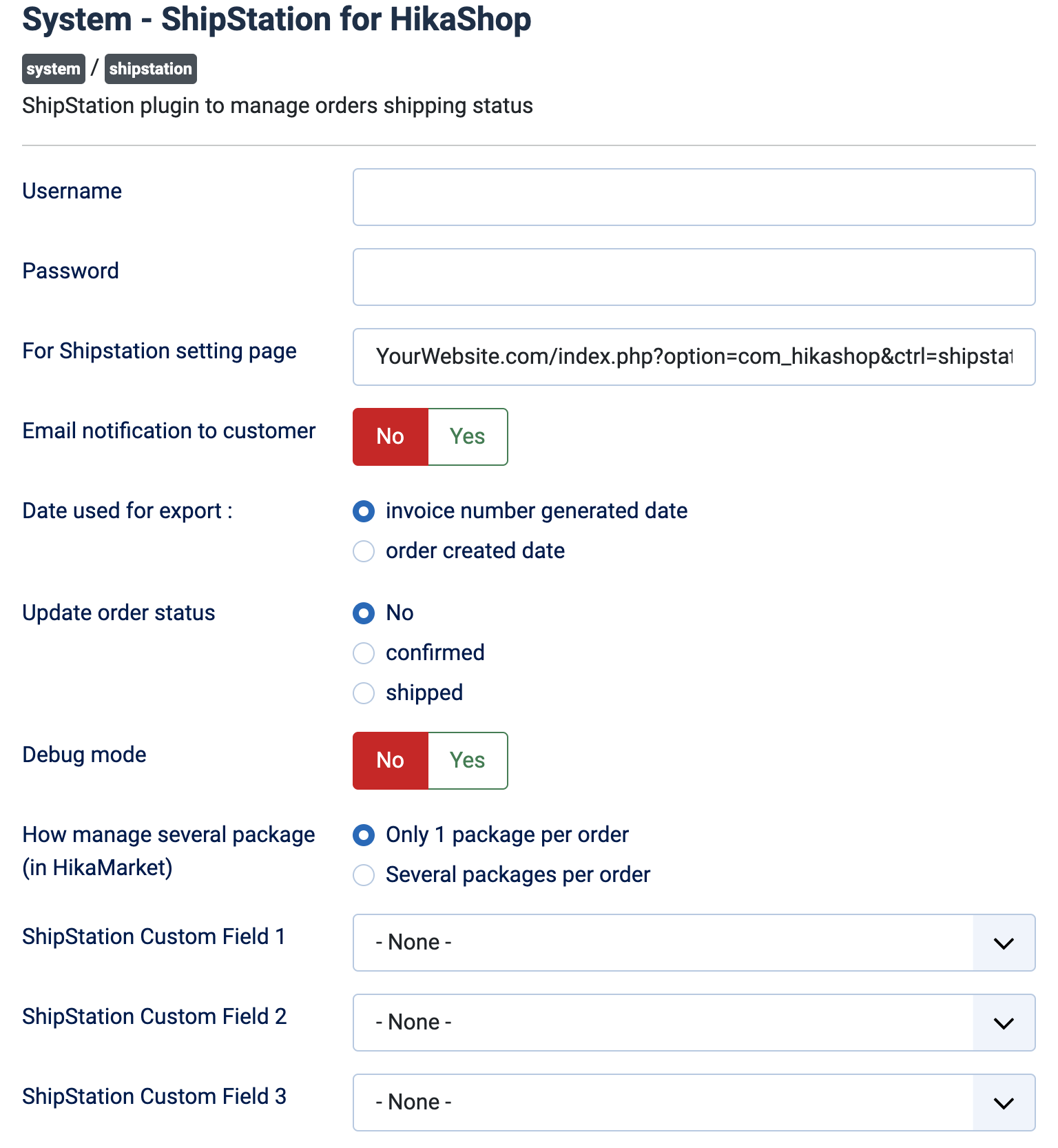
- Username: the username ShipStation must use to call your shop. Empty, the plugin refuses every call.
- Password: the password ShipStation must use. Empty, the plugin refuses every call.
- For Shipstation setting page: the address ShipStation calls, to be entered in your ShipStation account. Replace YourWebsite.com with the domain of your shop. This line only shows the address, it is not saved.
- Email notification to customer: No by default. Yes sends the customer an email when the plugin changes the status of their order after the shipment (see "Update order status").
- Date used for export: which date decides the orders ShipStation sees: the date the invoice number was generated (default, paid orders) or the date the order was created (also takes orders that are not paid).
- Update order status: the status given to an order when ShipStation reports its shipment: No (default) leaves the status alone, confirmed or shipped sets that status.
- Debug mode: No by default. Yes writes each step to the HikaShop log and shows the reason when ShipStation is refused.
- How manage several package (in HikaMarket): Only 1 package per order (default), or Several packages per order, one per vendor order, with HikaMarket.
- ShipStation Custom Field 1, 2 and 3: choose a piece of information sent to ShipStation in each of its three custom fields: the total weight of the order, the vendor name (HikaMarket), or a custom field of the addresses, the orders or the users. None (default) sends nothing.
Troubleshooting
- ShipStation cannot connect: check that the username and password are filled in and identical in both places, and that the address uses your real domain. Turn on Debug mode: "Unexpected username and password" then appears and is written to the log with the username received.
- "Unknow action/status from shipstation" (log, with Debug mode): ShipStation asked for something the plugin does not handle.
- "Ship Station error: impossible to read ... database" or "impossible to get start and end dates" (log): the export of orders failed; the end of the message says which part.
- An order is missing in ShipStation: check the "Date used for export": with the invoice number date, an order that is not paid yet is not offered.
- The order status does not change after the shipment: set "Update order status" to confirmed or shipped.