
Installation
- Install the plugin with the Joomla extension manager, then publish it in the plugin manager (System - HikaShop Captcha integration).
- In the Joomla Global Configuration, in the Site tab, choose a captcha in "Default Captcha". The plugin uses that captcha: any captcha plugin made for Joomla works, for instance reCAPTCHA or the proof of work captcha of Joomla 6.1.
- Open the settings of the plugin and choose the forms to protect.
With "Default Captcha" set to none in Joomla, nothing is displayed.
Configuration
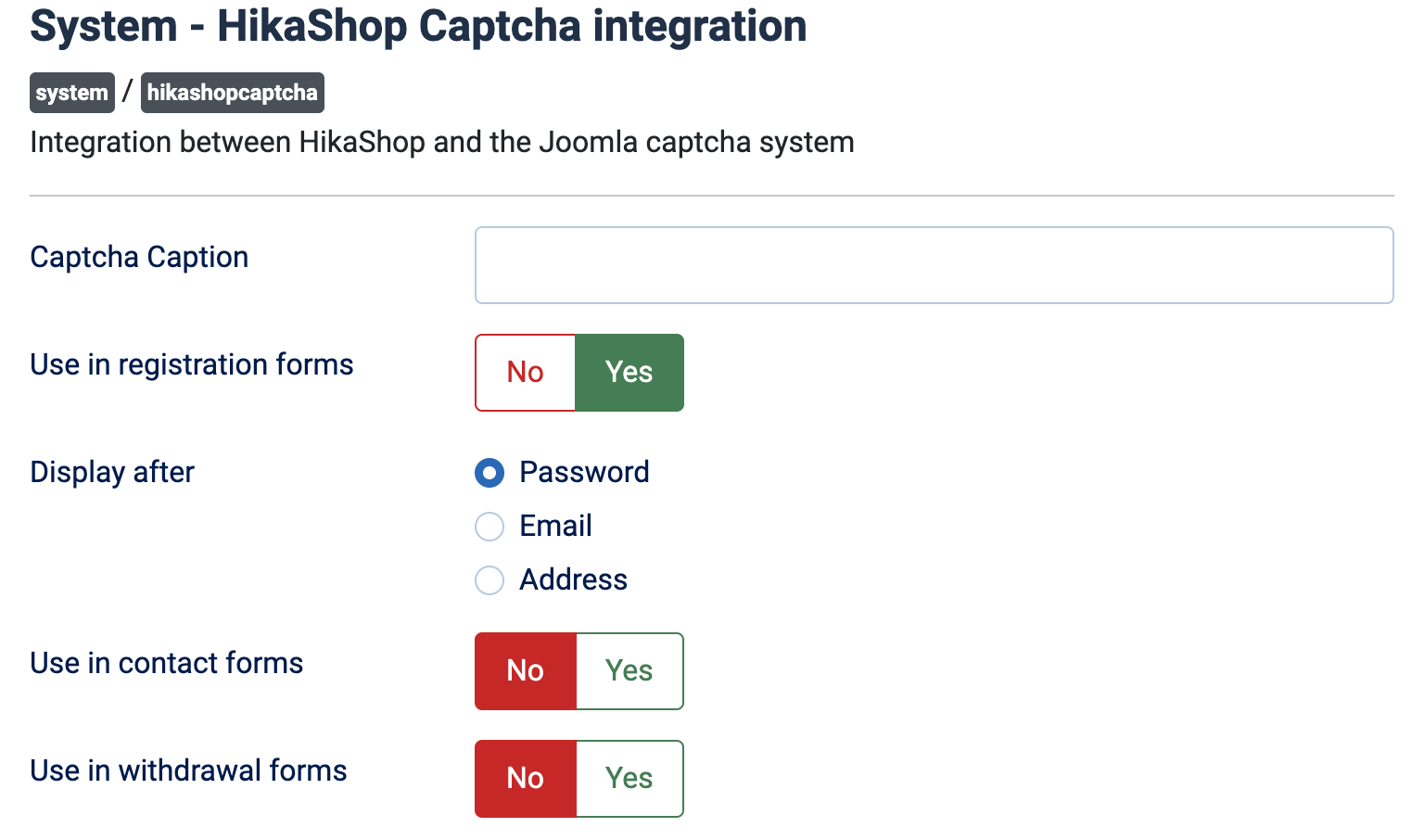
- Captcha Caption: the text displayed next to the captcha. Empty, the word "Captcha" is used.
- Use in registration forms: Yes (default) displays the captcha on the HikaShop registration forms, including the registration step of the checkout.
- Display after: where the captcha appears in the registration form: after the Password (default), the Email or the Address.
- Use in contact forms: No by default. Yes displays the captcha on the HikaShop contact form.
- Use in withdrawal forms: No by default. Yes displays the captcha on the HikaShop withdrawal form, for customers who are not logged in. It needs HikaShop 6.7.0 or later.
Troubleshooting
- No captcha is displayed: check that the plugin is published and that a captcha is chosen in "Default Captcha" in the Joomla Global Configuration, and that the captcha plugin itself is published and set up.
- "The captcha verification failed. Please try again.": shown on the withdrawal form when the answer was wrong or missing. The customer can try again.