
The Billbee plugin connects your shop to Billbee as a custom webshop: Billbee calls your site to fetch the new orders, and tells it when an order is paid, shipped or canceled in Billbee. Everything is set on the Billbee page of the HikaShop backend (System menu).
Installation
- Download the plugin from our website via the download link given after the purchase, and install it with the extension manager of Joomla, or in HikaShop > Plugins on WordPress. Enable it.
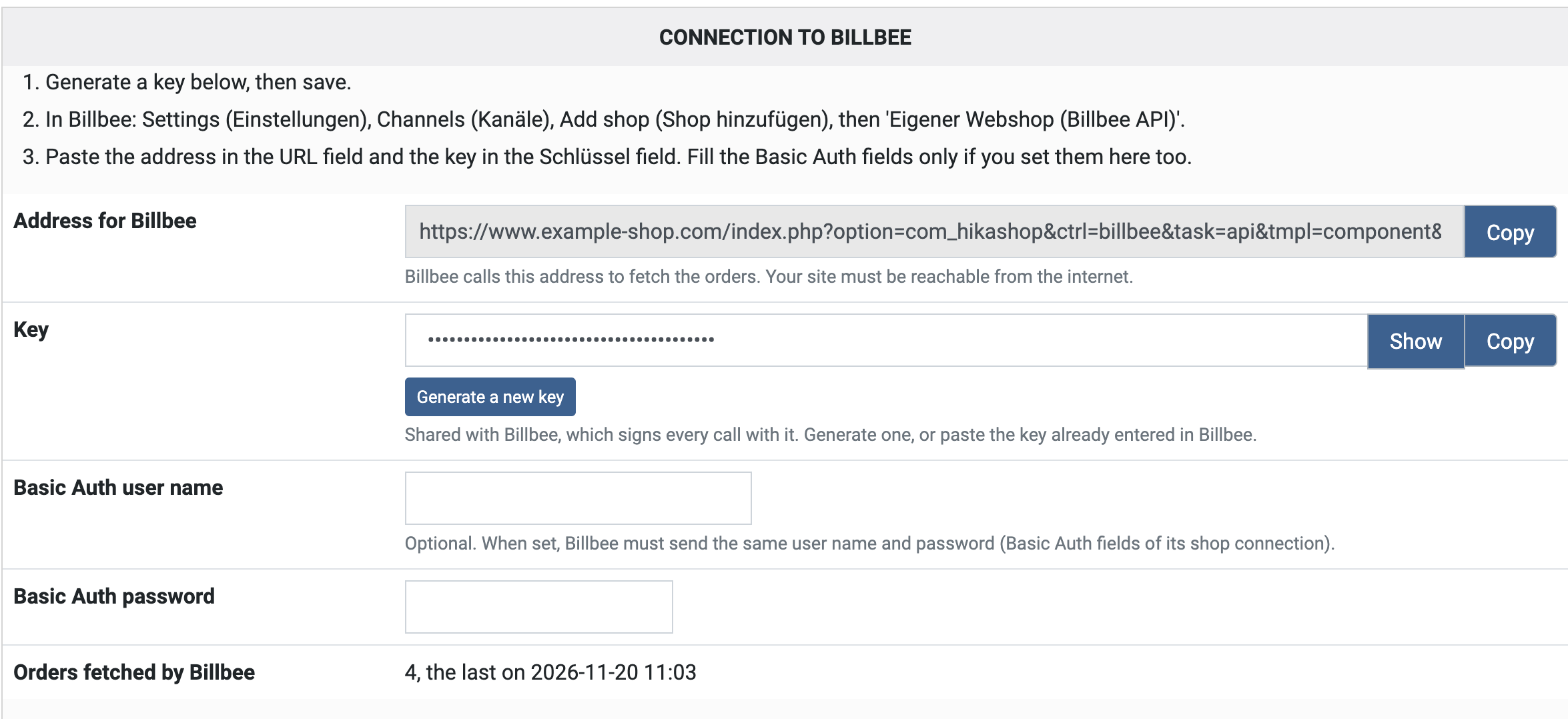
- Open HikaShop > System > Billbee. Click Generate a new key: the page now shows the Address for Billbee and the Key, each with a Copy button.
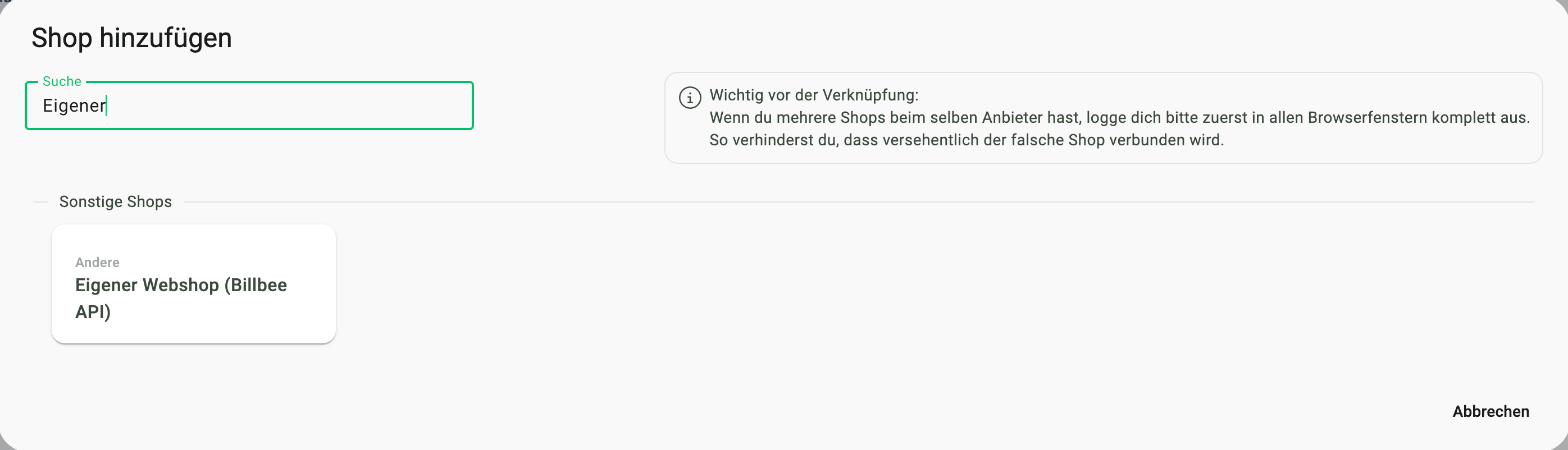
- In Billbee, open Einstellungen (Settings), then Kanäle (Channels), and click Shop hinzufügen (Add shop). In the list, under "Sonstige Shops", choose Eigener Webshop (Billbee API) (type "Eigener" in the search field to find it).
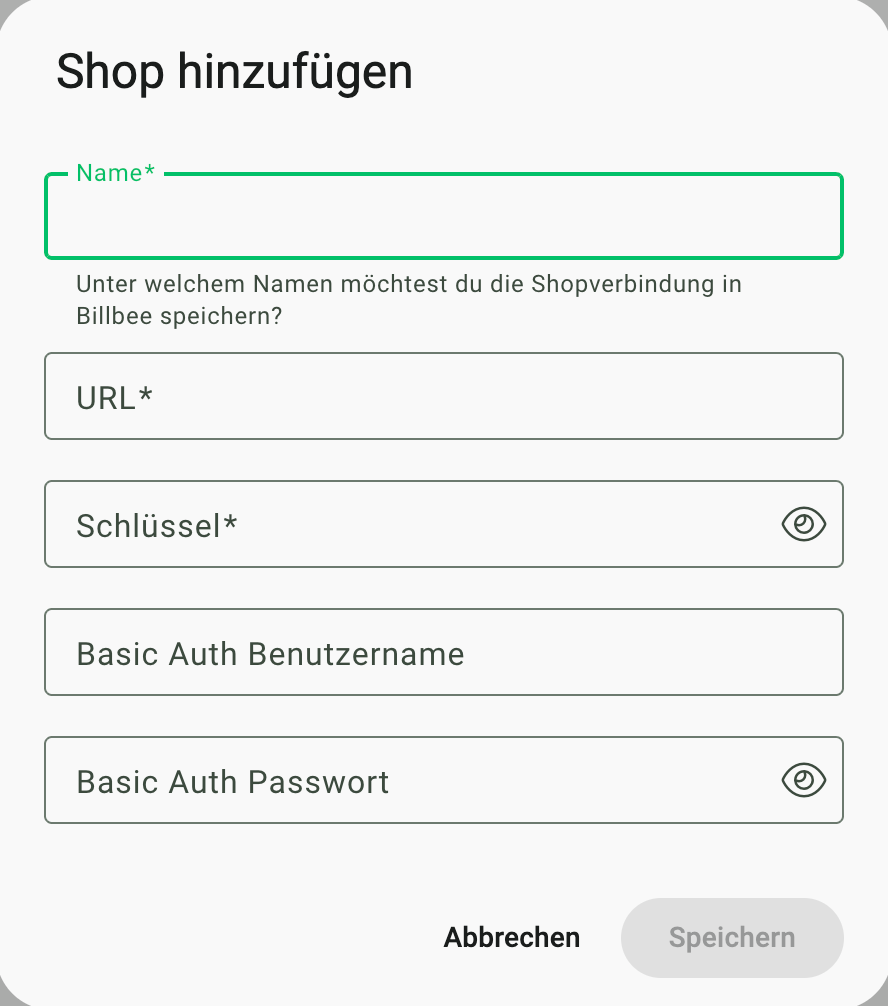
- Fill in the form: Name, any name for your shop; URL, the address for Billbee; Schlüssel (key), the key. Leave the two Basic Auth fields empty, unless you set a user name and password on the plugin's page too. Click Speichern (Save). Billbee calls your site at once to check the connection, so your site must be reachable from the internet.
- A new shop connection starts paused in Billbee: open it in Einstellungen > Kanäle and click Aktivieren (Activate) under "Abruf neuer Bestellungen". Billbee imports the orders placed from that moment on; the refresh button of its Bestellungen (orders) page starts an import at once.
Configuration
Connection to Billbee
- Address for Billbee: the URL to enter in Billbee's shop connection.
- Key: shared with Billbee, which signs every call with it. Generate one, or paste the key already entered in Billbee. Generating a new key stops the connection until you enter it in Billbee too.
- Basic Auth user name and password: optional. When set, Billbee must send the same ones (the Basic Auth fields of its shop connection).
- Orders fetched by Billbee: how many orders Billbee has imported, and when it last did.
Orders sent to Billbee
- Order statuses: Billbee only sees the orders in these statuses, by default confirmed and shipped. Add "created" to have the unpaid bank transfer orders in Billbee too.
- Orders created from: older orders are never sent, so Billbee does not import the past orders of your shop. It is set to the day you first save the page.
- Billbee state of each status: the state the order has in Billbee when it is imported (by default: created and pending as ordered, confirmed as paid, shipped as shipped, cancelled and refunded as canceled).
- Payment methods: the Billbee payment type of each payment method of your shop. The plugin guesses it from the payment plugin (PayPal, Stripe, bank transfer...) until you choose another one.
- Send the item custom fields: the values the customer entered on each product line (item custom fields) become options of the line in Billbee, beside the characteristics of the variant.
- Send the order language: the language of the order (for example de-DE) goes in the order's comment and history in Billbee. Billbee chooses the language of its invoices and emails from the customer's language, which a Billbee automation rule can set.
Changes made in Billbee
- HikaShop status for each Billbee state: when the order reaches this state in Billbee (paid, packed, shipped, closed, canceled), the order of your shop gets this status. An order never goes back: paid after shipped leaves it shipped. Canceled always applies. Each change, with the comment Billbee sends, is written in the history of the order.
- Notify the customer: sends the usual status change email of HikaShop when Billbee changes the status. The tracking number, carrier and tracking link Billbee sends with a shipment are written in the order history.
- Stock from Billbee: lets Billbee set the stock of your products. Leave it off when the shop keeps the stock. In Billbee, tick Abgleich aktiv (and Abgleich bei neuen Artikeln aktiv) on the Bestandsabgleich tab of the shop connection; an article Billbee already had keeps its stock sync off until you untick Bestandsabgleich deaktivieren on its Quellen tab.
- Debug log: writes each call of Billbee in the HikaShop log.
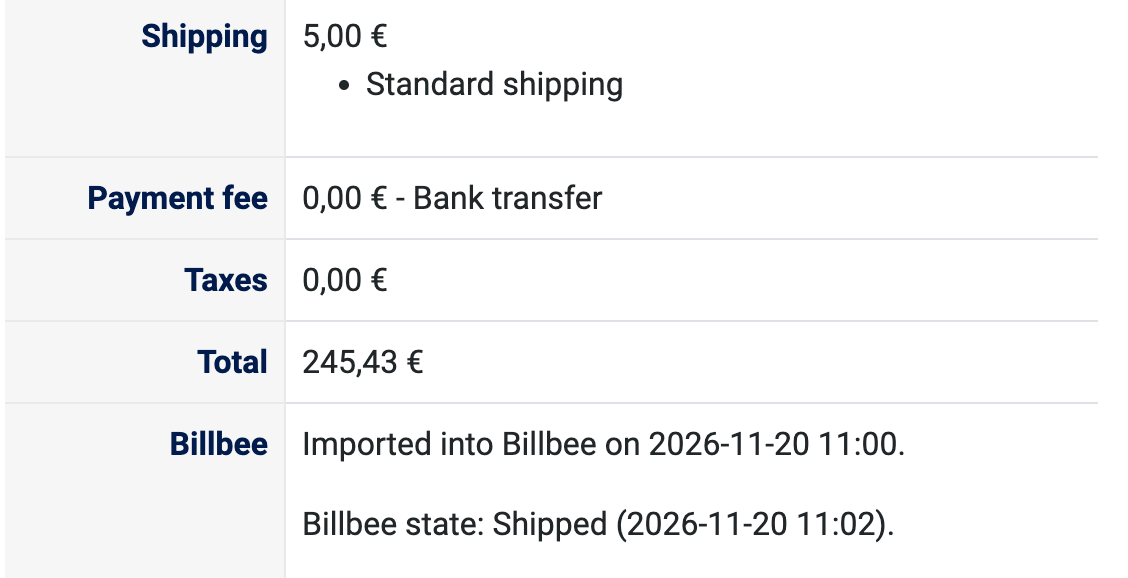
The order page of your backend shows when Billbee imported the order and its last state in Billbee:
Troubleshooting
- Billbee refuses to save the shop connection: Billbee calls your site when you save. Check that your site is reachable from the internet (not a local or password-protected test site), that the address is complete, and that the key in Billbee is the one shown by the plugin, without spaces.
- An order is not in Billbee: check that its status is one of the order statuses of the plugin, and that it was created after the "Orders created from" date. Billbee imports at its own pace; its manual import button fetches the orders at once.
- Paid or shipped in Billbee does not change the order: check the HikaShop status chosen for that Billbee state. An order already further along is left as it is, by design.
- Invoices and emails in the wrong language: Billbee uses the language of the customer in Billbee. Create a Billbee automation rule for imported orders that sets it, for instance from the delivery country.