
- Where to add your CSS
- Find the selector to change
- Ready to use examples
- Change the color and the size of the prices
- Change the color of the add to cart button
- Change the border around the products and categories
- Make the products lift when the mouse is over them
- Display the product code on the product page
- Change the size of the small images of the product page
- Hide the characteristic values in the product name
- Display the characteristics radio buttons vertically
- Hide some parts of the pagination
- Move the registration box below the login box
- The text of a button does not fit
- Replace an icon with your own picture
Where to add your CSS
The CSS of the examples below can go in two places. Whichever you choose, never edit the Front-end CSS file of HikaShop itself: it holds all the positioning CSS of the default layout, and it is the file that receives new rules in every update.
1. Your Joomla template (recommended). Most templates have a place for custom CSS, and keeping all the styling of your website in one place makes it easier to maintain. The list of the main templates and where they keep it is in the customize the display page.
2. The Styles of HikaShop. In System > Configuration, on the Display tab, the CSS Options panel has two selectors for the front-end: the Front-end CSS File and the Styles for the front-end. Click on the + button next to the Styles selector, give a name of your own to your file (not default, which is the file shipped with HikaShop), paste your CSS and save. Then select it in the list and save the configuration.
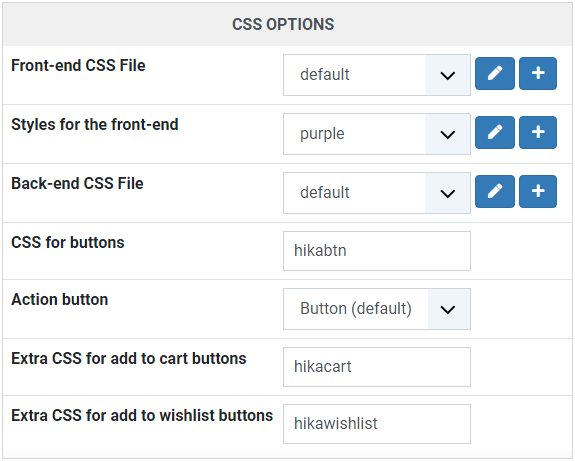
A Styles file you created is never touched by an update, and its rules apply on top of the default ones. The pencil button opens the file in an editor, with the syntax highlighted:
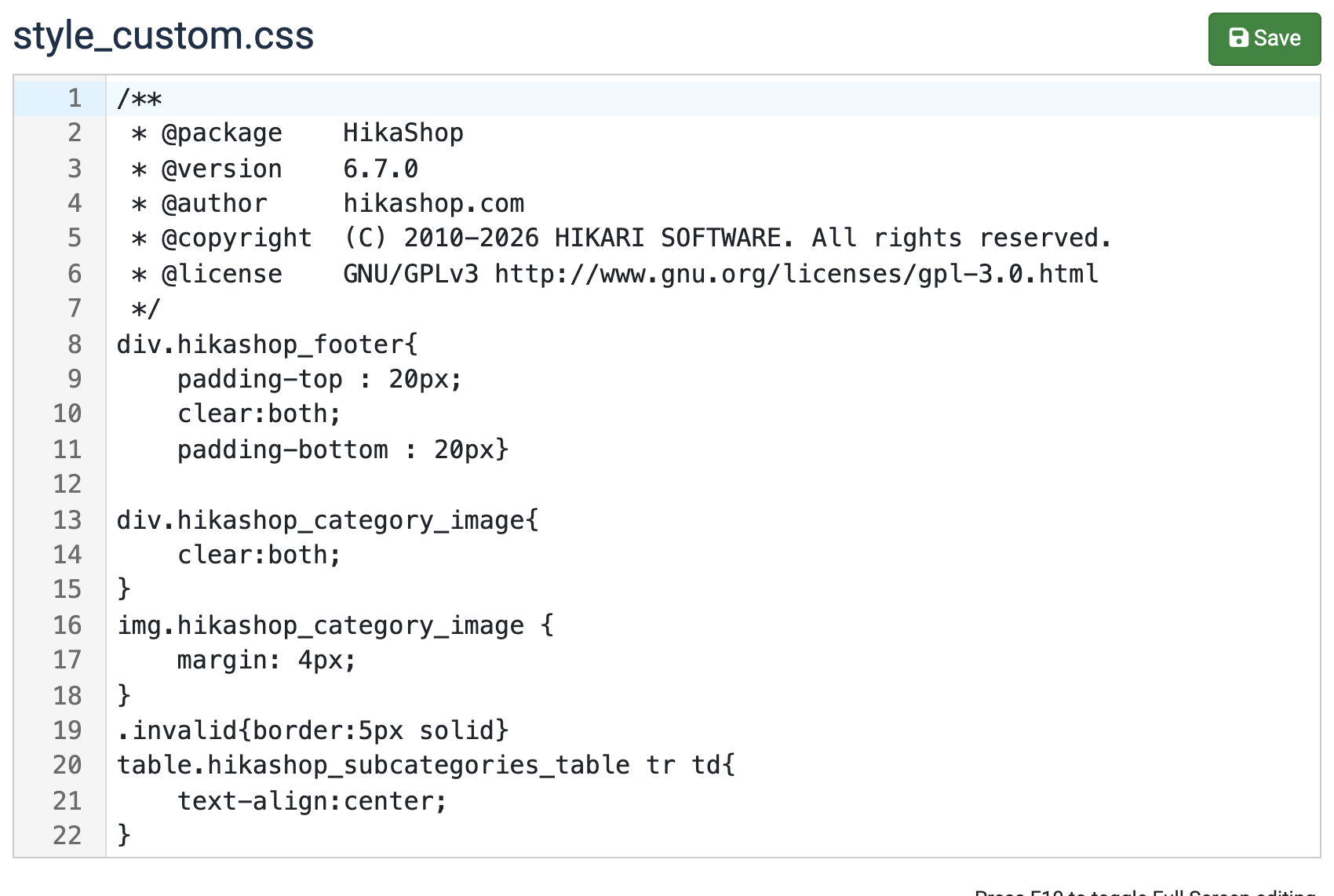
Put a comment above each block of CSS you add, so that you know later what it was for:
/* Prices: dark red and bold */
span.hikashop_product_price {
	color: #900;
	font-weight: bold;
}
Find the selector to change
You do not need to guess the name of a class. Open your page in your browser, right click on the element you want to change and choose Inspect: the developer tools show its HTML and, next to it, the CSS rules which apply to it. Copy the class you need in your own rule, and the browser shows you right away what it does before you write anything in HikaShop.
If your rule does not seem to do anything, it is usually because another rule is more specific. Make yours more specific by adding a parent class in front of it, or as a last resort add !important after the value.
To learn CSS itself, the MDN CSS guide is a good start.
Ready to use examples
Change the color and the size of the prices
Add this CSS:
span.hikashop_product_price {
	color: #900;
	font-weight: bold;
	font-size: 1.2em;
}
Change the color of the add to cart button
The add to cart buttons carry the class hikacart, which you can change in the Extra CSS for add to cart buttons setting of the panel above. Add this CSS:
.hikacart {
	background-color: #1a7f37;
	border-color: #1a7f37;
	color: #fff;
}
Change the border around the products and categories
The box of each product or category of a listing is the hikashop_subcontainer element:
div.hikashop_products div.hikashop_subcontainer {
	border: 1px solid #ddd;
	border-radius: 8px;
}
The background color of the boxes is already a setting of the HikaShop options of your menu or module. If you prefer to do it in CSS and it seems to be ignored, add !important, as the setting of the menu is written on the element itself.
Make the products lift when the mouse is over them
div.hikashop_products div.hikashop_subcontainer {
	transition: box-shadow 0.2s, transform 0.2s;
}
div.hikashop_products div.hikashop_subcontainer:hover {
	box-shadow: 0 6px 16px rgba(0, 0, 0, 0.15);
	transform: translateY(-3px);
}
Display the product code on the product page
No CSS is needed: in System > Configuration, on the Display tab, set Display product code to Yes. If the code is displayed and you want to hide it, set it to No, or keep the setting and hide it in CSS:
.hikashop_product_code_main {
	display: none;
}
Change the size of the small images of the product page
They are displayed under the main image when a product has several images:
img.hikashop_child_image {
	margin: 2px;
	height: 50px;
}
Hide the characteristic values in the product name
On the page of a variant, the values of its characteristics are added after the name of the product:
.hikashop_product_page .hikashop_product_variant_subname {
	display: none;
}
Display the characteristics radio buttons vertically
.hikashop_product_characteristics_table {
	width: 100%;
}
.hikashop_product_characteristics_table input {
	float: left;
	clear: both;
}
.hikashop_product_characteristics_table label {
	display: block;
}
Hide some parts of the pagination
To remove the selector of the number of items per page:
.hikashop_products_pagination div.limit,
.hikashop_subcategories_pagination div.limit {
	display: none;
}
To remove the text which counts the results:
span.hikashop_results_counter {
	display: none;
}
Move the registration box below the login box
On the checkout, the login and the registration are side by side. To stack them, give the column of the login the full width:
.hikashop_checkout_login .hkc-lg-4 {
	width: 100%;
}
The text of a button does not fit
HikaShop uses the buttons of your template. When the text of one is cut or overflows, the template gives its buttons a fixed width. You can:
- change the buttons of your template so that they follow the length of their text (your template provider can help),
- or, in the CSS Options panel above, add your own class in the CSS for buttons setting (it is
hikabtnby default) and write the style of that class in your Styles file.
Replace an icon with your own picture
The icons of HikaShop are Font Awesome icons. This replaces the refresh icon of the cart of the checkout with a picture of your own, which you upload in the media folder of your website first:
.hikashop_checkout_cart i.fa.fa-sync {
	background-image: url(/media/com_hikashop/images/refresh.png);
	background-size: contain;
	width: 14px;
	height: 14px;
}
.hikashop_checkout_cart i.fa.fa-sync:before {
	content: '' !important;
}
To change the look of the products by color, see also the display by color tutorial.