
HikaShop 6.8.0 adds a log page of its own, ends every order on the same thank you page, and makes your pages load faster on Joomla. It lets you import a shop from VirtueMart, WooCommerce, OpenCart, PrestaShop, Magento, Sylius, Shopware, EC-CUBE, J2Store and J2Commerce, another HikaShop, Wix, Squarespace or Shopify in one screen, with your customers keeping their passwords, and it offers tools to the AI agents working in the browser of your visitors. The setup assistant was rebuilt with sample data packs and tax packs for Europe, Canada and the United States, and the forms of the shop are easier to use with a keyboard and a screen reader. This release also fixes a security issue.
Here is a look at the highlights of this release.
- The HikaShop log gets its own page
- One thank you page for every order
- Import another shop in one screen
- Faster pages on Joomla
- Tools for AI agents in the browser
- A new setup assistant, with sample data and tax packs
- Forms you can use with a keyboard and a screen reader
- Dashboard periods and CSV export
- Security
- Bug fixes and other improvements
- Before you update
The log of HikaShop is now a page of its own, System > Logs, on Joomla and on WordPress. It lists the entries with their date, level, source (the payment or shipping method, the plugin or the part of HikaShop that wrote them) and order, with a search, filters, sorting and paging. An entry opens on a page with its full data and the other entries of the same request, and the order page links to the entries of its order. The log can be exported as CSV or text, and entries can be deleted one by one or all those matching the filters at once. Card numbers, passwords and keys are masked.
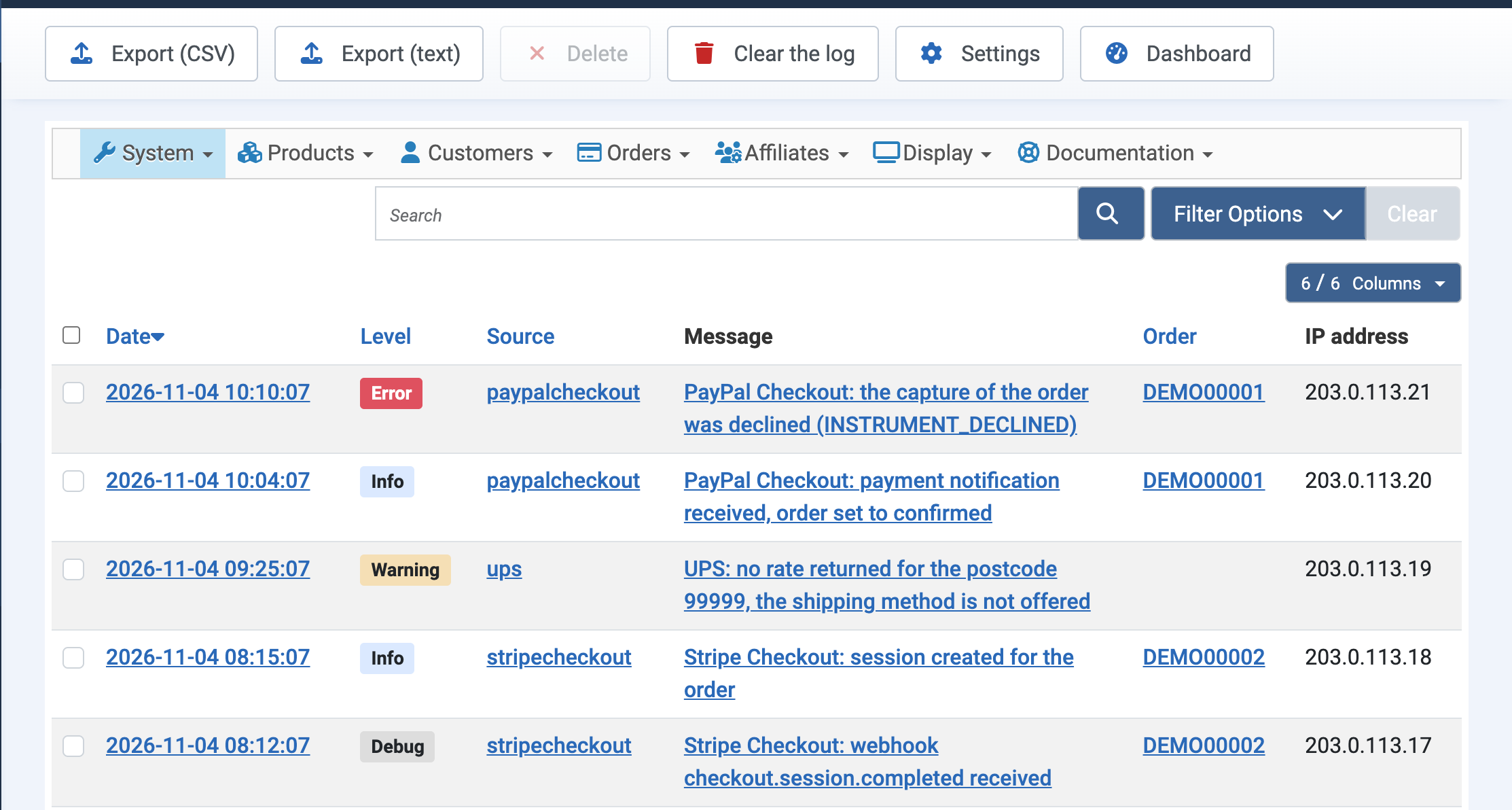
Before, the log was a single file shown whole in a popup of the configuration and never cleaned. Entries are now kept 30 days, a setting in Configuration > Main > Files, and the cron removes older ones. A Logs setting still lets the log be written to the old file, alone or as well. Developers can write entries with a level through hikashop_log(), and the log can be read and cleared from the command line and read through the connector API. See the documentation of the HikaShop logs.
Every order now ends on the same thank you page: the name of the customer, the order number, date and total, whether it is paid or waits for its payment, what the payment method asks for (the bank details of a transfer, where to send a check, the amount to pay on delivery), what happens next, the lines of the order with their quantities, coupon, fees and taxes, the addresses, and buttons to view the order, print its invoice and continue shopping. A guest is told where the order was emailed and, when the shop allows it, how to create an account. Your template can restyle it with CSS.
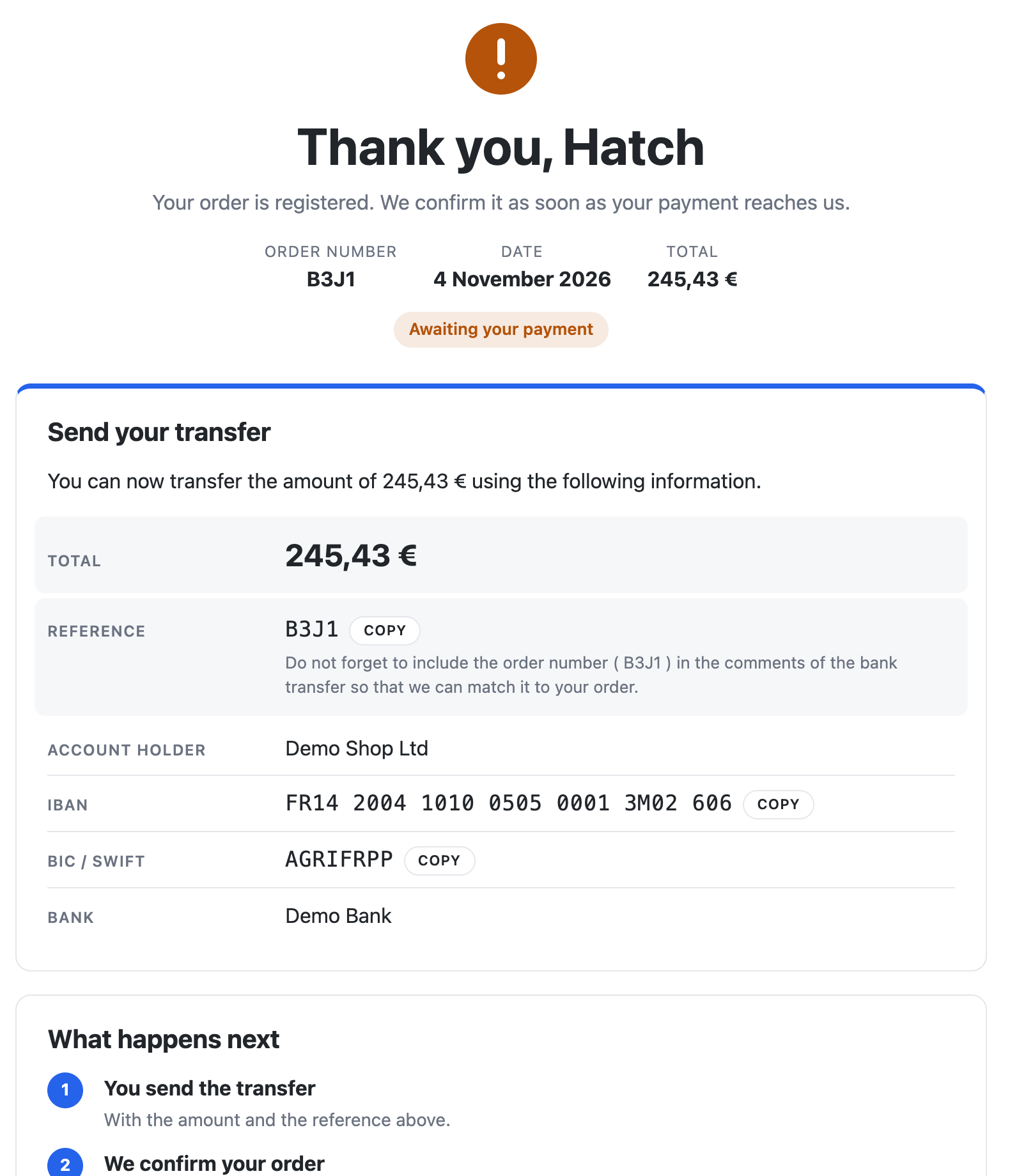
Before, a bank transfer, a check or a cash on delivery order ended on a few lines of text, a card paid on the site on the thank you message of its plugin, and a card paid at the bank on two messages. Payment plugins can give the page their own part, and plugins can add blocks to it, as the developer documentation describes.
The bank transfer payment method has a new "Bank account format" setting: free text as before, IBAN and BIC, United States, United Kingdom, Canada, Australia, India, Japan, or custom fields. With a format, the thank you page shows each value of the account, the amount and the order number to give as reference, each with a copy button, the order email lists the account, and an IBAN is checked when the method is saved. The free text stays as a note. See the bank transfer documentation.
Moving to HikaShop is now done on one screen: the Import page has an "Import from another shop" choice, with the list of the shops it can read, the settings of the one you pick, and what to import (taxes, catalog, customers, coupons, orders, downloads). The import runs on the page itself with its progress, and a step which fails can be tried again or skipped instead of ending on an error page. Importing a second time now adds only what is new on the old shop, so you can import once to test and again when you go live.
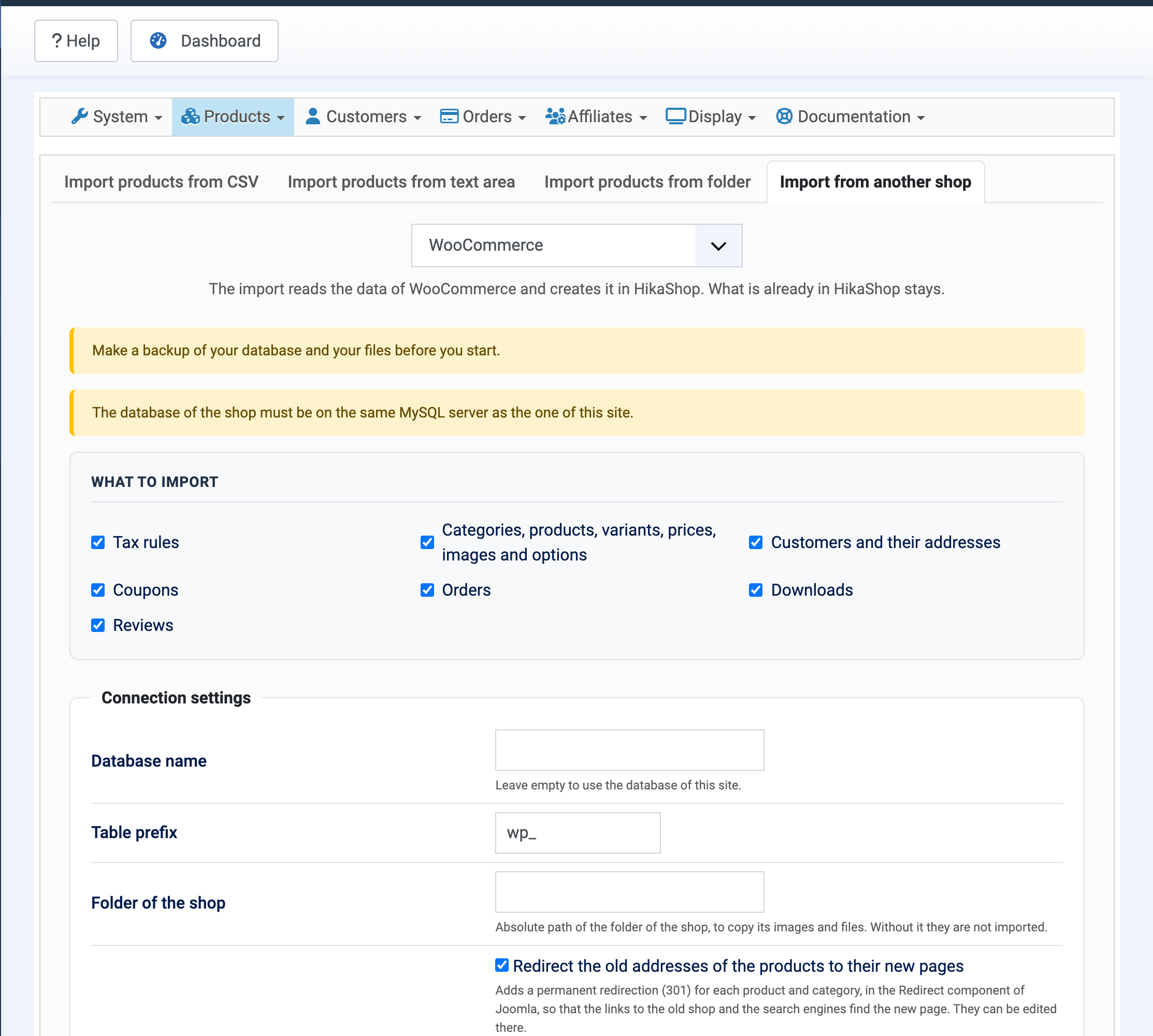
The shops it reads are VirtueMart, WooCommerce, OpenCart (3 and 4), EC-CUBE, J2Store and J2Commerce, another HikaShop, PrestaShop (1.7, 8 and 9), Magento 2, Shopware 6, Sylius (1 and 2), Shopify, Wix and Squarespace. Shopify is read from the CSV files its admin exports, and Wix and Squarespace from the CSV file of their dashboard.
Your customers keep their passwords: the customers imported from OpenCart, PrestaShop, Magento, Sylius, Shopware, EC-CUBE or WooCommerce log in with the password they had in their old shop, and HikaShop replaces it with a regular one at their first login. Before, the imported accounts could not log in until their password was reset. These imports now also work on a WordPress site.
On Joomla, the import can also create a permanent redirection from the old address of each product and category to its new page, so that old links and search engines find them. The VirtueMart import now does it too, and the Mijoshop, redSHOP and VirtueMart 1 imports are removed.
There is one documentation page per shop, from the Import page documentation.
On Joomla, pages load faster: the scripts of the add to cart notification, of the popups and of the cart drawer are now loaded once the page is displayed, and the styles of the popups and notifications no longer hold up its display. Before, the browser waited for them before showing anything, on every page with HikaShop content. We made this change for hikashop.com itself, which runs on HikaShop, and it halved the time its pages take to appear. Your shop benefits from the same change.
AI agents working in the browser of a visitor through WebMCP (Chrome or Edge with WebMCP on, or the MCP-B extension) now get tools from every page of your shop: search the products by words, category and your own filters, list the categories and the filters with the values they accept, read a product with its variants and options, open a listing with filters for the visitor to see, and add products to the cart of the visitor (the dates of a booking, a text or a choice included), read it and change its quantities. Registration, login and the checkout stay with the visitor, and the agent only gets what the visitor would see: the published products of their access level, with the prices of their taxes and currency.
Before, only the WebMCP option of the UCP plugin gave these tools, and current browsers never received them. That option is removed; the UCP plugin keeps its API for agents working from a server. Plugins can add tools of their own. See Selling to AI shopping agents.
The setup assistant shown after a first install is a new page: it adds the shop to the main menu with a cart, categories and best sellers in the sidebar, sets the country, currency and taxes (preselected from the language of the browser), shows its progress as it works, and can also be run from the command line.
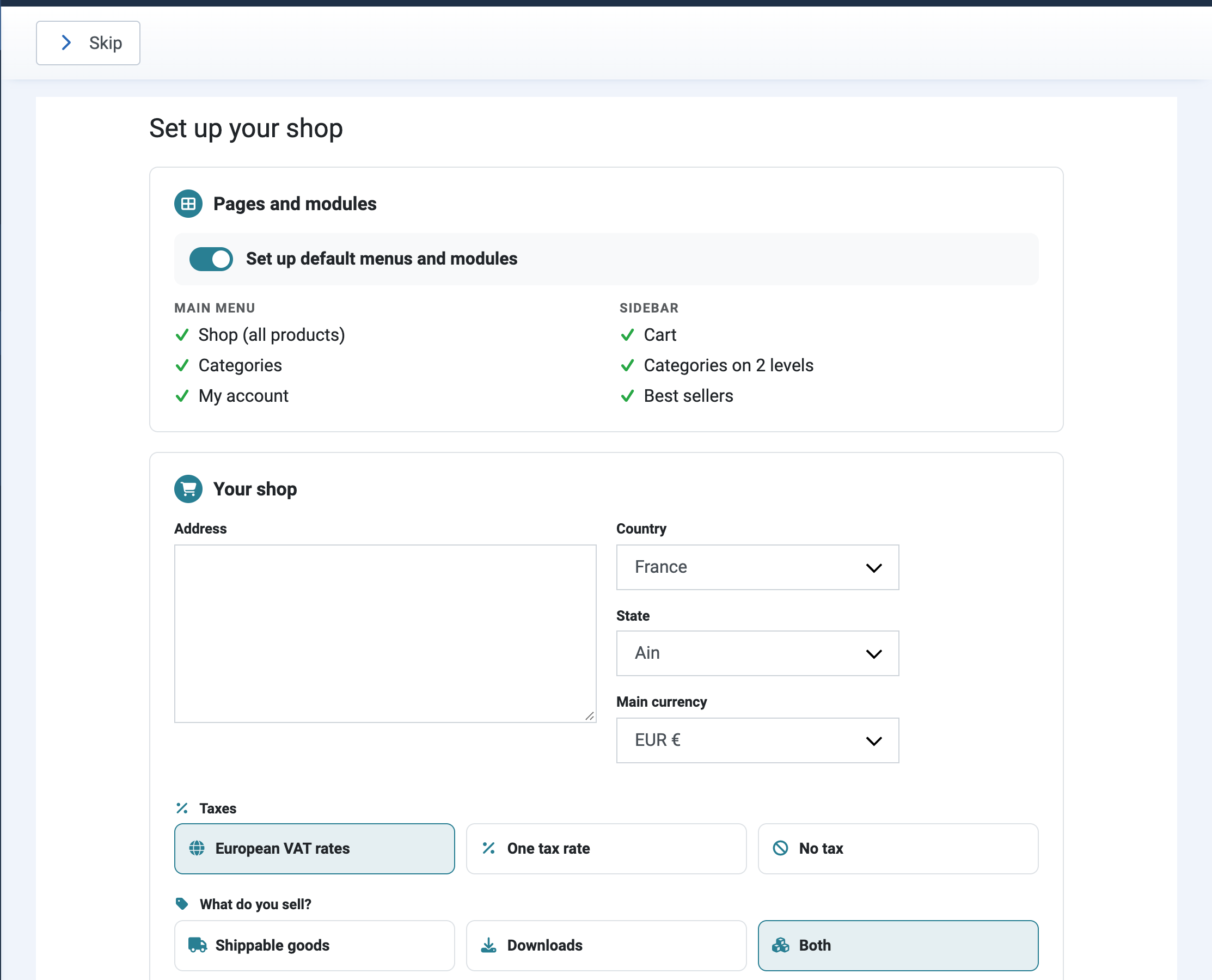
The sample data comes in three packs to choose from: general goods, clothes in four colours and sizes, and downloads that deliver a small file. It is generated on your site instead of downloaded, so it works on any server: about 40 products with their variants, 20 customers and 60 orders. Each kind can be removed again from the Advanced tab of the configuration, without touching what you added yourself.
The assistant can install the tax rates of Canada (GST, HST, PST and QST by province) and of the United States (the sales tax of your state), and the European pack now also taxes your regular products at the rate of your country. The European VAT rates are part of HikaShop instead of a download, and are the current ones (Estonia 24%, Slovakia 23%, Romania 21%).
The page shown after HikaShop is installed or updated is now part of HikaShop too: the version you came from and the one you have, your edition, the main new things of the version with a link to the changelog, and the places to go next.
When a form of your shop is sent with an error, such as the checkout with required fields left empty, the first error message now takes the focus, so a screen reader reads it and keyboard users start from it. Each required field left empty is also marked as invalid and shows its own message, which a screen reader reads together with the field. Before, the page reloaded with the focus at the top and only the list of messages said that something was wrong.
The choices shown as buttons on the forms, such as Login, Registration or Guest at the start of the checkout, can now be reached with the keyboard and are read as radio buttons, with an outline on the button in focus. The cart notification popup is announced by screen readers as a dialog, with its title and text, and the focus goes back to the button that opened it when the popup is closed.
The tiles of the dashboard (sales, orders, average, best product, category and customer) have a period setting in the dashboard configuration; their period used to be fixed. The Best category tile now counts the sales of variants and of every product of a category, and the Best customer tile shows the email of a customer who has no user account.
The CSV export of orders and users can now write only the shipping or only the billing address columns, where it always wrote both, and the column order and labels you set now apply to the address columns too, which were always written after the other columns with their raw names.
We fixed a security issue related to downloadable files. If you sell files with HikaShop, we recommend updating. Many thanks to Marcin Zając, who reported it to us privately.
On top of the features highlighted above, HikaShop 6.8.0 ships with many other things for a total of 23 new features, 52 improvements, 53 bug fixes and 1 security fix. Here is a selection of the additional improvements worth mentioning.
Notable additional improvements:
- Saved texts for withdrawals: the texts saved in the configuration can be added in one click to the reason for the customer of a withdrawal request, and a new reason emails the customer when "Notify the customer" is ticked, even if the status stays the same.
- PayPal Checkout: when PayPal refuses the application of the payment method, the payment page now says so and tells you what to check in the PayPal developer dashboard, instead of asking the customer to disable the browser extensions.
- A login block that shows the account: a new "Show the email of logged in customers" setting of the login block of the checkout, off by default.
- Comments in the language of the visitor first: the comments of a product show the ones written in the language of the visitor first, a setting on by default.
- The unit of an option price: the choice of an option shows the unit of its price when it has one, for example "per guest and night".
- Google Products feed: the main picture sent to Google is now the first picture Google accepts.
- Emails that survive a faulty customization: an error thrown while an email is generated by a customization or another extension no longer stops the request; the email is sent with what was generated and the error goes to the notification address and the log.
- WordPress: the filter block has a "Filters to show" list, the layouts of a theme apply to the Products and Categories blocks and to the modules, and a plugin package which ships another plugin installs both.
- For developers: new events and settings for plugins, such as onHikashopListingLinkParams, onHikashopAclCategories, a price prefix, and a download name for a file.
The 53 bug fixes include coupons applied after taxes which now take the right amount off and lower the taxes of the order, a "Pay now" on an unpaid order which now stops when a product is unpublished or out of stock, the VIES check of VAT numbers which refuses invalid numbers again, a PayPal Checkout card button which is offered again when the account cannot have the card form, the previous and next product buttons which follow the right category and order, the translated aliases of categories and products which are kept, product mass actions that compute a column from the price which work again, a default address which no longer removes the default shipping address, and several corrections for WordPress such as the update of the database columns after a HikaShop update.
- Back up your site first, as for any update. The update is done from the Joomla or WordPress updater, or with the one-click update button of your HikaShop configuration page.
- The old payment log file is replaced by the Logs page: the "Payment log file" setting gives way to the Logs, "Keep the log entries for (days)" and "Log file" settings of Configuration > Main > Files. A notice offers to download and delete the old log file.
- The sample data and the European VAT rates are now part of HikaShop and are no longer downloaded.
- The Westpac NET payment plugin is removed.
- Imports removed: the Mijoshop, redSHOP and VirtueMart 1 imports are removed, with the Mijoshop redirect plugin and the Hikashop - VirtueMart Fallback Redirect plugin.
- WebMCP: the WebMCP option of the UCP plugin is removed, HikaShop itself now offers the tools.
- Custom scripts on Joomla: a script which uses vex or jQuery.notify as soon as the page is read must now wait for the DOMContentLoaded event.
- HikaShop 6.7.1: if you stay on 6.7.1, download its latest build from your member area.
As always, we recommend updating to benefit from all fixes and improvements, and in particular for the security fix. You can download the update from your member area or use the one-click update button in your HikaShop configuration page.
For the complete list of changes, see the full changelog.