

- Posts: 92
- Thank you received: 1
Unable to remove "Add to cart" buttons
13 years 9 months ago #87561
by mortk1
Unable to remove "Add to cart" buttons was created by mortk1
I successfully removed the "Add to cart" buttons on the Product Listing pages of a website by following your directions:
"Edit your product listing through "Hikashop->Display->Content menus->Your product listing" and set the "Display 'Add to cart' button" option to NO.
I have just installed Hikashop Essential on a new website and again need to remove the "Add to cart" buttons on the Product Listing pages but this time, your directions are not working and the buttons remain. How can I remove them?
Please see the attached screen print:
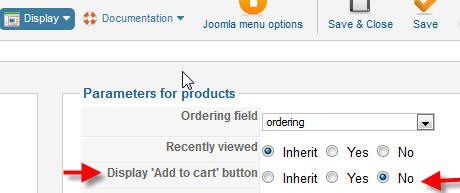
"Edit your product listing through "Hikashop->Display->Content menus->Your product listing" and set the "Display 'Add to cart' button" option to NO.
I have just installed Hikashop Essential on a new website and again need to remove the "Add to cart" buttons on the Product Listing pages but this time, your directions are not working and the buttons remain. How can I remove them?
Please see the attached screen print:
Please Log in or Create an account to join the conversation.

Less
More
- Posts: 12953
- Thank you received: 1778
13 years 9 months ago #87579
by Mohamed Thelji
Replied by Mohamed Thelji on topic Unable to remove "Add to cart" buttons
Hi,
I think that you are editing the wrong content menu/module, so can you give me a link to your website and show me with screenshots where are the "add to cart" buttons that you don't want to show ?
Thank you.
I think that you are editing the wrong content menu/module, so can you give me a link to your website and show me with screenshots where are the "add to cart" buttons that you don't want to show ?
Thank you.
Please Log in or Create an account to join the conversation.
13 years 9 months ago #87587
by mortk1
Replied by mortk1 on topic Unable to remove "Add to cart" buttons
Thank you so much for your quick response and your help with this.
Here is a link to my site that is under development:
webserver22.com/carol/index.php/gallery-1a/category
This is a Product Listing page and I do not want any "Add to cart" buttons on this page.
The first 3 products on the left are active with HikaShop and if you click on any of them,
you will see the Product Description page which needs to have the "Add to cart" buttons visible.
How can I remove the buttons from that first page but keep them on the next page?
Here is a link to my site that is under development:
webserver22.com/carol/index.php/gallery-1a/category
This is a Product Listing page and I do not want any "Add to cart" buttons on this page.
The first 3 products on the left are active with HikaShop and if you click on any of them,
you will see the Product Description page which needs to have the "Add to cart" buttons visible.
How can I remove the buttons from that first page but keep them on the next page?
Please Log in or Create an account to join the conversation.

13 years 9 months ago #87611
by Xavier
Replied by Xavier on topic Unable to remove "Add to cart" buttons
You have to edit the menu "Galleries" then click on the link to the associated module.
In the associated module options, set "no" for the option "Display 'add to cart' button".
In the associated module options, set "no" for the option "Display 'add to cart' button".
Please Log in or Create an account to join the conversation.
13 years 9 months ago #87674
by mortk1
Replied by mortk1 on topic Unable to remove "Add to cart" buttons
It worked beautifully...thank you so much!
Question:
When I create a new menu and associate that menu with a category, I get a message asking if I want to connect the menu with the associated content module. I've been connecting it without understanding if I should do this. What is the advantage of connecting the menu to the content module?
Question:
When I create a new menu and associate that menu with a category, I get a message asking if I want to connect the menu with the associated content module. I've been connecting it without understanding if I should do this. What is the advantage of connecting the menu to the content module?
Please Log in or Create an account to join the conversation.
13 years 9 months ago #87773
by Xavier
Replied by Xavier on topic Unable to remove "Add to cart" buttons
Generally you have to associate it, because the menu display the categories, and the associated module allow you to display the products of the category.
Without this module, the products will never be displayed.
Menu > display the categories
Associated module > display the products of the category
Without this module, the products will never be displayed.
Menu > display the categories
Associated module > display the products of the category
Please Log in or Create an account to join the conversation.
13 years 9 months ago #87855
by mortk1
Replied by mortk1 on topic Unable to remove "Add to cart" buttons
Thanks for the explanation Xavier.
I have one last issue that I need to ask you about:
When I add multiple images for a product, they appear on the product description page as tiny "child" images below the original image. How can I make these child images larger?
Please view the attached screen print:
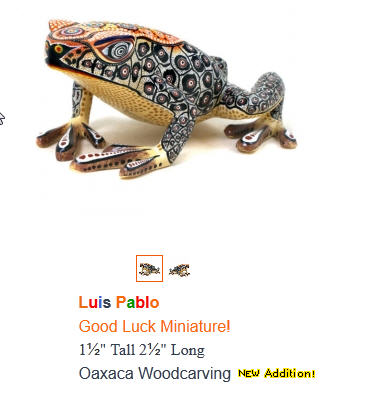
I have one last issue that I need to ask you about:
When I add multiple images for a product, they appear on the product description page as tiny "child" images below the original image. How can I make these child images larger?
Please view the attached screen print:
Please Log in or Create an account to join the conversation.
13 years 9 months ago #87922
by Xavier
Replied by Xavier on topic Unable to remove "Add to cart" buttons
In HikaShop > Configuration > Files, be sure that the thumbnail size is not to low.
Else you can use a CSS property to use larger images.
www.hikashop.com/fr/support/documentation/faq.html#css
Else you can use a CSS property to use larger images.
www.hikashop.com/fr/support/documentation/faq.html#css
Please Log in or Create an account to join the conversation.
13 years 9 months ago #88007
by mortk1
Replied by mortk1 on topic Unable to remove "Add to cart" buttons
Changing the thumbnail size in HikaShop > Configuration > Files did not alter these child images that sit below the thumbnail.
Thank you for recommending FireBug to troubleshoot this issue. I installed Firebug and found this code behind one of the child images:
<img class="hikashop_child_image" alt="" src="/carol/media/com_hikashop/upload/thumbnail_300x300/dsc00045_small_1190779612.jpg" style="border: 1px solid;">
Please tell me what file to go into to alter this code and how I should change it to make these tiny child images larger.
Here is a link to the web page:
webserver22.com/carol/index.php/gallerie.../product/3-product-1
Thank you for recommending FireBug to troubleshoot this issue. I installed Firebug and found this code behind one of the child images:
<img class="hikashop_child_image" alt="" src="/carol/media/com_hikashop/upload/thumbnail_300x300/dsc00045_small_1190779612.jpg" style="border: 1px solid;">
Please tell me what file to go into to alter this code and how I should change it to make these tiny child images larger.
Here is a link to the web page:
webserver22.com/carol/index.php/gallerie.../product/3-product-1
Please Log in or Create an account to join the conversation.
13 years 9 months ago #88069
by Xavier
Replied by Xavier on topic Unable to remove "Add to cart" buttons
Add this property in the css file:
.div#hikashop_product_left_part img.hikashop_child_image {height:100px !important;}
.div#hikashop_product_left_part img.hikashop_child_image {height:100px !important;}
Please Log in or Create an account to join the conversation.
13 years 9 months ago #88138
by mortk1
Replied by mortk1 on topic Unable to remove "Add to cart" buttons
I added:
.div#hikashop_product_left_part img.hikashop_child_image {height:200px !important;}
to the CSS/template.CSS file but there is no change, the child images are still tiny.
I added this code first to the beginning of the CSS file, then to the middle and finally to the end but no change. Must it be added to a specific location?
Could I add this code to one of the files in Display/Views?
I do have access to the code in the HikaShop files on my server.
Can I add this code to one of those files to affect the change that I need?
.div#hikashop_product_left_part img.hikashop_child_image {height:200px !important;}
to the CSS/template.CSS file but there is no change, the child images are still tiny.
I added this code first to the beginning of the CSS file, then to the middle and finally to the end but no change. Must it be added to a specific location?
Could I add this code to one of the files in Display/Views?
I do have access to the code in the HikaShop files on my server.
Can I add this code to one of those files to affect the change that I need?
Please Log in or Create an account to join the conversation.

13 years 9 months ago #88330
by nicolas
Replied by nicolas on topic Unable to remove "Add to cart" buttons
Hi,
I checked your page but I don't see that CSS code in your template CSS file.
You must be missing something.
The simplest is to add it in the frontend CSS file of Hikashop via the Display tab of the configuration of Hikashop as explained in the documentation.
I checked your page but I don't see that CSS code in your template CSS file.
You must be missing something.
The simplest is to add it in the frontend CSS file of Hikashop via the Display tab of the configuration of Hikashop as explained in the documentation.
Please Log in or Create an account to join the conversation.
13 years 9 months ago #88380
by mortk1
Replied by mortk1 on topic Unable to remove "Add to cart" buttons
Hi Nicolas,
Yes, I was placing the code into the wrong CSS file. I purchased the Styles pak and have now made the child images large...thanks!
Questions:
1) Before, when I added multiple images for a product, they appeared on the product description page as tiny "child" images below the original image. Following Xavier's instructions, I added this code to the front-end CSS file:
.div#hikashop_product_left_part img.hikashop_child_image {height:100px !important;}
Now the child images are much too large. I need them to be about 1 inch wide.
Please view the child images at this link:
webserver22.com/carol/index.php/gallerie...ry-1a/product/3-frog
I changed the pixels in the code first to 25 pixels, then to 10px but was not able to reduce the size of these images. How can I now make them smaller?
2) Please explain the difference between the Front-End CSS file and the Back-End CSS file and when I should use each file.
3) My client wants to add "Next>" and "Prev<" navigation buttons to the right and left edges of the Product Listing page. How can I do that?
Yes, I was placing the code into the wrong CSS file. I purchased the Styles pak and have now made the child images large...thanks!
Questions:
1) Before, when I added multiple images for a product, they appeared on the product description page as tiny "child" images below the original image. Following Xavier's instructions, I added this code to the front-end CSS file:
.div#hikashop_product_left_part img.hikashop_child_image {height:100px !important;}
Now the child images are much too large. I need them to be about 1 inch wide.
Please view the child images at this link:
webserver22.com/carol/index.php/gallerie...ry-1a/product/3-frog
I changed the pixels in the code first to 25 pixels, then to 10px but was not able to reduce the size of these images. How can I now make them smaller?
2) Please explain the difference between the Front-End CSS file and the Back-End CSS file and when I should use each file.
3) My client wants to add "Next>" and "Prev<" navigation buttons to the right and left edges of the Product Listing page. How can I do that?
Please Log in or Create an account to join the conversation.
13 years 9 months ago #88509
by nicolas
Replied by nicolas on topic Unable to remove "Add to cart" buttons
Hi,
1.
You're using the code:
.div#hikashop_product_left_part img.hikashop_child_image {height:10px !important;
That code is not valid. It should be:
div#hikashop_product_left_part img.hikashop_child_image {height:10px !important;}
2. You should only edit the frontend CSS file. The backend CSS file is used on the backend, because sometimes users want to customize things in the backend too.
3. The pagination will appear automatically once you have more products displayed on the page than the "number of items" set in your menu's hikashop options.
1.
You're using the code:
.div#hikashop_product_left_part img.hikashop_child_image {height:10px !important;
That code is not valid. It should be:
div#hikashop_product_left_part img.hikashop_child_image {height:10px !important;}
2. You should only edit the frontend CSS file. The backend CSS file is used on the backend, because sometimes users want to customize things in the backend too.
3. The pagination will appear automatically once you have more products displayed on the page than the "number of items" set in your menu's hikashop options.
Please Log in or Create an account to join the conversation.
13 years 9 months ago #88524
by mortk1
Replied by mortk1 on topic Unable to remove "Add to cart" buttons
Hi Nicolas,
For issue #1) I corrected the code as you instructed and reinserted it but it's still not working:
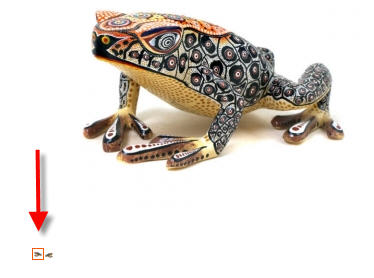
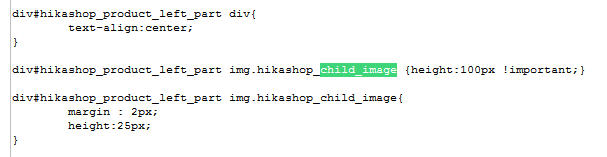
Once again, I need the 2 tiny child images below the large main image to each be about 1 inch wide.
Thank you for your patience and your help with this.
Mort
For issue #1) I corrected the code as you instructed and reinserted it but it's still not working:
Once again, I need the 2 tiny child images below the large main image to each be about 1 inch wide.
Thank you for your patience and your help with this.
Mort
Please Log in or Create an account to join the conversation.
13 years 9 months ago #88695
by nicolas
Replied by nicolas on topic Unable to remove "Add to cart" buttons
Hi,
I can see the thumbnails with the correct height of 100px on your website.
It must be the caching of your browser which prevents you from seeing the change.
Try with another browser and you should see that it already works.
I can see the thumbnails with the correct height of 100px on your website.
It must be the caching of your browser which prevents you from seeing the change.
Try with another browser and you should see that it already works.
Please Log in or Create an account to join the conversation.
13 years 9 months ago #88829
by mortk1
Replied by mortk1 on topic Unable to remove "Add to cart" buttons
Hi Nicolas,
Yes, I cleared the cache and it looks good now...thank you.
Regarding my question #3 above, I was not clear in explaining what I need.
My client would like to have navigation buttons for the menu pages, not for the products.
She wants people to be able to navigate through the various "Gallery" menus without having to click on the horizontal menu bar above. She would like a "Next >" button on the right edge of each menu page and a "< Prev" button on the left edge. Is this something that I can set up in HikaShop or must I find some Joomla navigation plugin to do this? If it requires a separate Joomla plug-in, can you suggest one that I might use?
Yes, I cleared the cache and it looks good now...thank you.
Regarding my question #3 above, I was not clear in explaining what I need.
My client would like to have navigation buttons for the menu pages, not for the products.
She wants people to be able to navigate through the various "Gallery" menus without having to click on the horizontal menu bar above. She would like a "Next >" button on the right edge of each menu page and a "< Prev" button on the left edge. Is this something that I can set up in HikaShop or must I find some Joomla navigation plugin to do this? If it requires a separate Joomla plug-in, can you suggest one that I might use?
Please Log in or Create an account to join the conversation.
13 years 9 months ago #88920
by Xavier
Replied by Xavier on topic Unable to remove "Add to cart" buttons
Hi,
There is no options like that in HikaShop. I think that you have to use a Joomla plugin, but I don't know which one to use.
There is no options like that in HikaShop. I think that you have to use a Joomla plugin, but I don't know which one to use.
Please Log in or Create an account to join the conversation.
13 years 9 months ago #89023
by mortk1
Replied by mortk1 on topic Unable to remove "Add to cart" buttons
Thank you for all your help with my issues!
Please Log in or Create an account to join the conversation.
Time to create page: 0.111 seconds