

- Posts: 490
- Thank you received: 2
joomla plugin not working
10 years 5 months ago #240771
by ronron
joomla plugin not working was created by ronron
-- HikaShop version -- : 2.6.3
-- Joomla version -- : 3.4.3
-- PHP version -- : 5.5
-- Error-message(debug-mod must be tuned on) -- : none
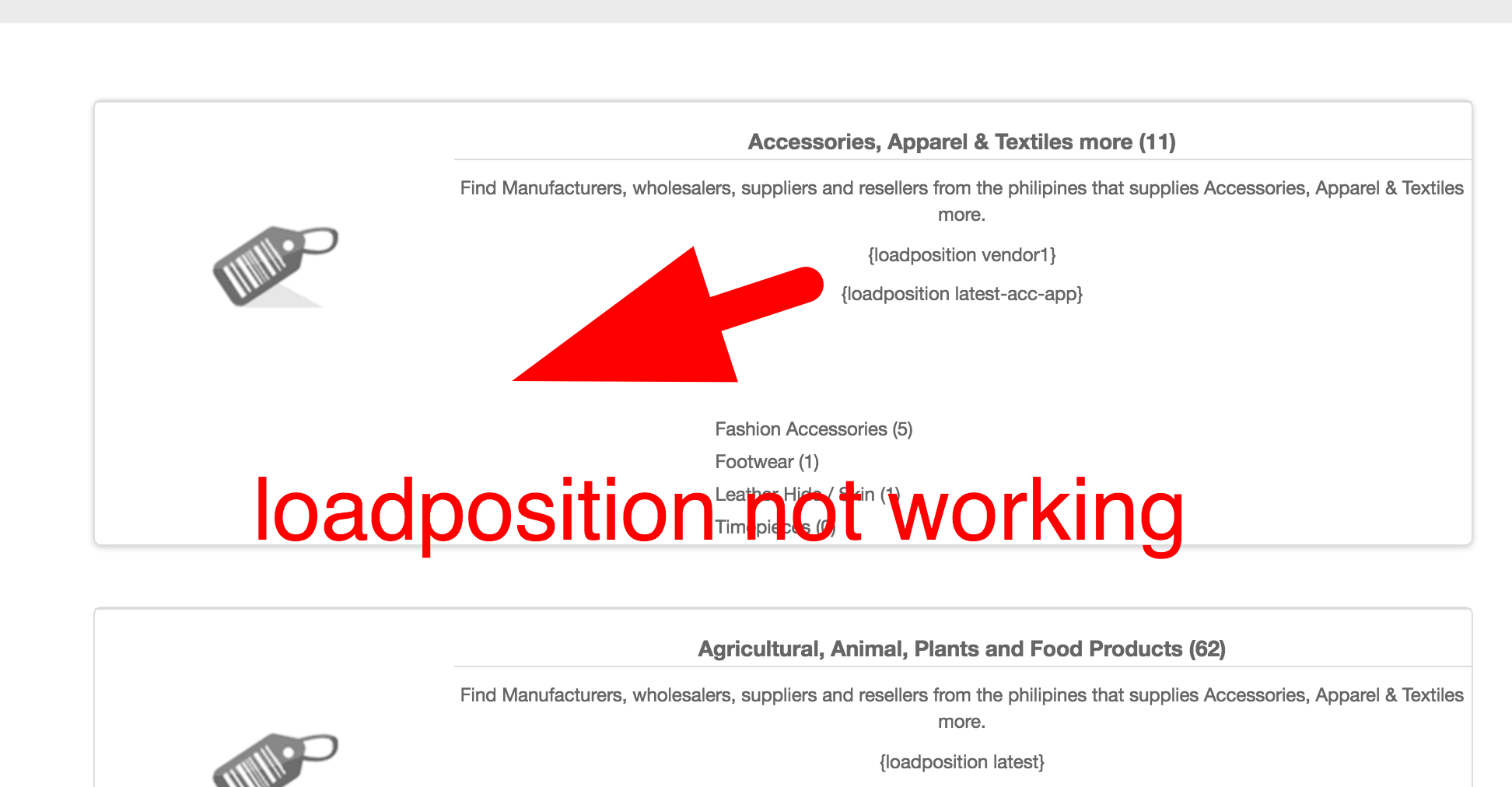
hi is there something we can do. the joomla plugin Hikashop Module Site Content display for Hikashop is not displaying on the category listing menu.
please see attachment
-- Joomla version -- : 3.4.3
-- PHP version -- : 5.5
-- Error-message(debug-mod must be tuned on) -- : none
hi is there something we can do. the joomla plugin Hikashop Module Site Content display for Hikashop is not displaying on the category listing menu.
please see attachment
Please Log in or Create an account to join the conversation.

10 years 5 months ago #240793
by nicolas
Replied by nicolas on topic joomla plugin not working
Hi,
Yes, the tags are not replaced for categories/products description on listings to save resources.
If you need it, you have two solutions:
- you can use instead modules anywhere tags thanks to the modules anywhere extension. They will work automatically.
- you can edit the file "listing_img_desc" of the view "category" via the menu Display>Views and change the code:
to:
Yes, the tags are not replaced for categories/products description on listings to save resources.
If you need it, you have two solutions:
- you can use instead modules anywhere tags thanks to the modules anywhere extension. They will work automatically.
- you can edit the file "listing_img_desc" of the view "category" via the menu Display>Views and change the code:
Code:
<?php echo preg_replace('#<hr *id="system-readmore" */>.*#is','',$this->row->category_description); ?>
Code:
<?php echo JHTML::_('content.prepare',preg_replace('#<hr *id="system-readmore" */>.*#is','',$this->row->category_description)); ?>
Please Log in or Create an account to join the conversation.

10 years 4 months ago #241248
by rocky123
Replied by rocky123 on topic joomla plugin not working
Log into your Joomla control panel
In the left menu, click the Global Configuration link
You should see several tabs listed at the top of the page. Click the System tab
Under Debug Settings, find the setting labeled Debug System. Click Yes, and then click the Save button in the top left of the page.
When you visit your Joomla site again, you should see a list of debug information listed towards the bottom of the page (see the screenshot below). This information will be under a heading labeled:
Joomla! Debug Console
joomla-debug-console
In the left menu, click the Global Configuration link
You should see several tabs listed at the top of the page. Click the System tab
Under Debug Settings, find the setting labeled Debug System. Click Yes, and then click the Save button in the top left of the page.
When you visit your Joomla site again, you should see a list of debug information listed towards the bottom of the page (see the screenshot below). This information will be under a heading labeled:
Joomla! Debug Console
joomla-debug-console
Please Log in or Create an account to join the conversation.
Time to create page: 0.139 seconds