
- Posts: 5
- Thank you received: 0
Questions with my webshop
- Stickerbox
-
 Topic Author
- Offline
Less
More
12 years 2 months ago #168676
by Stickerbox
Questions with my webshop was created by Stickerbox
-- HikaShop version -- : Latest Version
-- Joomla version -- : 3.3.3
stickerbox.com.au/hikashop-menu-for-products-listing
This is my web store, my aim is to sell custom made stickers on it. Here are my questions,
I would like to have it so that the customer can upload there logo, and also pick the size of the logo that is going to be printed.
I also want to change the colour of the text on the blue buttons,
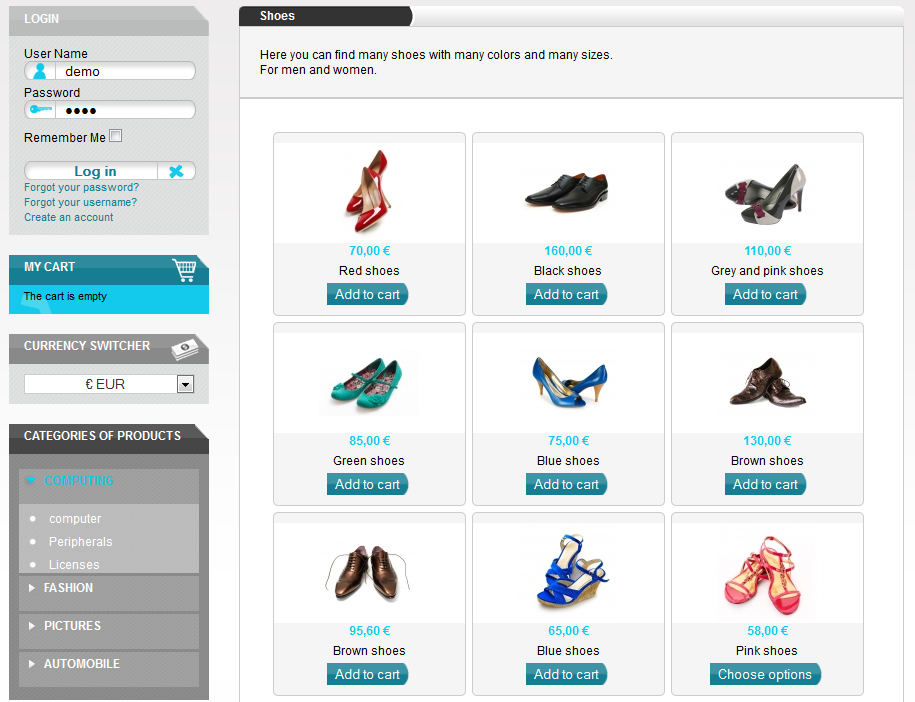
I would also like to make it look like this, instead of just having products
www.hikashop.com/images/stories/tutorial.../content_display.png
Thanks!
-- Joomla version -- : 3.3.3
stickerbox.com.au/hikashop-menu-for-products-listing
This is my web store, my aim is to sell custom made stickers on it. Here are my questions,
I would like to have it so that the customer can upload there logo, and also pick the size of the logo that is going to be printed.
I also want to change the colour of the text on the blue buttons,
I would also like to make it look like this, instead of just having products
www.hikashop.com/images/stories/tutorial.../content_display.png
Thanks!
Please Log in or Create an account to join the conversation.

12 years 2 months ago #168694
by nicolas
Replied by nicolas on topic Questions with my webshop
Hi,
1. You can do that by creating custom fields of the table "item" via the menu Display>custom fields with the Business edition of HikaShop.
2. The color of the text of the button is handled by your template. You can change it by adding such CSS code on your website:
.hikashop_cart_input_button{ color: white !important; }
www.hikashop.com/support/support/documen...ize-the-display.html
3. You can add such modules on the left by going in your joomla modules manager and enabling the cart module, the login module, etc.
1. You can do that by creating custom fields of the table "item" via the menu Display>custom fields with the Business edition of HikaShop.
2. The color of the text of the button is handled by your template. You can change it by adding such CSS code on your website:
.hikashop_cart_input_button{ color: white !important; }
www.hikashop.com/support/support/documen...ize-the-display.html
3. You can add such modules on the left by going in your joomla modules manager and enabling the cart module, the login module, etc.
The following user(s) said Thank You: Stickerbox
Please Log in or Create an account to join the conversation.
Time to create page: 0.115 seconds