
- Posts: 4
- Thank you received: 0
Condensing Item List In Category View
- Accredited Design
-
 Topic Author
- Offline
Less
More
8 years 11 months ago #281042
by Accredited Design
Condensing Item List In Category View was created by Accredited Design
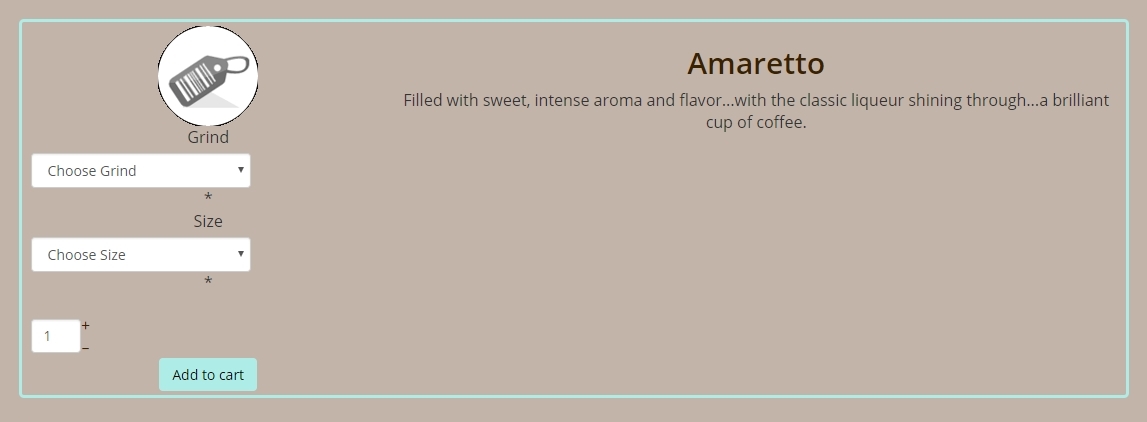
Hello, I'm wrestling with trying to get the item list in category view to be more compact. It seems the most compact is Table Layout, however from what I see, there is no means in table to display item descriptions in the list, so I'm stuck with Div (Layout Type: Image And Description). There are some problems here though. I don't want the image displayed, and each item's display panel in the list is huge. Attaching screenshots. "example1.jpg" is how it currently looks, and "example2.jpg" is roughly what I'd like it to look like.
Any help or suggestions would be greatly appreciated.

Any help or suggestions would be greatly appreciated.
Please Log in or Create an account to join the conversation.

8 years 11 months ago #281059
by nicolas
Replied by nicolas on topic Condensing Item List In Category View
Hi,
I would recommend you edit the view files via the menu Display>Views.
Please read this first:
www.hikashop.com/support/documentation/1...-display.html#layout
When you edit listing_img_desc or listing_img_title, you'll see the different blocks delimited.
So you can easily remove the pieces you don't want, rearrange them or add new ones.
For example, to add the description to listing_img_title, you can just take the code from listing_img_desc which displays the description and paste it in listing_img_title.
Even without PHP/HTML knowledge you should be able to do it.
I would recommend you edit the view files via the menu Display>Views.
Please read this first:
www.hikashop.com/support/documentation/1...-display.html#layout
When you edit listing_img_desc or listing_img_title, you'll see the different blocks delimited.
So you can easily remove the pieces you don't want, rearrange them or add new ones.
For example, to add the description to listing_img_title, you can just take the code from listing_img_desc which displays the description and paste it in listing_img_title.
Even without PHP/HTML knowledge you should be able to do it.
The following user(s) said Thank You: Accredited Design
Please Log in or Create an account to join the conversation.
- Accredited Design
-
Topic Author
- Offline
Less
More
- Posts: 4
- Thank you received: 0
8 years 11 months ago #281121
by Accredited Design
Replied by Accredited Design on topic Condensing Item List In Category View
Thanks very much for the information. I've managed to remove the image and insert the description using Table display (easy enough):
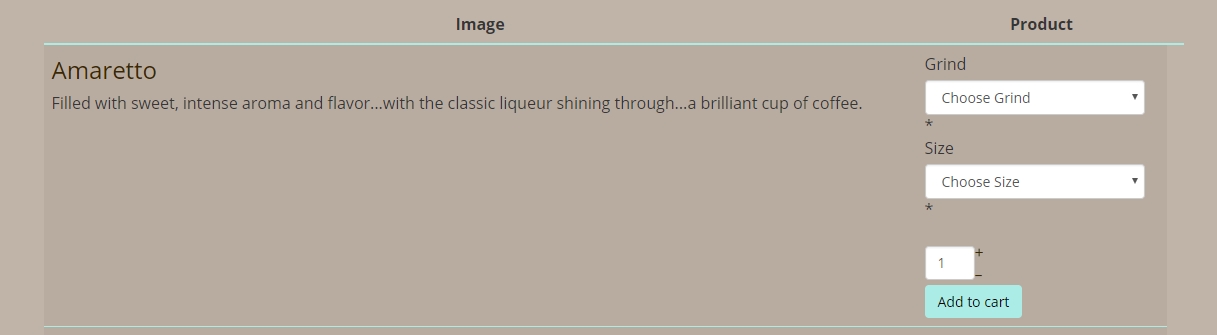
However, after a few hours of messing with the "product / listing_table.php" file and CSS, I can't get the td.hikashop_product_add_to_cart_row to break up and align horizontally, under the description. I've tried various methods, adding <tr> to bracket the <td> code at:
I've tried:
...to CSS as well as many other experiments. Most attempts have merely broken the page.
Any suggestions of how to align the elements inside hikashop_product_add_to_cart_row from left to right instead of stacked on top of one-another? Thanks!
However, after a few hours of messing with the "product / listing_table.php" file and CSS, I can't get the td.hikashop_product_add_to_cart_row to break up and align horizontally, under the description. I've tried various methods, adding <tr> to bracket the <td> code at:
Code:
<?php } ?>
<?php if($this->params->get('add_to_cart')) { ?>
<td class="hikashop_product_add_to_cart_row"><?php
$this->setLayout('add_to_cart_listing');
echo $this->loadTemplate();
?></td>
I've tried:
Code:
#hikashop_product_add_to_cart_row {
display: inline !important;
float: left !important;
}
Any suggestions of how to align the elements inside hikashop_product_add_to_cart_row from left to right instead of stacked on top of one-another? Thanks!
Please Log in or Create an account to join the conversation.
8 years 11 months ago #281142
by nicolas
Replied by nicolas on topic Condensing Item List In Category View
Hi,
I would indeed recommend to go with CSS for that.
However, you're using #hikashop_product_add_to_cart_row which means that this will only apply to the td but what you want is to apply your CSS to the elements inside the td.
So instead of just:
#hikashop_product_add_to_cart_row
you'll want something like:
#hikashop_product_add_to_cart_row select, #hikashop_product_add_to_cart_row label
and it will apply to all the selects and labels in the td.
Also next time, for CSS issues, please provide a link to the page so that we can analyse the CSS on the page.
I would indeed recommend to go with CSS for that.
However, you're using #hikashop_product_add_to_cart_row which means that this will only apply to the td but what you want is to apply your CSS to the elements inside the td.
So instead of just:
#hikashop_product_add_to_cart_row
you'll want something like:
#hikashop_product_add_to_cart_row select, #hikashop_product_add_to_cart_row label
and it will apply to all the selects and labels in the td.
Also next time, for CSS issues, please provide a link to the page so that we can analyse the CSS on the page.
The following user(s) said Thank You: Accredited Design
Please Log in or Create an account to join the conversation.
- Accredited Design
-
Topic Author
- Offline
Less
More
- Posts: 4
- Thank you received: 0
8 years 11 months ago #281175
by Accredited Design
Replied by Accredited Design on topic Condensing Item List In Category View
Thanks Nicolas,
I do appreciate the guidance. I've targeted the suggested elements in CSS, like this:
and there is no effect at all. The page is here, under the "Shop Online" main menu link:
(making confidential since this is a client's site and not my own personal site.)
I do appreciate the guidance. I've targeted the suggested elements in CSS, like this:
Code:
#hikashop_product_add_to_cart_row select, #hikashop_product_add_to_cart_row label {
display: inline !important;
float: left !important;
}
and there is no effect at all. The page is here, under the "Shop Online" main menu link:
(making confidential since this is a client's site and not my own personal site.)
This message contains confidential information
Please Log in or Create an account to join the conversation.
8 years 11 months ago #281176
by nicolas
Replied by nicolas on topic Condensing Item List In Category View
Hi,
You need to analyze the HTML with your browser's developer tool.
If you look there, you'll see that the labels and selects are inside dt/dd tags so you also need to add your CSS to them.
And also, you want to increase the width of the td.
Doing that, I get that result:
monosnap.com/file/DQjPb5S9RygvizY9R20RswX41R1dWu
Then you can add more CSS for the quantity input field, the add to cart etc in order to have it all like you want.
You need to analyze the HTML with your browser's developer tool.
If you look there, you'll see that the labels and selects are inside dt/dd tags so you also need to add your CSS to them.
And also, you want to increase the width of the td.
Doing that, I get that result:
monosnap.com/file/DQjPb5S9RygvizY9R20RswX41R1dWu
Then you can add more CSS for the quantity input field, the add to cart etc in order to have it all like you want.
The following user(s) said Thank You: Accredited Design
Please Log in or Create an account to join the conversation.
- Accredited Design
-
Topic Author
- Offline
Less
More
- Posts: 4
- Thank you received: 0
8 years 11 months ago #281234
by Accredited Design
Replied by Accredited Design on topic Condensing Item List In Category View
This gets me into / confirms the proper direction. Thanks for the help!
Please Log in or Create an account to join the conversation.
Time to create page: 0.235 seconds