

- Posts: 101
- Thank you received: 4
Modify the Checkout
2 weeks 6 days ago #100000249
by alainz
Modify the Checkout was created by alainz
-- Browser(s) name and version -- : Chrome 152.0
Hi,
We need to help modify the checkout process that are request by the marketing team.
First, they need to add the customer email address into the part billing and shipping address during the checkout. You may refer to the attachment.
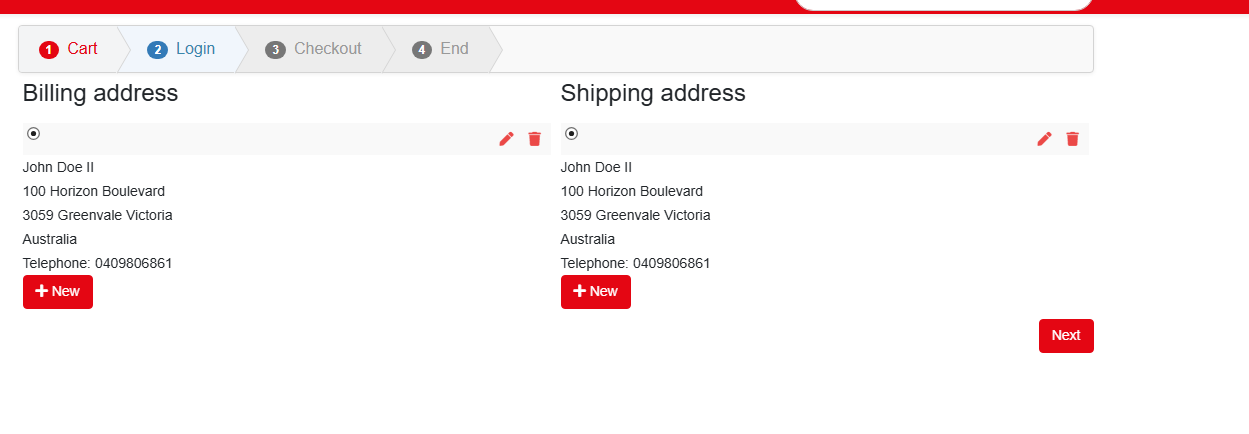
Thanks for the help.
Hi,
We need to help modify the checkout process that are request by the marketing team.
First, they need to add the customer email address into the part billing and shipping address during the checkout. You may refer to the attachment.
Thanks for the help.
Please Log in or Create an account to join the conversation.

2 weeks 5 days ago #100000251
by nicolas
Replied by nicolas on topic Modify the Checkout
The addresses of the checkout step are displayed by the view file show_block_address.php of the checkout view. The email is not shown there because it belongs to the customer account, not to the address. You can show it once, under the billing and shipping columns, with a view override, so nothing in HikaShop's core is touched and the change survives updates.
1. Copy components/com_hikashop/views/checkout/tmpl/show_block_address.php to templates/YOUR_TEMPLATE/html/com_hikashop/checkout/show_block_address.php (create the folders if needed). You can also create it from the backend with System > Templates > Site Template Styles > your template > Create Overrides > com_hikashop > checkout.
2. In that copy, find the line
near the end of the display part, just after the closing of the two address columns. Paste the content of the attached file email-once.txt right before it.
It prints the logged in customer's email once, below the addresses, inside a div with the class hikashop_address_email that you can style in your CSS. It is not shown while an address is being edited. This should do it; I could not render it on a test site.
1. Copy components/com_hikashop/views/checkout/tmpl/show_block_address.php to templates/YOUR_TEMPLATE/html/com_hikashop/checkout/show_block_address.php (create the folders if needed). You can also create it from the backend with System > Templates > Site Template Styles > your template > Create Overrides > com_hikashop > checkout.
2. In that copy, find the line
Code:
if(!empty($this->options['js'])) {
It prints the logged in customer's email once, below the addresses, inside a div with the class hikashop_address_email that you can style in your CSS. It is not shown while an address is being edited. This should do it; I could not render it on a test site.
The following user(s) said Thank You: alainz
Please Log in or Create an account to join the conversation.
2 weeks 3 days ago #100000285
by alainz
Replied by alainz on topic Modify the Checkout
It working. Thanks for the help.
Please Log in or Create an account to join the conversation.
Time to create page: 0.069 seconds