

- Posts: 181
- Thank you received: 28
Register / New Account layout
1 month 2 weeks ago #373460
by yerg55
Register / New Account layout was created by yerg55
-- HikaShop version -- : 6.6.0
-- Joomla version -- : 6.1.3
-- PHP version -- : 8.4.25
Customer orders and goes to the cart to register or login
Existing customers may have long passwords and
-- Joomla version -- : 6.1.3
-- PHP version -- : 8.4.25
Customer orders and goes to the cart to register or login
Existing customers may have long passwords and
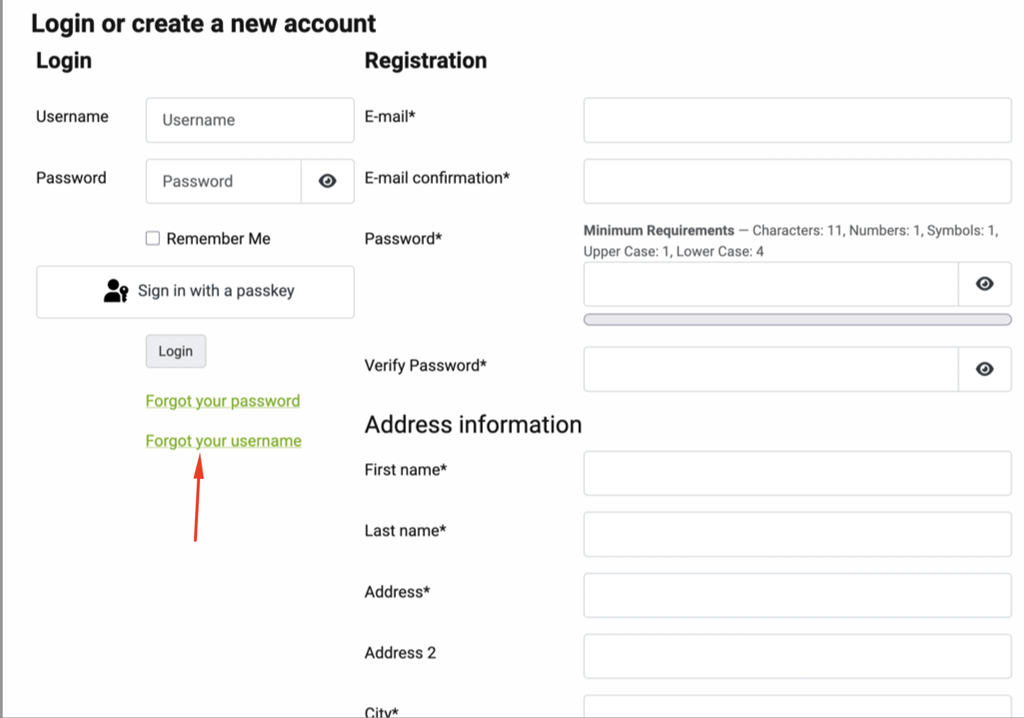
- 1. we don't want a change username to appear
How to make that invisible? Language file edit? - 2. view password button doesn't show the password (Windows/Firefox) Am chasing down versions
- 3. view password cannot be viewed without scrolling. Where can the balance between rego/login balance be changed
Please Log in or Create an account to join the conversation.

1 month 2 weeks ago #373465
by nicolas
Replied by nicolas on topic Register / New Account layout
Hello,
1. The simplest way is a line of CSS in the custom CSS of your template:
You can also remove the "FORGOT USERNAME" block from the view sub_block_login_form of your frontend template, via Display > Views. Emptying the translation would still leave an empty link behind.
2. We could reproduce it: the eye button works when the checkout page opens, but it stops working once the login block has reloaded, for example after a failed login attempt or a registration error, whatever the browser. We've fixed it and published a new build of HikaShop 6.6.0 with the fix. Please download it from your account and install it over your current version, then clear your browser's cache. If the eye still doesn't work straight after opening the checkout page, let us know, as that would be another issue.
3. The login form takes a third of the width and the registration form two thirds. You can change it in two ways:
- In the HikaShop configuration, Checkout tab, "Login & Registration" section, set "Display method for registration" to "Selector". The customer then chooses Login, Registration or Guest on the left, and the chosen form takes the remaining two thirds of the width.
- Or keep the current display and edit the view show_block_login of your frontend template via Display > Views: in the part below the comment "Classic registration", change hkc-lg-4 to hkc-lg-6 and the hkc-lg-8 that follows to hkc-lg-6, to split the width in half.
1. The simplest way is a line of CSS in the custom CSS of your template:
Code:
.hikashop_login_forgot_username_line { display: none; }
2. We could reproduce it: the eye button works when the checkout page opens, but it stops working once the login block has reloaded, for example after a failed login attempt or a registration error, whatever the browser. We've fixed it and published a new build of HikaShop 6.6.0 with the fix. Please download it from your account and install it over your current version, then clear your browser's cache. If the eye still doesn't work straight after opening the checkout page, let us know, as that would be another issue.
3. The login form takes a third of the width and the registration form two thirds. You can change it in two ways:
- In the HikaShop configuration, Checkout tab, "Login & Registration" section, set "Display method for registration" to "Selector". The customer then chooses Login, Registration or Guest on the left, and the chosen form takes the remaining two thirds of the width.
- Or keep the current display and edit the view show_block_login of your frontend template via Display > Views: in the part below the comment "Classic registration", change hkc-lg-4 to hkc-lg-6 and the hkc-lg-8 that follows to hkc-lg-6, to split the width in half.
Please Log in or Create an account to join the conversation.
1 month 1 week ago #373501
by yerg55
Replied by yerg55 on topic Register / New Account layout
Ripper.
As always brilliant clarity
As always brilliant clarity
The following user(s) said Thank You: nicolas
Please Log in or Create an account to join the conversation.
Time to create page: 0.053 seconds