

- Posts: 17
- Thank you received: 0
How can I do it?
14 years 2 months ago #60638
by Fox A
How can I do it? was created by Fox A
I need to make this:
1. to the Joomla! article insert category list from Hikashop
2. after click on any link from this list show product list from this category.
I can do it, when it is from menu, but not from article. Can You write step-by-step manual for this? Sorry, I am beginner .
.
1. to the Joomla! article insert category list from Hikashop
2. after click on any link from this list show product list from this category.
I can do it, when it is from menu, but not from article. Can You write step-by-step manual for this? Sorry, I am beginner
. Please Log in or Create an account to join the conversation.

14 years 2 months ago - 14 years 2 months ago #60646
by Xavier
Replied by Xavier on topic Re: How can I do it?
Hi Fox A,
This functionality is not implemented in HikaShop, in the next release you are going to be able to add a product in a Joomla article but not a category listing.
What you can do is add manually the listing in the article. You can copy the link of you category as a link in the article.
If you don't use joomla SEF, it looks like: index.php?option=com_hikashop&ctrl=category&task=listing&cid=12&name=categorie-1&Itemid=121
Else it looks like: index.php/categories/category/12-categorie-1
This functionality is not implemented in HikaShop, in the next release you are going to be able to add a product in a Joomla article but not a category listing.
What you can do is add manually the listing in the article. You can copy the link of you category as a link in the article.
If you don't use joomla SEF, it looks like: index.php?option=com_hikashop&ctrl=category&task=listing&cid=12&name=categorie-1&Itemid=121
Else it looks like: index.php/categories/category/12-categorie-1
Last edit: 14 years 2 months ago by Xavier.
Please Log in or Create an account to join the conversation.
14 years 2 months ago #60650
by Fox A
Replied by Fox A on topic Re: How can I do it?
It is not good news for me .
I was hoping to do this somehow inserting module on specific position in J! article.
When will be a new version?
.I was hoping to do this somehow inserting module on specific position in J! article.
When will be a new version?
Please Log in or Create an account to join the conversation.
14 years 2 months ago - 14 years 2 months ago #60652
by Xavier
Replied by Xavier on topic Re: How can I do it?
Hi again,
You can create a HikaShop content module with these following options:
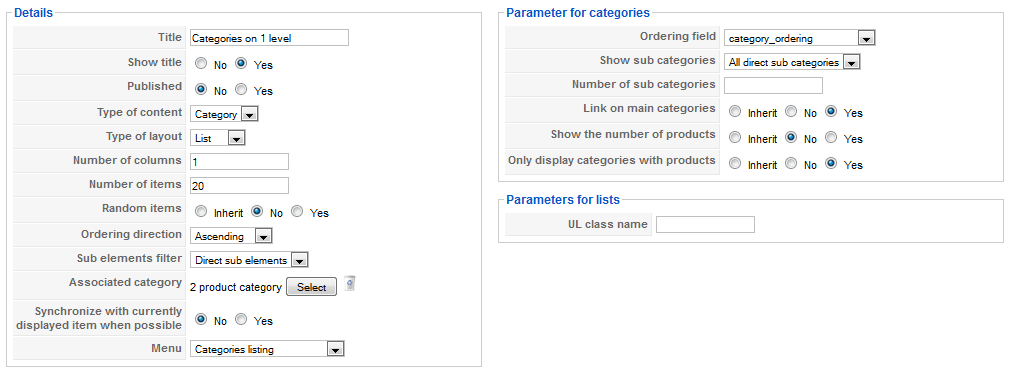
And then you can use an extension like "load-module", with that, you can place a module inside a joomla article.
I think that this solution is much better than the previous.
You can create a HikaShop content module with these following options:
And then you can use an extension like "load-module", with that, you can place a module inside a joomla article.
I think that this solution is much better than the previous.
Last edit: 14 years 2 months ago by Xavier.
Please Log in or Create an account to join the conversation.
Less
More
- Posts: 127
- Thank you received: 12
14 years 2 months ago #60654
by tony@10uk.net
Replied by tony@10uk.net on topic Re: How can I do it?
The following user(s) said Thank You: Fox A
Please Log in or Create an account to join the conversation.
14 years 2 months ago #60656
by Fox A
Replied by Fox A on topic Re: How can I do it?
Yes, but problem is that after click on any category I need to show product list (step 2). And then product page (with correct breadcrumbs) - it will be step 3.
Please Log in or Create an account to join the conversation.

14 years 2 months ago #60706
by nicolas
Replied by nicolas on topic Re: How can I do it?
That's exactly what this will do. so I don't see why that would be a problem ?
Please Log in or Create an account to join the conversation.
14 years 2 months ago - 14 years 2 months ago #60731
by Fox A
Replied by Fox A on topic Re: How can I do it?
I tried it, category list is displayed, but when I click on any links from this, nothing products or subcategories are displayed. I don't understand why? Breadcrumbs is O.K.
Structure is:
-category A
--category A1
---product A1.1
---product A1.2
--category A2
---product A2.1
---product A2.2
-category B
--category B1
---product B1.1
---product B1.2
--category B2
---product B2.1
---product B2.2
I need insert to J! article:
one mudule with this list:
-category A1
-category A2
and one module with:
-category B1
-category B2
and after click (for example on cat. B2) will be displayed
---product B2.1
---product B2.2
When I tried it, associated category I'm setting on parent category of category who must be displayed (in this example - cat. B ) and published it.
Can You help me, please?
Structure is:
-category A
--category A1
---product A1.1
---product A1.2
--category A2
---product A2.1
---product A2.2
-category B
--category B1
---product B1.1
---product B1.2
--category B2
---product B2.1
---product B2.2
I need insert to J! article:
one mudule with this list:
-category A1
-category A2
and one module with:
-category B1
-category B2
and after click (for example on cat. B2) will be displayed
---product B2.1
---product B2.2
When I tried it, associated category I'm setting on parent category of category who must be displayed (in this example - cat. B ) and published it.
Can You help me, please?
Last edit: 14 years 2 months ago by Fox A.
Please Log in or Create an account to join the conversation.
14 years 2 months ago #60800
by nicolas
Replied by nicolas on topic Re: How can I do it?
In the "menu" option of the hikashop options of your modules, you need to select a hikashop category listing menu item.
Then it will work.
Then it will work.
Please Log in or Create an account to join the conversation.
14 years 2 months ago #60841
by Fox A
Replied by Fox A on topic Re: How can I do it?
It's work, but problem is with Breadcrumbs on the product page: there is no menu_item > Category A > Category A1 > Product A1.1 but only menu_item > Product A1.1 (pic.0).
Another problems who I'm discovered:
1. When I have on page eg. 4 category lists (div style) side-by-side, then width of them is not 25%, but only 24% and this "list" is not centered (pic.1) (I need to be centered). So, category list is "in-line" no 1 category per line.
2. Images on product page - main picture is not centered (pic.2);
3. When is more pictures in product page, thumbnails are big (pic3).
I'm sorry, My English is not very well, but I hope that You will be understand to me.
Another problems who I'm discovered:
1. When I have on page eg. 4 category lists (div style) side-by-side, then width of them is not 25%, but only 24% and this "list" is not centered (pic.1) (I need to be centered). So, category list is "in-line" no 1 category per line.
2. Images on product page - main picture is not centered (pic.2);
3. When is more pictures in product page, thumbnails are big (pic3).
I'm sorry, My English is not very well, but I hope that You will be understand to me.
Please Log in or Create an account to join the conversation.
14 years 2 months ago #60875
by Xavier
Replied by Xavier on topic Re: How can I do it?
Hi Fox A,
You can edit the frontend css file in HikaShop > Configuration > Display tab.
To adapt HikaShop to you template, you can edit the css properties using Firebug for example to find which class has to be changed.
You can find some documentation in our FAQ:
www.hikashop.com/en/support/documentation/faq.html#css
How do you add the pictures in your product page ? Via the image field on the right side or in the description of the product ?
You need to do it in the image field.
You can edit the frontend css file in HikaShop > Configuration > Display tab.
To adapt HikaShop to you template, you can edit the css properties using Firebug for example to find which class has to be changed.
You can find some documentation in our FAQ:
www.hikashop.com/en/support/documentation/faq.html#css
How do you add the pictures in your product page ? Via the image field on the right side or in the description of the product ?
You need to do it in the image field.
Please Log in or Create an account to join the conversation.
14 years 2 months ago - 14 years 2 months ago #60884
by Fox A
Replied by Fox A on topic Re: How can I do it?
Yes, I'm added the pictures via the image field on right side. Why is width div-elements 24% and not 25%? How can I center them on the page?
Last edit: 14 years 2 months ago by Fox A.
Please Log in or Create an account to join the conversation.
14 years 2 months ago #60886
by Fox A
Replied by Fox A on topic Re: How can I do it?
Preview of product picture has the same size as thumbnails? - pic.4. When change thumbnails size, size of preview of product picture is changed too.
Why it is not in center - how can I change it?
Thumbnails has no paddings?
I tried it with Breeze2 and Breeze5 templates too, but with the same result (I think, that is not problem with my template).
Why it is not in center - how can I change it?
Thumbnails has no paddings?
I tried it with Breeze2 and Breeze5 templates too, but with the same result (I think, that is not problem with my template).
Please Log in or Create an account to join the conversation.
14 years 2 months ago #61005
by nicolas
Replied by nicolas on topic Re: How can I do it?
Hi,
1. The breadcrumb path is simplified. Please change the "simplified breacrumb" option of the configuration of HikaShop and you will get it like you want.
2. The percentage is 100% divided by the number of columns minus 1%. That is necessary so that it works properly on some versions of IE. If you want it to be centered, you will have to add some left padding in CSS as xavier explained.
3. The product image is not centered. By default, it's displayed on the left. You apparently changed the product page layout option from "default" to "reverse" and thus you get the image on the right.
If you want it on the center, you will also have to add some CSS for that.
4. The size of the main image is dictacted by the options product page image width/height on the Files tab of the configuration.
For the mini thumbnails below, it is based on CSS:
www.hikashop.com/en/support/documentatio...ling.html#thumbnails
Your screenshot indicates that there is a CSS issue on your page.
For points 2 , 3 and 4, we won't be able to give you the precise CSS to use unless you give a link to the pages as the CSS to use will depend on the CSS of your template and other CSS loaded on your website.
1. The breadcrumb path is simplified. Please change the "simplified breacrumb" option of the configuration of HikaShop and you will get it like you want.
2. The percentage is 100% divided by the number of columns minus 1%. That is necessary so that it works properly on some versions of IE. If you want it to be centered, you will have to add some left padding in CSS as xavier explained.
3. The product image is not centered. By default, it's displayed on the left. You apparently changed the product page layout option from "default" to "reverse" and thus you get the image on the right.
If you want it on the center, you will also have to add some CSS for that.
4. The size of the main image is dictacted by the options product page image width/height on the Files tab of the configuration.
For the mini thumbnails below, it is based on CSS:
www.hikashop.com/en/support/documentatio...ling.html#thumbnails
Your screenshot indicates that there is a CSS issue on your page.
For points 2 , 3 and 4, we won't be able to give you the precise CSS to use unless you give a link to the pages as the CSS to use will depend on the CSS of your template and other CSS loaded on your website.
Please Log in or Create an account to join the conversation.
14 years 2 months ago #61020
by Fox A
Replied by Fox A on topic Re: How can I do it?
1. I have "simplified breacrumb" option as No. It's make only when the product page is viewing from module from Joomla article page, where is list of category. (Joomla article with category list from Hikashop (correct breadcrumb) -> category (correct breadcrumb) -> product list (correct breadcrumb) -> product page (simplified breadcrumb).)
Please Log in or Create an account to join the conversation.
14 years 2 months ago #61090
by nicolas
Replied by nicolas on topic Re: How can I do it?
Please give a link to your website.
Please Log in or Create an account to join the conversation.
14 years 2 months ago #61093
by Fox A
Replied by Fox A on topic Re: How can I do it?
I have it's only in the VirtualBox. I learn to use Hikashop.
Are there any changes between ver. 1.5.8 and 1.5.9 in the CSS?
Are there any changes between ver. 1.5.8 and 1.5.9 in the CSS?
Please Log in or Create an account to join the conversation.
14 years 2 months ago #61146
by nicolas
Replied by nicolas on topic Re: How can I do it?
There are, like for any release we do.
We'll need to look at your website to be able to understand what is going on.
We'll need to look at your website to be able to understand what is going on.
Please Log in or Create an account to join the conversation.
14 years 2 months ago - 14 years 2 months ago #61168
by Fox A
Replied by Fox A on topic Re: How can I do it?
Yes, I understand. When it will be on the web, I will contact you! Thank You for everything!
Last edit: 14 years 2 months ago by Fox A.
Please Log in or Create an account to join the conversation.
Time to create page: 0.152 seconds