
- Posts: 212
- Thank you received: 17
Controlling the style of the filter module
- smithshop123
-
 Topic Author
- Offline
Less
More
2 weeks 6 days ago #100000202
by smithshop123
Controlling the style of the filter module was created by smithshop123
-- HikaShop version -- : 6.6.0
-- Joomla version -- : 6.1.4
-- PHP version -- : 8.3.35
-- Browser(s) name and version -- : Opera One(version: 136.0.6008.80)
-- Error-message(debug-mod must be tuned on) -- : no error
Hi,
we created a dynamic text filter for product_name, product_description along with a dedicated product menu. Then connected them in a filter module which is displaying in the header ( Theme: ShopIn (v2.3.2 / r_shopin) ) of our site. It's working well (displaying images, names) but we need some assistance on how to control things like width and alignment of the module. Basically we'd like to; make it display bigger, wider and align to the bottom of the header section.
We're not keen to change the css but will if we have to. Any assistance or a mini tutorial would be greatly appreciated.
Regards,
Ian and stu.
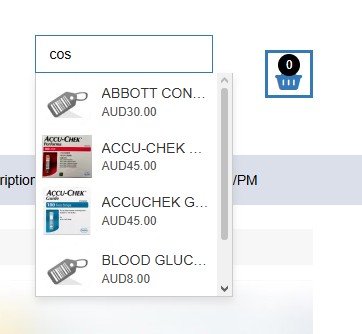
-- Joomla version -- : 6.1.4
-- PHP version -- : 8.3.35
-- Browser(s) name and version -- : Opera One(version: 136.0.6008.80)
-- Error-message(debug-mod must be tuned on) -- : no error
Hi,
we created a dynamic text filter for product_name, product_description along with a dedicated product menu. Then connected them in a filter module which is displaying in the header ( Theme: ShopIn (v2.3.2 / r_shopin) ) of our site. It's working well (displaying images, names) but we need some assistance on how to control things like width and alignment of the module. Basically we'd like to; make it display bigger, wider and align to the bottom of the header section.
We're not keen to change the css but will if we have to. Any assistance or a mini tutorial would be greatly appreciated.
Regards,
Ian and stu.
Please Log in or Create an account to join the conversation.

2 weeks 6 days ago #100000204
by nicolas
Replied by nicolas on topic Controlling the style of the filter module
Hi,
The filter module has no width or alignment setting of its own: it takes the size and placement of the module position it sits in, so this is controlled with a small amount of CSS (no template file needs to be edited).
1. In the backend, open the filter module, go to its Advanced tab and set "Module Class" to: search-wide (with a leading space is fine). The module's own "Module class suffix" field can be used instead.
2. Add the CSS from the attached file filter-module-style.txt in System > Site Templates > Your template > Custom CSS (or the equivalent "User CSS" / custom code area of the ShopIn theme settings, or Joomla's media/templates/site/<template>/css/user.css if it exists). It sets the width (600px in the file, change it or use 100%), the alignment (margin-left:auto pushes the module to the right, margin-right:auto to the left; align-self:flex-end places it at the bottom when the header is a flex container), and makes the search field and the suggestion list bigger.Bottom alignment depends on how the ShopIn header is built, so if the module does not drop to the bottom, the header container needs the same treatment (for example display:flex with align-items:flex-end on the header row that holds the module position). If you send us the page address of the header, we can tell you the exact selector.
</template>
The filter module has no width or alignment setting of its own: it takes the size and placement of the module position it sits in, so this is controlled with a small amount of CSS (no template file needs to be edited).
1. In the backend, open the filter module, go to its Advanced tab and set "Module Class" to: search-wide (with a leading space is fine). The module's own "Module class suffix" field can be used instead.
2. Add the CSS from the attached file filter-module-style.txt in System > Site Templates > Your template > Custom CSS (or the equivalent "User CSS" / custom code area of the ShopIn theme settings, or Joomla's media/templates/site/<template>/css/user.css if it exists). It sets the width (600px in the file, change it or use 100%), the alignment (margin-left:auto pushes the module to the right, margin-right:auto to the left; align-self:flex-end places it at the bottom when the header is a flex container), and makes the search field and the suggestion list bigger.Bottom alignment depends on how the ShopIn header is built, so if the module does not drop to the bottom, the header container needs the same treatment (for example display:flex with align-items:flex-end on the header row that holds the module position). If you send us the page address of the header, we can tell you the exact selector.
</template>
Please Log in or Create an account to join the conversation.
- smithshop123
-
Topic Author
- Offline
Less
More
- Posts: 212
- Thank you received: 17
2 weeks 5 days ago #100000211
by smithshop123
Replied by smithshop123 on topic Controlling the style of the filter module
This was written by Google AI which help me unsuccessfully with your suggested solution and what we tried. Basically we couldn't get the filter box to align to the bottom of the gantry block. Apologies if you don't like this sort of summary being pasted in. Let me know if this is the case and I won't do it again. Ian & Stu
Hi HikaShop Team,
I am trying to align the HikaShop Product Live Search Filter Module to the absolute bottom edge of my header layout, sitting in a three-column row alongside my logo and shopping cart (built using Gantry 5 and the RcaTheme ShopIn template).
Following your instructions, I have added the module class search-wide and targeted it inside my template's custom override stylesheet. However, the input box continues to float too high. Here is what we discovered and attempted:
1. The Core Blockers Found via Browser Inspection:
• The Inline min-height: 100px; Stylesheet: The main layout wrapper (.hikashop_filter_main) outputs an inline style constraint of style="min-height:100px; float:left; width:99%;". Because the wrapper has a forced 100px height block, the smaller search input defaults to floating at the top of it.
• The Theme Wrapper Parent: The template embeds everything within a custom outer wrapper: <div class="r-search">.
2. What We Tested in CSS (custom.scss):
• Flexbox Baseline Alignment: We attempted to convert #g-header-search, .g-tmpl-position-header-search, and .r-search into Flexbox rows/columns using display: flex !important; justify-content: flex-end !important; align-items: flex-end !important;. This was intended to force the internal form elements to sink to the baseline floor.
• Inline Code Overrides: We explicitly targeted .hikashop_filter_main with min-height: 0px !important; and float: none !important; to try and collapse the empty space beneath the text box.
• Absolute Coordinate Positioning: We attempted to isolate the inner search form block globally using position: absolute !important; bottom: 0 !important; to anchor it to the very floor of the Gantry grid structure.
3. The Current Result:
Despite adding !important flags to strip out vertical paddings, margins, and the 100px minimum threshold, the text input remains vertically unaligned or jumps back up upon a page refresh. It appears either a theme layout rule higher up is compressing the available container height, or the live autocomplete dropdown scripts are overriding styles layout dynamically on load.
Could you provide the exact CSS selector combination needed to bypass the template's .r-search wrapper and force the live search input container down to the bottom line?
Hi HikaShop Team,
I am trying to align the HikaShop Product Live Search Filter Module to the absolute bottom edge of my header layout, sitting in a three-column row alongside my logo and shopping cart (built using Gantry 5 and the RcaTheme ShopIn template).
Following your instructions, I have added the module class search-wide and targeted it inside my template's custom override stylesheet. However, the input box continues to float too high. Here is what we discovered and attempted:
1. The Core Blockers Found via Browser Inspection:
• The Inline min-height: 100px; Stylesheet: The main layout wrapper (.hikashop_filter_main) outputs an inline style constraint of style="min-height:100px; float:left; width:99%;". Because the wrapper has a forced 100px height block, the smaller search input defaults to floating at the top of it.
• The Theme Wrapper Parent: The template embeds everything within a custom outer wrapper: <div class="r-search">.
2. What We Tested in CSS (custom.scss):
• Flexbox Baseline Alignment: We attempted to convert #g-header-search, .g-tmpl-position-header-search, and .r-search into Flexbox rows/columns using display: flex !important; justify-content: flex-end !important; align-items: flex-end !important;. This was intended to force the internal form elements to sink to the baseline floor.
• Inline Code Overrides: We explicitly targeted .hikashop_filter_main with min-height: 0px !important; and float: none !important; to try and collapse the empty space beneath the text box.
• Absolute Coordinate Positioning: We attempted to isolate the inner search form block globally using position: absolute !important; bottom: 0 !important; to anchor it to the very floor of the Gantry grid structure.
3. The Current Result:
Despite adding !important flags to strip out vertical paddings, margins, and the 100px minimum threshold, the text input remains vertically unaligned or jumps back up upon a page refresh. It appears either a theme layout rule higher up is compressing the available container height, or the live autocomplete dropdown scripts are overriding styles layout dynamically on load.
Could you provide the exact CSS selector combination needed to bypass the template's .r-search wrapper and force the live search input container down to the bottom line?
Please Log in or Create an account to join the conversation.
2 weeks 5 days ago #100000213
by nicolas
Replied by nicolas on topic Controlling the style of the filter module
Thank you for the detailed summary, it made the problem easy to reproduce. There are two separate causes.
The 100px space under the field is not a theme rule: it comes from the "Height" setting of the filter module itself (Content > Site Modules > your filter module, Module tab, "Height"), which is 100 when left empty. Set it to 0 and save: the min-height:100px disappears from the page, with no CSS needed for it. If you entered a value in the "Height" field of the filter itself (Components > HikaShop > Display > Filters > your text filter), empty it as well, since it takes precedence over the module's setting.
The bottom alignment did not work because of where the flex rules were applied. In a Gantry 5 row, the only element as tall as the row (the height of your logo) is the column itself, the div with the class g-block. Everything inside it (the g-content box, the module position, .r-search, the HikaShop module) is only as tall as its own content, so align-items:flex-end on those wrappers has no extra space to move the field into, and position:absolute anchors to whatever positioned ancestor it finds rather than to the row. The rule has to go on the g-block column that holds the module: make it a flex column and push its content to the end.
The attached file filter-module-bottom.txt does exactly that. It finds the column with :has(.search-wide), so you do not need to know the id Gantry gives to that block, and it also removes the bottom margins of the module wrappers, makes the module use the full width of its column and makes the field bigger (font-size and padding in the last rule, change them as you like). Keep the "search-wide" module class you already set and paste the whole content of the file in your custom.scss (it is plain CSS, valid in SCSS). Then clear the Gantry cache (Gantry 5 admin of the ShopIn theme, or System > Clear Cache) and reload the page with Ctrl+F5, otherwise the old compiled CSS keeps being served, which would explain why things seemed to jump back after a refresh.
For a wider field: the module now takes the full width of its column, and that column's width is set in the Gantry Layout Manager of the ShopIn outline (header section, the block holding the search position): give it a larger percentage and reduce the logo or cart block accordingly.
We tested this with the HikaShop filter module in a Gantry 5 style three-column header (logo, search, cart): the bottom of the field lines up exactly with the bottom of the logo, and it stays there while typing, when the suggestion list opens and after the module refreshes its results. If on your site the field still stops a few pixels higher than the logo, a ShopIn wrapper adds its own bottom margin or padding: right-click the field, choose Inspect, and send us a screenshot of the elements between the field and the g-block, and we will give you the extra line to add.
The 100px space under the field is not a theme rule: it comes from the "Height" setting of the filter module itself (Content > Site Modules > your filter module, Module tab, "Height"), which is 100 when left empty. Set it to 0 and save: the min-height:100px disappears from the page, with no CSS needed for it. If you entered a value in the "Height" field of the filter itself (Components > HikaShop > Display > Filters > your text filter), empty it as well, since it takes precedence over the module's setting.
The bottom alignment did not work because of where the flex rules were applied. In a Gantry 5 row, the only element as tall as the row (the height of your logo) is the column itself, the div with the class g-block. Everything inside it (the g-content box, the module position, .r-search, the HikaShop module) is only as tall as its own content, so align-items:flex-end on those wrappers has no extra space to move the field into, and position:absolute anchors to whatever positioned ancestor it finds rather than to the row. The rule has to go on the g-block column that holds the module: make it a flex column and push its content to the end.
The attached file filter-module-bottom.txt does exactly that. It finds the column with :has(.search-wide), so you do not need to know the id Gantry gives to that block, and it also removes the bottom margins of the module wrappers, makes the module use the full width of its column and makes the field bigger (font-size and padding in the last rule, change them as you like). Keep the "search-wide" module class you already set and paste the whole content of the file in your custom.scss (it is plain CSS, valid in SCSS). Then clear the Gantry cache (Gantry 5 admin of the ShopIn theme, or System > Clear Cache) and reload the page with Ctrl+F5, otherwise the old compiled CSS keeps being served, which would explain why things seemed to jump back after a refresh.
For a wider field: the module now takes the full width of its column, and that column's width is set in the Gantry Layout Manager of the ShopIn outline (header section, the block holding the search position): give it a larger percentage and reduce the logo or cart block accordingly.
We tested this with the HikaShop filter module in a Gantry 5 style three-column header (logo, search, cart): the bottom of the field lines up exactly with the bottom of the logo, and it stays there while typing, when the suggestion list opens and after the module refreshes its results. If on your site the field still stops a few pixels higher than the logo, a ShopIn wrapper adds its own bottom margin or padding: right-click the field, choose Inspect, and send us a screenshot of the elements between the field and the g-block, and we will give you the extra line to add.
Please Log in or Create an account to join the conversation.
- smithshop123
-
Topic Author
- Offline
Less
More
- Posts: 212
- Thank you received: 17
2 weeks 5 days ago #100000219
by smithshop123
Replied by smithshop123 on topic Controlling the style of the filter module
The module is now level with the other row items. Thanks. However, we tried your css custom snippet but it failed to fix the width issue. I'll attached an image of the expanded module and the snippet that the AI developed from yours. Following is its comments (which I have read through - Ian & Stu);
---
Setting the module's height parameters to 0 worked perfectly to resolve the hidden vertical spacing issue, and the elements are now properly tracking the bottom baseline!
However, we have run into an issue with the autocomplete text length. Very long product titles (such as "Cosmetic Anaesthetic Astringent Scalp Tattoo Gel 10g") are getting cut off prematurely in the live drop-down card menu, followed by a trailing ellipsis (...).
Here is what we have tried so far to prevent this truncation:
1. Module Configuration Panel Settings: We turned off the Maximum text size parameter (set to No) to ensure a hard-pixel width rule isn't clamping the drop-down. We also raised the Maximum length configuration value to 150 characters.
2. Custom Style Sheet Rules (custom.scss): We added extensive styling rules targeting .hikashop_filter_suggestions, forcing both .hikashop_filter_suggestion_info and .hikashop_filter_suggestion_name to use white-space: normal !important; and word-break: break-word !important;. We also tried dropping the font size of the text element spans down to a tiny 12px to make them fit.
Despite these changes, the ellipsis (...) remains active, meaning the actual characters are missing from the raw markup string outputted to the browser.
Could you point me to where HikaShop sets this text truncation constraint? Is there a layout override, a character-limit parameter within the core component files, or an autocomplete template file where we can remove this limitation and let long titles wrap natively?
(Attached is a snapshot image displaying the text string truncation behavior inside the live header search field environment).
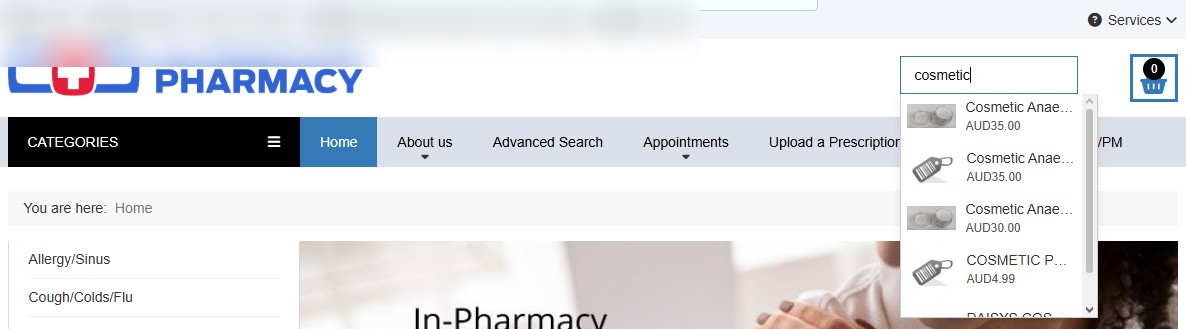
Since the CSS text-wrapping overrides aren't working, the product titles are definitely being truncated on the server side via PHP before rendering. Which specific HikaShop View file controls the HTML output for the Live Search suggestion card layout (e.g., product / filter_ajax.php or similar)? I need to locate where the text length limit is hardcoded so I can create a template view override to remove it.
---
Setting the module's height parameters to 0 worked perfectly to resolve the hidden vertical spacing issue, and the elements are now properly tracking the bottom baseline!
However, we have run into an issue with the autocomplete text length. Very long product titles (such as "Cosmetic Anaesthetic Astringent Scalp Tattoo Gel 10g") are getting cut off prematurely in the live drop-down card menu, followed by a trailing ellipsis (...).
Here is what we have tried so far to prevent this truncation:
1. Module Configuration Panel Settings: We turned off the Maximum text size parameter (set to No) to ensure a hard-pixel width rule isn't clamping the drop-down. We also raised the Maximum length configuration value to 150 characters.
2. Custom Style Sheet Rules (custom.scss): We added extensive styling rules targeting .hikashop_filter_suggestions, forcing both .hikashop_filter_suggestion_info and .hikashop_filter_suggestion_name to use white-space: normal !important; and word-break: break-word !important;. We also tried dropping the font size of the text element spans down to a tiny 12px to make them fit.
Despite these changes, the ellipsis (...) remains active, meaning the actual characters are missing from the raw markup string outputted to the browser.
Could you point me to where HikaShop sets this text truncation constraint? Is there a layout override, a character-limit parameter within the core component files, or an autocomplete template file where we can remove this limitation and let long titles wrap natively?
(Attached is a snapshot image displaying the text string truncation behavior inside the live header search field environment).
Since the CSS text-wrapping overrides aren't working, the product titles are definitely being truncated on the server side via PHP before rendering. Which specific HikaShop View file controls the HTML output for the Live Search suggestion card layout (e.g., product / filter_ajax.php or similar)? I need to locate where the text length limit is hardcoded so I can create a template view override to remove it.
Please Log in or Create an account to join the conversation.
2 weeks 5 days ago #100000220
by nicolas
Replied by nicolas on topic Controlling the style of the filter module
Nothing is cut on the server: the full product name is in the page (the suggestion card is the view product / filtersuggest_card, and it prints the whole name). The "..." comes from HikaShop's CSS (media/com_hikashop/css/frontend_default.css), which keeps each name on one line and cuts it with an ellipsis when it does not fit, and the suggestion list is only as wide as the search field. The "Maximum length" and "Maximum text size" settings of the filter have no effect on the suggestions, so you can put them back as they were.
The CSS you added was right in its approach, but none of it reaches the module: every rule there depends on the class search-wide, and on your screenshot the field and the list have exactly the width HikaShop gives them without any of these rules (we checked by applying your file to the same module markup: with the class missing from the page, the result is identical to your screenshot; with the class present, your rules do work). So the class is not in the page (not saved, or not printed by the module style used by the ShopIn theme), which is also why the field did not get wider.
The attached file filter-search-names.txt does not need that class: it targets the HikaShop filter module inside the Gantry header (#g-header) directly. Paste its whole content at the end of your custom.scss (you can remove the parts 3 and 4 of your current file, which are replaced by it). It makes the field use the full width of its column with a bigger text, makes the suggestion list 450px wide, aligned on the right edge of the field so it opens towards the middle of the page and not off-screen, and lets long product names wrap on two lines instead of being cut. Change the 450px to make the list wider or narrower.
Then clear the Gantry cache (or System > Clear Cache) and reload the page with Ctrl+F5 so the CSS is compiled again.
If nothing changes, right-click a product name in the suggestion list, choose Inspect, and look in the Styles panel: the rules of the file should appear there above the rule .hikashop_filter_suggestion_name from frontend_default.css. If they are not listed at all, custom.scss is not compiled into the page; if your theme's header section does not have the id g-header, send us a screenshot of that panel and we will give you the selector to use.
The CSS you added was right in its approach, but none of it reaches the module: every rule there depends on the class search-wide, and on your screenshot the field and the list have exactly the width HikaShop gives them without any of these rules (we checked by applying your file to the same module markup: with the class missing from the page, the result is identical to your screenshot; with the class present, your rules do work). So the class is not in the page (not saved, or not printed by the module style used by the ShopIn theme), which is also why the field did not get wider.
The attached file filter-search-names.txt does not need that class: it targets the HikaShop filter module inside the Gantry header (#g-header) directly. Paste its whole content at the end of your custom.scss (you can remove the parts 3 and 4 of your current file, which are replaced by it). It makes the field use the full width of its column with a bigger text, makes the suggestion list 450px wide, aligned on the right edge of the field so it opens towards the middle of the page and not off-screen, and lets long product names wrap on two lines instead of being cut. Change the 450px to make the list wider or narrower.
Then clear the Gantry cache (or System > Clear Cache) and reload the page with Ctrl+F5 so the CSS is compiled again.
If nothing changes, right-click a product name in the suggestion list, choose Inspect, and look in the Styles panel: the rules of the file should appear there above the rule .hikashop_filter_suggestion_name from frontend_default.css. If they are not listed at all, custom.scss is not compiled into the page; if your theme's header section does not have the id g-header, send us a screenshot of that panel and we will give you the selector to use.
Please Log in or Create an account to join the conversation.
- smithshop123
-
Topic Author
- Offline
Less
More
- Posts: 212
- Thank you received: 17
2 weeks 5 days ago - 2 weeks 2 days ago #100000225
by smithshop123
Replied by smithshop123 on topic Controlling the style of the filter module
Hi,
we found the problem at our end and it's all working with you changes.
Many thanks!
Ian & Stu
we found the problem at our end and it's all working with you changes.
Many thanks!
Ian & Stu
Last edit: 2 weeks 2 days ago by smithshop123. Reason: Problem solved - info not relevant
Please Log in or Create an account to join the conversation.
2 weeks 5 days ago #100000226
by nicolas
Replied by nicolas on topic Controlling the style of the filter module
Glad it works now. Two remarks on the final setup, and the answer for the Enter key.
The file you edited, templates/r_shopin/custom/css-compiled/custom_12.css, is generated by Gantry: it is rewritten each time Gantry compiles the styles of that outline again (after saving the outline's styles or settings, after a Gantry or theme update, or when the cache is cleared with compilation on), and your rules will then disappear without warning. To keep them safely, put the same CSS in a place Gantry does not regenerate: in the Gantry 5 admin of the ShopIn theme, open your outline, Layout or Page Settings, and add a "Custom CSS / JS" atom with the CSS in it (it is stored with the outline settings), or in templates/r_shopin/custom/scss/custom.scss if you want to retry the compiled route later. Keep a copy of your custom_12.css content somewhere in any case.
About the Enter key: this is what the "Submit on click" setting of the filter is for. Edit your text filter (Components > HikaShop > Display > Filters), set "Submit on click" to Yes and save. Then, when the visitor types a few letters and presses Enter without choosing a suggestion, the search is launched with the typed text and the product listing opens with the matching products. Choosing a suggestion still opens that product's page.
The results open on the menu item selected in the "Menu" setting of the filter module, so if you want Enter to open your Advanced Search page, select that menu item there; it must be a HikaShop product listing menu item.
The file you edited, templates/r_shopin/custom/css-compiled/custom_12.css, is generated by Gantry: it is rewritten each time Gantry compiles the styles of that outline again (after saving the outline's styles or settings, after a Gantry or theme update, or when the cache is cleared with compilation on), and your rules will then disappear without warning. To keep them safely, put the same CSS in a place Gantry does not regenerate: in the Gantry 5 admin of the ShopIn theme, open your outline, Layout or Page Settings, and add a "Custom CSS / JS" atom with the CSS in it (it is stored with the outline settings), or in templates/r_shopin/custom/scss/custom.scss if you want to retry the compiled route later. Keep a copy of your custom_12.css content somewhere in any case.
About the Enter key: this is what the "Submit on click" setting of the filter is for. Edit your text filter (Components > HikaShop > Display > Filters), set "Submit on click" to Yes and save. Then, when the visitor types a few letters and presses Enter without choosing a suggestion, the search is launched with the typed text and the product listing opens with the matching products. Choosing a suggestion still opens that product's page.
The results open on the menu item selected in the "Menu" setting of the filter module, so if you want Enter to open your Advanced Search page, select that menu item there; it must be a HikaShop product listing menu item.
Please Log in or Create an account to join the conversation.
- smithshop123
-
Topic Author
- Offline
Less
More
- Posts: 212
- Thank you received: 17
2 weeks 4 days ago - 2 weeks 4 days ago #100000238
by smithshop123
Replied by smithshop123 on topic Controlling the style of the filter module
Thanks for that. We've made the changes and placed the css inside of the provide gantry atom.
With 'submit on click' it's launching the specified product menu view. However, after typing most of a unique term and hitting the return key, the results don't show that product at the top (or even on the first page). That's with 'Any word' selected.
An example. If I'm looking for 'Cosmetic Anaesthetic Astringent Gel 10g' and type 'Cosmetic' the product appears half way down the page. If I type 'Cosmetic Anaesthetic' which has more info then the product doesn't appear on the first page of results. Is there a better setting to accommodate this?
Thanks again.
With 'submit on click' it's launching the specified product menu view. However, after typing most of a unique term and hitting the return key, the results don't show that product at the top (or even on the first page). That's with 'Any word' selected.
An example. If I'm looking for 'Cosmetic Anaesthetic Astringent Gel 10g' and type 'Cosmetic' the product appears half way down the page. If I type 'Cosmetic Anaesthetic' which has more info then the product doesn't appear on the first page of results. Is there a better setting to accommodate this?
Thanks again.
Last edit: 2 weeks 4 days ago by smithshop123.
Please Log in or Create an account to join the conversation.
2 weeks 3 days ago #100000244
by nicolas
Replied by nicolas on topic Controlling the style of the filter module
Hi,
With "Any word", a search for "Cosmetic Anaesthetic" returns every product that has "Cosmetic" or "Anaesthetic" anywhere in its name or its description, so the more words you type, the more products you get. The text filter does not sort the results by relevance: they are listed in the order of the product listing (the "Ordering" setting of the menu item), which is why the product you are looking for can be halfway down the page.
To fix it, edit the text filter (Components > HikaShop > Display > Filters), set "Search processing" to "Every words" and save. Each word typed then has to be found in the product, so "Cosmetic Anaesthetic" only returns the products containing both words, and every extra word narrows the list instead of widening it.
If many products only mention these words in their description, you can also leave only the product name (and the product code if your customers search by code) in the columns searched by the filter, so that a product is found by its name rather than by a word in its description.
About the search box on the results page you mentioned before editing your message: that box is the filters HikaShop shows above the product listing, not your header module, and with "Submit on click" it lost the letters typed after the first one while the listing refreshed. This is a bug on our side and we have corrected it: the box now keeps what is typed and its suggestions while the listing refreshes. The fix is included on our end. Download the HikaShop install package on our website and install it on yours. Then, clear your cache if any and it should work better.
With "Any word", a search for "Cosmetic Anaesthetic" returns every product that has "Cosmetic" or "Anaesthetic" anywhere in its name or its description, so the more words you type, the more products you get. The text filter does not sort the results by relevance: they are listed in the order of the product listing (the "Ordering" setting of the menu item), which is why the product you are looking for can be halfway down the page.
To fix it, edit the text filter (Components > HikaShop > Display > Filters), set "Search processing" to "Every words" and save. Each word typed then has to be found in the product, so "Cosmetic Anaesthetic" only returns the products containing both words, and every extra word narrows the list instead of widening it.
If many products only mention these words in their description, you can also leave only the product name (and the product code if your customers search by code) in the columns searched by the filter, so that a product is found by its name rather than by a word in its description.
About the search box on the results page you mentioned before editing your message: that box is the filters HikaShop shows above the product listing, not your header module, and with "Submit on click" it lost the letters typed after the first one while the listing refreshed. This is a bug on our side and we have corrected it: the box now keeps what is typed and its suggestions while the listing refreshes. The fix is included on our end. Download the HikaShop install package on our website and install it on yours. Then, clear your cache if any and it should work better.
Please Log in or Create an account to join the conversation.
- smithshop123
-
Topic Author
- Offline
Less
More
- Posts: 212
- Thank you received: 17
2 weeks 3 days ago #100000248
by smithshop123
Replied by smithshop123 on topic Controlling the style of the filter module
Thanks for that. We ended up changing it back to 'every words' and just using the 'product_name' which did give better results.
We also tested switching this off and the AI generated some javascript, which we placed in the same Atom as the CSS, to capture partial terms and feed it automatically into a smart search. This worked perfectly but we will probably removed it because we don't like too many customisations. They tend to break when a tools is updated.
The last bit of feedback regarding this great outcome is that we often have to; 1. Generate (i.e. type to initiate) the auto-suggestions and click on them two times to be taken to the product. It may be a focus issue. 2) Similarly, we had to hit return/enter twice to trigger the filter box to load the product view when 'Submit on click' was enabled.
We hope this helps as we were a bit stuck with eb ajax search not working properly on our site and your filter system/module has really filled a gap.
Regards,
Ian & Stu
We also tested switching this off and the AI generated some javascript, which we placed in the same Atom as the CSS, to capture partial terms and feed it automatically into a smart search. This worked perfectly but we will probably removed it because we don't like too many customisations. They tend to break when a tools is updated.
The last bit of feedback regarding this great outcome is that we often have to; 1. Generate (i.e. type to initiate) the auto-suggestions and click on them two times to be taken to the product. It may be a focus issue. 2) Similarly, we had to hit return/enter twice to trigger the filter box to load the product view when 'Submit on click' was enabled.
We hope this helps as we were a bit stuck with eb ajax search not working properly on our site and your filter system/module has really filled a gap.
Regards,
Ian & Stu
Please Log in or Create an account to join the conversation.
2 weeks 3 days ago #100000250
by nicolas
Replied by nicolas on topic Controlling the style of the filter module
Thank you for this feedback, it helped us find two problems in the suggestion list, which we have now corrected.
The double click: when the mouse button was held a little on a suggestion, the search field lost the focus first. With "Submit on click", that sent the search (so the results page opened instead of the product), or it closed the list before the click reached the product. The suggestion now keeps the focus in the field, and one click opens the product, however long the button is held.
The double Enter: on the product listing page itself, Enter only closed the suggestion list, and when Enter was pressed before the suggestions appeared, they opened right after it, so it looked as if nothing had happened. Enter now applies the typed text at the first press in both cases, and the list no longer opens after it.
The fix is added on our end, so you can download the install package of HikaShop on our website again and install it on yours in order to get the changes.
Thanks also for the kind words about the filter module.
The double click: when the mouse button was held a little on a suggestion, the search field lost the focus first. With "Submit on click", that sent the search (so the results page opened instead of the product), or it closed the list before the click reached the product. The suggestion now keeps the focus in the field, and one click opens the product, however long the button is held.
The double Enter: on the product listing page itself, Enter only closed the suggestion list, and when Enter was pressed before the suggestions appeared, they opened right after it, so it looked as if nothing had happened. Enter now applies the typed text at the first press in both cases, and the list no longer opens after it.
The fix is added on our end, so you can download the install package of HikaShop on our website again and install it on yours in order to get the changes.
Thanks also for the kind words about the filter module.
Please Log in or Create an account to join the conversation.
- smithshop123
-
Topic Author
- Offline
Less
More
- Posts: 212
- Thank you received: 17
2 weeks 3 days ago #100000253
by smithshop123
Replied by smithshop123 on topic Controlling the style of the filter module
Hi,
upon updating hikashop we have an issue with some products not appearing in the drop down. We have three similar products;
Cosmetic Anaesthetic Astringent Gel 10g
Cosmetic Anaesthetic Gel (Non-astringent) 10g
Cosmetic Anaesthetic Astringent Scalp Tattoo Gel 10g
Previously all three showed up on typing the first term but now only 'Cosmetic Anaesthetic Astringent Scalp Tattoo Gel 10g' shows up and we can't force it to show the other two. We tried searching 'non-astringent' and '(non-astringent)' but that didn't work. We though that your new sorting logic may be filtering them out but aren't sure.
Regards,
Ian & Stu
upon updating hikashop we have an issue with some products not appearing in the drop down. We have three similar products;
Cosmetic Anaesthetic Astringent Gel 10g
Cosmetic Anaesthetic Gel (Non-astringent) 10g
Cosmetic Anaesthetic Astringent Scalp Tattoo Gel 10g
Previously all three showed up on typing the first term but now only 'Cosmetic Anaesthetic Astringent Scalp Tattoo Gel 10g' shows up and we can't force it to show the other two. We tried searching 'non-astringent' and '(non-astringent)' but that didn't work. We though that your new sorting logic may be filtering them out but aren't sure.
Regards,
Ian & Stu
Please Log in or Create an account to join the conversation.
2 weeks 2 days ago #100000255
by nicolas
Replied by nicolas on topic Controlling the style of the filter module
Hi,
Thank you for the precise report, it pointed us straight to the cause, and it is not the new sorting or the "Every words" setting.
The suggestions of the filter are limited to the category of the page they are typed on, so that a filter shown on a category listing only suggests the products of that category. On a product page, the filter took the id of the product shown as if it were a category id, so it only suggested the products of an unrelated category: on your site, a category holding only the Scalp Tattoo Gel. It became visible with the last update because one click on a suggestion now opens the product page, and the next search is typed from there.
We have corrected it: on a product page (and any page that is not a product listing), the suggestions now search the whole shop again, and all three gels are suggested when you type Cosmetic. The fix is added on our end, so you can download the install package of HikaShop on our website again and install it on yours to get it, then clear your cache if any.
Thank you for the precise report, it pointed us straight to the cause, and it is not the new sorting or the "Every words" setting.
The suggestions of the filter are limited to the category of the page they are typed on, so that a filter shown on a category listing only suggests the products of that category. On a product page, the filter took the id of the product shown as if it were a category id, so it only suggested the products of an unrelated category: on your site, a category holding only the Scalp Tattoo Gel. It became visible with the last update because one click on a suggestion now opens the product page, and the next search is typed from there.
We have corrected it: on a product page (and any page that is not a product listing), the suggestions now search the whole shop again, and all three gels are suggested when you type Cosmetic. The fix is added on our end, so you can download the install package of HikaShop on our website again and install it on yours to get it, then clear your cache if any.
Please Log in or Create an account to join the conversation.
- smithshop123
-
Topic Author
- Offline
Less
More
- Posts: 212
- Thank you received: 17
2 weeks 2 days ago - 2 weeks 2 days ago #100000260
by smithshop123
Replied by smithshop123 on topic Controlling the style of the filter module
Hi,
we updated to com_hikashop_business_v6.7.0_2026-10-16_14-07-21.tar.gz but no luck. It's still just showing the one suggestion instead of three. Let us know what we can do to troubleshoot at our end.
Thanks,
Ian & Stu
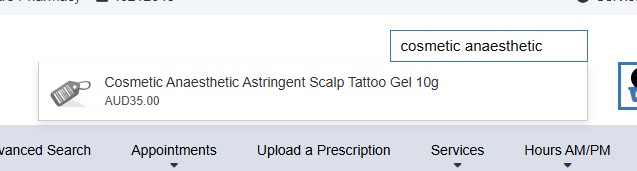
we updated to com_hikashop_business_v6.7.0_2026-10-16_14-07-21.tar.gz but no luck. It's still just showing the one suggestion instead of three. Let us know what we can do to troubleshoot at our end.
Thanks,
Ian & Stu
Last edit: 2 weeks 2 days ago by smithshop123.
Please Log in or Create an account to join the conversation.
2 weeks 2 days ago #100000264
by nicolas
Replied by nicolas on topic Controlling the style of the filter module
Hi,
Thank you for checking. The correction you installed does work on the product pages: we installed the same version on a test shop with the filter module shown on every page, and on a product page the suggestions now come from the whole shop. So when only the Scalp Tattoo Gel is suggested, it comes from one of these two causes.
1. The search was typed on a category listing (a category page of your shop, not a product page). There, the suggestions were limited to the products of the category shown, even though your module sends the search to your Advanced Search page, which searches the whole shop. That was not consistent, and we have corrected it as well: a filter module set to open its results on another menu item now suggests the products of the whole shop on every page, and still only the category's products when it filters the listing it is shown on. The fix is added on our end, so you can download the install package of HikaShop on our website again and install it on yours to get it.
2. The page is still the old one, kept by a cache. You mentioned earlier that your host adds its own cache optimization: a page cache keeps serving the HTML of the page from before the update, with the old address for the suggestions, until it is emptied. To check it, open the page where you type the search, display its source (Ctrl+U) and search for "filtersuggest": the address found contains "cid-" followed by a number. On a product page, this number must be 0 with the version you installed. If you see another number there, empty the cache of your hosting (the cache or optimization tool of your hosting panel), then System > Clear Cache in Joomla (and check whether the "System - Page Cache" plugin is enabled), and reload the page with Ctrl+F5.
If after the new package and an emptied cache you still get only one suggestion, please tell us the address of the page where you typed the search and the "filtersuggest" address you find in its source, and we will look at it.
Thank you for checking. The correction you installed does work on the product pages: we installed the same version on a test shop with the filter module shown on every page, and on a product page the suggestions now come from the whole shop. So when only the Scalp Tattoo Gel is suggested, it comes from one of these two causes.
1. The search was typed on a category listing (a category page of your shop, not a product page). There, the suggestions were limited to the products of the category shown, even though your module sends the search to your Advanced Search page, which searches the whole shop. That was not consistent, and we have corrected it as well: a filter module set to open its results on another menu item now suggests the products of the whole shop on every page, and still only the category's products when it filters the listing it is shown on. The fix is added on our end, so you can download the install package of HikaShop on our website again and install it on yours to get it.
2. The page is still the old one, kept by a cache. You mentioned earlier that your host adds its own cache optimization: a page cache keeps serving the HTML of the page from before the update, with the old address for the suggestions, until it is emptied. To check it, open the page where you type the search, display its source (Ctrl+U) and search for "filtersuggest": the address found contains "cid-" followed by a number. On a product page, this number must be 0 with the version you installed. If you see another number there, empty the cache of your hosting (the cache or optimization tool of your hosting panel), then System > Clear Cache in Joomla (and check whether the "System - Page Cache" plugin is enabled), and reload the page with Ctrl+F5.
If after the new package and an emptied cache you still get only one suggestion, please tell us the address of the page where you typed the search and the "filtersuggest" address you find in its source, and we will look at it.
Please Log in or Create an account to join the conversation.
- smithshop123
-
Topic Author
- Offline
Less
More
- Posts: 212
- Thank you received: 17
2 weeks 2 days ago - 2 weeks 2 days ago #100000267
by smithshop123
Replied by smithshop123 on topic Controlling the style of the filter module
We found the problem at our end. A cron job was automatically unpublishing those cosmetic products. Your updates are working perfectly.
Many thanks!!!
Ian and Stu
Many thanks!!!
Ian and Stu
Last edit: 2 weeks 2 days ago by smithshop123. Reason: Problem solved - info not relevant
The following user(s) said Thank You: nicolas
Please Log in or Create an account to join the conversation.
Time to create page: 0.117 seconds