
- Posts: 158
- Thank you received: 5
Ajax Filtering Issue since update to 4.2.1
- serbofleconcepts
-
 Topic Author
- Offline
Less
More
7 years 2 months ago #310067
by serbofleconcepts
Ajax Filtering Issue since update to 4.2.1 was created by serbofleconcepts
-- HikaShop version -- : 4.2.1
-- Joomla version -- : 3.9.10
-- Browser(s) name and version -- : Chrome
My users are complaining that the filtering has stopped working since I updated the site to 4.2.1.
1. It used to automatically filter as soon as I selected a filter, but now I have to hit the filter button?
2. It's not possible to remove the filters without adding a reset button (which it never used to need). Clicking the small crosses against each filter does nothing for me?
3. Is it possible to remove the search box on the filter page as it's not really necessary to have it displayed here?
Here is an example category page ... www.leconcepts.com/sound/wireless-music
Thanks
-- Joomla version -- : 3.9.10
-- Browser(s) name and version -- : Chrome
My users are complaining that the filtering has stopped working since I updated the site to 4.2.1.
1. It used to automatically filter as soon as I selected a filter, but now I have to hit the filter button?
2. It's not possible to remove the filters without adding a reset button (which it never used to need). Clicking the small crosses against each filter does nothing for me?
3. Is it possible to remove the search box on the filter page as it's not really necessary to have it displayed here?
Here is an example category page ... www.leconcepts.com/sound/wireless-music
Thanks
Please Log in or Create an account to join the conversation.

7 years 2 months ago #310071
by nicolas
Replied by nicolas on topic Ajax Filtering Issue since update to 4.2.1
Hi,
You're missing some HTML in your listing/filters area we had to add to make the AJAX mode work.
So you have two ways to fix the issue:
- you add an entry with the namekey ajax_filter and the value 0 in the hikashop_config table to deactivate the ajax mode.
- you check your view file overrides for the product view. You'll have to redo either the filter.php or the listing.php or the listing_div.php view file overrides using their latest version for the ajax mode to work properly.
You're missing some HTML in your listing/filters area we had to add to make the AJAX mode work.
So you have two ways to fix the issue:
- you add an entry with the namekey ajax_filter and the value 0 in the hikashop_config table to deactivate the ajax mode.
- you check your view file overrides for the product view. You'll have to redo either the filter.php or the listing.php or the listing_div.php view file overrides using their latest version for the ajax mode to work properly.
Please Log in or Create an account to join the conversation.
- serbofleconcepts
-
Topic Author
- Offline
Less
More
- Posts: 158
- Thank you received: 5
7 years 2 months ago #310095
by serbofleconcepts
Replied by serbofleconcepts on topic Ajax Filtering Issue since update to 4.2.1
Thanks for the quick reply Nicolas.
I added the key in the database as you suggested but even after clearing the cache it still doesn't auto-filter?
I added the key in the database as you suggested but even after clearing the cache it still doesn't auto-filter?
Please Log in or Create an account to join the conversation.
7 years 2 months ago #310110
by nicolas
Replied by nicolas on topic Ajax Filtering Issue since update to 4.2.1
Hi,
Ah yes, the auto submit function doesn't support that setting. We forgot about that.
I'm afraid you'll have to go with the other solution if you want the auto-submit.
Ah yes, the auto submit function doesn't support that setting. We forgot about that.
I'm afraid you'll have to go with the other solution if you want the auto-submit.
Please Log in or Create an account to join the conversation.
- serbofleconcepts
-
Topic Author
- Offline
Less
More
- Posts: 158
- Thank you received: 5
7 years 2 months ago #310112
by serbofleconcepts
Replied by serbofleconcepts on topic Ajax Filtering Issue since update to 4.2.1
OK, so I can't recall what I did to the listings file as it was years ago. I don't think I stripped any html out though, just added overrides. What html do you think is missing so I can check for it? What part of the file does the ajax work on?
Thank you.
Thank you.
Please Log in or Create an account to join the conversation.
7 years 2 months ago #310115
by nicolas
Replied by nicolas on topic Ajax Filtering Issue since update to 4.2.1
Well, we did quite a lot of changes to filter.php
Download and install the app winmerge. Then, copy your modified version of the view file on one side of a new comparison in winmerge, and copy the original version of the view file on the other side. Hit the refresh button and it will highlight all the changes between both sides.
It's a nice way to see what was added / removed / changed.
To get the original, just temporarily rename the view file override in templates/YOUR_TEMPLATE/html/com_hikashop/product/ and edit the view file in Display>Views.
Download and install the app winmerge. Then, copy your modified version of the view file on one side of a new comparison in winmerge, and copy the original version of the view file on the other side. Hit the refresh button and it will highlight all the changes between both sides.
It's a nice way to see what was added / removed / changed.
To get the original, just temporarily rename the view file override in templates/YOUR_TEMPLATE/html/com_hikashop/product/ and edit the view file in Display>Views.
The following user(s) said Thank You: serbofleconcepts
Please Log in or Create an account to join the conversation.
- serbofleconcepts
-
Topic Author
- Offline
Less
More
- Posts: 158
- Thank you received: 5
7 years 2 months ago #310317
by serbofleconcepts
Replied by serbofleconcepts on topic Ajax Filtering Issue since update to 4.2.1
Thanks, I can't recall making any changes to filter.php however I will copy my existing file and replace it with the new version and test.
In the meantime, if you take a look at my home page, is it possible;
1. to put the go! (filter) button inline with the search box? I have tried all options including making the column number smaller and also placing filter box on right but it disappears when I do this. The only way I can make it show is set the position as inside on the search module settings.
2. I don't need the search box on the filter results pages (under the filters - how do I get rid of this?
Thanks
In the meantime, if you take a look at my home page, is it possible;
1. to put the go! (filter) button inline with the search box? I have tried all options including making the column number smaller and also placing filter box on right but it disappears when I do this. The only way I can make it show is set the position as inside on the search module settings.
2. I don't need the search box on the filter results pages (under the filters - how do I get rid of this?
Thanks
Please Log in or Create an account to join the conversation.
7 years 2 months ago #310320
by nicolas
Replied by nicolas on topic Ajax Filtering Issue since update to 4.2.1
Hi,
1. Well, it's possible with a bit of CSS.
The main issue is that you need to reduce the size of the input area so that the button has enough space to fit it.
So for example, adding such CSS on your page makes the input and the button aligned:
monosnap.com/file/1RbqKg4wN3KnrHF3px5tFBcvtsz5pU
2. Normally, I would say that you can just turn off the "filters" display setting under the "products options" tab of the menu item displaying the results.
However, I see that you have other filters there. So I suppose that you still want the other filters, just not this one. In that case, you should leave that option enabled and hide the area of the search box on the filter results page with a bit of CSS.
For example:
#hikashop_products_listing_main .hikashop_filter_main_Search_8_3{ display:none; }
1. Well, it's possible with a bit of CSS.
The main issue is that you need to reduce the size of the input area so that the button has enough space to fit it.
So for example, adding such CSS on your page makes the input and the button aligned:
monosnap.com/file/1RbqKg4wN3KnrHF3px5tFBcvtsz5pU
2. Normally, I would say that you can just turn off the "filters" display setting under the "products options" tab of the menu item displaying the results.
However, I see that you have other filters there. So I suppose that you still want the other filters, just not this one. In that case, you should leave that option enabled and hide the area of the search box on the filter results page with a bit of CSS.
For example:
#hikashop_products_listing_main .hikashop_filter_main_Search_8_3{ display:none; }
Please Log in or Create an account to join the conversation.
- serbofleconcepts
-
Topic Author
- Offline
Less
More
- Posts: 158
- Thank you received: 5
7 years 1 month ago #310749
by serbofleconcepts
Replied by serbofleconcepts on topic Ajax Filtering Issue since update to 4.2.1
Thanks, with regards to hiding the search bar on the product listing page, I usually add my custom css in the template area in the Joomla backend and they usually work ok, but this one doesn't seem to want to. I can't see it in the browser css inspector either. I've added !important to it too.
Please Log in or Create an account to join the conversation.
7 years 1 month ago #310754
by nicolas
Replied by nicolas on topic Ajax Filtering Issue since update to 4.2.1
Hi,
I made a typo. It should be:
.hikashop_products_listing_main .hikashop_filter_main_Search_8_3{ display:none; }
instead of:
#hikashop_products_listing_main .hikashop_filter_main_Search_8_3{ display:none; }
I made a typo. It should be:
.hikashop_products_listing_main .hikashop_filter_main_Search_8_3{ display:none; }
instead of:
#hikashop_products_listing_main .hikashop_filter_main_Search_8_3{ display:none; }
Please Log in or Create an account to join the conversation.
- serbofleconcepts
-
Topic Author
- Offline
Less
More
- Posts: 158
- Thank you received: 5
7 years 1 month ago - 7 years 1 month ago #310790
by serbofleconcepts
Replied by serbofleconcepts on topic Ajax Filtering Issue since update to 4.2.1
Hi Nicolas, that didn't work either? Can I try the css override somewhere else?
Last edit: 7 years 1 month ago by serbofleconcepts.
Please Log in or Create an account to join the conversation.
7 years 1 month ago #310803
by nicolas
Replied by nicolas on topic Ajax Filtering Issue since update to 4.2.1
Hi,
It works fine when I use that CSS on your website:
monosnap.com/file/26xJ7DSrgUdtx4ijtkc3TvpL0S2GHk
So the CSS is correct.
You just need to add it to a CSS file loaded on the page.
It works fine when I use that CSS on your website:
monosnap.com/file/26xJ7DSrgUdtx4ijtkc3TvpL0S2GHk
So the CSS is correct.
You just need to add it to a CSS file loaded on the page.
Please Log in or Create an account to join the conversation.
- serbofleconcepts
-
Topic Author
- Offline
Less
More
- Posts: 158
- Thank you received: 5
7 years 1 month ago #311049
by serbofleconcepts
Replied by serbofleconcepts on topic Ajax Filtering Issue since update to 4.2.1
Hi Nicolas, I couldn't get it to work no matter so I ended up replacing both the filter.php and listings.php files extracted from the lasted Hikashop download.
This has fixed everything, but I can't help wonder why the original files were dated 2018 - it suggests they weren't updated in the last update?
Also, is there a way to show the filters across the page rather than stacked on top of each other?
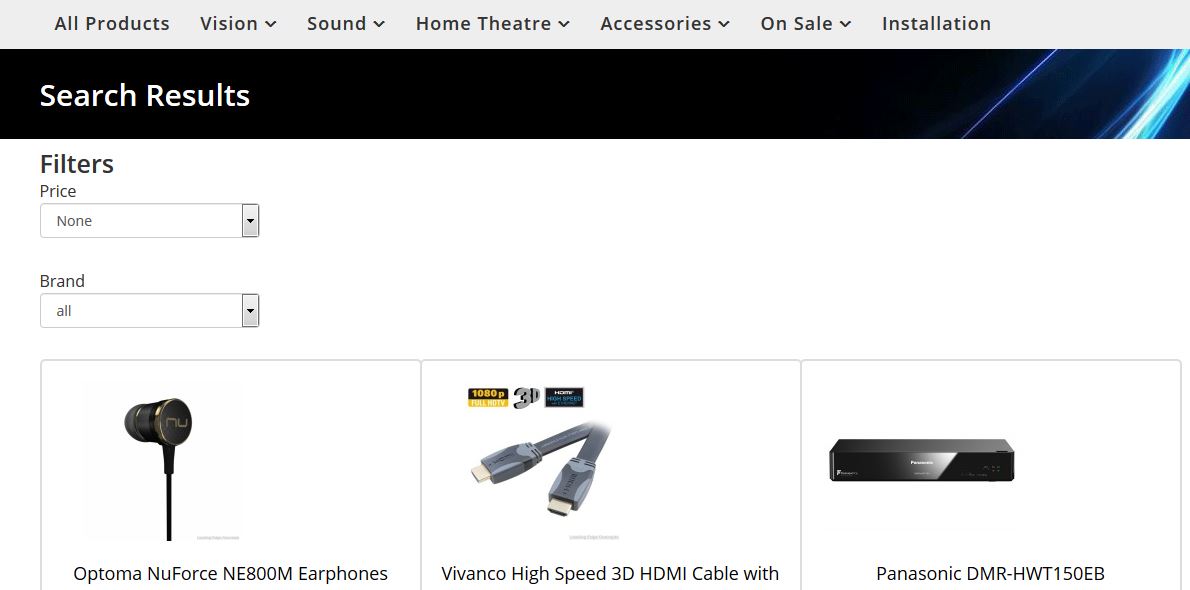
This has fixed everything, but I can't help wonder why the original files were dated 2018 - it suggests they weren't updated in the last update?
Also, is there a way to show the filters across the page rather than stacked on top of each other?
Please Log in or Create an account to join the conversation.
7 years 1 month ago #311050
by nicolas
Replied by nicolas on topic Ajax Filtering Issue since update to 4.2.1
Hi,
If the files have permissions which don't allow the update system to update them, then it won't update them.
This might have been done by the person who customized them instead of doing it through view overrides so that they could directly edit the view files while not loosing the changes after each update (which the view overrides prevent by having a copy of the view file in the template which has priority over the main view file).
Regarding the stacking of the filters, in each filter you can select the number of columns of the filter, and in the HikaShop configuration, in the Filters section, you have a setting to define the number of columns of the filters area. So if you set that area to have 3 columns, and if each filter is set to use 1 column, you'll have three filters per line.
If the files have permissions which don't allow the update system to update them, then it won't update them.
This might have been done by the person who customized them instead of doing it through view overrides so that they could directly edit the view files while not loosing the changes after each update (which the view overrides prevent by having a copy of the view file in the template which has priority over the main view file).
Regarding the stacking of the filters, in each filter you can select the number of columns of the filter, and in the HikaShop configuration, in the Filters section, you have a setting to define the number of columns of the filters area. So if you set that area to have 3 columns, and if each filter is set to use 1 column, you'll have three filters per line.
The following user(s) said Thank You: serbofleconcepts
Please Log in or Create an account to join the conversation.
Time to create page: 0.129 seconds