
Installation
- 1) Install the plugin with Joomla's Extensions > Install. It is enabled on install.
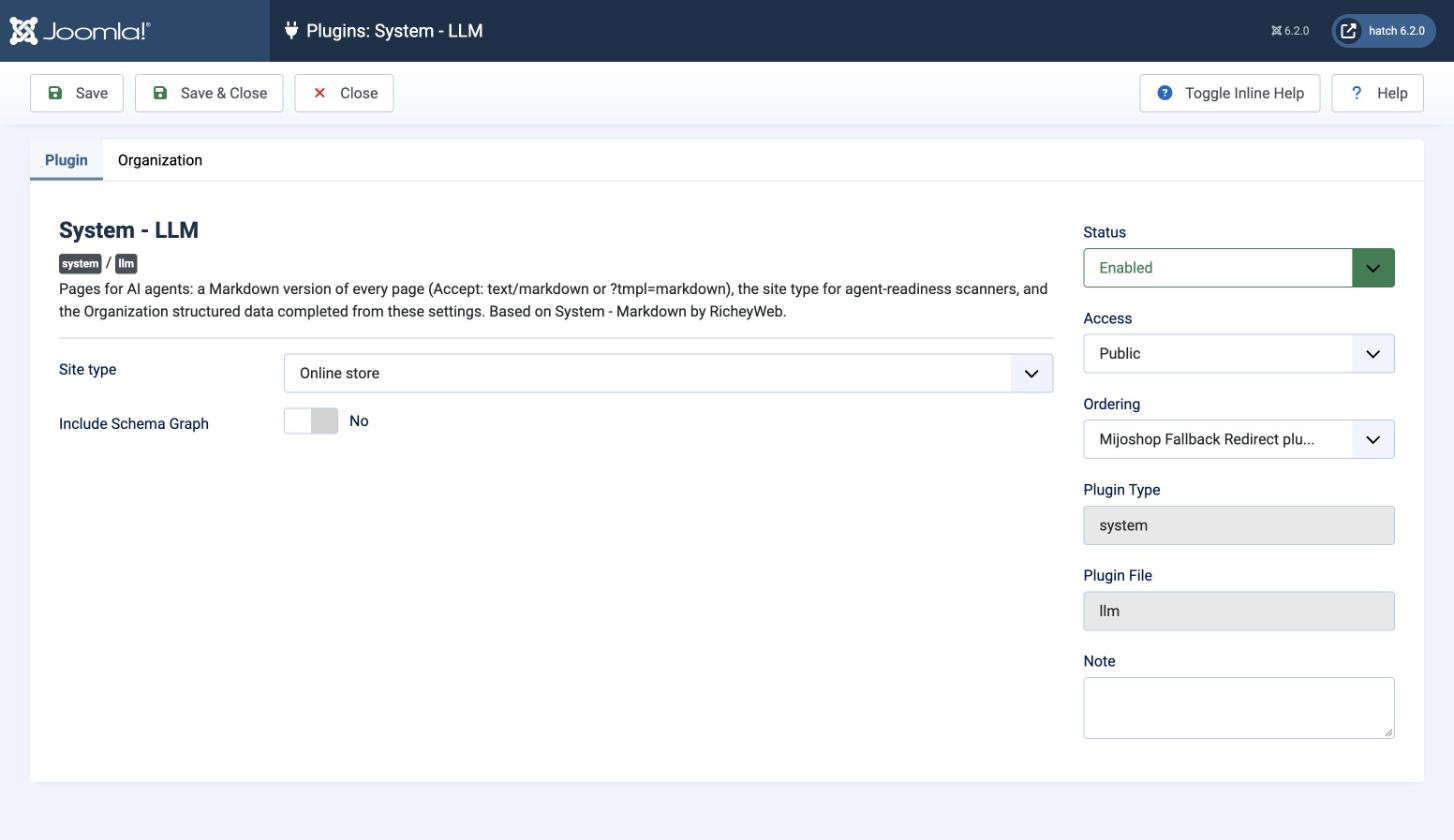
- 2) Open it in Extensions > Plugins ("System - LLM") and choose your site type.
- 3) In the Organization tab, fill in what you want agents and search engines to know about your business. Leave empty what you do not want to publish.
- 4) Optional: put an llms.txt file at the root of your site, next to your robots.txt. The plugin links it from every page once it is there.
- 5) Check the result: add ?tmpl=markdown to the address of one of your product pages, or scan your site with one of the free agent-readiness scanners listed in our documentation page "Selling to AI shopping agents".
If RicheyWeb's System - Markdown plugin is installed, this plugin turns it off when it is installed, since both would answer the same requests. This plugin started from it, with thanks to its author.
Configuration
- Site type: what your site is, for the agent-readiness scanners: Online store, Company or marketing site, Documentation or content, Hosted software. It chooses which checks their report puts first, not your score. None: nothing is declared.
- Include Schema Graph: adds Joomla's schema.org data at the end of the Markdown version of a page. Leave it off unless you know an agent needs it.
- Excluded blocks: what to leave out of the Markdown version of every page, besides the header, menus, footer and pop-ups the plugin already removes. One CSS selector per line (or separated by commas): .pagination for a class, #my-banner for an id, div.hikashop_filter_main_div for a tag with a class, [data-role=cart] for an attribute, .footer-area .social for a block inside another, .row > .actions for a direct child. Other selectors (such as :hover or +) are ignored. Empty: nothing more is removed. Clear the cache of your site after a change.
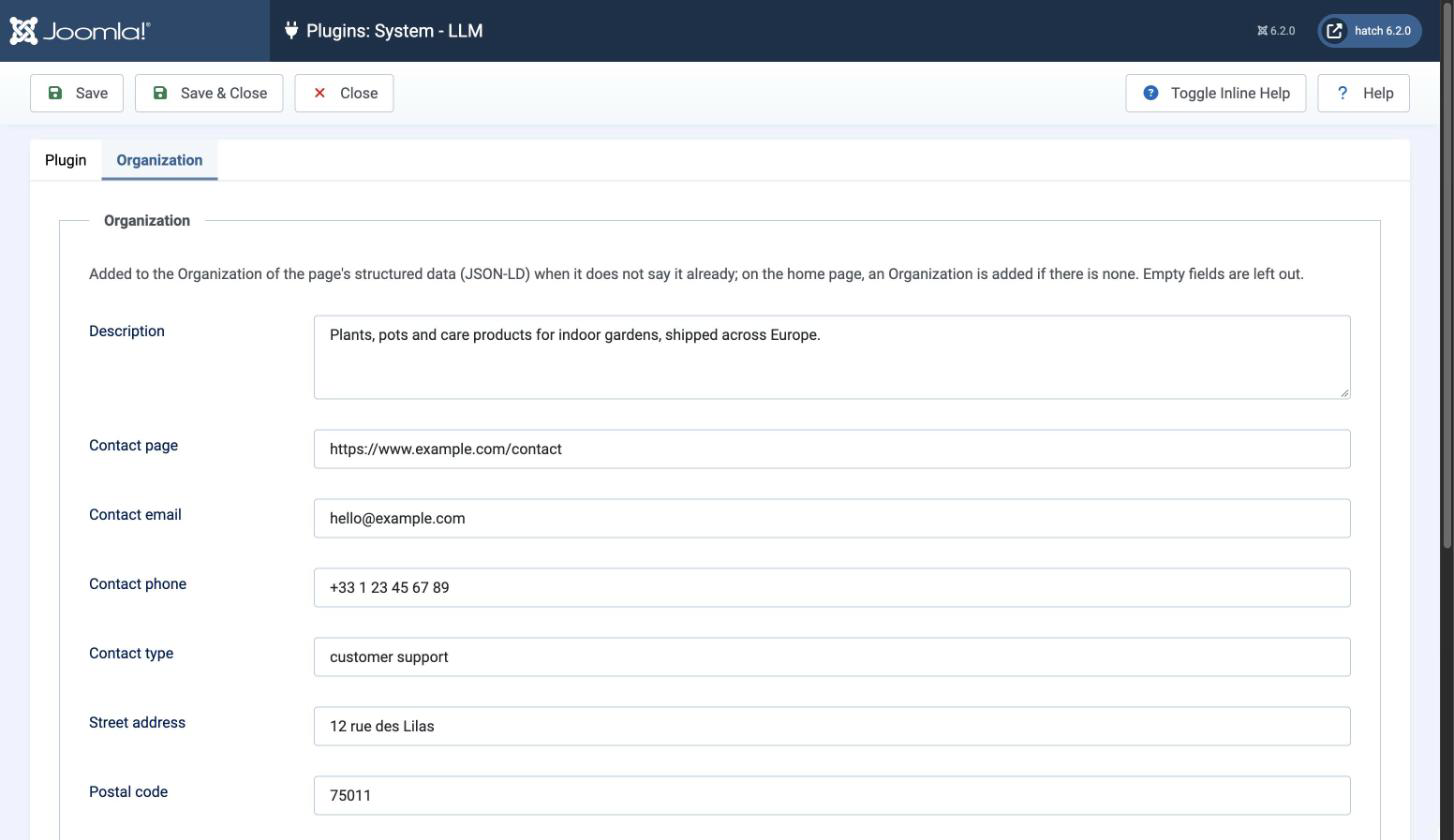
In the Organization tab, each field is added to your business's structured data when it is filled in, and left out when it is empty:
- Description: one or two sentences on what your business sells or does. The same text is published on every language version of your site. For a text in each language, enter a language key instead, for example MY_SHOP_DESCRIPTION (capital letters and underscores only), then in System > Language Overrides, for the site and for each language, create an override of that key with its text. A language without an override gets no description.
- Contact page, Contact email, Contact phone: how to reach you. The contact page alone is enough.
- Contact type: what this contact is for, "customer support" by default.
- Street address, Postal code, City, Region, Country: your business address. The country is a two-letter code, for example FR or US. The city and the country alone are enough if you do not want to publish more.
- Profiles: one address per line, your pages on other sites: social networks, directory listings, marketplaces.
Troubleshooting
- The Markdown version is the page of your template as a visitor sees it, without its header, menus, footer, pop-ups and off-canvas panels. If something useless remains (a block of your template that is not marked as header, navigation, sidebar or footer), list its CSS class or id in the Excluded blocks setting, or add no-markdown to its CSS classes: the module class of a module (Advanced tab of the module), or the class of a section in your template's layout settings. In a template built with a framework such as Astroid, you can also choose header, nav, aside or footer as the HTML tag of the sections around your content.
- An agent still gets the normal page: check that it reaches your site at all. A firewall or a bot protection (a security extension, CrowdSec, your host's or Cloudflare's bot protection) may block it before Joomla answers.
- Adding ?tmpl=markdown to an address gives a 403 error while the normal page works: your security extension refuses the unknown tmpl= value. In Admin Tools, add markdown to the allowed tmpl= keywords of its Web Application Firewall settings.
- A change to a page does not show in its Markdown version: the version is kept for the time of your site's cache (System > Global Configuration > System > Cache Time). Clear the cache or wait.
- The structured data does not change on a page: the plugin only adds the fields that are missing. If your template or another extension already writes a description or an address, theirs is kept.