2) Install it on your Joomla website via System > Install > Extensions.
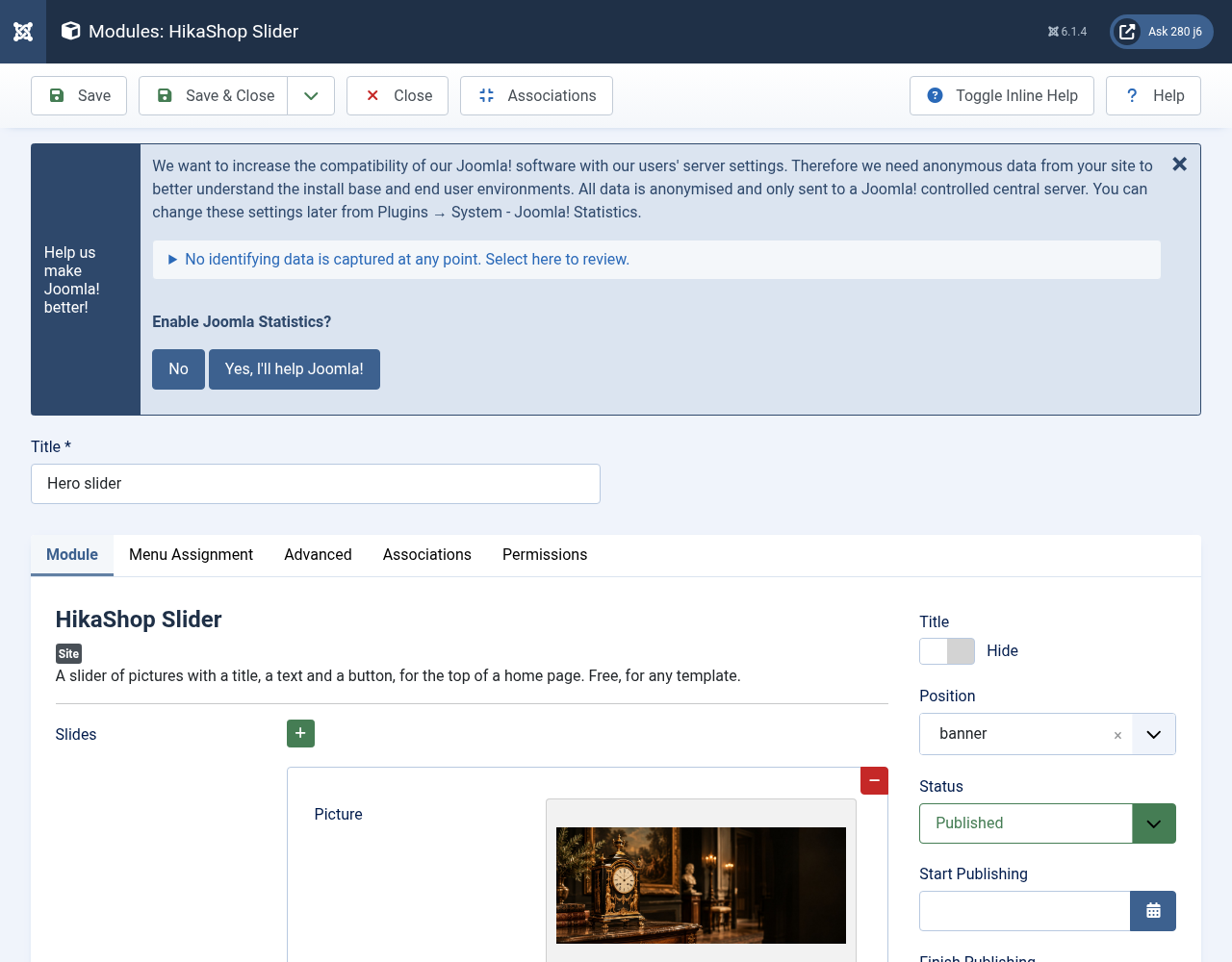
3) Go to Content > Site Modules, create a new "HikaShop Slider" module, publish it in the position where your template wants its hero (for example "banner" with Heritage & Hearth) and choose the pages it shows on.
4) Add your slides in the "Slides" list, then save.
Configuration
Slides: one line per slide, shown in this order. A line holds:
Picture: the picture of the slide, preferably wide and at least 1600 pixels. Without a picture the slide has a plain background.
Alternative text: what the picture shows, for screen readers. Leave it empty when the picture only decorates.
Small heading: a few words above the title, optional.
Title and Text: the title of the slide and a short text under it, optional.
Button label and Button link: the button shows when both are filled in. The link is a full address, or a page of your site such as index.php?Itemid=101.
Text side: left, right or centre.
Sale category: optional, the ID of the HikaShop category of a sale, for templates that show a sale strip. Leave it empty otherwise.
Autoplay (seconds): the time each slide stays (default: 8). 0 turns the automatic change off.
Height (pixels): the height on a large screen. Empty uses the template's height, or the module's default.
Arrows: shows the previous and next arrows. They are hidden on phones, where the dots do the job.
Dots: shows one dot per slide under the slider.
Accessible name: how screen readers name the slider. Empty uses "Featured slides".
Alternative Layout: an alternative layout from your template.
Module Class (Module Class Suffix on Joomla 3): CSS classes to add to the module.