
Installation
- Install the plugin with the Joomla extension manager, then publish it in the plugin manager (System - Hikashop Language to Currency).
- Open the settings of the plugin and type your language and currency pairs in "Language to Currency association".
- The currencies you use must exist in HikaShop, in System, Currencies.
When a visitor opens your shop in one of the listed languages, the plugin switches the shop to the matching currency. It works on the front of your website only.
Configuration
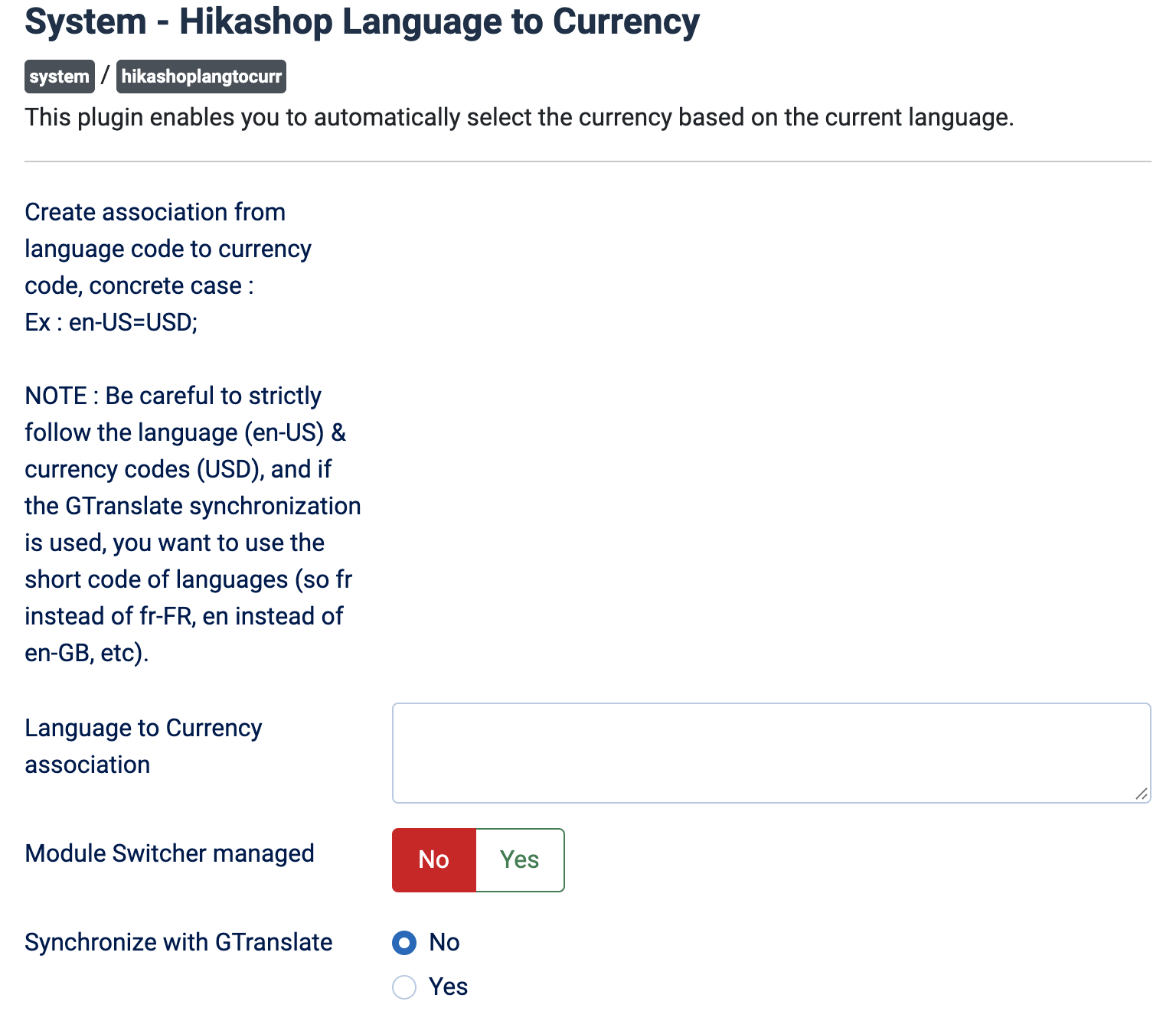
- Language to Currency association: the pairs, each written as language code, equal sign, currency code, separated by semicolons, for instance en-US=USD;fr-FR=EUR. Respect the codes exactly. A language that is not listed keeps the currency the shop would have used. Empty, the plugin does nothing.
- Module Switcher managed: No by default, the association always applies. Yes: once a visitor has picked a currency with the HikaShop currency switcher module, their choice is kept and the association no longer applies to them.
- Synchronize with GTranslate: No by default, the language of Joomla is used. Yes if you translate your website with GTranslate: the language chosen in the GTranslate switcher is used instead, and you then write the short language codes in the association (fr instead of fr-FR, en instead of en-GB).
Troubleshooting
- The currency does not change: check that the plugin is published, that the language code is written exactly as the language is known by Joomla (or the short code with GTranslate), and that the currency code exists in HikaShop. A code that does not match a currency is ignored without any message.
- The visitor cannot keep the currency they chose: set "Module Switcher managed" to Yes.