
Installation
- Install the plugin with the Joomla extension manager, then publish it in the plugin manager (System - Order Notification).
- In HikaShop, open System, Order statuses and tick, in the Notification column, the statuses for which a notification must appear. By default this is confirmed.
- Optionally open the settings of the plugin to change the position of the popup, the sound and how often new orders are looked for.
The popup is displayed in the backend and, on your website, to super administrators and to HikaMarket vendors. Each vendor is notified of their own orders.
Configuration
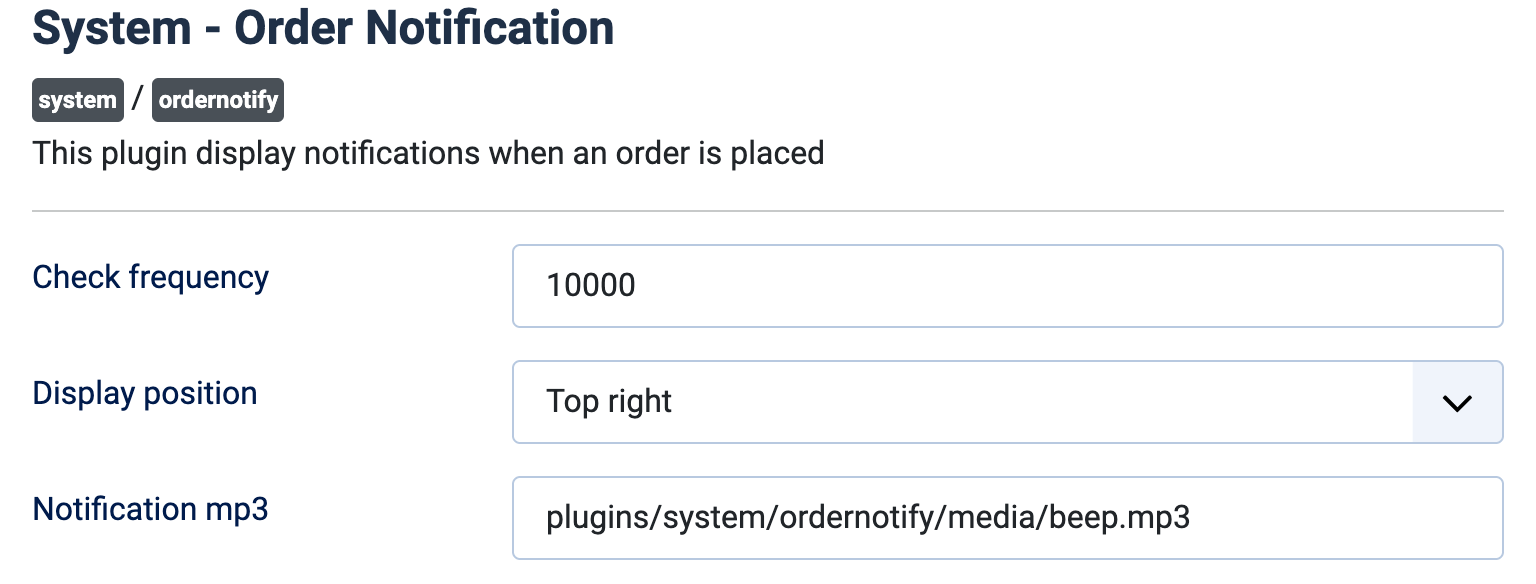
- Check frequency: the number of milliseconds between two checks for new orders. Default 10000, which is every 10 seconds.
- Display position: where the popup appears: Top right (default), Top center, Top left, Right, Bottom right, Bottom center, Bottom left or Left. None shows no popup.
- Notification mp3: the path, from the root of your website, of a sound file played when an order arrives. The default is the sound shipped with the plugin. Empty, no sound is played.
Troubleshooting
- No popup appears: check that the plugin is published, that Display position is not None, and that the status of the new order is ticked in the Notification column of System, Order statuses.
- No sound: check the path in "Notification mp3" and that the browser allows sound on the page; browsers often block it until you have clicked on the page once.
- "No new orders": the answer of the check when nothing happened since the last one. This is normal.
- The popup stops checking: after an error answer from the server, the plugin stops asking. Reload the page. If your session expired, log in again.