
Installation
- On your storage service (Amazon S3 or a compatible one), create a bucket and keep it private: the plugin gives each customer a temporary link instead.
- Create a user allowed to read and write in that bucket and get its access key ID and secret access key.
- Install the plugin with the HikaShop or Joomla installer, then publish it in the plugin manager (Hikashop - Amazon S3).
- Open the settings of the plugin, fill the keys and the bucket and save: the "Connection test" line then tells you whether it works. For a service other than Amazon, fill "Endpoint" too.
- Turn on "Send new uploads to the bucket" to upload your product files to the bucket, or use "Move the files to the bucket" to move those already on your server.
The plugin needs the PHP cURL extension and HikaShop 6.5.2 or newer. The storage and the traffic are billed by your storage service. The images of your products stay on your server.
Configuration
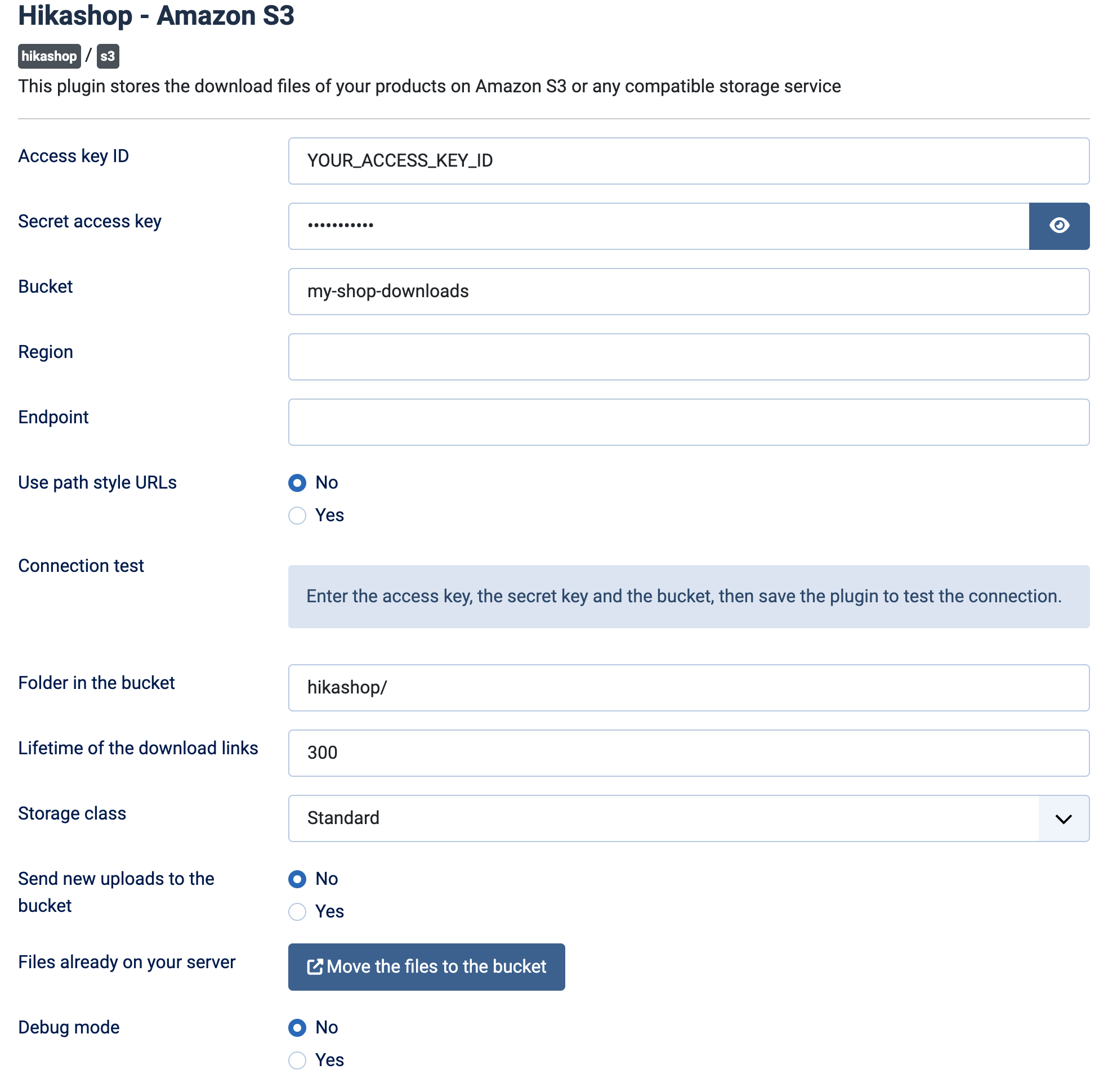
- Access key ID: the access key of the user allowed to read and write in the bucket.
- Secret access key: the secret key that goes with it.
- Bucket: the name of the bucket holding your files. It must not be public.
- Region: leave it empty for Amazon, the plugin asks where the bucket is and remembers it. Fill it (for instance eu-west-1) only for a compatible service that does not report its region.
- Endpoint: empty for Amazon S3. For a compatible service, its address, for instance s3.eu-central-1.wasabisys.com or s3.fr-par.scw.cloud.
- Use path style URLs: No for Amazon S3 (default). Some compatible services require Yes; try switching it if the connection test fails on such a service.
- Connection test: checks the settings against your bucket and gives the result in the settings. Save the plugin to run it again.
- Folder in the bucket: the prefix your files are stored under, hikashop/ by default. Keeping everything under one prefix lets the plugin check all your files with a single request.
- Lifetime of the download links: how many seconds the temporary link given to a customer stays valid, 300 by default. A download already started is not interrupted when the link expires. Keep it short so that a shared link soon stops working.
- Storage class: Standard (default), Standard infrequent access or Intelligent tiering, for the files you send to the bucket.
- Send new uploads to the bucket: No by default, the plugin then only delivers the files already in the bucket and new uploads stay on your server. Yes sends the download files of the products to the bucket (and then shows the choice of the files sent).
- Files already on your server: opens the screen that lists the download files still on your server and moves them to the bucket one by one without interrupting the shop. The files are copied, not removed, unless you tick the option to delete each file from your server once it is checked in the bucket. Save the plugin first, the screen uses these settings.
- Debug mode: No by default. Yes writes what the plugin does, including the files that could not be moved, to the HikaShop log.
Troubleshooting
- "Enter the access key, the secret key and the bucket, then save the plugin to test the connection.": fill the three fields and save.
- "Could not connect to the bucket." followed by the reason given by the service: check the keys, the bucket name, and for a compatible service the endpoint and the path style option.
- "Connected successfully to the bucket", with the region when it is known: the settings are right.
- "Enter the access key, the secret key and the bucket in the plugin, and check the connection, before moving your files.": shown on the moving screen until the settings work.
- A file shows an error in the Status column of the moving screen: the text gives the reason, for instance an HTTP code from your own server or the message of the storage service. With Debug mode on, the same line is in the HikaShop log.
- Files recorded on a product but missing from your server: the moving screen lists them; they cannot be moved, and the products concerned need their file uploaded again.
- A customer gets the usual HikaShop message instead of the file: the file is not in the bucket any more, or the order or the download limits do not allow the download.