
Installation
- Install the plugin with the HikaShop or Joomla installer, then publish it in the plugin manager (Hikashop - 3D product display).
- Edit a product and drop its 3D model in the product's images, next to the photos. The model is a GLB file; STL, PLY, OBJ and FBX files are converted by your browser when you add them.
- When you add a model, turn it to the side your customers should see first and confirm. That view is used as the product image.
- To have models built from your photos, open the Generation tab of the plugin settings, choose the service and paste the key of your account with it. Without this, nothing about your products leaves your website.
Displaying the model in the image gallery needs a recent build of HikaShop (the build number is written at the top of the HikaShop configuration page). On an earlier build, or with a customised product page, the model is displayed above the product image instead.
Configuration
Plugin tab:
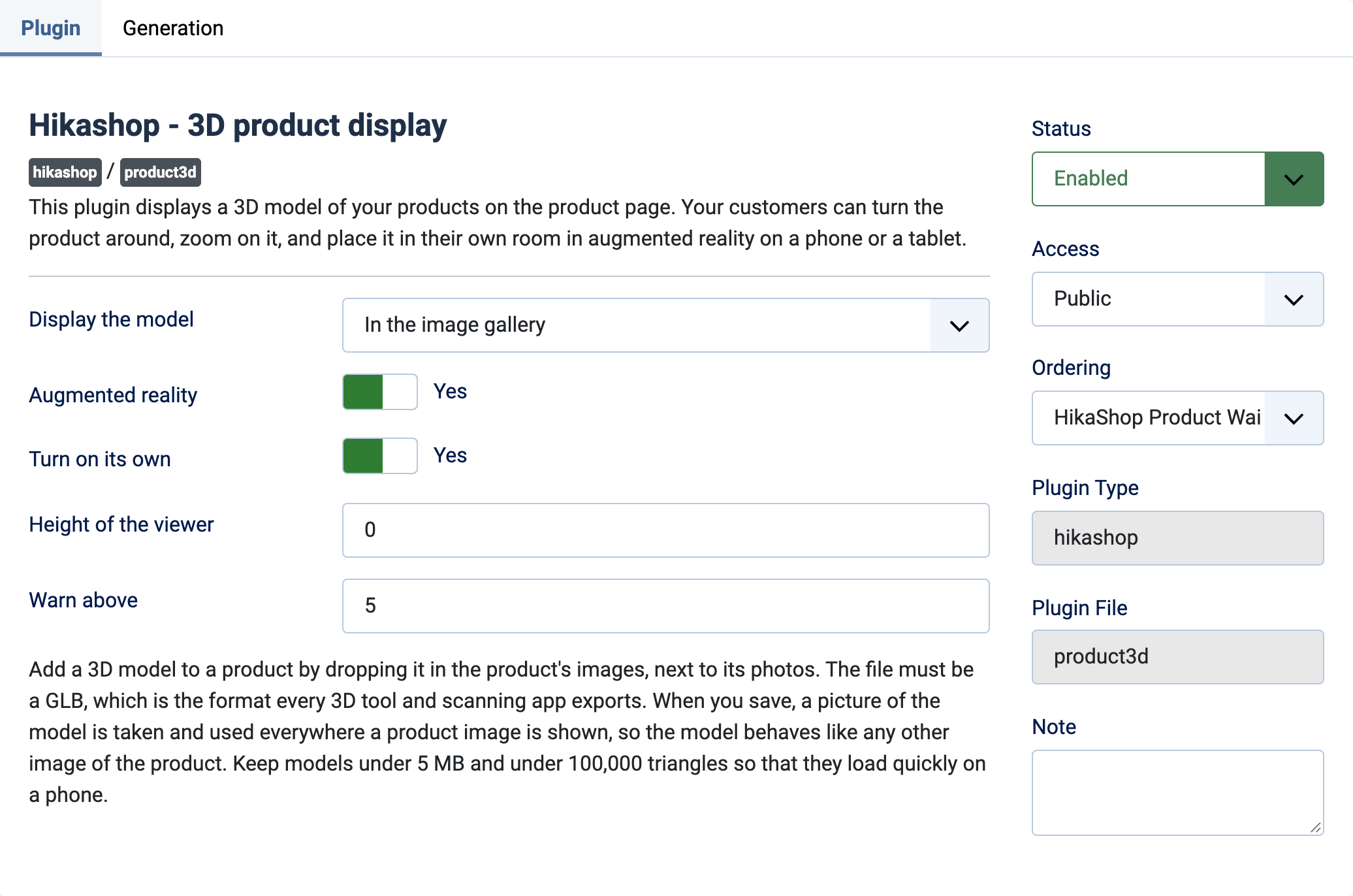
- Display the model: where the model appears on the product page. In the image gallery (default): next to the photos, with its own thumbnail. Above the product image, below it, or at the bottom of the product page.
- Augmented reality: Yes (default) lets customers place the product in their own room from a phone or a tablet.
- Turn on its own: Yes (default) makes the model turn slowly until the customer takes hold of it.
- Height of the viewer: the height in pixels of the area showing the model. 0 (default) uses the size of your product images, so that the page does not change size when the customer switches to the model.
- Warn above: the size in MB above which the product edit page warns you that a model may be slow to load on a phone. Default 5. 0 never warns.
Generation tab:
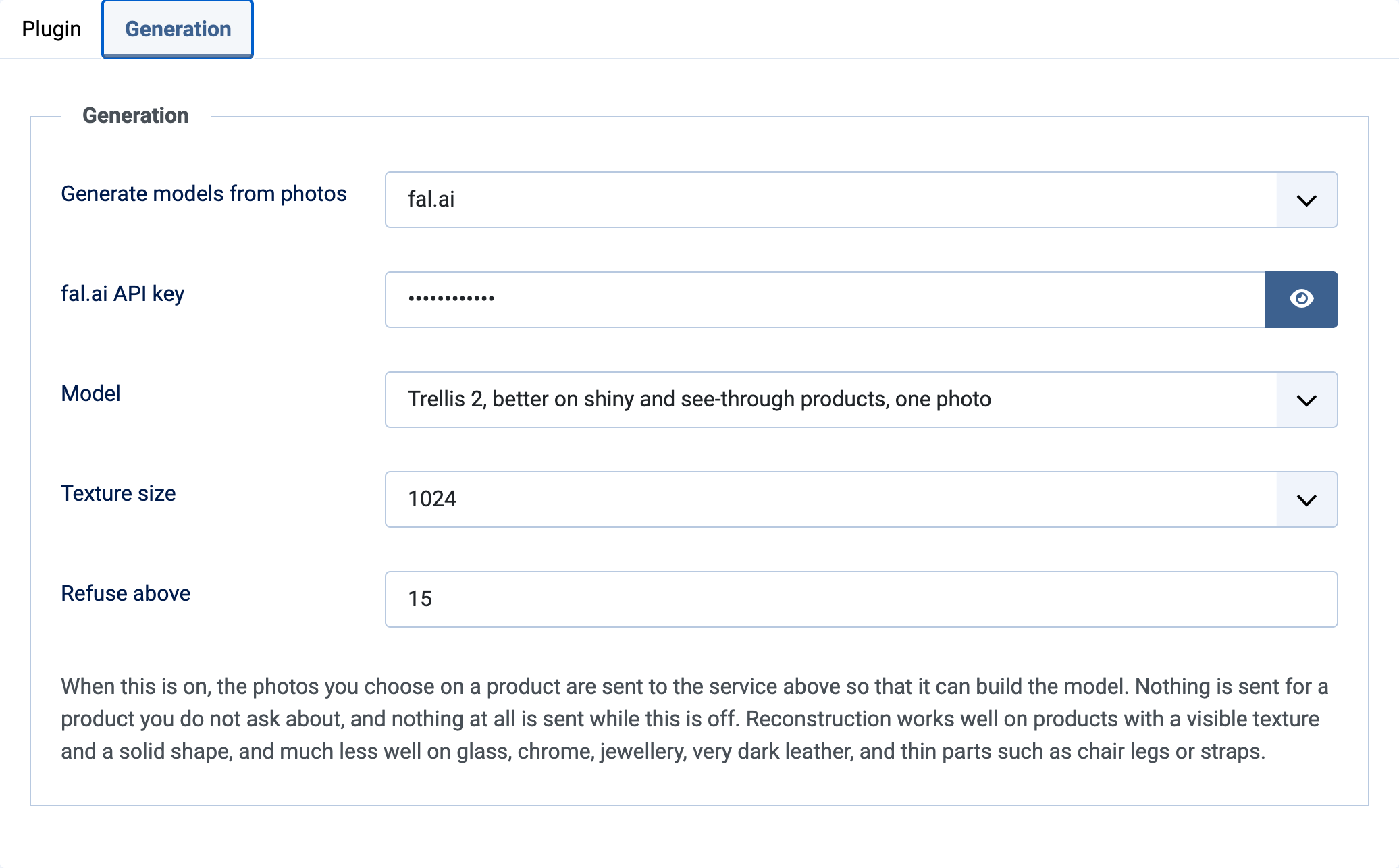
- Generate models from photos: the service which builds a model from your photos. Off (default): only the models you add yourself are displayed. fal.ai: an "Add a 3D model" button appears on the product edit page.
- fal.ai API key: the key of your fal.ai account, shown with fal.ai. You are billed by fal.ai for each model built. Empty, nothing can be built.
- Model: the reconstruction model fal.ai uses, shown with fal.ai. They differ in price and in what they handle well; Trellis can use several photos and is the cheapest, Trellis 2 is better on shiny and see-through products with one photo, Tripo H3.1 gives detailed models from up to four photos (front, left, back, right), Hunyuan3D 2 is an older alternative to try when the others do badly. The price of each is on the fal.ai website.
- Texture size: how detailed the surface of a built model is, in pixels. 1024 (default) is enough for a product page; a larger one makes the model heavier without looking better at that size.
- Refuse above: the size in MB above which a built model is not stored at all, so that an unusable model does not fill your images folder. Default 15.
Keep models under 5 MB and under 100,000 triangles so that they load quickly on a phone. Reconstruction from photos works well on products with a visible texture and a solid shape, and much less well on glass, chrome, jewellery, very dark leather, and thin parts such as chair legs or straps.
Troubleshooting
- "The 3D model ... is above ... MB. It will still work, but it may be slow to load on a phone.": lower the size of the model, or raise "Warn above".
- "Could not take a picture of this model. It will be tried again next time you open this product.": open the product edit page again; if it persists the file may be damaged.
- "This model could not be prepared for the web. It may be in a format this cannot read, or damaged.": export the model again as a GLB from your 3D tool.
- "No generation service is set up in the settings of the plugin.": choose a service and enter its key in the Generation tab.
- "Choose at least one photo of the product to build the model from.": drop a photo or pick one of the product in the build window.
- "More photographs are selected than this model can use. Only the first ones will be sent.": the chosen model takes fewer photos; pick the best ones or choose another model.
- "The model could not be built.": the service refused or failed; the end of the message gives its answer. Check the key and the balance of your fal.ai account, then try again with other photos or another model.