
Installation
- Install the plugin with the HikaShop or Joomla installer, then publish it in the plugin manager (HikaShop - Recurring Orders). On WordPress, publish it in System, Plugins of HikaShop.
- Add the "Recurring schedule" block to your checkout: open the checkout workflow in the HikaShop configuration and add the block to a step. Without it customers cannot ask for a recurring order.
- Open the settings of the plugin and set the frequencies offered, the checkout mode, the discount and the delays (see below), then save.
- Set up the HikaShop cron task on your server, every 5 minutes if you can. The plugin creates and charges the scheduled orders from the cron, so nothing happens without it.
- For automatic charges, enable a payment plugin able to charge a saved payment method for the next orders, such as Stripe Checkout or PayPal Checkout. With any other payment method the customer pays each order by hand, if you allow it ("Allow manual payment").
- The three emails of the plugin (order created, payment failed, schedule paused) can be edited or turned off in System, Emails of HikaShop.
Configuration
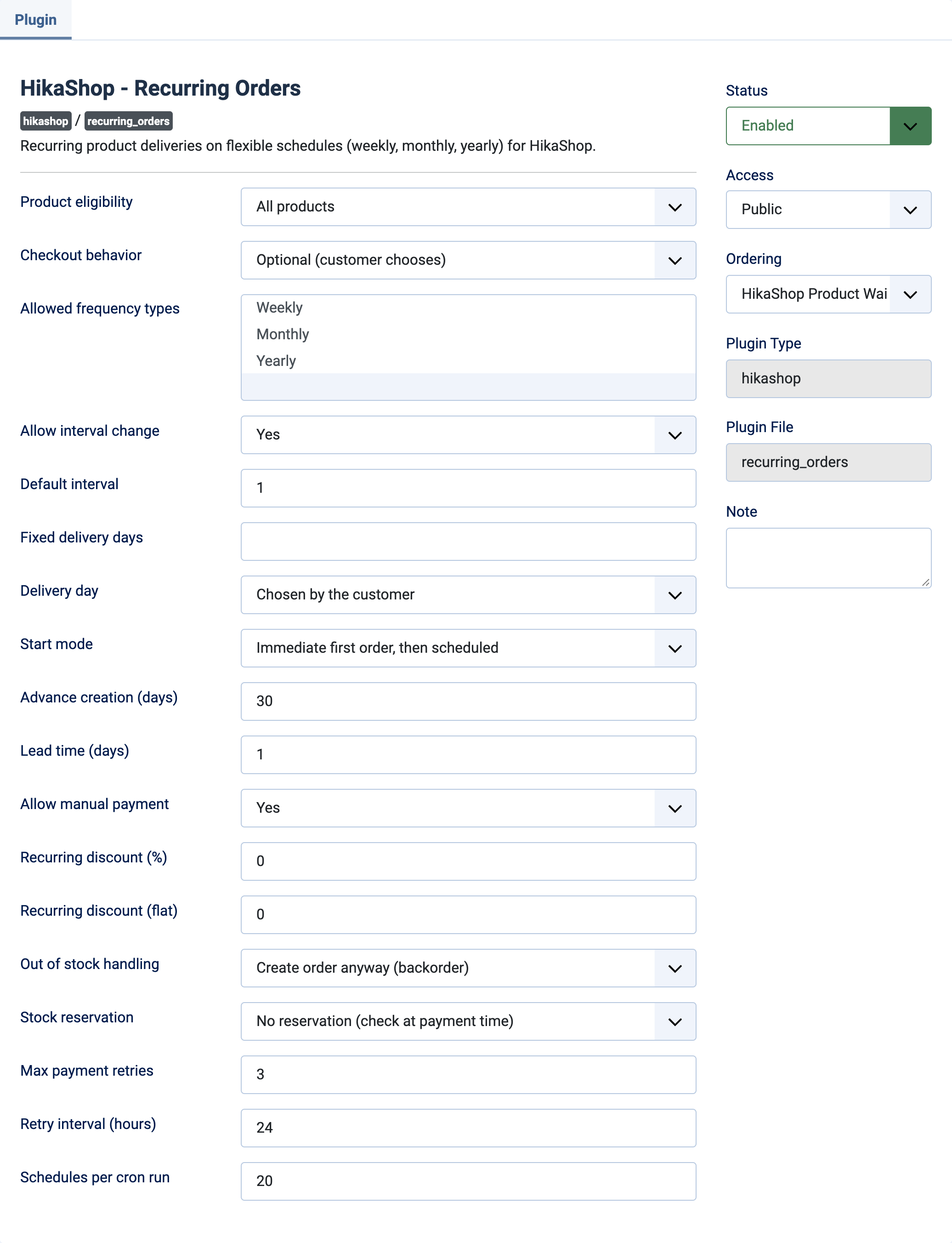
- Product eligibility: All products (default) lets any product be put in a recurring schedule. Only products with recurring flag restricts it to the products marked as recurring.
- Checkout behavior: Optional (default) shows a checkbox, the customer chooses whether the order repeats. Forced makes every order recurring.
- Allowed frequency types: Weekly, Monthly and Yearly, all three by default. Select several with the Ctrl key (Cmd on Mac). With only one selected, the customer is not asked and that frequency is applied.
- Allow interval change: Yes (default) lets the customer choose "every X weeks, months or years". No applies the default interval.
- Default interval: the number used when the customer cannot change it, and offered first otherwise. 1 means every week, month or year, 2 every second one.
- Fixed delivery days: forces the delivery days instead of asking the customer. Weekly: the days of the week, 1 for Monday to 7 for Sunday, for example 1,4. Monthly: a day such as 1 or 15, or last. Yearly: month and day such as 03-15. Empty, the customer chooses.
- Delivery day: Chosen by the customer (default) shows the day picker. Same day as the order takes the day of the order date, so the customer picks nothing: an order placed on the 20th repeats on the 20th, and a shorter month falls on its last day. Ignored when fixed delivery days are set.
- Start mode: Immediate first order, then scheduled (default): the order placed is the first delivery and the next ones follow the schedule. First delivery on next scheduled date: nothing is delivered until the first scheduled date. Customer picks start date: the customer chooses the date of the first delivery.
- Advance creation (days): how many days ahead the upcoming orders are created, so that the customer can review them. Default 30.
- Lead time (days): how many days before the delivery date the order is charged. Default 1.
- Allow manual payment: Yes (default) lets the customer use a payment method which cannot be charged automatically and pay each order by hand. No shows only the payment methods able to save the payment details when the customer makes the order recurring.
- Recurring discount (%): a percentage taken off the recurring orders. 0 (default) turns it off.
- Recurring discount (flat): a fixed amount taken off the recurring orders. 0 (default) turns it off. The checkout shows the saving to the customer before they subscribe.
- Out of stock handling: what happens when a product of the schedule is out of stock. Create order anyway (backorder, default), Pause schedule and notify, or Skip delivery and notify.
- Stock reservation: No reservation (default) checks the stock when the order is paid. Reserve stock on order creation takes the stock as soon as the upcoming order is created.
- Max payment retries: how many times a failed payment is tried again before the schedule is paused. Default 3.
- Retry interval (hours): the minimum time between two tries. Default 24.
- Schedules per cron run: the maximum number of schedules handled by each cron run. Default 20. Raise it if you have many schedules and some are late.
Prices are fixed when the customer subscribes: a later change of the price in your catalog does not change an existing schedule. The customer can skip a delivery, pause, resume or cancel a schedule from their account.
Troubleshooting
- The customer does not see the recurring option: the "Recurring schedule" block is missing from the checkout workflow, or the product is not eligible (see "Product eligibility").
- No upcoming order is created, or none is charged: the HikaShop cron task is not running, or the delivery date is not within the advance creation days.
- Only some payment methods are offered: "Allow manual payment" is set to No, so only the methods able to save the payment details are shown.
- A schedule was paused by itself: the payment failed more times than "Max payment retries", or a product was out of stock with "Pause schedule and notify". The customer and you are told by email, and the customer can resume the schedule from their account after fixing the cause.
- A delivery was skipped: a product was out of stock with "Skip delivery and notify", or the customer skipped that date.