
Installation
- Make sure HikaShop and SP Page Builder 6 are installed on your Joomla 5 or 6 site. The free Lite edition of SP Page Builder is enough.
- Download the plugin from its page on our marketplace.
- Install it on your site via System > Install > Extensions.
The package installs and enables two plugins: SP Page Builder - HikaShop, which adds the add-ons to SP Page Builder, and HikaShop - SP Page Builder, which shows HikaShop's product pages with an SP Page Builder page. There is nothing else to enable.
The add-ons
Open a page in SP Page Builder and click Add Elements: the add-ons are in the HikaShop group, near the end of the list.
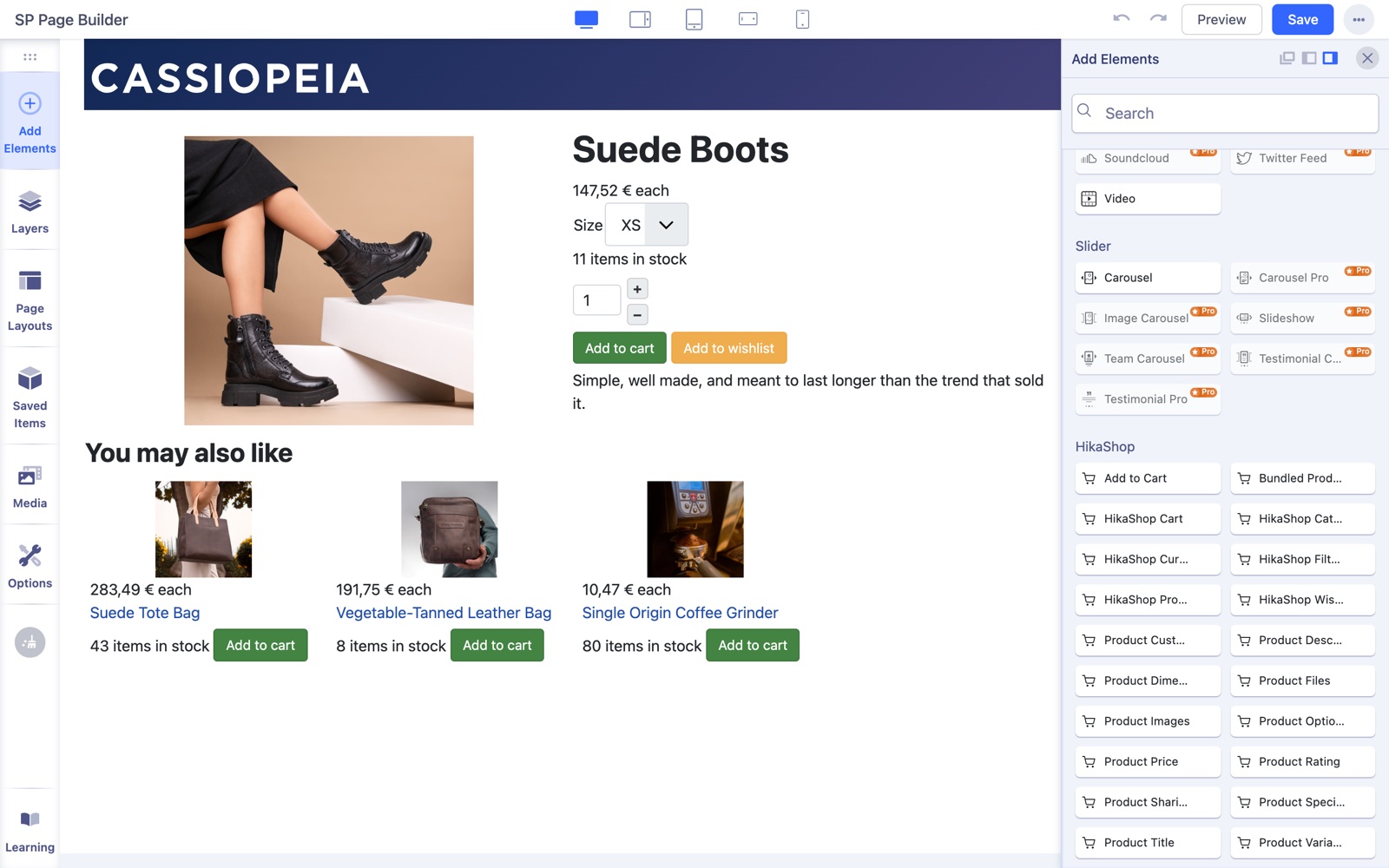
- HikaShop Products: a listing of products. Its Source chooses which ones:
- Products of a category: the products of the Category you choose, with or without its subcategories (Include subcategories).
- Products chosen by hand: type the codes or ids of the products in Products, separated by commas. With Order by set to "Order given above", they show in the order you typed them.
- Products on sale: the products with a discount.
- Recently viewed by the visitor: the products the visitor looked at last.
- Related to the product shown: the related products of the product being viewed, for the product page layout described below.
- HikaShop Categories: the subcategories of the Parent category you choose, with their number of products, the empty ones hidden if you want.
- HikaShop Cart, HikaShop Wishlist, HikaShop Currency Switcher and HikaShop Filters: HikaShop's own modules. Settings of the module uses HikaShop's default settings, or those of one of your HikaShop modules (Content > Site Modules), which you then set as usual. The filters need HikaShop Business and a HikaShop filter module to take them from.
- The parts of the product page: Product Title, Product Images, Product Price, Add to Cart, Product Description, Product Variants, Product Options, Product Custom Fields, Product Specifications, Product Dimensions, Bundled Products, Product Files, Product Rating and Product Sharing. They show the product being viewed, so they belong in the product page layout below.
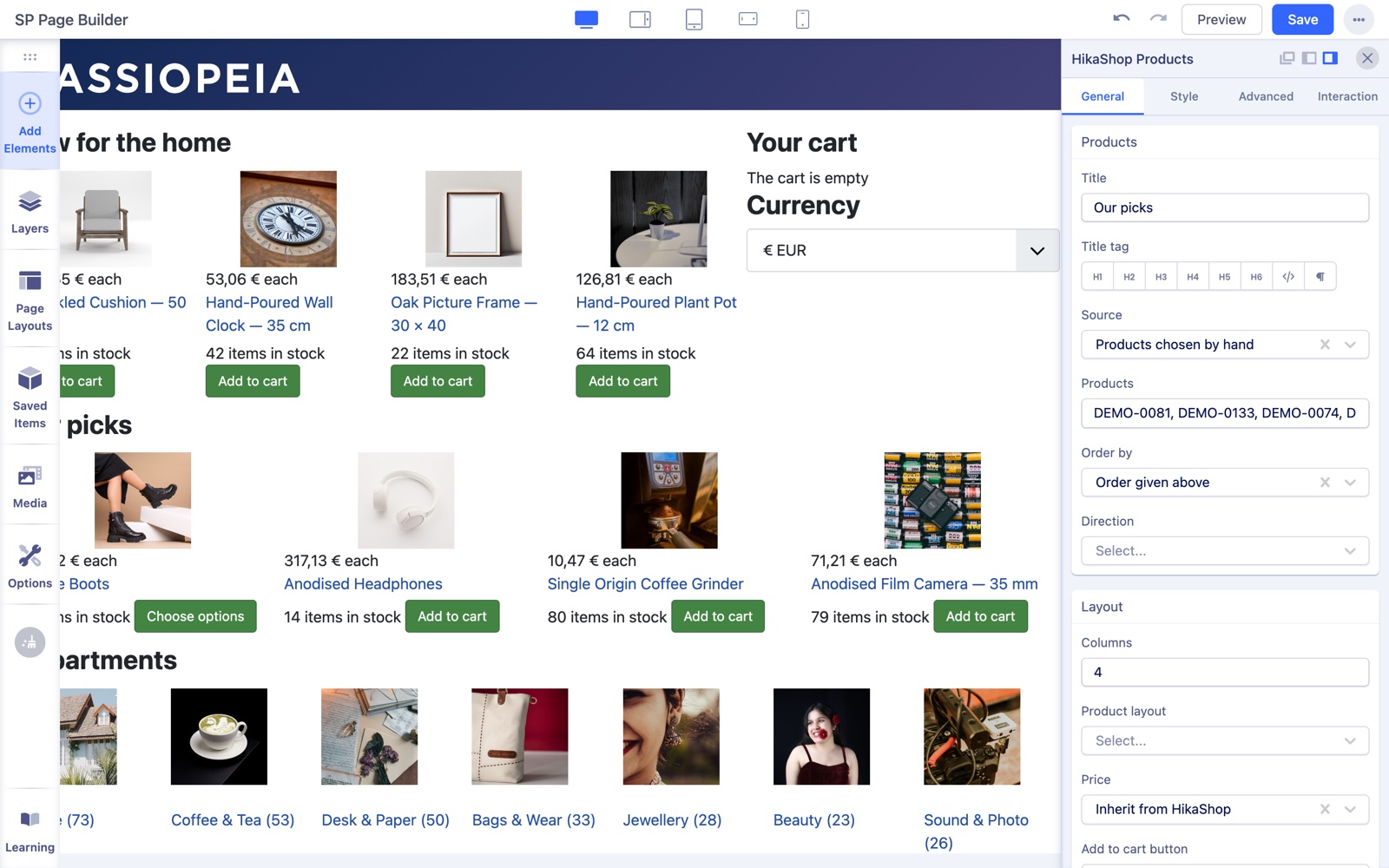
Prices, taxes, discounts, stock, access rights and the HikaShop layout overrides of your template apply in the add-ons as on HikaShop's own pages. A product hidden from the visitor stays hidden.
The product page layout
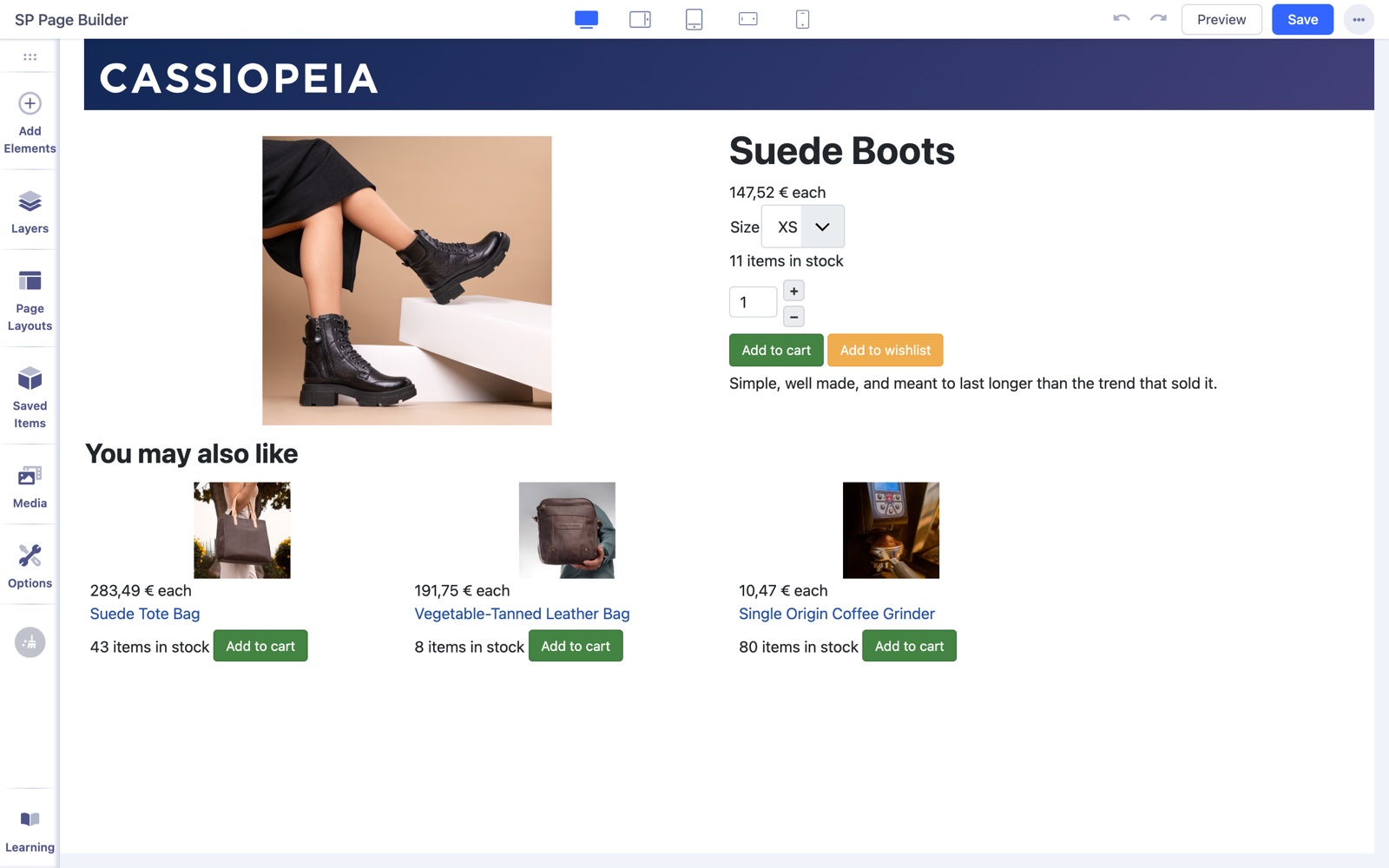
- In SP Page Builder, create a page (Pages > New) and design it with the product page add-ons of the HikaShop group: the images on one side, the title, price, variants and add to cart on the other, the description and a HikaShop Products add-on with the source "Related to the product shown" below, for example. While you edit it, the latest product of your shop stands in for the product being viewed, so you see real content.
- Save the page. It does not need a menu item.
- Go to System > Plugins, open HikaShop - SP Page Builder and choose the page in Product page layout, then save.
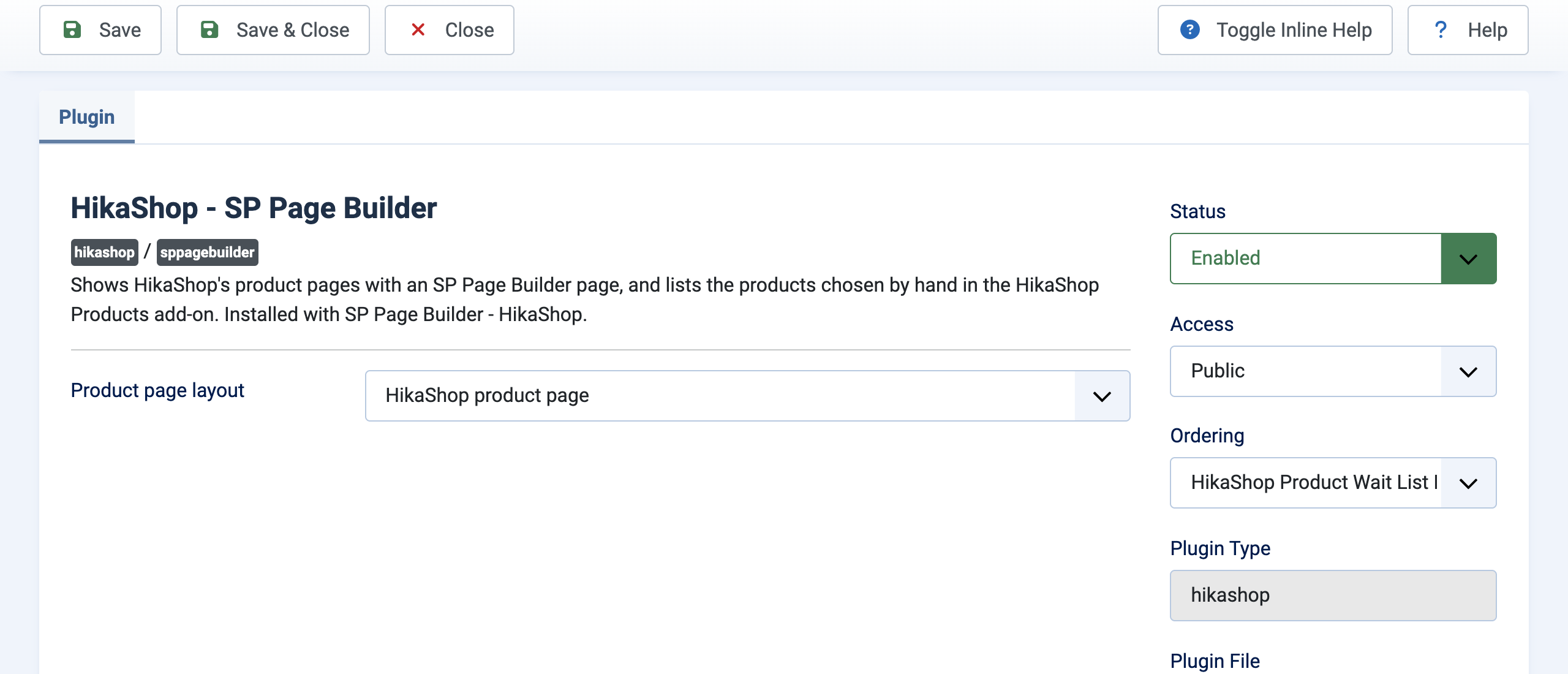
Every HikaShop product page is now shown with that page, for the product being viewed. The variant selectors, the add to cart, the image gallery and the comments work as on HikaShop's own product page, and the page keeps HikaShop's title, metadata and structured data. The modules HikaShop shows under its own product page (the "Modules" setting of the product page in the HikaShop configuration) are left out: add a HikaShop Products add-on to the page instead.
To go back to HikaShop's own product page, choose "None" in Product page layout.
Troubleshooting
- The HikaShop group is missing in Add Elements: check that the plugin SP Page Builder - HikaShop is enabled in System > Plugins, then reload the editor.
- The product pages still look like HikaShop's own: check that HikaShop - SP Page Builder is enabled and has a page in Product page layout, and that this page is published in SP Page Builder.
- A product part shows "Nothing to show for this product": the product being viewed has nothing for that part (no variants, no custom fields...). The message only shows in the editor; on the site the part stays empty.
- A product is missing from a listing: HikaShop's own rules apply, so a product that is unpublished, out of stock while HikaShop hides those, or not allowed to the visitor's user group does not show.