
Installation
- 1) Make sure HikaShop and FLEXIcontent 5 are installed on your Joomla site.
- 2) Download the plugin from our website and install it with the Joomla extension manager.
- 3) In Extensions > Plugins, search for "FLEXIcontent - HikaShop product" and enable it.
- 4) In Components > FLEXIcontent > Fields, click New, give the field a label (for example "Product"), choose the field type "HikaShop product", select the content types that should have it in "Types", and save.
- 5) In Components > FLEXIcontent > Templates, edit your item template and drag the field into one of its positions. Do the same in your category template if the products should also show in the category lists.
- 6) Edit an item: the field is in the item form. Type part of a product name or code, or open the categories, and click the products to add. Drag them to change their order, click the cross to remove one. Save the item.
- 7) To filter the category lists by price or stock, open the field again, set "Use as filter" to Yes in its "Search, filtering" tab, choose what to filter on in the "Filtering" tab of the field type configuration, then add the field to the filters of your category (or of its menu item) in FLEXIcontent.
- 8) To let visitors find items by the name or the code of their products, leave "Text searchable" on in the "Search, filtering" tab of the field and rebuild the search index in Components > FLEXIcontent > Search indexes.

Configuration
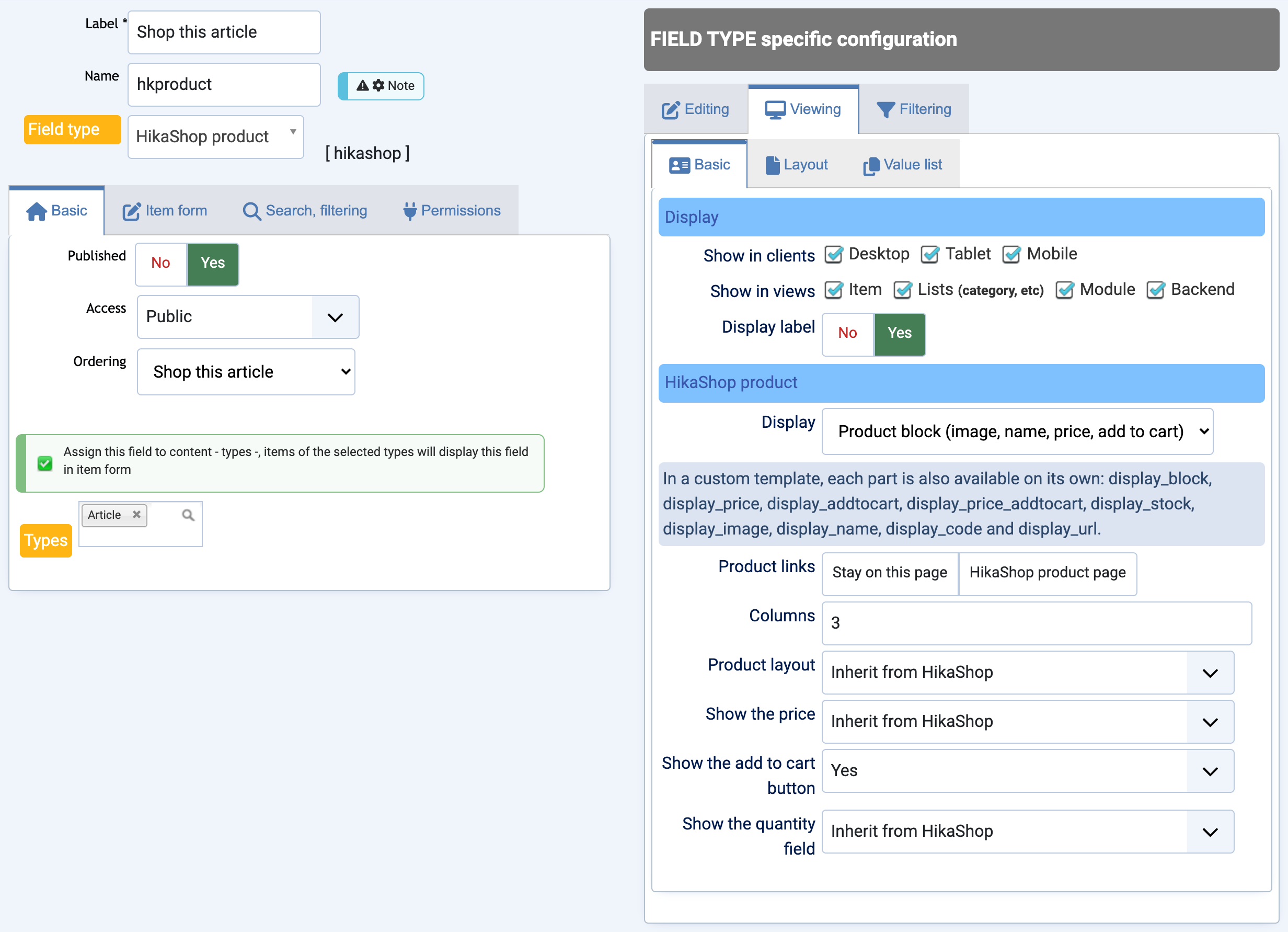
The settings are in the "FIELD TYPE specific configuration" of the field, in Components > FLEXIcontent > Fields.
Editing
- Several products: Yes lets an item hold several products, No only one.
Viewing
- Show in clients and Show in views: on which devices and in which pages (item page, category lists, modules, backend lists) the field is shown.
- Display label: shows the label of the field before the products.
- Display: what the field shows where the template places it. "Product block" is a small HikaShop listing of the products (image, name, price, add to cart). The other choices show only one part for each product: the price and the add to cart button, the price, the add to cart button, the stock, the image, the name or the product code.
- Product links (product block only): "Stay on this page" shows the products without links, as the item page is already where they are sold. "HikaShop product page" links the image and the name to the product page of HikaShop.
- Columns (product block only): how many products per row.
- Product layout (product block only): the HikaShop layout of each product. "Inherit from HikaShop" uses the one of the HikaShop configuration.
- Show the price, Show the add to cart button and Show the quantity field (product block only): "Inherit from HikaShop" follows the HikaShop configuration, Yes and No force them.
- Layout tab: the layout of the field. Copy plugins/flexicontent_fields/hikashop/tmpl/value_default.php to templates/YOUR_TEMPLATE/html/flexicontent_fields/hikashop/ to change its HTML.
- Show no value and No value text: a text shown when the item has no product to show.
- Value list tab: the texts placed before and after each product, the separator between products, and the texts placed before and after the whole list.
In a template of your own, every part can also be displayed on its own: display_block, display_price, display_addtocart, display_price_addtocart, display_stock, display_image, display_name, display_code and display_url (the address of the product page).
Filtering
- Filter on: "Price range" shows two boxes, from and to, in the currency of the shop, and keeps the items with at least one product whose price (without tax, for one unit) is in the range. "In stock" shows a checkbox that keeps the items with at least one product in stock.
- Label of the filter: whether the label is shown outside or inside the filter, in the category pages and in the search page.

Troubleshooting
- The field shows nothing on the item page: check that the field is placed in a position of the item template, and that its products are published. A product out of stock is hidden from the product block when "Display out of stock products" is off in the HikaShop configuration, as in your shop listings.
- "HikaShop is not installed on this site" in the item form: install HikaShop, the field needs it.
- A box asking for product IDs instead of the product search: the search of products is available in the backend item form. In the frontend submission form of FLEXIcontent, the field asks for the IDs of the products, separated by commas (the ID is shown in the HikaShop product listing).
- "Choose options" instead of "Add to cart": the product has variants or options, the customer chooses them on the HikaShop product page.
- An item is not found by the name of its product: rebuild the search index of FLEXIcontent, and check that "Text searchable" is on for the field.