
Installation
- Install the plugin with the HikaShop or Joomla installer, then publish it in the plugin manager (Hikashop - Brevo).
- In your Brevo account, open Settings, SMTP & API, API Keys, create a key (v3) and copy it.
- Open the settings of the plugin, paste the key in "API Key" and save. The "List" field then shows your Brevo contact lists: choose the one your customers must join and save again. If you have no list yet, create one in Brevo first.
- To get the unsubscribe, hard-bounce and spam events back in your shop, type a secret of your own in "Webhook secret" (any long random text) and save.
- In your Brevo account, add a webhook that points to this address, with your own domain and your secret: https://www.example.com/index.php?option=com_ajax&plugin=brevo&group=hikashop&format=raw&token=YOUR_SECRET. Choose the unsubscribe, hard bounce and spam events. Brevo sends no signature, so the secret in the address is the only protection: restrict the address to the IP ranges of Brevo too if you can.
- While you set things up, type your own address in "Test email allowlist" so that only your test orders reach Brevo. Empty it when you are ready.
The plugin needs the PHP cURL extension. For the e-commerce sync, the eCommerce section must be activated in your Brevo account.
Configuration
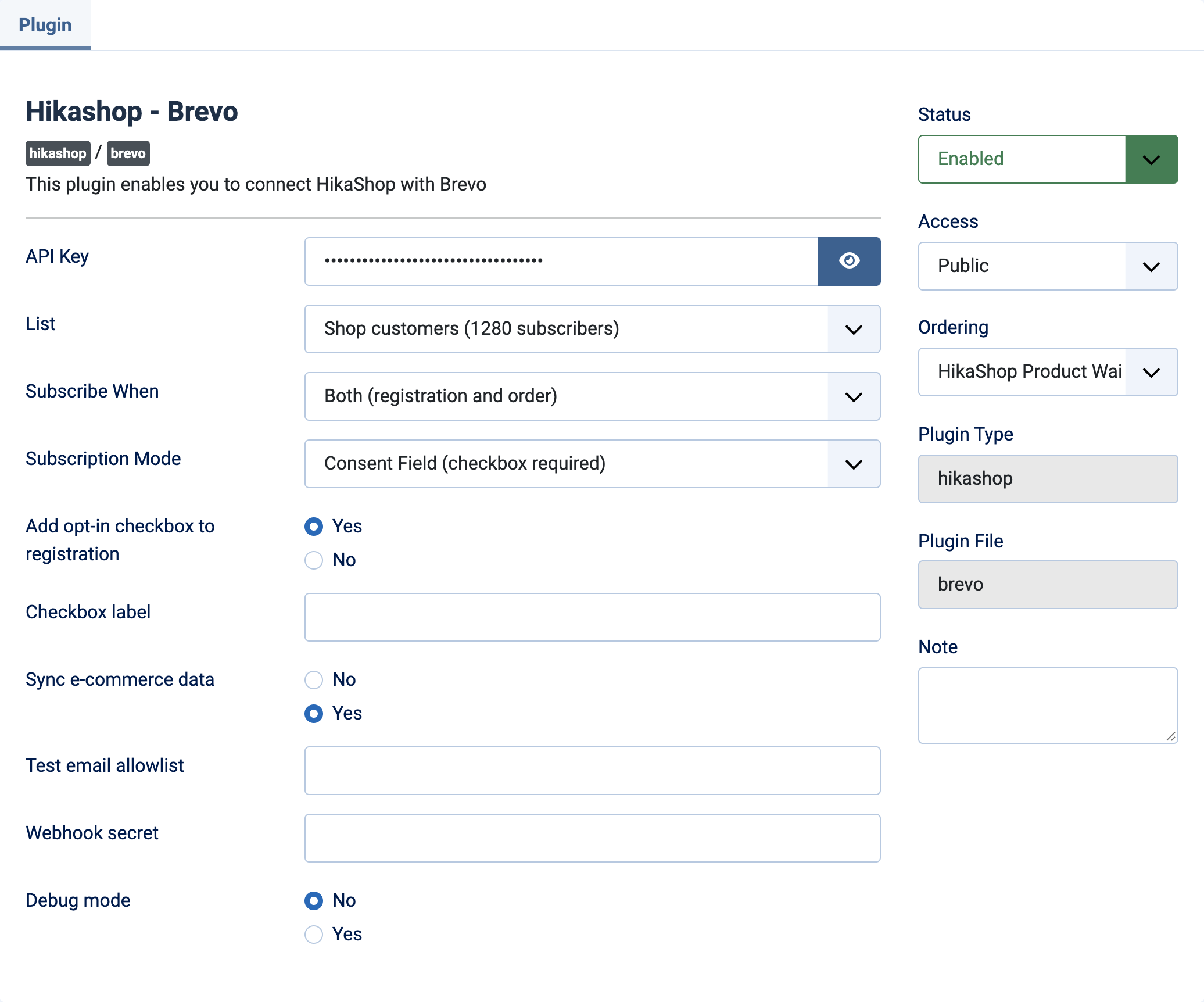
- API Key: your Brevo API key (v3). Without it nothing is sent to Brevo.
- List: the Brevo contact list the customers are subscribed to. Without a list, registrations are not subscribed.
- Subscribe When: when a customer is subscribed. On Order (default): when an order is placed. On Registration: when an account is created. Both: at each of the two.
- Subscription Mode: Automatic (default) subscribes at once. Double Opt-in has Brevo send a confirmation email and adds the contact once they click it. Consent Field only subscribes customers who gave their consent. Consent + Double Opt-in requires both.
- DOI Template ID: the number of the confirmation email template made in Brevo, under Campaigns, Templates. Shown with the two double opt-in modes. Empty, nobody is subscribed and an error is logged.
- DOI Redirect URL: the page the customer lands on after confirming. Shown with the two double opt-in modes. Empty, nobody is subscribed and an error is logged.
- Add opt-in checkbox to registration: shown with the two consent modes. Yes (default): the plugin adds its own newsletter checkbox to the registration and checkout forms, with no custom field needed. No: a HikaShop custom field is used instead.
- Checkbox label: the text next to the plugin's checkbox. Empty, the text is "Subscribe to our newsletter".
- Consent Field: with the checkbox turned off, the custom user field (checkbox, dropdown or radio) that holds the consent, made in HikaShop, System, Custom fields. Empty, nobody is subscribed. An unsubscribe received from Brevo also empties this field for the customer, so it is the field to use if you want the webhook to be reflected in your shop.
- Consent Required Value: the value of that field that means yes. Default 1; for a dropdown, the value of the yes option.
- Sync e-commerce data: Yes (default): orders, products and a purchase event are also sent to Brevo for its automations and reports. No: only the list subscription is done.
- Test email allowlist: when filled, only the customers whose email contains this text (for instance @example.com) are synced. Empty (default): everyone is.
- Webhook secret: the secret in the webhook address. Empty (default), the webhook refuses every call.
- Debug mode: No by default. Yes writes each step of the plugin (subscribed, skipped, already on the list, webhook events) to the HikaShop log.
A contact already in Brevo is never confirmed or renamed again: customers who unsubscribed (from the list or from everything) stay unsubscribed, and a customer already on the list is left as is.
Troubleshooting
- "First, provide an API key": shown instead of the lists. Paste the API key and save.
- "Could not connect to Brevo", followed by Brevo's answer: check the API key, copied again from Settings, SMTP & API, API Keys, without spaces, and that your server can reach Brevo (PHP cURL).
- "No contact lists found in your Brevo account": create a contact list in Brevo, then reload the settings.
- "Double opt-in selected but DOI template id / redirect URL are not configured" (log): fill both fields.
- "E-commerce sync skipped ... enable the eCommerce section in your Brevo account first" (log, shown in the backend when editing an order): activate the eCommerce section in Brevo, or set "Sync e-commerce data" to No.
- "Failed to subscribe ...", "Could not look up ..." or "Order ... sync failed" (log): the end of the message is Brevo's answer; it usually points to the cause (key, list or rights).
- A customer is not subscribed: turn on Debug mode and read the HikaShop log. "no consent, skipping" means the checkbox or field was not ticked, "Skipped (test allowlist)" means the address does not match the allowlist, and "Leaving ... alone" means the contact unsubscribed in Brevo.
- The webhook answers "Forbidden": the secret is empty in the plugin or differs from the token in the address given to Brevo.
- "Webhook: ... no consent field configured, opt-out not reflected locally" (log): the opt-out can only be cleared in your shop when a Consent Field is chosen; with the plugin's own checkbox it stays in Brevo only.