
Installation
- 1) Download the plugin on our website via the download link provided to you after the purchase.
- 2) Install it on your Joomla website via the extension manager and via the "Install plugin" button of System>Plugins on WordPress.
- 3) Enable the plugin in Extensions > Plugins.
- 4) In the plugin settings, select the order custom fields you want to use for booking capacity (e.g. delivery date, time slot).
- 5) Set the default capacity (number of bookings allowed per field combination).
- 6) For per-product booking, edit a product, enable booking in the Booking settings block, and select the item custom fields to track.
- 7) Optionally, create capacity overrides via Orders > Bookings > Capacity Overrides to define specific limits for certain field value combinations.
Configuration
- Order fields: select the order custom fields to track for booking capacity at checkout.
- Default capacity: the default number of bookings allowed per combination of field values, when no specific capacity override is defined.
- Take into account product quantity: when enabled, the stock reserved is based on the product quantities in the cart. When disabled, each order line counts as 1 regardless of quantity.
- Show availability: display availability indicators (spot count, color-coding) on the frontend next to field options.
- Sort the shows by their next date: in the listings of products, the events come first, in the order of their next date, then the other products. Choose No to keep the order of the listing.
- Show exact count: show the exact number of remaining spots. When disabled, a generic message is shown instead.
- Seasons (tab Seasons): one row per season, used by the products where "Price is per night" is on. Nights covered: one line per period, every year:
07-01..08-31(month-day to month-day,12-20..01-05runs over the new year),12-25(one day),2026-12-24..2027-01-02(this period only),friday-saturday(weekdays). Price of a night:+40%or-15%over the product's price, a price such as140, or a price per traveller category such asadult=140, child=70; prices are without tax, in the shop's main currency. A night outside every season costs the product's price; when two seasons cover a night, the one lower in the list wins. - Price is per night (in the Booking block of the product): the price of the product is the price of one night, and a stay costs the sum of its nights (the check-out day is not a night).
- Read the calendars every (minutes) (tab Calendar sync): how often the calendars the rooms import are read, 30 minutes by default, 10 at least. HikaShop's cron task must run at least as often.
- Closed nights in the calendars (tab Calendar sync): when on (the default), the calendar of a room also gives the nights a capacity override of 0 closes, so that the other sites close them too.
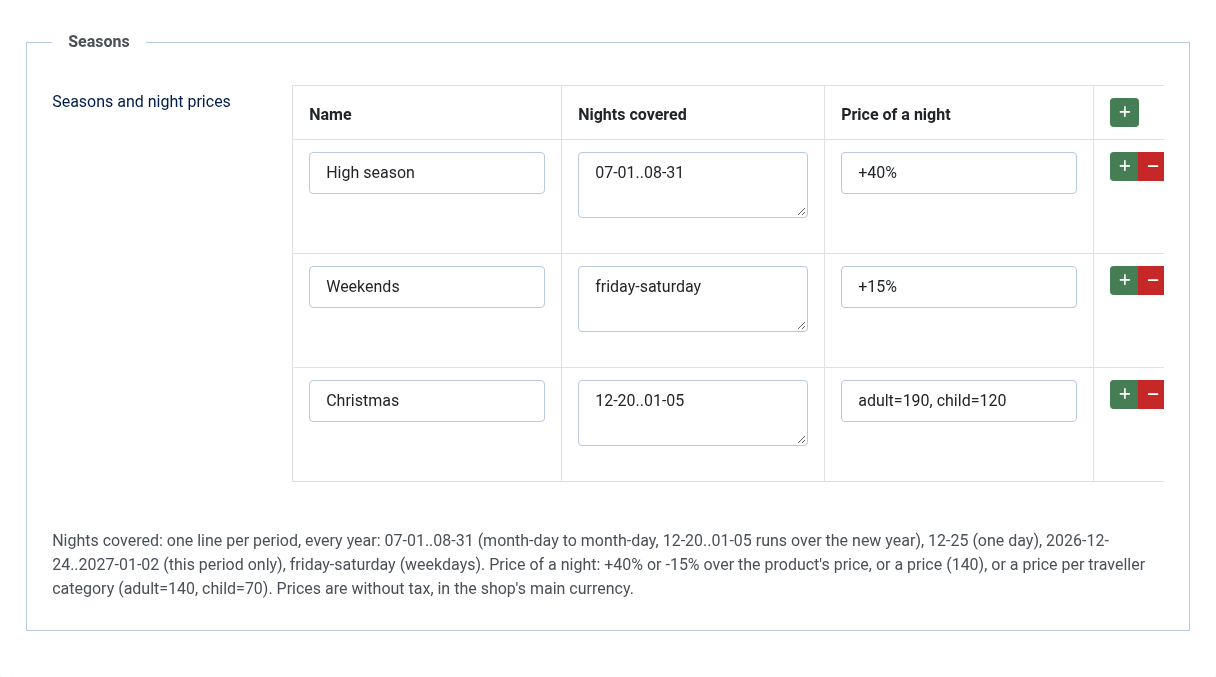
Seasons tab of the plugin: high season +40%, weekends +15%, a night price per traveller category for Christmas. They repeat every year.
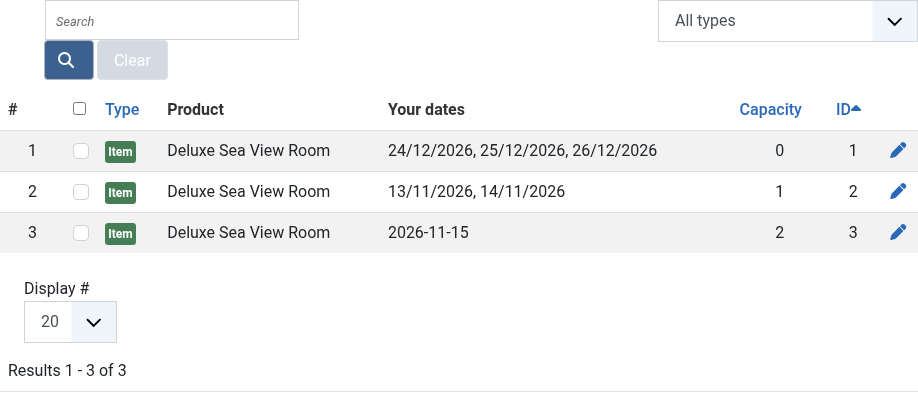
Capacity overrides: close the nights of Christmas (capacity 0) or give a limited number of spots to chosen dates, with weekday patterns and date wildcards.
Sync with Booking.com, Airbnb and channel managers
For a room whose type of booking is "Stay priced per night" and whose booking fields include a date field in range mode, the Booking block of the product shows a Calendar sync part.
- Calendar of this room: the address of the room's calendar. Paste it where the other site imports a calendar: on Airbnb, in the listing's Calendar, Availability, Connect calendars, import a calendar; on the Booking.com extranet, in Rates & Availability, Sync calendars, add a calendar connection; in Beds24, Smoobu or another channel manager, in the room's iCal import. It gives the nights the room is full on your site (by your orders and by the calendars it imports) and, if you want, the nights you closed, as "Booked" or "Closed", without any guest data. Keep it private all the same: anyone with it sees your occupancy. Tick "Make a new address when saving" to stop an address that went where it should not; then give the new one to every site.
- Address to give to a calendar you import: the same calendar without the nights imported from that site, the one to give back to it, so that its own bookings do not come back to it.
- Calendars to import: one calendar per line, as a name, a vertical bar and its address, for example
Airbnb|https://www.airbnb.com/calendar/ical/...(Airbnb gives it in Connect calendars, export the calendar; Booking.com in Sync calendars, export). Each event of those calendars blocks its nights on your site: the product page calendar shows them taken, the listing's date filter hides the room and the cart refuses them. They are read when you save the product, then by HikaShop's cron task at the interval of the settings, and the button "Read the saved calendars now" reads them at once. A calendar taken out of the list frees its nights. - Last read: for each calendar, when it was read, how many events and nights it gave, or why it could not be read. A calendar that cannot be read keeps the nights it blocked before; after three failed reads in a row, the shop's email address receives one message.
- In Orders > Bookings, the nights blocked by an imported calendar show its name instead of an order number, with a filter by source, and the CSV export has a Source column.
iCal is not instant: Airbnb reads the calendars it imports about every 3 hours, Booking.com and the channel managers on their own schedule, and your shop at the interval of its settings. A night can be booked on two sites between two reads. For a property in high demand, connect Booking.com and Airbnb to a channel manager, which takes their bookings at once, and sync your shop with the channel manager. Each event blocks one place: a room sold as several identical units blocks one unit per event.
Troubleshooting: "the room has no range date field among its booking fields": select a date field in range mode in the Booking block's item fields. "HTTP 404" or "HTTP 403": the address is wrong or was renewed on the other site; copy it again. "the address does not give a calendar": the address is a web page, not the .ics calendar. Nights that stay blocked after a booking was cancelled elsewhere are freed at the next read of that site's calendar, once that site has updated it.
Microdata settings
These settings control the structured data (JSON-LD) output on product pages for booking-enabled products. Each field mapping can be either a product custom field name (the value will be read from the product) or a hardcoded value.
- Schema type: the schema.org type to use (Hotel, HotelRoom, LodgingBusiness, BedAndBreakfast, Hostel, Resort). Leave empty to keep the default Product type. Can be overridden per product.
- Check-in time: check-in time (e.g. "14:00" or a custom product field name).
- Check-out time: check-out time (e.g. "11:00" or a custom product field name).
- Occupancy: maximum number of guests.
- Amenities: comma-separated list of amenities (e.g. "WiFi, Air Conditioning, Minibar").
- Star rating: hotel star rating (1-5).
- Bed type: type of bed (e.g. King, Queen, Twin).
- Number of beds: number of beds in the room.
- Number of rooms: number of rooms available.